
How can I use viaSocket with Coursebox?
In this article
In this article group
- How do I use and manage Groups?
- What is Coursebox?
- What is the AI Tutor in Coursebox?
- How do I upgrade or downgrade my plan?
- Where can I watch tutorial videos?
- How can I regenerate a course completion and trigger a certificate?
- How can I use my domain name with Coursebox?
- Can I get a refund?
- Can Coursebox integrate with Workday?
- How can RTOs create a course from a training.gov.au URL?
- What should I know about delivering and assessing Units of Competency in Coursebox?
- What should I do after exporting my RTO Pack?
- How do I use the AI Editor to generate or rewrite content?
- Can I create quizzes with AI?
- Can I generate AI videos with avatars?
- Can I generate audio versions of course content?
- What is the difference between Dynamic SCORM and Self-hosted SCORM?
- How do I create interactive elements like flip cards and tabs?
- How do I delete a video from a carousel in Coursebox?
- Can I require learners to watch specific parts of a video and set forced completion in a slideshow?
- How can I force learners to complete videos, SCORM packages, slide decks, or external surveys in Coursebox?
- How do I mark or moderate learner assessments?
- Can assignments be added only at the lesson level?
- How do I navigate between my courses and drafts?
- How do I add or remove learners, facilitators, or collaborators?
- How do I enrol learners using a CSV upload?
- Can I share my course certificate to LinkedIn?
- How can I track course completion if learners don't have email addresses?
- How do I publish my course (Private, Public, or Paid)?
- Does Coursebox support xAPI export?
- Can I embed Coursebox courses in another LMS using LTI or SCORM?
- Why is my restricted course showing on the login page?
- Can Coursebox support blended workshops and live training models?
- How do I check my AI credits and usage balance in Coursebox?
- Can I customise email notifications and SSO login?
- How can I use PostHog for analytics dashboards in Coursebox?
- How do I use the built-in Questions & Answers forum?
- How do I add events or manage calendars?
- How do I use leaderboards to engage learners?
- How do I add another portal admin?
- How do I create a support ticket in Coursebox?
- How do I Share a Course on Social Media?
- How do I create a course using AI?
- How do I use pathways and badges to engage learners?
- How do I use Claude with the Chrome extension in Coursebox?
- How to get more AI credits
- Where to Find and Manage Pathways
- What is AI Interactive Scenario?
- How to Log Out of Your Account
- How to Find and Download Your Invoices
- What Ask CourseboxAI Can and Can't Do
- How to use your own audio file for lesson narration (instead of AI-generated audio)
- Is it worth upgrading? Value & ROI by plan
- Which Coursebox plan do I need? Features by plan & upgrade triggers
- How do I Export or Upload my Course to Udemy, Coursera and Other Platforms
- How do I add more source material or content to an existing course?
- Can a course play automatically, like a video?
- Why can’t I access the course creation system after making a payment?
- Can I build a course manually instead of using AI?
- How do I edit the layout and structure of my course?
- How do I set up an AI Tutor chatbot?
- How do I upload or embed images and videos?
- How do I share or export my course PDF or HTML?
- How do I create and assign certificates?
- How do I translate an existing course into another language?
- Can Coursebox enforce or display word counts in assignments?
- Can I create Assignments using AI?
- Can I build my course sales funnel in Coursebox?
- How can I use Zapier with Coursebox?
- How do I sell courses on Coursebox AI?
- How can I sell monthly recurring memberships in Coursebox?
- How do I share or export my course: Share Link, iFrame, LTI, and SCORM
- How do I duplicate, delete, or hide courses?
- How do I log in to Coursebox?
- How do I track learner progress and download reports?
- How do I manage course themes, logos, and branding?
- AI Course Creation Prompt Templates
- How do I downgrade to the Free plan?
- Can learners do a course offline with no internet? (Self-hosted SCORM)
Plan requirement: viaSocket is available from Creator and above. The Open API, direct API access for custom integrations, is a separate thing: it is an add-on on Pro + LMS and included on Enterprise. Compare plans.
On an earlier plan? Plan names and inclusions changed when we moved to Free, Creator, Pro, Pro + LMS and Enterprise. If you are on an earlier plan, your subscription continues unchanged and you keep everything it included, so you may still see features this article lists under a higher plan. Nothing has been removed from your account.
viaSocket is an automation tool that connects Coursebox with 2,300+ other apps. When something happens in a tool your team already uses, viaSocket can invite people to Coursebox, enrol them in courses and groups, and keep their profiles up to date.
Here are some practical ways training teams, educators and course creators can use viaSocket with Coursebox:
Onboard new employees automatically: when a new hire is added to your HR system, invite them and enrol them in your onboarding course.
Enrol a whole list at once: add people to a Google Sheet and enrol each new row in a course.
Give access after payment: when a customer pays in Stripe or Shopify, enrol them in the course they bought.
Keep profiles in sync: when a record changes in your CRM, update the learner's profile and custom fields in Coursebox.
For the full list of Coursebox workflows, see the Coursebox LMS integration page on viaSocket.
Popular viaSocket use cases for Coursebox
1. HR System → viaSocket → Coursebox
Enrol new employees in onboarding from day 1.
Example workflow: new employee added → invited to Coursebox and enrolled in the onboarding course → added to their team's group.
Great for: HR teams, onboarding, growing organisations.
2. Google Sheets → viaSocket → Coursebox
Enrol a cohort from a spreadsheet.
Example workflow: new row added → invite the person and enrol them in a course → set their custom fields.
Great for: cohorts, training organisations, enterprise L&D teams.
3. Stripe or Shopify → viaSocket → Coursebox
Grant course access after payment.
Example workflow: successful payment → invite the buyer and enrol them in the paid course.
Great for: paid courses, digital products, creator businesses.
4. Typeform or Google Forms → viaSocket → Coursebox
Turn sign-ups into enrolments.
Example workflow: form submitted → invite the person and enrol them in the course they chose → add them to a group.
Great for: lead magnets, applications, workshops.
5. CRM → viaSocket → Coursebox
Enrol customers in training when a deal is won.
Example workflow: deal marked "Closed Won" → contact invited to Coursebox → enrolled in customer onboarding → added to the customer group.
Great for: customer onboarding, partner training, SaaS teams.
6. HR System → viaSocket → Coursebox (when someone leaves)
Keep course access up to date.
Example workflow: employee marked as leaving → unenrolled from their courses and groups.
Great for: compliance, access management, HR teams.
Integrate viaSocket and Open API
Access your Open API key
To connect Coursebox with viaSocket, you'll need your API Key.
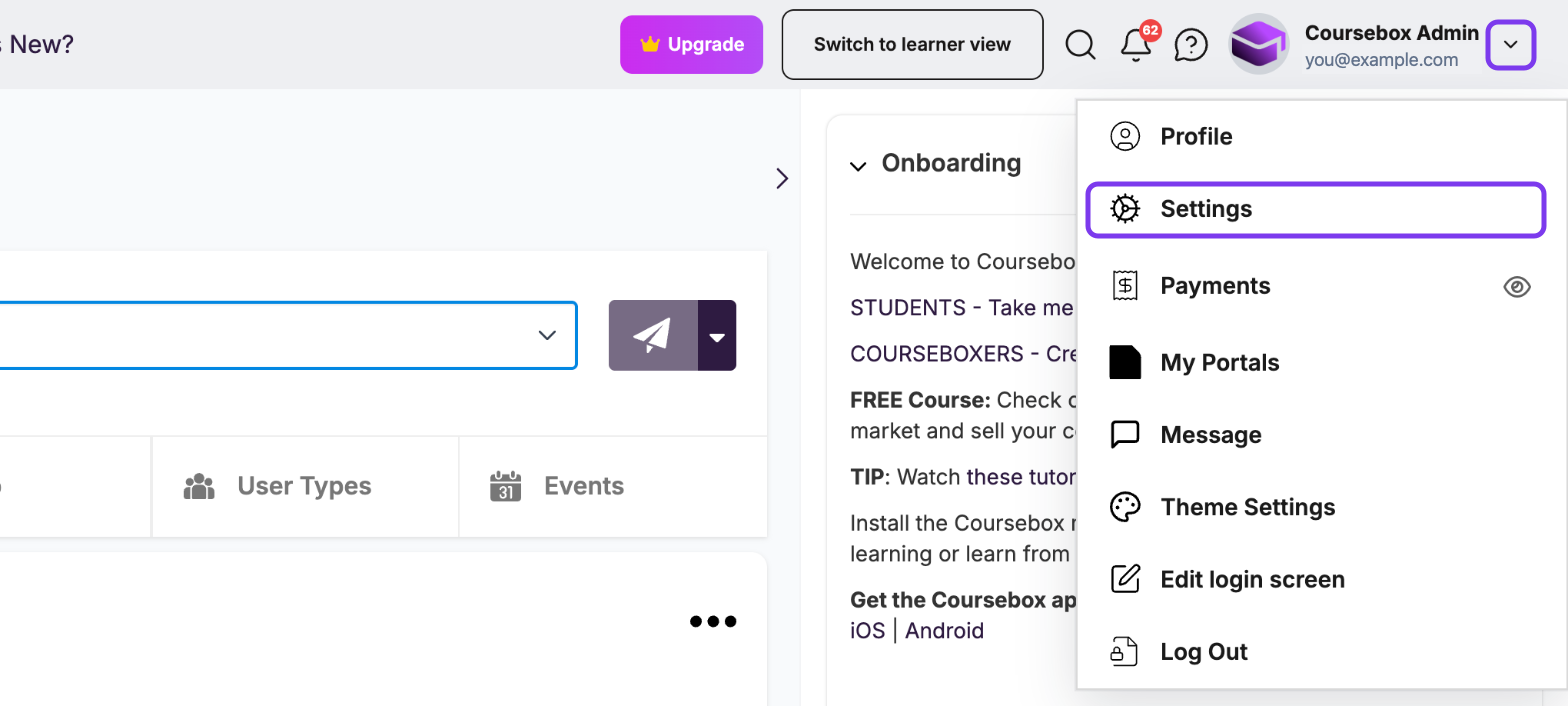
Log in as a Super Admin, click the dropdown (▼) next to your profile icon and select Settings.
In the left-hand menu, click Integrations and, under Open API, copy your API Key for use in viaSocket.
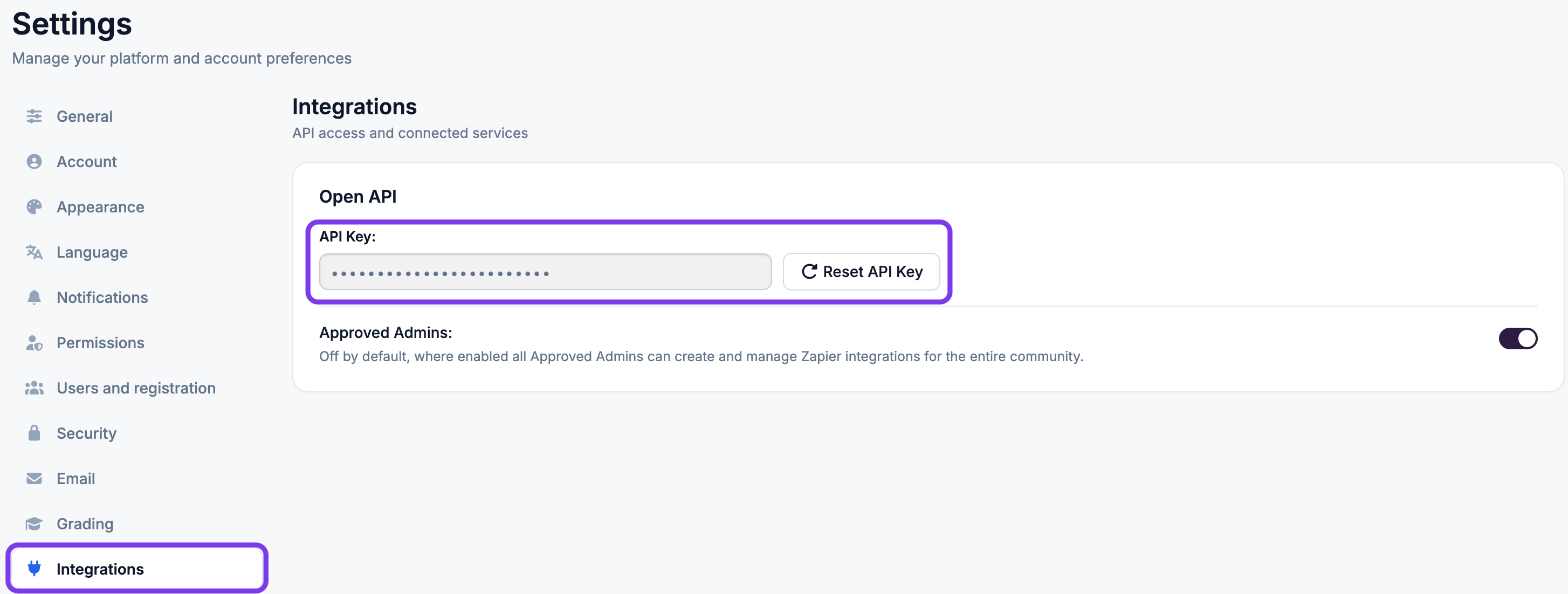
Click Reset API Key to create a new key. The new key replaces the old one straight away, so paste it into every app that uses it, such as viaSocket and Zapier.
Let admins manage viaSocket (optional)
To let users with the Admin role copy the API Key and set up viaSocket for the whole portal, turn on the Approved Admins switch in Settings → Integrations. It is off by default.
Connect Coursebox to viaSocket
How to connect
Sign up or log in to viaSocket, and create a new workspace or use an existing one.
Go to Dashboard → Connections and click Connect new app.
Search for Coursebox and select Coursebox LMS.
When prompted, enter the following:
API Key: found in Settings → Integrations, under Open API.
Portal Domain: your portal's own domain if you use one (e.g.
learning.yourcompany.com). To use the standard Coursebox portal, leave it blank.
Click Add Connection.
Coursebox is now ready to use in your viaSocket workflows.
Coursebox action options
These are the actions viaSocket can perform inside Coursebox:
Action | Description |
|---|---|
Invite and Enroll User to a Course | Invites a user to Coursebox and enrols them in a course. |
Unenrol User from Course | Removes a user from a course. |
Enrol User into Group | Adds a user to a group. |
Unenrol User from Group | Removes a user from a group. |
Set User Custom Fields | Adds or updates a user's custom field values. |
Update Profile | Updates a user's profile details in Coursebox. |
Get Course Learners | Returns the list of learners enrolled in a course. |
Build your first workflow
This example enrols every new hire in your onboarding course.
In viaSocket, create a new workflow and choose the app where new hires are added, such as your HR system or a Google Sheet.
Add the Coursebox LMS action Invite and Enroll User to a Course.
Use the new hire's email from the first step, and choose your onboarding course.
To add them to their team as well, add Enrol User into Group.
Test the workflow with a sample record, then turn it on.
For help with building workflows in viaSocket, contact support@viasocket.com. For anything in Coursebox, contact support@coursebox.ai.
For Zapier and other integrations, see How can I use Zapier with Coursebox? and Integrations - SAML, WordPress, Arlo, SCORM, Zapier, Open API.