
How do I create interactive elements like flip cards and tabs?
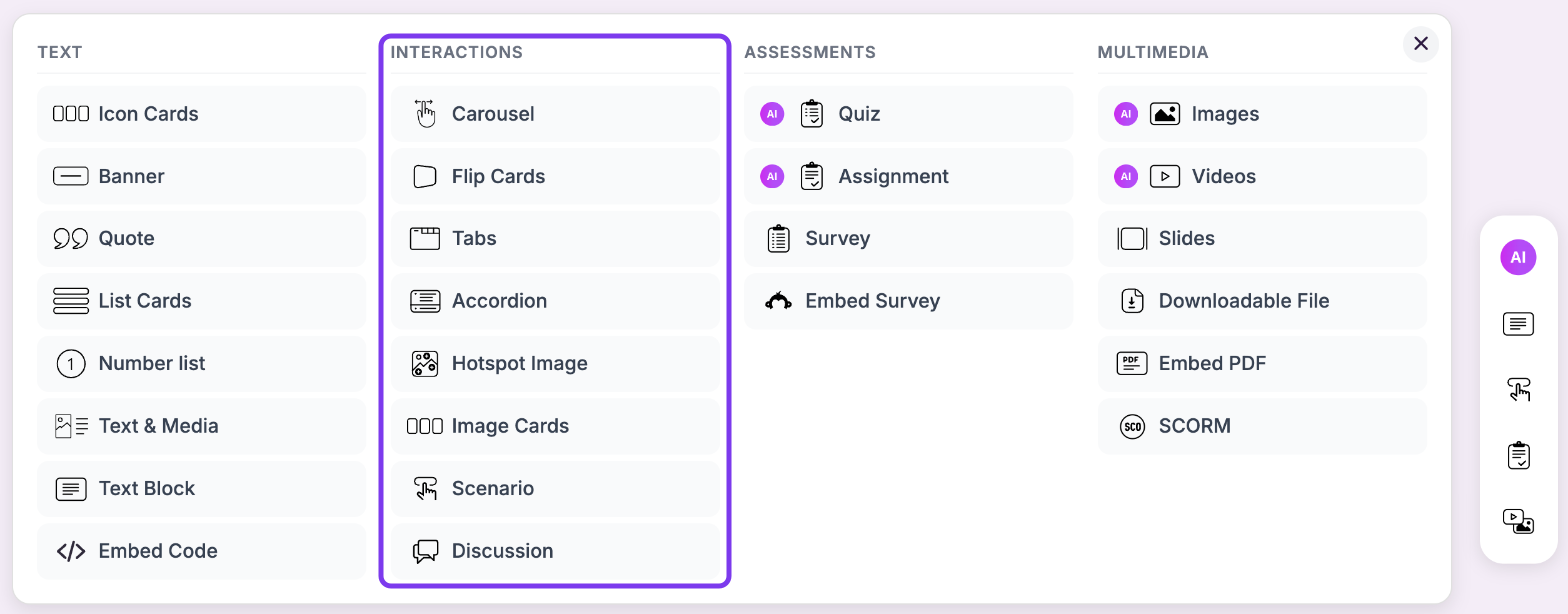
Add flip cards, tabs and other interactions from the Interactions column of the + Add block panel, or from the Interactions icon in the toolbar on the right of the editor. The interactions are Carousel, Flip Cards, Tabs, Accordion, Hotspot Image, Image Cards, Scenario and Discussion.
Add an interaction
Open your course in the editor and hover over a block.
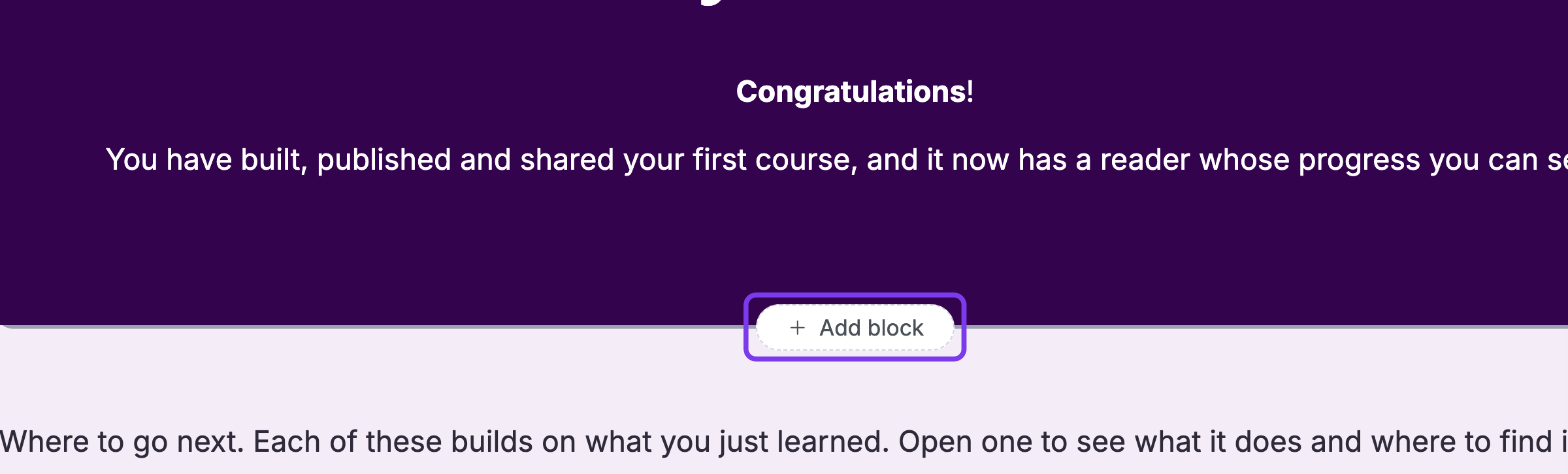
Click + Add block.
Choose an interaction from the Interactions column, for example Flip Cards or Tabs.
The block is added to your page, ready for your content. For step-by-step instructions for each interaction, including how to add images and links, see Add Interactions.
Let the AI add interactions for you
When you create a course: click Auto setup below the prompt box, choose a setup or click New setup, then set Interactive content under Interactivity in the General section. See Create a Course using AI.
When you edit a course: ask the AI Editor (the sparkle icon in the top toolbar) to create Flip Cards, Accordions, Tabs, Icon Cards, List Cards or Quotes with the content filled in.