Add Interactions
Interactions help learners explore your content and stay involved. Use carousels, flip cards, tabs, accordions, hotspot images, image cards, scenarios and discussions to break complex information into smaller pieces.
Watch the tutorial playlist below, or open the full YouTube Video Library.
Add an interaction block
You can add an interaction from the page, or from Add block (the + icon) in the top toolbar.
From the page
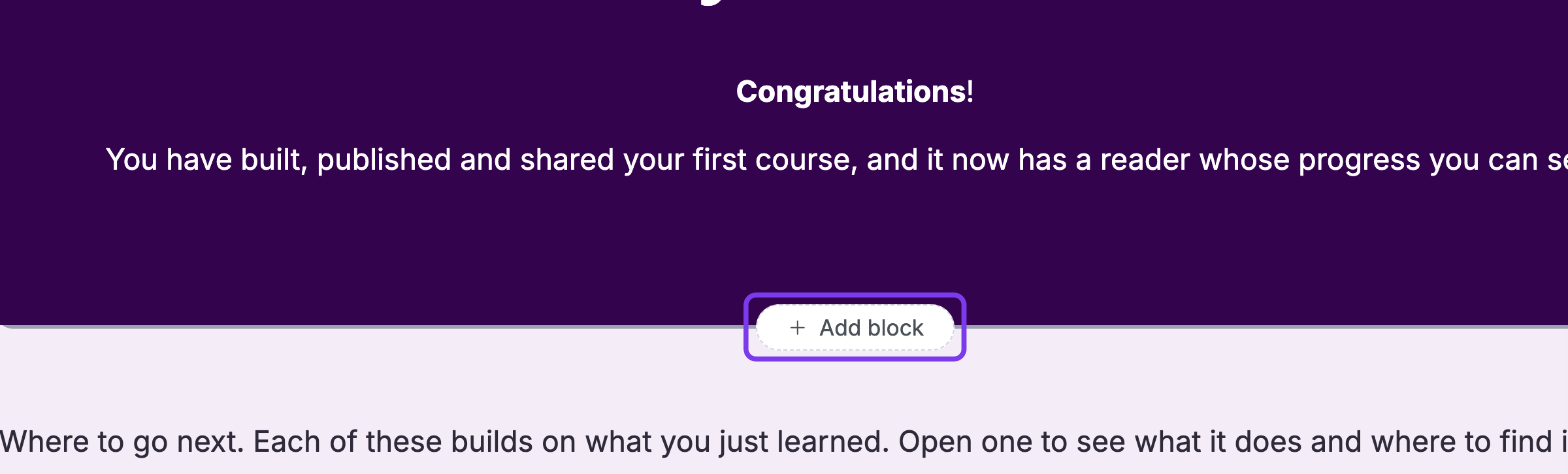
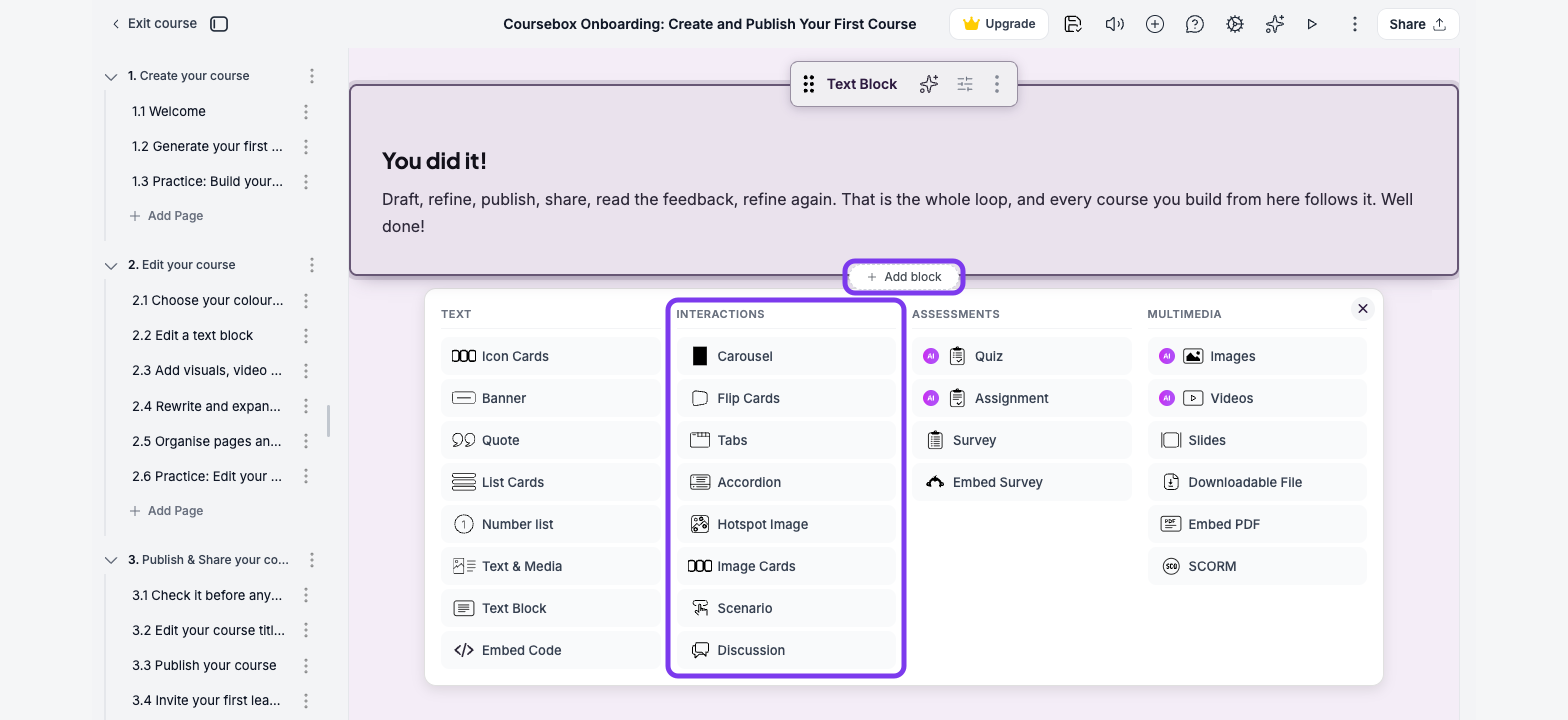
Hover over a block and click + Add block to add a new block next to it. To add one at the end of the page, click Add block at the bottom of the page.
In the panel that opens, choose an interaction from the Interactions column.
From the top toolbar
Click Add block (the + icon) in the top toolbar.
Click Interactions.
Click the interaction you want. It's added to the page.
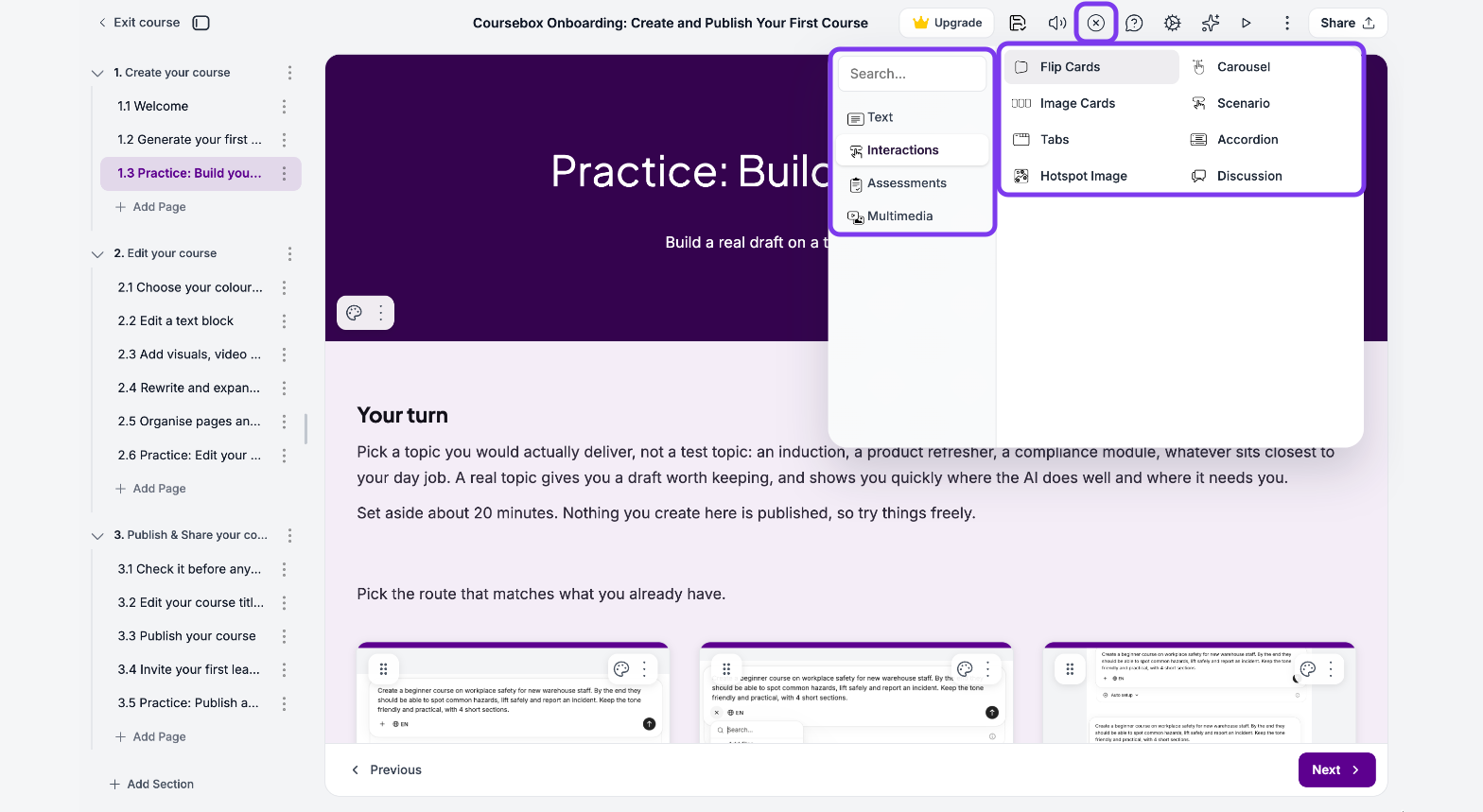
The other groups in the same panel add Text, Assessments and Multimedia blocks. You can also search for a block by name.
When you create a course with Coursebox AI, interactions can be generated as part of the course. When you edit a course, you can also ask the AI Editor (the sparkle icon in the top toolbar) to create Flip Cards, Accordions, Tabs, Icon Cards, List Cards and Quotes with the content filled in. You can also build any interaction yourself.
To see a block as learners will, click Switch to learner view (the play icon) in the top toolbar. Some blocks, such as Scenario, also have Edit and Preview in their own toolbar.
Carousel
A carousel shows content across slides that learners click or swipe through. Use it to break information into sections, highlight key points or tell a visual story.
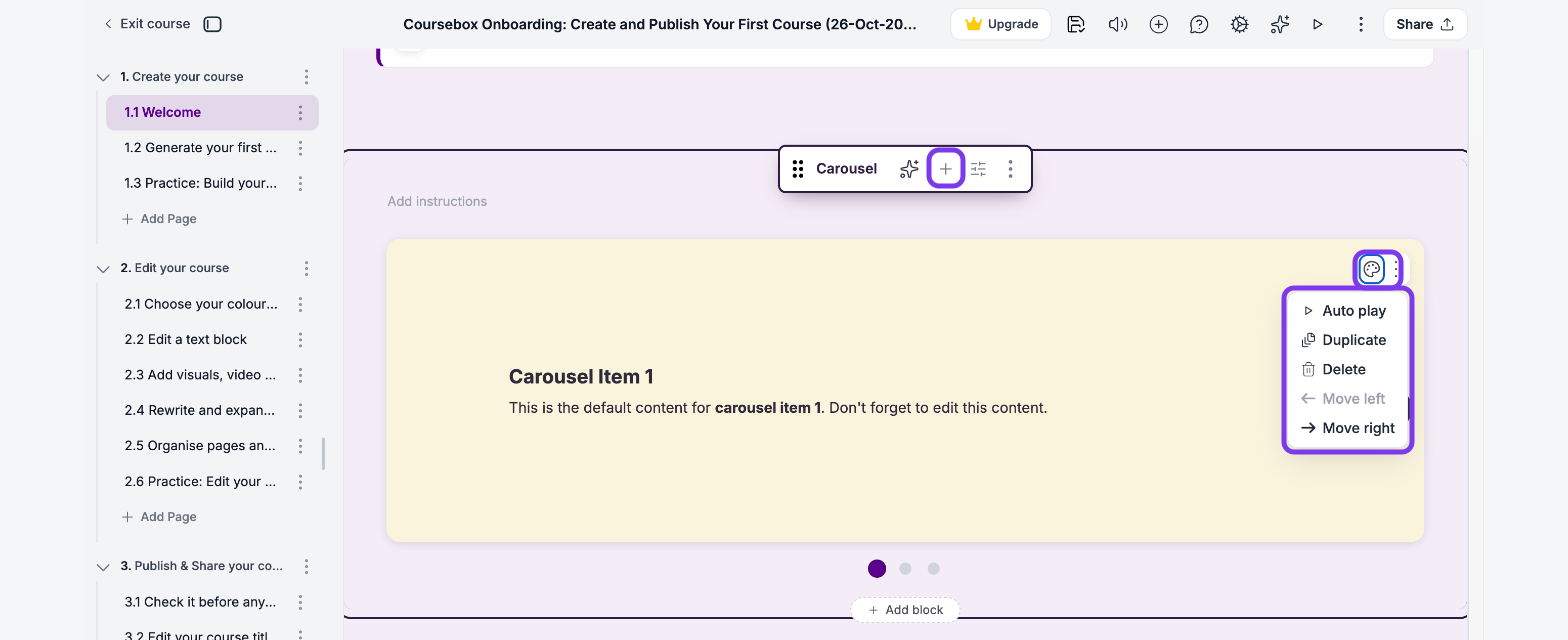
Click Carousel in the Interactions column. A carousel with three slides is added to your page.
Click the slide title, for example Carousel Item 1, and type your own.
Click the text under it and add the slide content.
To change the slide background, click the palette icon on the slide and choose a colour. Turn on Apply to all items to use it on every slide.
To move through the slides automatically, click ⋮ on the slide and choose Auto play.
Click the arrow to go to the next slide and repeat. To add a slide, click Add item (+) in the block toolbar.
The slide's ⋮ menu also has Duplicate, Delete, Move left and Move right.
Flip Cards
Each flip card has a front and a back. Learners click a card to flip it and see more information. Use flip cards for definitions, key terms or quick recall questions.
Click Flip Cards in the Interactions column.
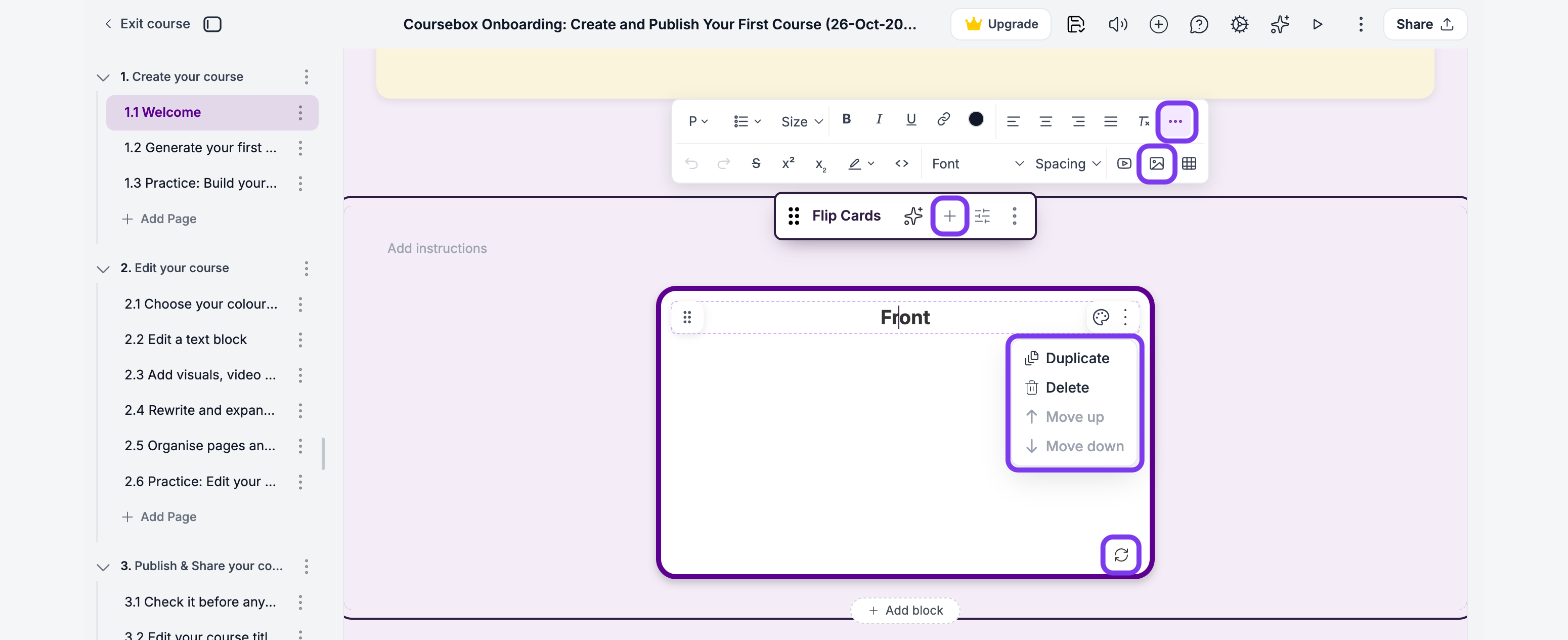
Click the front of the card and type your question or term.
Click the flip icon in the bottom-right corner of the card, then type your answer on the back.
To change the card's colours, click the palette icon on the card.
To add more cards, click Add item (+) in the block toolbar. The card's ⋮ menu has Duplicate, Delete, Move up and Move down.
Add an image or link to a flip card
Click the text on the card to open its formatting toolbar.
To add a link, select the text and click the link icon.
To add an image, click More formatting (⋯), click the image icon and choose an image from your computer.
Tabs
Tabs group related information under separate headings that learners click to open. Use them to compare concepts, break down a topic or lay out step-by-step instructions without crowding the page.
Click Tabs in the Interactions column.
Click Tab 1 and type the tab name.
Click the text under it and add your content.
To add an image or icon, hover over the image box and click the upload icon.
To add more tabs, click Add item (+) in the block toolbar. To remove a tab, click ⋮ on it and choose Delete.
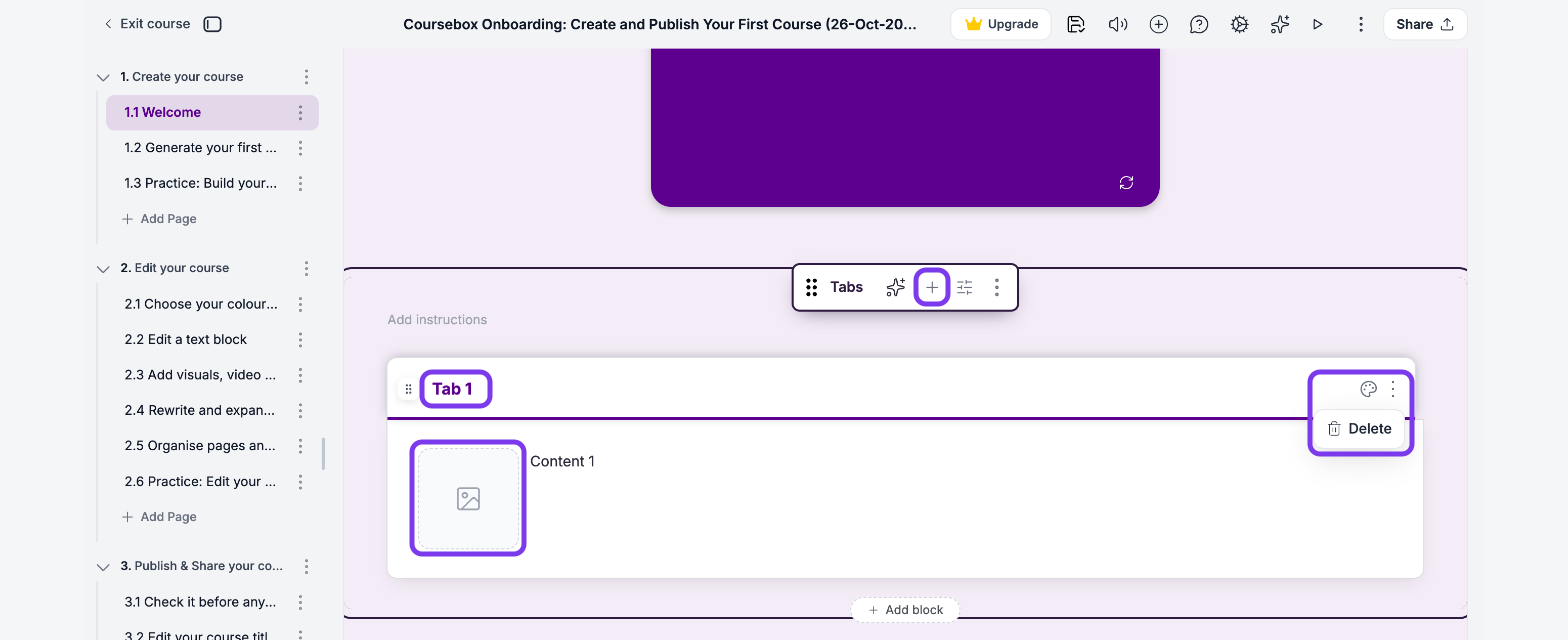
Courses you create with AI include a default image in each tab, which you can keep or replace.
Accordion
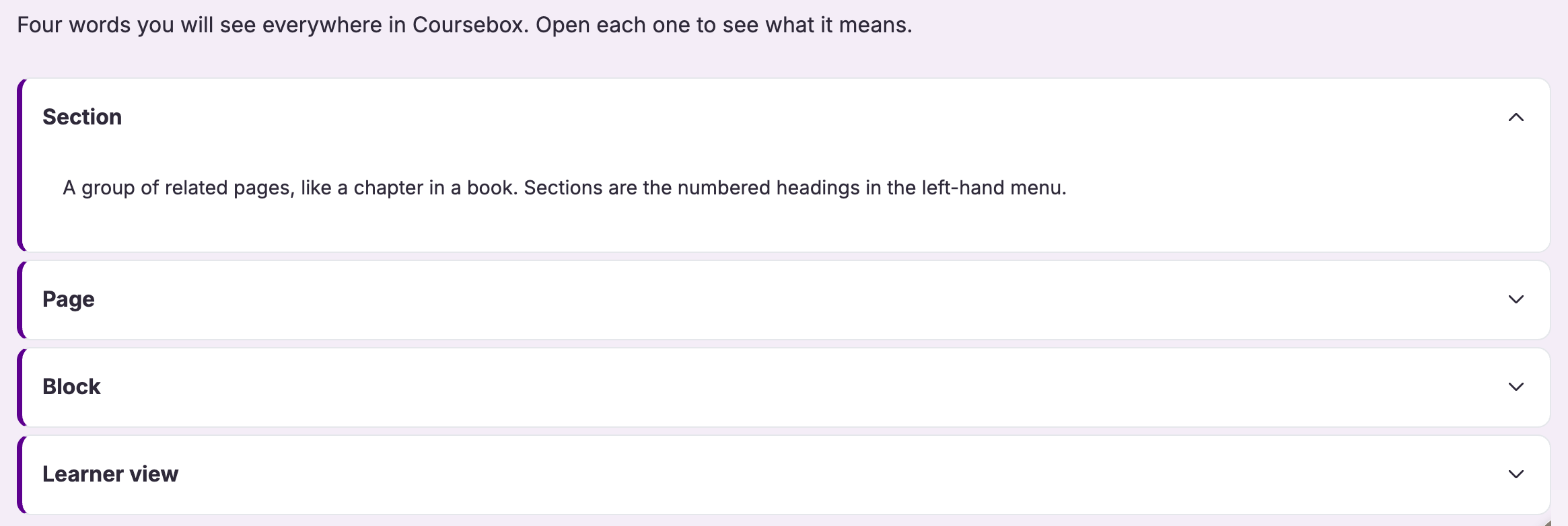
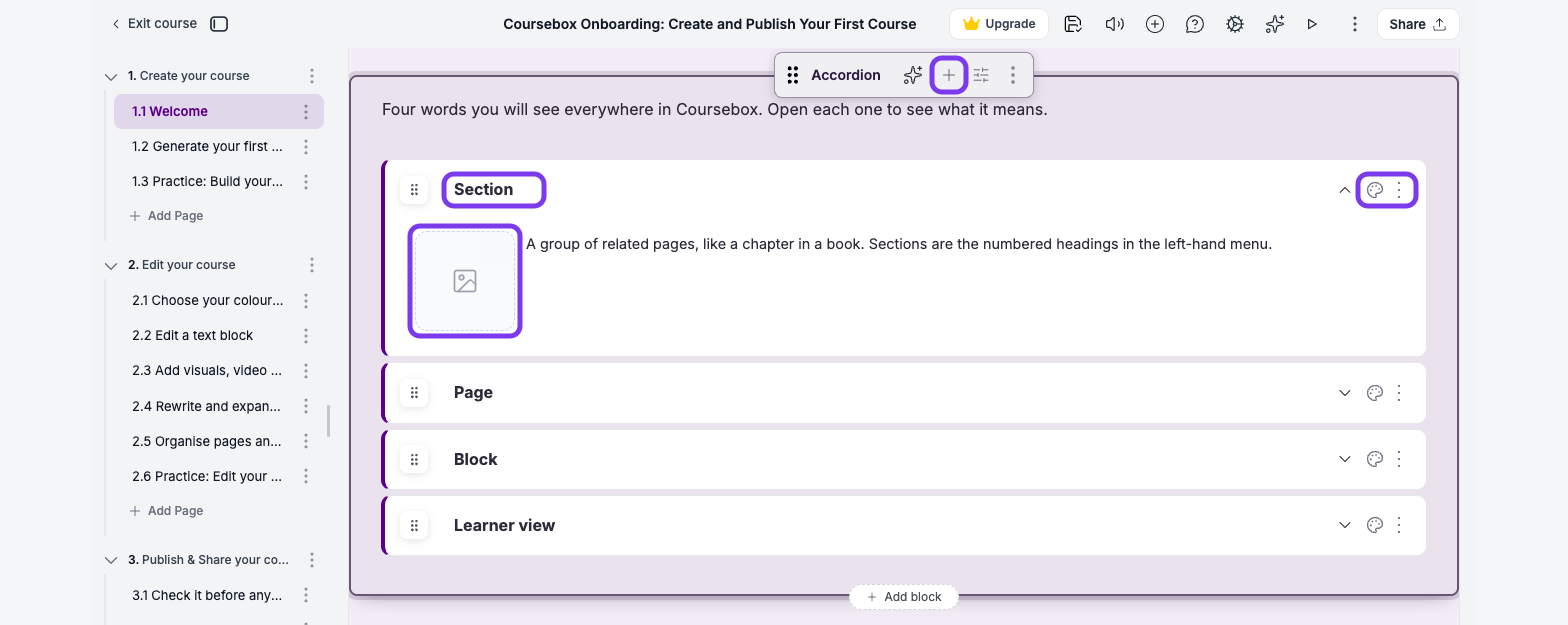
An accordion shows content in sections that learners expand one at a time. Use it for FAQs, step-by-step guides or detailed topics you want to keep tidy.
Click Accordion in the Interactions column.
Click the section title and type your heading.
Click the text under it and type the section content.
To add an image or icon, hover over the image box and click the upload icon.
To add another section, click Add item (+) in the block toolbar.
To remove a section, click ⋮ on it and choose Delete.
Hotspot Image
A hotspot image lets learners click markers on an image to see more information. You can add several hotspots to one image, which works well for diagrams, equipment and floor plans.
Click Hotspot Image in the Interactions column.
Click Upload Background and choose an image from your computer, or drag an image onto it.
Click Add item (+) in the block toolbar. A numbered hotspot appears on the image.
Drag the hotspot to where you want it.
In the hotspot's card, click Add a hotspot title and type a title, then click Add content for this hotspot and type what learners see when they click it.
Repeat steps 3 to 5 for each hotspot.
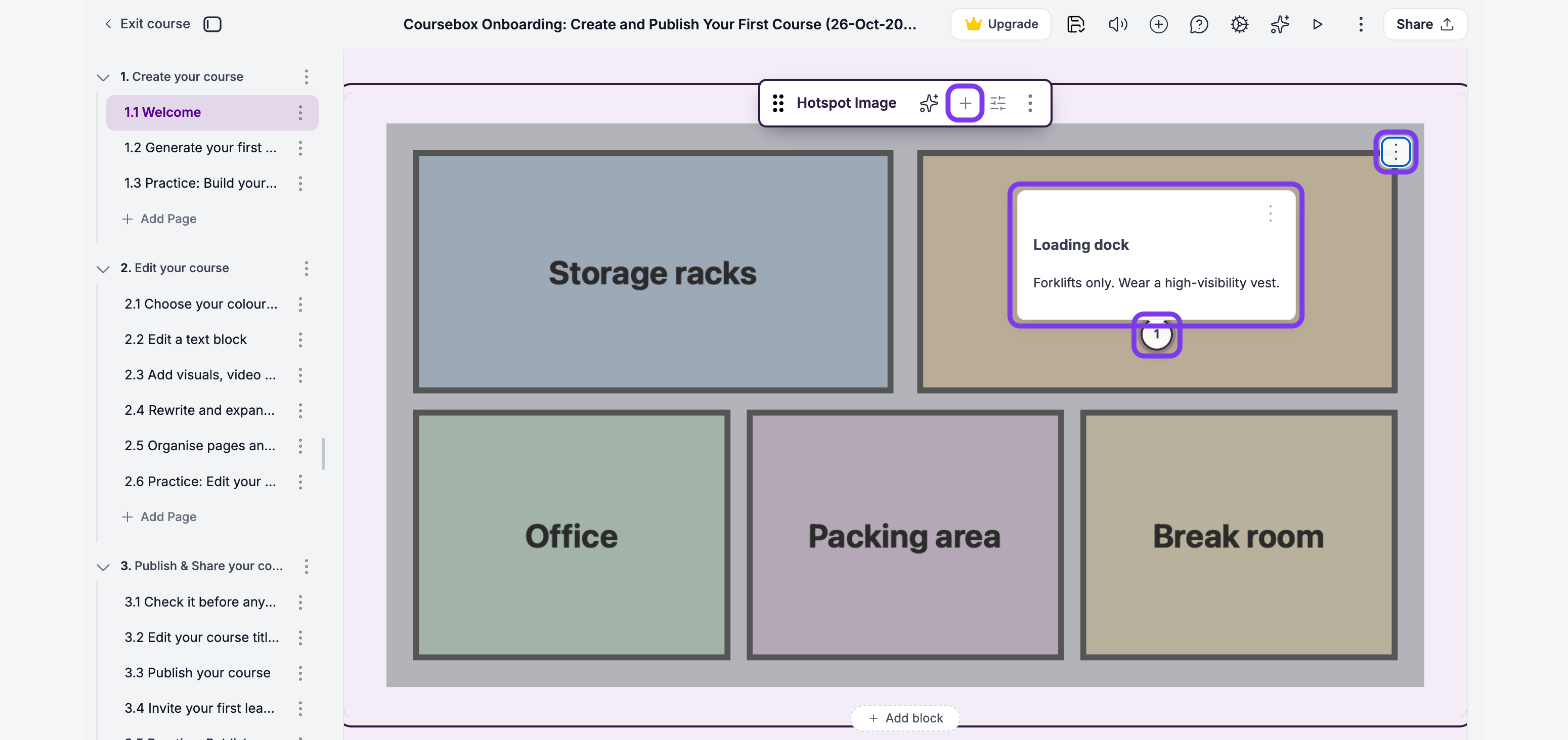
The hotspot's ⋮ menu has Move up, Move down and Delete. To use a different background, click ⋮ on the image and choose Change image.
Image Cards
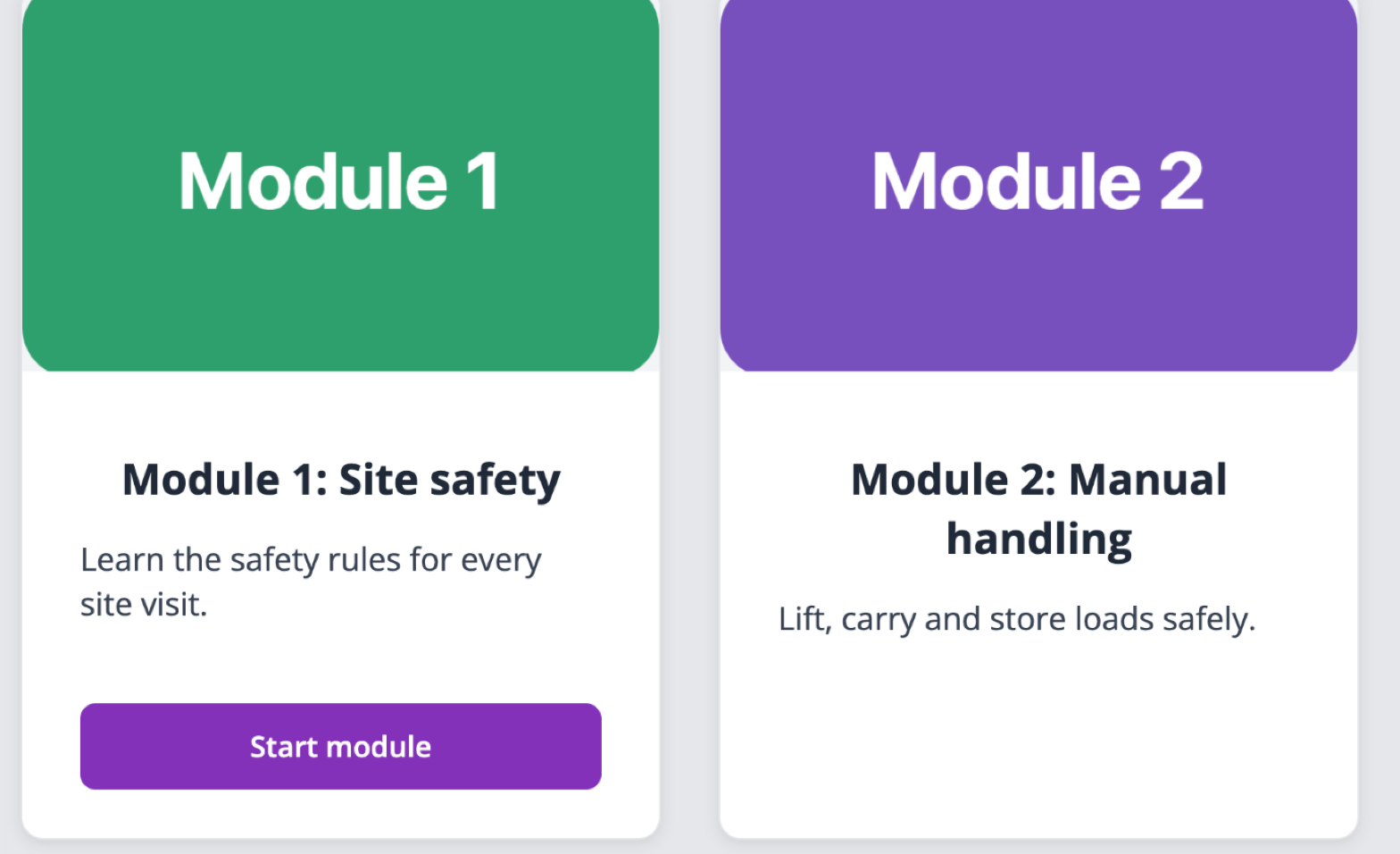
Image cards highlight key content on cards, each with an image, a title, a short description and an optional button.
Click Image Cards in the Interactions column. A block with three cards is added to your page.
On each card, click Upload Image and choose an image from your computer.
Click the card title and type the heading.
Click the text under it and add one to three short sentences.
Click the button text to change it, for example to "Learn more". To set the page it opens, select the text and click the link icon in its toolbar.
To add a card, click Add item (+) in the block toolbar. To remove one, click ⋮ on the card and choose Delete. The same menu has Duplicate, Move up and Move down.
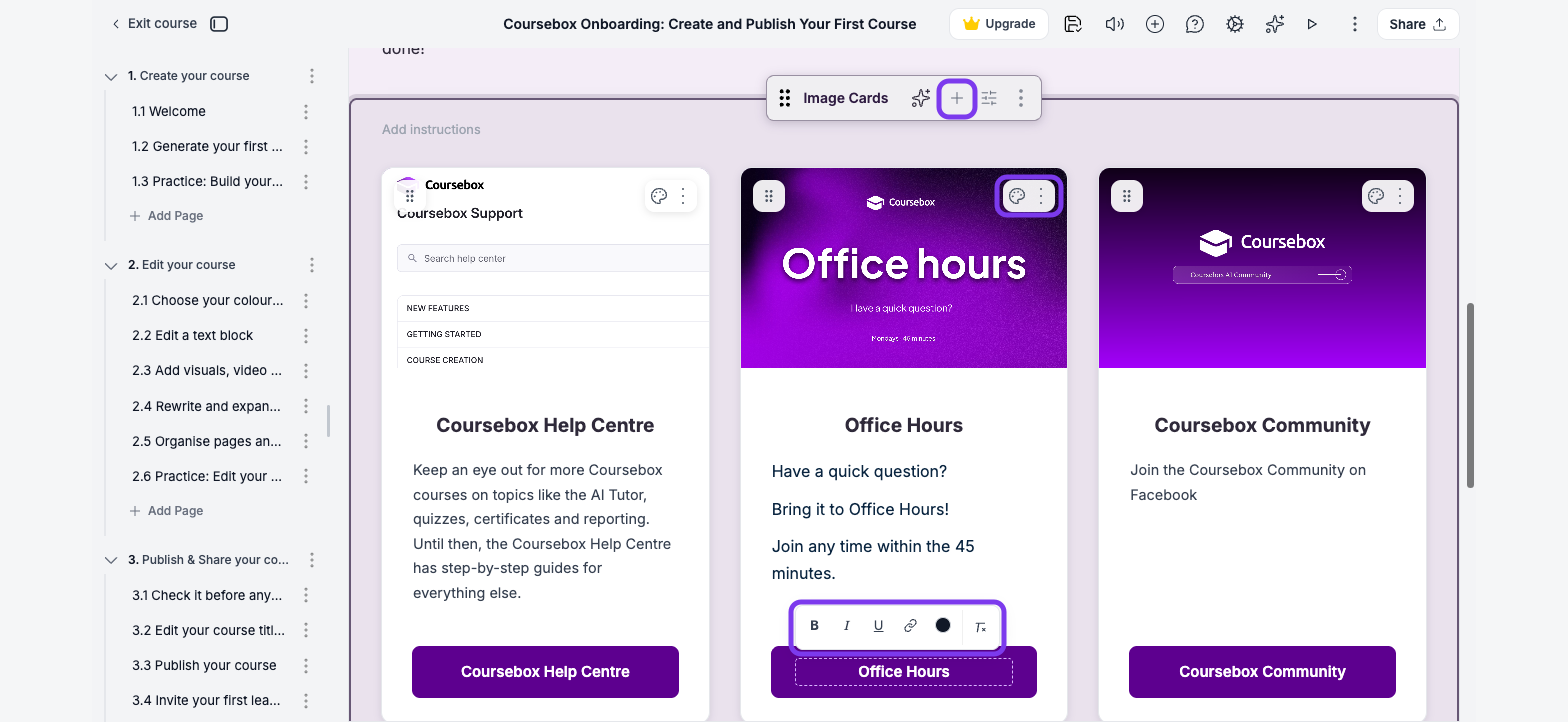
Use landscape images of the same size on every card so the cards line up.
Scenario
A scenario is an AI-generated, decision-based activity. Learners step into a realistic situation and make choices over several turns, and each choice shapes the outcome. Scenarios suit soft skills, compliance, customer service and any topic where judgement matters more than memorising facts.
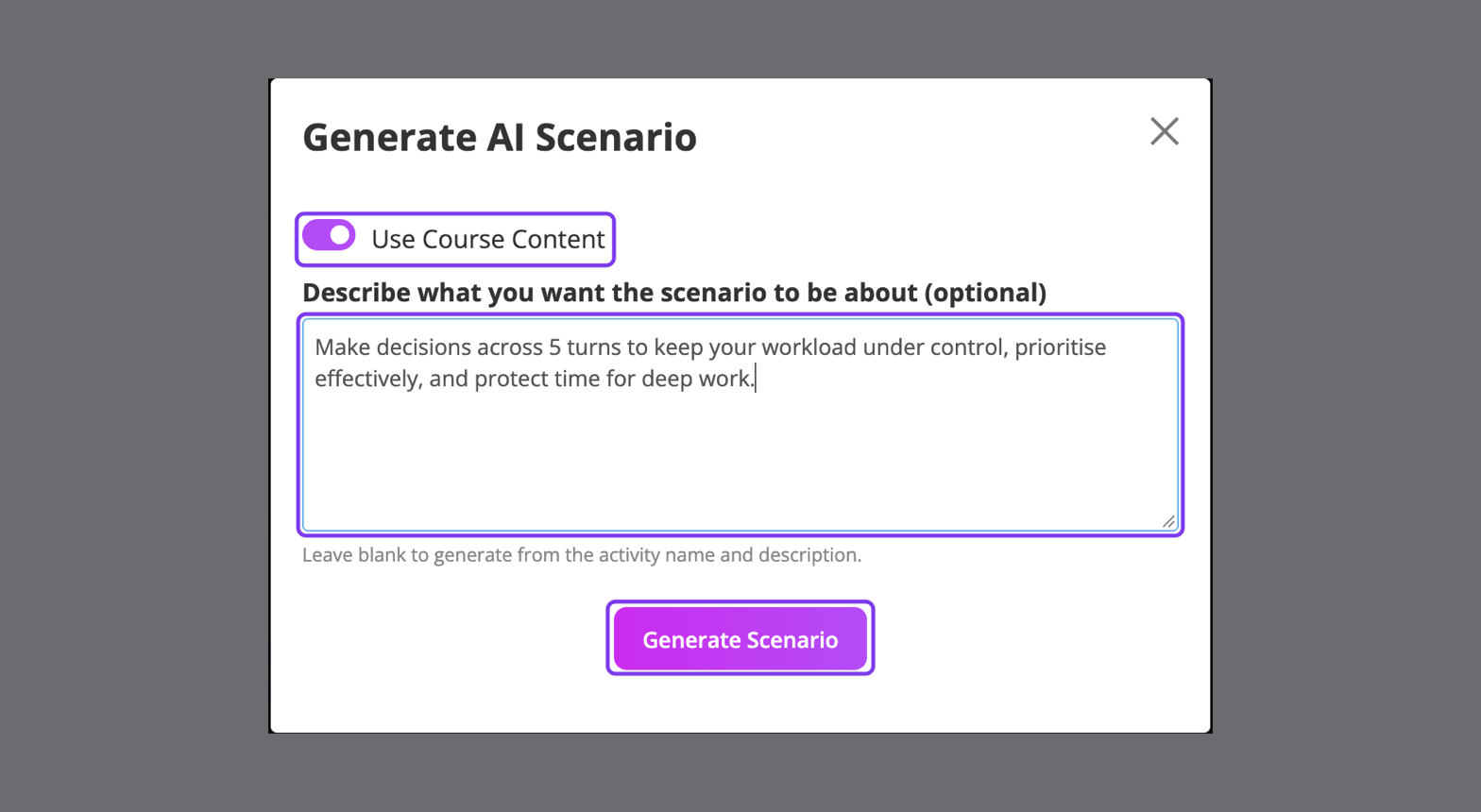
Click Scenario in the Interactions column. The Generate AI Scenario window opens.
Leave Use Course Content on to base the scenario on your course.
In Describe what you want the scenario to be about, enter a short brief, for example "Make decisions across 5 turns to keep your workload under control, prioritise effectively, and protect time for deep work." If you leave it blank, Coursebox uses the page name and description.
Click Generate Scenario.
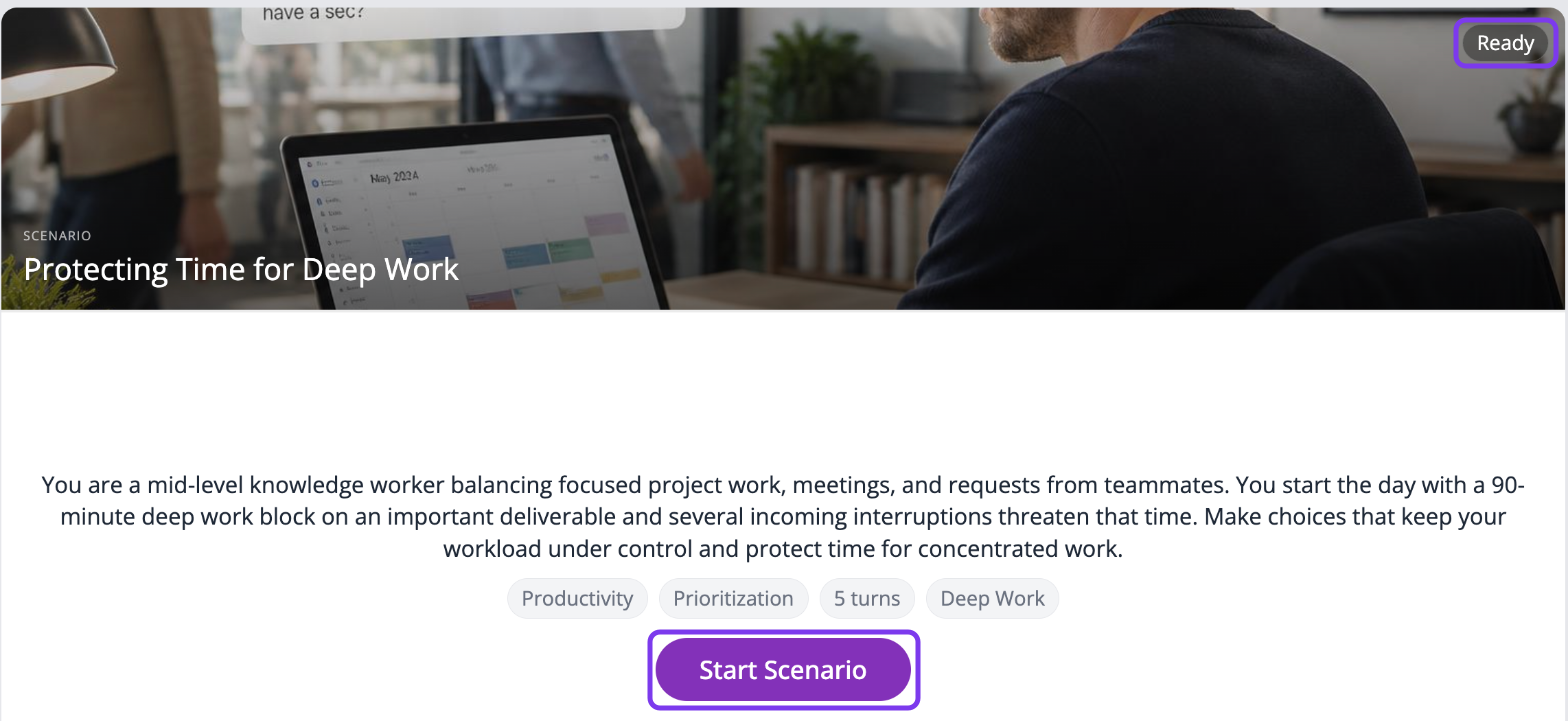
Coursebox AI creates the scenario with a title, cover image, situation, topic tags and number of turns. When it shows Ready, learners click Start Scenario to begin.
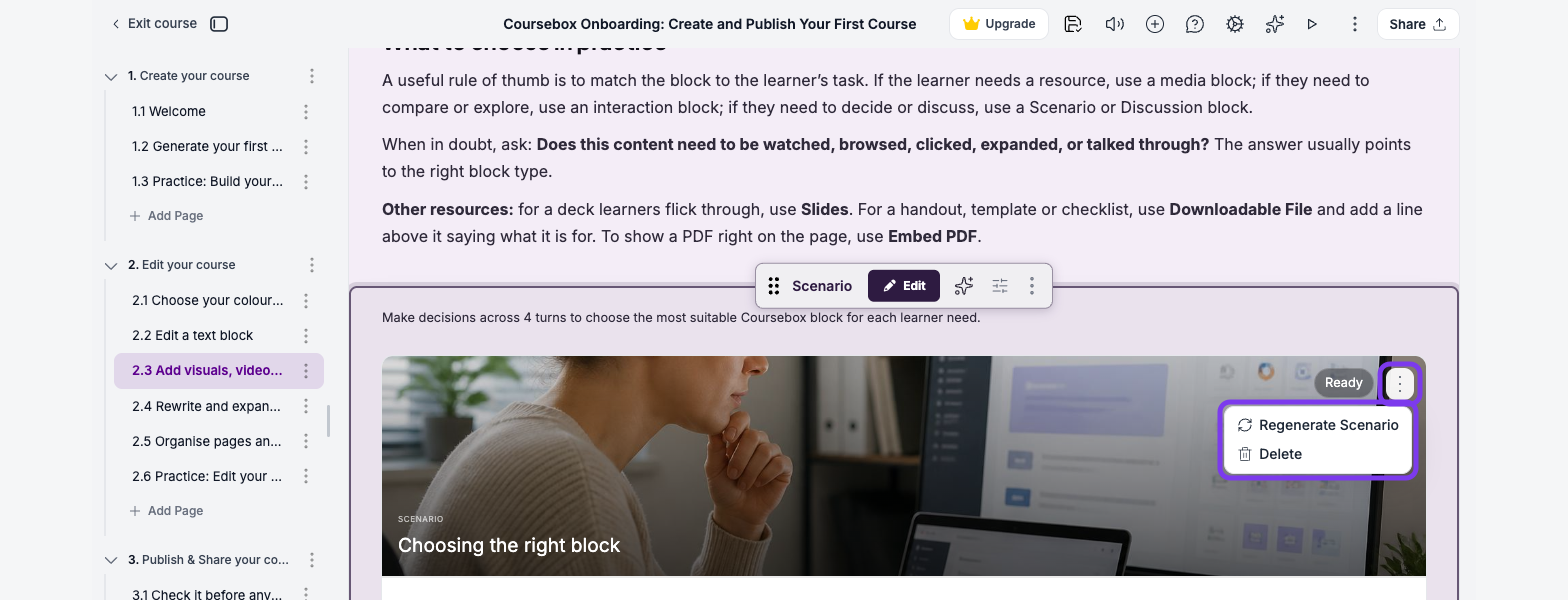
To get a different version, click Scenario actions (⋮) in the top-right corner of the scenario, then click Regenerate Scenario.
Keep your brief specific. Mention the role, the situation and the skills you want learners to practise.
Discussion
A discussion block lets learners share ideas and talk with each other inside your course. Use it for peer discussion, reflection or questions. Facilitators can join in and reply to posts.
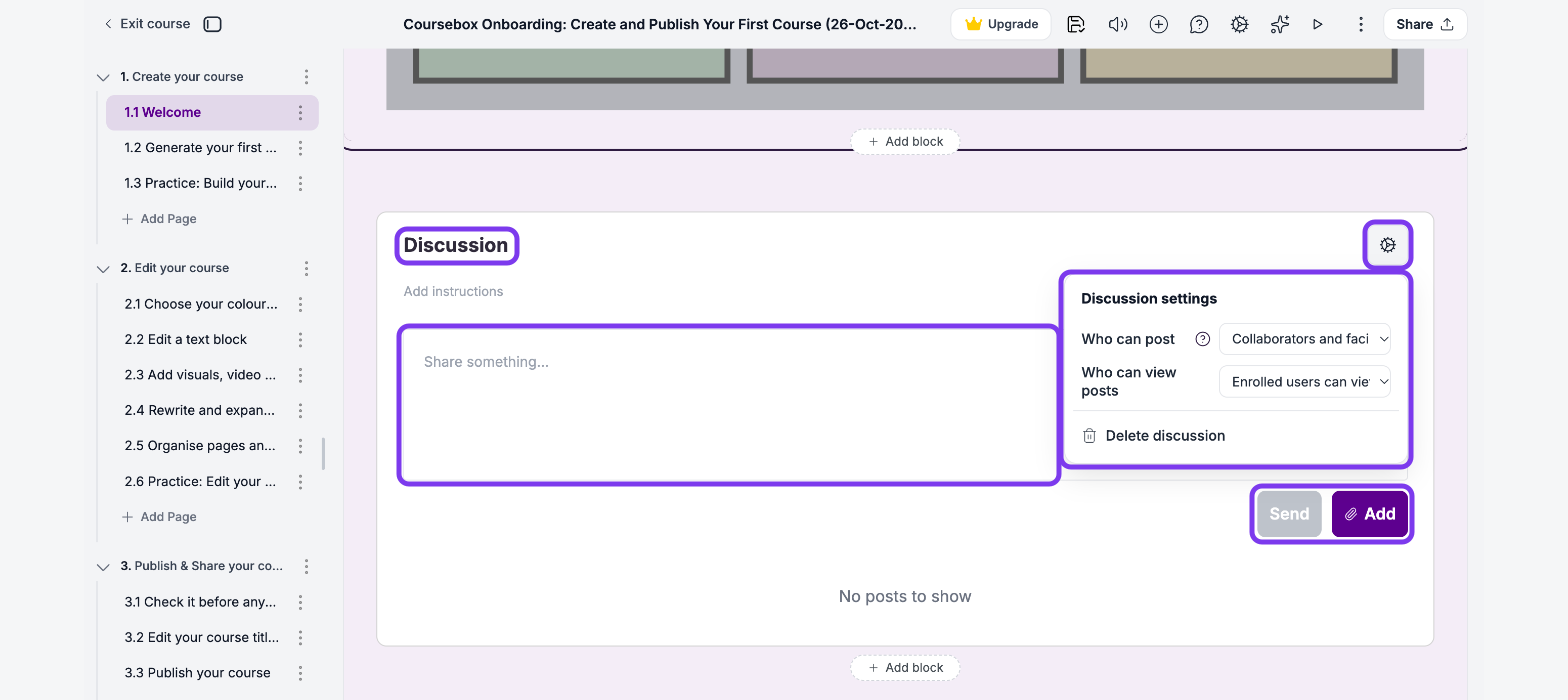
Click Discussion in the Interactions column.
Click the title, Discussion, and type your own.
Click the gear icon to open Discussion settings.
Under Who can post, choose Anyone can post or Collaborators and facilitators only. A new discussion starts with Collaborators and facilitators only, so change it if learners should post.
Under Who can view posts, choose Enrolled users can view or Collaborators and facilitators can view.
To start the discussion, type in Share something.... To attach an image or file, click Add. Then click Send.