Add Multimedia
This section allows you to enrich your course with visual and audio elements that enhance engagement and support diverse learning styles. From uploading images and videos to embedding audio and interactive content, multimedia tools help bring your course to life. Use these features to create a dynamic, inclusive learning experience that aligns with your content and audience needs.
Watch the tutorial videos found in our YouTube Video Library.
Click the + button on the page to open the content picker, then pick an item from the MULTIMEDIA section. The picker shows every category — Text, Interactions, Assessments and Multimedia — side by side in one panel, so there is no separate tab to switch to.
Two different "+" buttons
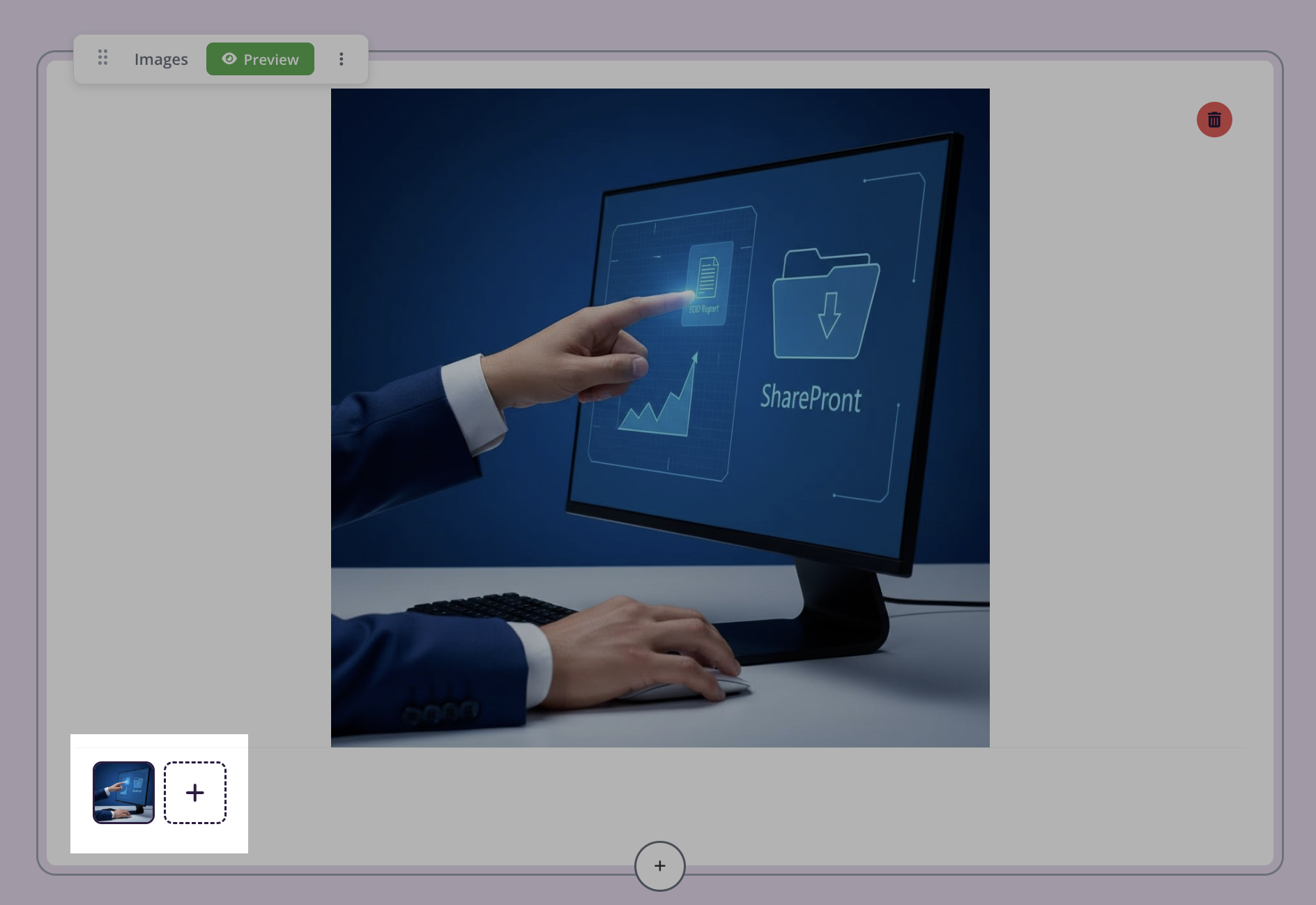
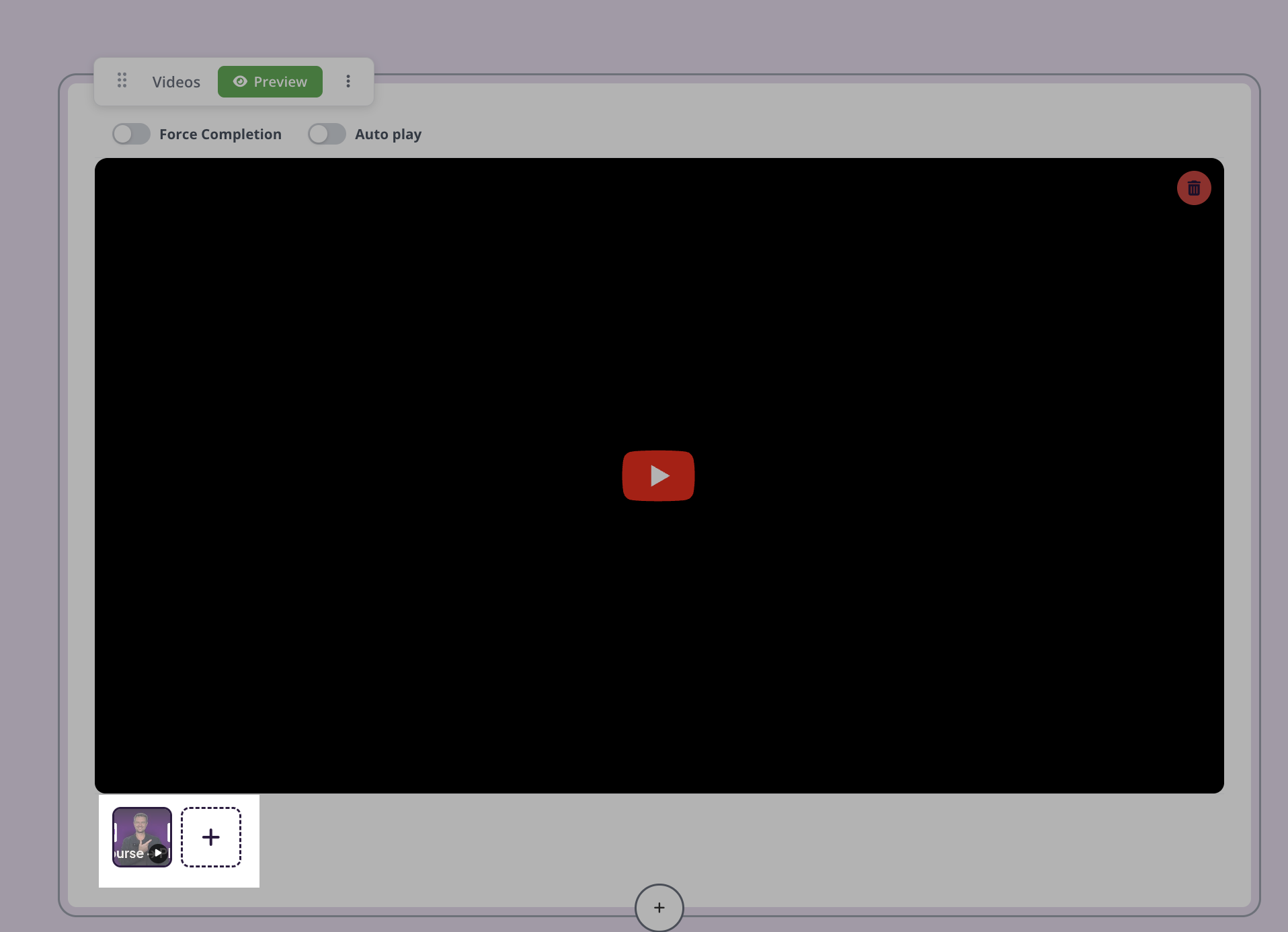
The large round + button on the page (between blocks or at the bottom) adds a brand-new content block and opens the content picker. The smaller + tile inside an existing image or video block adds another item to that same block, building a gallery/carousel that learners scroll through with the arrow buttons. It does not create a new block. This works the same way for both the image gallery and the video gallery.
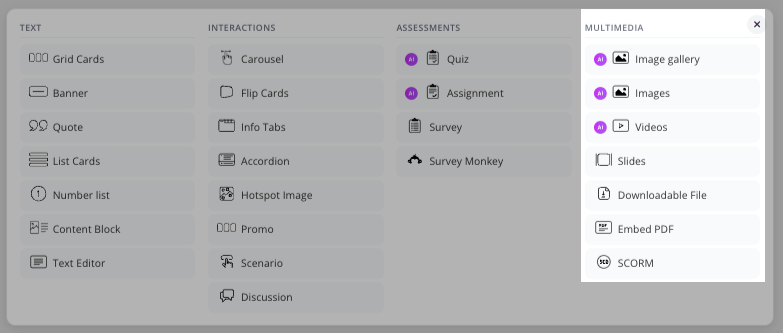
Images
Images are a powerful way to enhance your course content and improve learner engagement. Whether you're using high-quality stock visuals, uploading your own graphics, or generating unique images with AI, Coursebox offers flexible options to suit your content style. This section walks you through the different ways you can incorporate images to support your learning objectives and create a more visually compelling experience.
Once the block is open, you can select from the following image options:
Stock Images
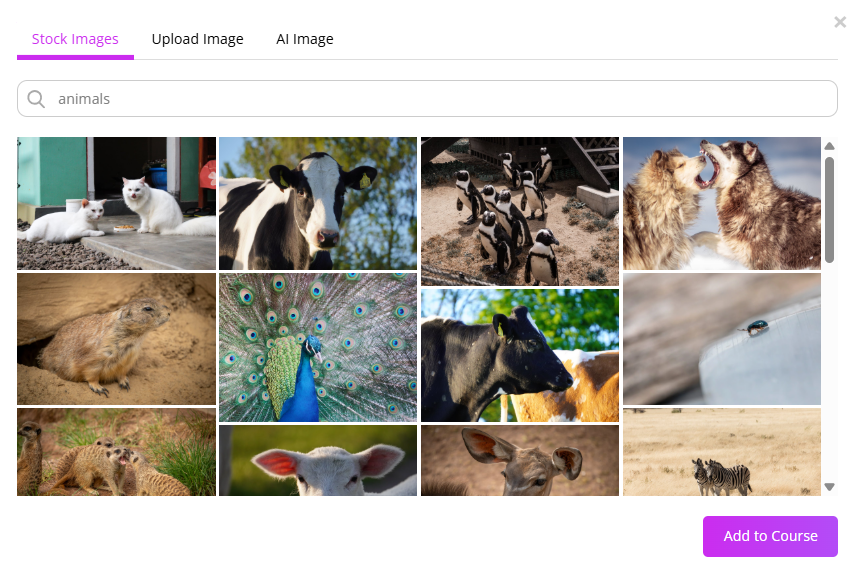
Coursebox allows you to easily enhance your content by selecting high-quality stock images directly within the platform. From the top menu, you can browse and insert visuals that align with your lesson themes, making your course more engaging and visually appealing.
Upload Images
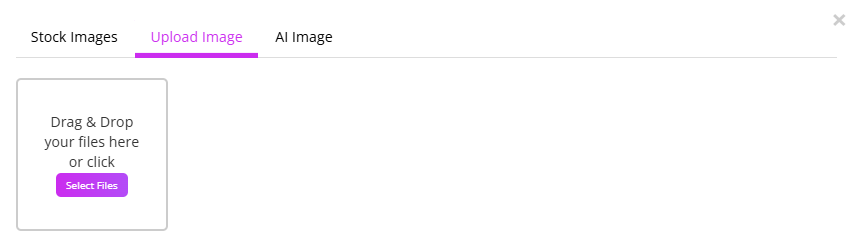
In addition to stock images, Coursebox makes it simple to personalise your content by uploading your own visuals. Just drag and drop images directly into the editor to enhance lessons with custom graphics, branding, or relevant media.
AI Image
Coursebox lets you create custom visuals using AI image generation. You can access this feature as described above (via the + button and the MULTIMEDIA section of the content picker).
Then, simply write a prompt describing the type of image you need, and the platform will generate a unique image to match your content—perfect for tailoring visuals to specific topics or themes.
Note: In Coursebox, generated images cannot be edited directly (there is no image-editing mode). To make changes, you'll need to regenerate a new version of the image using a refined or customized prompt, then replace the image in your course with the updated version.
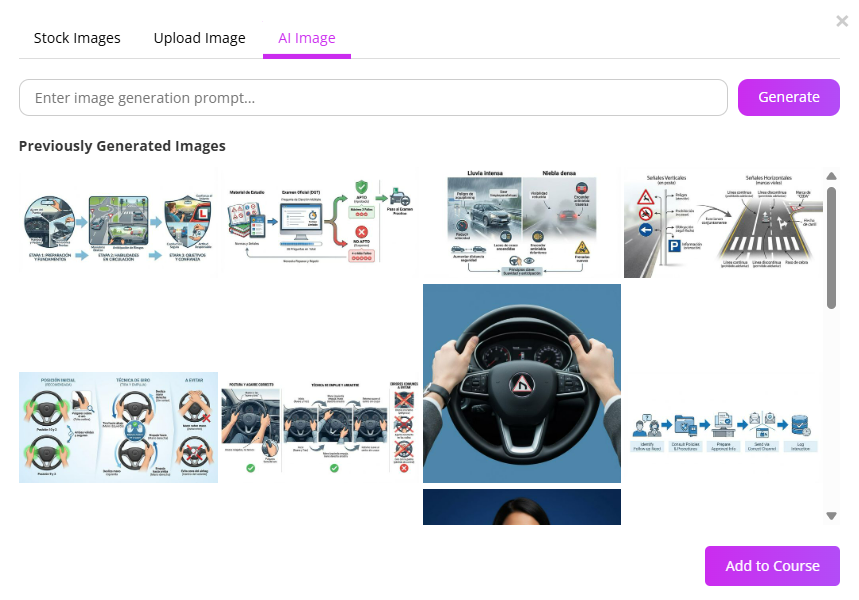
Note: If Coursebox does not allow you to generate more images, it is usually because you have reached the image-generation credit limit included in your plan. Image credits typically reset according to your billing cycle (the date you subscribed), not necessarily on the first day of the month.
Adding more images (gallery): To place several images in one block, click the small + tile inside the image block. Each image you add becomes part of a gallery that learners browse with the left/right arrows. Use the page’s main + button only when you want a separate new block instead.
Videos
Video is one of the most powerful tools for engaging learners and delivering content in a dynamic, accessible way. Coursebox gives you multiple options to incorporate video into your course—whether through AI-generated videos, direct uploads, or external video links. These tools allow you to customise the look, feel, and delivery of your video content, helping you create a rich, branded learning experience that resonates with your audience.
Watch the video below, or explore more tutorials in our Tutorial Video Library.
AI Video with Avatar
Coursebox's AI Video feature allows you to create branded, engaging videos directly within your course. Customise everything from avatars and scripts to voice accents and backgrounds—no video editing skills required. These AI-generated videos help personalise your content and improve learner engagement.
You can customise:
Avatar presenter
Script
Voice and accent
On-screen text
Logo
Background (template, image upload, or colour)
Playback settings
The Steps are:
Click the + button, then under MULTIMEDIA choose Videos.
Ensure the AI Video tab is selected (not Video Upload or Video Link).
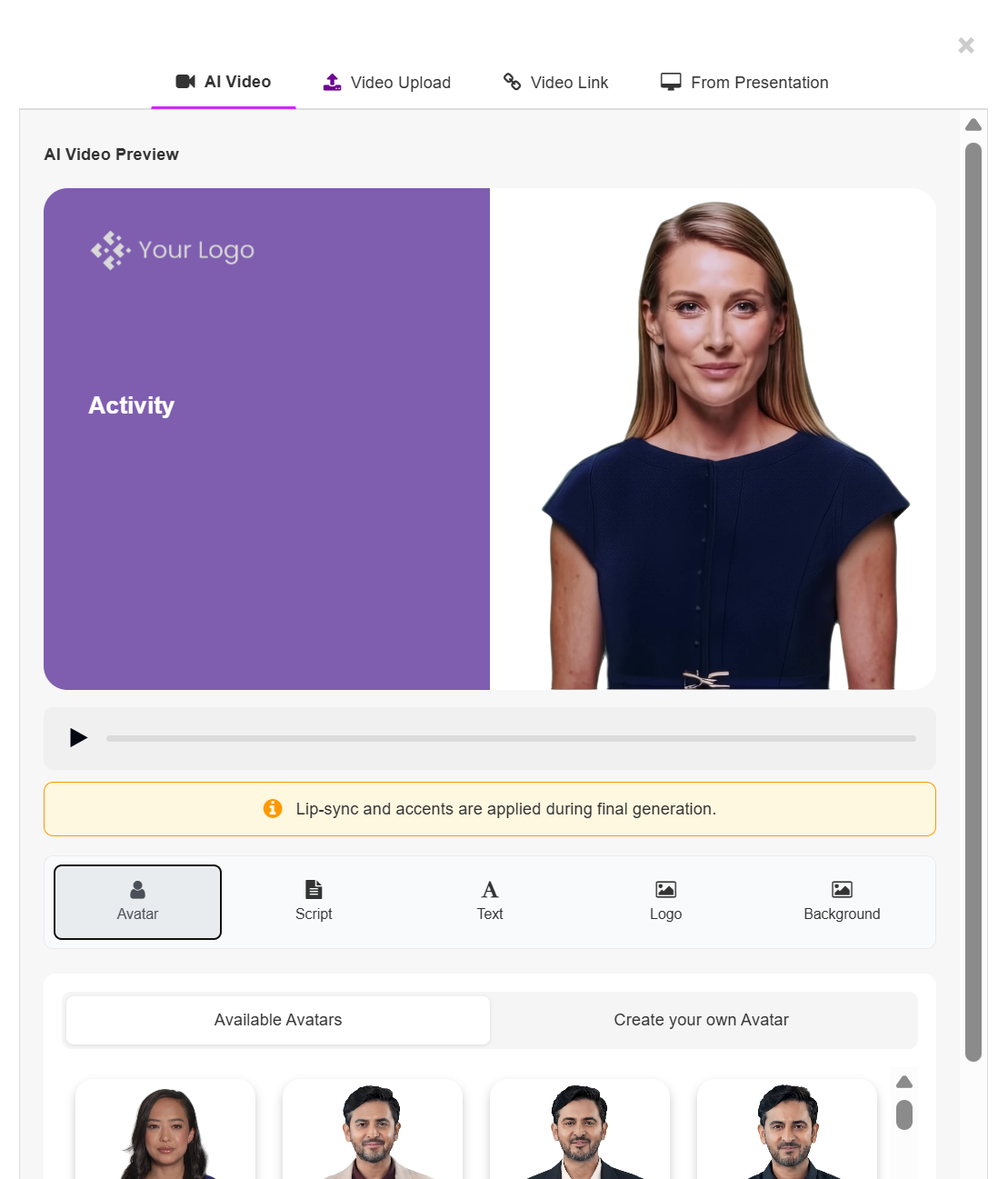
Select the avatar you would like to convey your content from the extensive list of options
Choose your Avatar
You can choose from Available Avatars
Browse the pre-built avatar library.
Click an avatar to select it.
The preview will update instantly.
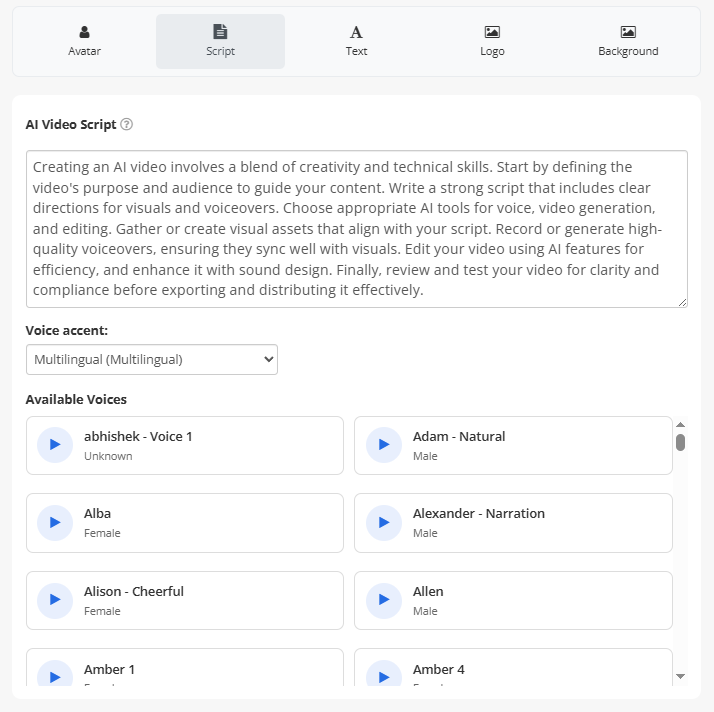
Add and Edit Your Script
Write the script that you would like your avatar to say when the learner plays the video. Note; the script will be AI generated from the content on the current page that you can edit as you wish
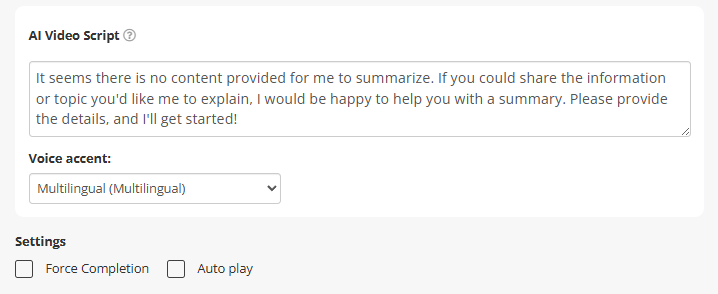
Select the voice you wish to use (also in the script editing page). Note that the voices are not tethered to the AI avatar you've chosen. You can match any voice with any
Languages: AI Video supports a wide range of languages and regional accents (100+ locales, including a Multilingual option). Pick the language and accent for your avatar's voice from the voice dropdown.
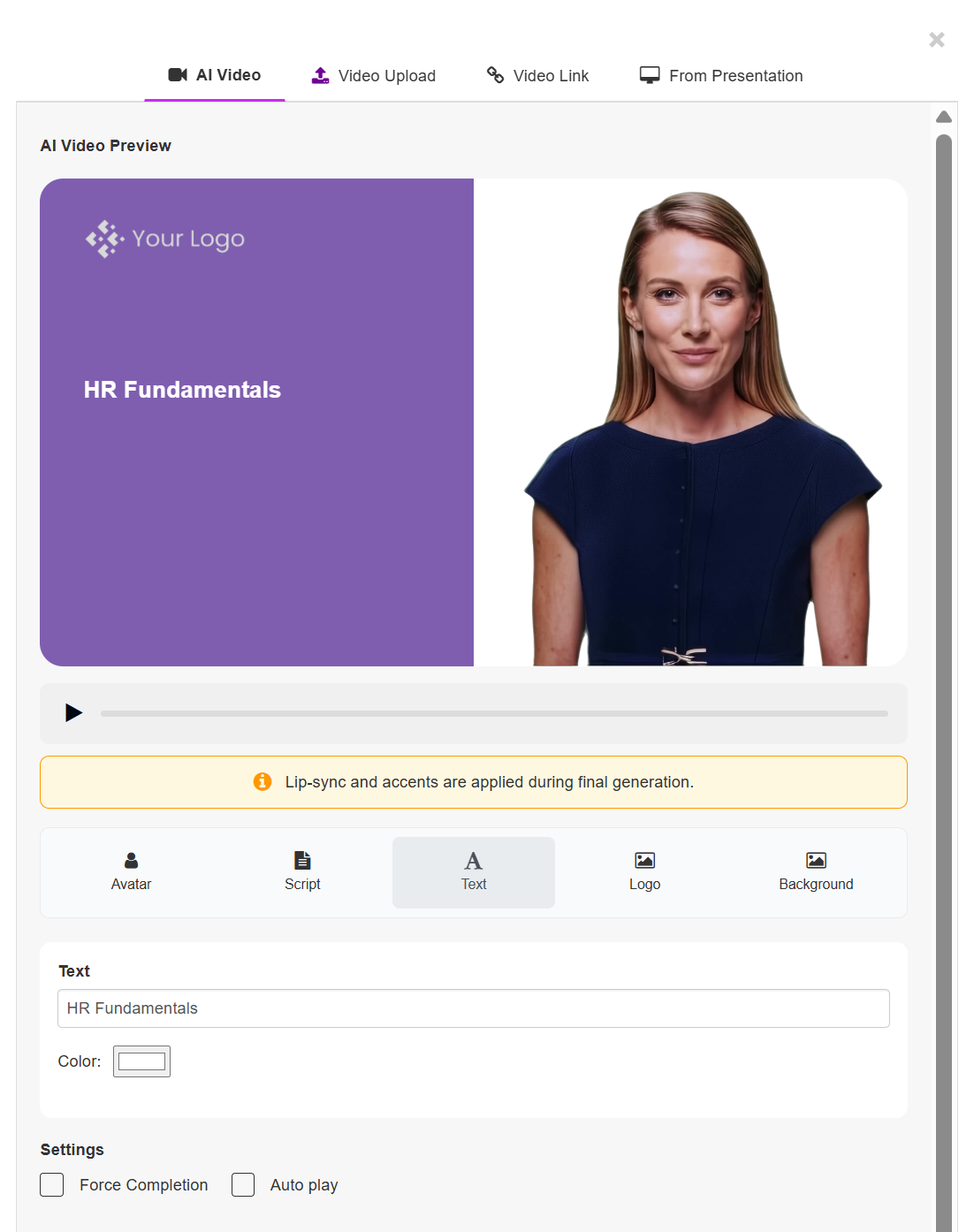
Modify On-Screen Text
From the Text tab. You can:
Edit the displayed title text.
Change text colour.
Adjust visual emphasis. This text appears in the left content block of the video layout.
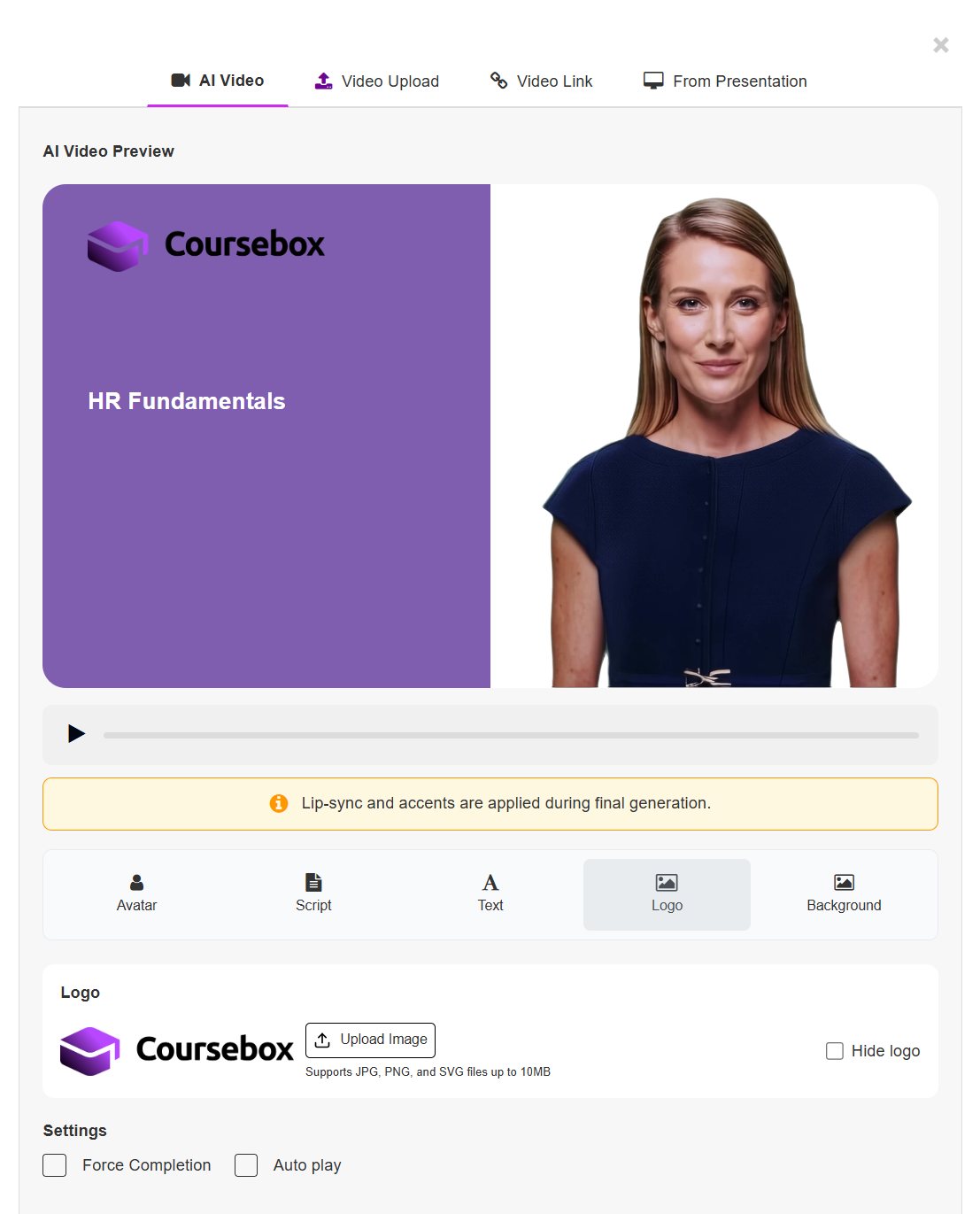
Add or Modify Logo
Click the Logo tab:
Upload a logo (JPG, PNG, or SVG up to 10MB).
Hide the logo using the checkbox if not required.
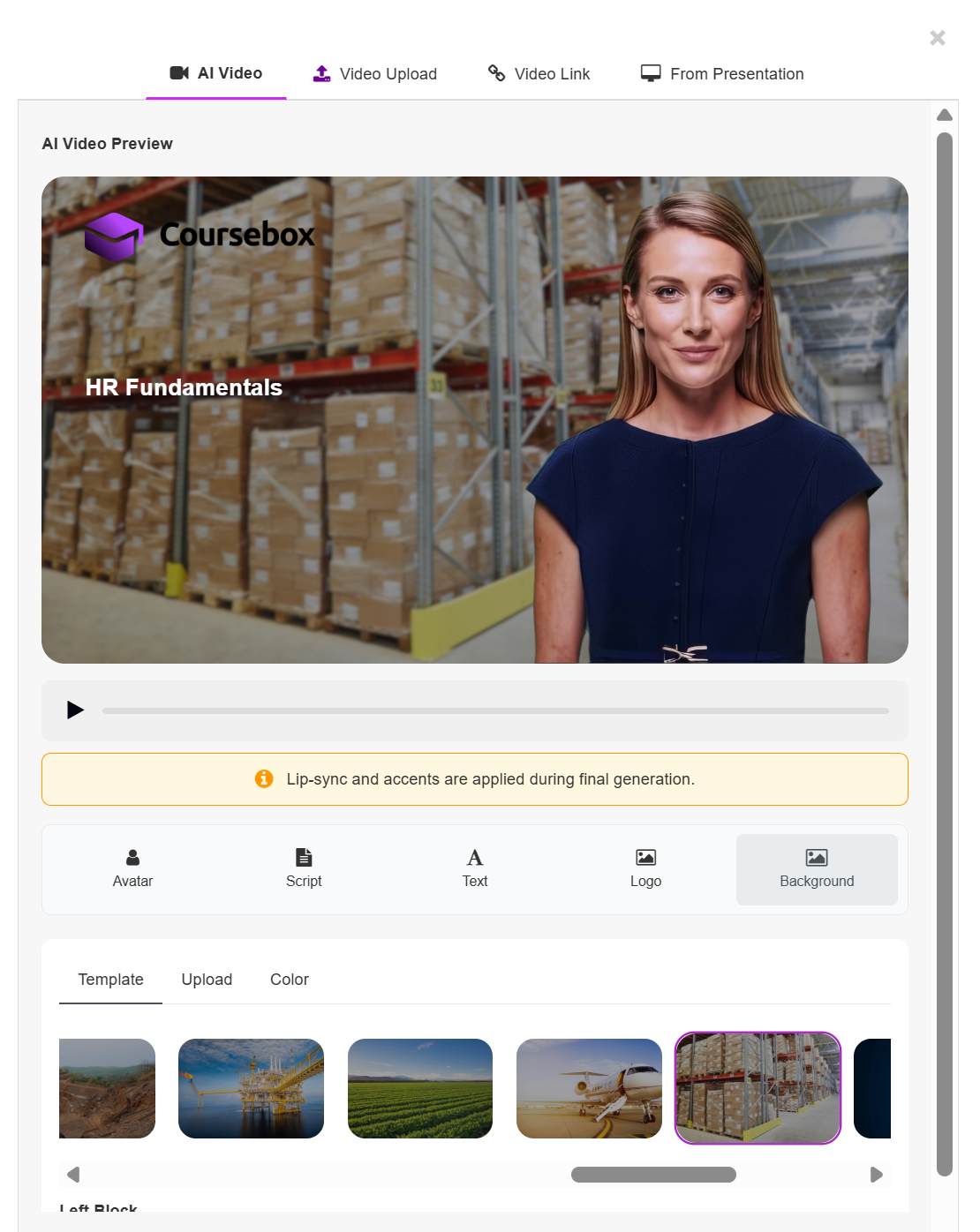
Customise the Background
Click the Background tab.
You have three options:
Option 1: Template Background
Select from pre-designed background templates.
Click a template to apply it.
The preview updates immediately.
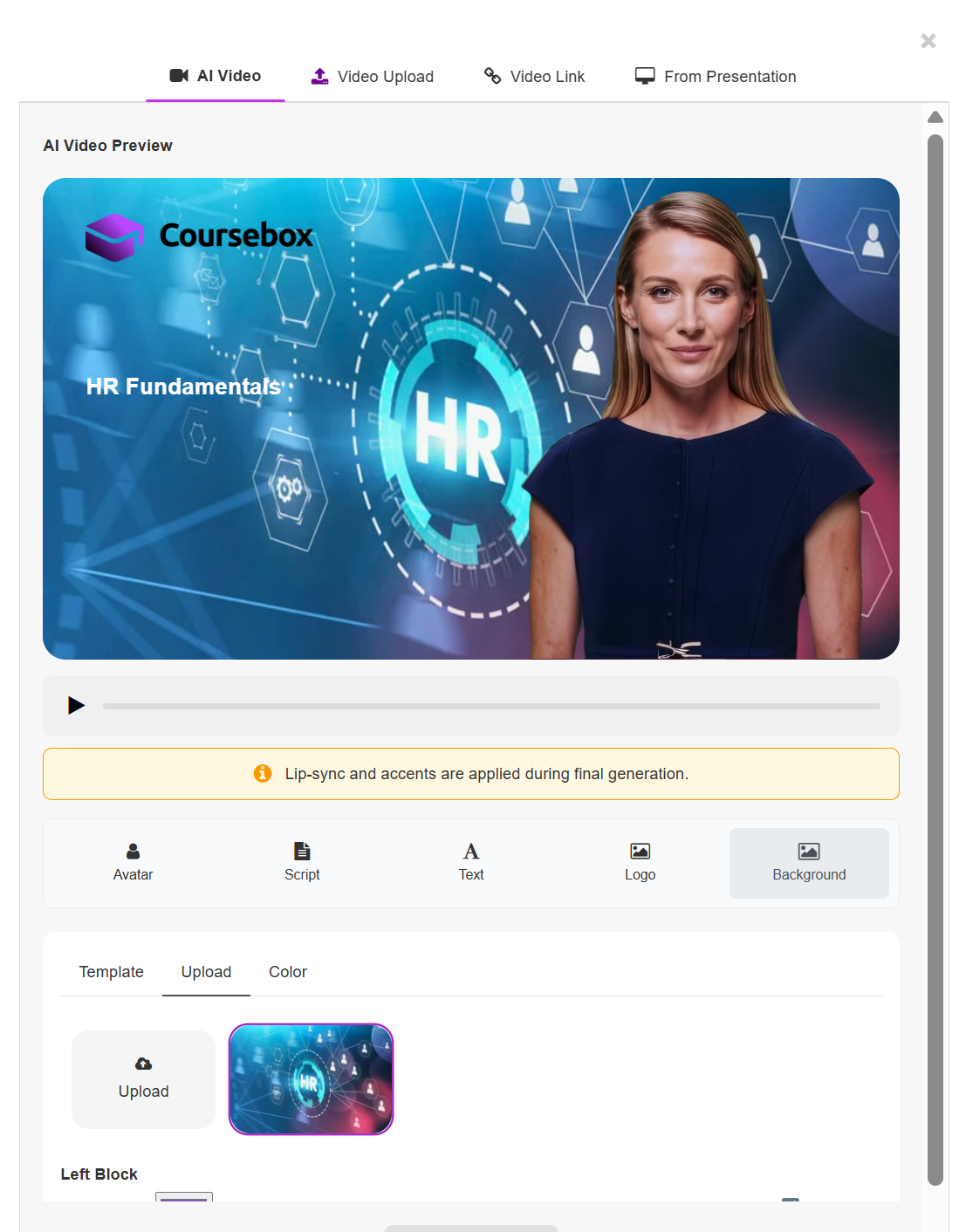
Option 2: Upload Background
Click the Upload tab.
Upload your own image.
The selected image will appear behind the avatar.
Use branded environments, office scenes, classrooms, or contextual visuals.
Option 3: Background Colour
Click the Color tab.
Select a background colour.
Adjust the left block colour separately if required.
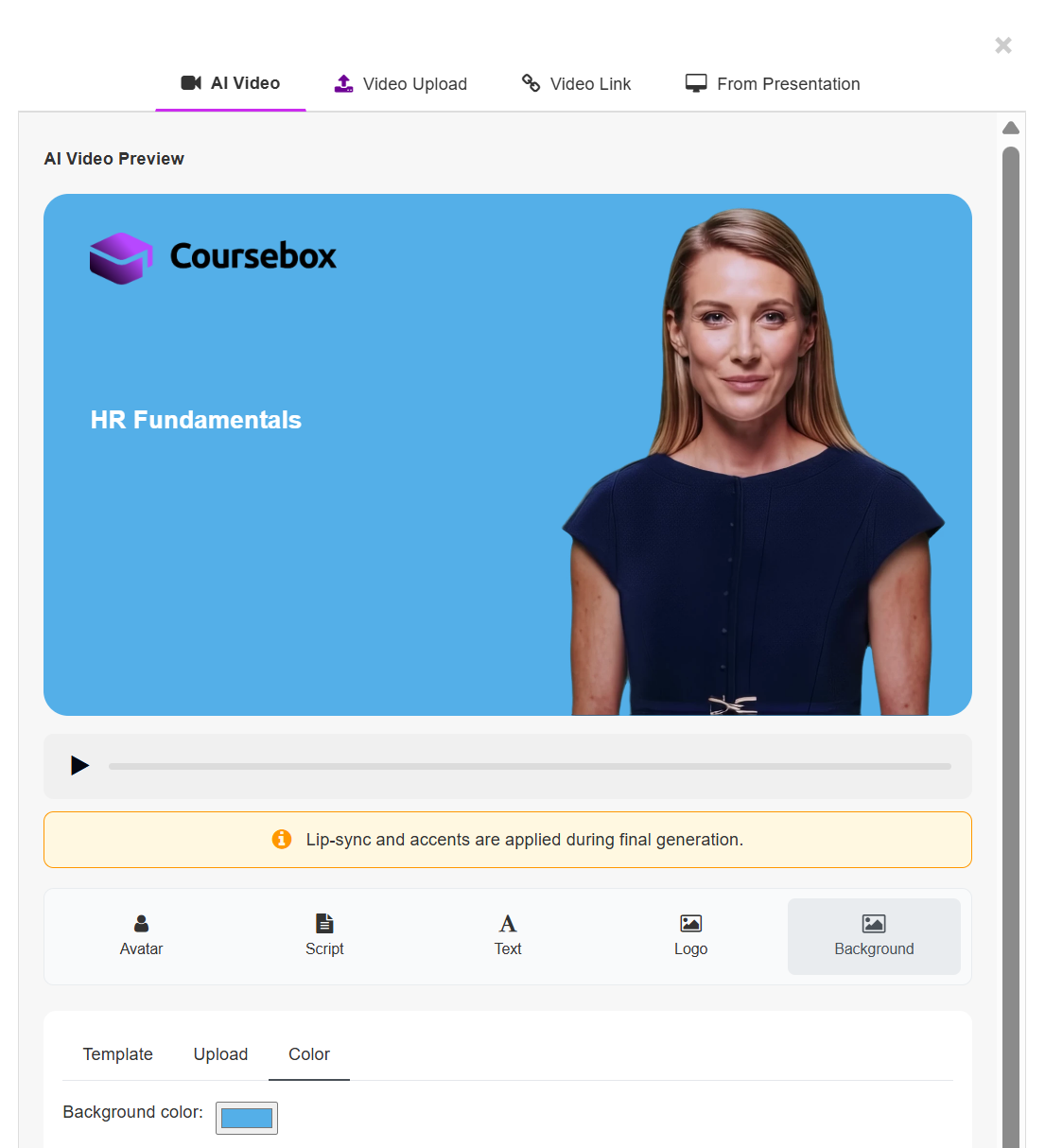
Tip: Tick "Hide the block" if you prefer a full-width video style.Tip: Tick "Hide the block" if you prefer a full-width video style.
Once you're happy with the avatar, script, voice, and styling, click Generate to produce your video.
Note: Each AI Video generation uses video credits from your plan, so there's no unlimited setting. AI Video is designed for short segments of roughly 1–2 minutes (about 100–150 words) per generation; for longer content, split the script across multiple AI Video blocks or use Video from a Presentation.
Ai Video with Custom Avatar
Coursebox's AI Video feature allows you to create branded, engaging videos directly within your course.
You can also Create Your Own Avatar
The Steps are:
Click the + button, then under MULTIMEDIA choose Videos.
Ensure the AI Video tab is selected (not Video Upload or Video Link).
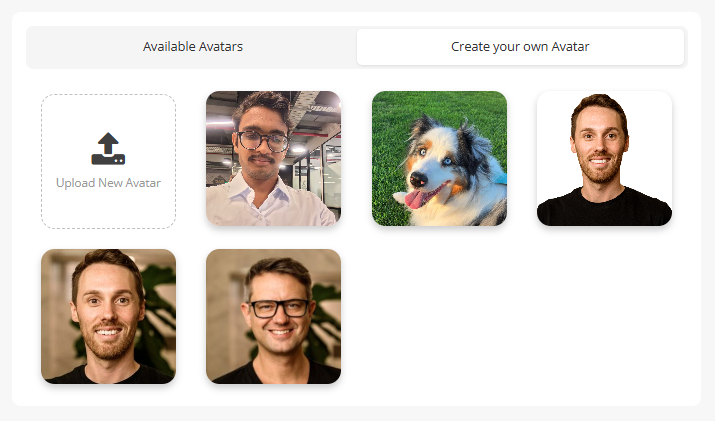
Select Create your own Avatar.
Upload a clear front-facing image.
Coursebox will generate an animated avatar based on the likeness.
Add and Edit Your Script
Write the script that you would like your avatar to say when the learner plays the video. Note; the script will be AI generated from the content on the current page that you can edit as you wish
Select the voice you wish to use (also in the script editing page). Note that the voices are not tethered to the AI avatar you've chosen. You can match any voice with any avatar
Modify On-Screen Text
From the Text tab. You can:
Edit the displayed title text.
Change text colour.
Adjust visual emphasis. This text appears in the left content block of the video layout.
Add or Modify Logo
Click the Logo tab:
Upload a logo (JPG, PNG, or SVG up to 10MB).
Hide the logo using the checkbox if not required.
Customise the Background
Click the Background tab.
You have three options:
Option 1: Template Background
Select from pre-designed background templates.
Click a template to apply it.
The preview updates immediately.
Option 2: Upload Background
Click the Upload tab.
Upload your own image.
The selected image will appear behind the avatar.
Use branded environments, office scenes, classrooms, or contextual visuals.
Option 3: Background Colour
Click the Color tab.
Select a background colour.
Adjust the left block colour separately if required.
Tip: Tick "Hide the block" if you prefer a full-width video style.
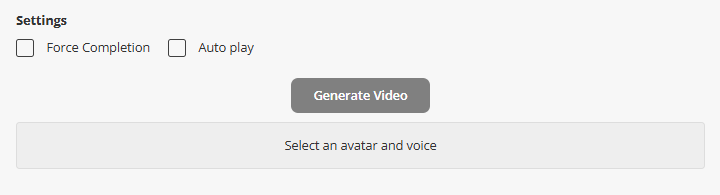
AI Video Settings
In the editor (the playback toggles sit at the top of the video block), configure playback options:
Force Completion - When enabled:
Learners must watch the entire video before progressing.
Auto Play - When enabled:
The video will automatically begin playing when the page loads.
Video Upload
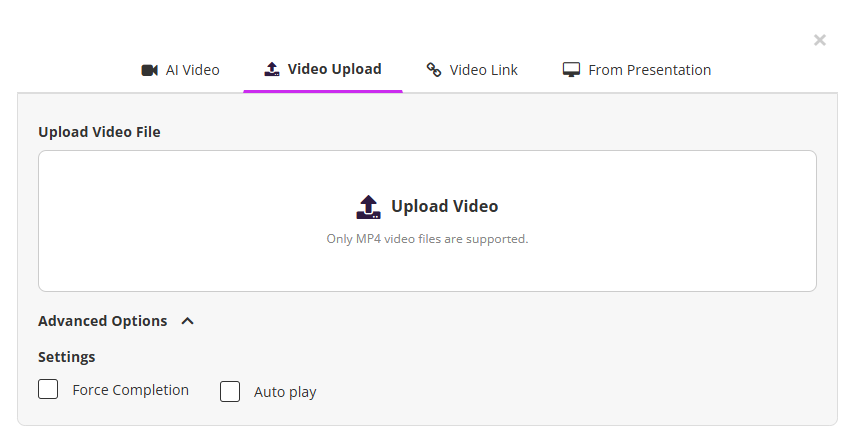
If you already have a video you'd like to use. You can upload it directly to your course. This option is perfect for including pre-recorded training sessions, presentations, or tutorials you've created outside the platform.
In the Advance Options, you can select Force completion to require learners to watch the video before continuing and/or Auto Play the video.
Note: Coursebox does not support in-platform video editing. If you need to edit a video (for example, trim, cut, add captions, or update visuals), this must be done in an external video-editing program. Once edited, simply re-upload the updated video to your course.
File upload size limits
Coursebox applies a maximum size per file, and it varies by plan:
Free — direct uploads aren't available; use a Video Link (YouTube, Vimeo, Loom) instead
Creator and Creator Plus — 240 MB per video, 5 MB per image, 300 MB per document
Pro — 1 GB per video, 20 MB per image, 500 MB per document
Business — 2 GB per video, 20 MB per image, 500 MB per document
Enterprise — uncapped on request
These are limits on each individual file, not a total storage allowance.
If a video is larger than your plan's limit, you can compress it before uploading, host it on YouTube, Vimeo or Loom and add it with Video Link instead (note that Force completion isn't fully enforced for linked videos), or upgrade your plan. The current limits are always listed under Compare plans → Hosting on the pricing page.
Video Link
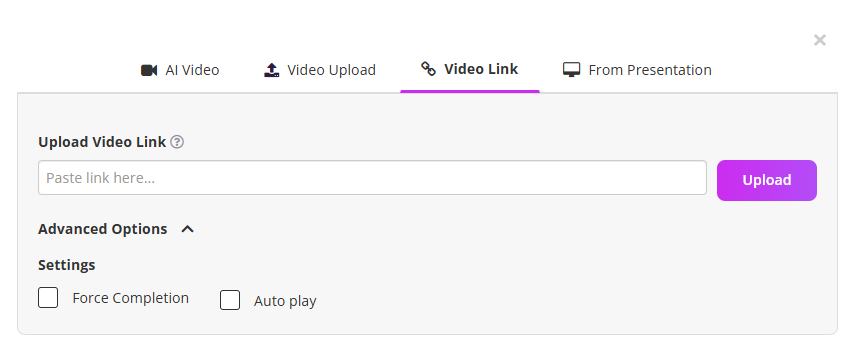
You can also embed videos from platforms like YouTube, Vimeo or Loom by simply pasting the video link. This is a great way to incorporate external content and keep your learners connected to high-quality video resources.
Force completion
Learners must watch the whole video before they can move to the next activity.
Videos hosted on Coursebox — the progress bar is locked, so learners can't skip ahead. They can still pause, replay parts they've already watched, and adjust the volume. Progress is saved per device and browser, so learners can pick up where they left off; switching to a different device or browser starts the video over.
YouTube and Vimeo videos — these play in the provider's own player, which Coursebox can't control. The progress bar stays active, so learners can skip ahead and complete the activity without watching. Completion is recorded once playback reaches the end. If you need completion strictly enforced, upload the video to Coursebox rather than linking it.
Video from a Presentation
Navigate to the AI Video section.
Click on From Presentation at the top menu.
You'll see the presentation workspace.
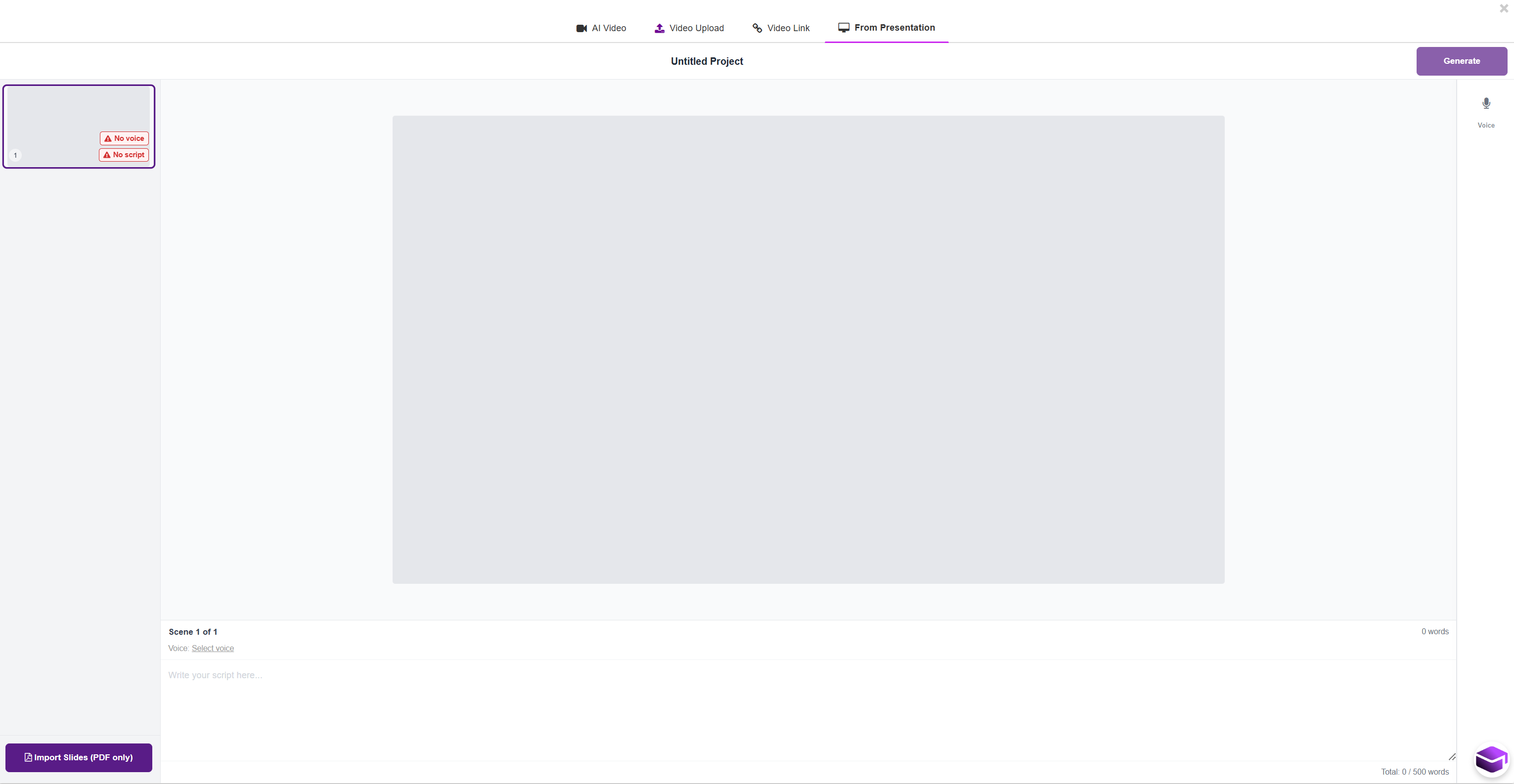
Click the Import Slides (PDF only) button (bottom left).
Upload your presentation file in PDF format.
Once uploaded, your slides will automatically appear as scenes.
Each slide becomes a separate video scene.
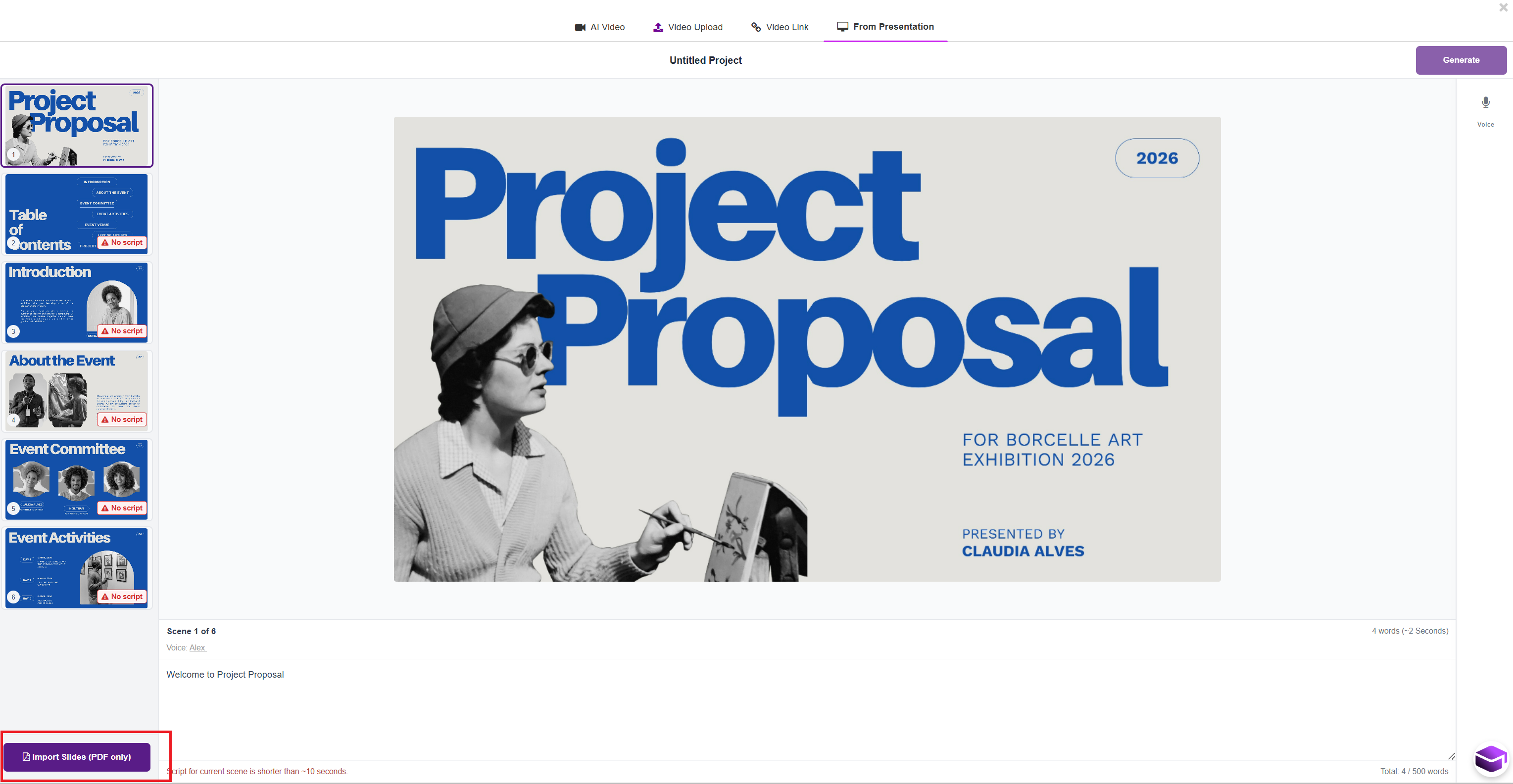
Select a slide (scene) from the left panel.
In the script area below the slide Add your narration text
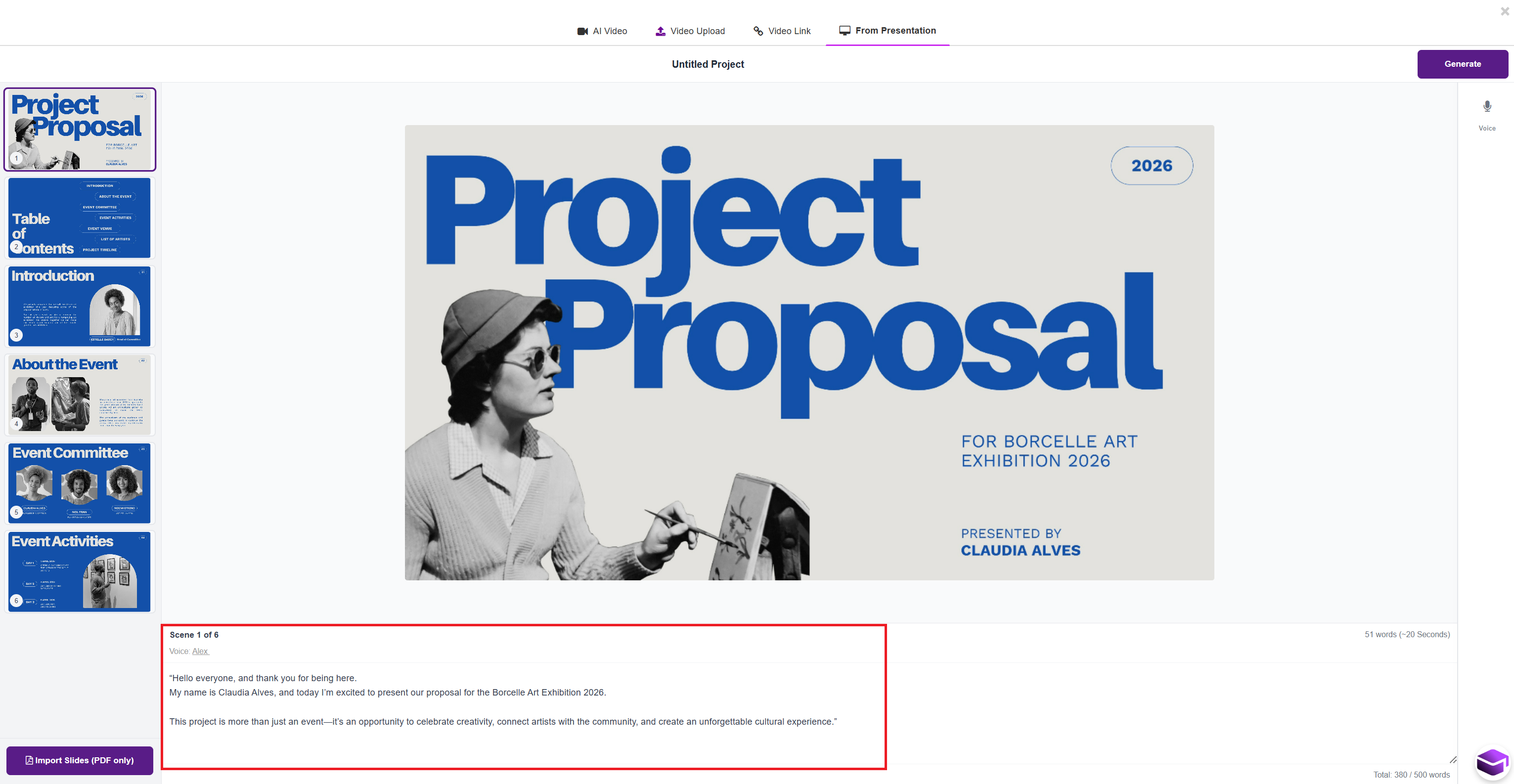
Ensure your script is:
Clear and conversational
At least 10 seconds long for better output
Tip: Aim for approximately 40 to 70 words per slide.
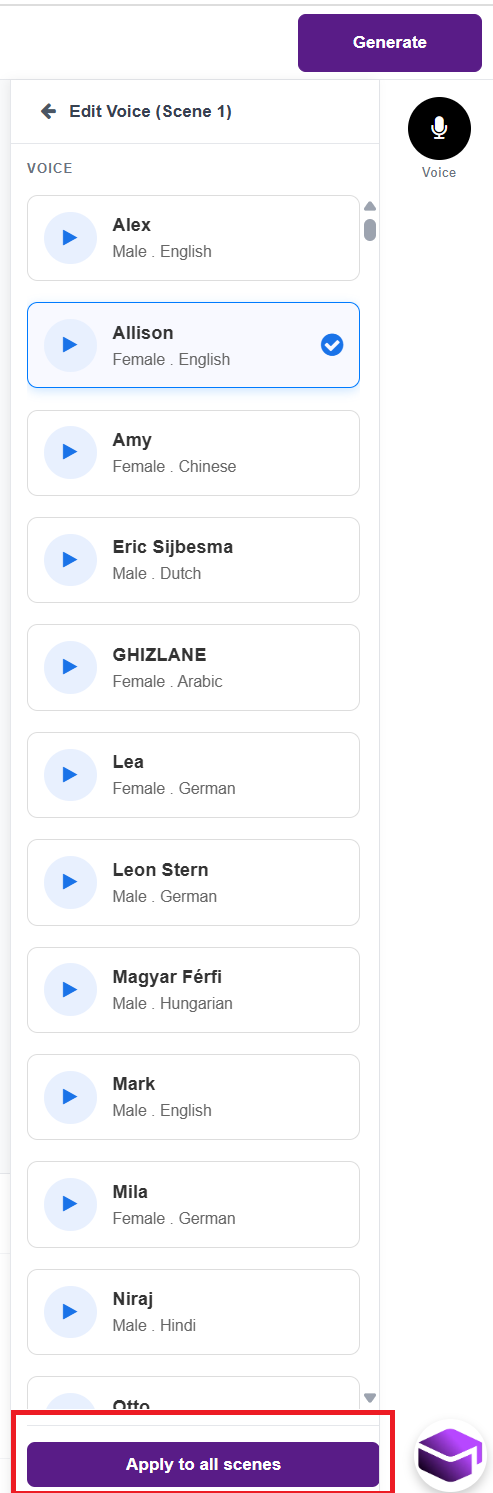
Click on the Voice option.
Preview different voices (e.g., Alex, Allison, Amy).
Select your preferred voice.
Click Apply to all scenes to keep consistency across the video.
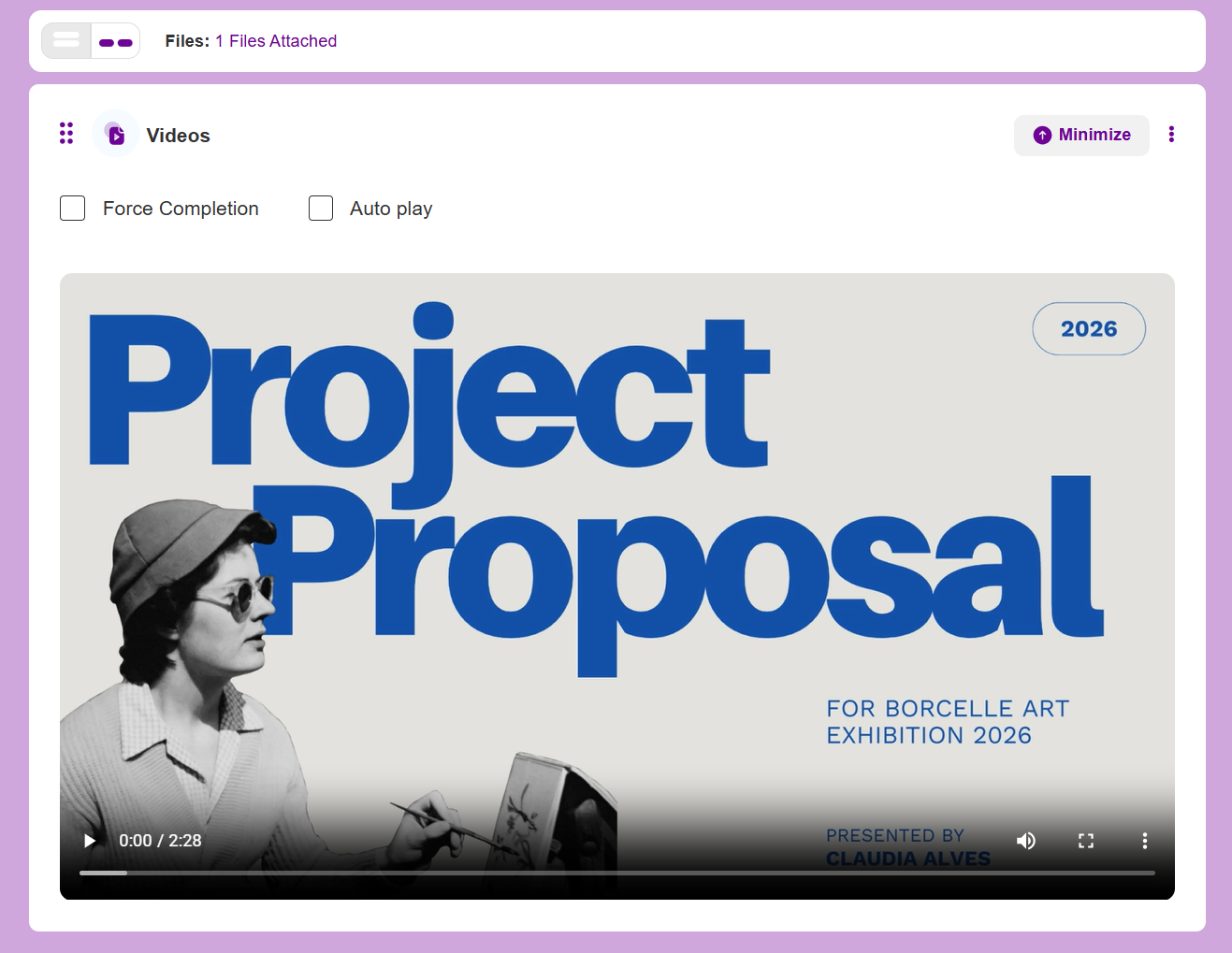
Once all slides have scripts and voice selected:
Click the Generate button (top right).
The platform will:
Convert your slides into scenes
Add voice-over narration
Produce your AI video
Delete a Video from a Carousel
If your content block has more than one video in a carousel, and you want to remove one of them (e.g., the first video), follow these steps:
Go to the page where your video carousel is located.
Select the video you want to delete by navigating to it using the arrow buttons on the video player.
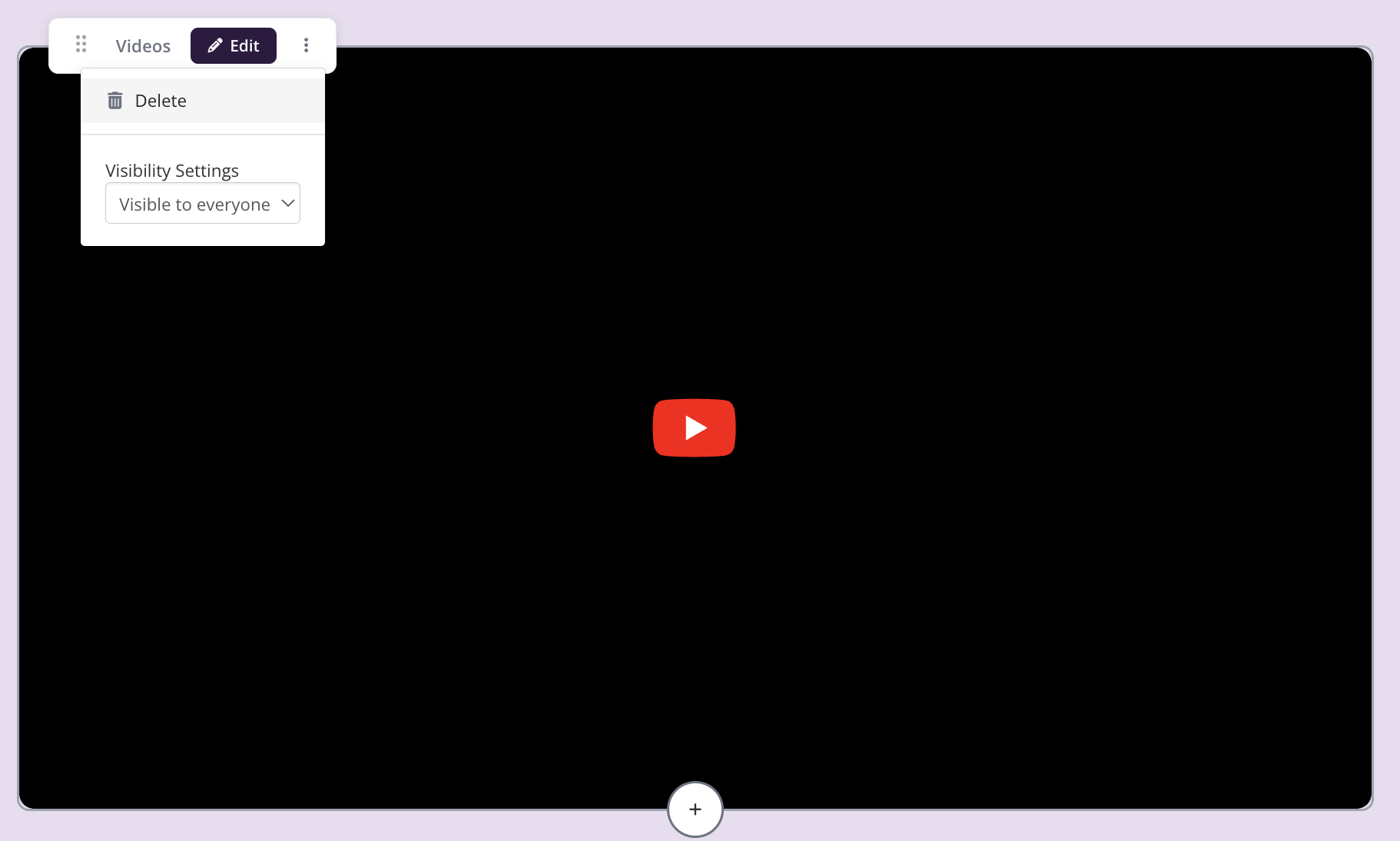
Click the three-dot menu (⋮) at the top lwft corner of the video block.
Select "Delete" from the dropdown options, then confirm in the pop-up.
Note: Ensure you are viewing the correct video in the carousel before deleting, as there is no undo option.
If you'd rather hide the block from learners instead of deleting it, open the same three-dot menu and set Visibility Settings to a hidden option rather than "Visible to everyone".
Adding more videos (carousel): Important: You must first click Edit on your course page to enter editing mode before you can add to a video carousel. Then, to show several videos in one block, click the small + tile inside the video block. Each video becomes part of a carousel that learners move through with the arrow buttons — it does not add a new block to the page. Use the page’s main + button when you want a separate new block. To remove one, see the “Delete a Video from a Carousel” steps below. The image and video galleries behave the same way.
Add Slides > Google, Canva or PowerPoint
The Slides feature allows you to present content in a slide-by-slide format, similar to a presentation. Click Add Item and choose Slides from the dropdown menu. This is perfect for breaking down information into digestible chunks, guiding learners through a sequence, or delivering visual-heavy content in a structured, engaging way.
The Steps are:
Click the + button, then under MULTIMEDIA choose Slides.
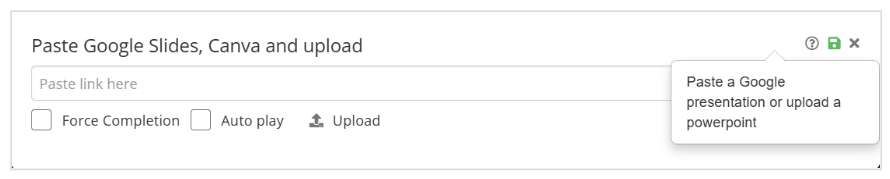
When the following screen appears. Choose Google Slides, Canva or PowerPoint presentation and upload from your computer or a Link, then click Open to upload them to Coursebox.
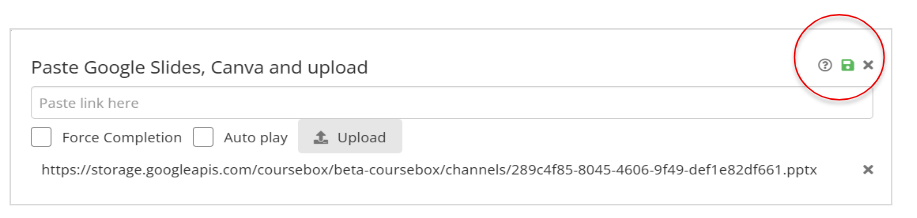
The file will appear at the bottom of the popup screen, then click save to add the presentation to your course.
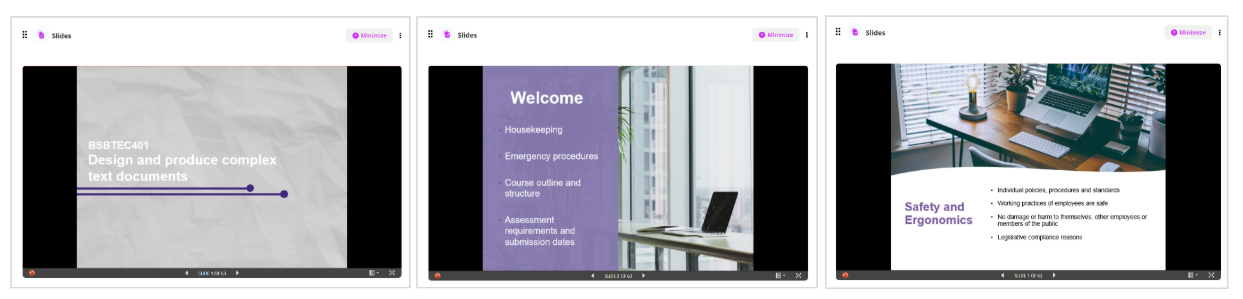
Your selected presentation will be displayed as a slide gallery, and learners can use the left and right navigation icons to browse through the collection. This is a great way to showcase visual content in an engaging format.
Note: Enable Force Completion if you require learners to click through every slide before progressing.

Attach Downloadable File
The Attachment feature in Coursebox allows you to upload and share downloadable files—such as PDFs, Word documents, spreadsheets, or presentations—directly within your course. This is ideal for providing learners with handouts, worksheets, guides, or any supporting resources they can access offline.
Click the + button, then under MULTIMEDIA choose Downloadable File.
Upload an attachment File. The following screen will appear in your course.

Best practice:
To avoid confusion, add a short line of text above the attachment using the text editor, for example:
Download the full chapter (PDF) – optional
Then place the Downloadable File block directly underneath.
This makes it clear that the file is a resource, not an assessed task.
Embed a Pdf
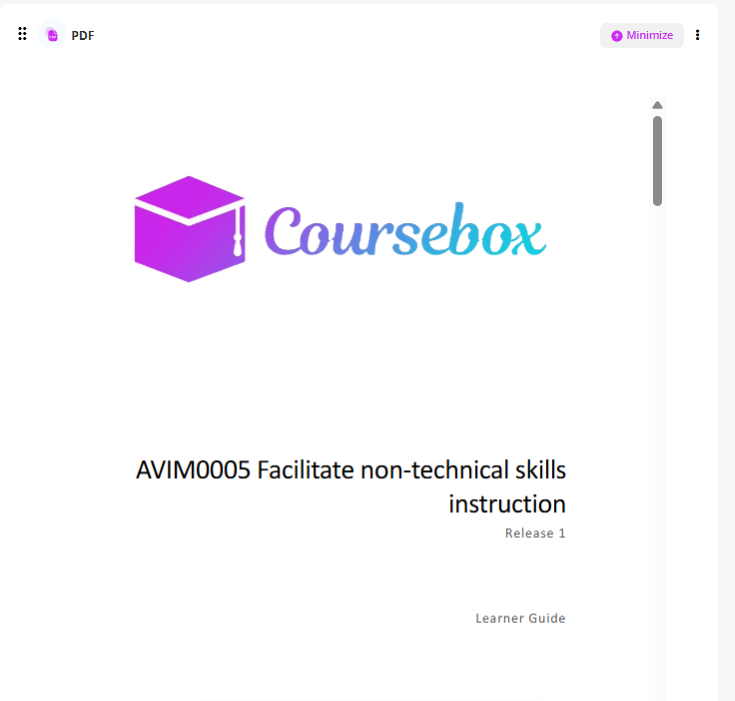
The Embedded PDF feature allows you to display PDF documents directly within your course content. Instead of requiring downloads, learners can scroll through the file right on the page. This is ideal for sharing guides, reports, manuals, or worksheets in a seamless and accessible format. Simply upload your PDF and it will appear embedded for easy viewing.
The Steps are:
Click the + button, then under MULTIMEDIA choose Embed PDF.
Upload a PDF File, Use the file upload tool (usually via the media or file icon) to upload your PDF. Ensure the file contains embedded images.
Upload a SCORM file
Go to the page in your course you want to add the SCORM File
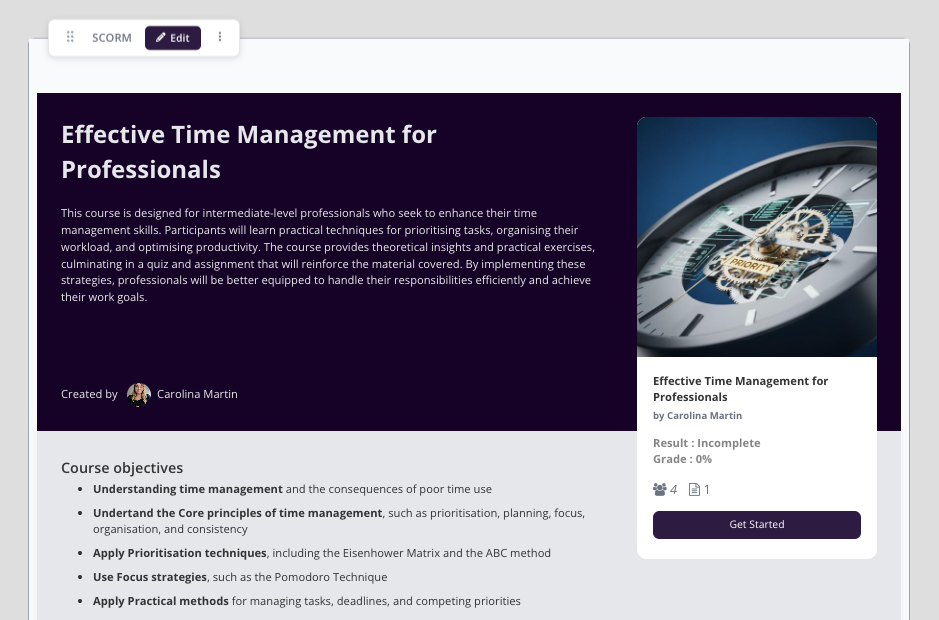
Click the + button, then under MULTIMEDIA choose SCORM and upload your Zip File.
A New block will open and contain your file content.