
Course Advanced Settings
This topic explains how to configure key settings that control how a course is displayed, accessed, assessed, and managed. It covers course navigation views, advanced configuration options, ownership and visibility controls, and tools for organising, duplicating, and maintaining courses throughout their lifecycle.
Watch the tutorial videos found in our YouTube Video Library.
Configure Advanced Course Settings
The Advanced Settings panel allows you to configure detailed options for your course, including sharing, grading, learner display, and time-based settings. These controls give you greater flexibility over how your course is presented and managed.
In your publish settings in your course:
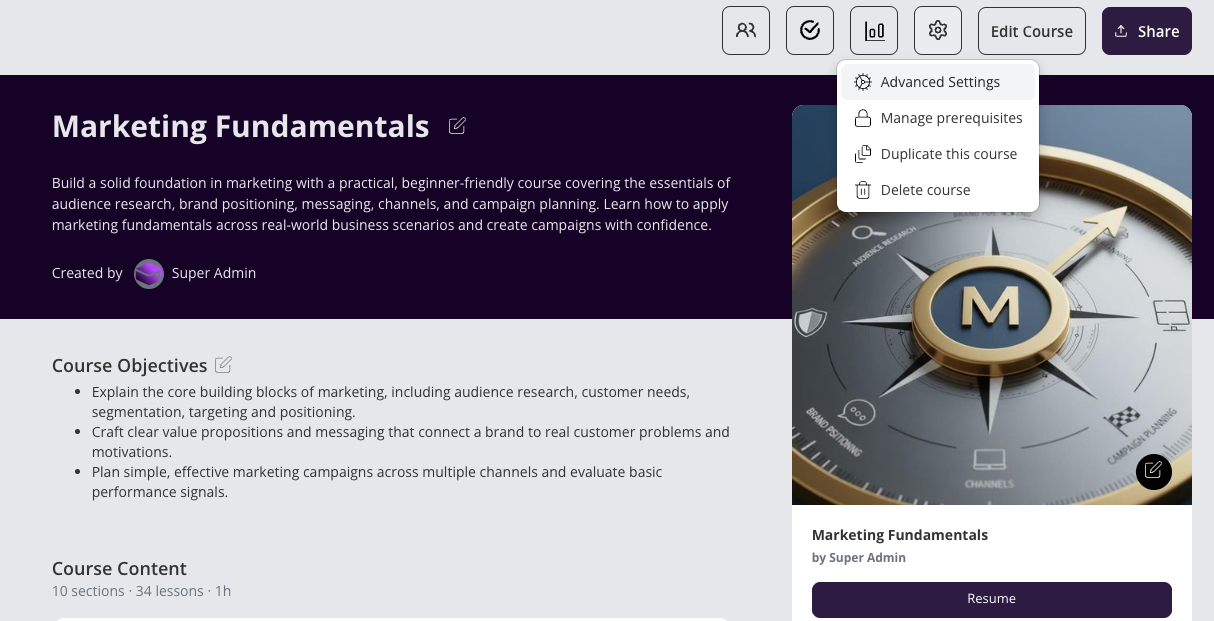
Go to your Publish Settings within your course.
Select Advanced Settings to open the configuration window.
Grading Method
Choose how learners are graded:
Completion
Learners pass by completing all required activities.Average of Grades
Learners pass based on the total score across graded activities.
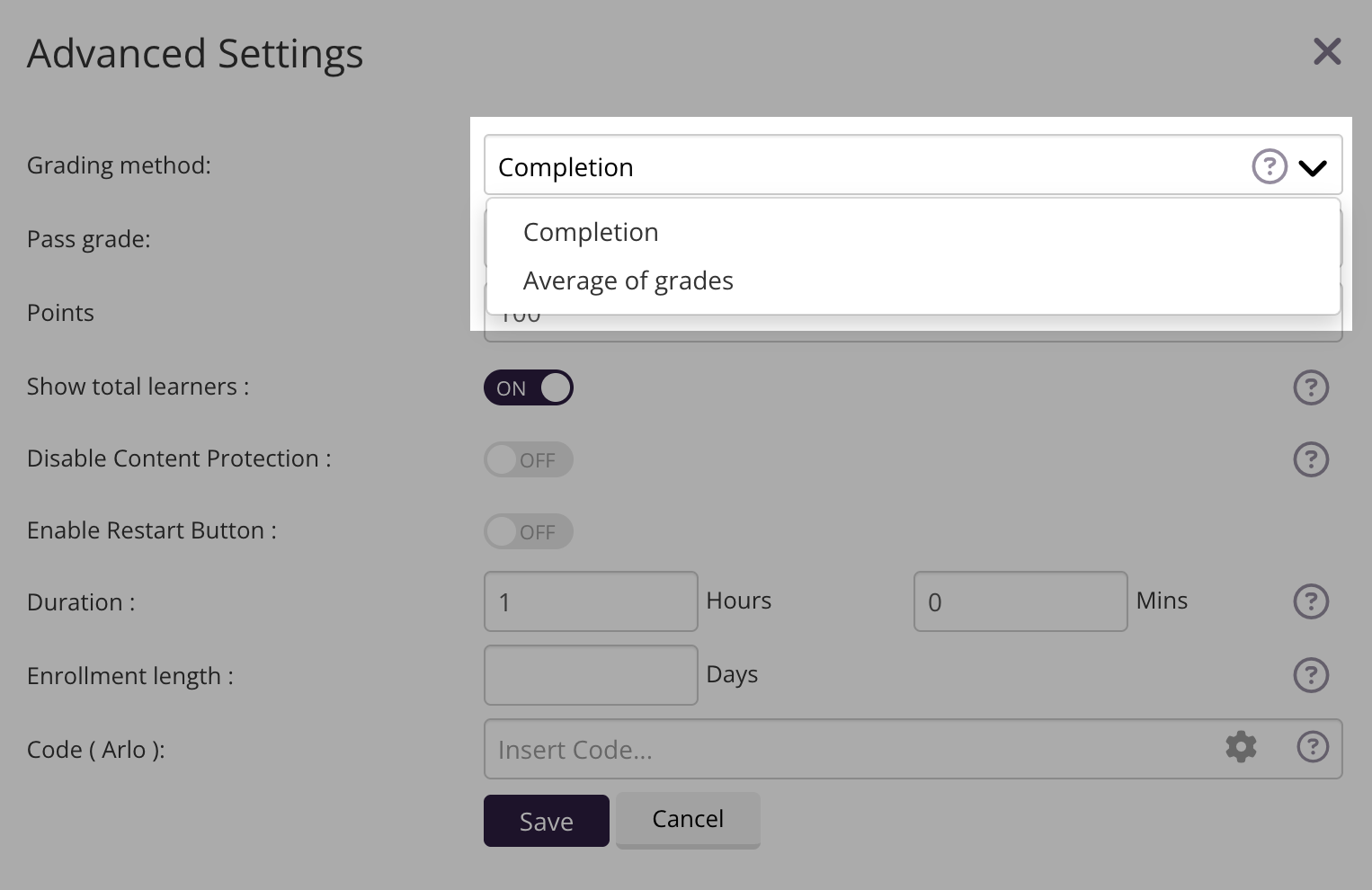
Select the option that best matches your assessment strategy.
Pass grade
Set the minimum percentage required to pass the course.
For example, a pass grade of 100 means all required components must be completed successfully.
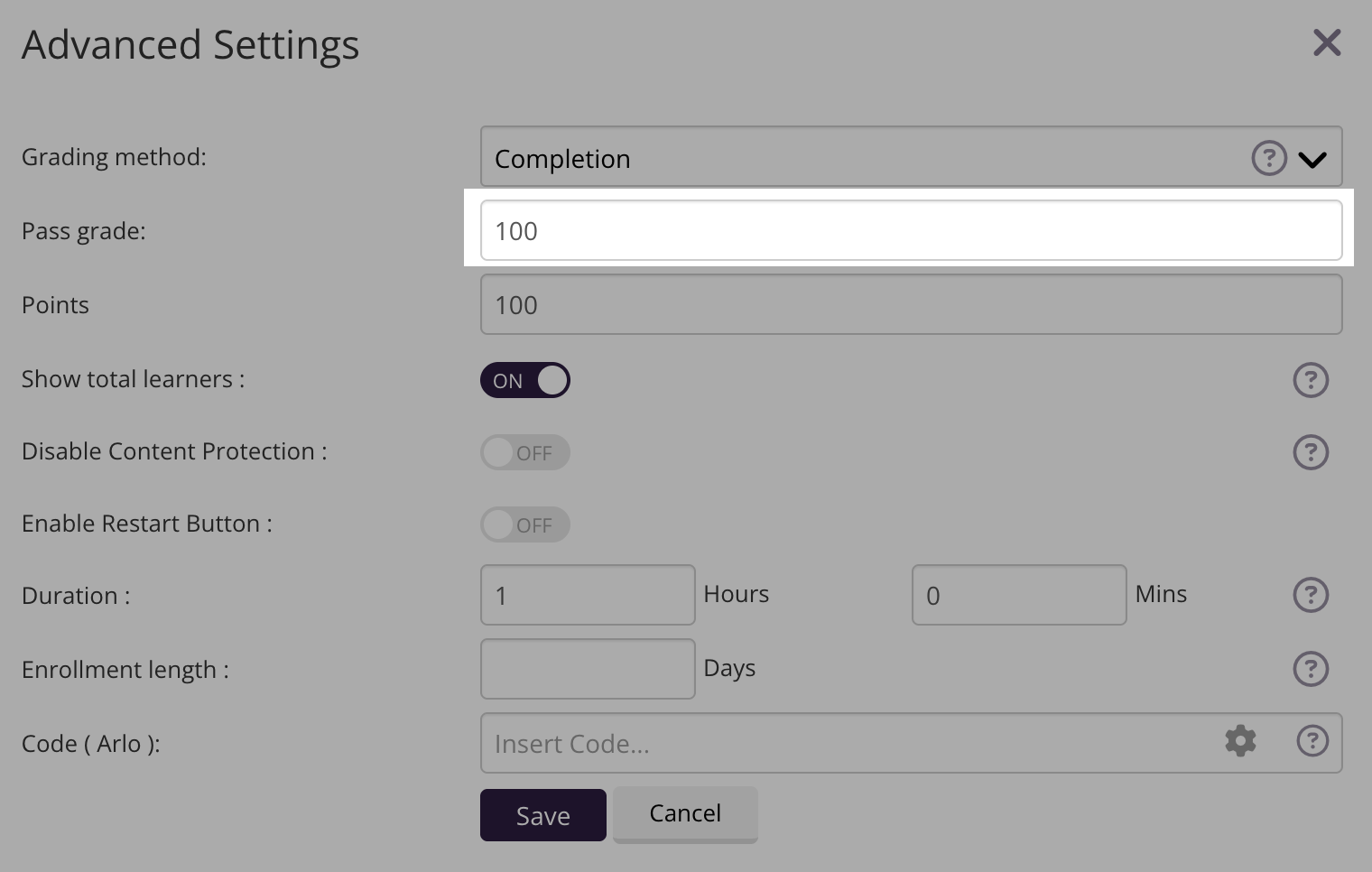
Think about what an acceptable pass grade for your course is. There are many factors to consider such as the industry, or industry standards or complexity of the course.
Depending on the course you may want a 100% pass rate so consider the importance of the course and what is deemed satisfactory knowledge to pass.
For instance, I am a diabetes educator and when I did the training for commencing people on insulin pumps, the pass grade was 100%. I had to thoroughly know what I was doing because missing a step could be potentially life threatening.
Letting Advanced Learners Skip Ahead to the Final Assessment
To let confident learners move straight to the final assessment instead of working through every page, leave the course sections unlocked. Unlocked sections let learners use the left-hand menu to jump to any page, including the final quiz. To base passing on their assessment score rather than completing every activity, set the Grading Method to Average of Grades and set an appropriate Pass grade.
Note: there is no per-quiz setting to make an individual mid-course quiz optional — use section unlocking and the grading method together to achieve this.
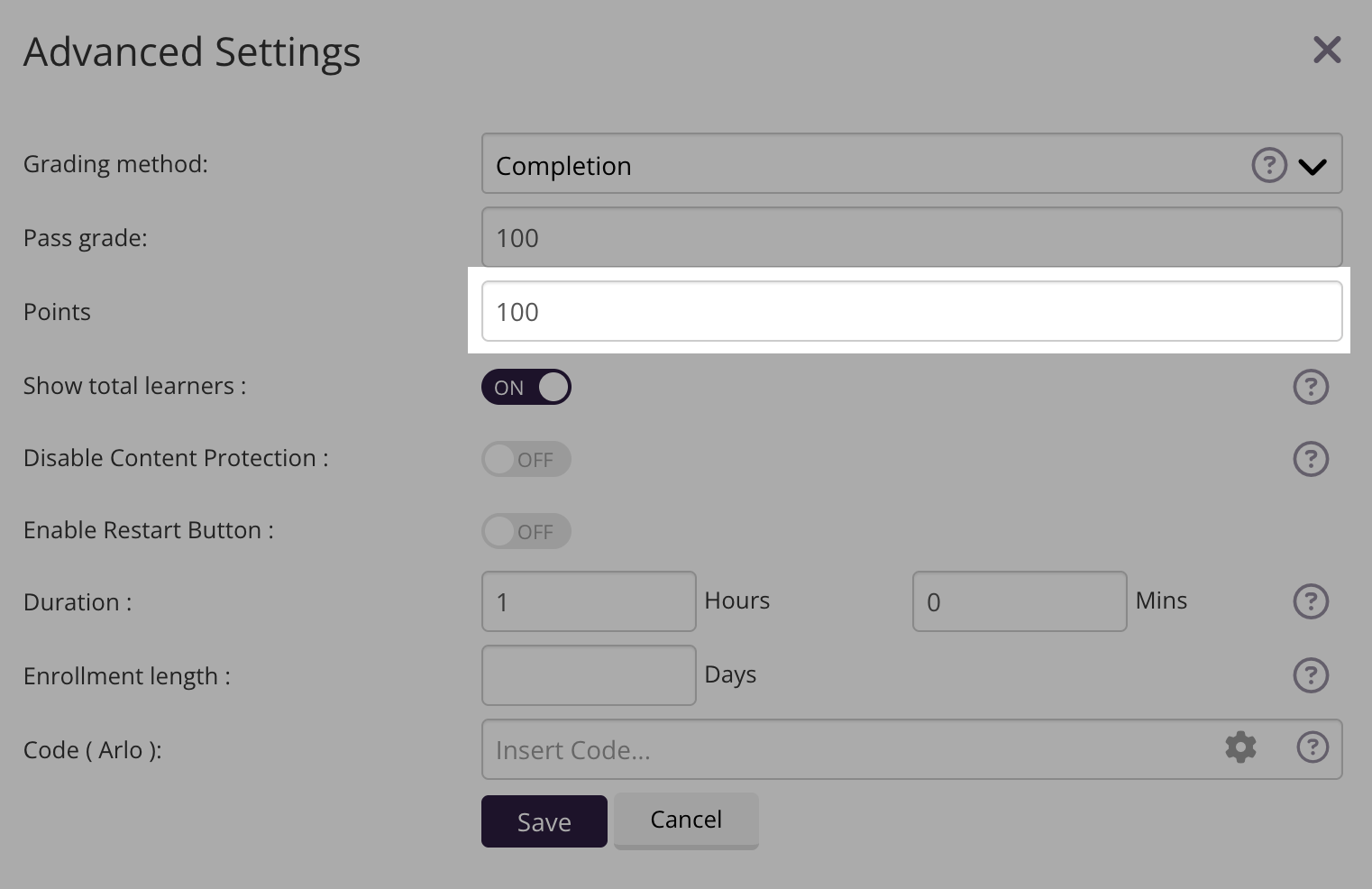
Points system
Points can be assigned to the course if you are using a points-based or gamified learning model.
If not required, this can be left as 0.
Show total learners
When ON, learners can see the total number of users enrolled in the course.
When OFF, the total number of enrolled learners is hidden from learners.
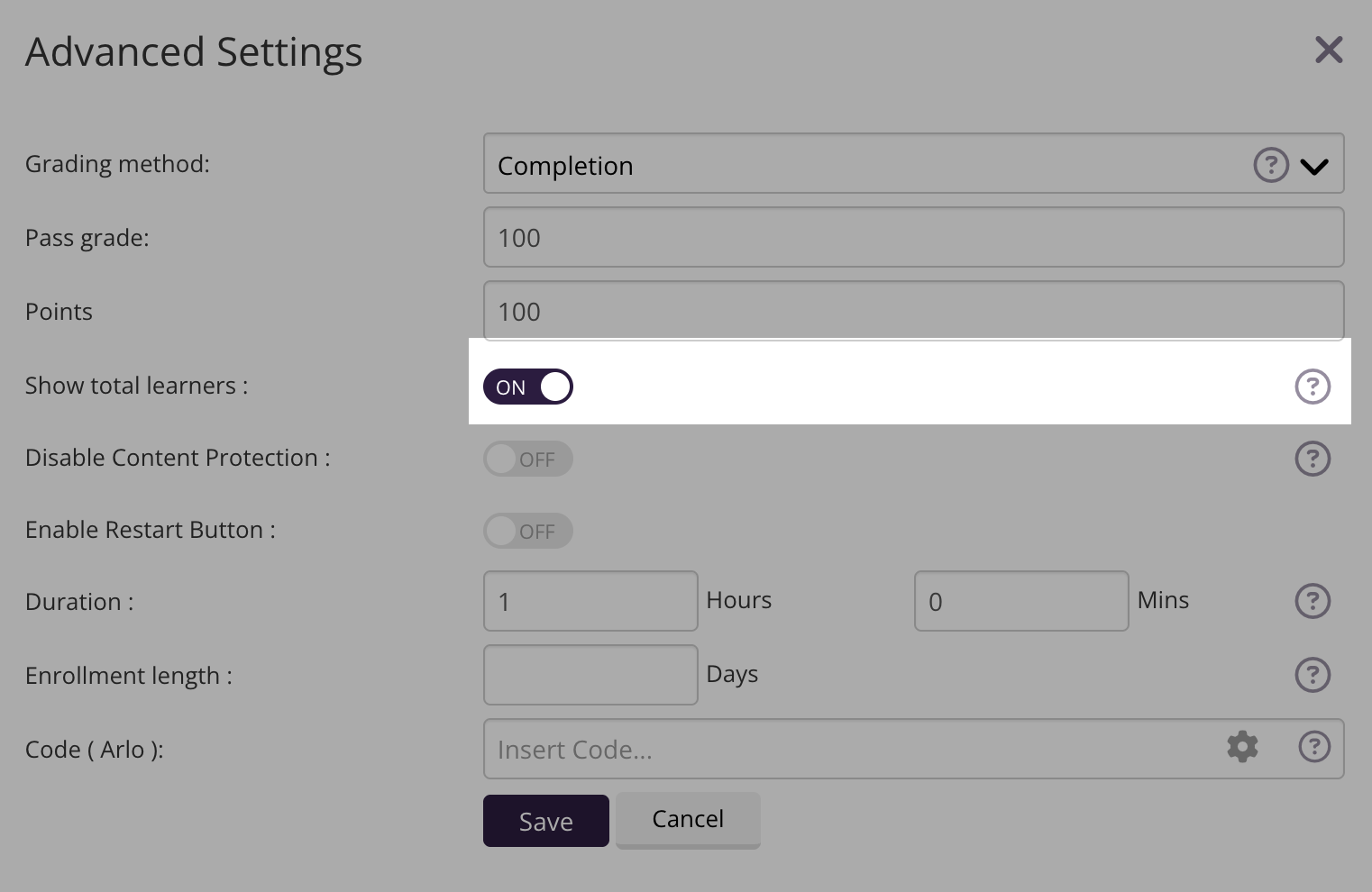
This setting is useful for community-style or cohort-based learning experiences where visibility of participation supports engagement.
Note: This setting applies only to Coursebox courses and does not affect Arlo events.
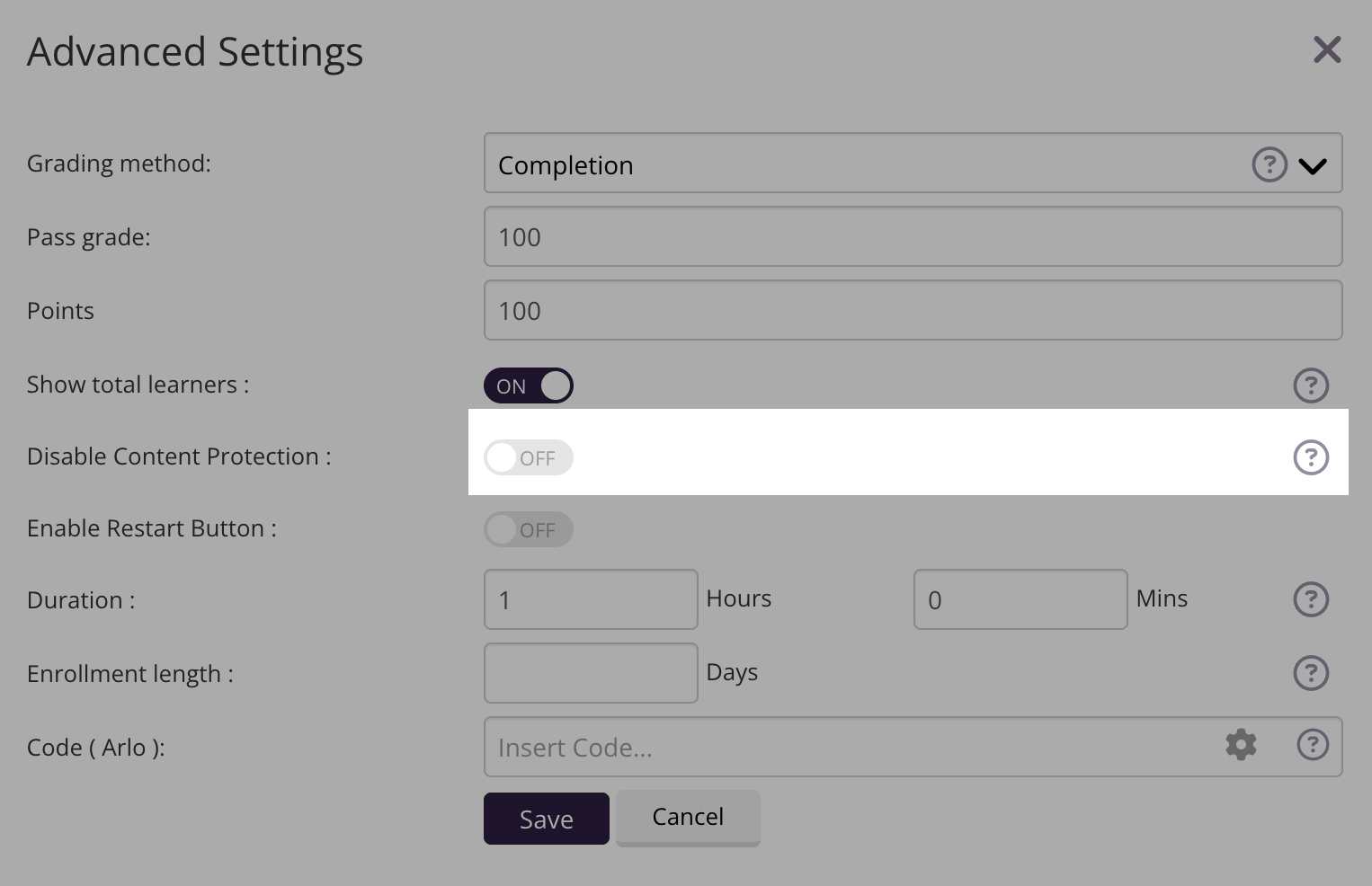
Disable Content Protection (Disable Copy/Paste)
When ON, learners can freely download or copy course content without restrictions. When OFF Coursebox's content protection is active, preventing downloads and limiting copying to protect intellectual property. It is recommended to keep this OFF unless the course content is intended for free distribution.
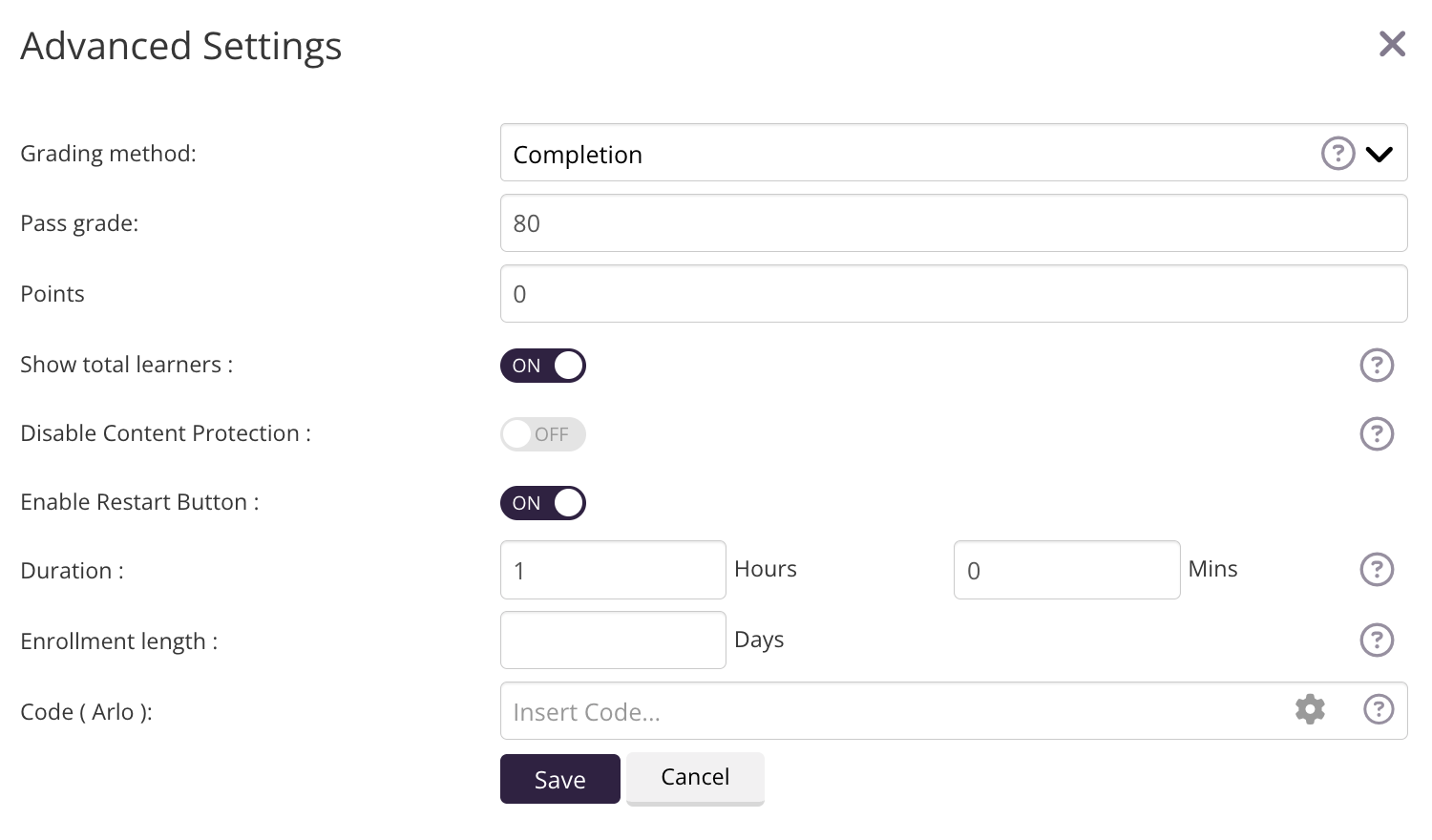
Enable Restart Button
If enabled:
Learners can restart a course, resetting their progress to 0.
Duration
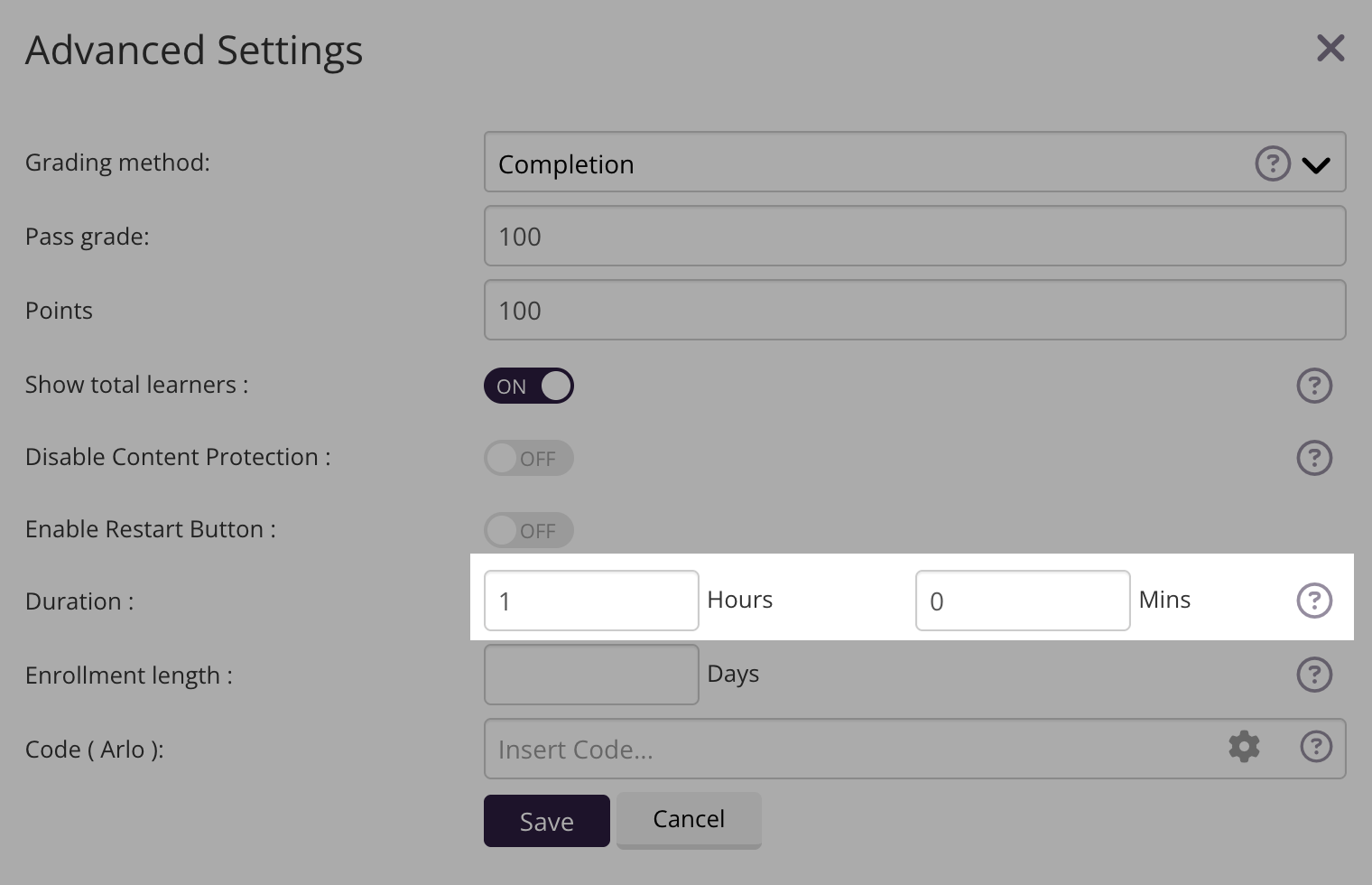
Define how long the course should take to complete.
Default duration is 1 hour
You can customise both hours and minutes
This duration is used for learner expectations and reporting.
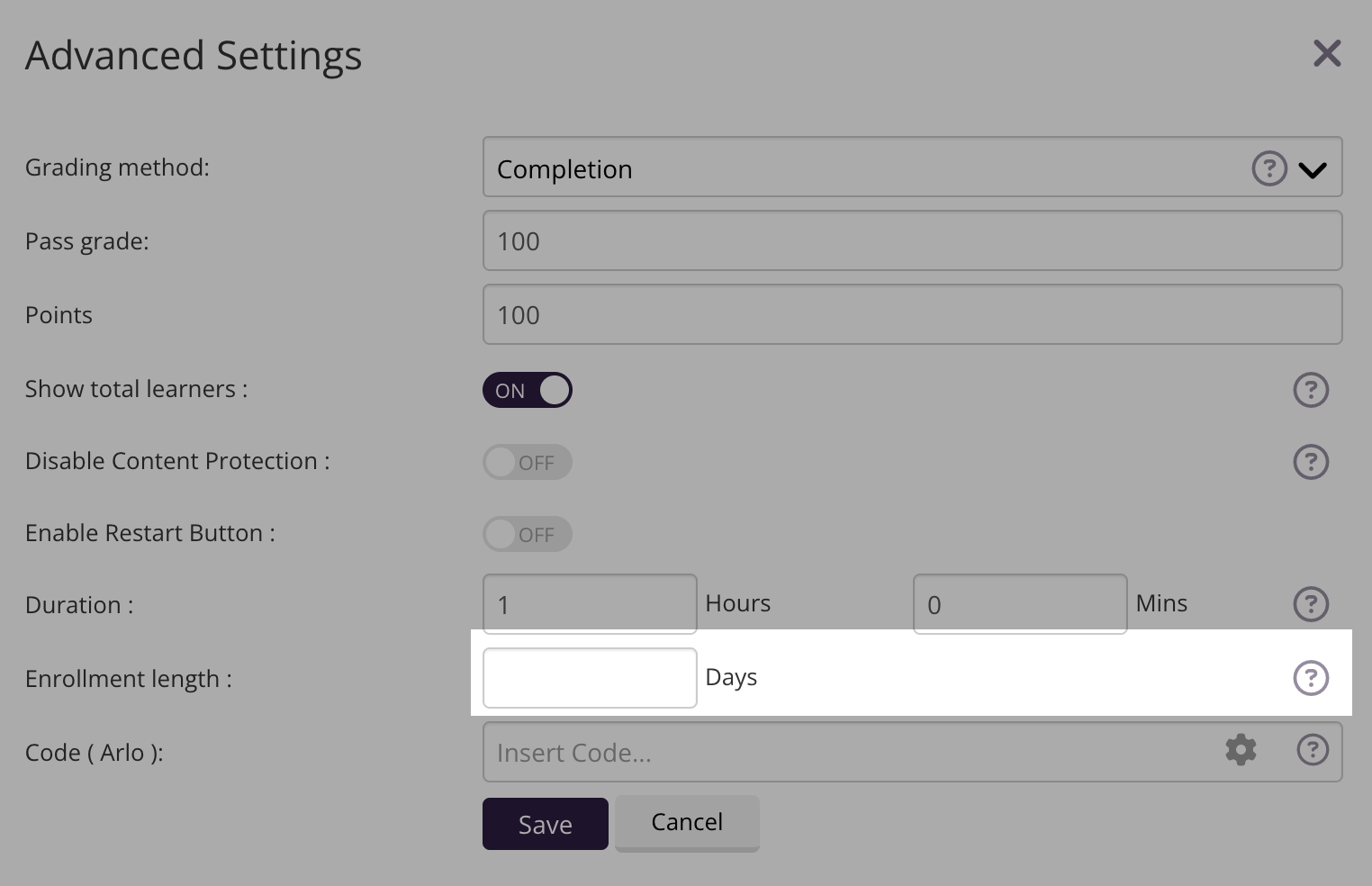
Enrolment Length
Set how many days learners remain enrolled after their enrolment date.
If set to 0 or left blank, learners will not be automatically unenrolled
Useful for time-limited or compliance-based courses
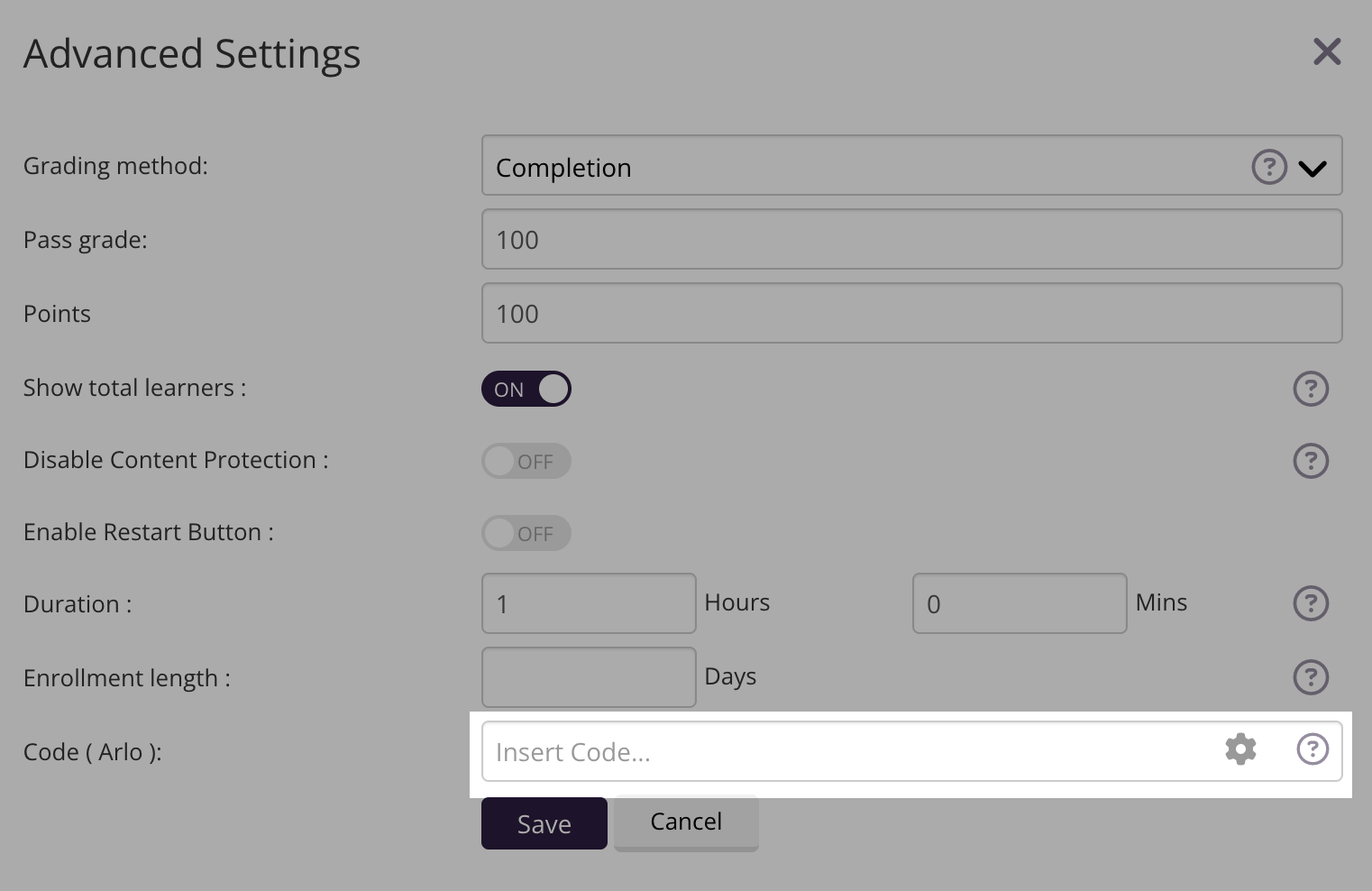
Code (Arlo)
If Arlo integration is enabled:
Enter the Arlo course template code
The code must exactly match the template in Arlo
This ensures correct synchronisation between Coursebox and Arlo.
Set Prerequisites for Learning Pathways
While many courses can be taken independently, some learning pathways may require the completion of a prior course before progressing. For example, Course 1 might need to be completed before accessing Course 2.
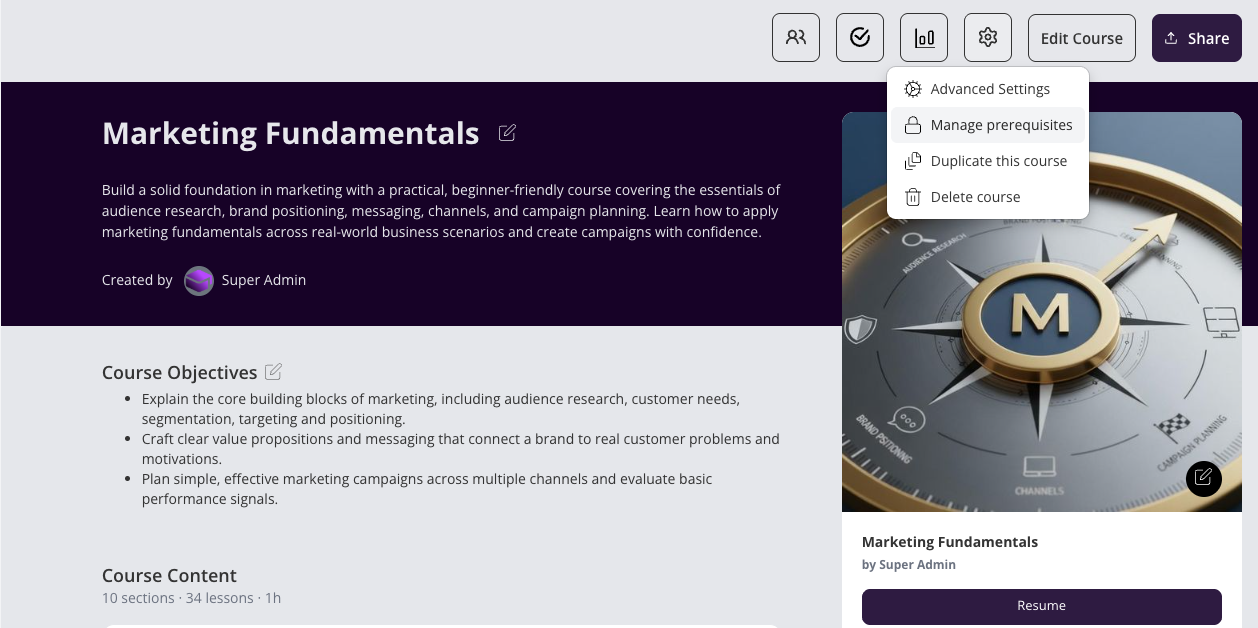
Go to the course you want to set the prerequisite.
In the top-right corner, locate the settings (gear) icon next to Edit Course.
From the dropdown menu, select Manage prerequisites (lock icon).
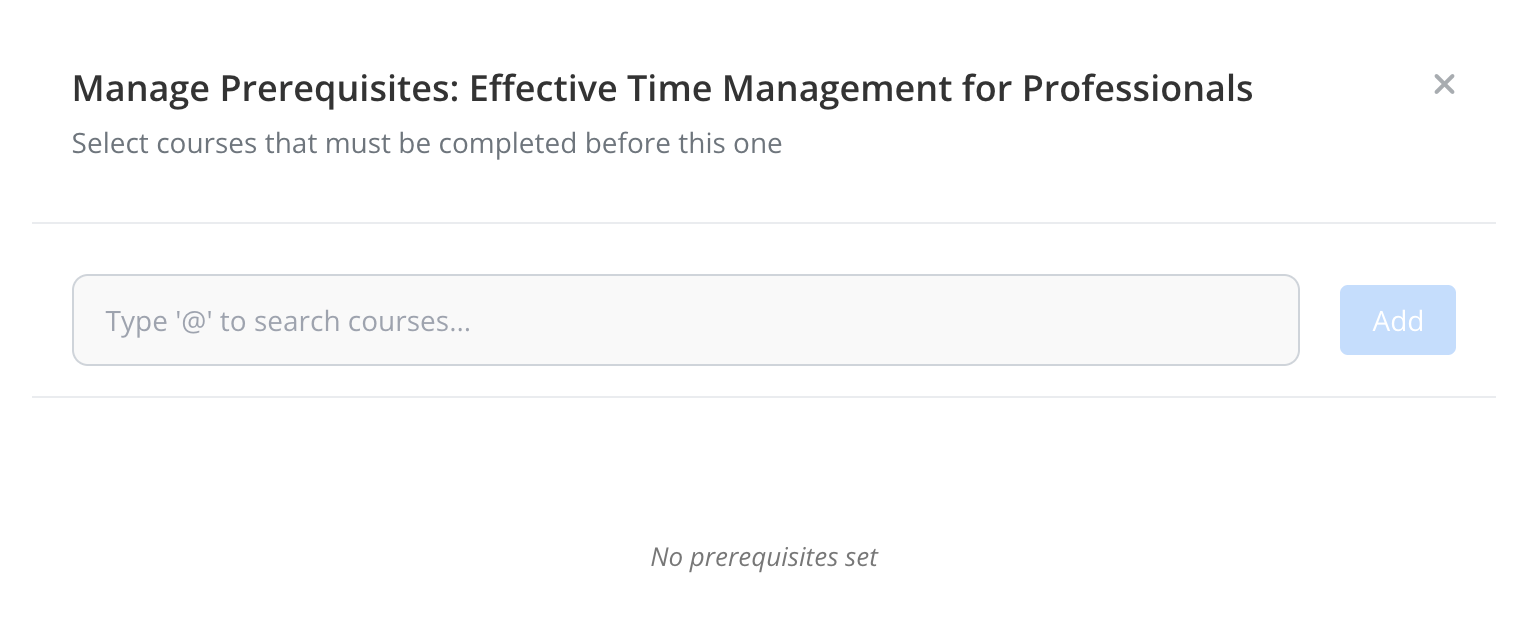
The prerequisites dialog includes a search input — type a course name in the “Type to search courses…” field, then click Add to set it as a prerequisite. (Search input behaviour was fixed in May 2026.)
This option allows you to specify another course that must be completed first.
Duplicate a Course
The Duplicate feature lets you create a copy of an entire course, which will appear in your Drafts. This is a valuable time-saving tool when you want to reuse an existing course structure.
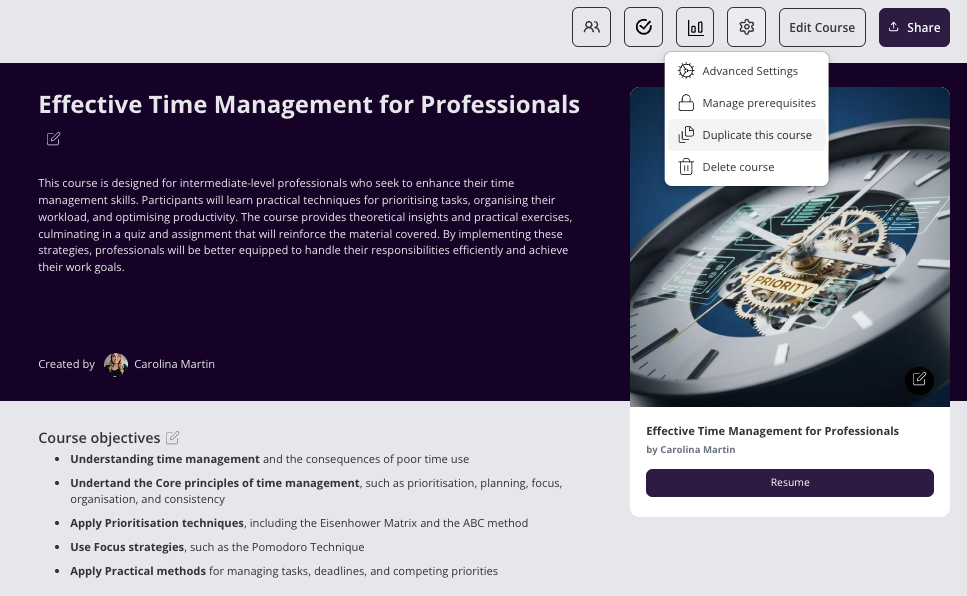
You might use it to:
Build a shorter or condensed version of a course
Tailor the same content for a different audience or language level
Experiment with changes without affecting the original course
Duplicating a course helps streamline course creation while maintaining consistency across programs.
Delete a Course
The Delete function allows you to permanently remove a course from your drafts or course list. This is useful if the course is no longer needed or was created by mistake.
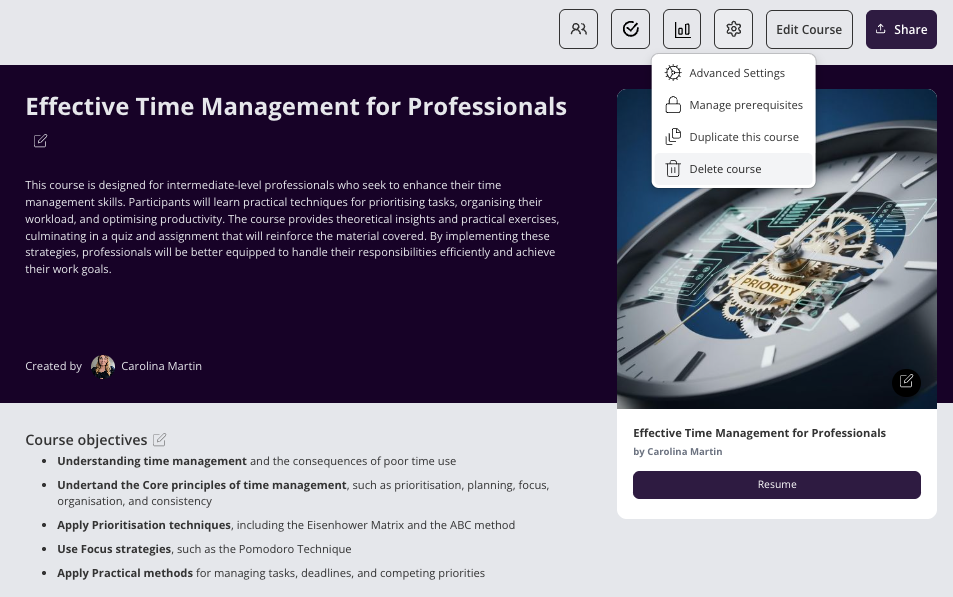
When you click Delete, a confirmation message will appear to ensure the action is intentional. You can choose to cancel at this stage if needed.
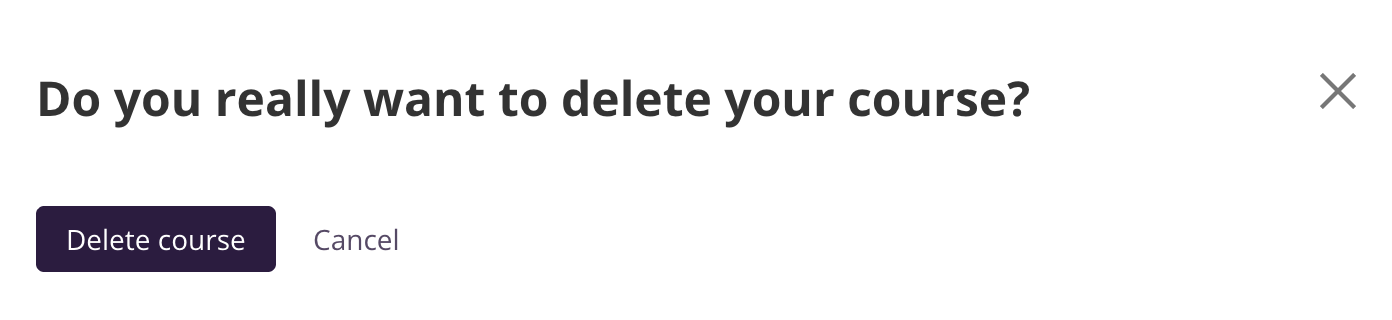
Note: Use this option with care, as deleted courses cannot be recovered