Add a Quiz
Effective quiz management is key to building engaging learning experiences. In this section, you'll learn how to create a quiz, add quiz questions, set a pass mark, configure quiz settings, and add different question types including multiple choice, short answer, and drag and drop. Whether you want to build a test, add an assessment, or check learner knowledge, Coursebox makes it easy.
🆕 New in 2.0: Short answer quiz grading has been significantly improved with structured AI criteria and clearer learner feedback. The AI now uses more precise evaluation criteria to assess written responses, resulting in more accurate and consistent marking.
Watch the tutorial videos found in our YouTube Video Library.
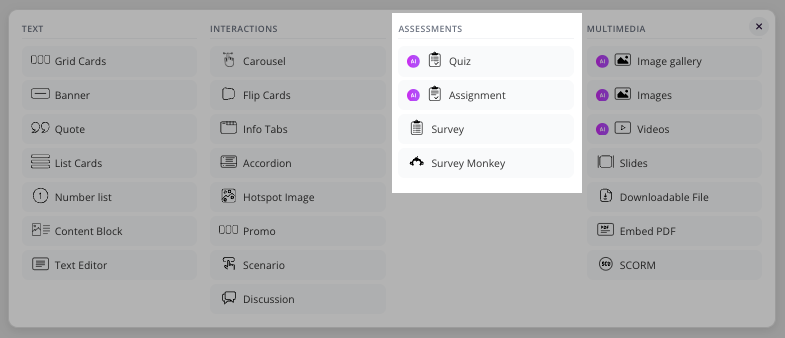
Click the + button on the page to open the content picker, then under ASSESSMENTS choose Quiz. The picker shows every category — Text, Interactions, Assessments and Multimedia — side by side in one panel, so there is no separate tab to switch to. Quiz is marked with an AI badge, because Coursebox can generate the questions for you.
Create a Quiz with AI
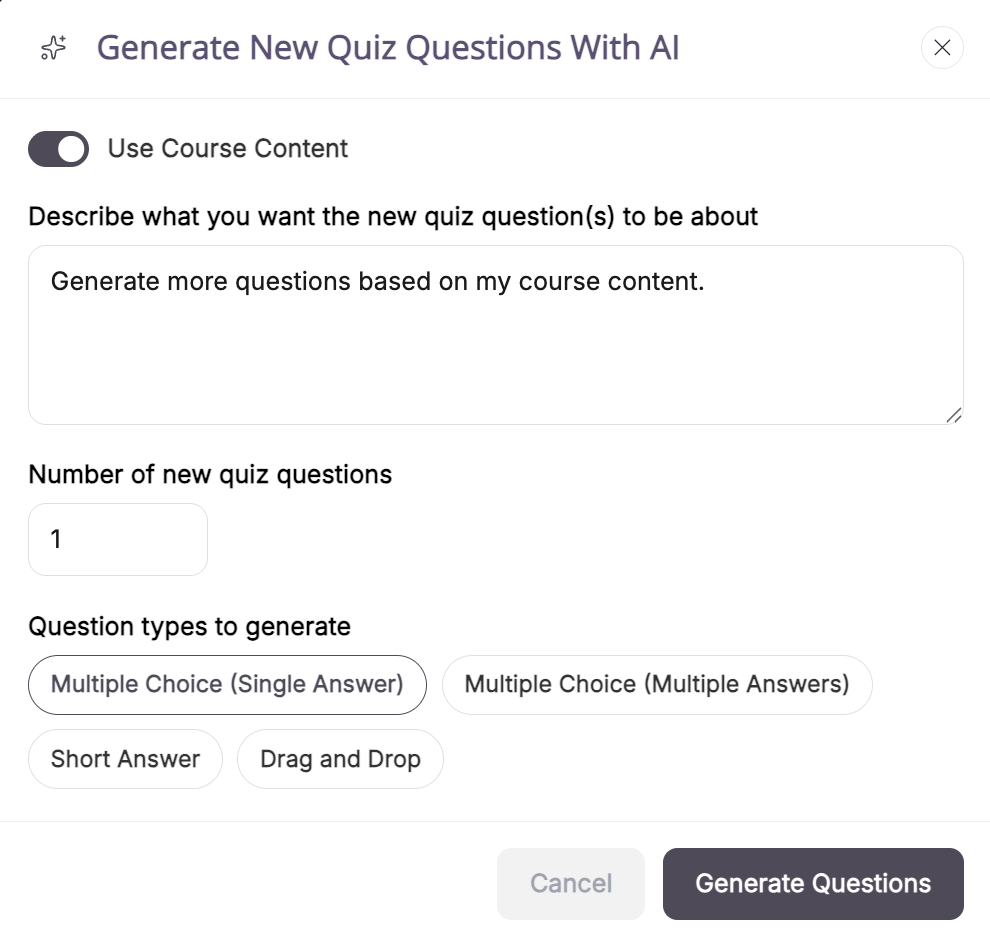
Use the slider to choose whether the quiz is generated using the course content.
Select the number of quiz questions and click Generate Questions.
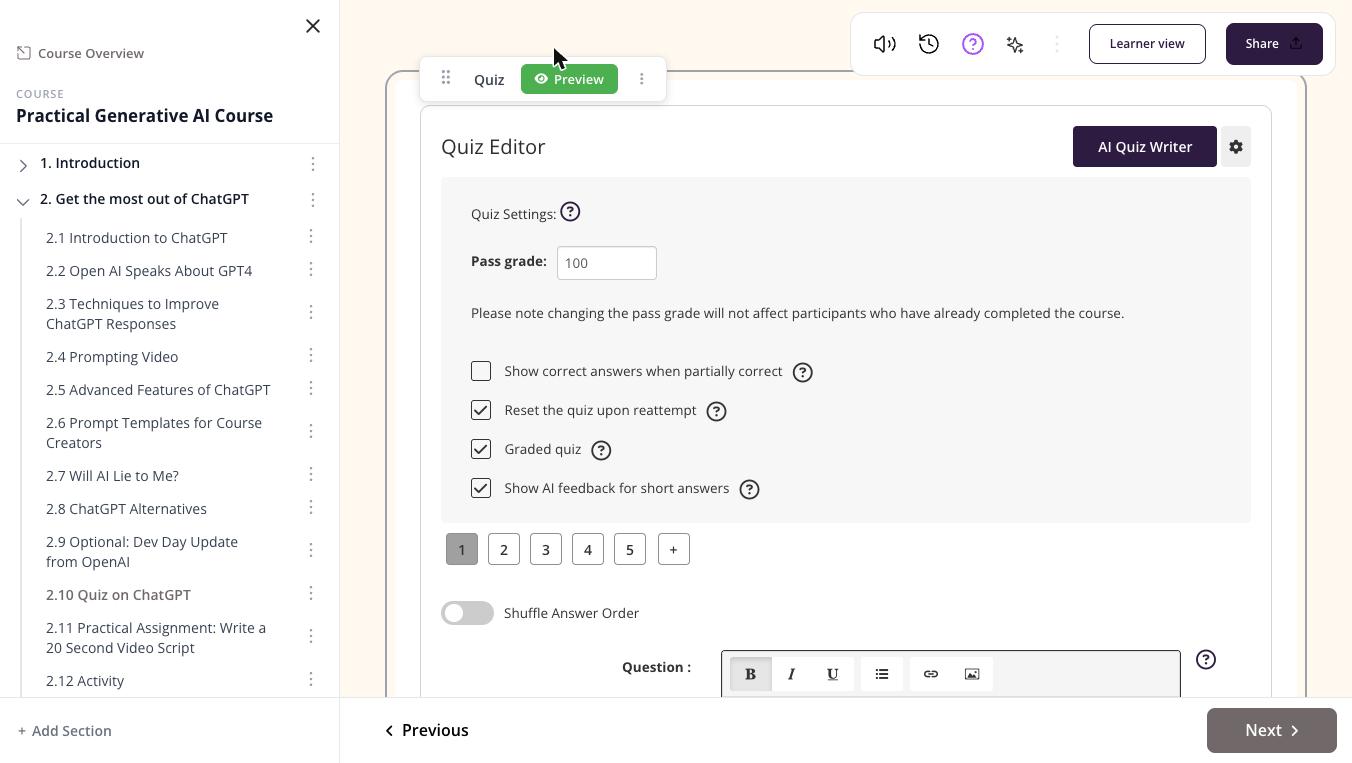
Adjust your desired pass settings, enable correct answers, quiz reset, and set quiz visibility.
Quiz Types: Multiple Choice, Short Answer, Drag & Drop
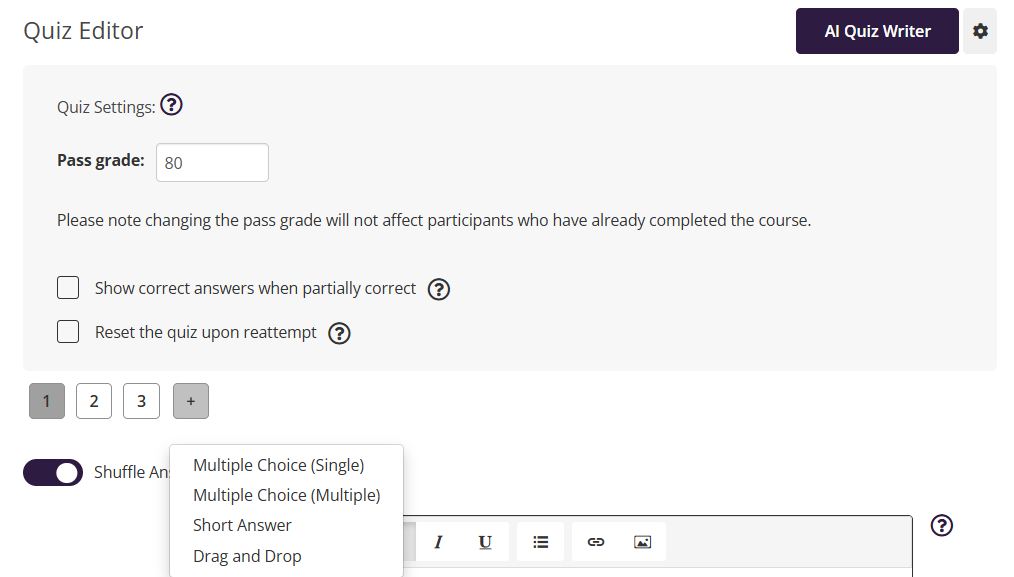
Coursebox supports four question types. Click the + button to add a new question and select from the dropdown.
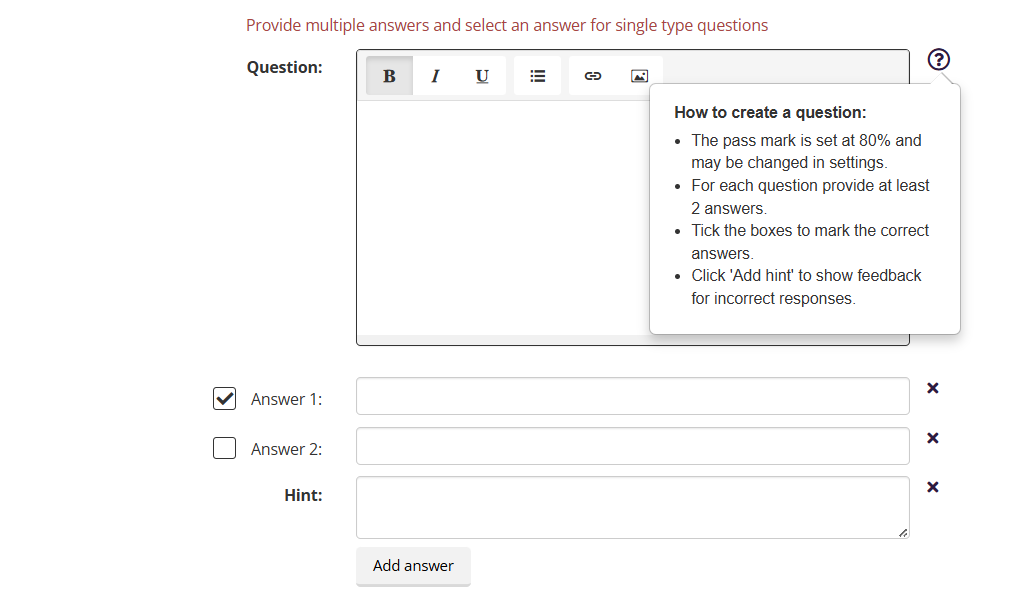
Multiple Choice (Single Answer)
Learners select one correct answer. Click + > Multiple Choice (Single) > enter question > add answers > tick correct answer > save.
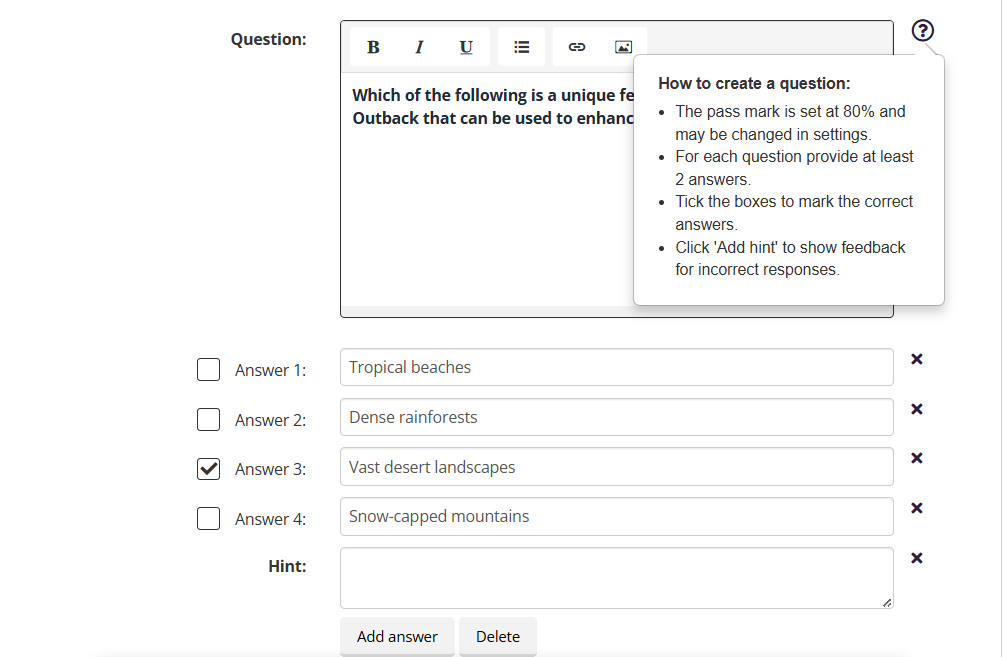
Multiple Choice (Multiple Answers)
Learners select more than one correct answer. Click + > Multiple Choice (Multiple) > enter question > add answers > tick all correct answers > save.
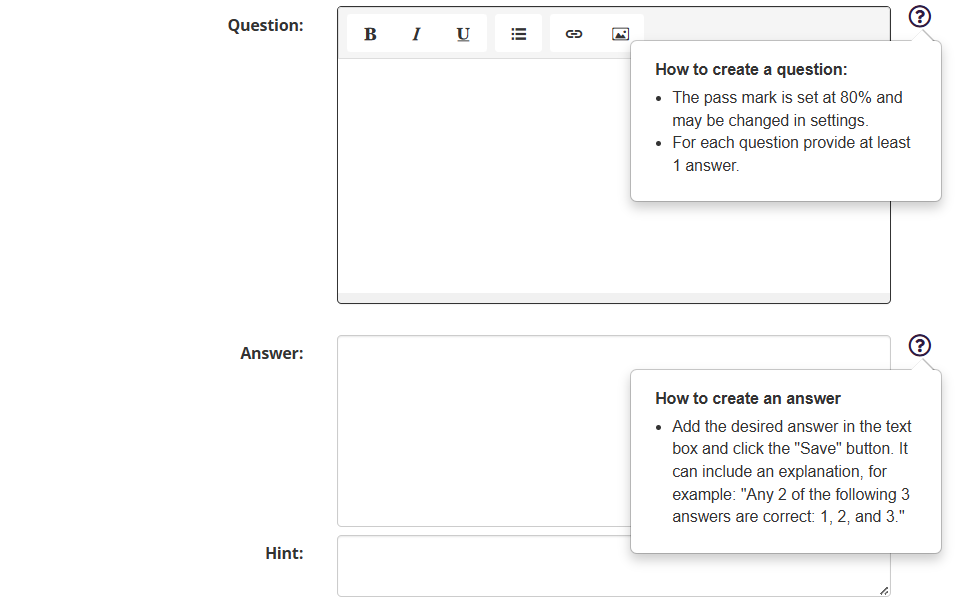
Short Answer (Written Response)
Learners type a written response. The AI evaluates responses based on the correct answers you provide.
🆕 Improved in 2.0: Short answer grading now uses structured AI criteria for more accurate and consistent marking. The AI provides clearer feedback to learners based on their responses.
Click + > Short Answer > enter question and correct answer(s) > save.
Drag and Drop (Order or Match Items)
Learners drag items into the correct order or categories. Click + > Drag and Drop > enter question > add items > define correct order > save.
Add an Image to a Quiz Question
Click inside the question text editor > select the Image icon > upload an image > adjust size as needed.
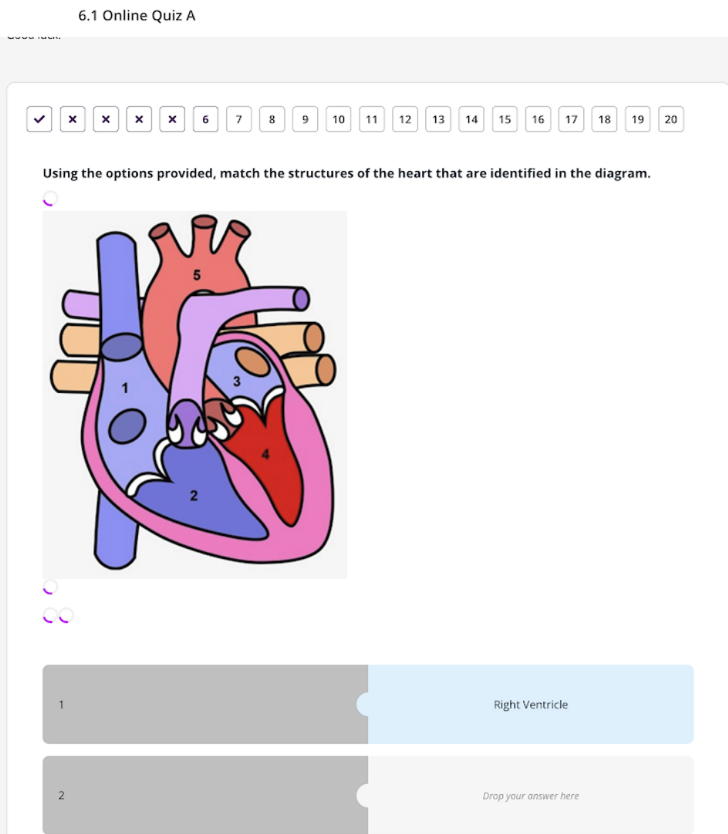
Learner Response – Speak Mode (Answer by Voice)
Speak Mode allows learners to answer quiz questions by voice. It is automatically available in single/multiple choice and short answer quizzes via the microphone icon.
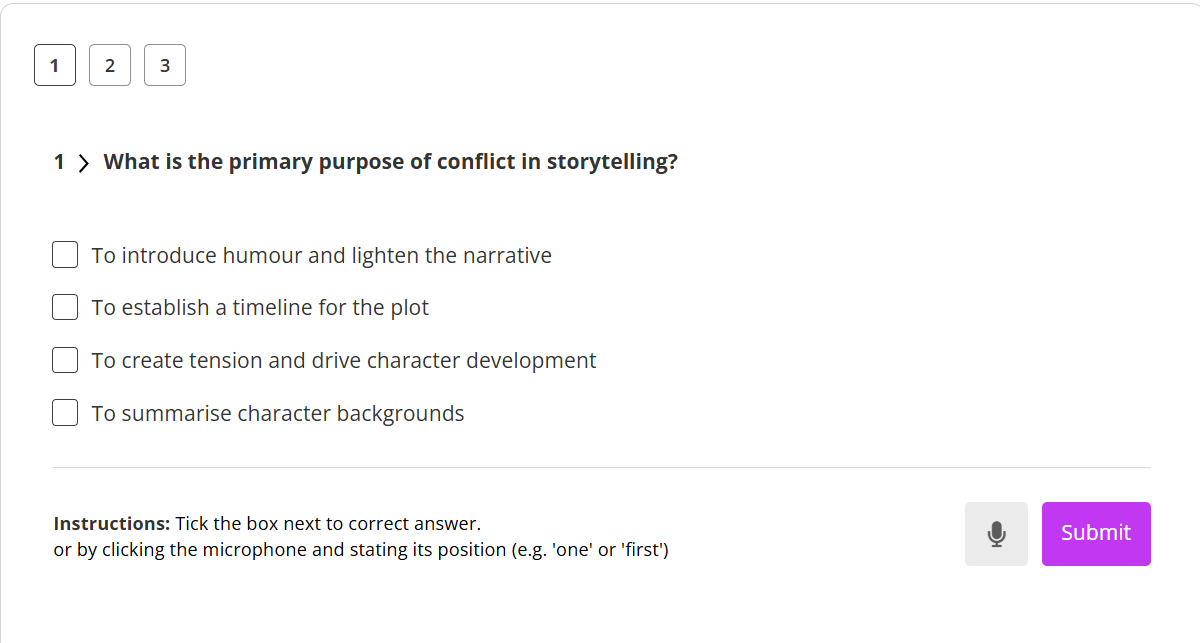
Reset Quiz Upon Reattempt (Allow Quiz Retakes)
Learners can attempt a quiz up to 3 times. When setting up:
Unchecked (default): Learners see original responses and only update wrong answers.
Checked: All responses are cleared — learners re-attempt every question from scratch.
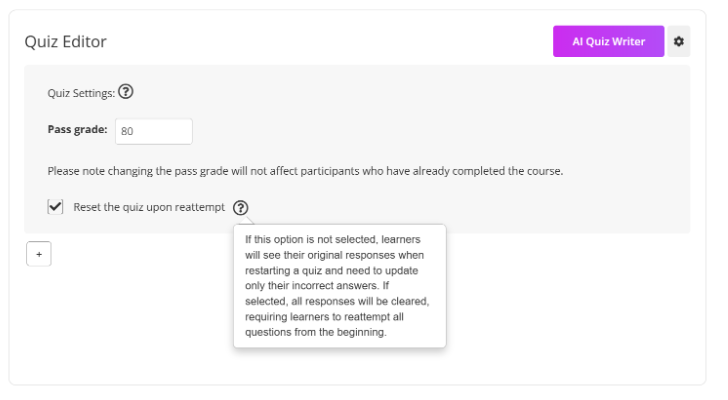
Clickable Navigation for Incorrect Questions
Learners can navigate back to incorrect quiz questions using the clickable indicators at the top of the quiz screen to review and correct answers efficiently
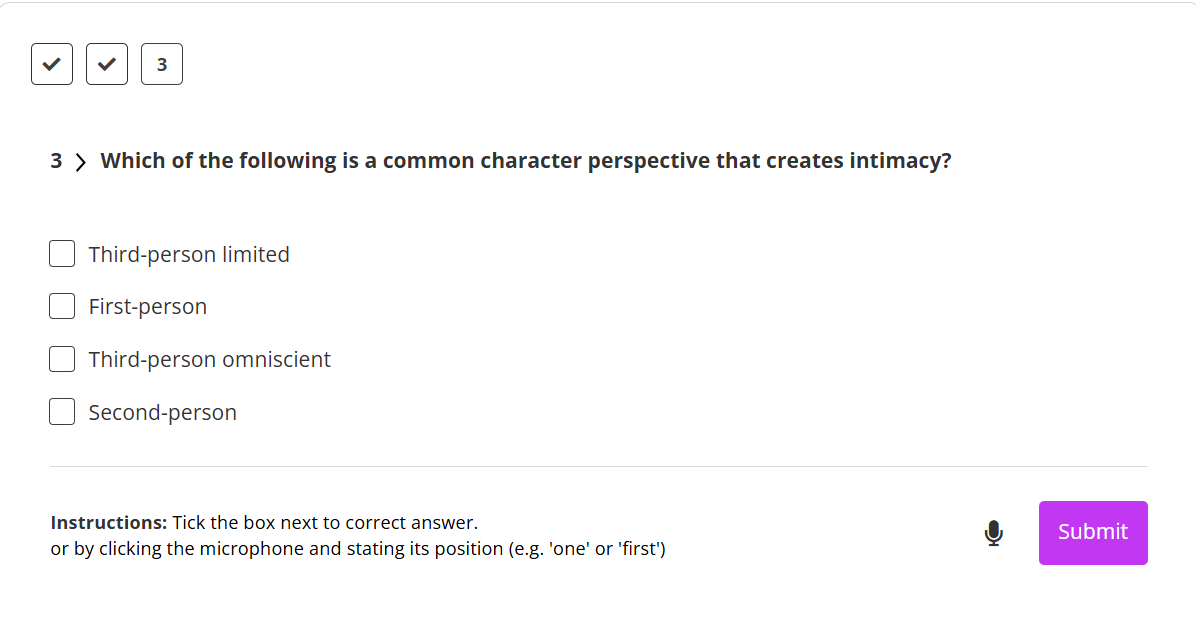
Changing Quiz Text Font Size
Quiz question text does not have its own font-size control in the quiz editor. To change the size of quiz text, use the course Theme Settings instead, since quiz text uses the course's paragraph (body) font size.
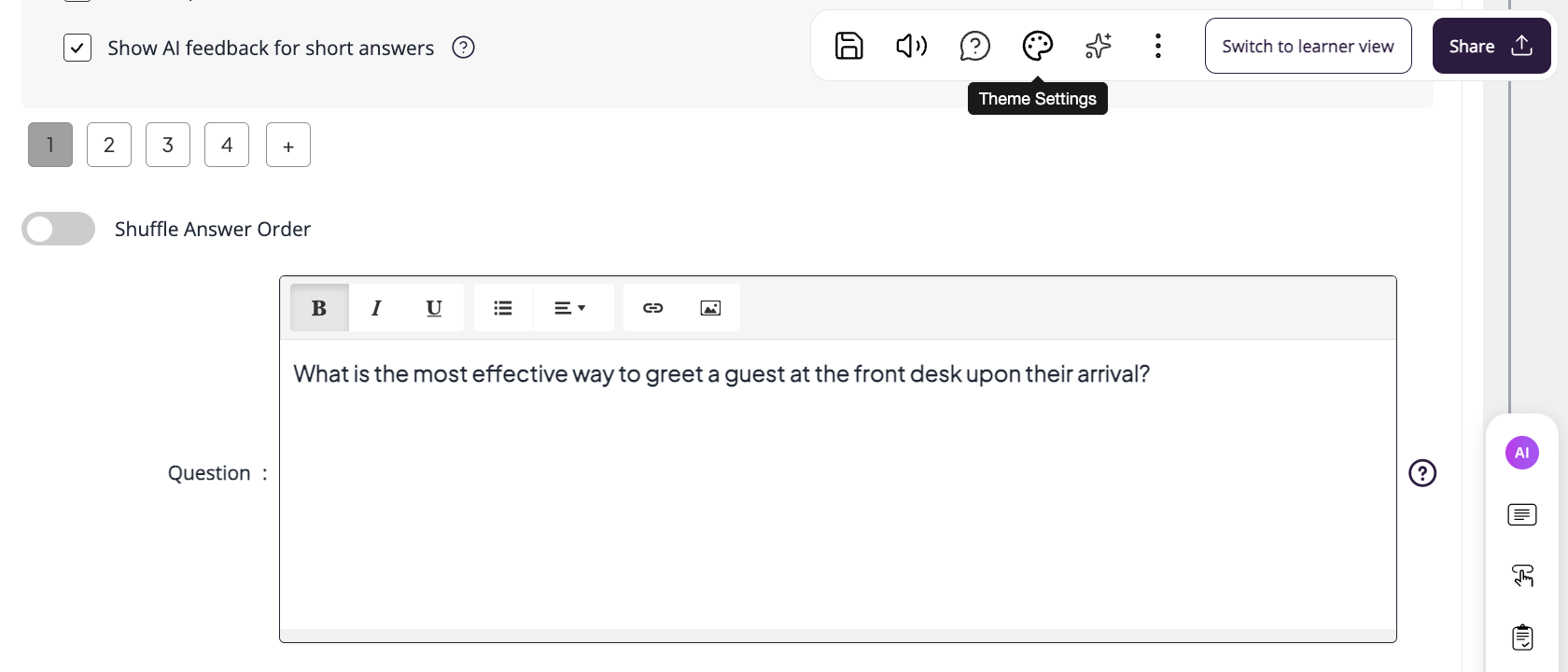
To adjust it: Open the course editor and click the palette icon (Theme Settings) in the toolbar. Go to the Font tab. Find the "P" (paragraph) setting — this controls the font size for body text in the course, including quiz text. Use the Size (and Line height) plus/minus controls to adjust it.
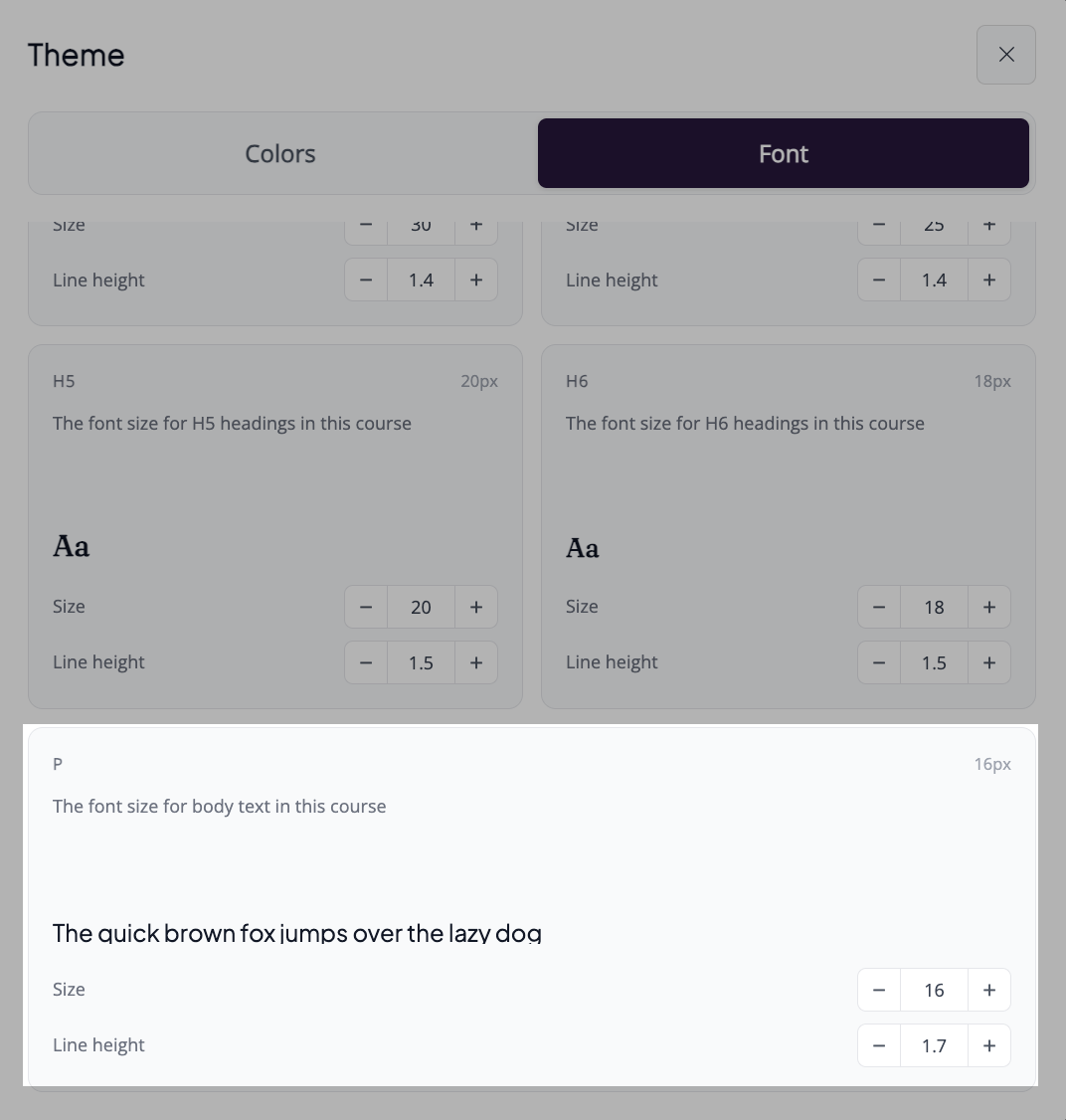
Check the result in Preview or Learner view, since font size changes apply there and to learners, not in the editing view.
Viewing Quiz Questions
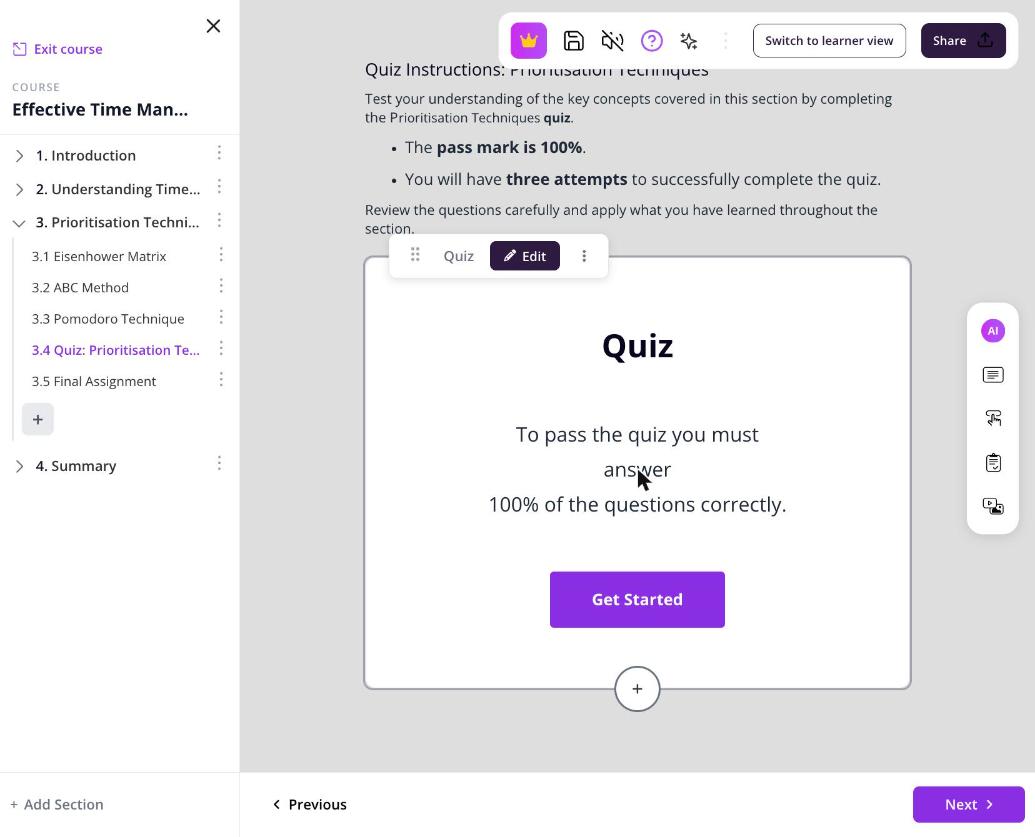
To view the questions in a quiz bank that has been created, navigate to the quiz in your course. From the admin view, click on the quiz editor box and select "Edit" to open the quiz and see all questions within it.
Viewing Learner Quiz Answers (as an Admin)
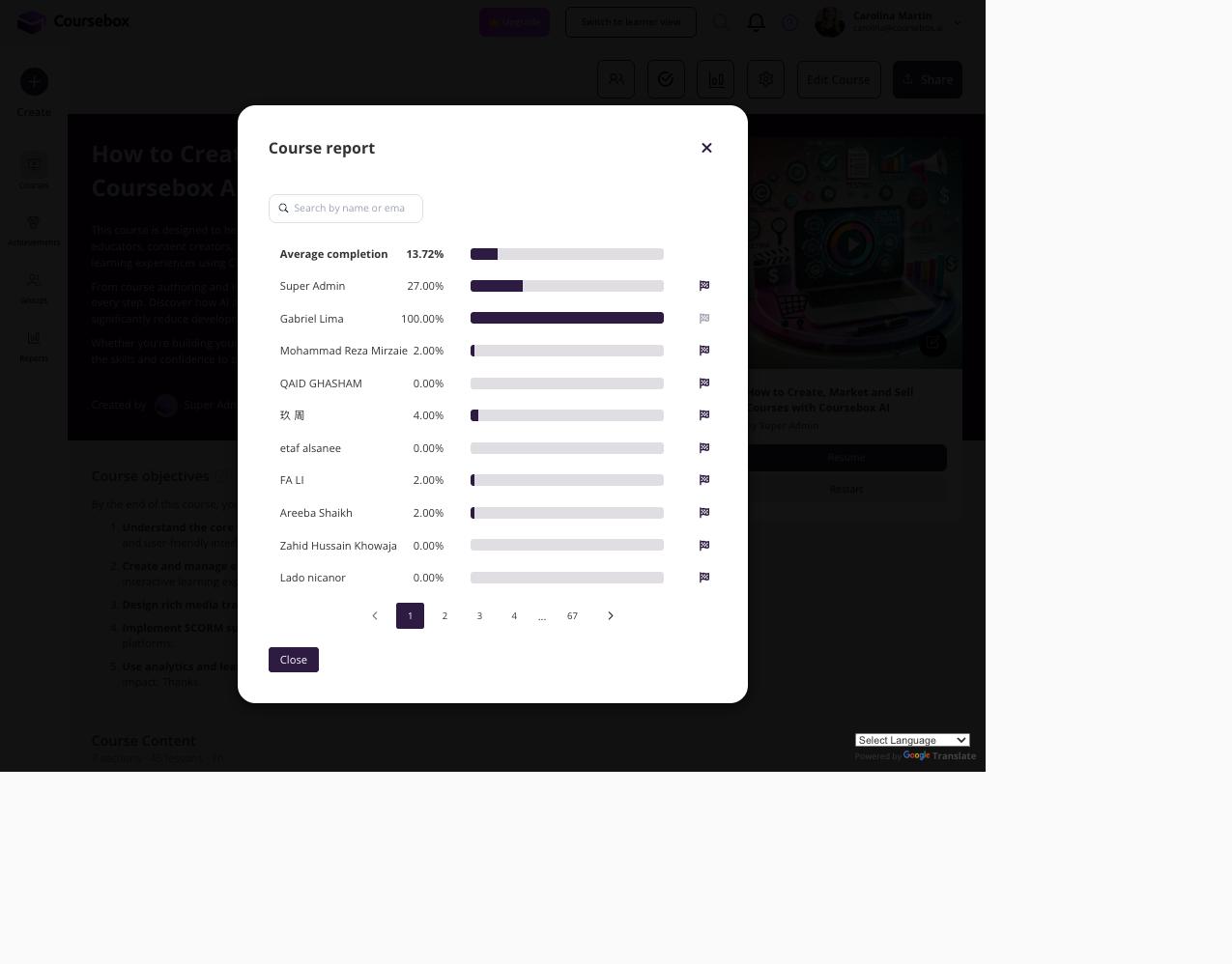
As an admin, you can monitor learner progress and quiz completion through the Course Report. Follow the steps below to access it.
Step 1: In the left-hand navigation bar, click Reports. You will see a list of all your courses with enrolment and completion data.
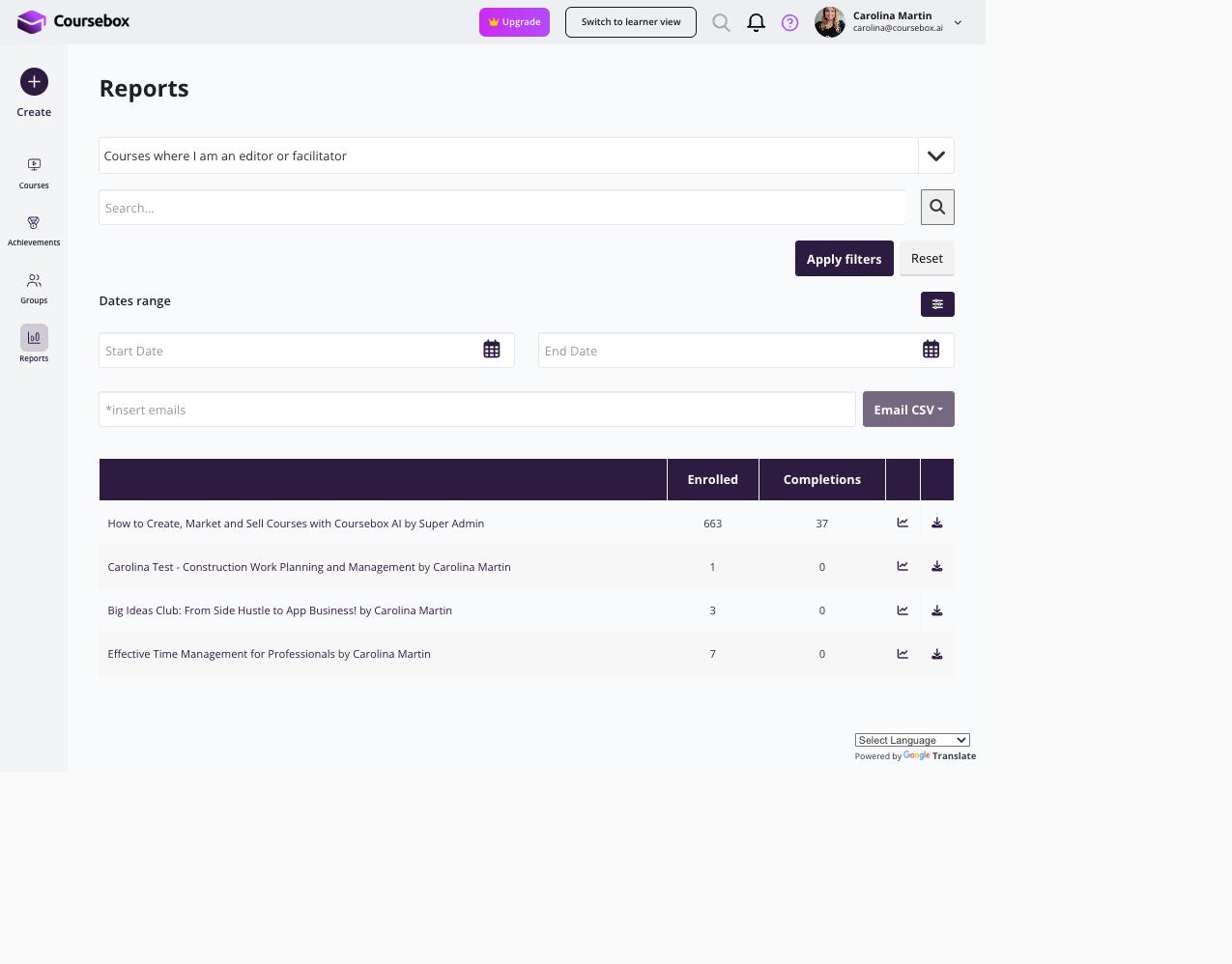
Step 2: Navigate to your course and click the chart icon (Course Report) in the top navigation bar.
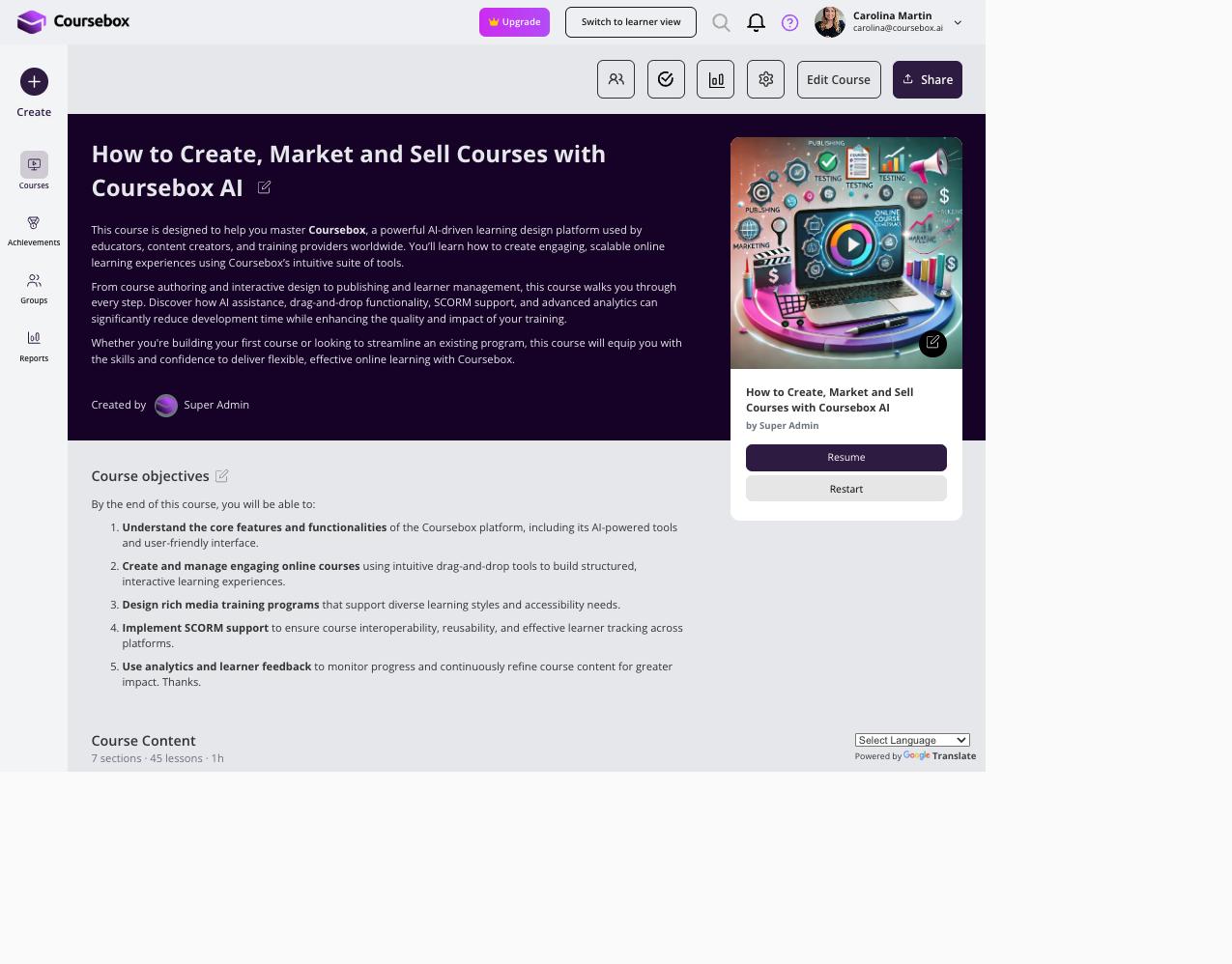
Step 3: The Course Report modal opens, showing all enrolled learners with their individual completion percentages. You can search for a specific learner by name or email.