
Add an Assignment
Assignment blocks collect written answers, documents and audio recordings from learners. You can grade submissions yourself or let Coursebox AI grade them against a rubric.
Add an assignment
In the course editor, click + Add block and choose Assignment from the Assessments column.
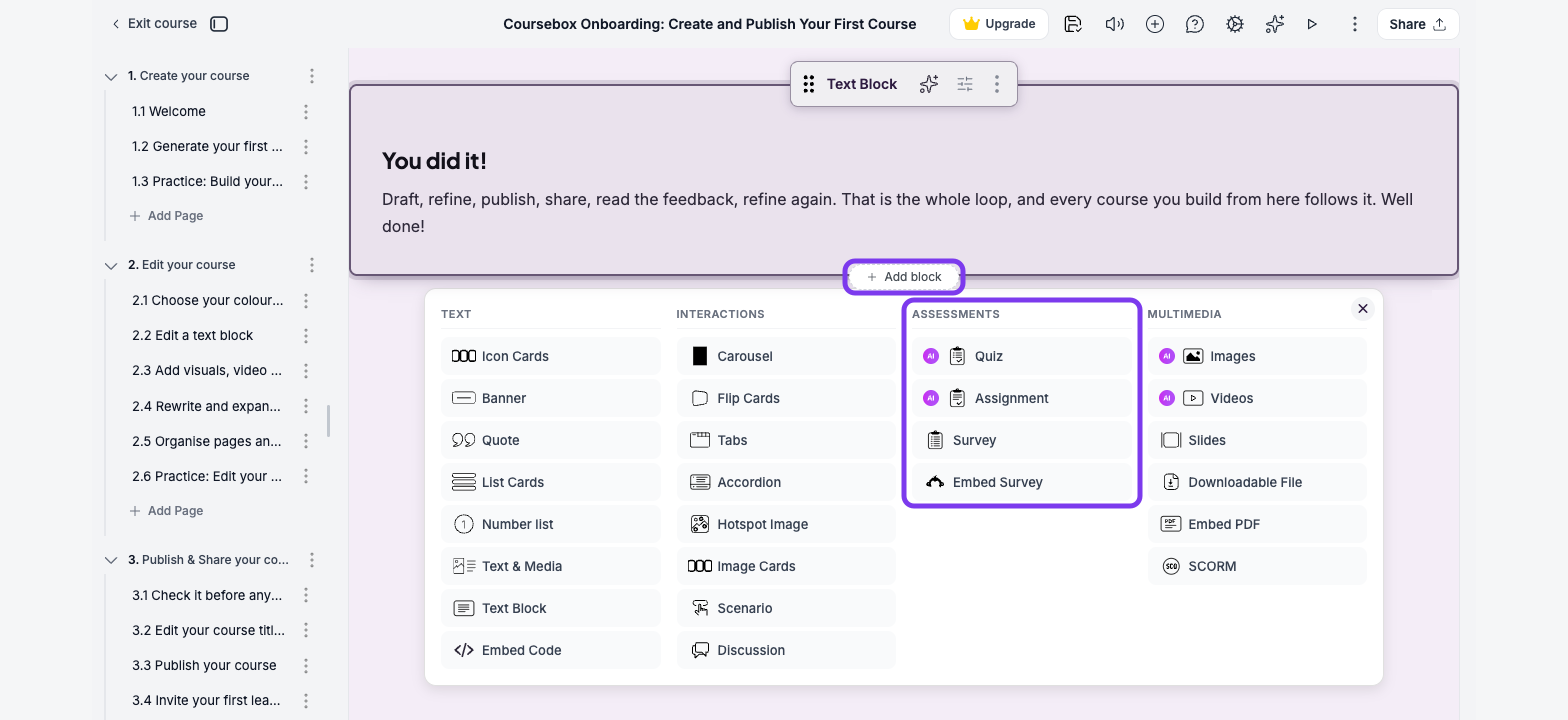
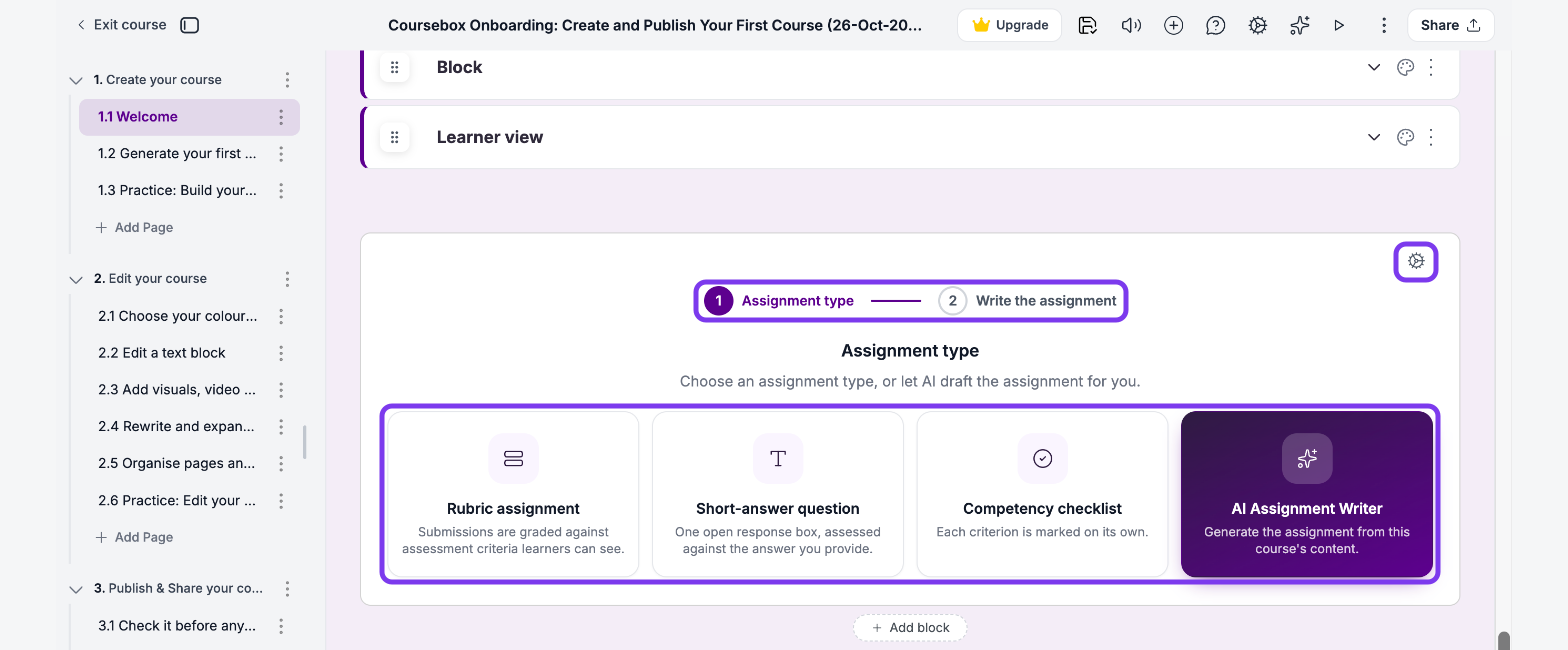
Under Assignment type, choose a type:
Rubric assignment: submissions are graded against criteria that learners can see.
Short-answer question: one open response box, assessed against the answer you provide.
Competency checklist: each criterion is marked on its own.
AI Assignment Writer: Coursebox AI drafts the assignment from the course's content. See Can I create Assignments using AI?
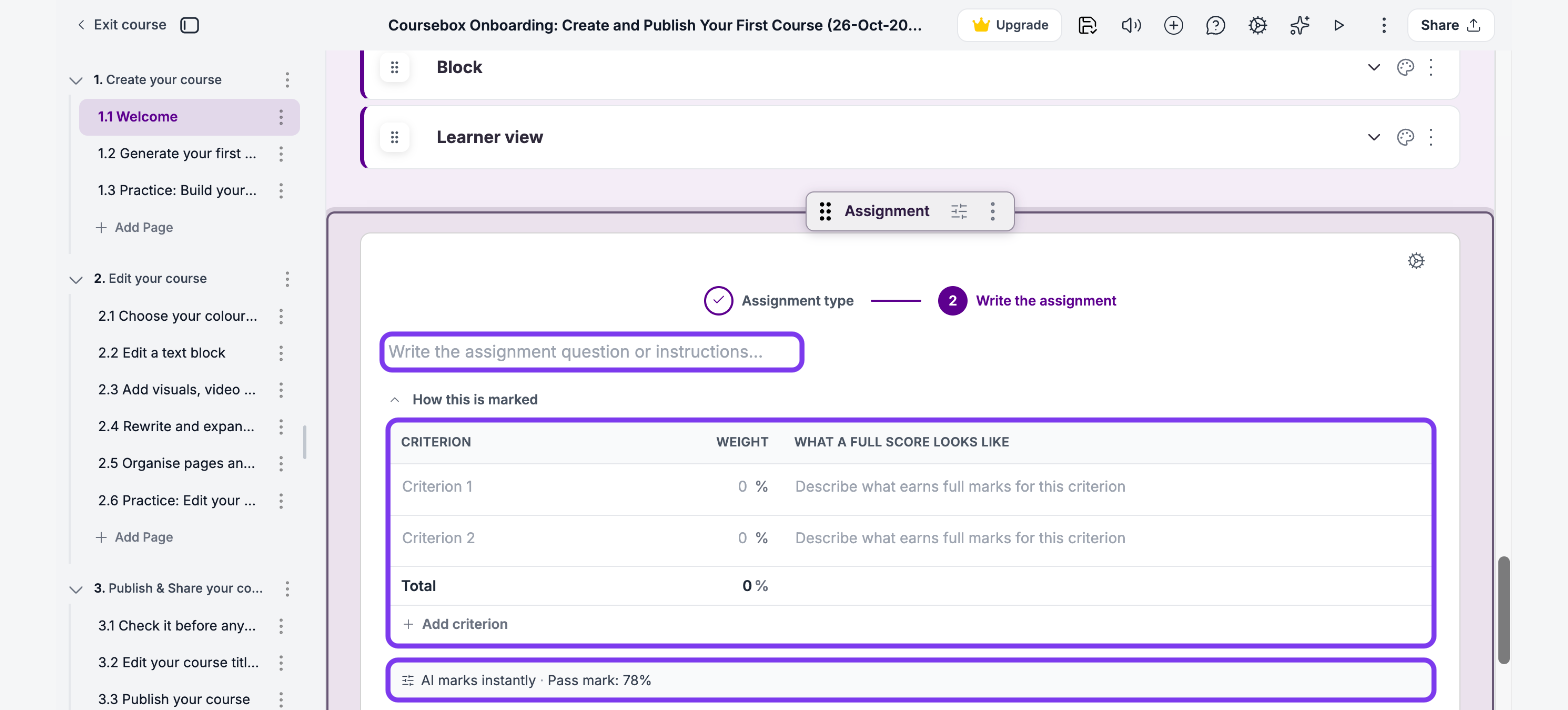
On Write the assignment, type the task in Write the assignment question or instructions....
Under How this is marked, set up the marking for your type (see below).
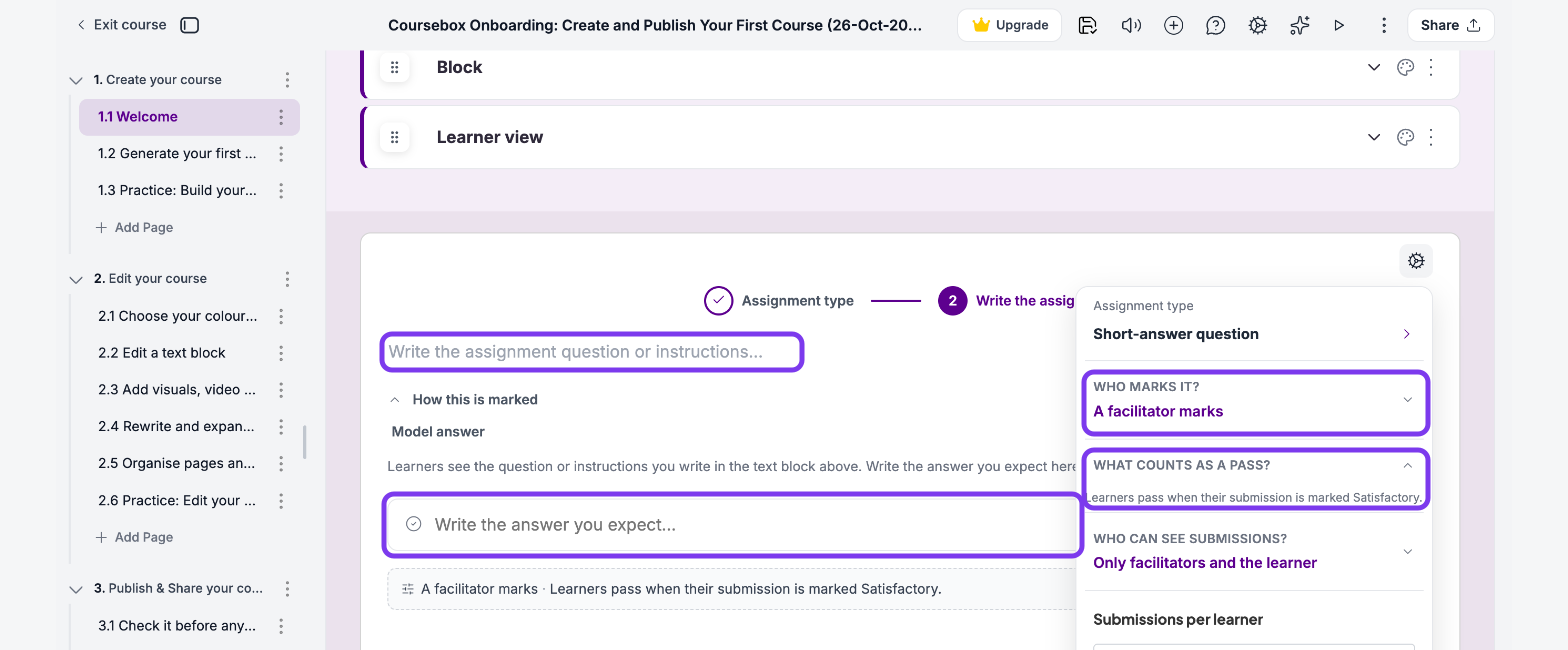
Click the gear icon to set who marks it and what counts as a pass (see Marking settings below).
To change the type later, click the gear icon, then Assignment type. Changing the type resets Who marks it? to AI marks instantly, so check the marking settings afterwards.
How each type is marked
Rubric assignment
Under How this is marked, fill in the rubric table:
Criterion: what you're assessing.
Weight: how much of the grade it's worth, as a percentage. Keep the weights adding up to a Total of 100%.
What a full score looks like: what earns full marks for that criterion.
Click Add criterion to add a row.
Short-answer question
Under How this is marked, write the answer you expect in Model answer. Each submission is assessed against it, and learners pass when their submission is marked Satisfactory.
Competency checklist
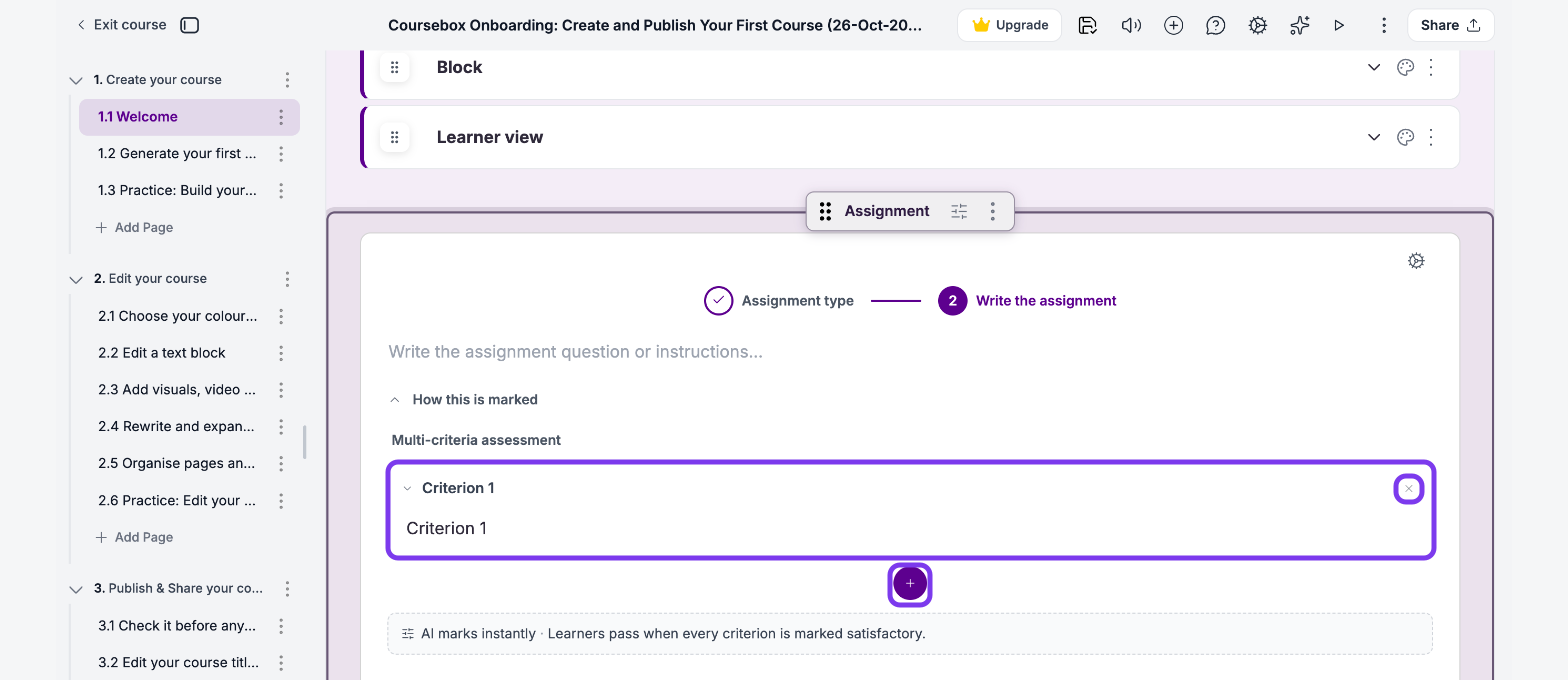
Under How this is marked, click + to add a criterion.
Describe what the learner must show for that criterion.
Repeat for each criterion. To remove one, click the × on it.
Learners pass when every criterion is marked satisfactory.
Marking settings
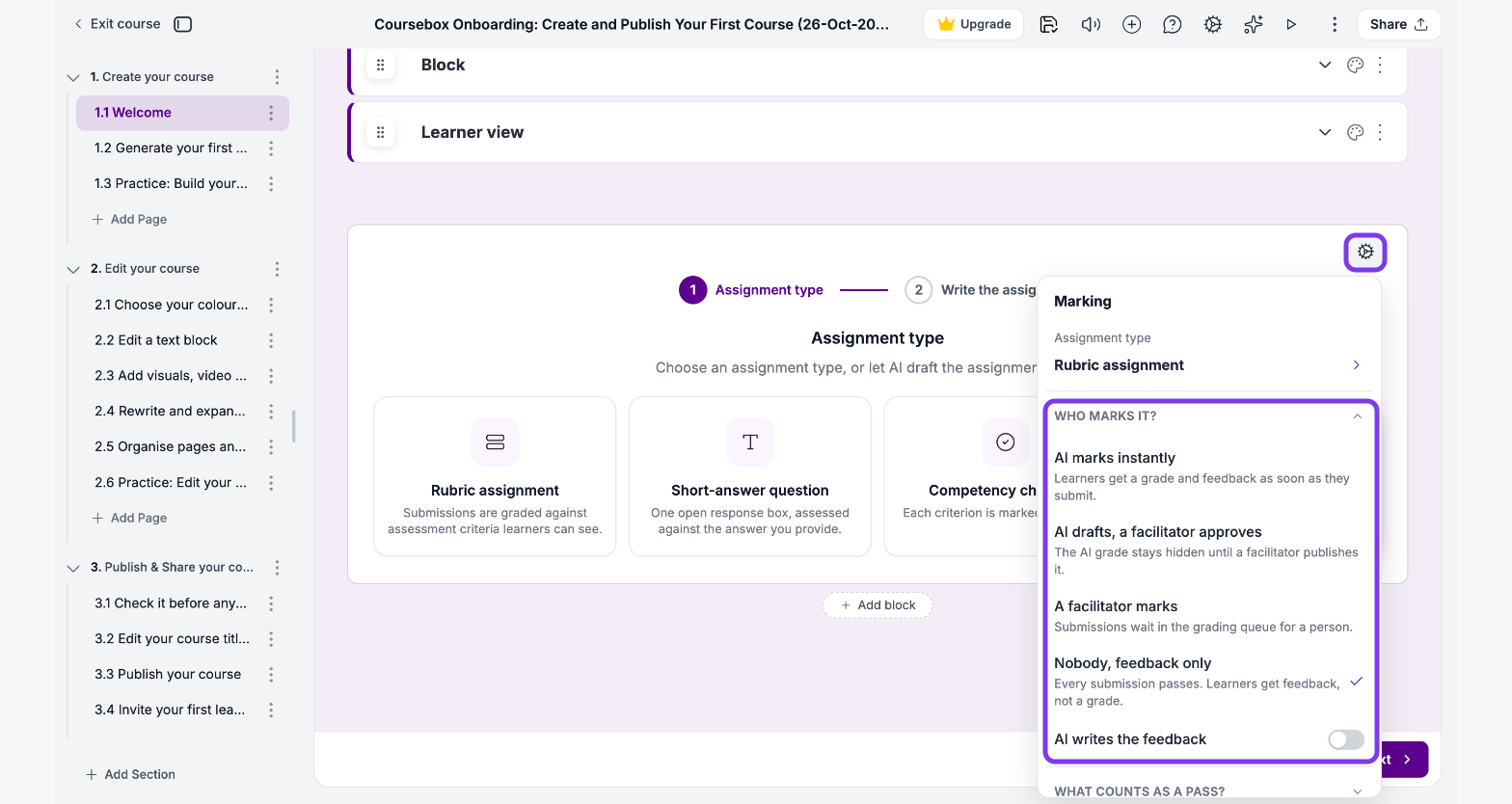
Click the gear icon at the top right of the Assignment block to open Marking.
Who marks it?
AI marks instantly: learners get a grade and feedback as soon as they submit.
AI drafts, a facilitator approves: the AI grade stays hidden until a facilitator publishes it.
A facilitator marks: submissions wait in the grading queue for a person.
Nobody, feedback only: every submission passes, and learners get feedback, not a grade. Turn on AI writes the feedback to have AI write it. Use this for reflections and practice tasks.
What counts as a pass?
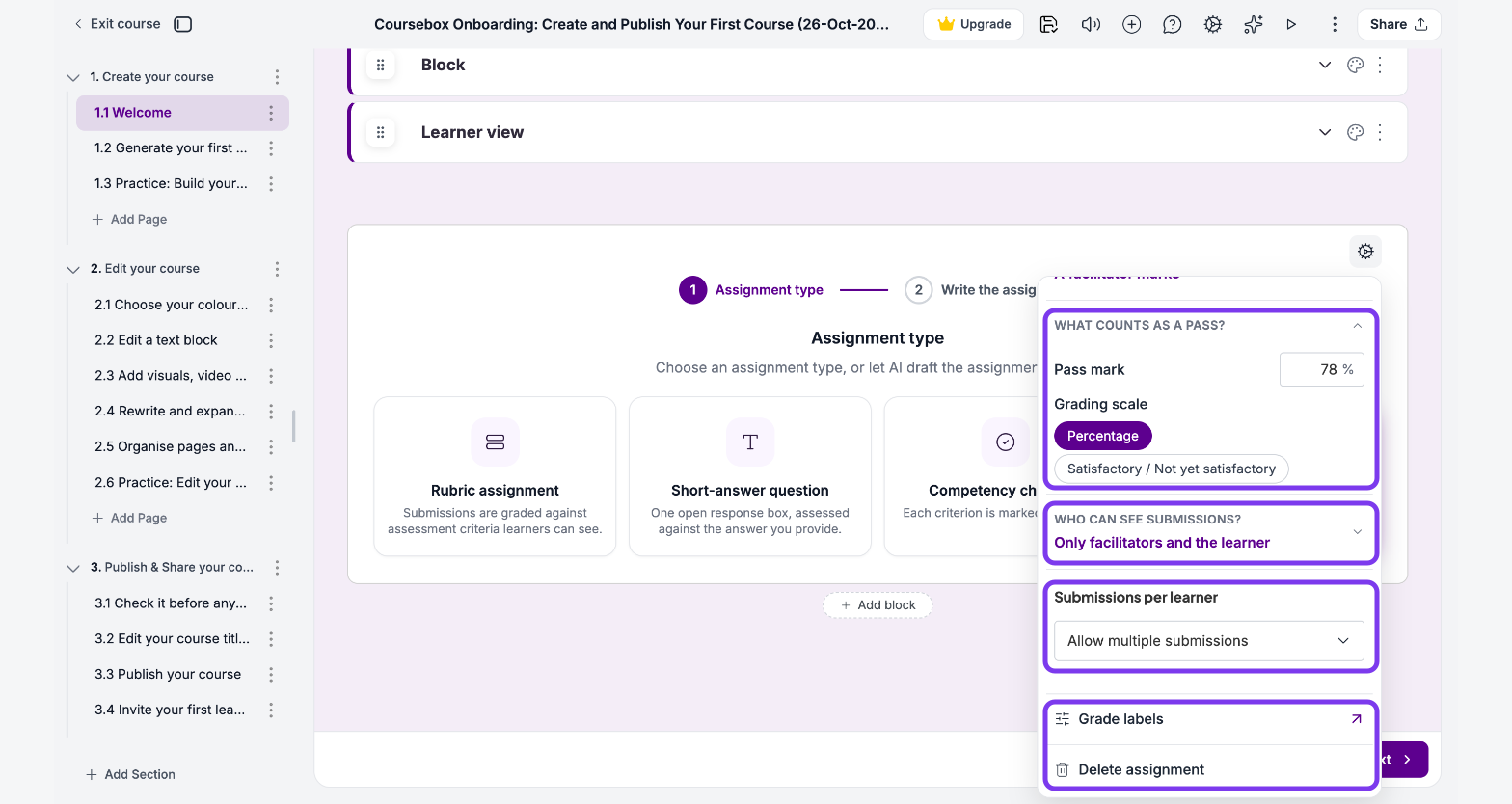
For a rubric assignment, set the Pass mark as a percentage and choose the Grading scale: Percentage or Satisfactory / Not yet satisfactory. Short-answer questions and competency checklists pass when they're marked satisfactory. With Nobody, feedback only, every submission passes.
Other settings
Who can see submissions?: Only facilitators and the learner, or Everyone enrolled in the course.
Submissions per learner: Allow multiple submissions, One at a time: resubmit only after marking, if not passed, or Only one submission.
Grade labels: opens your portal's grade labels. See Grading Settings.
Delete assignment: deletes the assignment.
The line under How this is marked sums up your settings, for example "A facilitator marks · Learners pass when their submission is marked Satisfactory".
What learners see
Below the instructions and rubric, learners can:
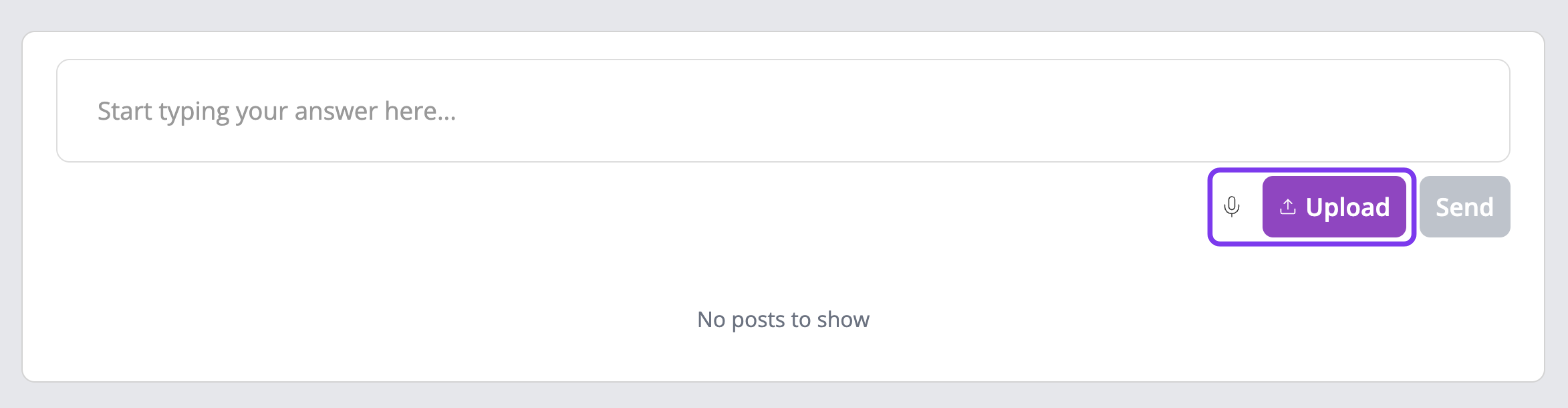
Type their answer in Start typing your answer here...
Click the microphone to speak their answer, which is turned into text they can edit. This works in Chrome and Edge.
Click Upload to attach a Word document, a PDF or an audio recording (such as MP3, M4A or WAV). Video files can't be uploaded.
Click Send to submit.
Learners can't go to the next page until they've submitted. They can also turn on Listen mode to hear the instructions read aloud.
In the course editor, submissions appear under the answer box in Assignments to Review, Reviewed Assignments and Deleted Assignments, with a search by learner name.
To review and grade submissions, see Assignment Grading Options.