
Assignment Grading Options
This section explains how to assess learner submissions in Coursebox using flexible grading options. You’ll learn how to configure assignments for percentage-based grading or competency-based outcomes, enable AI-assisted feedback, and apply moderation where required—helping you deliver fair, consistent, and standards-aligned assessment across your courses.
Watch the tutorial videos found in our YouTube Video Library.
View Submission
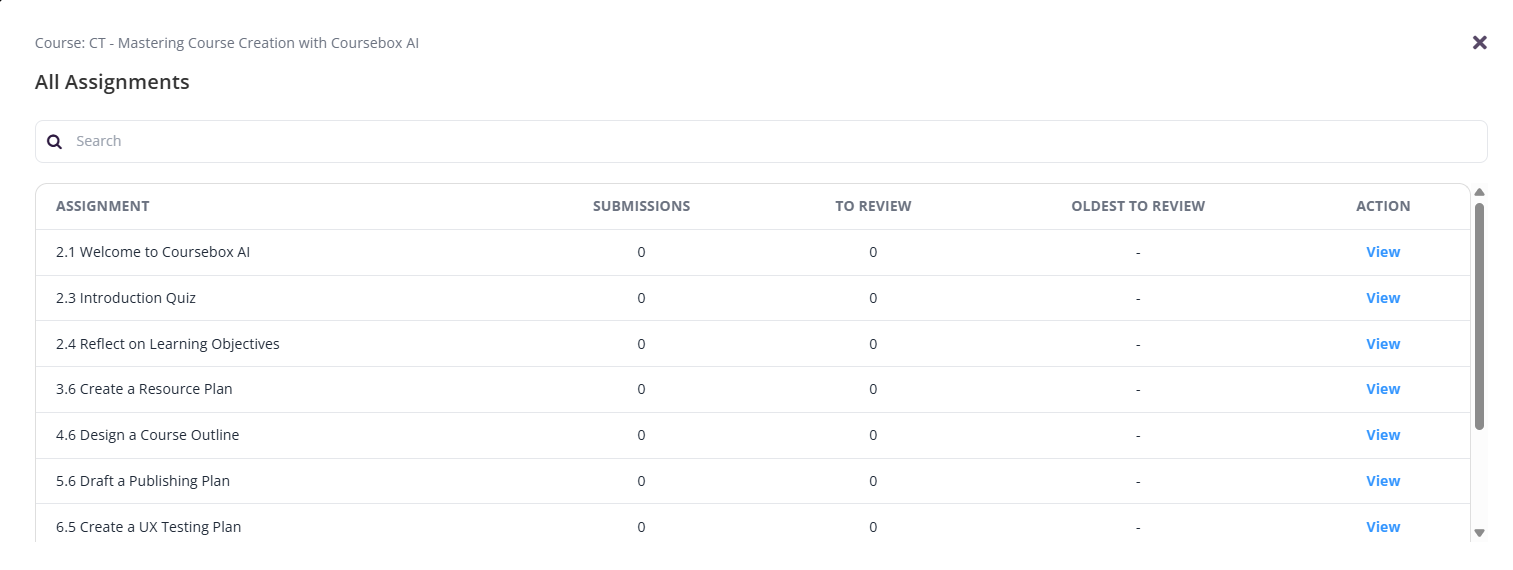
In your Course, from the top menu select the Tick Icon to view Submissions to review.

The following screen will appear:
Use Percentage Grading
Use percentage grading to evaluate student performance using a numeric score (e.g., 85%). This guide outlines how to access and configure grading settings to ensure consistency across your assessments.
Navigate to your course from the Courses tab, and select the course you want to work on.
Click into the assignment to access its configuration settings.
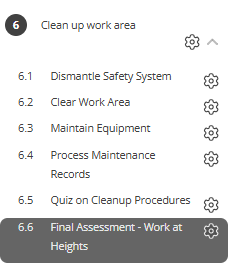
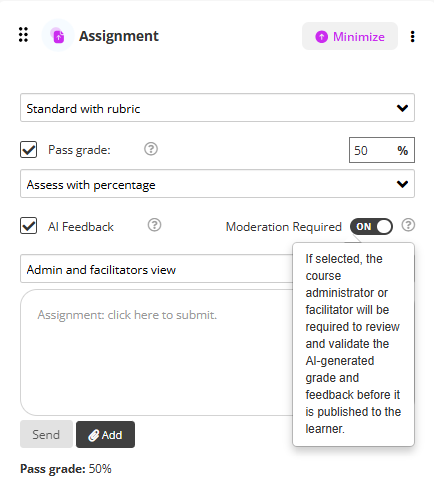
On the assessment page, go to assessment settings and select Standard with Rubric.
From the drop down, select the Assess with Percentage
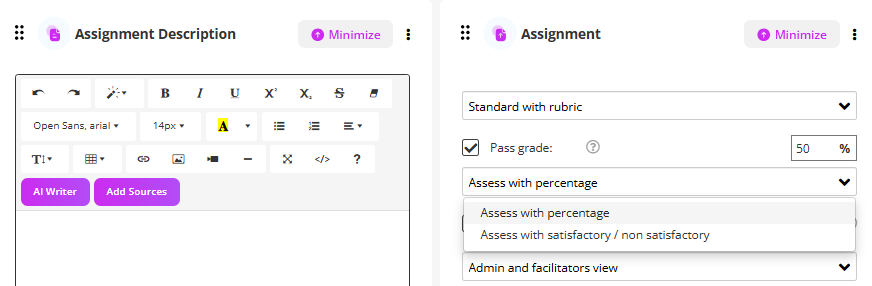
You can enable AI Feedback by checking the box
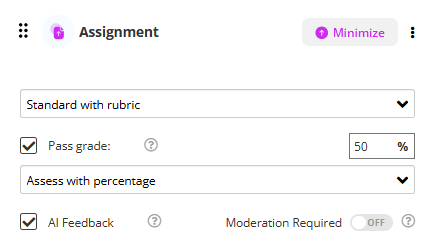
You can also allow facilitators to review the AI Feedback, by enabling the moderation feature.
For RTO's - Use Satisfactory/Not-Yet Satisfactory Grading
Coursebox enables RTOs to customise grading settings to align with competency-based assessment practices. You can define grading labels such as "Satisfactory" or "Not Yet Satisfactory," control feedback visibility, and manage how grades are submitted and displayed to learners. This guide outlines how to access and configure grading settings to ensure consistency and compliance across your assessments.
Navigate to your course from the Courses tab, and select the course you want to work on.
Click into the assignment to access its configuration settings.
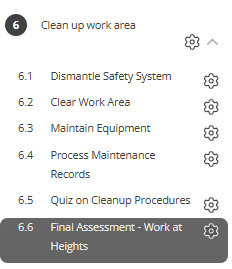
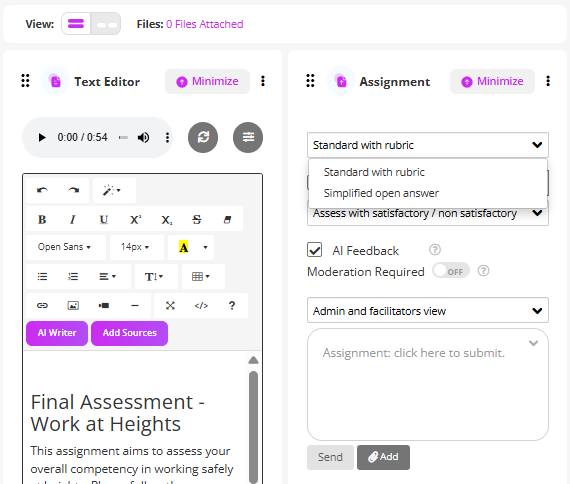
On the assessment page, go to assessment settings and select Standard with Rubric.
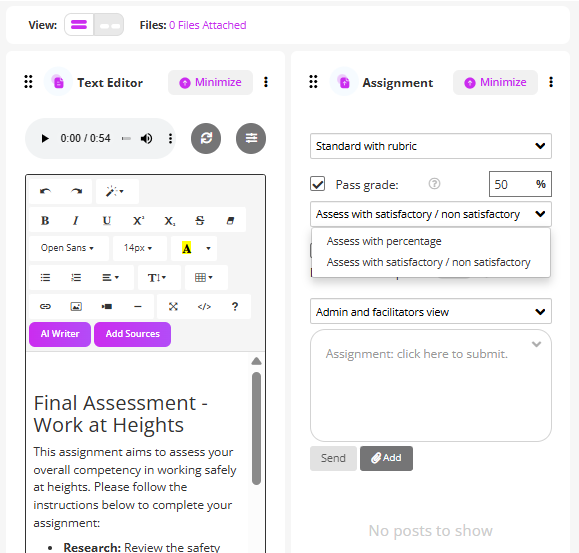
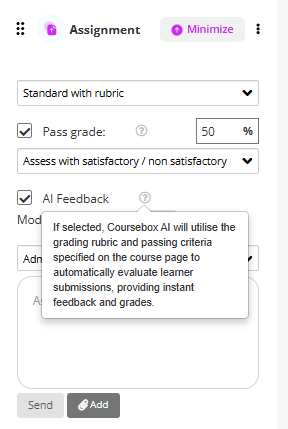
Select the grading scale Satisfactory/Not Yet Satisfactory.
You can enable AI Feedback by checking the box
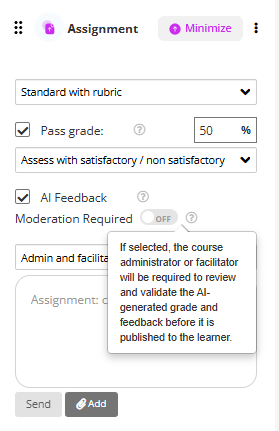
You can also allow facilitators to review the AI Feedback, by enabling the moderation feature.
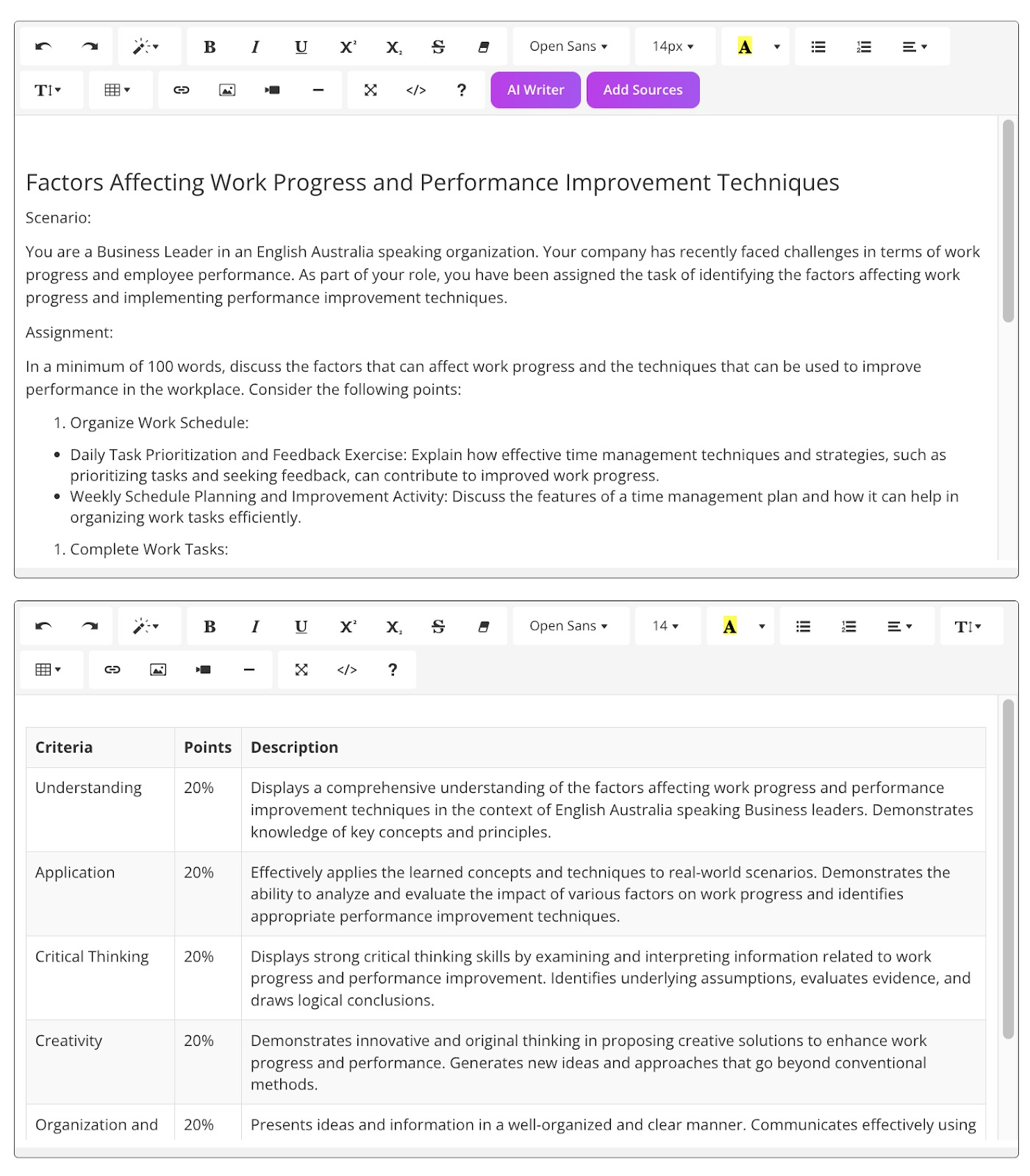
Example of Assignment with Rubric
Example of Assignment without Rubric
What language is AI feedback written in?
There is currently no setting that controls the language, spelling or dialect of AI feedback on assignments. You cannot force AI feedback into Australian English (or British English, or US English) — there is no per-assignment option, no per-course option, and no platform-level toggle for it.
Two settings are sometimes mistaken for this, so it is worth being clear about what each one actually does:
Settings → Language (Super Admin) changes the wording of the platform interface — menus, buttons and labels. It does not change what the AI writes in marking feedback. See Language Settings.
AI Tutor Settings → Instructions steers the AI Tutor chatbot inside a course, and can be told to reply in Australian English. It has no effect on assignment feedback. See How do I set up an AI Tutor chatbot?
If Australian spelling matters for compliance or audit: enable the moderation feature so a facilitator reviews and edits AI feedback before it is released to the learner. This is the only reliable way to guarantee the wording that reaches a learner. RTOs should note that this aligns with reviewing AI-generated outputs before use — see For RTO's - Reviewing Coursebox Outputs.
Troubleshooting Grading Issues
Grades are not saving
If a grade you enter is not saving: ensure you click the Submit or Save button after entering the grade (do not just close the window), check your internet connection is stable, and try refreshing the page and re-entering the grade.
A grade appears incorrect or needs to be changed
To re-grade or override a grade: navigate to the submission in the Tick Icon (Submissions) view, open the learner's submission, and update the grade. Facilitators with moderation enabled can review and override AI-generated feedback before it is released to the learner.
Learner resubmits an assignment
When a learner resubmits, the new submission will appear in the Submissions view. The previous grade will be retained until you grade the new submission. Review the new submission and grade it as normal - the updated grade will replace the previous one.
Grade is not reflected in the learner's course completion
If grading an assignment does not trigger course completion: check that the course completion criteria are correctly configured in Course Settings (e.g., required pass mark, all assignments must be graded). Completion status may take a few minutes to update after grading.
AI feedback is not appearing
If AI feedback is not generating: confirm the Enable AI Feedback checkbox is checked in the assignment settings. AI feedback requires the assignment to have a rubric configured - ensure a rubric is set up under Standard with Rubric settings.
AI feedback uses the wrong spelling or dialect
This cannot currently be configured — there is no Australian English (or other dialect) setting for AI feedback. Enable moderation so a facilitator can edit the wording before it is released to the learner. If dialect control is important to your organisation, let the Coursebox team know so it can be logged as a feature request.
Moderation is not showing for facilitators
If facilitators cannot see the moderation option: confirm the Allow moderation toggle is enabled in the assignment settings. Only users with the Facilitator or Admin role can access moderation - check the learner's role in Settings > Users.
AI assessor not working / AI assessor stopped grading
If the AI assessor (AI grading) is not working on an assignment, check that the assignment is set to Standard with Rubric, that a rubric is configured, and that Enable AI Feedback is ticked in the assignment settings. The AI assessor is not available on plain assessment pages without a rubric. If it previously worked and suddenly stopped with no changes, contact support so we can investigate.
Common questions this article answers
Why is the AI assessor not working or not grading my assignment?
Why is AI feedback not appearing on submissions?
How do I enable AI grading / AI feedback on an assignment?
My AI assessor stopped working with no changes — how do I fix it?
Can I set AI feedback to Australian English (or British / US English)?
How do I control the spelling or wording the AI uses when marking?
What is the difference between AI feedback and the AI Tutor?