
Assignment Exporting & Marking
Learners submit assignments inside the course, and facilitators review, grade and give feedback from the course. This article covers finding submissions to mark, marking them, and exporting them to mark offline.
For video walkthroughs, see the Coursebox YouTube video library.
Find submissions to mark
When a learner submits, you get a notification and an email with an Assess Submission button. Courses with submissions waiting also appear in the Grading queue tab on the Courses page.
To see every assignment in a course:
On the course page, click the tick icon at the top. When submissions are waiting, a red number on the icon shows how many there are to review.

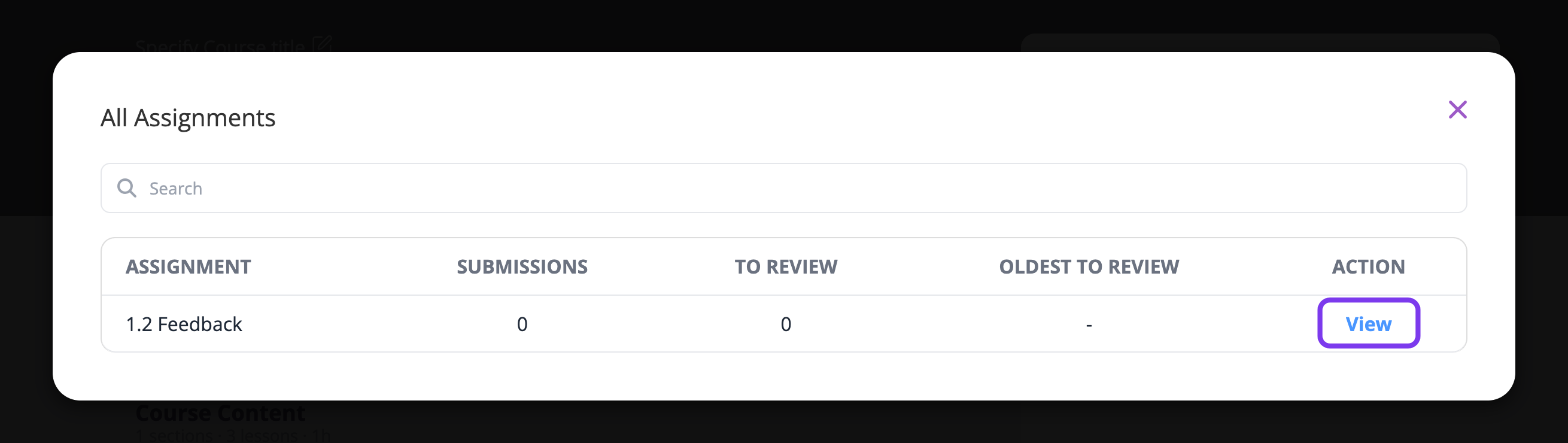
The All Assignments window lists each assignment with its number of Submissions, how many are To review and the Oldest to review. Click View to open the assignment and its submissions.
Mark a submission
Click Assess Submission in the notification or email, or open the submission on the assignment page and click Assess.
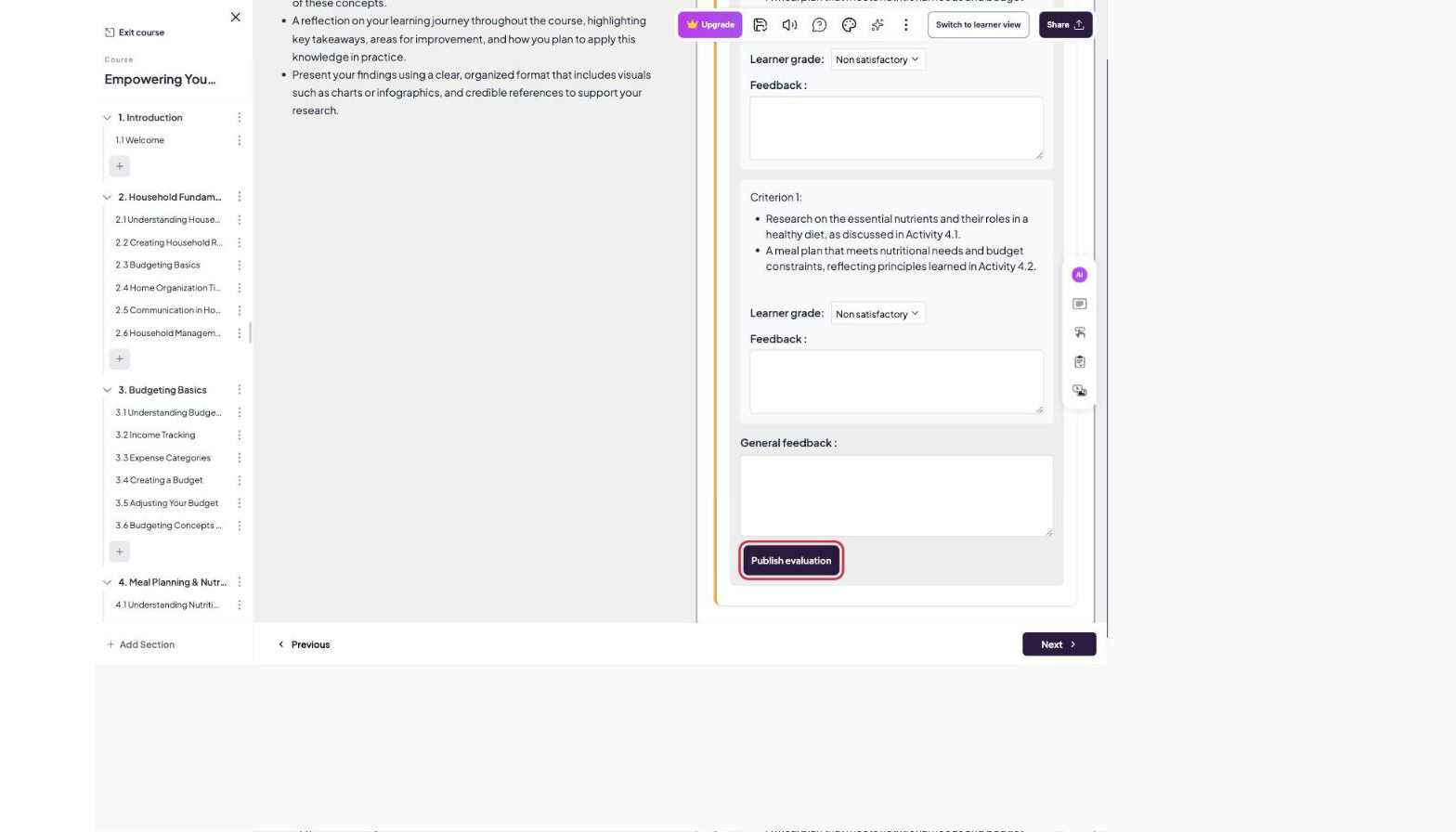
Enter the learner's grade and feedback, and any General feedback.
Click Publish evaluation.
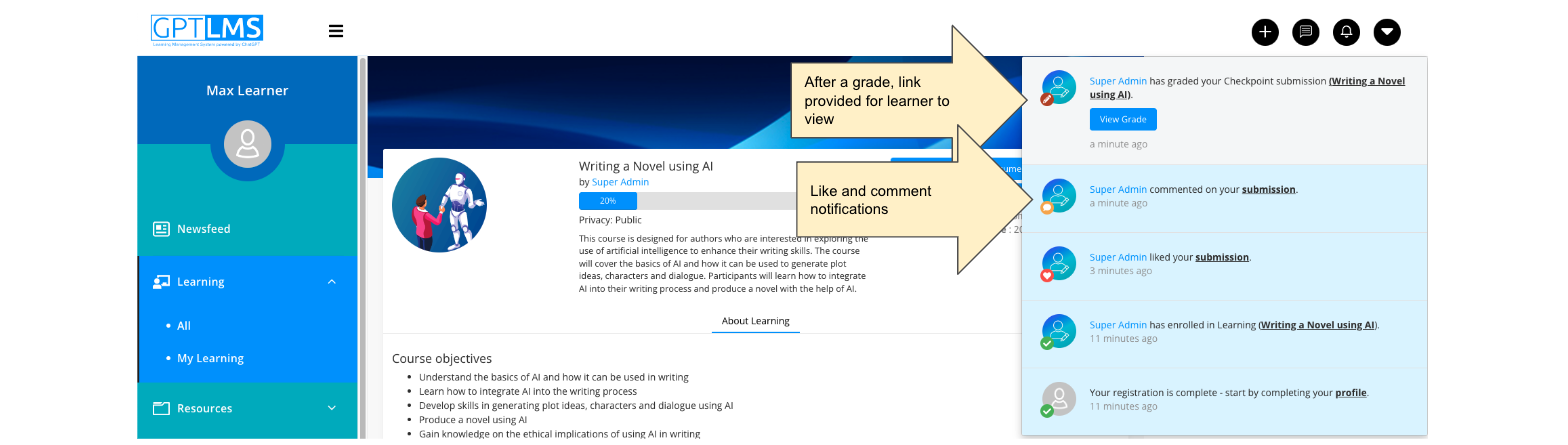
Learners get a notification whenever their submission receives a grade, a comment or a like.
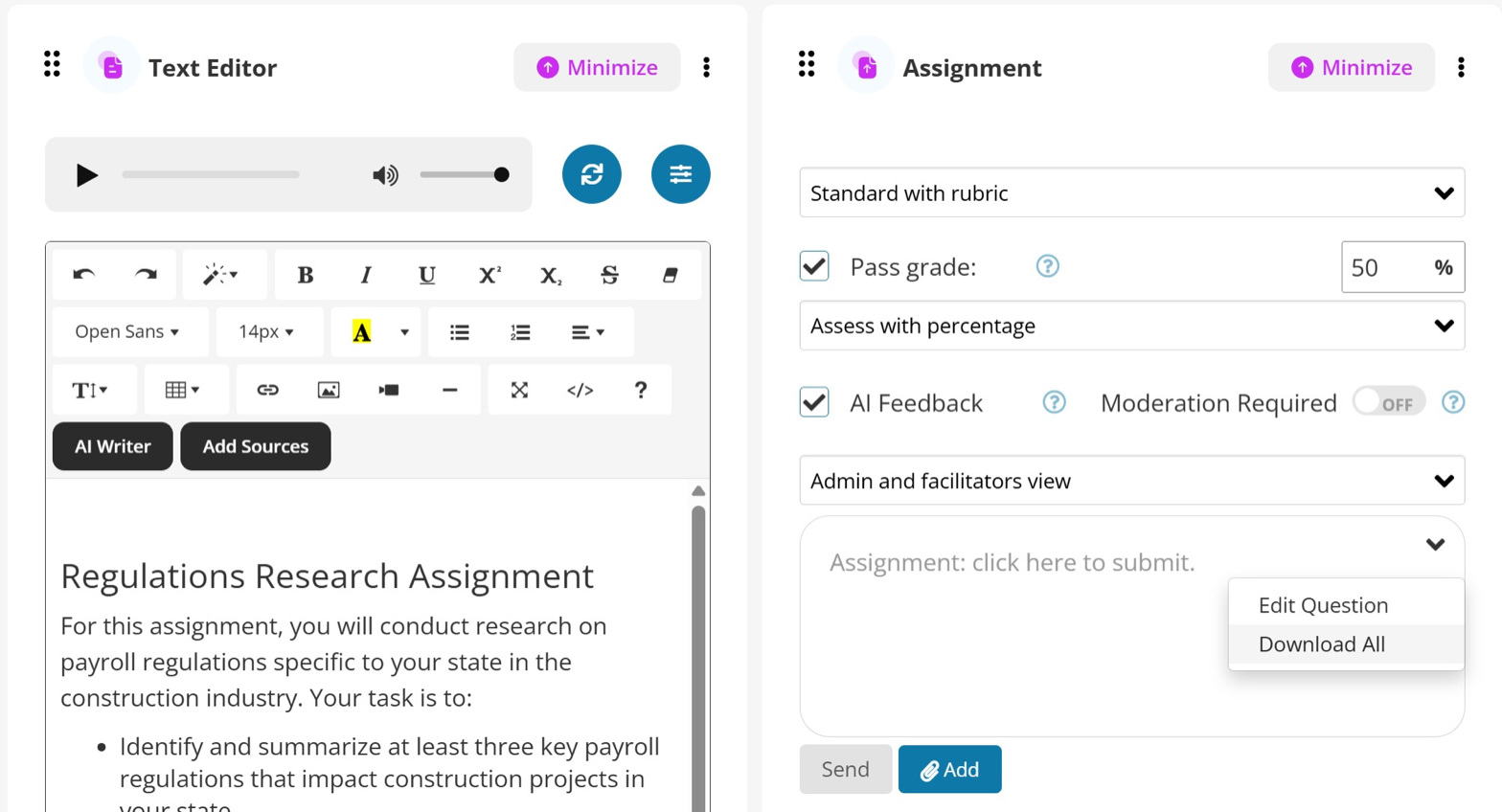
To set the pass grade, AI feedback or moderation for an assignment, see Add an Assignment and Assignment Grading Options.
Export submissions to mark offline
Open the assignment on its course page.
Click ⋮ in the top-right corner of the assignment and choose Download All.
Open the downloaded CSV file in a spreadsheet app. It has a link to each learner's uploaded files. Click a link to open that submission.
The export is a CSV of links rather than a ZIP of the files, so it works for assignments with any number of uploads.