Survey Options
Surveys collect feedback and opinions from learners inside your course. Survey answers aren't graded. This article covers how to build a Coursebox survey, how Listen mode reads survey questions aloud, and how to embed a SurveyMonkey survey.
Add a survey
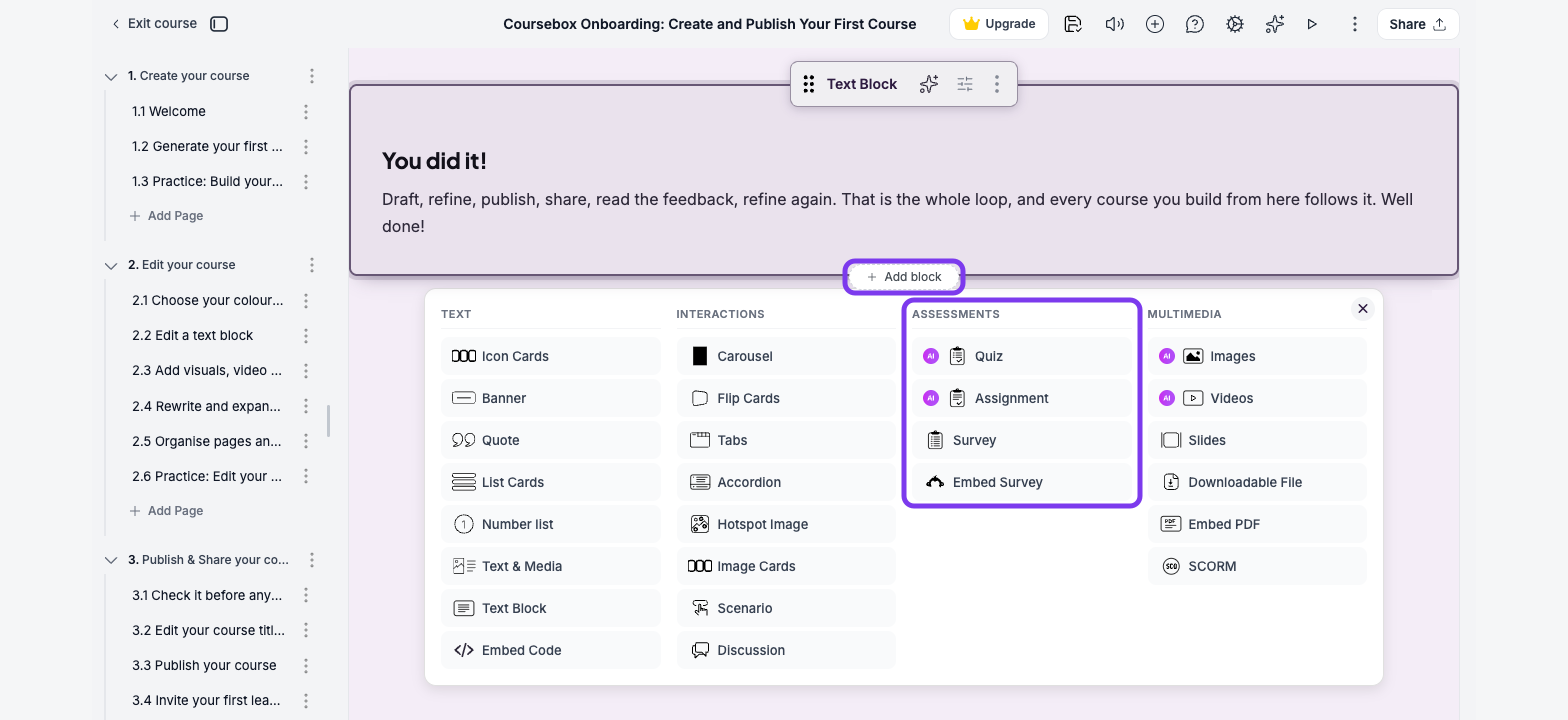
Click + Add block and choose Survey from the Assessments column.
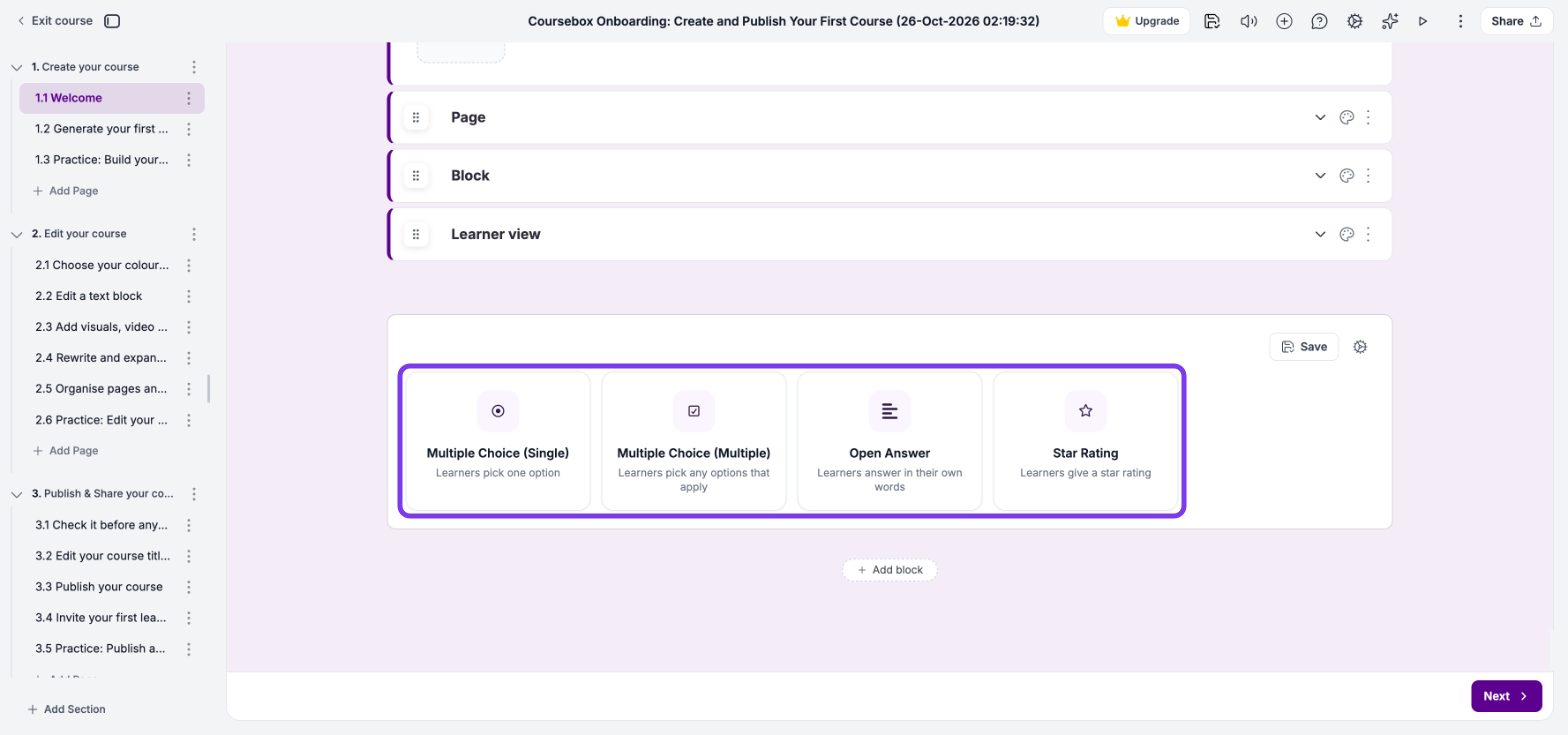
Choose the type of the first question: Multiple Choice (Single), Multiple Choice (Multiple), Open Answer or Star Rating.
Click Question and type your question. For a multiple-choice question, click Add Answer for each option.
To add guidance under the question, click Add Instructions.
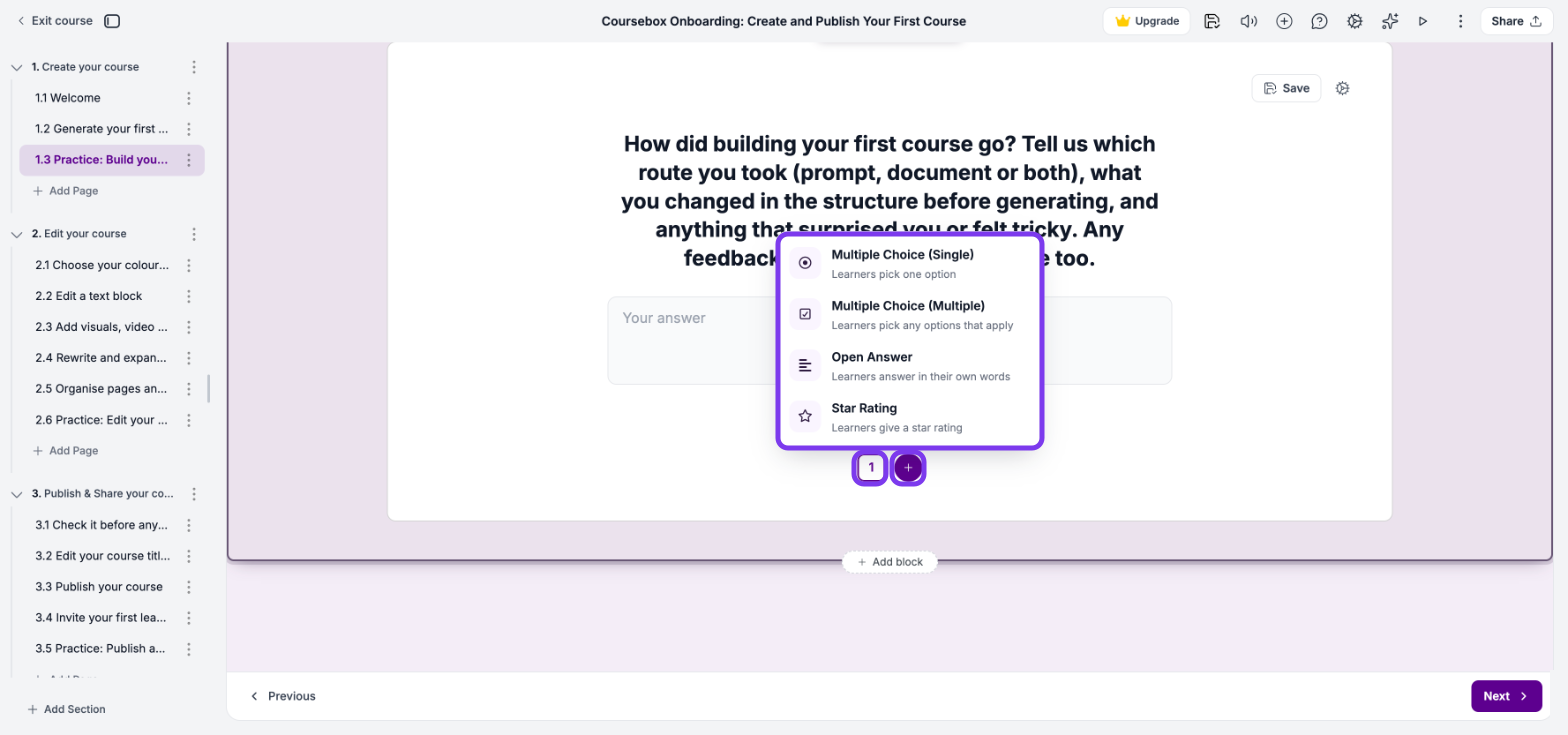
To add another question, click Add question (+) under the question and choose a type: Multiple Choice (Single), Multiple Choice (Multiple), Open Answer or Star Rating. Each question gets a numbered tab.
Click the gear icon to open the settings. Turn on Force completion if learners must answer the survey before they can move on. The same panel has Delete question for the question you're on, and Delete survey.
Click Save.
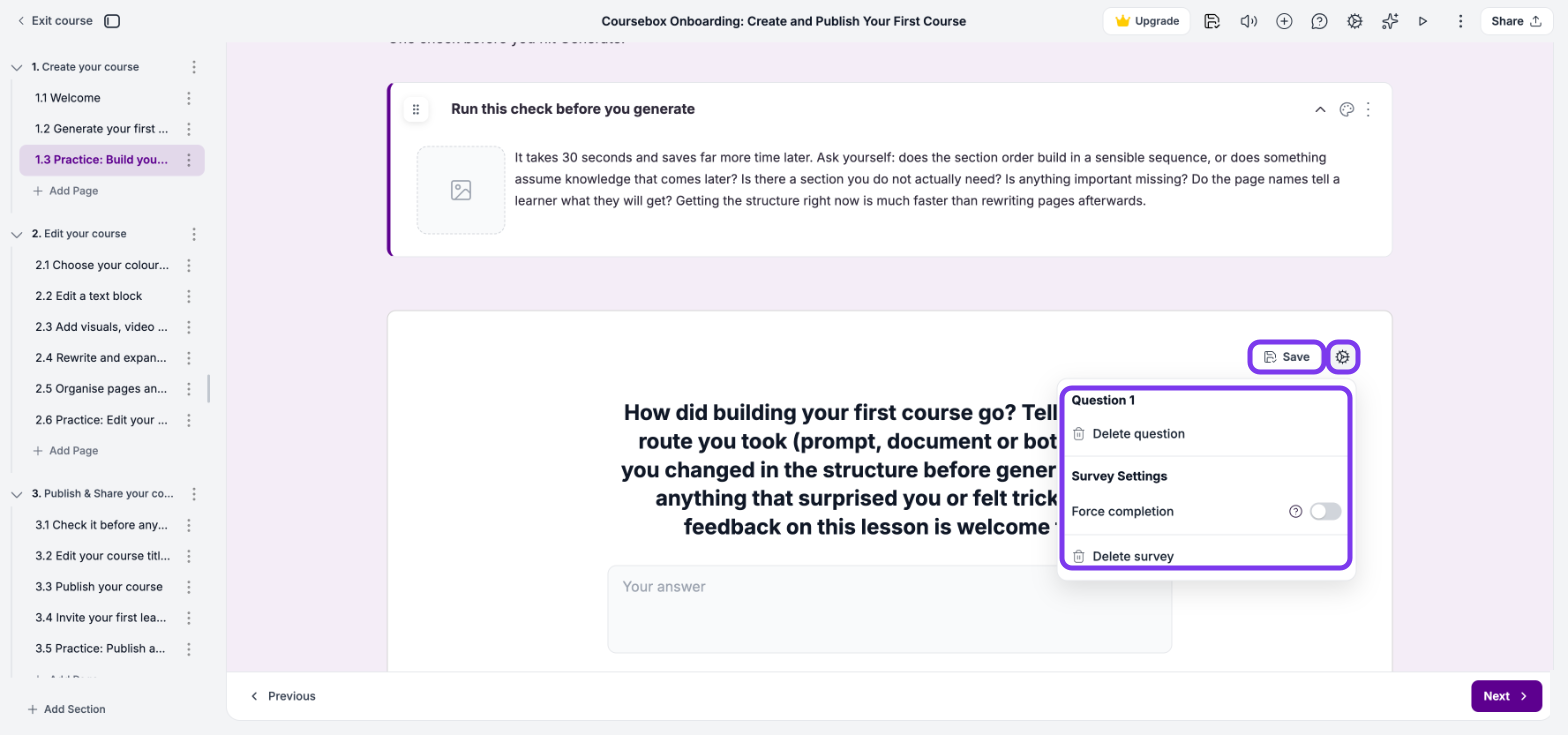
To see the survey as learners will, click Switch to learner view (the play icon) in the top toolbar.
Listen mode
Listen mode reads course content aloud, including survey questions. Learners listen to each question, then choose their answer as usual.
Click the Listen mode icon (speaker) in the top toolbar.
An audio player appears at the top of the page. It shows which block is playing, for example "Feedback (Survey Question 1)", and has volume and previous and next controls.
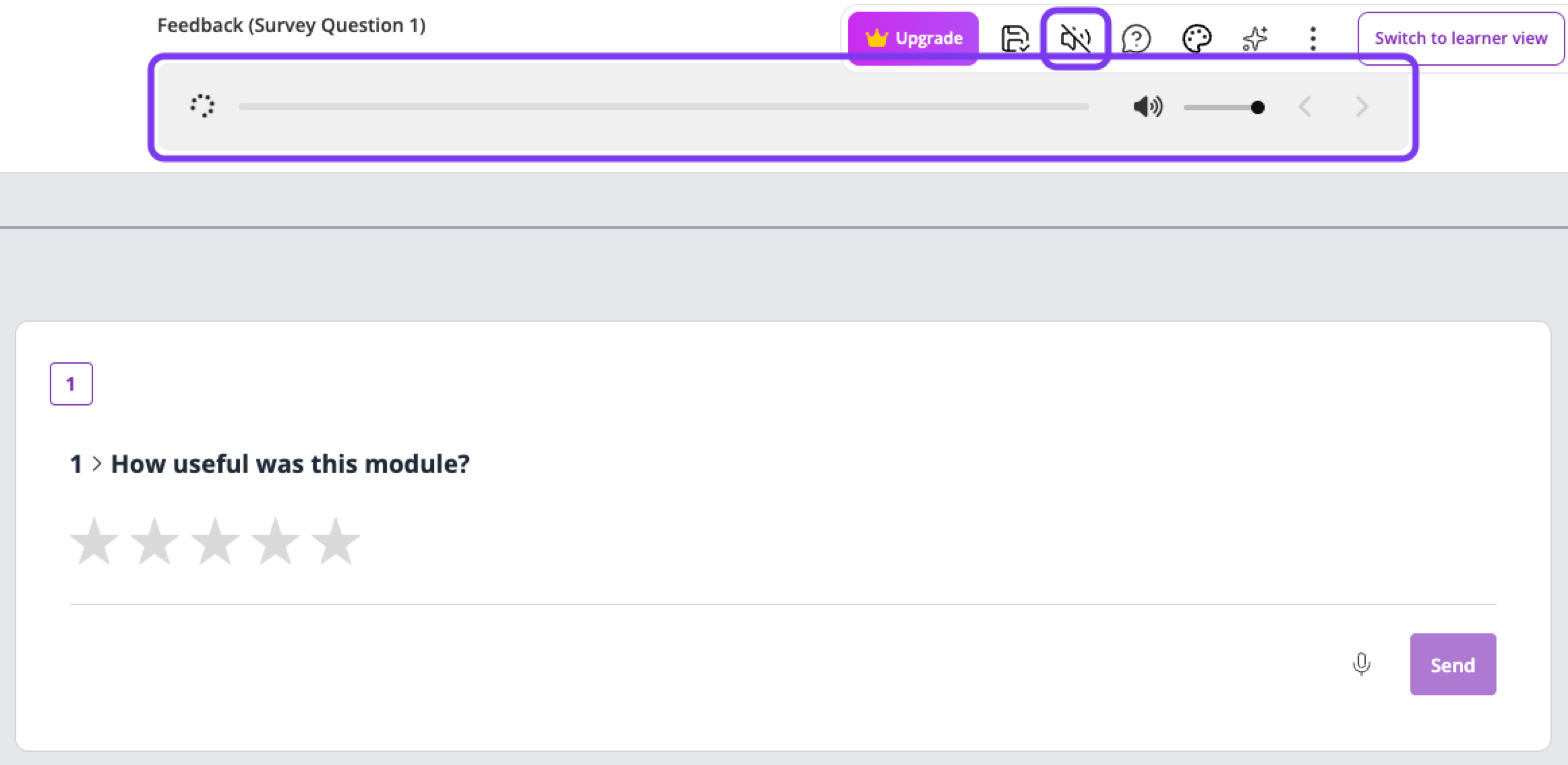
Click the Listen mode icon again to turn it off.
Embed a SurveyMonkey survey
If you already use SurveyMonkey, you can show a SurveyMonkey survey inside your course so learners complete it without leaving Coursebox.
Create and publish your survey in SurveyMonkey, then copy its link.
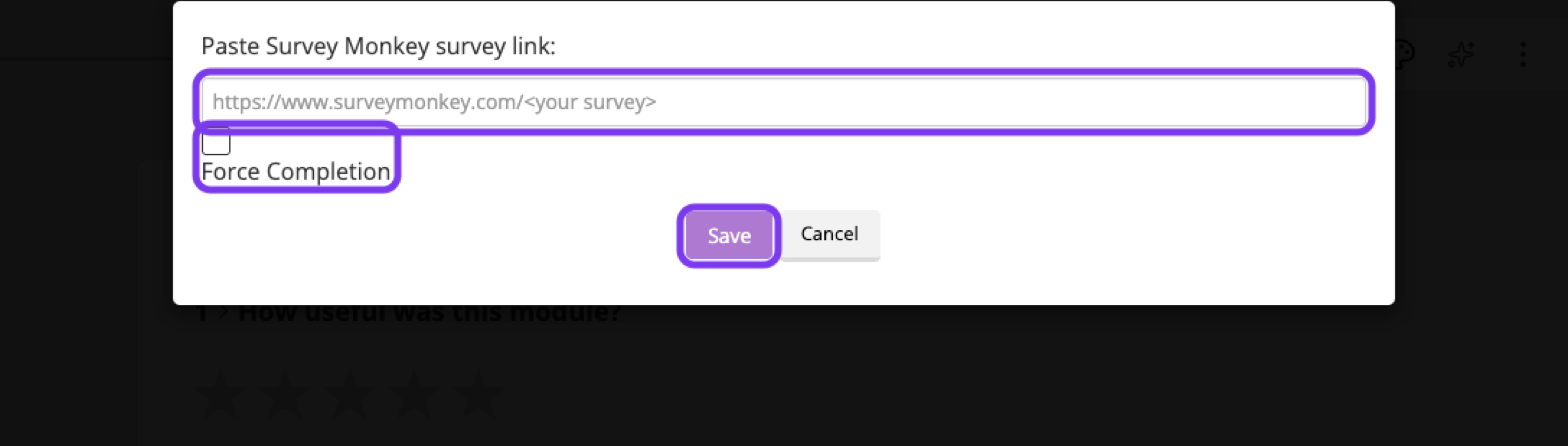
In your course, click + Add block and choose Embed Survey from the Assessments column.
Paste the link into Paste Survey Monkey survey link.
Tick Force Completion if learners must complete the survey before moving on.
Click Save.