
Language Settings
Plan requirement: The portal-level settings on this page — main language, language files, Force platform language and Google Translate — require Pro and above. Choosing the language you personally see is available to every user on every plan. Compare plans.
On an earlier plan? Plan names and inclusions changed when we moved to Free, Creator, Pro, Pro + LMS and Enterprise. If you are on an earlier plan, your subscription continues unchanged and you keep everything it included — so you may still see features this article lists under a higher plan. Nothing has been removed from your account.
The Language tab is where Super Admins set the portal's main language and translation options, and where every user chooses the language they personally see.
Open Language settings
In the top navigation bar, click the dropdown (▼) next to your profile icon and select Settings.
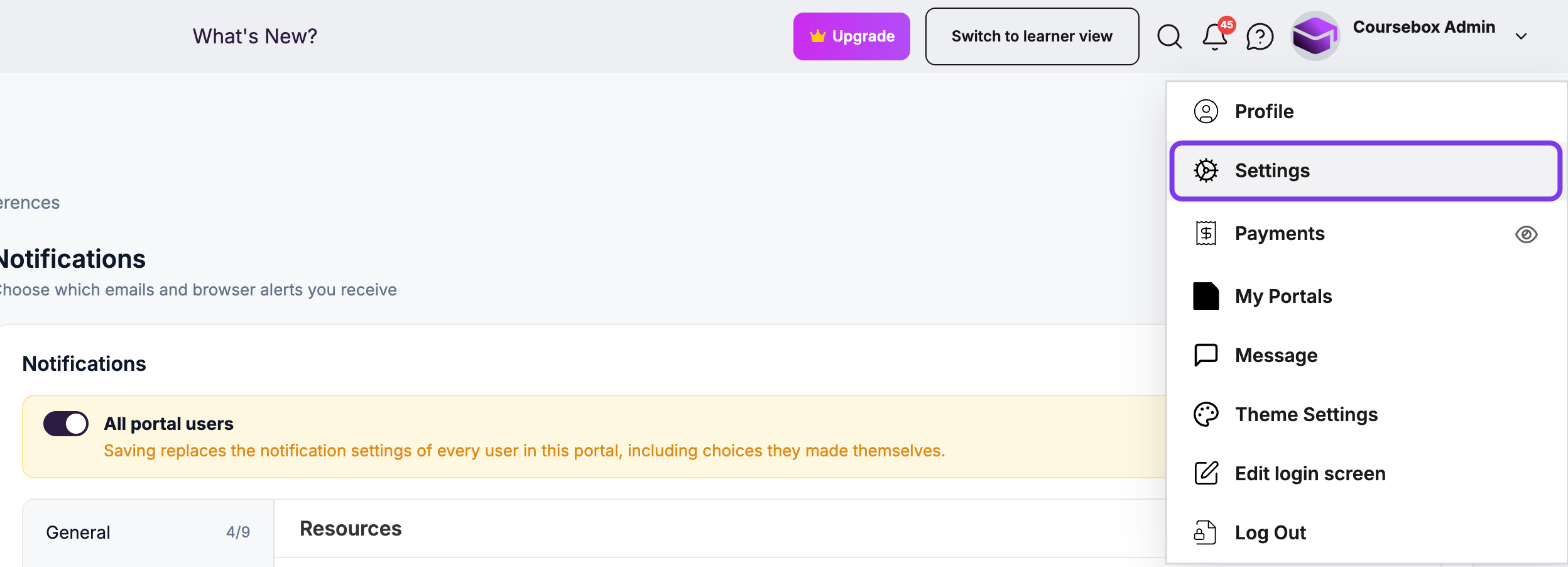
In the left-hand menu, click Language.
Set the main language (Super Admin)
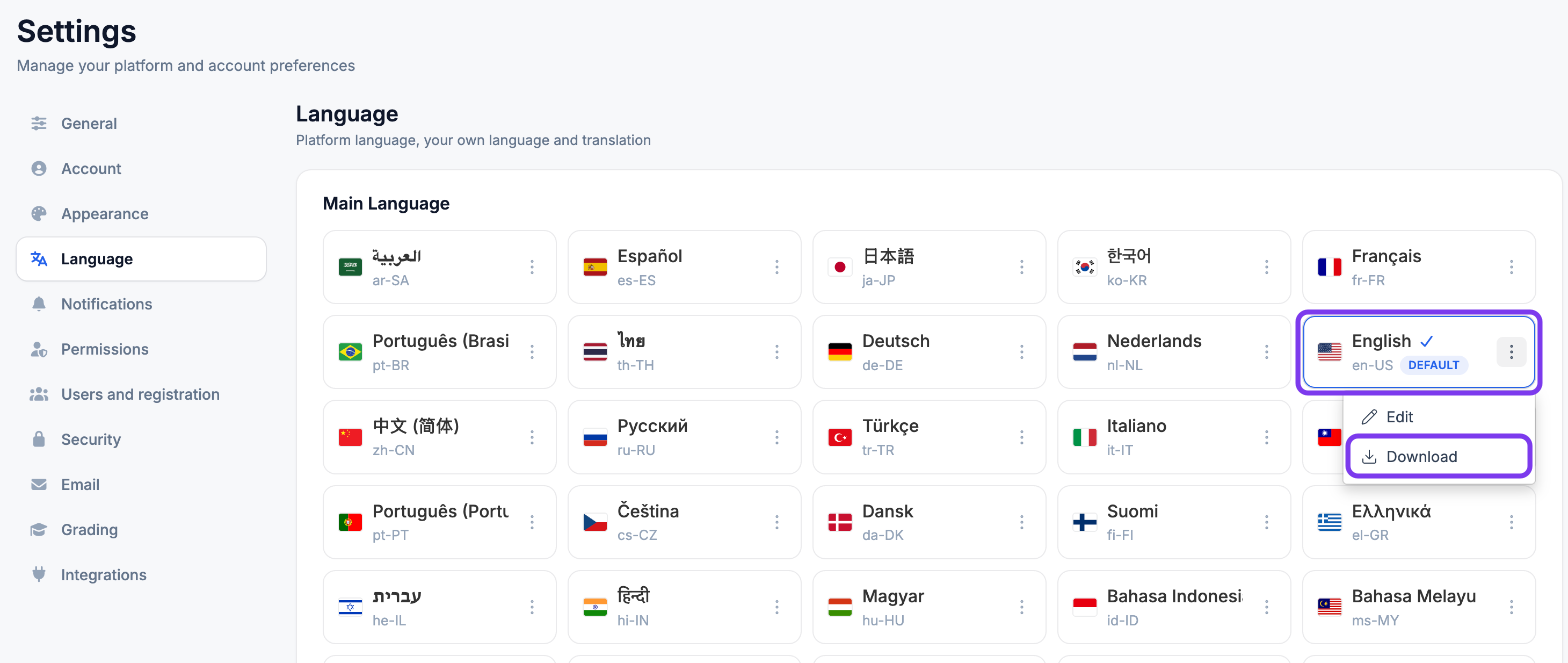
Under Main Language, click a language card to make it your portal's main language. The selected language shows a ✓ and a DEFAULT badge, and becomes the default for your portal and all new courses.
Edit or download a language file
Click the ⋮ menu on a language card to Edit or Download that language. Download saves the language as a .json file, which you can use to change the wording that appears throughout your portal — for example, renaming "Learning" to "Course" — or to translate the interface into another language.
Open the file in a code editor such as Visual Studio Code or an online editor like jsoneditoronline.org. The file uses key–value pairs: the text to the right of each colon (:) is what appears in your portal and is safe to edit — shown in green in most code editors. Leave the keys on the left (shown in blue) unchanged. For example, to change "Learning" to "Course", change only the word Learning in the green text.
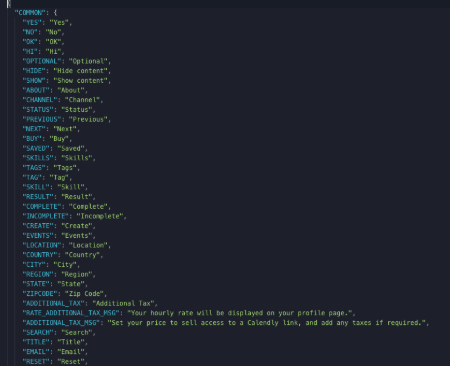
If you're unfamiliar with JSON, involve someone on your team with basic coding or translation experience, or contact the Coursebox Support Team for help applying your changes safely.
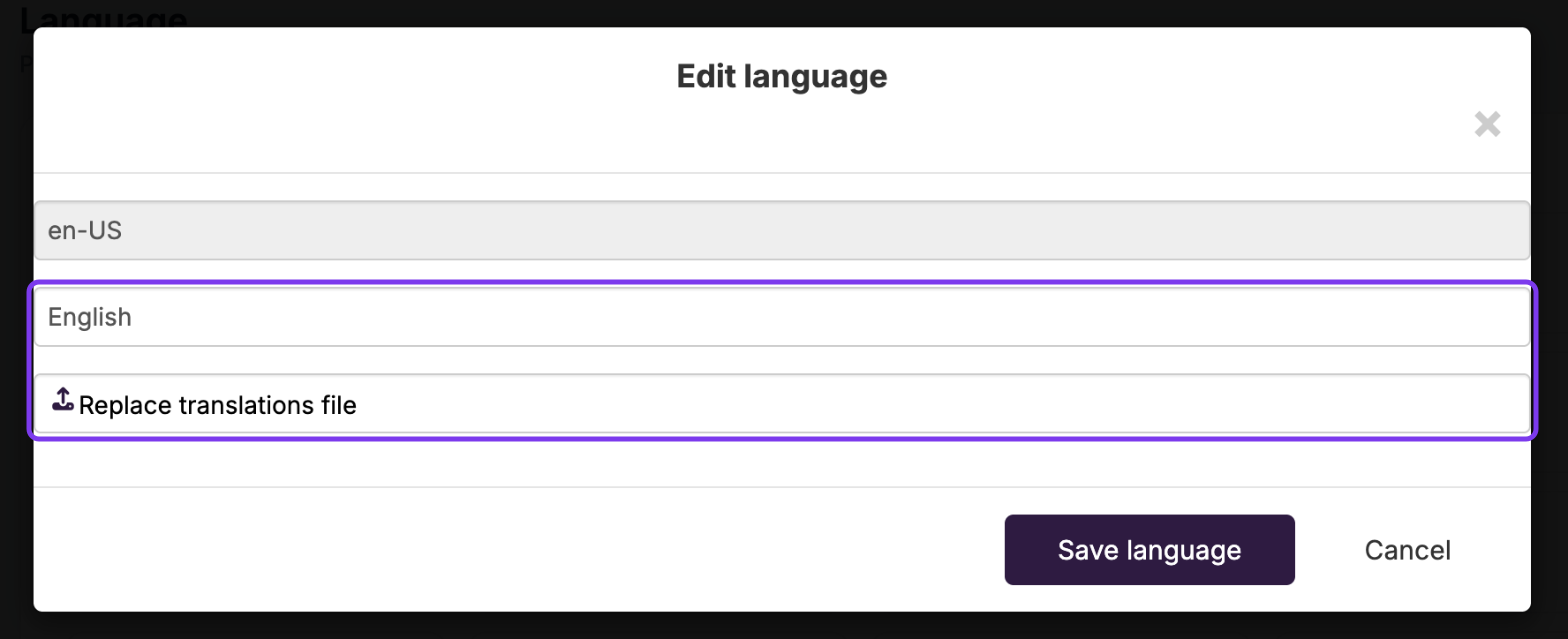
To upload your edited file, click ⋮ on the same language card and choose Edit. In the Edit language window, click Replace translations file, choose your .json file, then click Save language. You can also change the language’s display name here — the code, such as en-US, can’t be changed.
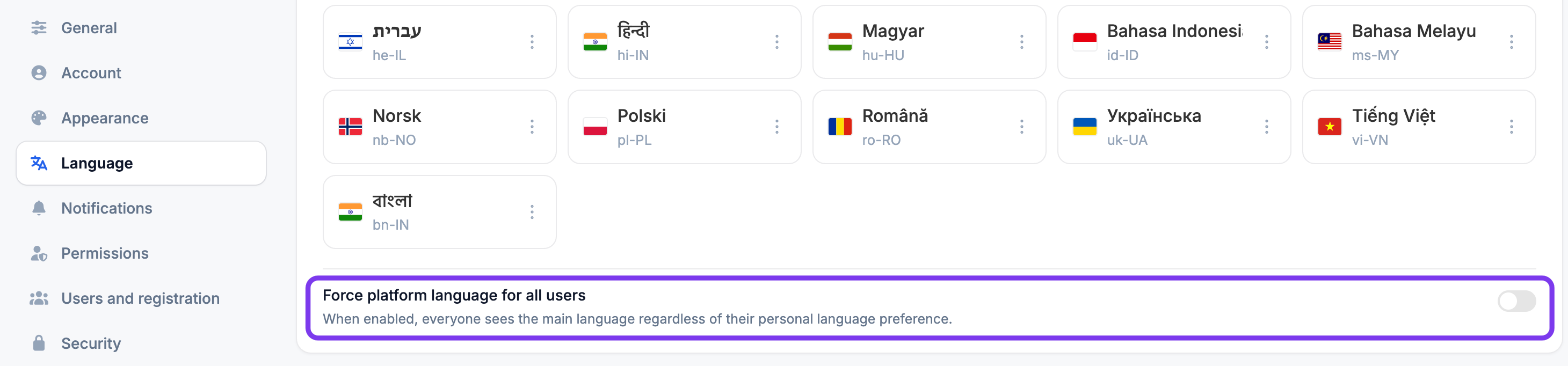
Force platform language for all users
Turn on Force platform language for all users to show everyone the main language, regardless of the language they've chosen for themselves. It is off by default.
Right-to-left (RTL) languages
Coursebox supports right-to-left languages such as Arabic and Hebrew. When the language you see is a right-to-left language — set as the main language or chosen under Your language — the interface is shown right to left.
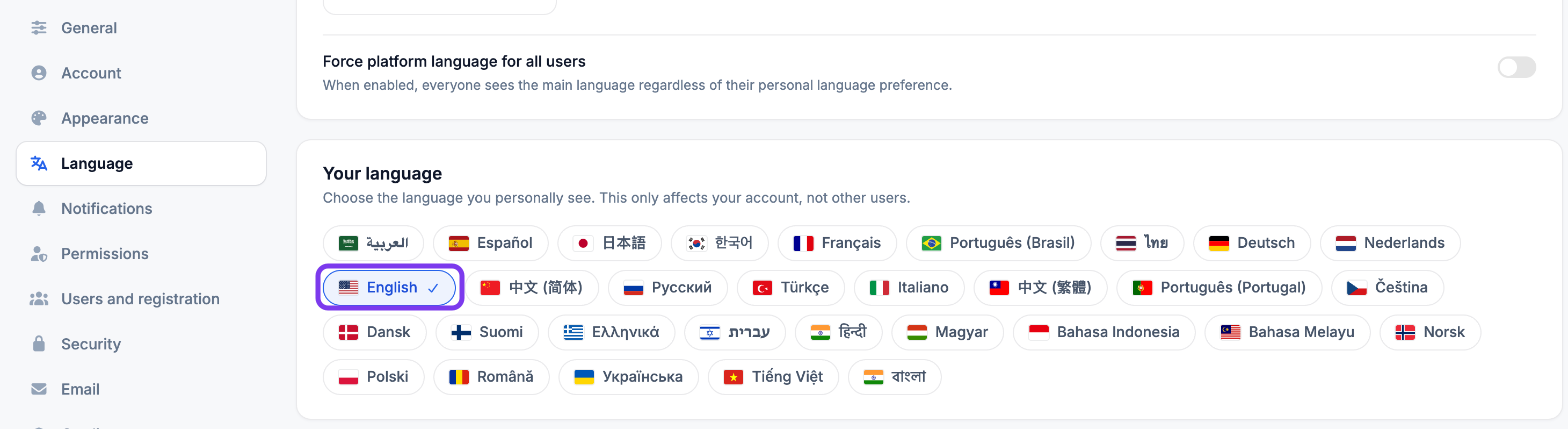
Choose your own language (every user)
Under Your language, click the language you want to see. A ✓ appears next to it and the interface switches straight away. This only affects your own account — unless a Super Admin has turned on Force platform language for all users.
Enable Google Translate (Super Admin)
Google Translate lets learners translate content in any course into their preferred language.
Under Google Translate, turn on Enable Google Translate automatically. A Google Translate control then appears on every page, including for visitors who aren't signed in.
Optionally, list the languages to offer in Google Translate: target languages as comma-separated ISO 639-1 codes, with an optional region — for example
ar, zh-CN, es, fr, de. Leave it blank to use Google's default list.Click Save.
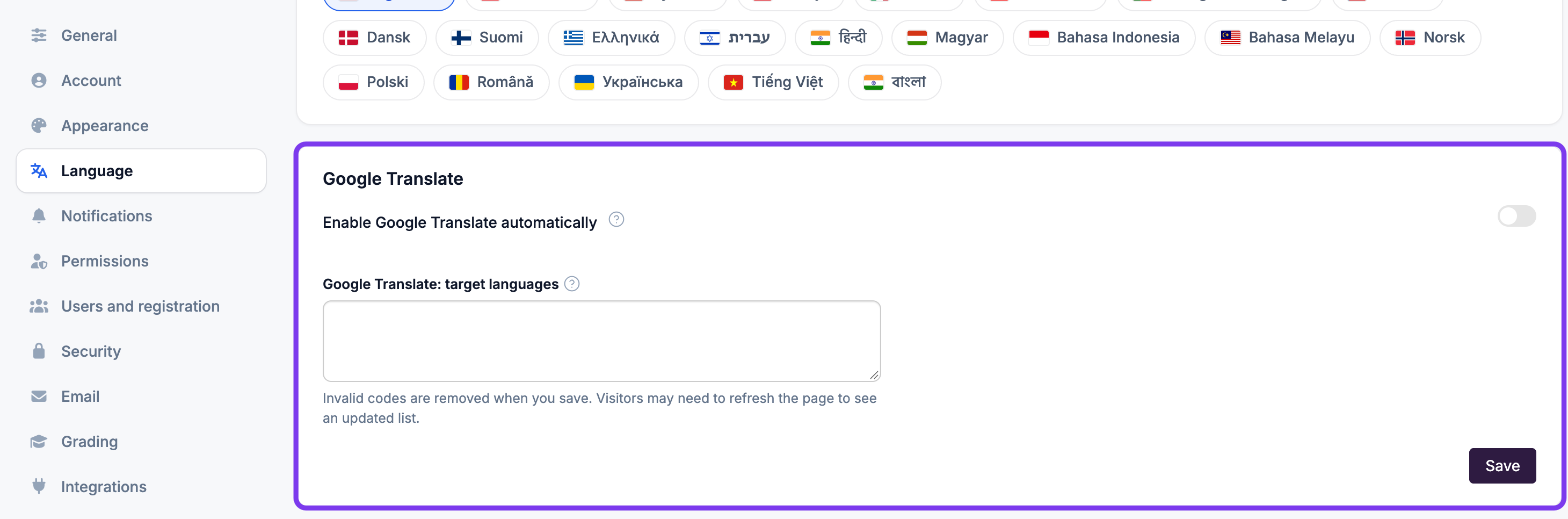
Invalid language codes are removed when you save. Visitors may need to refresh the page to see an updated language list.
Related articles: Appearance Settings · Grading Settings