
Platform Theme
Plan requirement: Portal branding — your logo, colours and fonts — is available on Pro and above. Connecting your own domain requires Pro + LMS. Compare plans.
More tutorials are in our YouTube Video Library.
On an earlier plan? Plan names and inclusions changed when we moved to Free, Creator, Pro, Pro + LMS and Enterprise. If you are on an earlier plan, your subscription continues unchanged and you keep everything it included — so you may still see features this article lists under a higher plan. Nothing has been removed from your account.
Super Admin theme settings let you customise your learning environment — your logo, portal name, colours, fonts and top menu — so the platform matches your brand.
Portal Settings
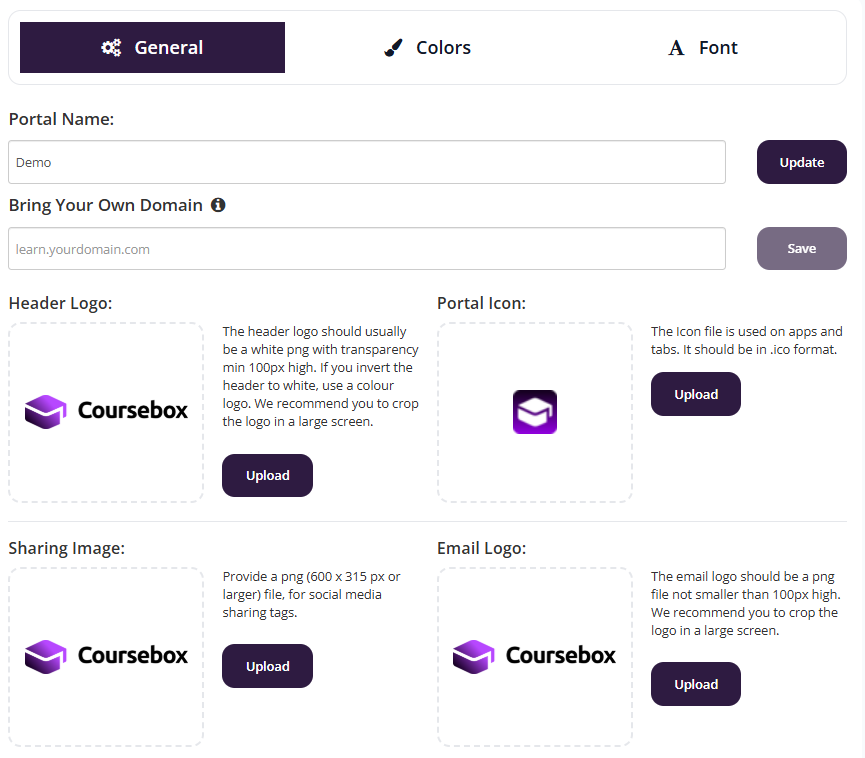
This is where you set your logo, portal name, favicon and email logo. You can set your course theme from the profile menu. You will see a selection of elements that you can modify:
Portal name: Enter the desired name for your portal. Used in emails, notifications, browsers, etc.
Header Logo: Upload your company logo (white PNG with transparency, min 100px high recommended).
Portal Icon / Favicon: Used on apps and browser tabs. Should be in .ico format.
Sharing Image: Appears as a thumbnail when sharing on social networks (Facebook, Twitter, LinkedIn).
Email Logo: PNG file, not smaller than 100px high.
Using the Top Menu HTML
The Top Menu HTML area lets you add a custom, central header menu for desktop viewers using HTML. This allows you to design navigation links that appear at the top of your site.
Open the Top Menu HTML editor.

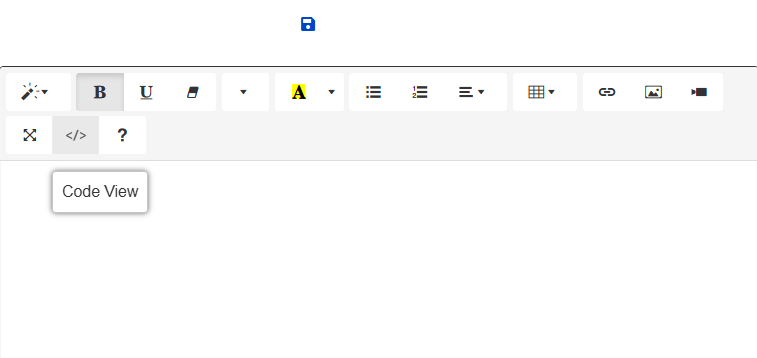
Click the
</>button to open HTML code view, add your custom HTML, then save and refresh to see the menu.
To add custom HTML to your portal's header bar and footer, go to Settings → Appearance — see Appearance Settings.
Colour Settings
The Colour settings control the visual appearance of your platform and courses, so you can match your organisation's brand.
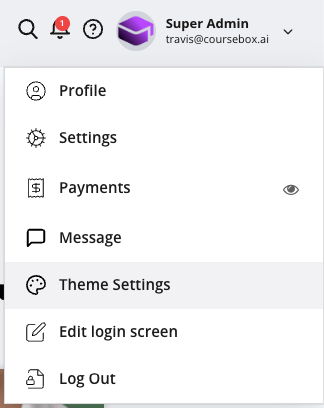
From your profile go to Settings.
Select the Colors tab > expand Portal Colours > click the colour tile or edit icon > choose a colour or enter a HEX code.
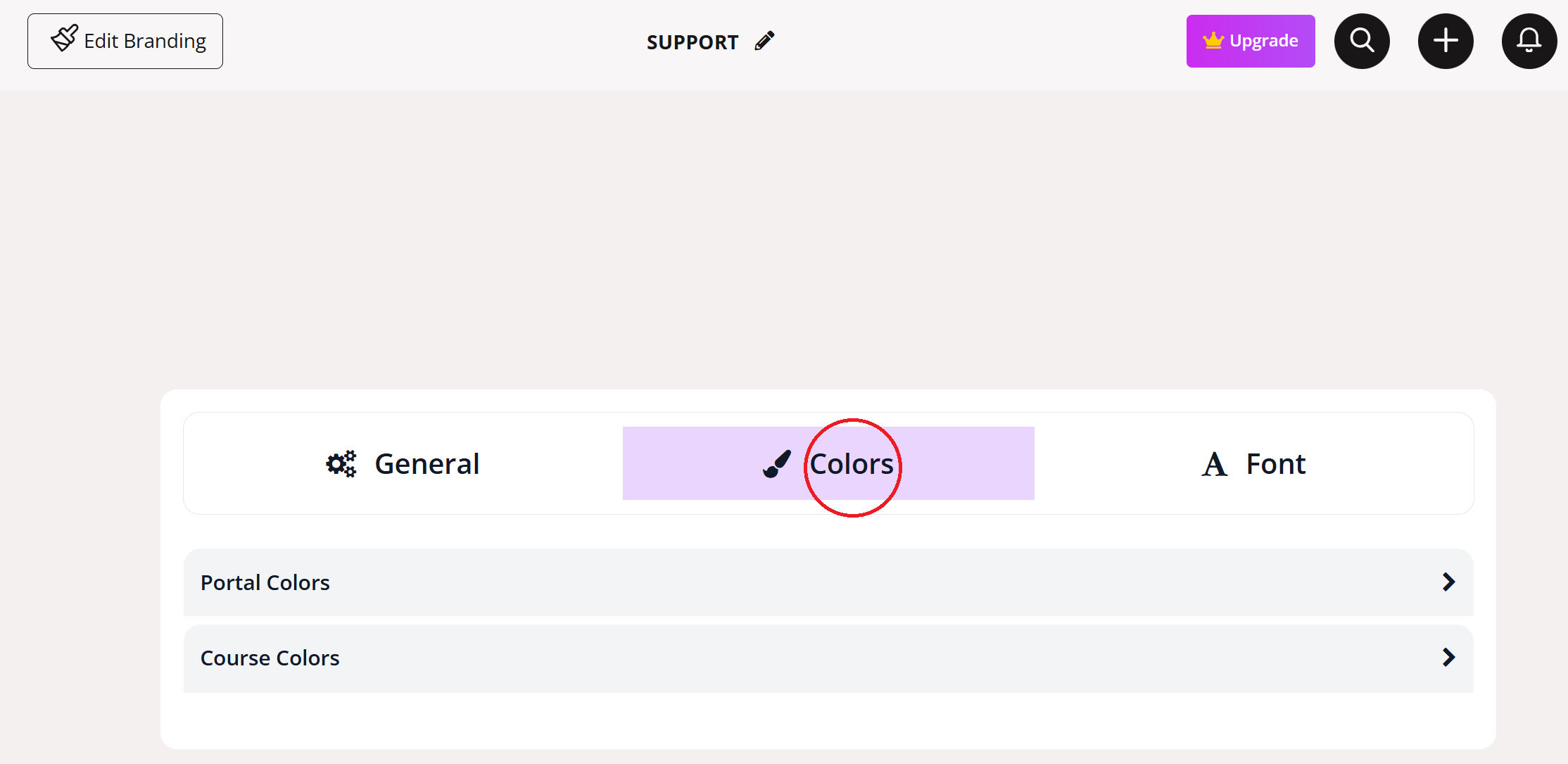
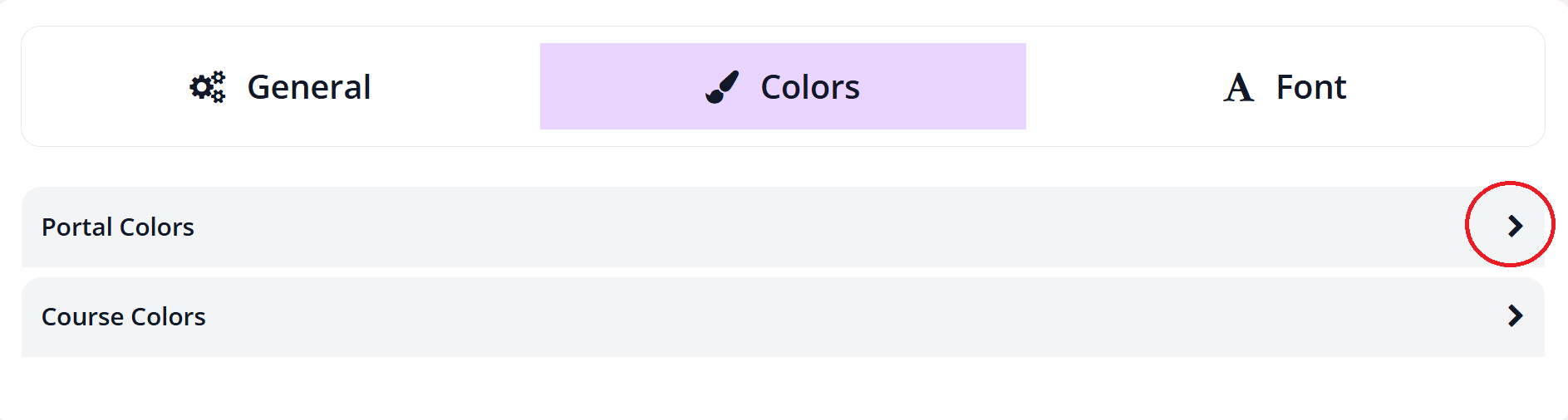
Portal Colours define the global branding and navigation experience across the platform.
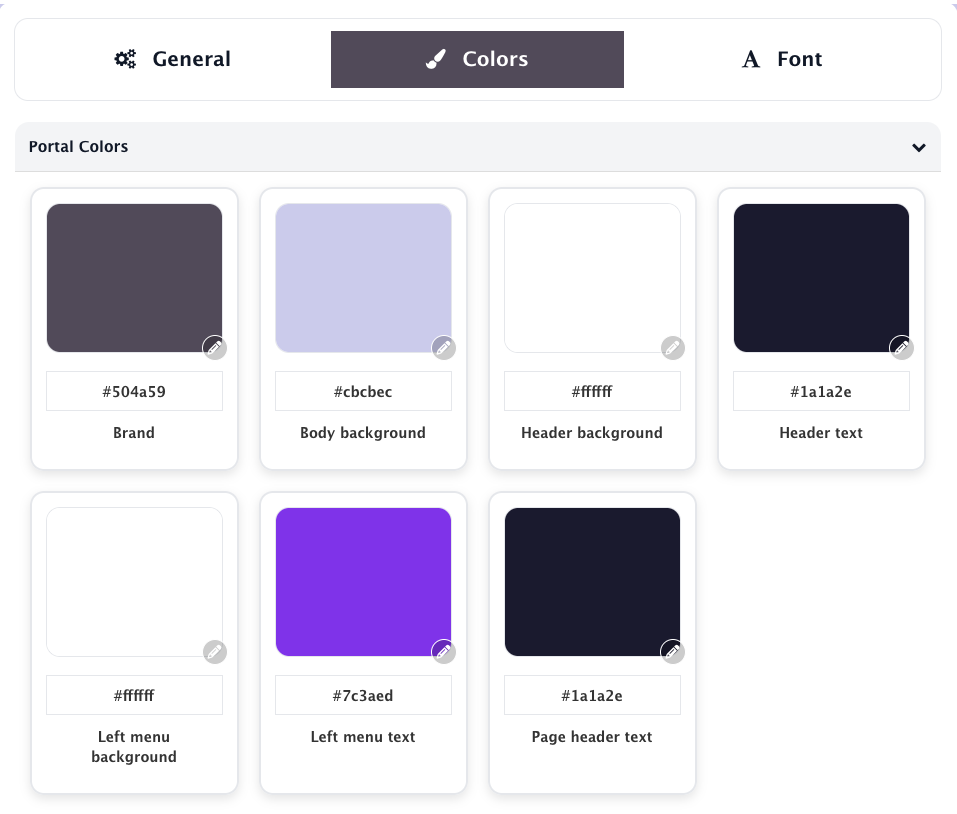
Branding & Layout
Brand – Primary brand colour across buttons, highlights, and accents
Body background – Background colour of course content pages
Header background – Background colour of the top header
Header text – Text colour in the header area
Left Menu Styling
Left menu background, text, active text, active item background – control the appearance of the navigation sidebar
Profile & Page Styling
Left menu profile block background/text, Page header text – control profile section and page title colours
Set the Course Fonts
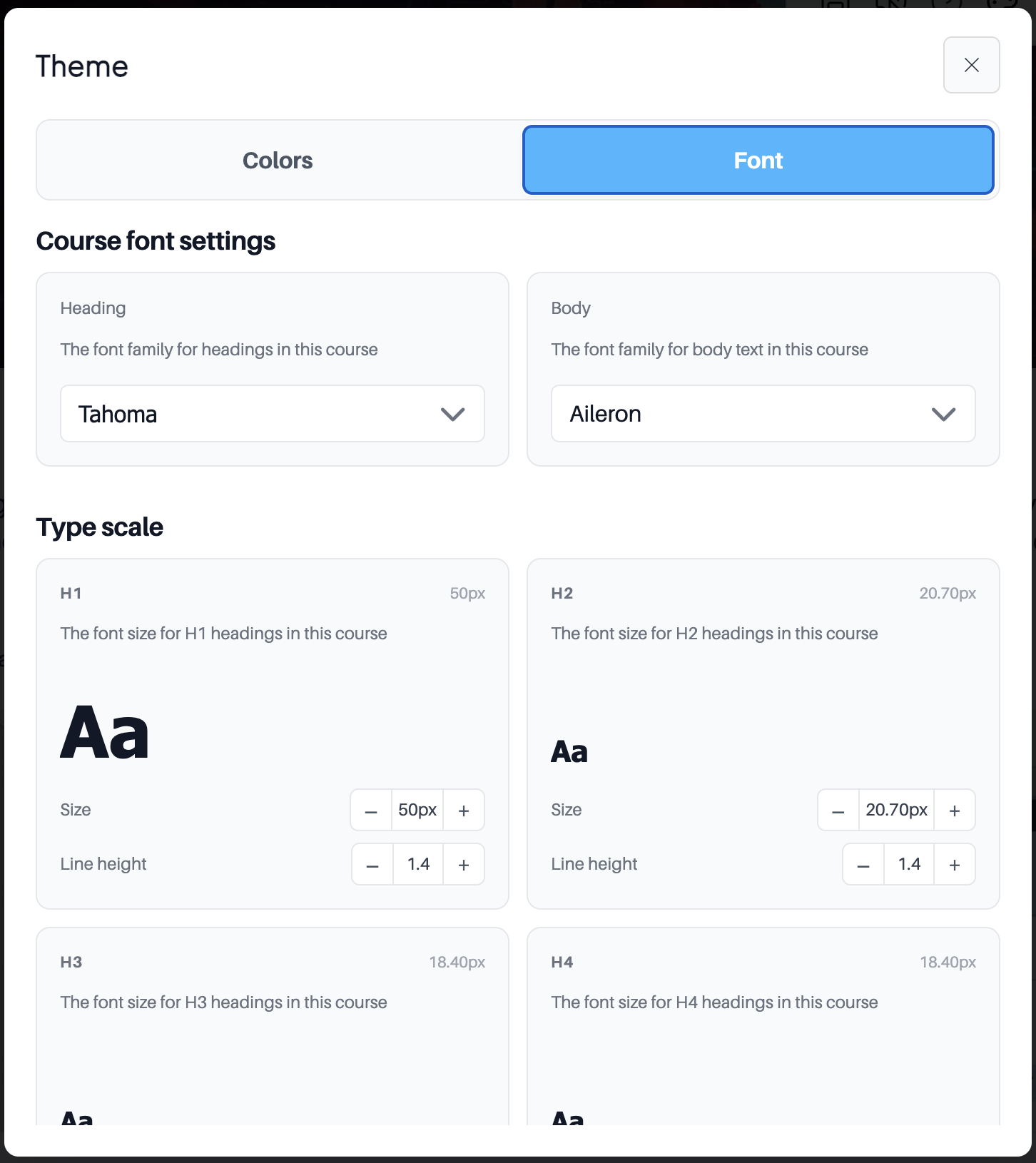
You set your fonts in Theme Settings, in the Font tab (next to General and Colors), at two levels: a global font family for your whole portal, and heading and body fonts with a full type scale for each course.
Open Theme Settings from the account menu at the top right, or the palette icon in the course editor toolbar, then open the Font tab.
Font changes appear in Preview mode and to learners, not while you are editing a page. These Theme Settings control the font for a whole course or your whole portal — to set the font and size on specific text inside a single block instead, highlight that text in the editor and use the font and size controls in the block's own toolbar.
Global font family
Choose one font family that applies across every course in your portal.
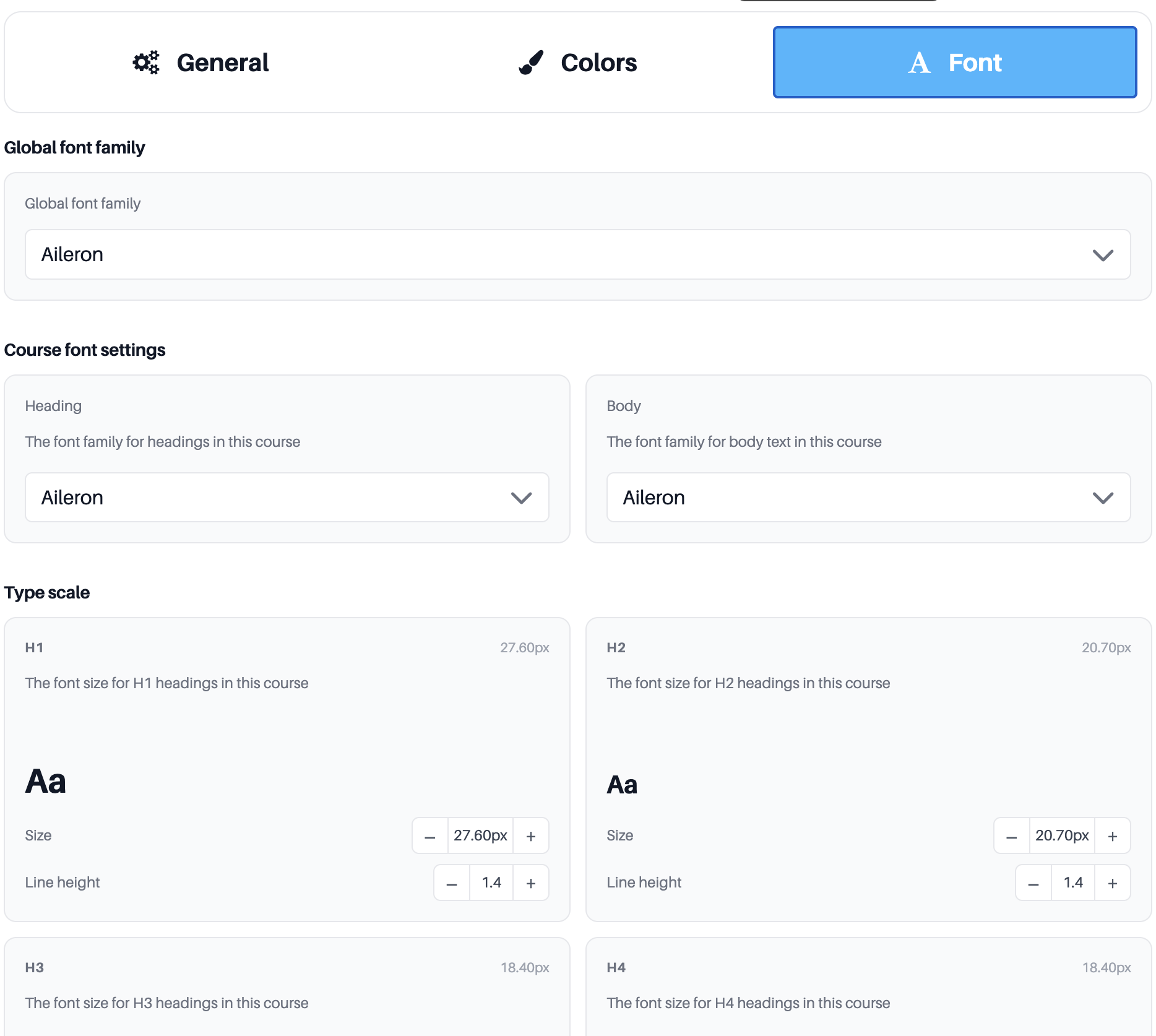
Type scale
Set the size and line height for each level, H1 to H6 and paragraph text, using the minus and plus steppers. A live Aa preview updates as you go, so you can build a clear reading hierarchy and set line spacing once for the whole course instead of adjusting each section by hand.
Remove the “Created with Coursebox” badge
The “Created with Coursebox” label appears on courses published from the Free plan. Any paid plan removes it — on Creator and above, your courses no longer show the label anywhere. You do not need a higher plan for this.
Full white-labelling of the platform itself — your own logo and colours throughout the portal — is part of the branding described above, on Pro and above. Replacing the platform URL with your own domain requires Pro + LMS.