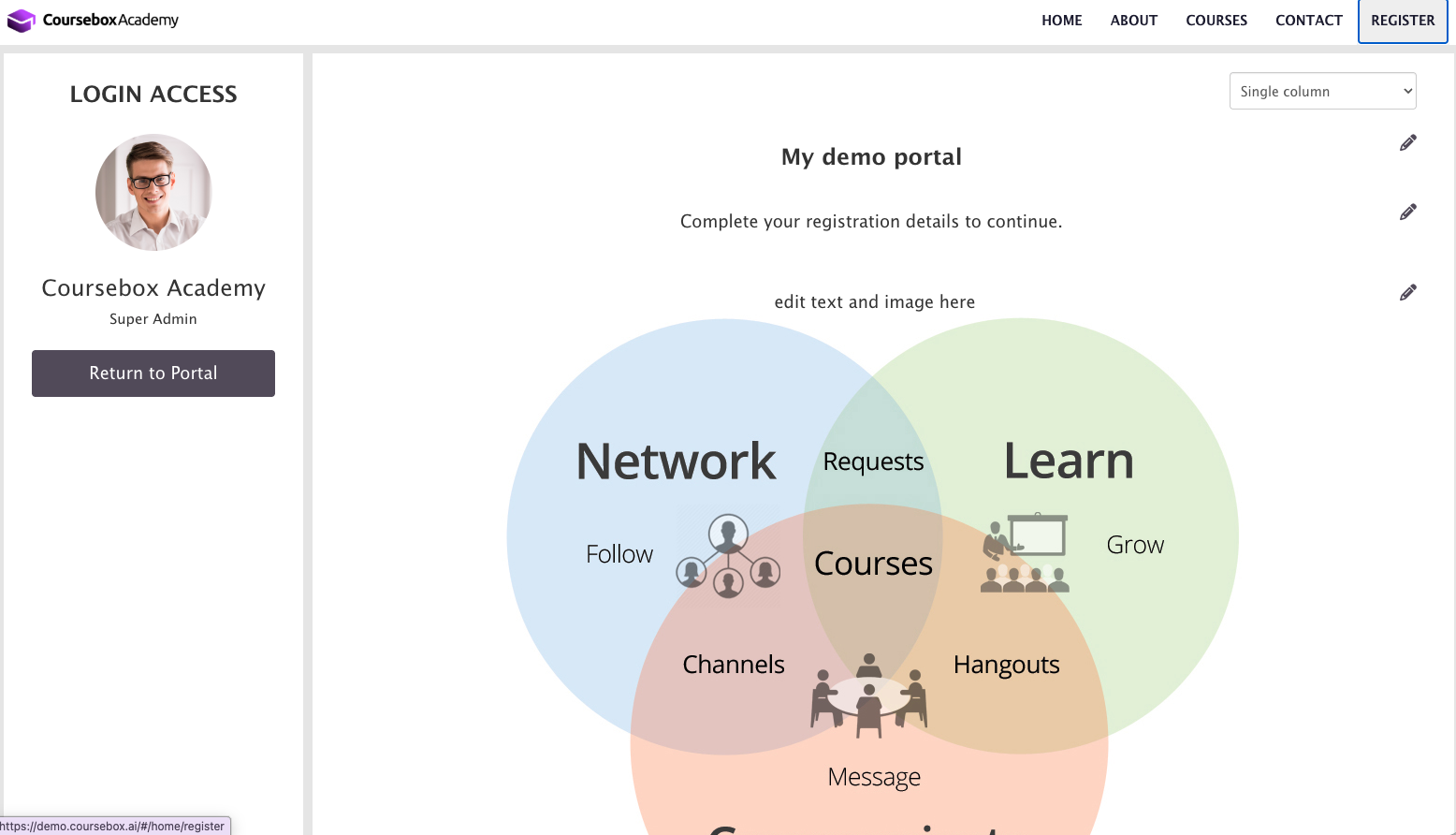
Edit Login Screen
Plan requirement: Editing your login, home, about, contact and registration pages is part of portal branding, available on Pro and above. Compare plans.
On an earlier plan? Plan names and inclusions changed when we moved to Free, Creator, Pro, Pro + LMS and Enterprise. If you are on an earlier plan, your subscription continues unchanged and you keep everything it included — so you may still see features this article lists under a higher plan. Nothing has been removed from your account.
Your login screen is the first thing visitors and learners see. As a Super Administrator you can edit it, along with your home, about, contact and registration pages, to introduce your organisation and set the tone before anyone signs in.
Open the login screen editor
Click on your dropdown arrow on the right hand corner and select Edit Login Screen.
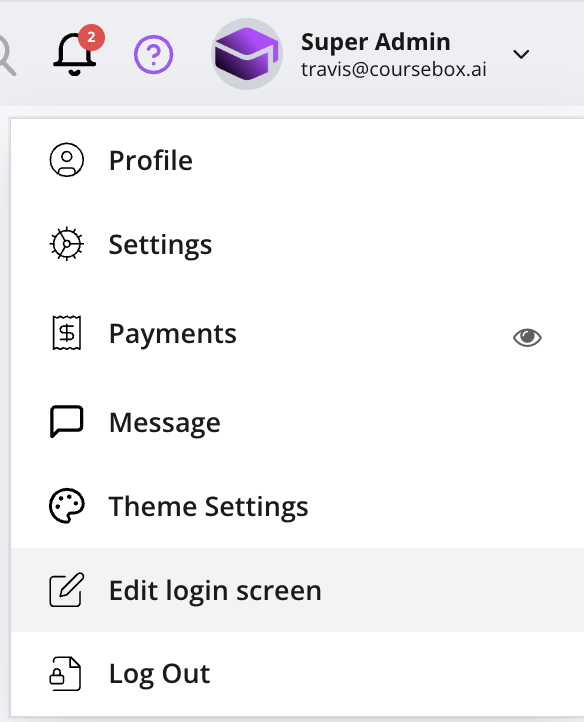
The following screen will appear.
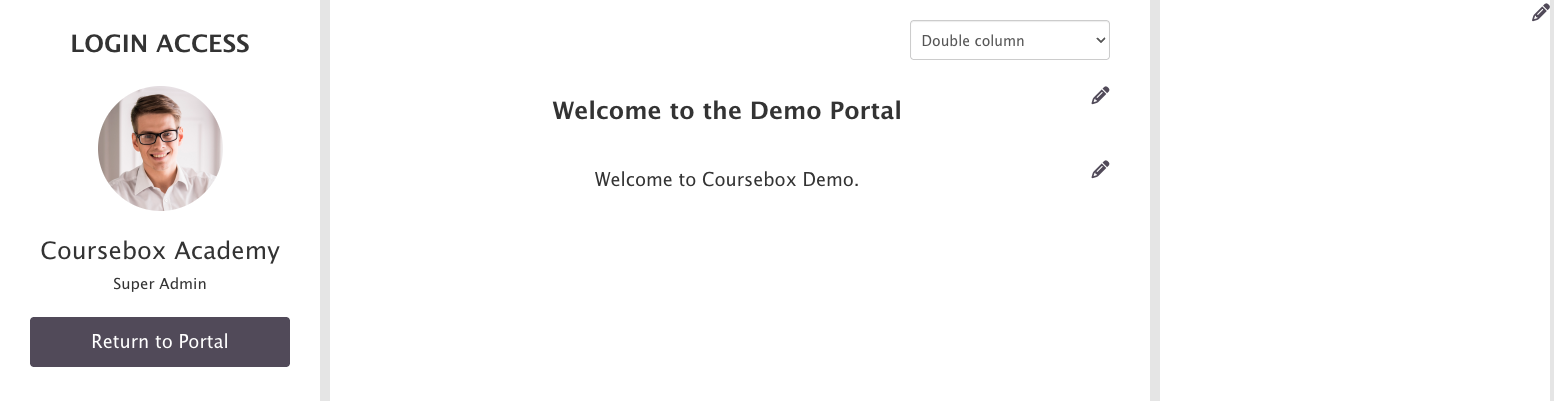
Edit Home Page
In the home and login page, you are provided with 3 different content blocks which you can edit.
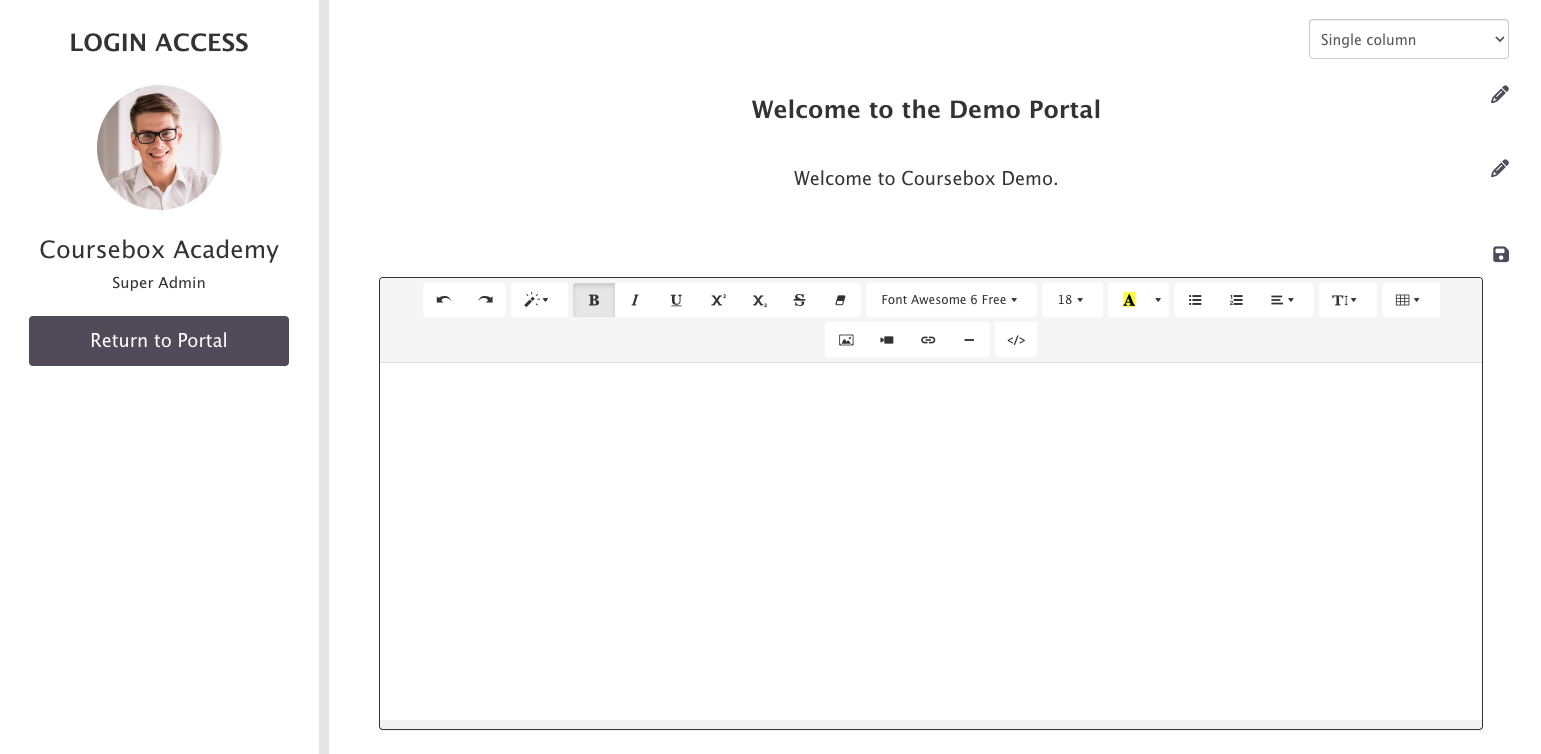
On the right hand top corner of editable blocks, click on the pen icon to start editing the content. Once the edit is done, click on the save icon to save your changes.
Here you can provide more details about your company and its offering. You can use the WYSIWYG editor to format your content like changing font family, size and color. You can also add tables, and hyperlink your text.
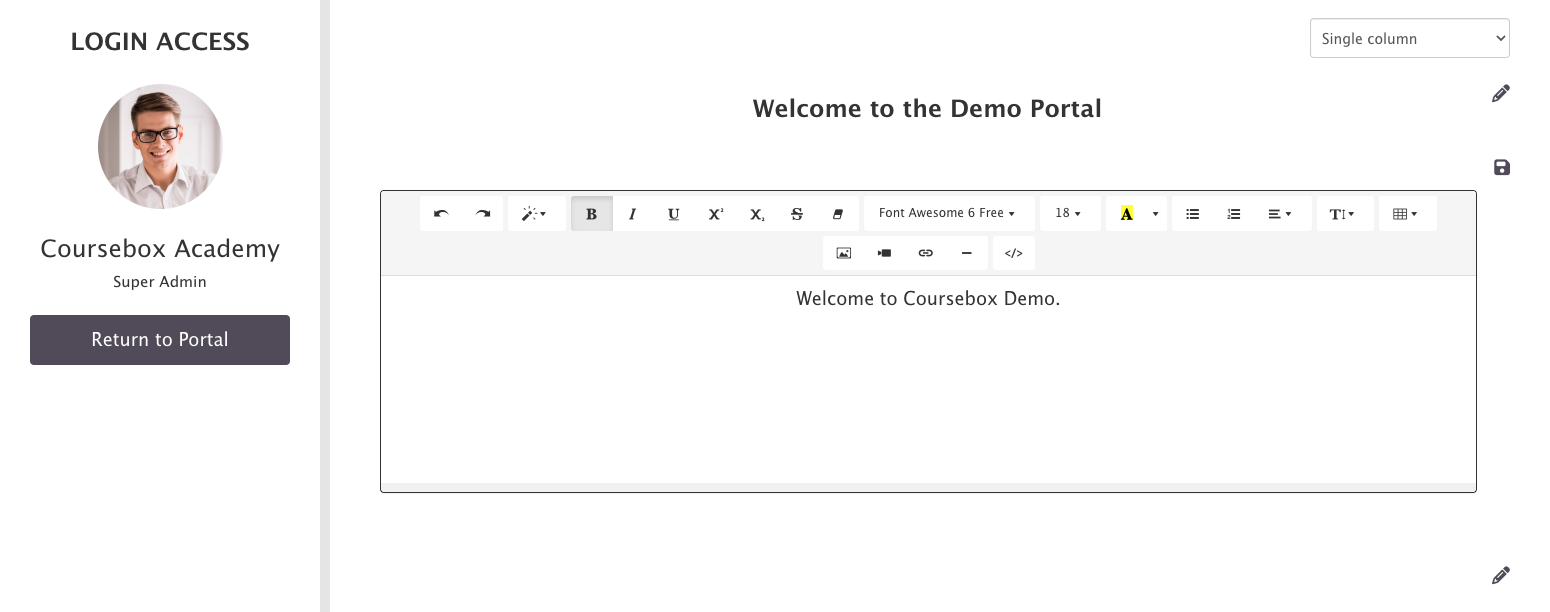
Add Media
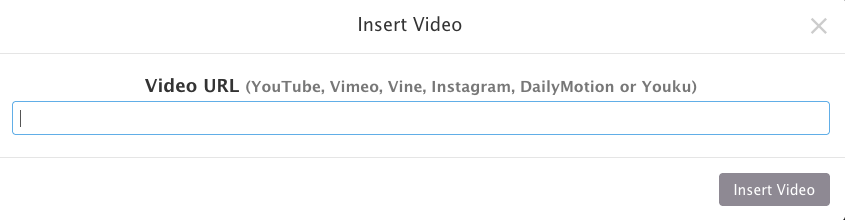
Here you can embed images or video content which will help you add rich media content that provide more information about your business. Click on the image or video icon to upload your media content. In case of videos, you will need to provide the URL of your video from YouTube, Instagram, Vimeo, Vine, Dailymotion or Youku.
Edit the Footer
To edit the footer as Super Admin, scroll down to the bottom of any page, click the pen icon, make changes and then click save.
Edit the About Section
To edit the about page, click on the About option from the top menu bar.
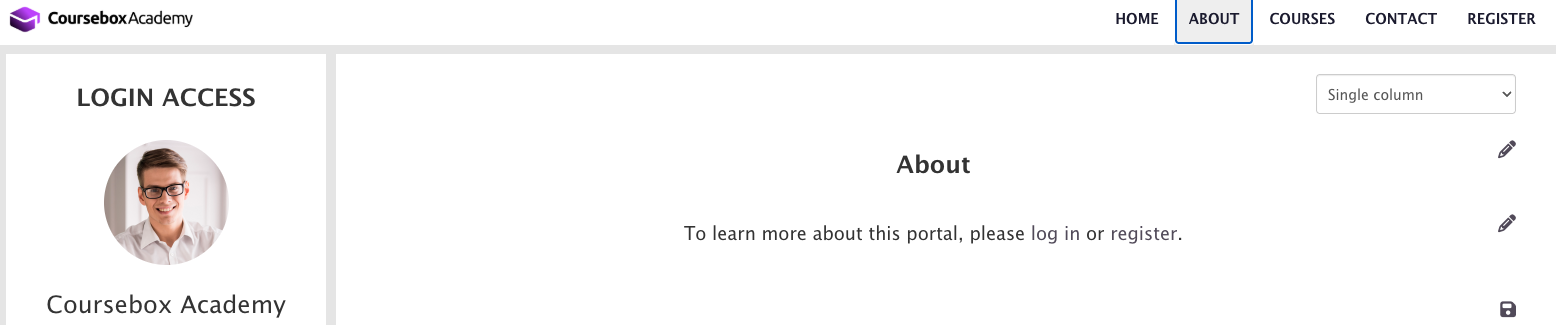
Similar to the Home page, About page provides 3 content blocks which you can edit. By default, the description content block contains a standard text block that provides a hyperlink to the LogIn and Registration page.
Edit Contact details
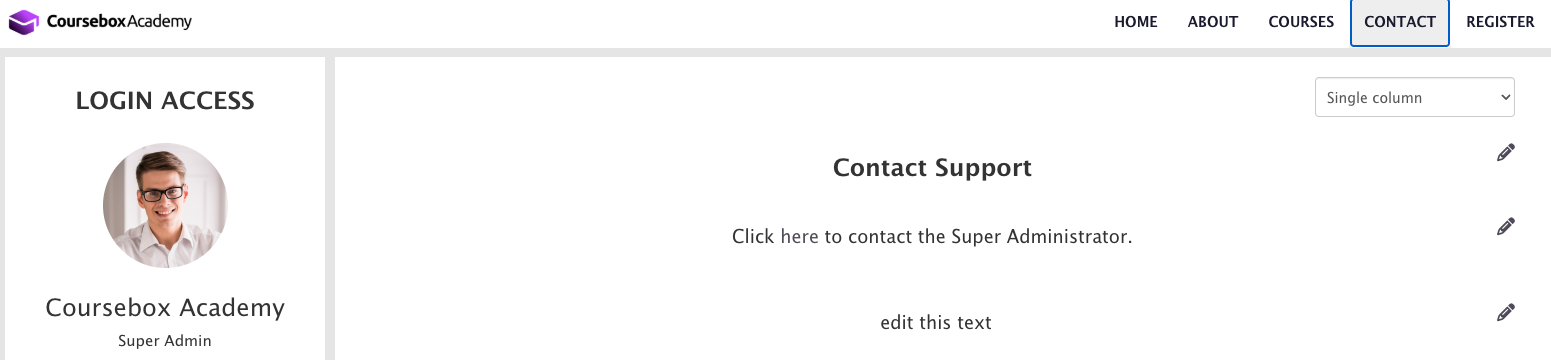
Similarly, the contact page also provides 3 editable content blocks. Using similar steps like in the Home and About page, you can edit the content and save your changes.
Edit Registration Page
Registration page also has similar content blocks as home, about, and contact page.