
Course Theme
This section explains how to customise the visual appearance of your course in Coursebox. Whether you want to chan or connect a custom domain, this guide walks you through every option.
Watch the tutorial videos found in our YouTube Video Library.
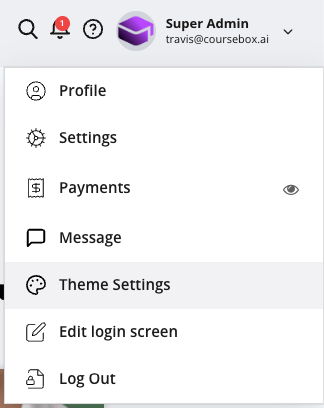
You can set your course theme from the profile menu shown below.
Course Colour Settings
Course Colours – control how courses appear.
Option 1: Change Colours via Theme Settings (All Courses)
Use this option if you want consistent colours applied across all courses.
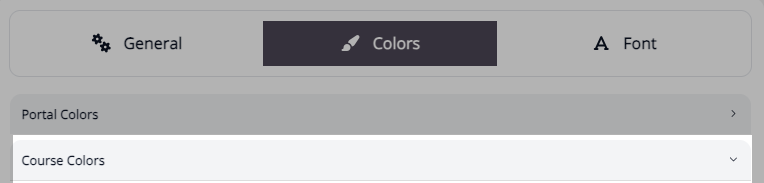
Select the Colors tab.
Expand Course Colours.
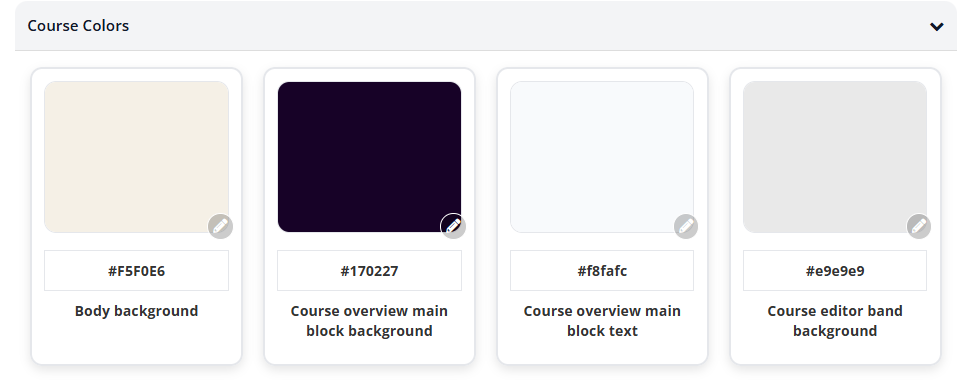
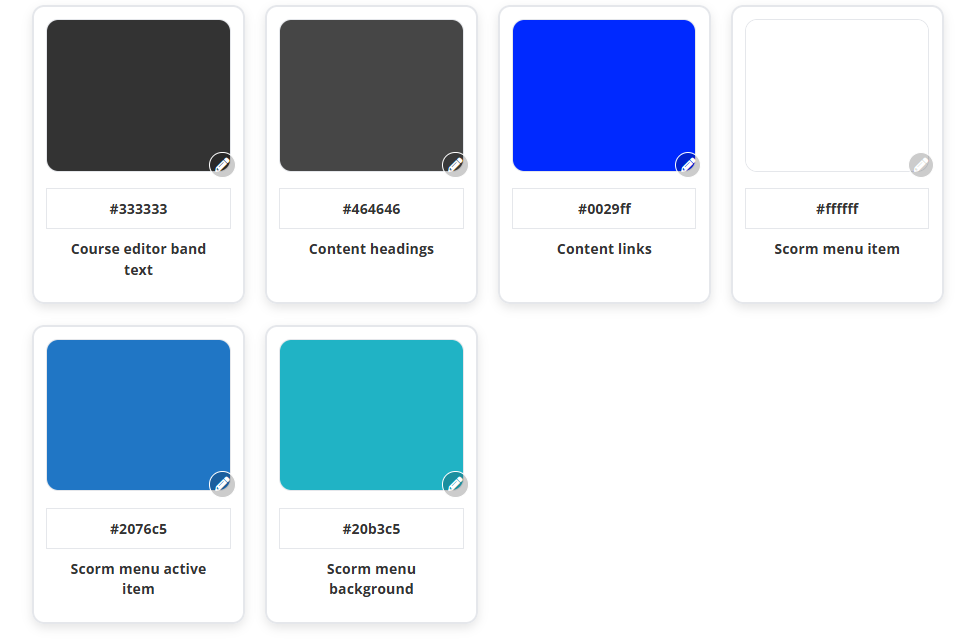
Click the colour tile or edit icon next to the element you want to change.
Course Colours control the visual appearance of individual courses and learner-facing content
Choose a colour using the picker, or enter a HEX code to match your brand exactly. Repeat for any additional elements.
Note: Banner color and Banner text color are set separately in the Colors tab of the theming popup, under Course Colours. Banner color controls the background colour of the course overview banner, and Banner text color controls the text colour shown on the course overview and hero banners. To use an image instead of a solid colour, upload a custom background image directly on the banner in the course editor — see Edit a Course for details.
Option 2: Change Colours within a Specific Course
Use this option if you want to customise the look and feel of one course only.
Open the course you want to customise and click Edit Course.

Click on the pallet settings and select Theme Settings.

Then select your colours.
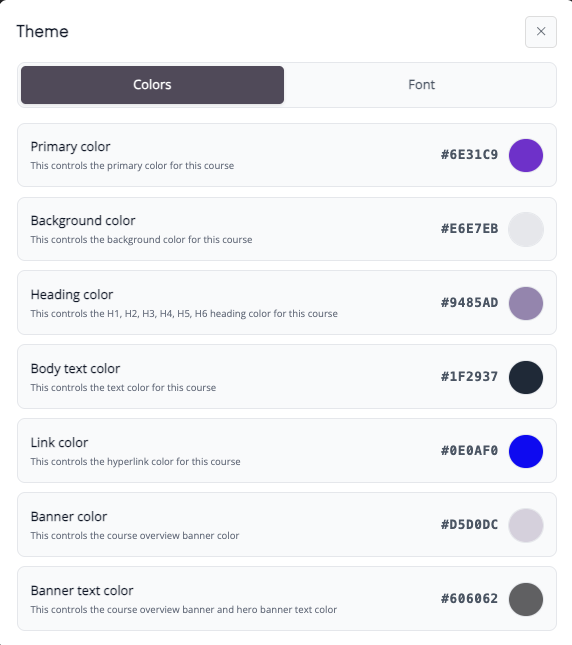
For each option, choose a colour or enter a HEX code, and save your changes.
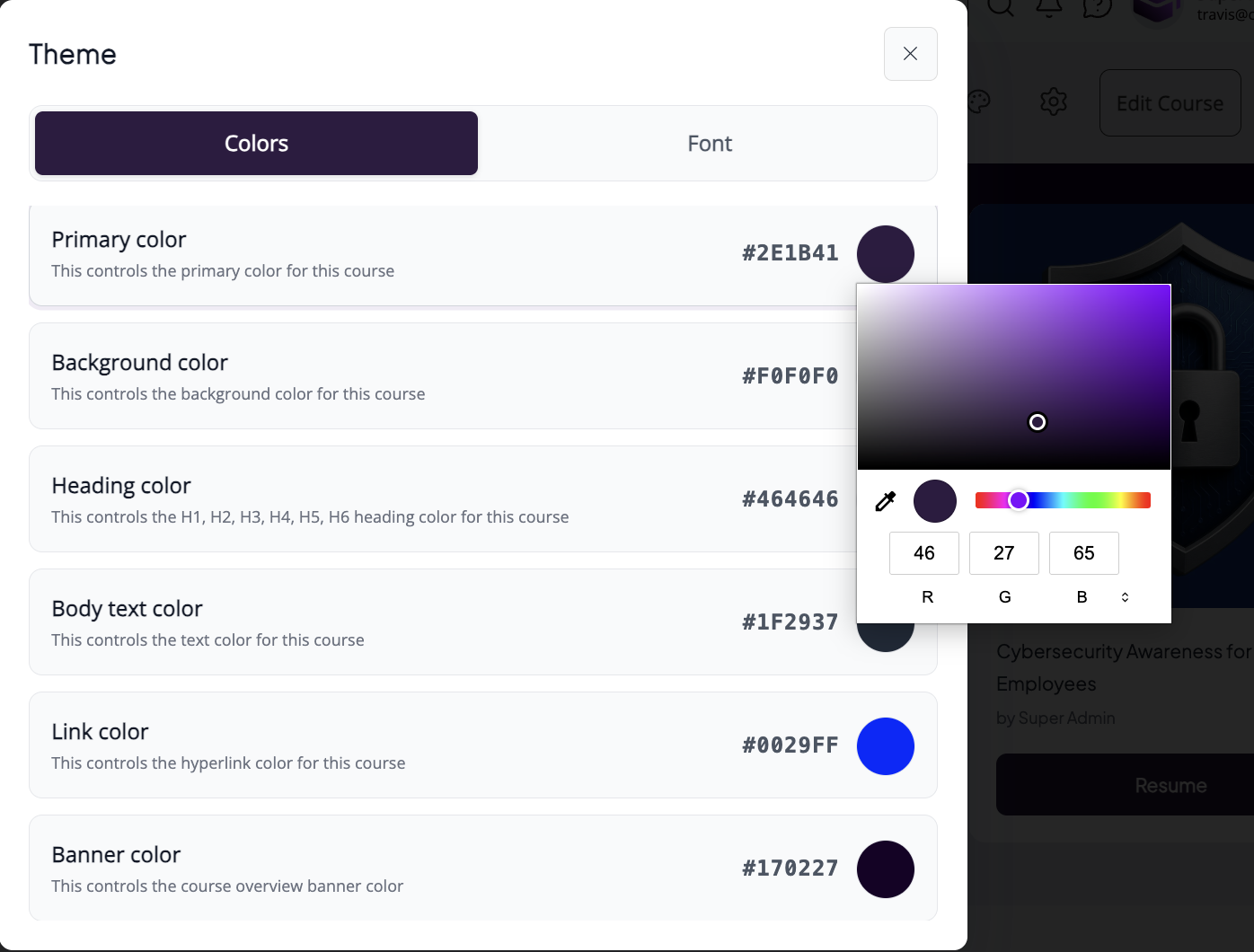
Note: These colours apply only to that course and will not affect others.
Primary Colour
This controls the main brand colour used across buttons, highlights, and interactions in your course.
Background Colour
This sets the background colour for your course content pages.

Heading Colour
This controls the colour of headings and titles throughout your course.

Body Text Colour
This sets the colour of the main body text and paragraphs in your course.
Link Colour
This controls the colour of hyperlinks displayed in your course.

Banner Colour
This sets the background colour of the course overview banner.

Global font family
Choose one font family that applies across every course in your portal. The global font family is available on Pro plans and above.
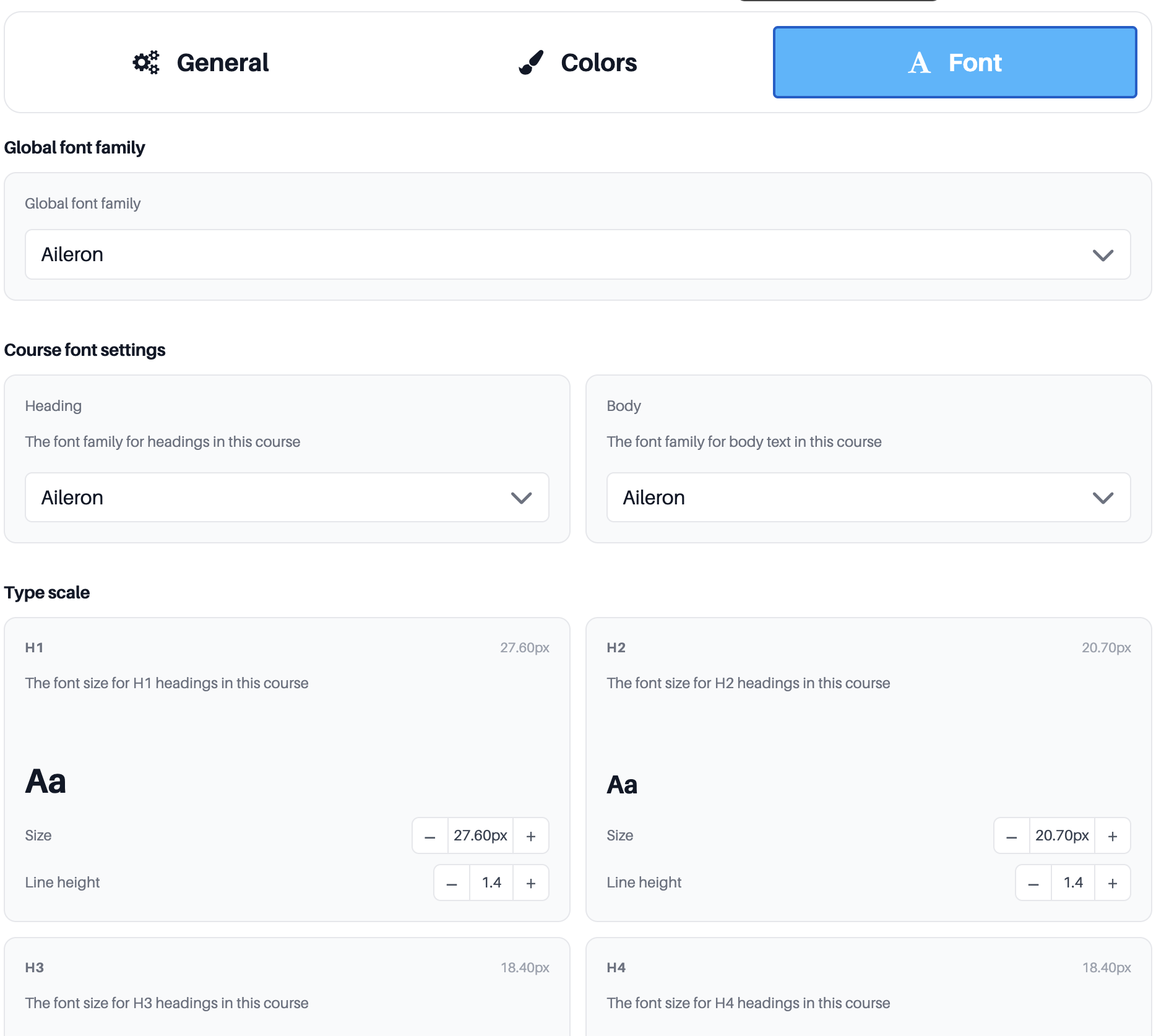
Course font settings
You set your fonts in Theme Settings, in the Font tab (next to General and Colors), at two levels: a global font family for your whole portal, and heading and body fonts with a full type scale for each course.
Open Theme Settings from the account menu at the top right, the palette icon in the course editor toolbar, or the theming icon on the course overview page topbar.
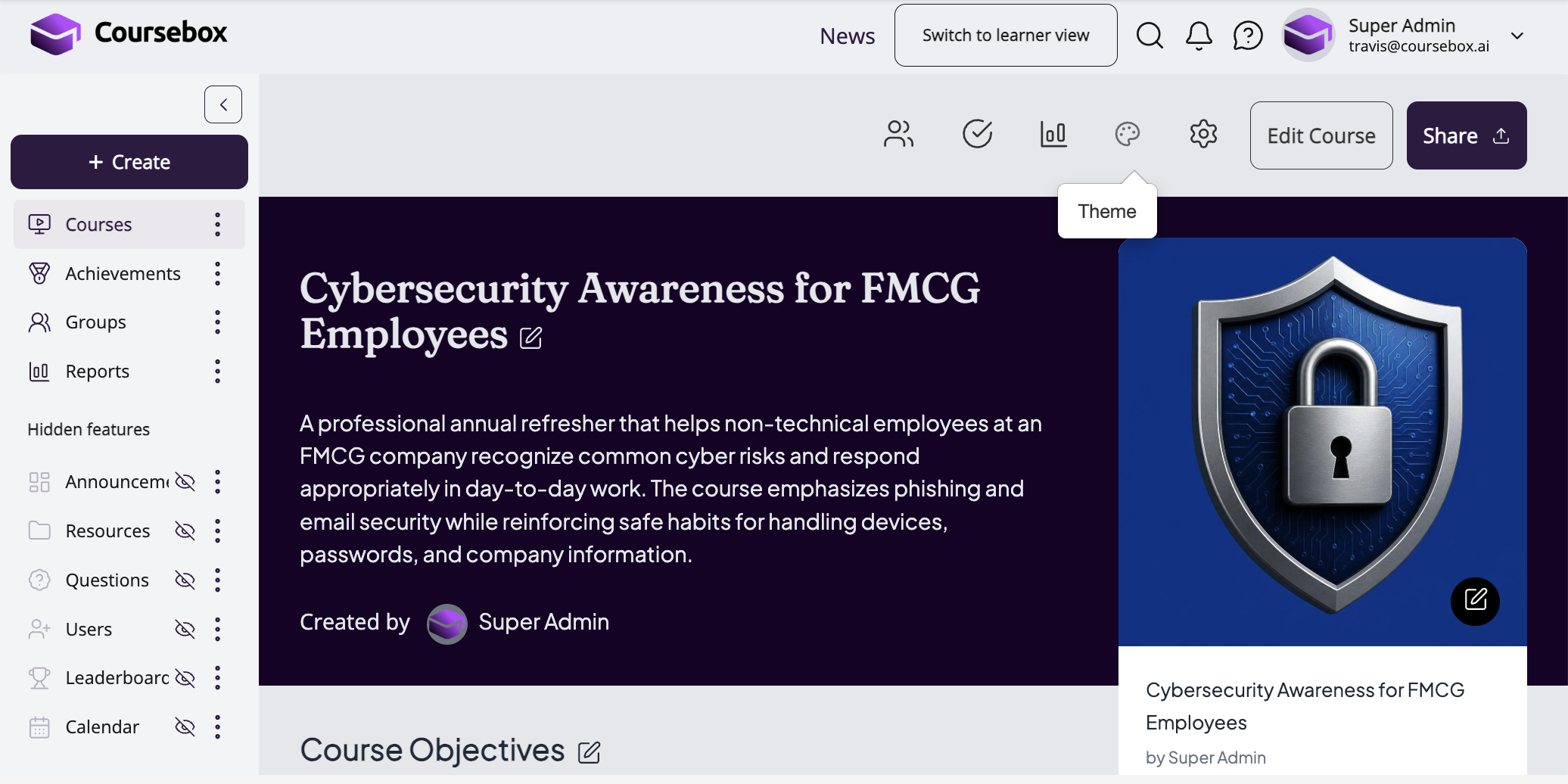
Note: These Theme Settings control the font for a whole course or your whole portal. To set the font and size on specific text inside a single block instead, highlight that text in the editor and use the font and size controls in the block's own toolbar — see Edit a Course for details.
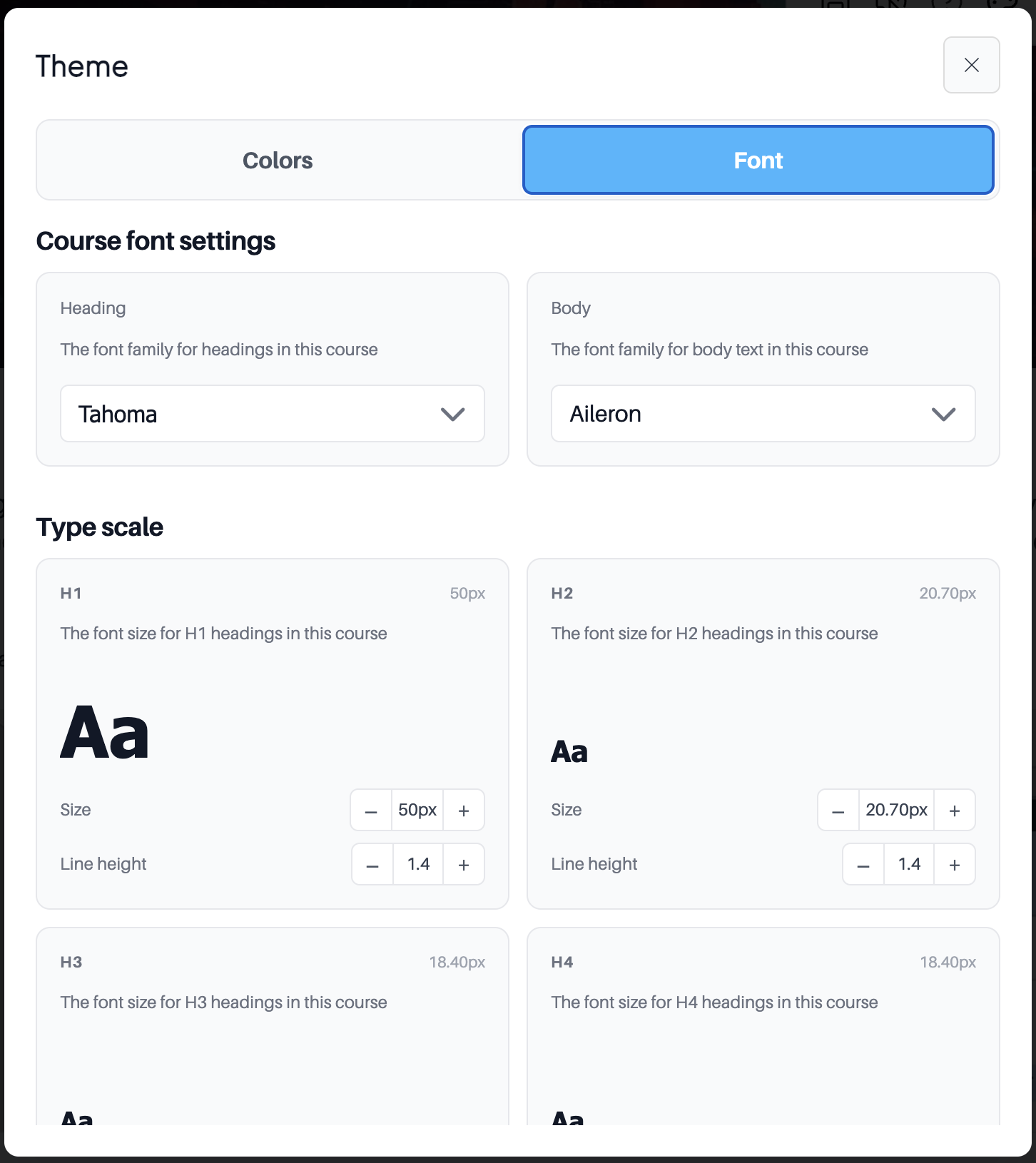
For each course, set a separate heading font and body font. Course-level fonts are available on all plans.
These course-level heading and body fonts, along with the type scale, now also apply to the course overview page, so the page matches the rest of your course's typography.
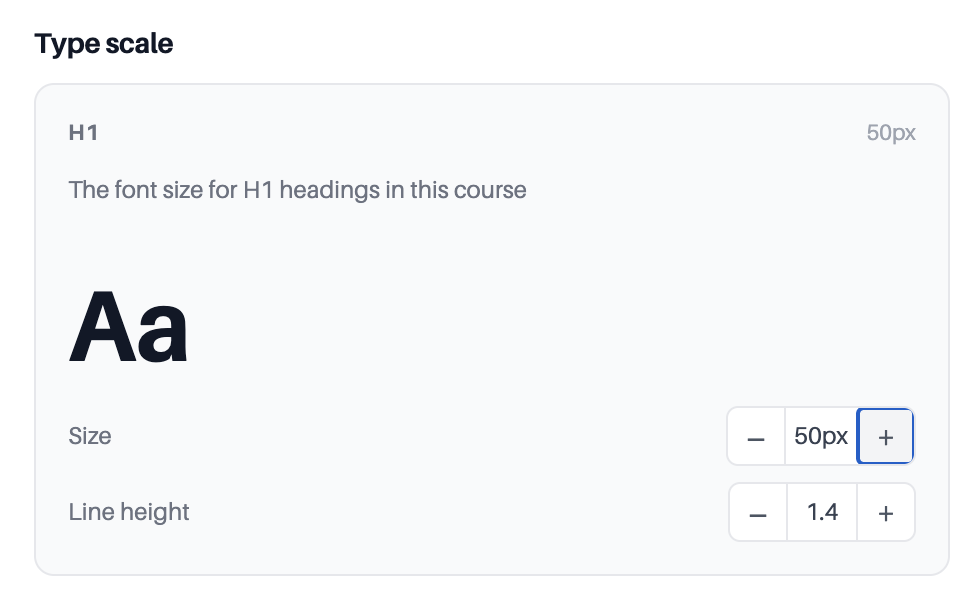
Type scale
Set the size and line height for each level, H1 to H6 and paragraph text, using the minus and plus steppers. A live Aa preview updates as you go, so you can build a clear reading hierarchy and set line spacing once for the whole course instead of adjusting each section by hand.
Upload a Course Cover Image (Change Course Thumbnail)
You can upload or change a course cover image — also known as a course thumbnail or course banner image — at any time while creating or editing your course.
Go to Courses → My Courses and locate the course you want to update.
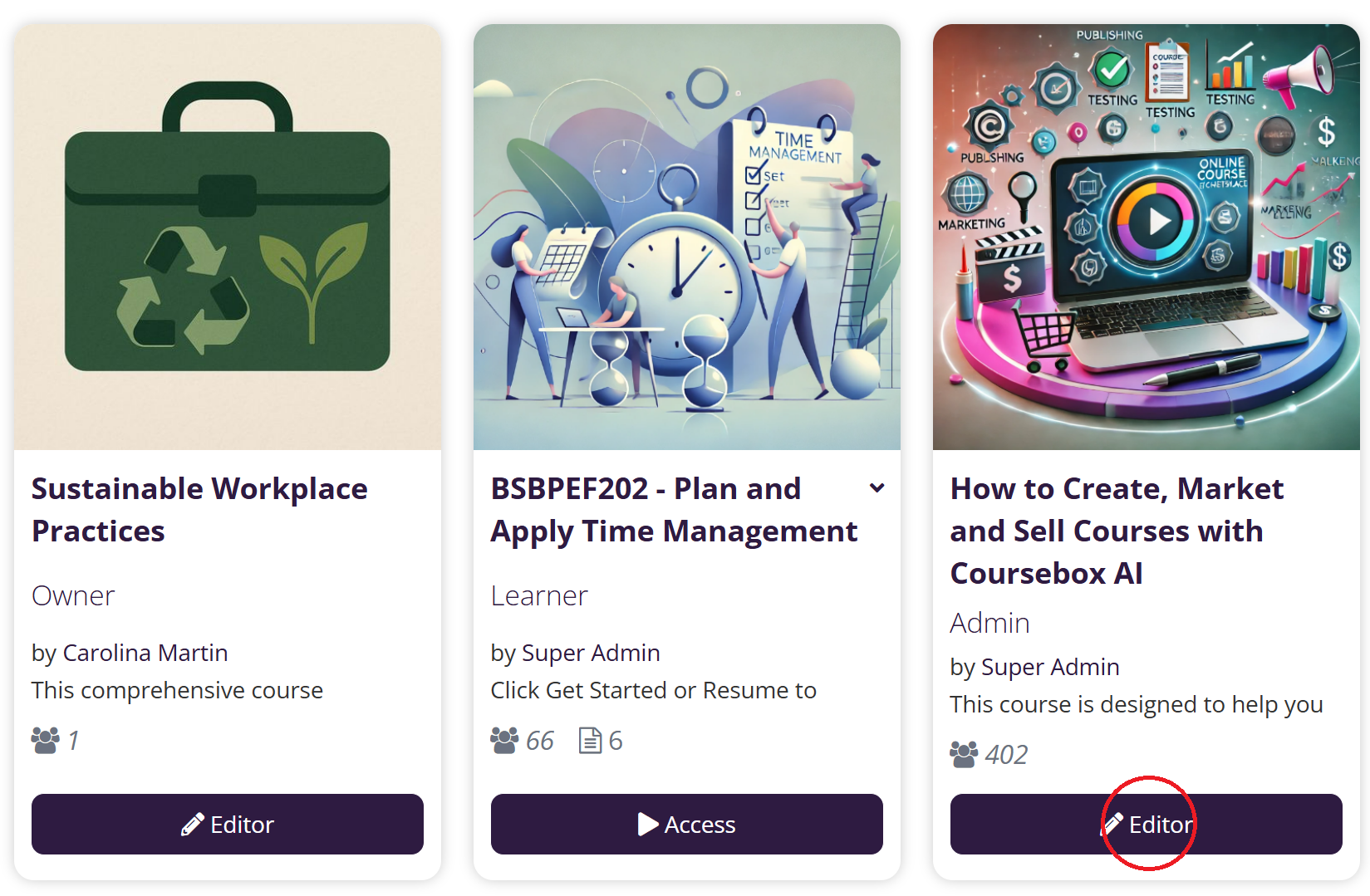
Click the pen (✏️) icon / Editor button on the course card to open the course editor.

Select an image from your computer. The image will upload and update automatically.
Course Cover Image Requirements
Format: JPG / JPEG or PNG recommended
Aspect ratio: 1x1 (e.g. 1024x1024), minimum 400x400px
File size: Under 1MB for best performance
Common questions this article answers
How do I personalise or change my course background?
How do I change the background colour of my course pages (body background)?
How do I change or upload my course cover image, banner, or thumbnail?You set your fonts in Theme Settings, in the Font tab (next to General and Colors), at two levels: a global font family for your whole portal, and heading and body fonts with a full type scale for each course.
Open Theme Settings from the account menu at the top right, or the palette icon in the course editor toolbar, then open the Font tab.
Note: font changes appear in Preview mode and to learners, not while you are editing a page.