
Use AI Tools & Elements
Coursebox has three AI tools in the course editor: the AI Editor, which changes and builds course content for you, from one page to the whole course; Listen mode, which reads pages aloud; and the AI Tutor, a chatbot that answers learners' questions.
For video walkthroughs, see the Coursebox YouTube video library.
AI Editor
The AI Editor is a chat panel in the course editor. It can change one page, a section or the whole course, and it can write new pages from documents you give it. See Write new pages from your documents below.
Open your course in the course editor.
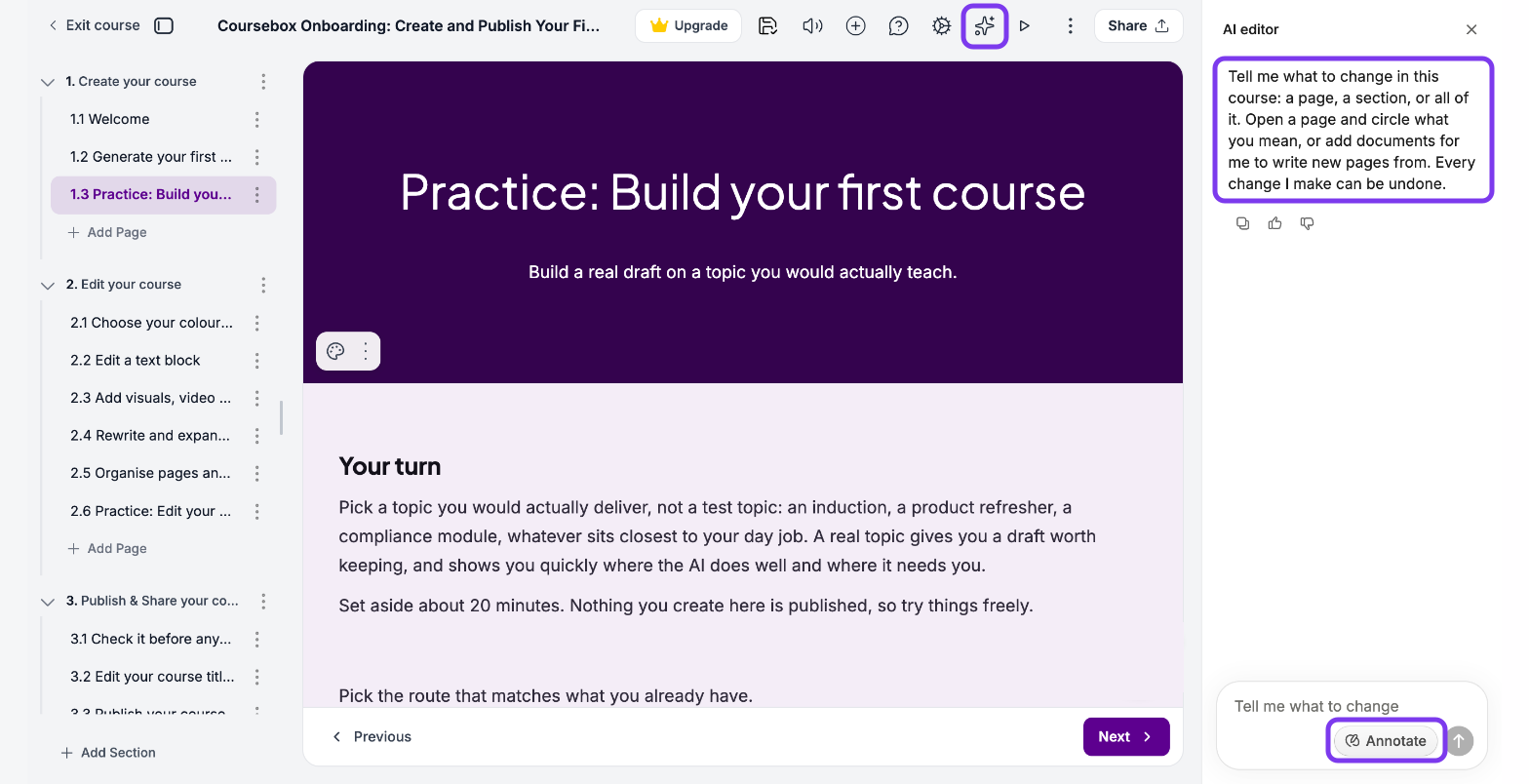
Click the AI Editor icon (the sparkle) in the top toolbar. The AI editor panel opens on the right. To make the panel wider or narrower, drag its left edge.
In Tell me what to change, describe the change and say where it applies: this page, a section or the whole course.
To point at one part of a page, use Annotate. See Point at part of a page with Annotate below.
Click the send arrow. Keep refining with follow-up messages in the same chat.
Point at part of a page with Annotate
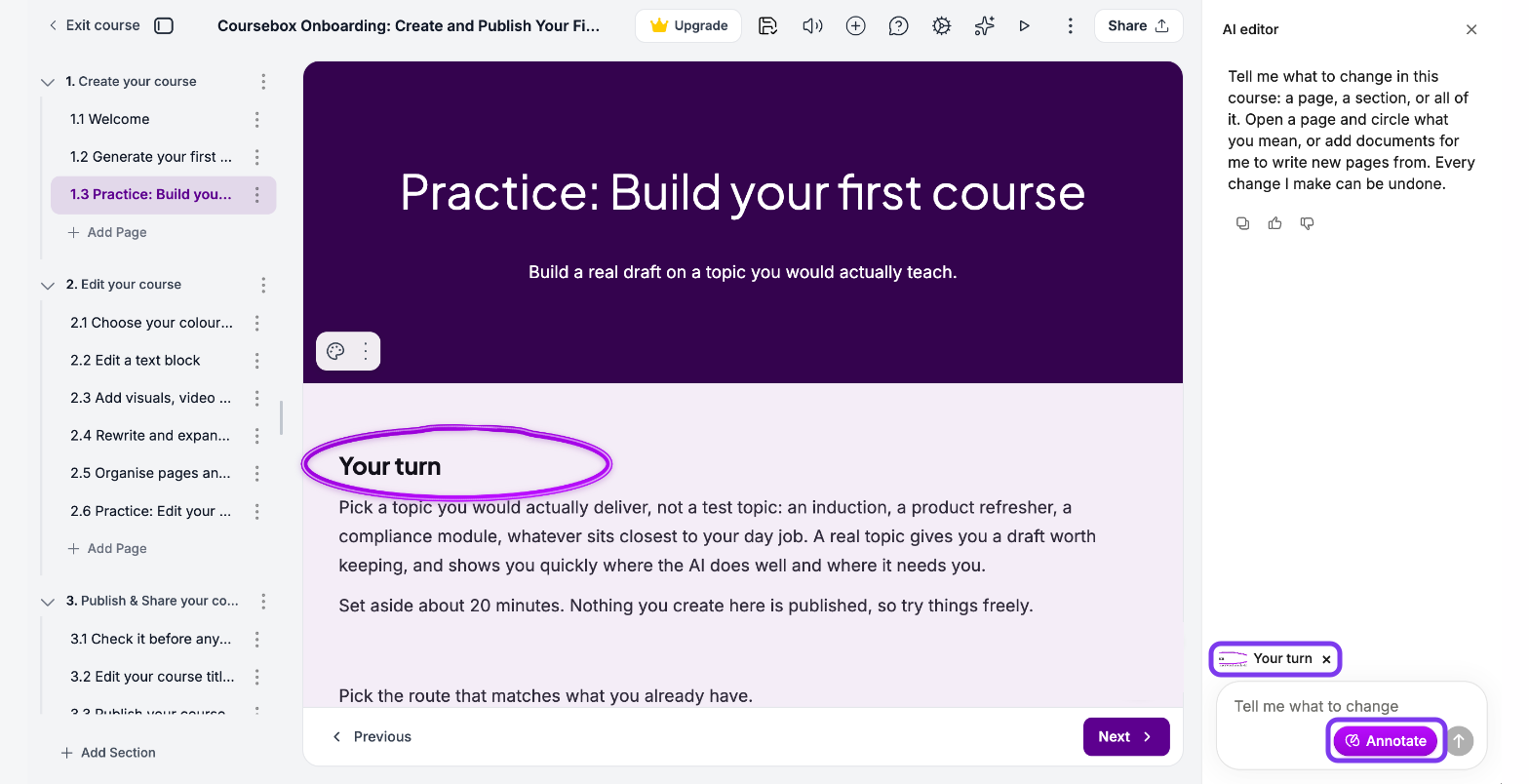
Annotate lets you show the AI Editor exactly which part of a page you mean, instead of describing where it is. For a quick guide, click the ? beside Annotate to open Show the AI what to change.
Open the page you want to change.
In the AI editor panel, click Annotate. The button turns purple and you can draw on the page.
Circle or click on the part you mean: text, an image, a block or a field. Each mark is added to your message, and you can make several.
Check the message box. The part you marked appears above it, with a small picture and its text.
Type what to change, for example "Make this shorter", and click the send arrow.
To stop drawing, click Annotate again or press Esc. Sending your message also stops it. To remove a marked part before you send, click × on it. This also turns Annotate off.
Write new pages from your documents
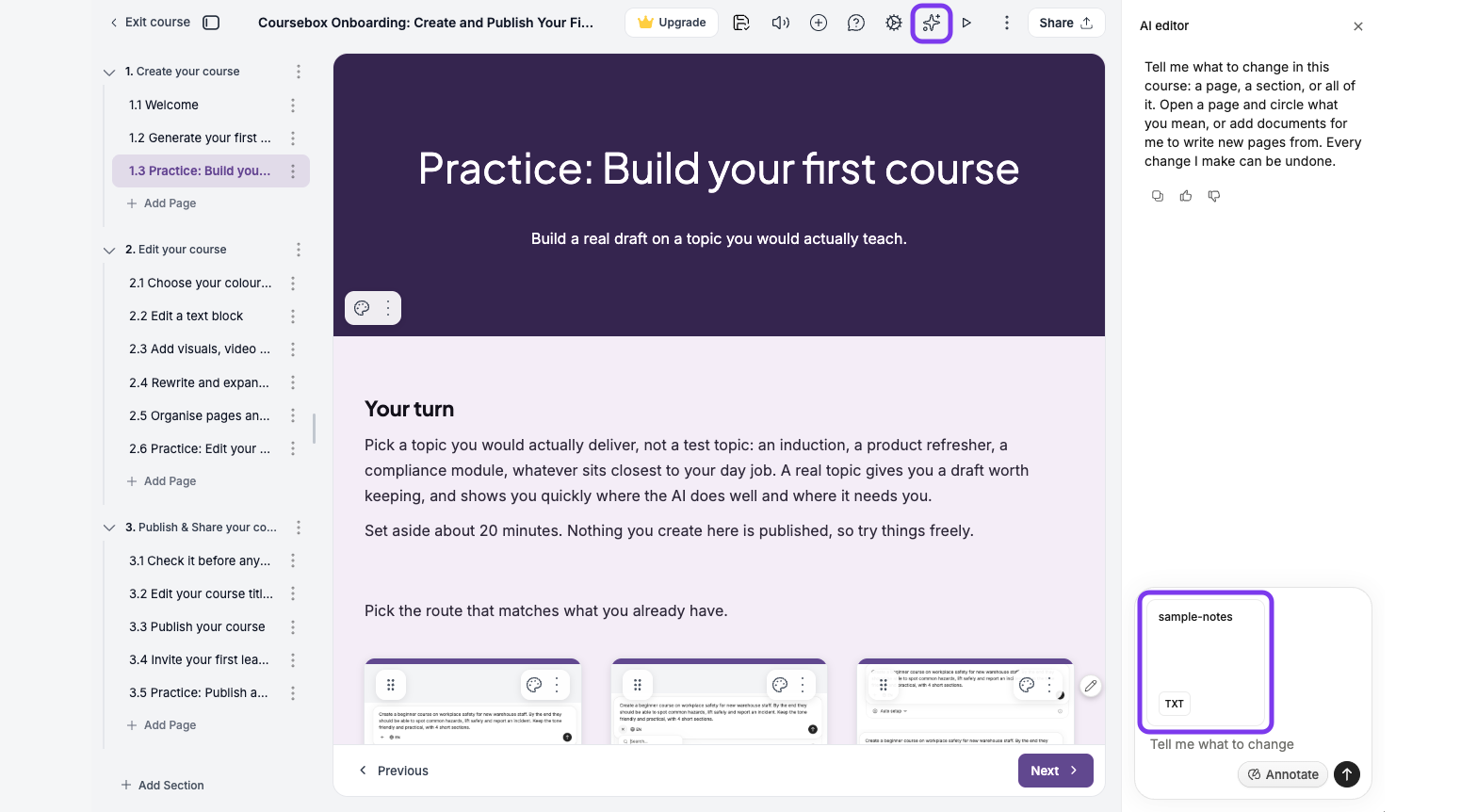
The AI Editor can write new pages from your own files. There is no attach button: you drag the files onto the message box.
Drag the files from your computer onto the Tell me what to change box. Each file appears as a card above the box.
Say what to write and where, for example: "Write a new section from the attached document."
Click the send arrow.
Good requests say where (which page, section or block), what (rewrite, expand, shorten, restyle or translate) and how long (a word count). For example: "Rewrite the second paragraph on this page for a new starter with no industry background, about 80 words."
Every change the AI Editor makes can be undone. Always review what it writes before you publish your course.
Listen mode
Listen mode reads everything on a course page aloud, which helps with accessibility and lets learners listen instead of read. Learners turn it on with the Listen mode icon (the speaker) in the top toolbar. To try it yourself, click Switch to learner view.
Set up Listen mode
In the course editor, click Course settings (the gear icon) in the top toolbar, then click Listen mode under AI.
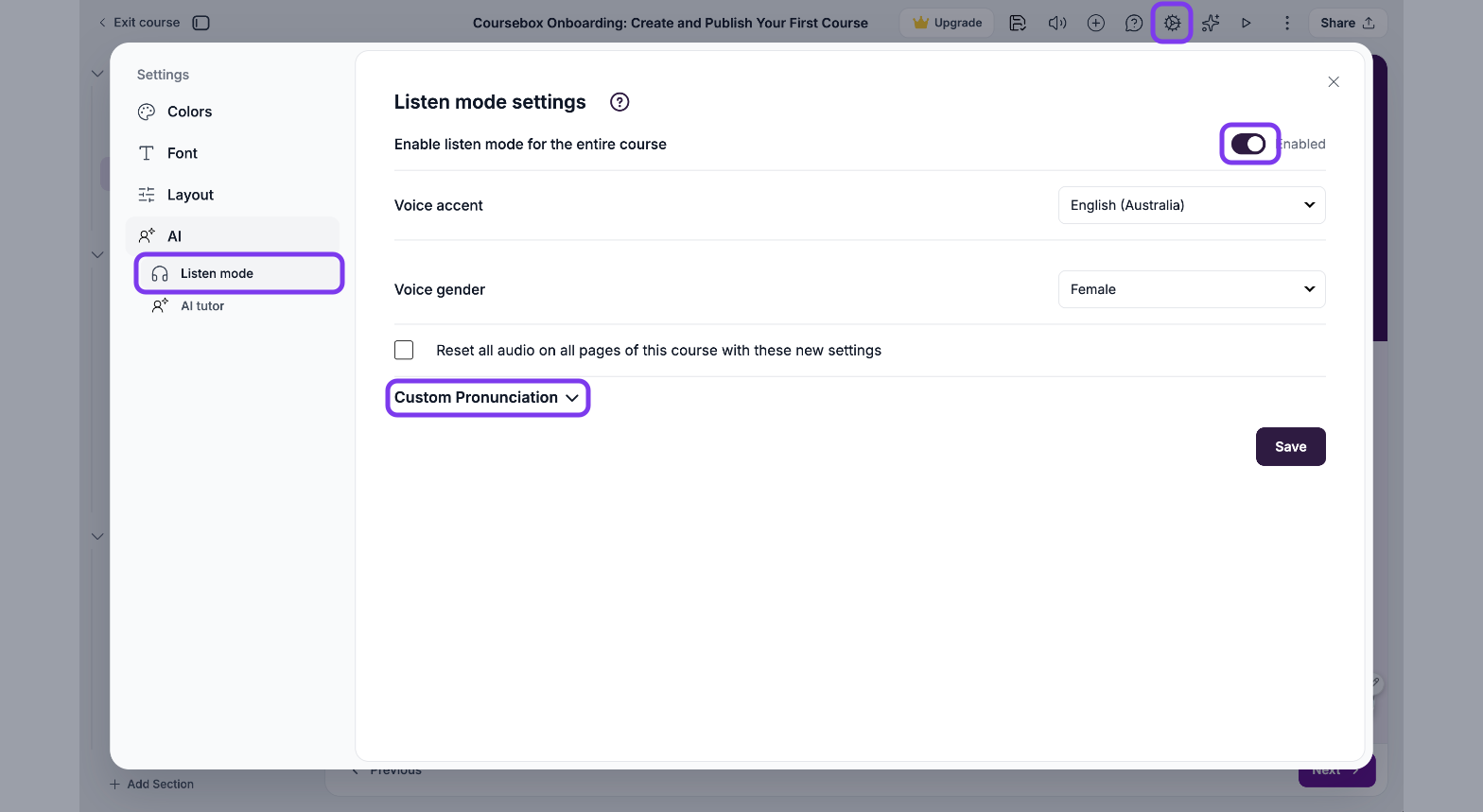
In Listen mode settings, turn on Enable listen mode for the entire course.
Choose a Voice accent and a Voice gender.
If you've changed the voice or edited a lot of text, tick Reset all audio on all pages of this course with these new settings to regenerate the audio.
Click Save.
These settings apply to the whole course. Listen mode always reads the whole page; you can't leave out individual blocks.
Custom pronunciation
Use custom pronunciation for acronyms (such as RTO or LMS), brand names, technical terms and names the voice says wrongly.
In Listen mode settings, click Custom Pronunciation.
Click Add Word.
Enter the Word as it appears in your course and its Pronunciation (how it should be said).
Click Preview to hear it. To delete an entry, click Remove.
Click Save.
AI Tutor
The AI Tutor is a chatbot that appears on your course pages and answers learners' questions based on the course. Every new course gets a Coursebox Tutor with a name, image and welcome message, trained on the course content.
Change the tutor
In the course editor, click Course settings (the gear icon) in the top toolbar, then click AI tutor under AI. You can also click the pen icon on the tutor bubble.
On the Coursebox Tutor tab, keep Use Coursebox Tutor turned on.
Edit the instructions, the AI Tutor Welcome Message and the AI Tutor Name.
To change the tutor's picture, click Upload Image under AI Tutor Icon (JPG, PNG or SVG, up to 1 MB).
Turn on Restrict Response so the tutor only answers questions about the course content.
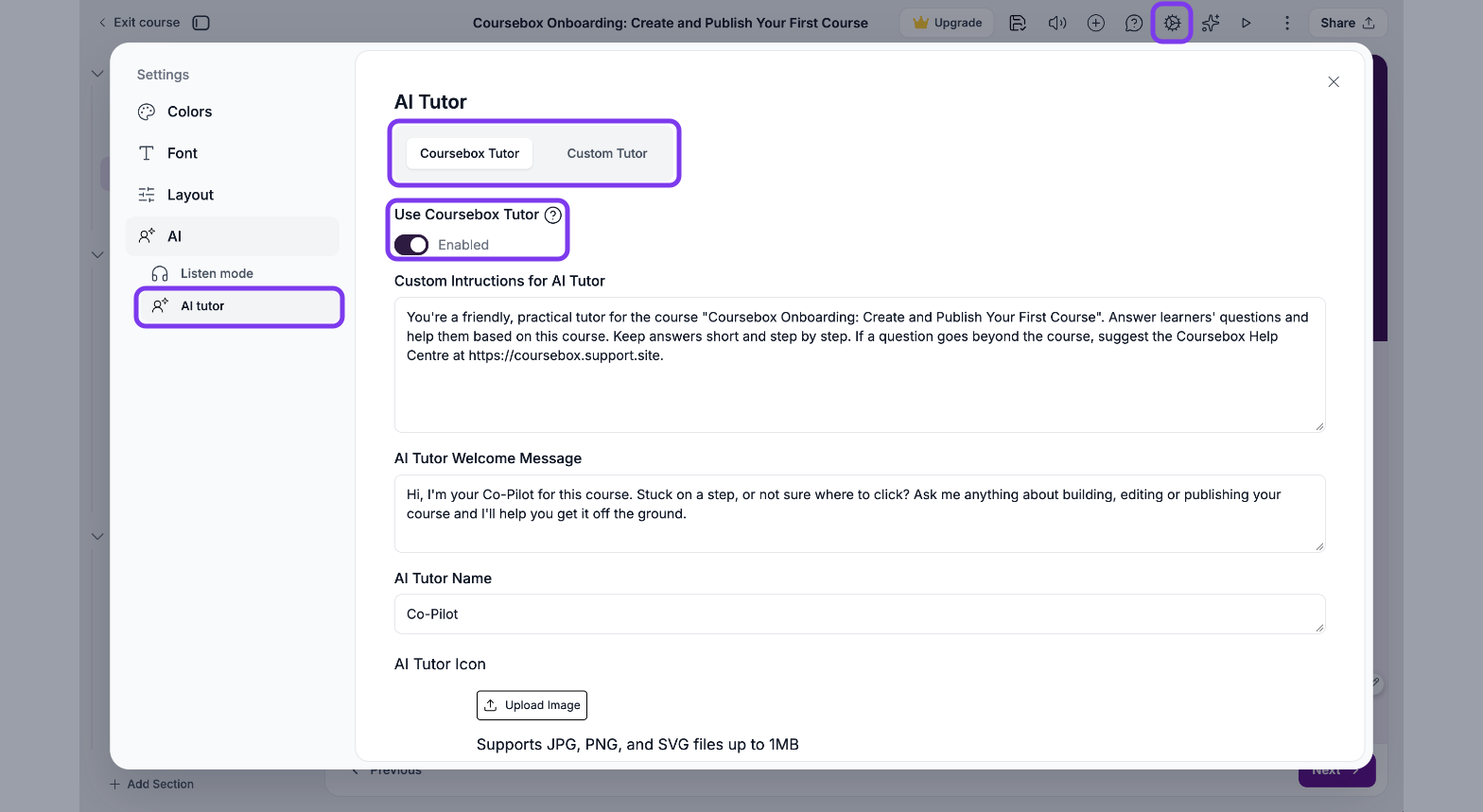
Example instructions: "You are a friendly tutor for the course 'Workplace safety basics'. Answer learners' questions using only this course, and keep answers short and step by step."
Train the tutor on files and websites
In the AI tutor settings, scroll to Optional: Train AI on existing content.
On the Files tab, drop or browse for a document (PDF, TXT, DOCX, CSV or PPTX). On the Websites tab, add a web page.
Click Retrain. The tutor uses the new material, and the latest version of your course.
You can also set up the tutor before a course is generated, in the Tutor tab of Auto setup. See Course Setup.
Use your own chatbot
If you've built a chatbot elsewhere, for example with Chatbase, you can show it in your course instead of the Coursebox Tutor.
In the AI tutor settings, turn off Use Coursebox Tutor.
Click the Custom Tutor tab.
Paste your chatbot's iframe code.
Upload a chat icon, then click Save.
Your chatbot appears on every course page except pages with a quiz or assignment.
Plan requirement: AI Tutor messages come from your plan. Free includes 100 messages (one-off), Creator 1,000 a month, Pro and Pro + LMS 10,000 a month, and Enterprise 180,000 a month. Your plan may also limit how many courses can have the tutor turned on at once; turn it off in one course to turn it on in another.