
How do I share or export my course: Share Link, iFrame, LTI, and SCORM
Coursebox gives you multiple ways to share or host your course outside the platform. Whether you're sending a direct link, embedding the course on a website, integrating with another LMS via LTI, or exporting as SCORM, the options live inside the Share panel — opened by clicking the Share button at the top right of the course editor. Coursebox does not have a button labelled "Publish" on courses; publishing options live inside the Share panel.
Plan requirements: sharing a link and embedding an iframe are available on all plans. Dynamic SCORM export requires Creator or above. LTI, Self-Hosted SCORM and SCORM import require Pro or above. Connecting your own domain requires Pro + LMS. For plan details, visit https://www.coursebox.ai/pricing.
If you are on an older Coursebox plan, you keep the features included in that plan. Legacy plan names such as Plus, Business and LMS no longer appear on our pricing page, but your access has not changed.
Share a link to a course
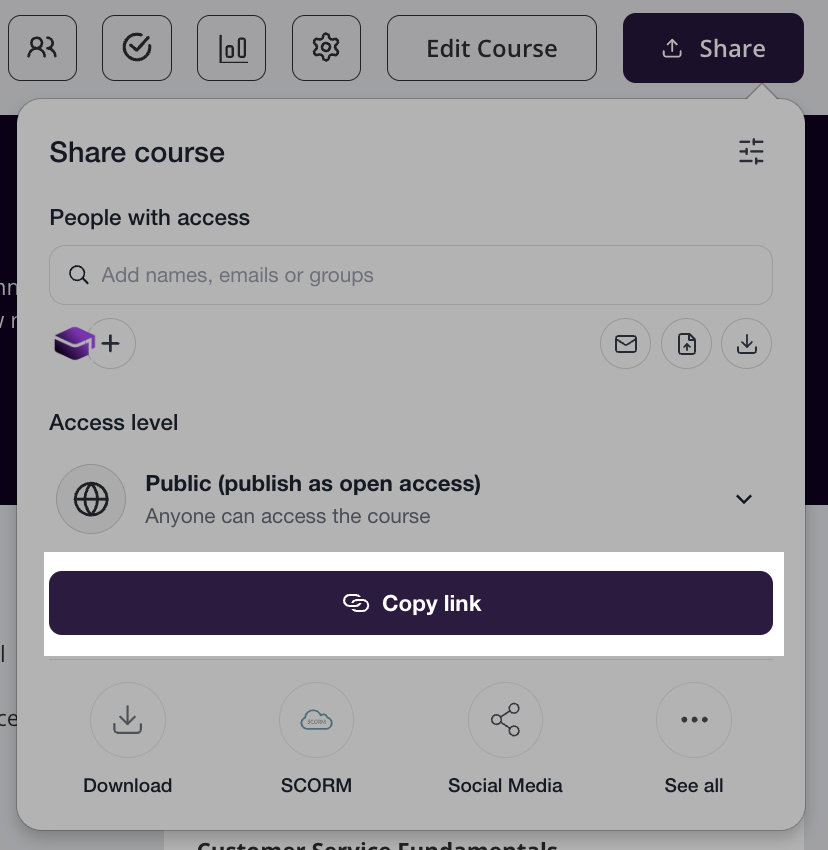
On any course, click the Share button to open the Share panel, then select Share the link.
Copy a course iFrame
Embedding your Coursebox course on other websites lets you share learning content seamlessly without asking learners to log into multiple platforms. Whether you're adding it to your company intranet, a WordPress site, or an LMS, the Share panel gives you an iframe code that can be pasted anywhere HTML is supported.
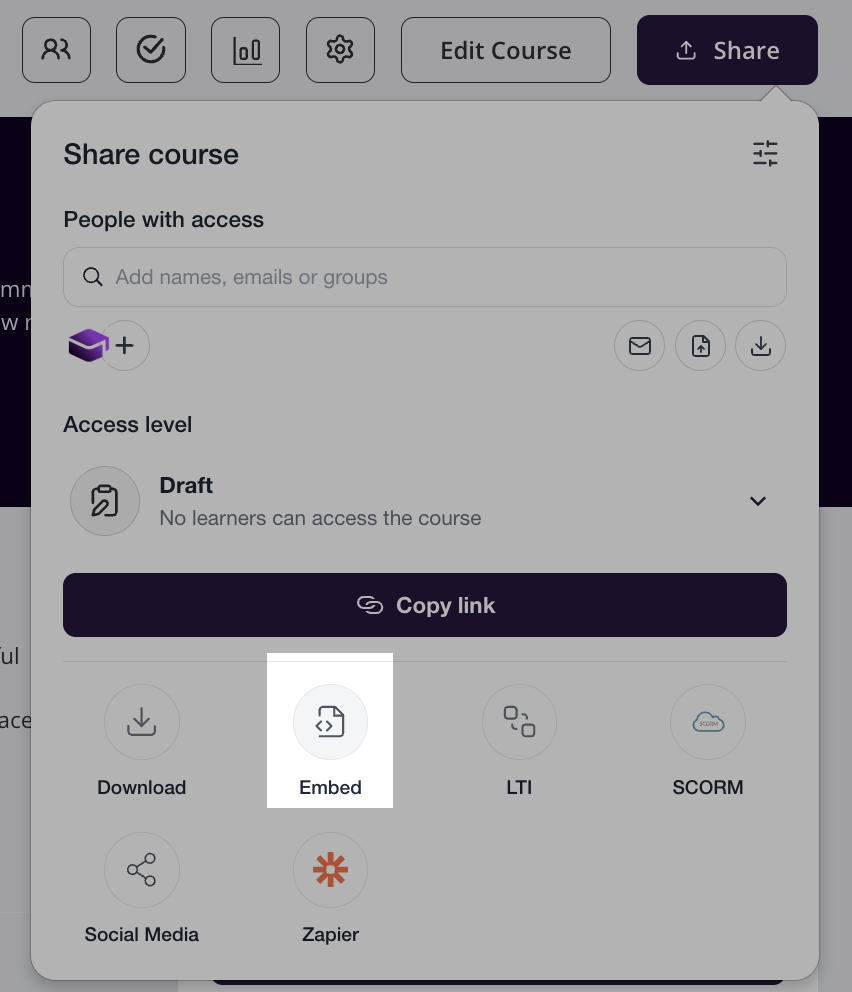
On any course, click the Share button to open the Share panel, then Copy the iframe to copy the code.
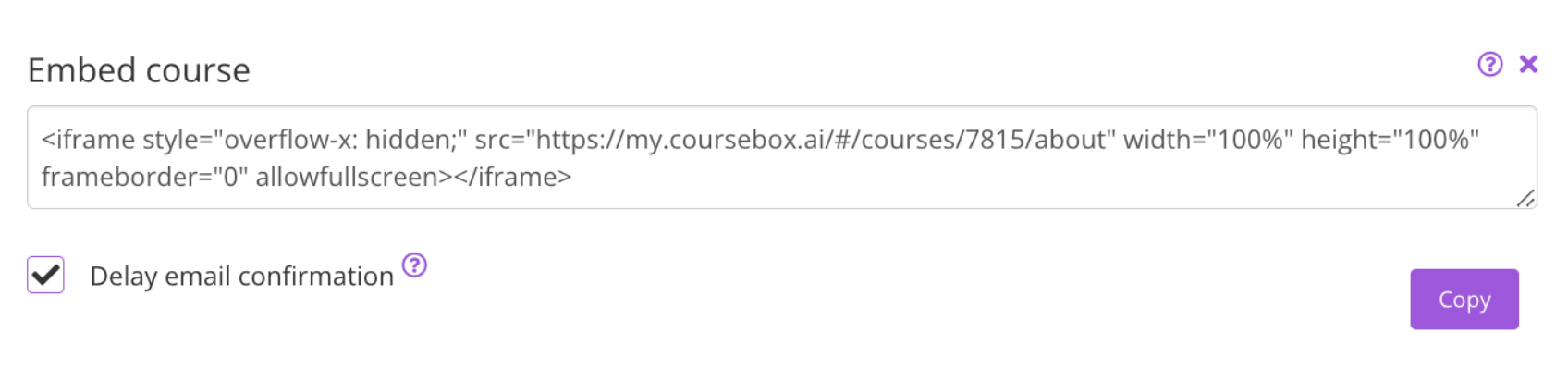
Then paste this using HTML anywhere on the web.
Embed or link courses on your own website
If you want your courses to live on your own website (for example a WordPress, GoDaddy, Shopify, or Wix site), you have two simple options. Neither requires LTI or SCORM — those are only for putting courses inside another LMS.
Option 1 — Link from a button or cover image (no iframe needed)
This is the simplest method and works on any website builder. It sends visitors from your site to the course, which opens on Coursebox.
Open the course, click Share, and select Share the link, then copy the course URL. In your website builder, attach that URL to a button, text link, or course cover image. When a visitor clicks it, the course opens.
Before you publish the link, set the right access level in the Share panel: choose Public (Free) so anyone with the link can open it without approval, or Restricted if learners should request access first. If it's a paid course, learners will see a Buy Now button.
Option 2 — Embed the course inside a page (iframe)
Use this when you want the course to appear on your own page rather than sending visitors away. Open the course, click Share, and choose Copy the iframe, then paste that code into an HTML block on your website where you want the course to appear.
On WordPress, add a Custom HTML block (or use the HTML/code view of your page editor) and paste the iframe there — avoid the visual editor, which can strip the code. The course is still delivered by Coursebox in the background; embedding it does not list it in any public Coursebox catalogue.
Which option fits?
Use a link (Option 1) if you just want learners to reach the course and you're not comfortable editing HTML — it's the most reliable across site builders, and it's the only option some builders (like certain GoDaddy templates) allow for individual courses. Use an iframe (Option 2) if you specifically want the course to display within your own page and your builder supports pasting HTML.
Making it look like your brand
Whichever option you choose, the course still opens with Coursebox's player. To apply your own logo, colours, and fonts, open Theme settings (available on Pro and above). To remove the coursebox.ai address, connect your own domain via Theme > General > Bring Your Own Domain (available on Pro + LMS). Removing the “Created with Coursebox” watermark from the learner view is included on any paid plan (Creator and above).
Share a course to LMS — LTI
LTI requires Pro or above.
Coursebox acts as a Provider for LTI 1.3, enabling you to add Coursebox courses into any LTI 1.3 compliant LMS. LTI enables a secure communication bridge between your LMS and Coursebox to launch the course and pass grades.
The integration steps are straightforward:
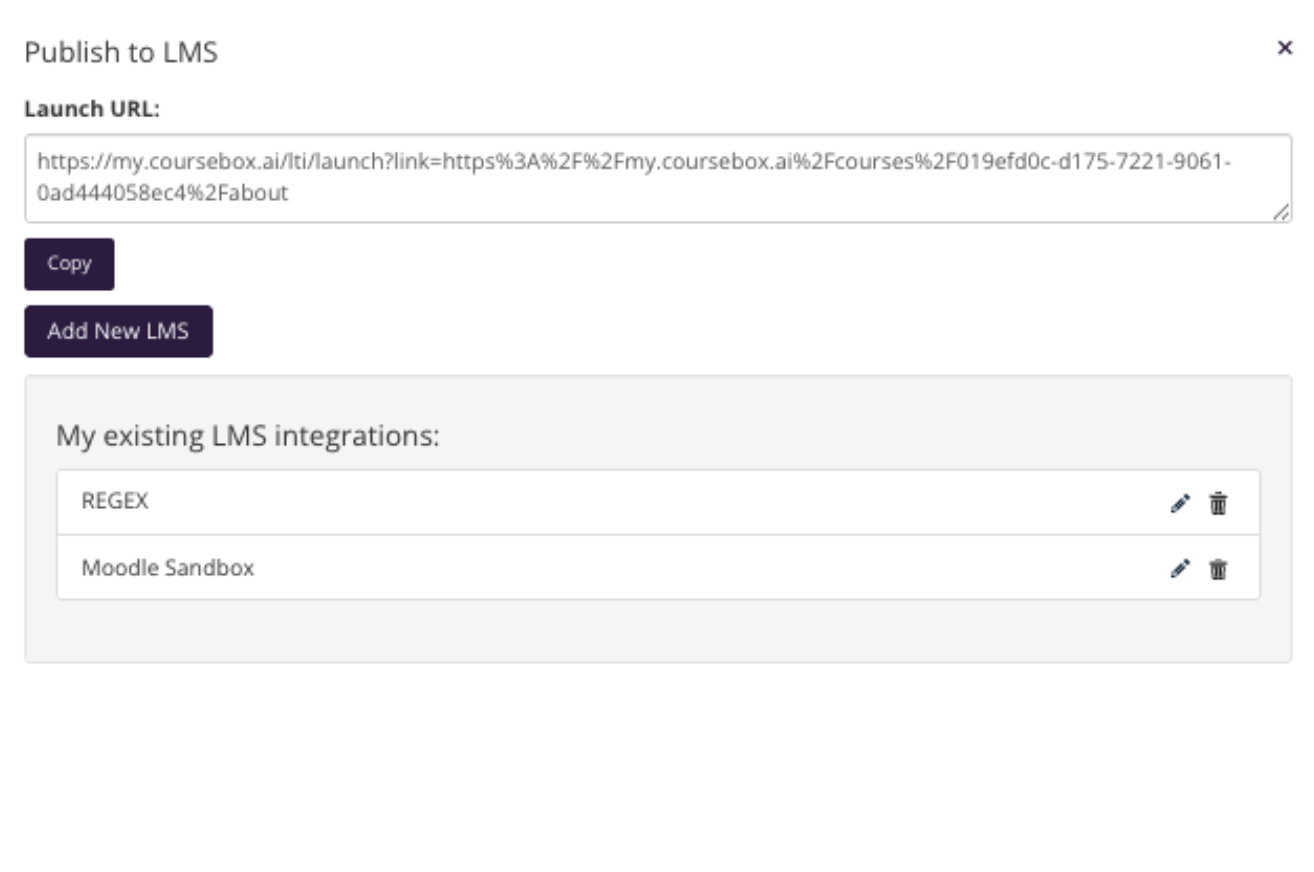
Open the course in Coursebox, click the Share button, then click LTI.
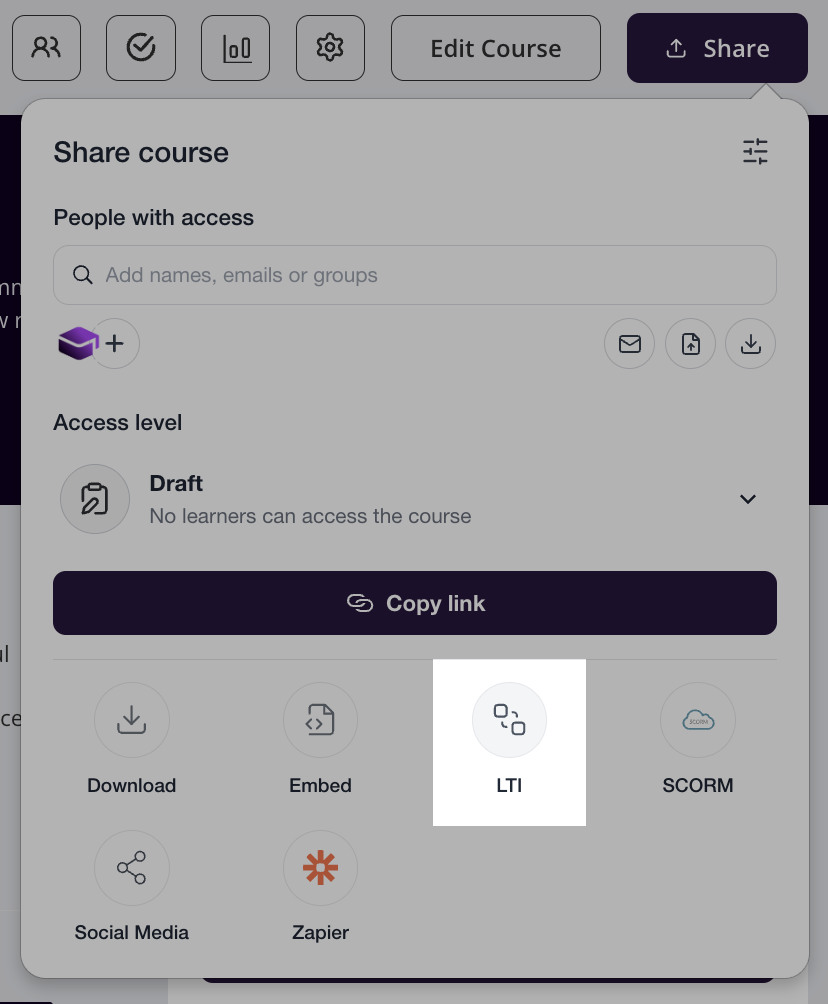
A popup will open. Click Add New LMS.
You'll see a form with Coursebox LTI details. Use these to create an LTI Tool in your LMS.
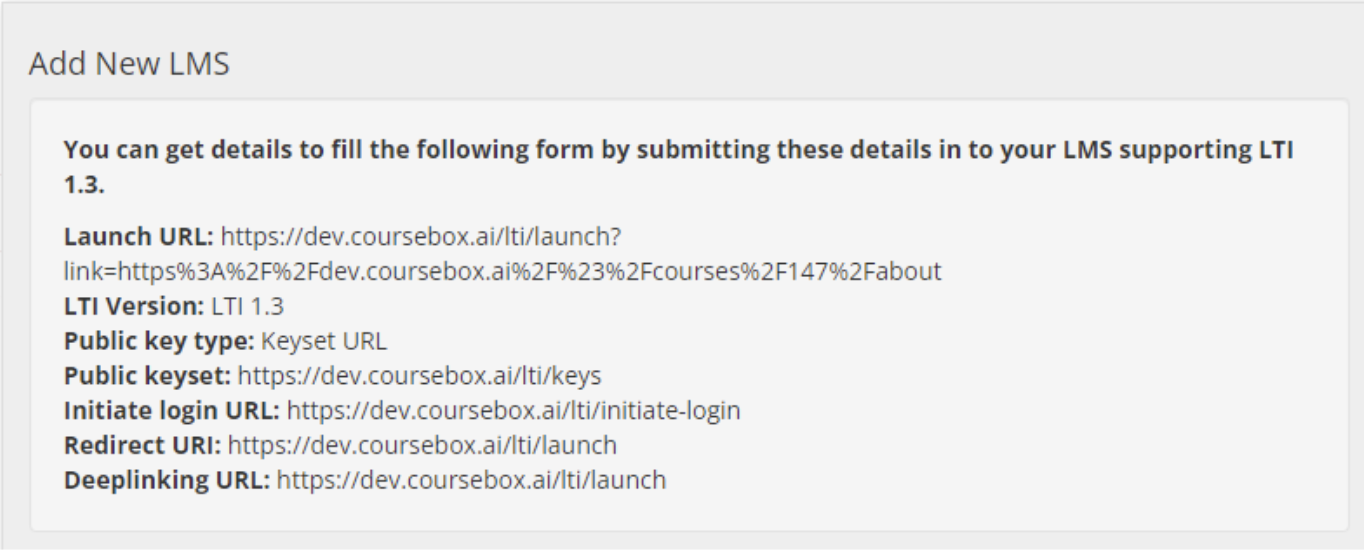
Once you enter those details in your LMS, you'll get details from your LMS to fill out the form in Coursebox.
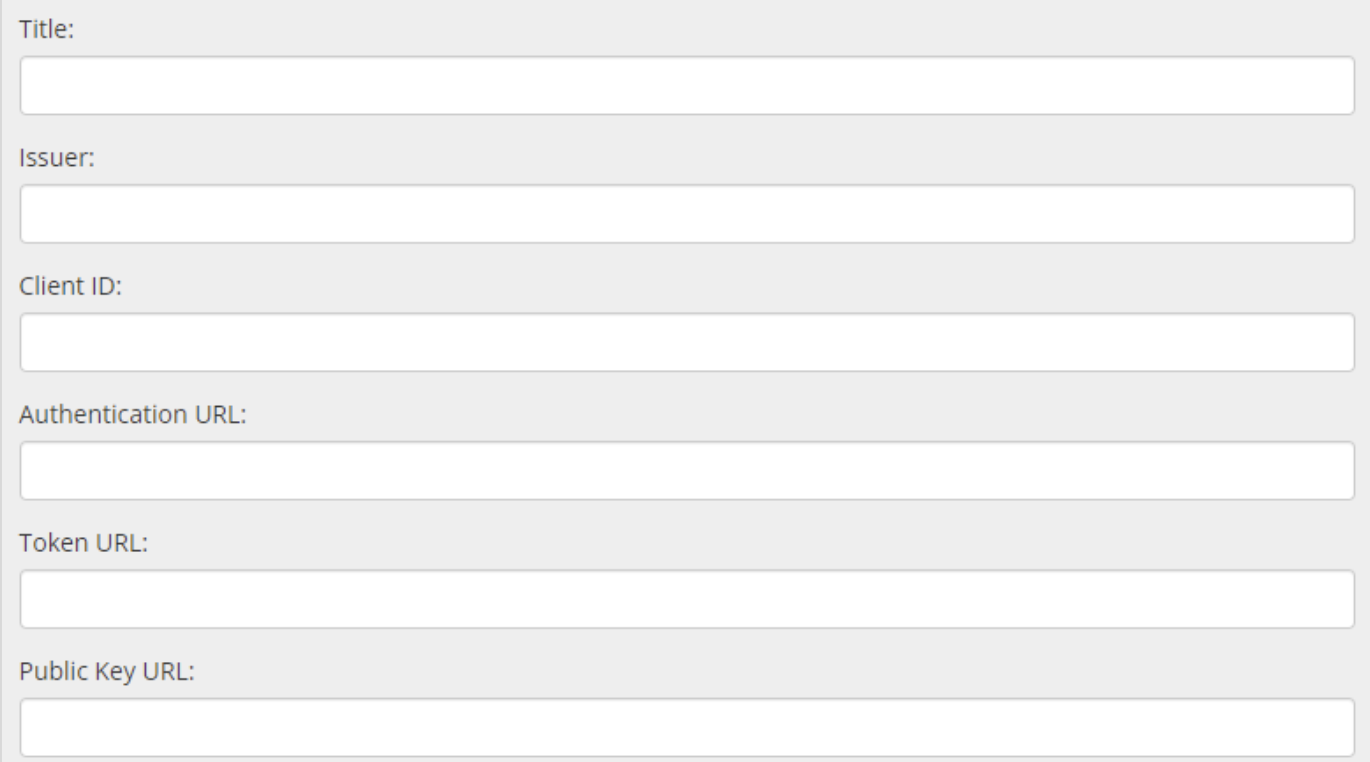
You can now start adding courses using the LTI Tool, following your LMS's documentation.
Field labelling chart
The following chart shows how Coursebox LTI fields map to common LMS field labels.
Coursebox | Moodle | Schoolbox | Canvas |
|---|---|---|---|
Launch URL | Tool URL | Launch URL | Target Link URI |
LTI Version | LTI version | Version | N/A |
Public key type | Public key type | N/A | JWK Method |
Public keyset | Public keyset | JSON Web Key Set URL | Public JWK URL |
Initiate login URL | Initiate login URL | OpenID Connect Initiation URL | OpenID Connect Initiation URL |
Redirect URI | Redirection URI(s) | N/A | N/A |
Deeplinking URL | Content Selection URL | Deep Linking URL | Target Link URI under Link Selection |
Issuer | Platform ID | Issuer | https://canvas.instructure.com |
Client ID | Client ID | Client/Deployment ID | Developer Key ID available in details |
Authentication URL | Authentication request URL | OpenID Connect Authentication URL | https://canvas.instructure.com/api/lti/authorize_redirect |
Token URL | Access token URL | oAuth Access Token URL | https://canvas.instructure.com/login/oauth2/token |
Public Key URL | Public keyset URL | JSON Web Key Set URL | https://canvas.instructure.com/api/lti/security/jwks |
Export a course to SCORM 1.2 and 2004
Coursebox enables experts to export courses in SCORM format, including 1.2 or 2004.
When you export a Coursebox course as SCORM, you're packaging your Coursebox pages, media, and completion logic into a standard zip that any SCORM-compliant LMS can play. The learning experience is still powered by Coursebox — the player, navigation, and tracking behaviours come from Coursebox's authoring and runtime — just delivered through your LMS.
Key things to know:
Edits after export: Most content edits — text, images, and quiz wording on existing pages — show up on the next launch in your LMS without a re-export. Re-export only when the course structure changes (for example, adding or removing pages). Self-Hosted SCORM packages are the exception: they don't auto-update, so re-export a fresh package after any change.
Branding: Your Coursebox styling and layout remain intact.
Tracking: Choose SCORM 1.2 (widely supported for completion/score) or SCORM 2004 (v3/v4) for advanced sequencing and bookmarking.
Export to SCORM
In the Share panel, set the course visibility to published, then select the SCORM version (1.2 or 2004) required for upload to your LMS.
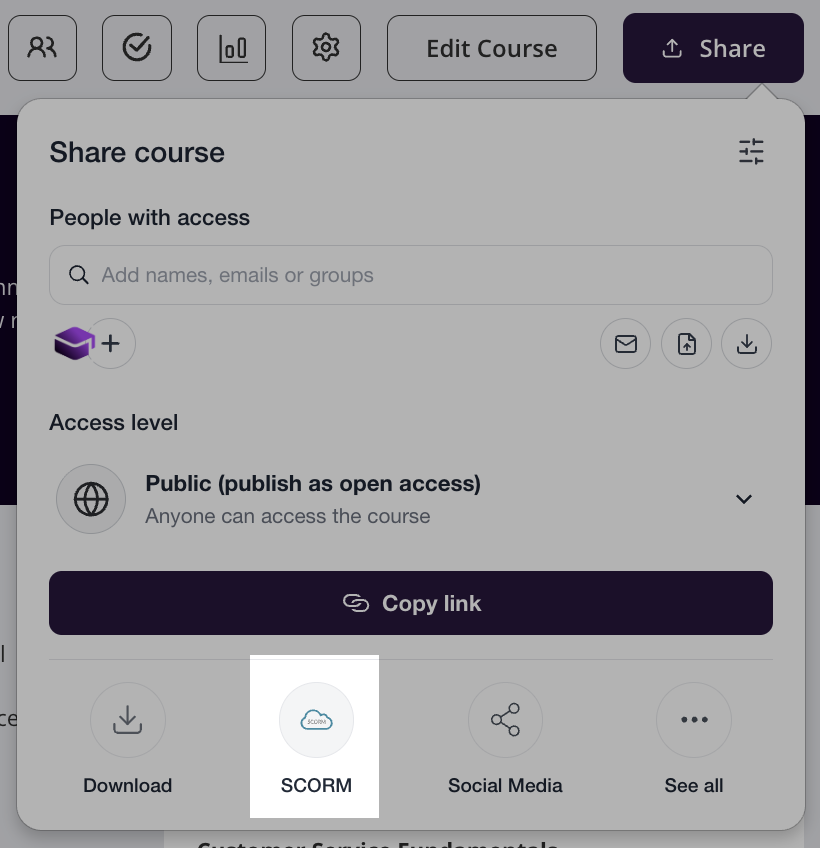
Note that this requires a published live sync to the course to take advantage of the AI and related live features.
Upload to your LMS
Each LMS has slightly different steps for uploading SCORM packages.
Always follow the official documentation for your platform to ensure compatibility. Below are links to SCORM guidelines for leading LMSs:
Cornerstone OnDemand — Cornerstone SCORM support overview
iSpring Learn — Uploading SCORM to iSpring Learn
SCORM Cloud (testing) — Upload SCORM course to SCORM Cloud
Anonymous users via SCORM (where enabled)
Coursebox supports anonymous user access via SCORM when hosted in external LMS environments. Learners can launch and interact with Coursebox courses embedded in SCORM packages without requiring a Coursebox login.
Use case examples:
SCORM-based compliance training with no user registration
One-click access via corporate LMS with limited tracking
Note: Anonymous SCORM users are available by default and can be enabled using the checkbox in the SCORM export tooltip. Both anonymous and non-anonymous SCORM exports do not require learners to register in Coursebox. The key difference is that with anonymous SCORM, no personal data (such as name, surname, or email address) is stored in Coursebox — only the student ID is recorded.
For more information on sharing and exporting a course, see Share, Publish & Export a Course.
Tip: If your SCORM package is not tracking correctly in your LMS, try re-exporting from Coursebox and re-uploading. If issues persist, check the SCORM version compatibility with your LMS or consult the full export guide at Share, Publish & Export a Course