
How do I duplicate, delete, or hide courses?
Go to Administration Tools in your course. You can duplicate a course to reuse it for a new cohort, delete it permanently, or hide it from public search while keeping it accessible via direct link. This flexibility helps you manage content with ease.
The Administration Tools section provides guidance on managing user access, branding, system settings, and advanced platform features. These tools are designed to give administrators full control over how courses are delivered, tracked, and customised across the organisation.
Duplicate a course
The Duplicate feature lets you create a copy of an entire course, which will appear in your Drafts. This is a valuable time-saving tool when you want to reuse an existing course structure.
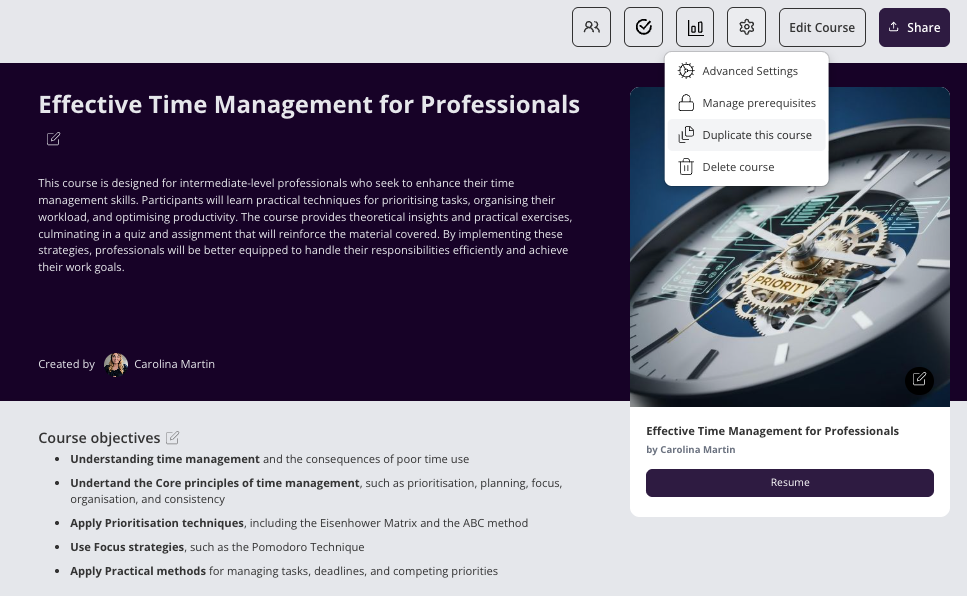
You might use it to:
Build a shorter or condensed version of a course
Tailor the same content for a different audience or language level
Experiment with changes without affecting the original course
Duplicating a course helps streamline course creation while maintaining consistency across programs.
Delete a course
The Delete function allows you to permanently remove a course from your drafts or course list. This is useful if the course is no longer needed or was created by mistake.
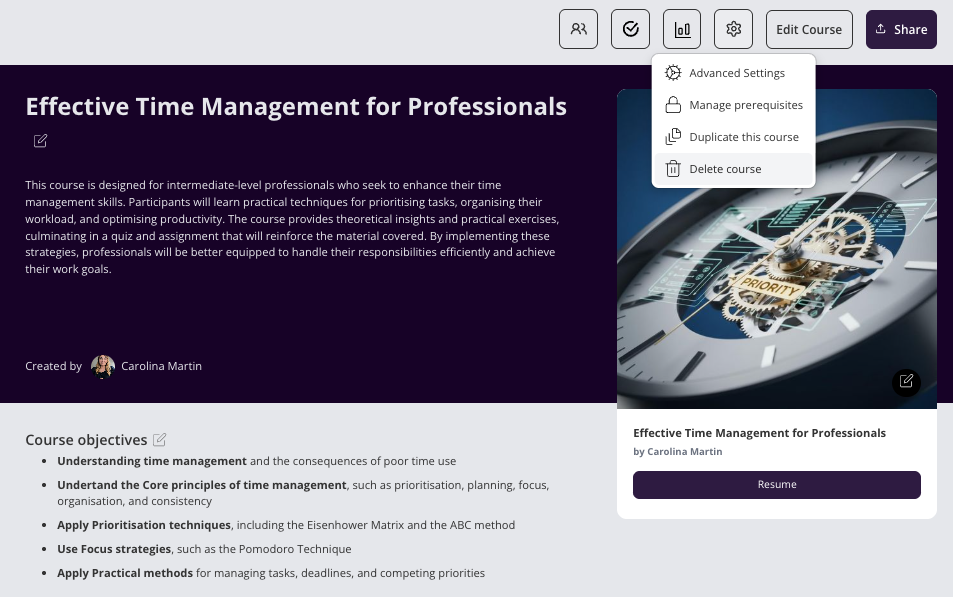
When you click Delete, a confirmation message will appear to ensure the action is intentional. You can cancel at this stage if needed.
Note: Use this option with care, as deleted courses cannot be recovered.
Share settings
The Share panel controls who can find and access a published course. Use it to hide a course from search, or to list it publicly in your training portal.
Hide a course from search
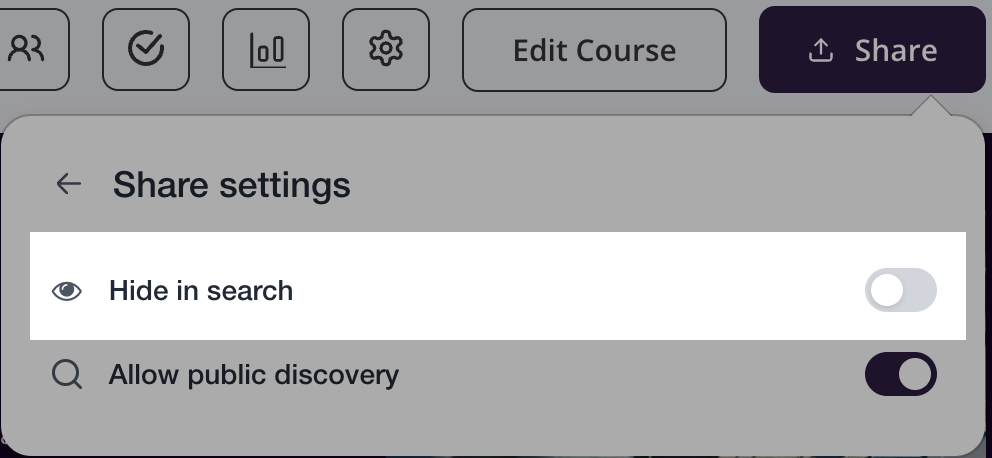
If you prefer to keep a course hidden from search results, you can use the Hide in Search option in the share settings. This prevents others from discovering the course until you're ready to share it. When you're ready to make the course visible again, simply click Make Visible to restore its discoverability.
Set a publicly listed course
When a course is marked as Publicly Listed, it becomes visible to anyone browsing your training portal. This means the course will:
Appear in search results and catalog listings
Be accessible to learners without needing a private link
Support broader visibility and enrolments across your audience
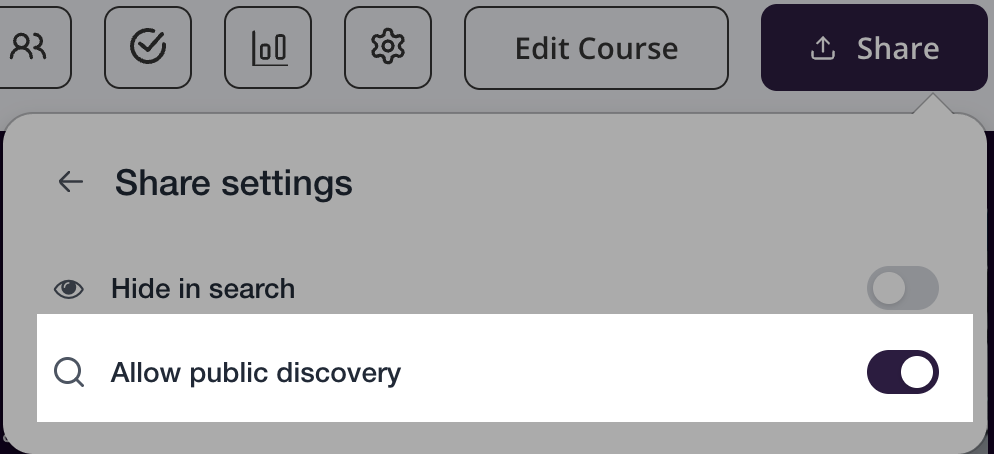
This setting is ideal if you want to:
Promote courses to the general public
Offer open-access learning experiences
Increase discoverability for marketing, community, or awareness campaigns
If the checkbox is left unticked, the course remains hidden from public search. In that case, learners will need a direct link or specific invitation to access it.
Note: Public listing does not override enrolment permissions. You can still apply pricing, prerequisites, or access restrictions as needed.
For the full set of publishing options — Restricted, Public (Free) and Paid — see Publish a Course.
Troubleshooting: “Course limit reached”
If you try to create or generate a course and see “Course limit reached. You've reached your plan's course limit. Upgrade to generate more,” it means your account has hit the number of courses your plan allows. On the Free plan you can have up to 3 courses; every paid plan includes unlimited courses. Compare plans.
What counts toward the limit
Draft courses count toward your limit, so unfinished or experimental courses sitting in Drafts can use up your slots even if they are not published. Courses you have permanently deleted do not count and free up a slot once the deletion is confirmed.
How to free up a slot
If you are on the Free plan and want to keep creating without upgrading, delete a course you no longer need to make room. Open the course (including drafts under Learning > Drafts), go to Administration Tools, click Delete, and confirm. Remember that deleted courses cannot be recovered, so if you might want the content later, duplicate it first. Once a slot is free, you can create your new course. If you would rather keep everything and create more, upgrading to any paid plan removes the course limit entirely.
The error shows but I have no courses
If you see “Course limit reached” when your account shows zero courses (or fewer than your plan allows), you may have run into a known issue our team is currently investigating rather than a real limit. Please do not feel you have to upgrade to get past it. Instead, contact us at support@coursebox.ai with your account email, a screenshot of the error, and the date and time it happened, and we will look into your account and get you unblocked.