Pathways, Badges and Leaderboard
Coursebox uses three connected gamification features to keep learners motivated and recognise their progress: learning pathways (also known as learning sequences or multi-course tracks), badges (rewards for completing courses), and the leaderboard (a visible ranking of learner achievement across your platform).
This guide covers what each one does, how to set them up, and how learners interact with them.
Plan requirement: Badges, the leaderboard, points and pathways are part of Gamification, available on Pro + LMS and Enterprise. On Free, Creator and Pro, Achievements shows Certificates only — there is no Badges tab on those plans, and its absence is not a fault with your account. Compare plans.
On an earlier plan? Plan names and inclusions changed when we moved to Free, Creator, Pro, Pro + LMS and Enterprise. If you are on an earlier plan, your subscription continues unchanged and you keep everything it included — so you may still see features this article lists under a higher plan. Nothing has been removed from your account.
What is a Learning Pathway?
A pathway (also called a learning sequence or multi-course track) is a collection of related courses grouped into a guided sequence. Learners complete the courses in the pathway to reach a defined outcome.
Pathways let you structure learning into clear, progressive steps so learners always know what to take next.
Important: Pathways are created from Achievements → Badges in the left sidebar — not from a separate Pathways menu. Open Achievements in the left sidebar, switch to the Badges tab, and you will find the option to create and manage learning pathways.
What is a Badge?
Badges are digital rewards awarded to learners when they complete a course or a pathway. They display on the learner's profile and contribute to their leaderboard score, helping motivate engagement and recognise achievement.
Step 1 — Create a badge
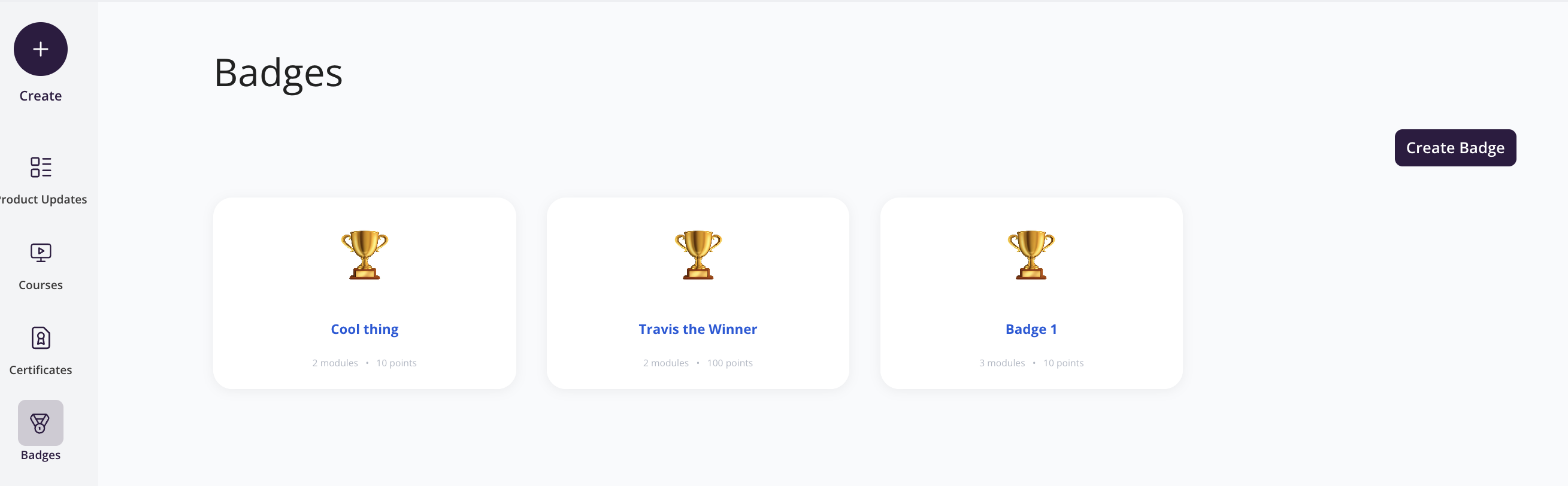
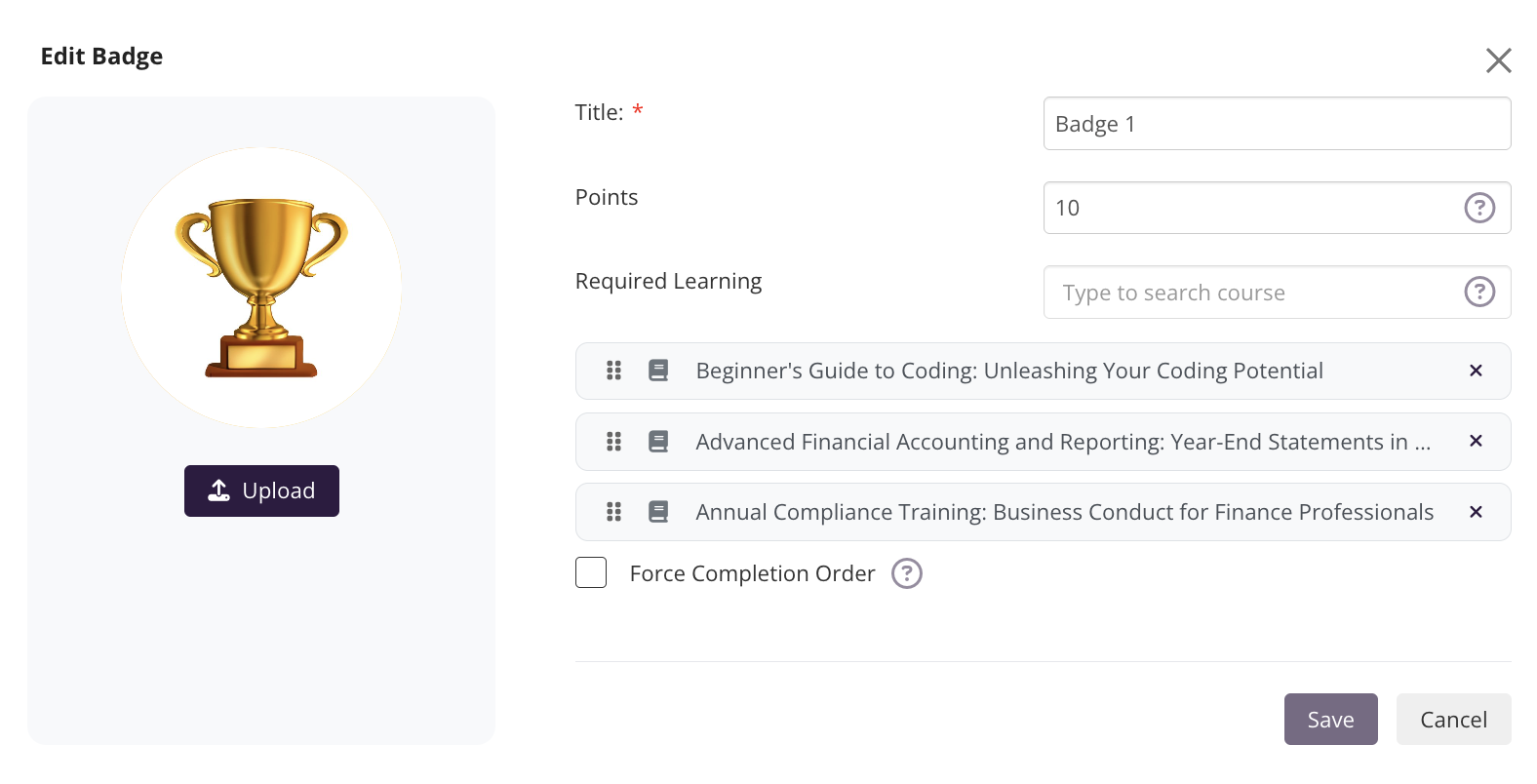
In the left sidebar, click Achievements, then switch to the Badges tab. Achievements is a dedicated section in the left-hand menu that groups Badges and Certificates together. If you previously found certificates under a separate menu item, they are now located under Achievements → Certificates.
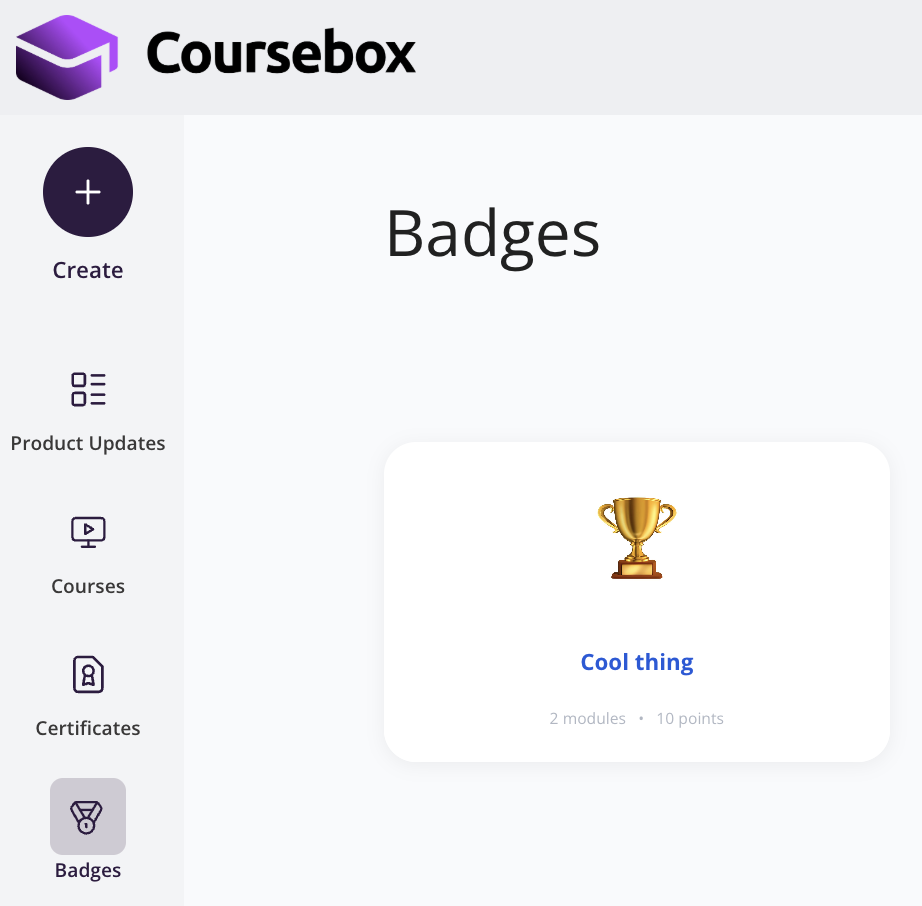
Click Create Badge in the top-right corner.
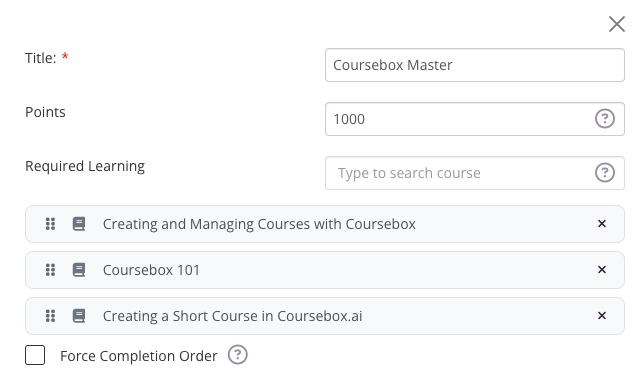
The Create Badge screen will appear. Fill in the following details:
Title: Enter the award name.
Points: Assign the number of points learners will earn when achieving this badge.
Required Learning: Select the course (or courses) that must be completed to unlock the badge.
(Optional) Badge Image: Click Upload to add a custom image (e.g., a trophy or icon).
Once complete, click Save.
Step 2 — Add more courses to the pathway
In the Required Learning field, type a keyword from the course title. A dropdown will appear showing matching courses. Click a course to add it to the pathway.
Repeat this step to add as many courses as needed
Added courses appear as a numbered list below the search field
You can drag and reorder courses using the grip handles (⧿) on the left of each row
Click the ✕ on a course row to remove it
Step 3 — Verify the badge is linked to a course
Return to your Courses view after saving the badge.
Locate the course where you applied the badge and click on it.
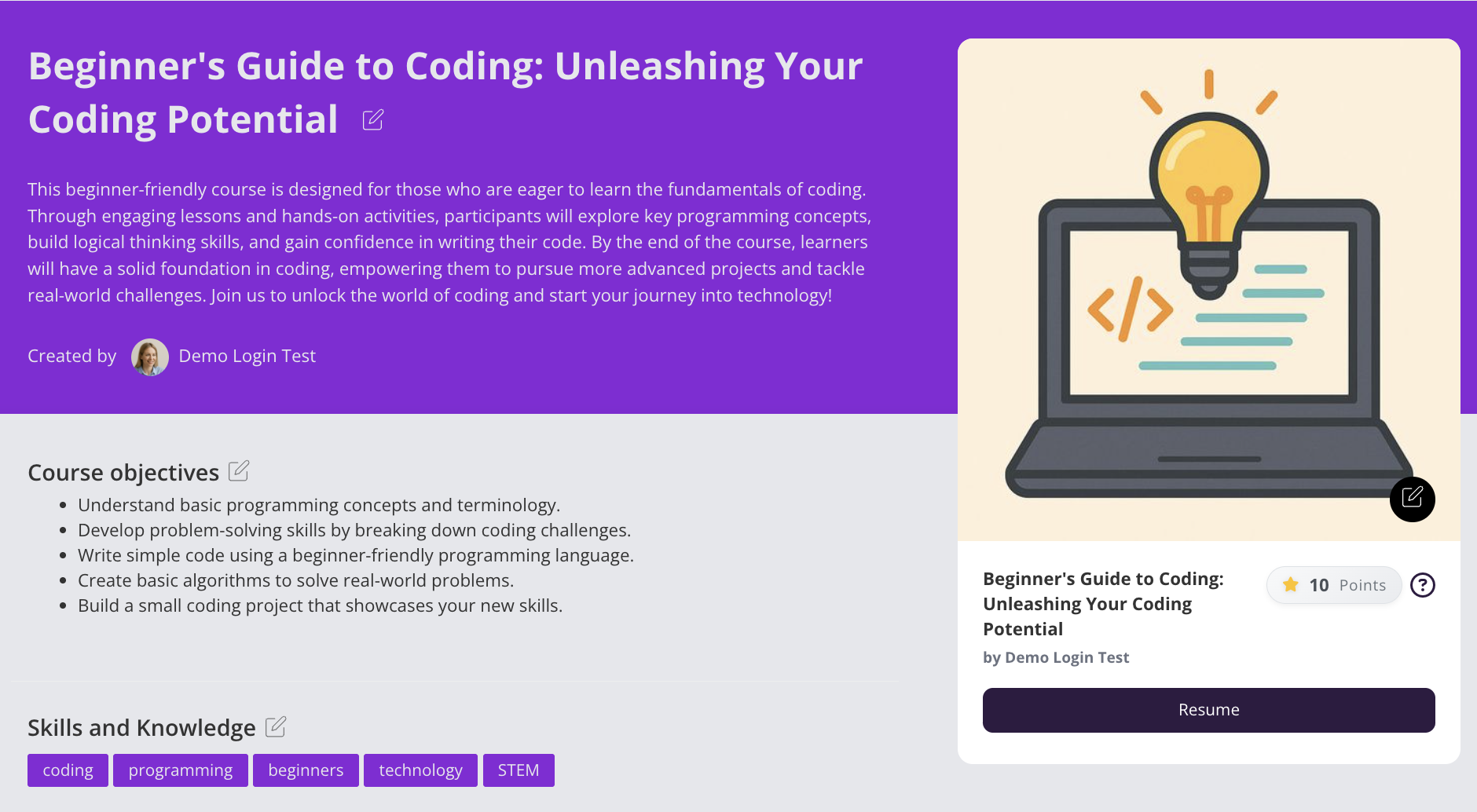
On the course tile, you will now see the badge points indicator displayed beneath the course title — this confirms the badge has been successfully linked.
How to Enrol Learners into a Pathway
Creating a badge with linked courses defines the pathway, but learners won't see their pathway progress until they are enrolled in the courses that make it up. Once a learner is enrolled in all the courses within a badge, they will automatically see the full pathway progress on their profile under My Expertise → Badges.
There are three ways to enrol learners into the courses that make up a pathway:
Option 1 — Share the course link (simplest)
Open each course in the pathway and click Share. Copy the course link and send it to your learners. When learners click the link, they register and are automatically enrolled. Repeat for each course in the pathway.
Option 2 — Groups (best for multiple learners)
Groups let you enrol everyone at once instead of one by one. In the left sidebar, go to Groups → Create and add your learners to the group. Then, for each course in the pathway, open the course, click the enrolments icon (the person icon at the top), go to the Groups tab, and add the group. All group members will be enrolled in that course. Repeat for each course in the pathway.
Option 3 — Direct email invitation
From the enrolments icon of each course, you can enter a learner's email address and send them a direct invitation to that course. Repeat for each course in the pathway.
Tip: Once learners are enrolled in all courses linked to the badge, they will see their full pathway progress — including which courses they've completed and how many points they've earned — from their profile under My Expertise → Badges.
Viewing Badges
As a Learner
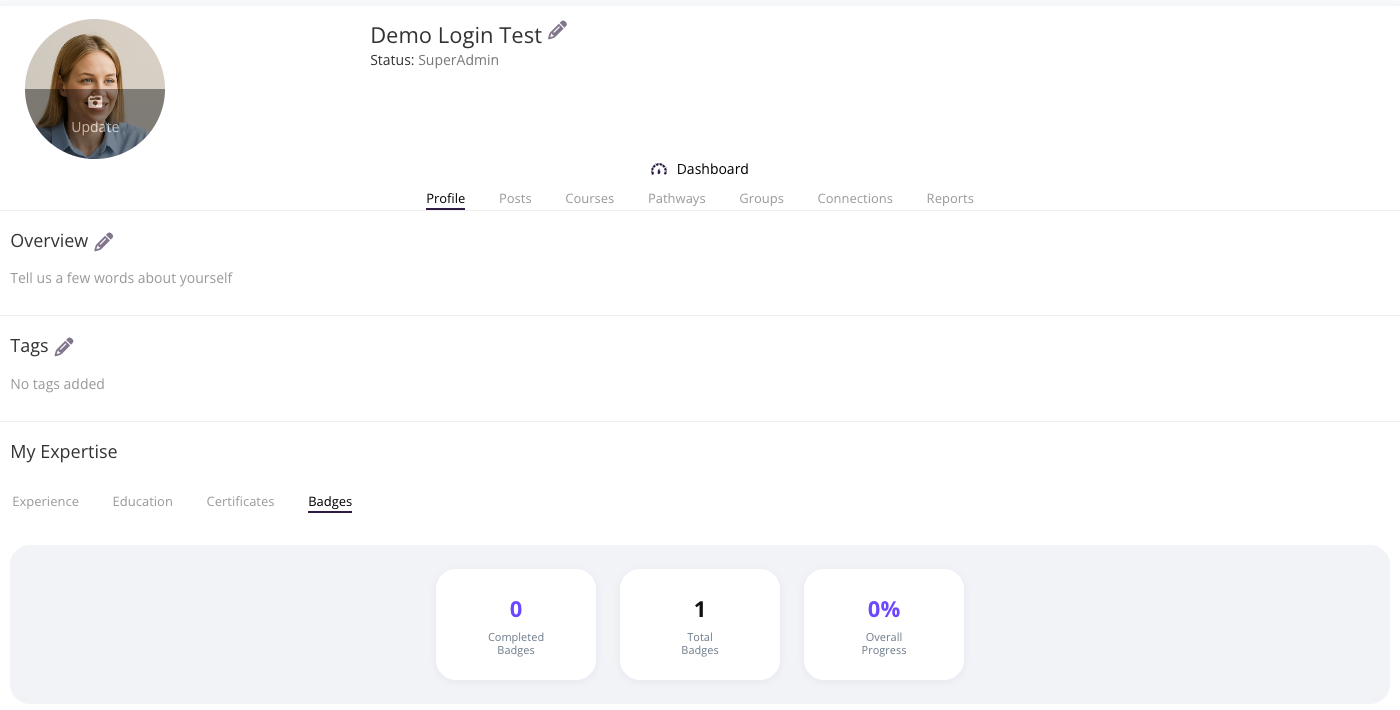
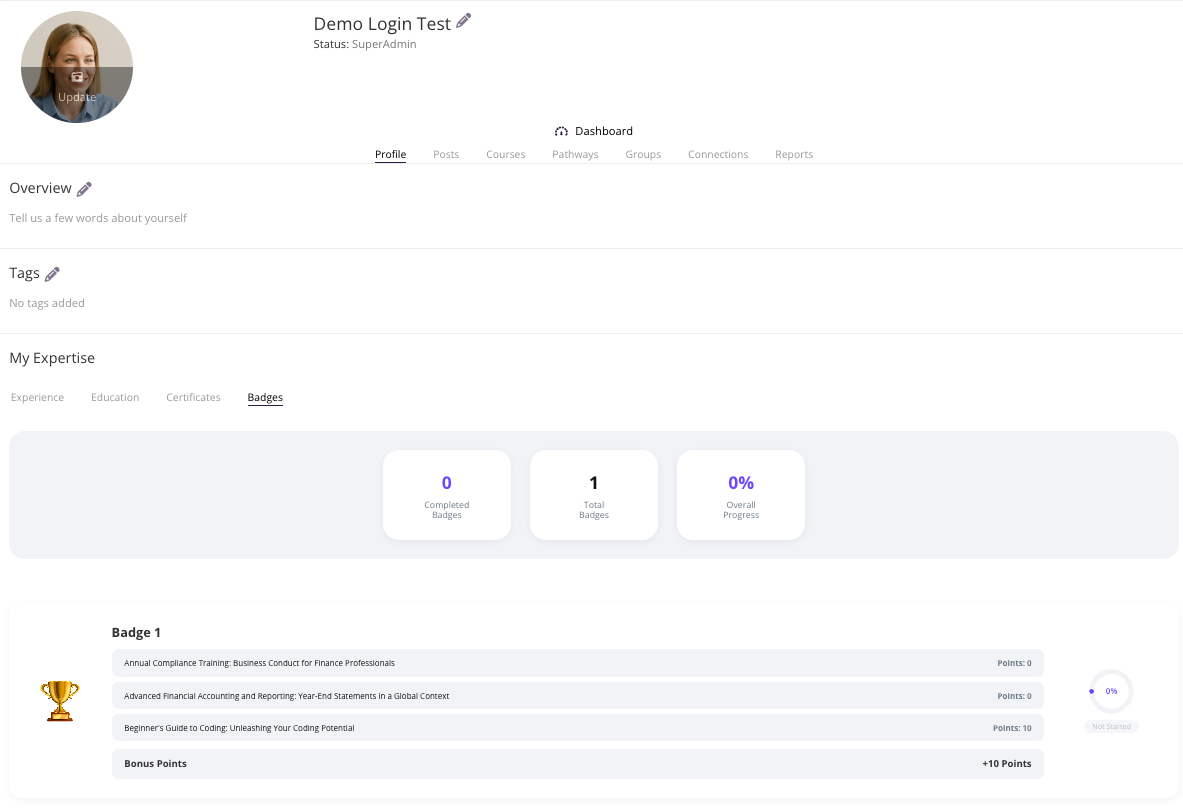
Badges earned in Coursebox are displayed on the learner's own profile, making it easy to track progress and showcase achievements. The Achievements section in the left sidebar is visible only to admins and creators — as a learner, you see your earned badges and certificates from your profile → My Expertise.
Click on your avatar or name in the top-right corner of any Coursebox page to open your profile.
Scroll down to the My Expertise section.
Click the Badges tab (alongside Experience, Education, and Certificates).
Each badge you are enrolled in appears as a card showing:
The badge title
The courses linked to the badge and points earned per course
Bonus Points for completing the full badge
A circular progress gauge showing your completion state (e.g., "Not Started", percentage complete, or fully completed)
As a Super Admin
Super Administrators can view any learner's badge progress directly from the Users section.
In the left sidebar, click the Users icon (person with a + symbol).
Select the learner whose badges you want to view to open their profile.
Scroll down to the My Expertise section.
Click the Badges tab to see all badges the learner has earned or is working towards, including badge name, points earned, progress indicators, and any bonus points.
Leaderboard
The Leaderboard takes gamification a step further by letting learners see how they rank against others on the platform. Together with badges, it creates a dynamic and competitive learning environment that supports individual progress.
How the Leaderboard Works
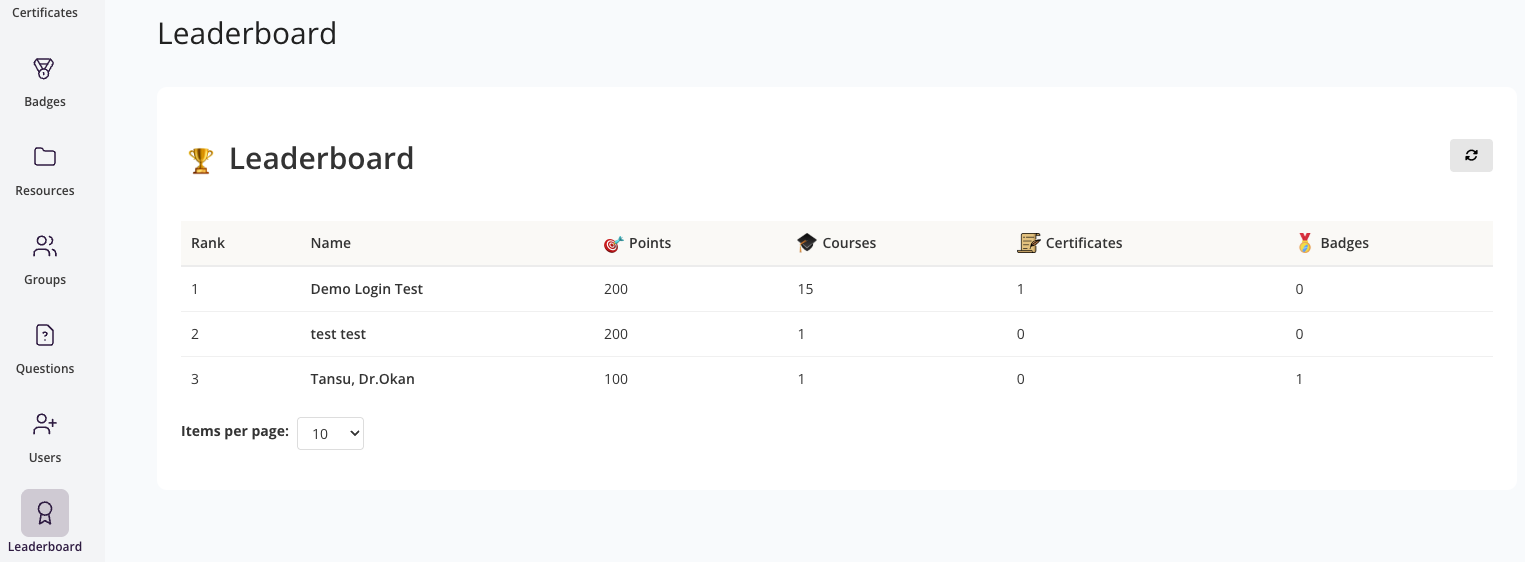
The leaderboard ranks learners based on their overall activity and displays the following for each learner:
Rank — position compared to other learners
Name — learner's display name
Points — total points earned across all badges
Courses — number of completed courses
Certificates — certificates awarded
Badges — total badges achieved
How to Access the Leaderboard
From the main menu, click Leaderboard.
The leaderboard screen will appear, showing learner rankings across the platform.