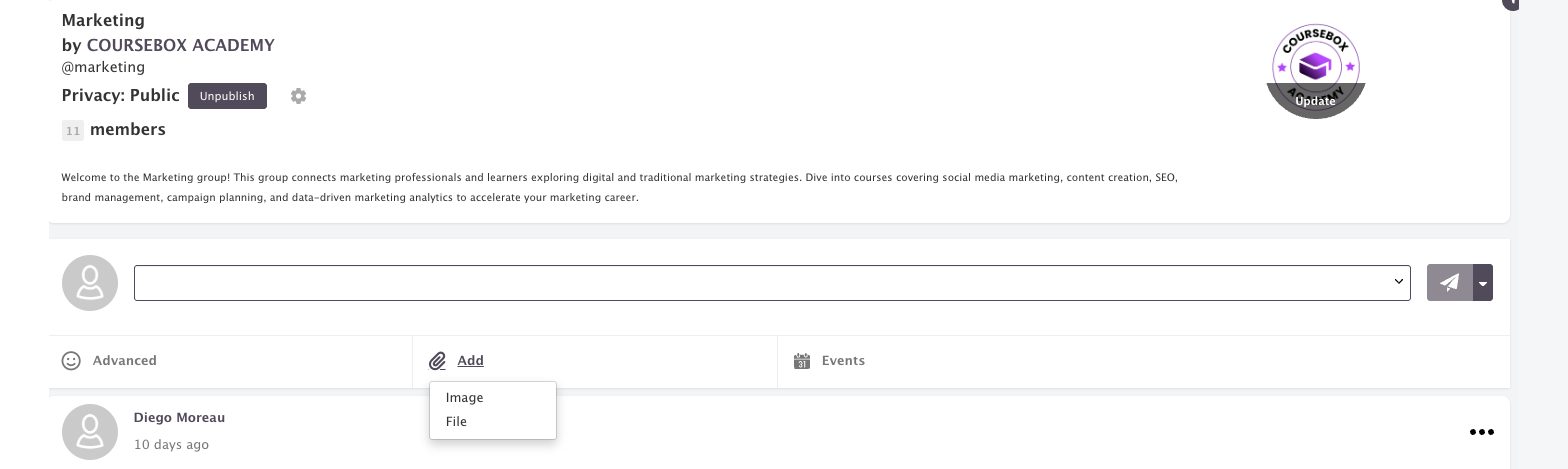
Group Management
Plan requirement: Groups are part of the branded LMS, available on Pro + LMS and Enterprise. Compare plans.
On an earlier plan? Plan names and inclusions changed when we moved to Free, Creator, Pro, Pro + LMS and Enterprise. If you are on an earlier plan, your subscription continues unchanged and you keep everything it included — so you may still see features this article lists under a higher plan. Nothing has been removed from your account.
A Group is a standalone space for your learners that exists independently of courses. Groups are commonly used for:
Webinars and live sessions
Community discussions
Ongoing support or mentoring programmes
Paid monthly memberships
Example: You might create a Group called "Starting Someone on Insulin" to support a live webinar, then attach your diabetes courses to it so members can find them in one place.
For video walkthroughs, see the Coursebox YouTube video library.
Create a Group
Which Roles can create a Group is set by your Super Admin under Settings → Permissions → New Group. If you don't see the Create button, ask your Super Admin to tick your Role there.
Select Groups from the left-hand menu.
Click + Create in the top right.
Fill in the Group settings form (see Group settings below). Only the Title is needed to get started.
Click Create group.
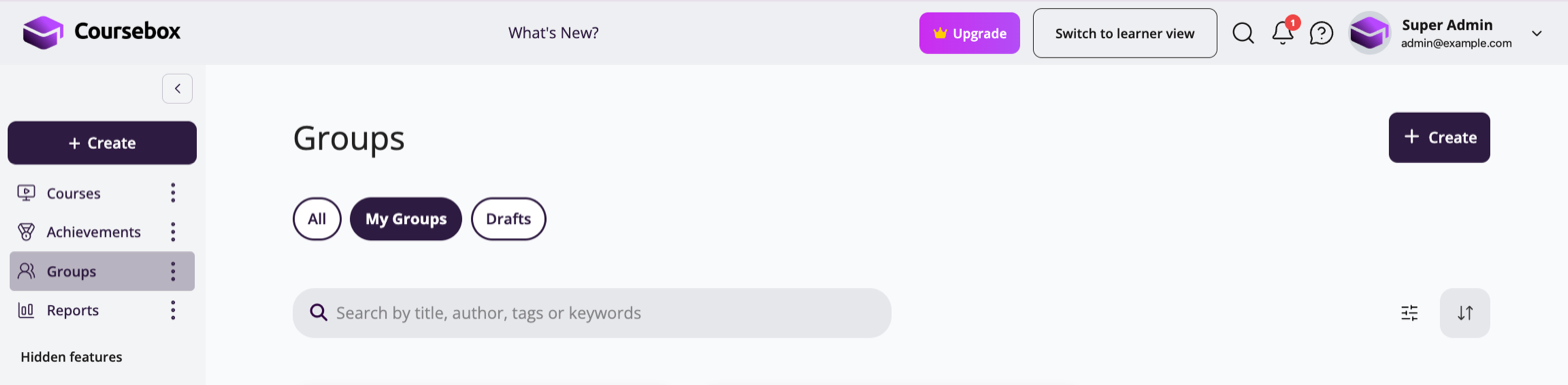
New Groups start as Draft, so no one can access them until you change who can access the Group (see Control who can access the Group).
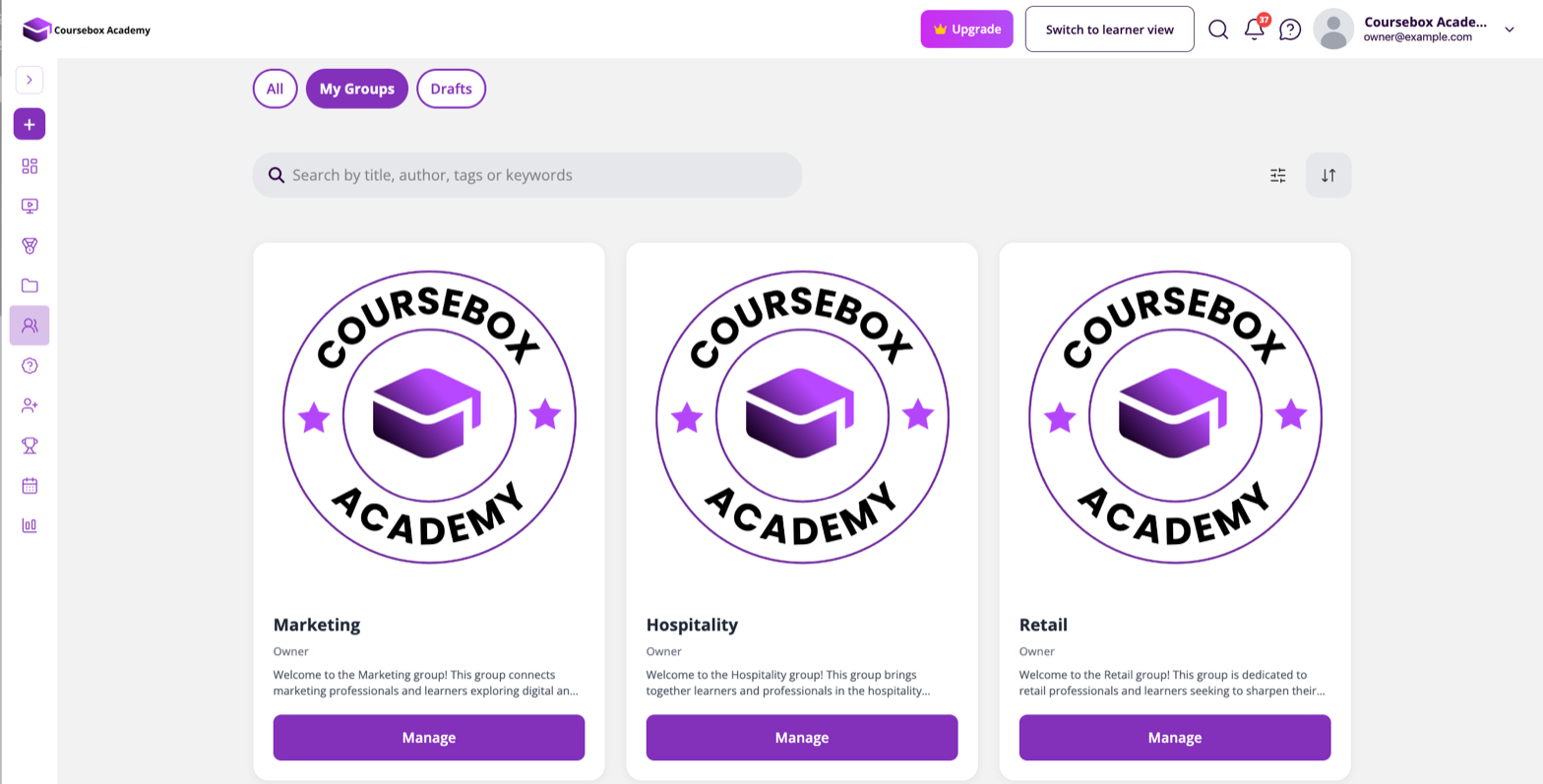
The Groups page lists your Groups as cards. Use the All, My Groups and Drafts tabs and the search bar to find one, then click Manage to open it.
Group settings
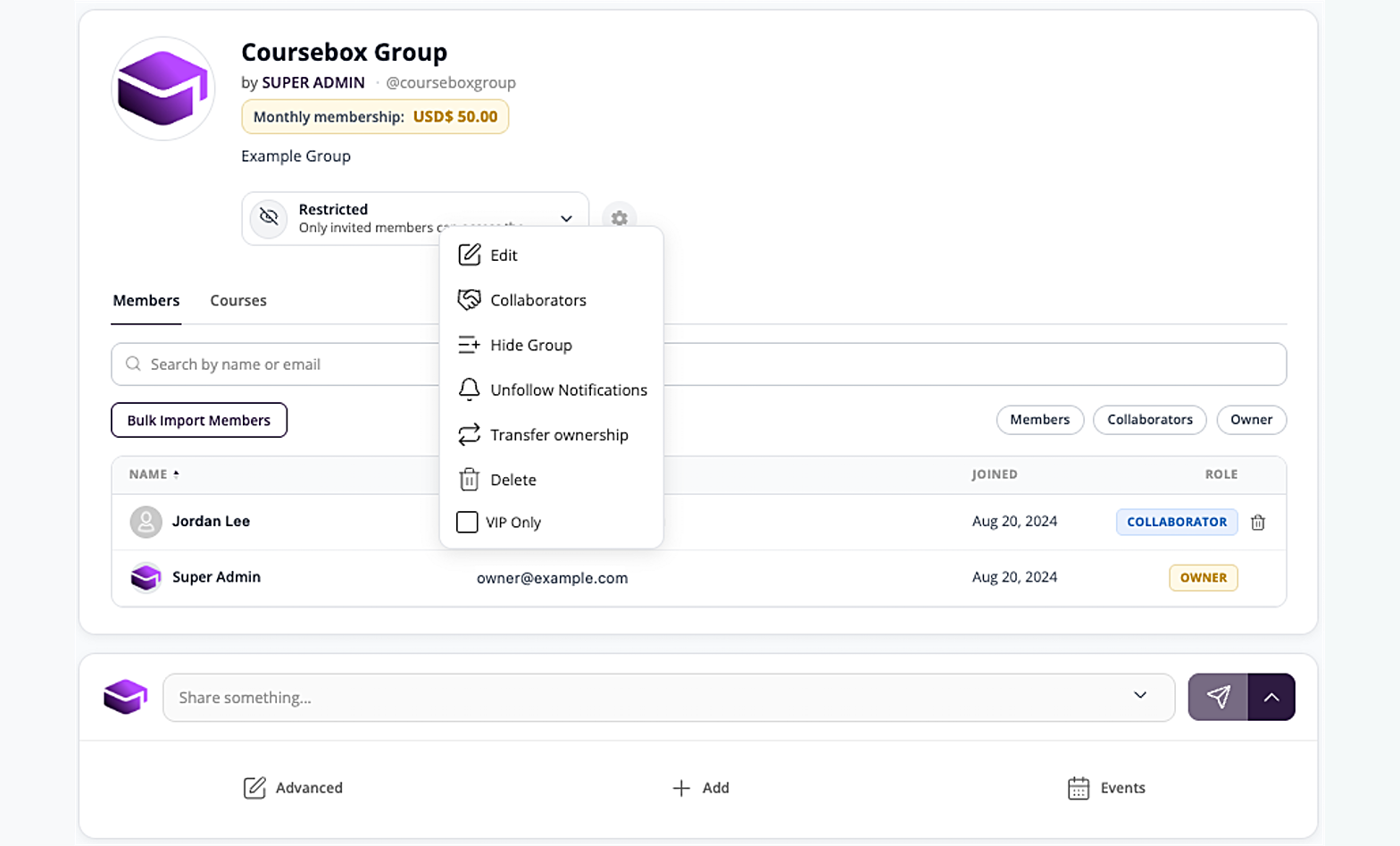
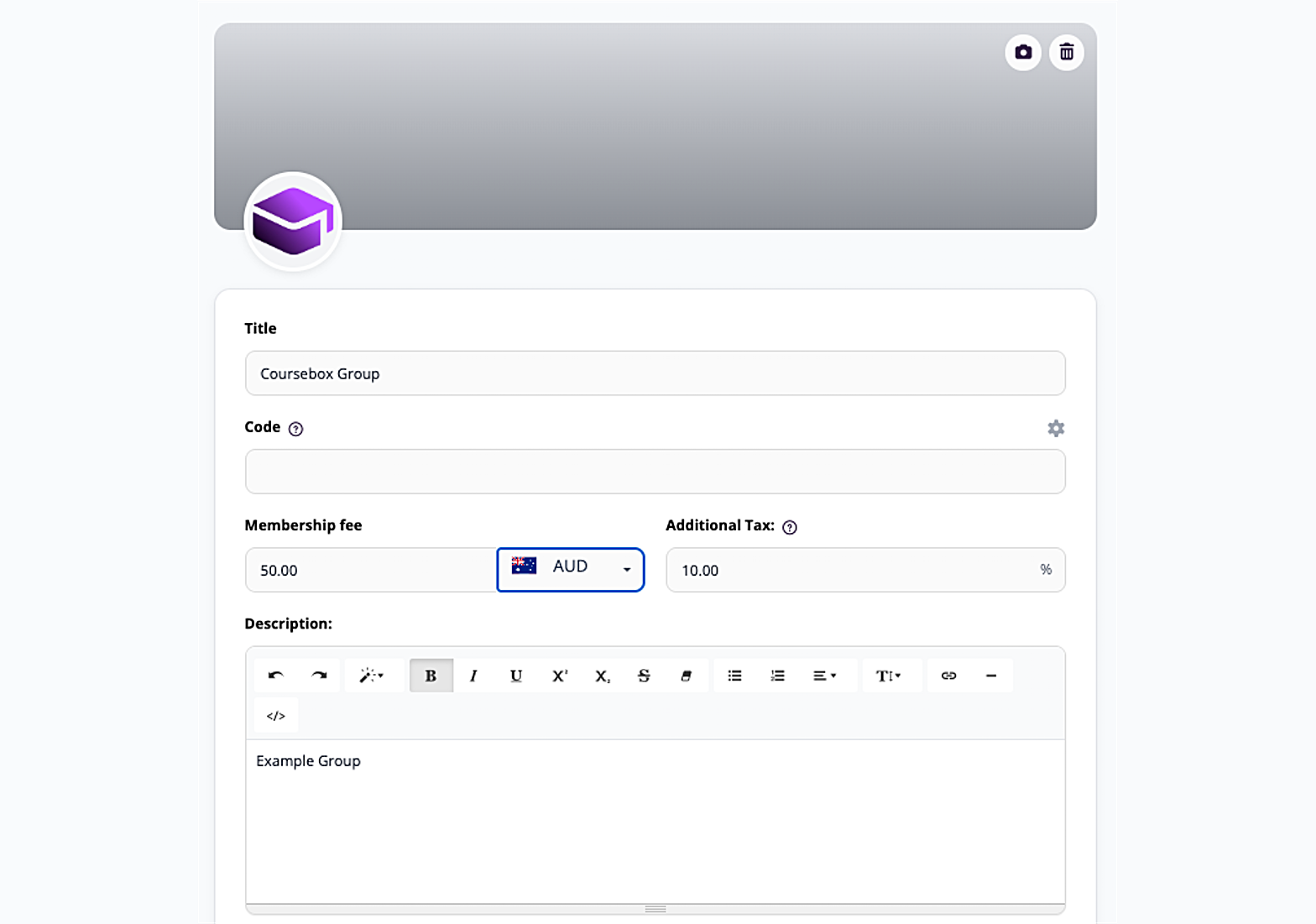
The Group settings form is where you name the Group, set a membership fee and choose how members interact. You see it when you create a Group. To change it later, open the Group, click the gear icon (⚙️) next to the access dropdown and select Edit.
The form has these fields, from top to bottom:
Cover image and logo – use the camera icon to upload, or the bin icon to remove.
Title – the Group's name.
Code (optional) – an internal reference.
Membership fee and currency – leave at
0.00for a free Group. To charge a monthly fee, connect your payments first (see Sell a monthly membership).Additional Tax – any VAT or GST percentage to add to the fee (for example
10.00for 10% GST).Description – what the Group is for, who it's for and what members get. Use the toolbar to format text or add links.
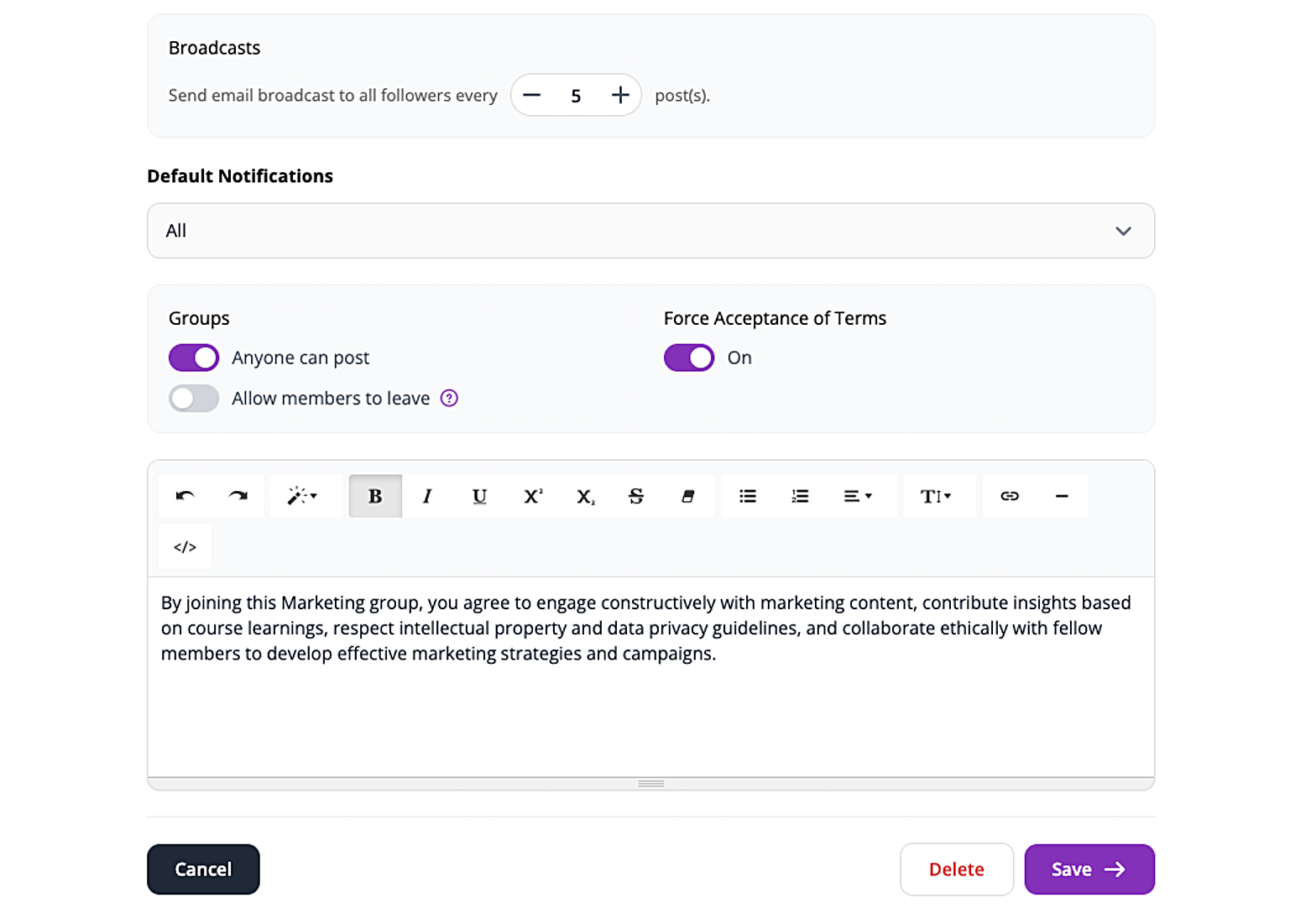
Broadcasts – how often members get an email about new posts. For example, 1 sends an email for every post.
Default Notifications – whether All members or only Collaborators get updates by default.
Anyone can post – turn this on to let members post in the Group, not just the Owner and Collaborators.
Allow members to leave – turn this on to let members leave the Group themselves (see Allow members to leave below).
Force Acceptance of Terms – turn this on to make members agree to your terms before they join. A text box appears for you to write the terms.
Click Save to apply your changes, or Cancel to discard them. Delete removes the Group.
Allow members to leave
This toggle controls whether members can leave the Group themselves. It is set for each Group separately, so you can allow leaving in one Group and not another.
Off (default) – members can't leave the Group, or unenrol from the courses the Group enrols them in. They stay until the Group Owner or a Collaborator removes them from the Members tab.
On – members can leave the Group themselves. They're asked to confirm before they leave.
Control who can access the Group
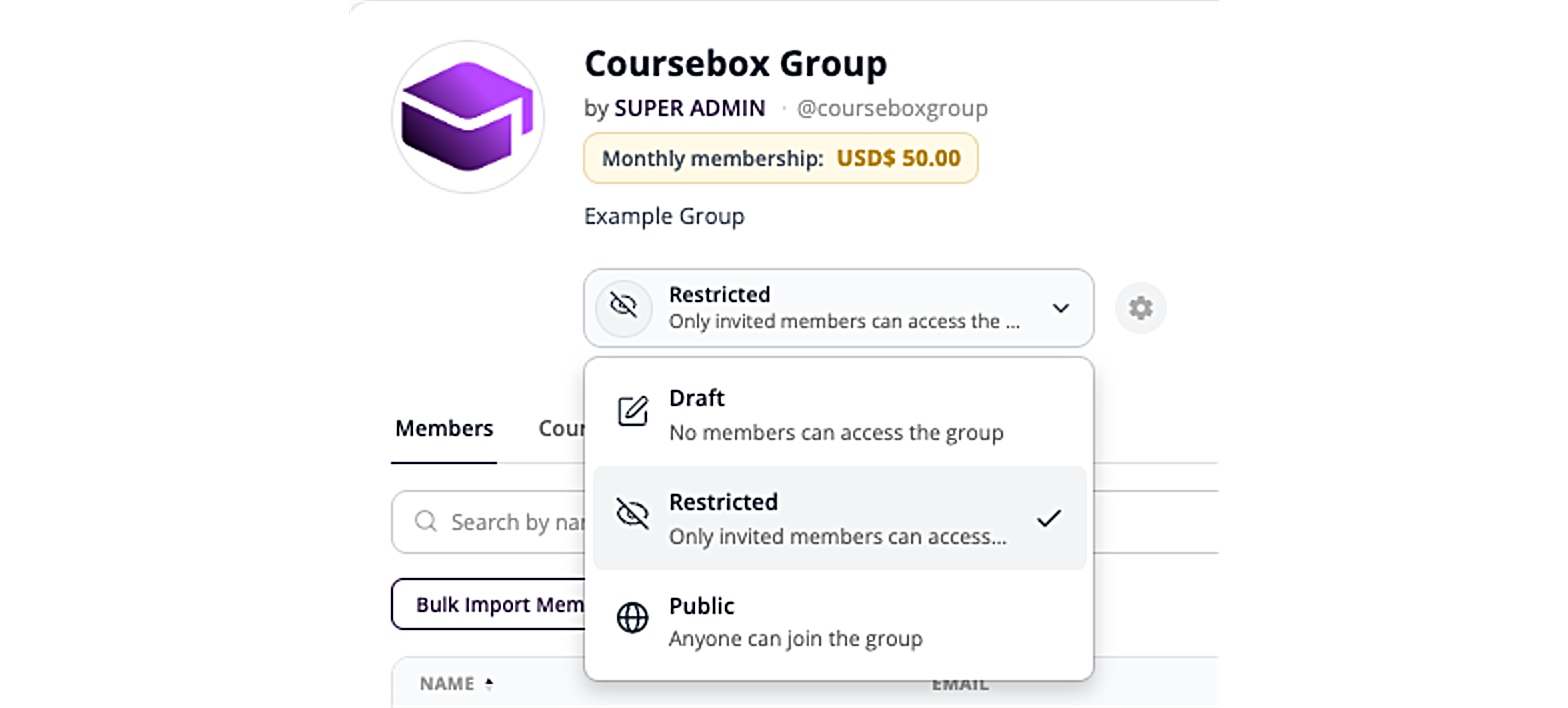
Under the Group's description is the access dropdown. Click it to choose who can get into the Group:
Draft – no members can access the Group. Use this while you're setting it up.
Restricted – only invited members can access the Group.
Public – anyone can join the Group.
The change applies straight away.
Request Access vs Subscribe
If a Group is Restricted and has no membership fee, people who aren't members see a Request Access button. If the Group has a membership fee, they see a Subscribe option instead.
Mobile app: the mobile app follows the same settings. If a Group has no membership fee, users aren't sent to a paywall.
Sell a monthly membership
You can charge members a recurring monthly fee to access a Group.
Before you start: connect your payments (Stripe). Until you do, the form shows "To set membership fee, please setup your payments".
Open the Group, click the gear icon (⚙️) and select Edit.
Enter the Membership fee (the monthly price, for example
50.00) and choose the currency.Add any Additional Tax.
Use the Description to explain what members get for their subscription.
Click Save.
Set who can access the Group using the access dropdown.
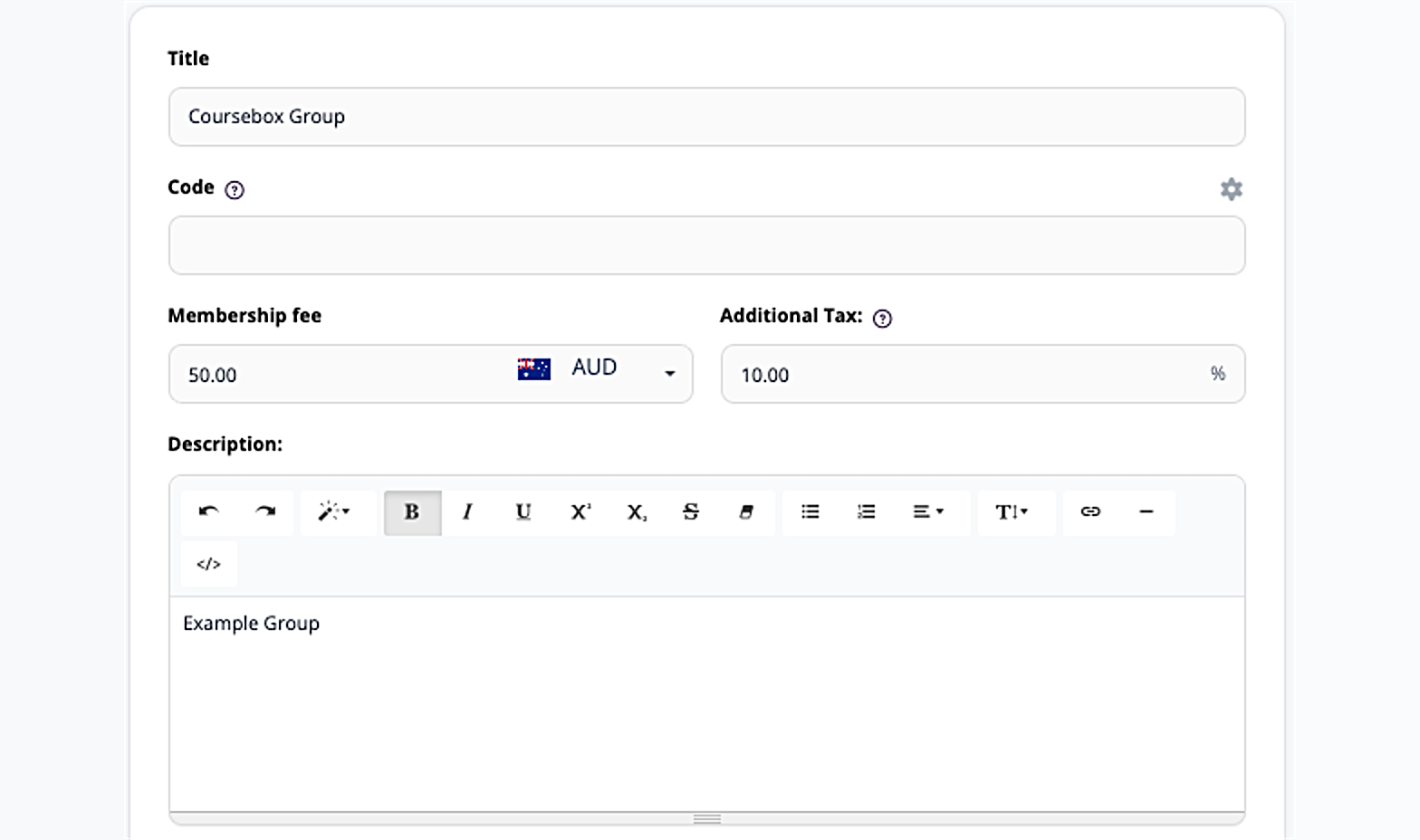
Once saved, the price shows as a Monthly membership badge under the Group's title.
For more on selling memberships, see How can I sell monthly recurring memberships in Coursebox?
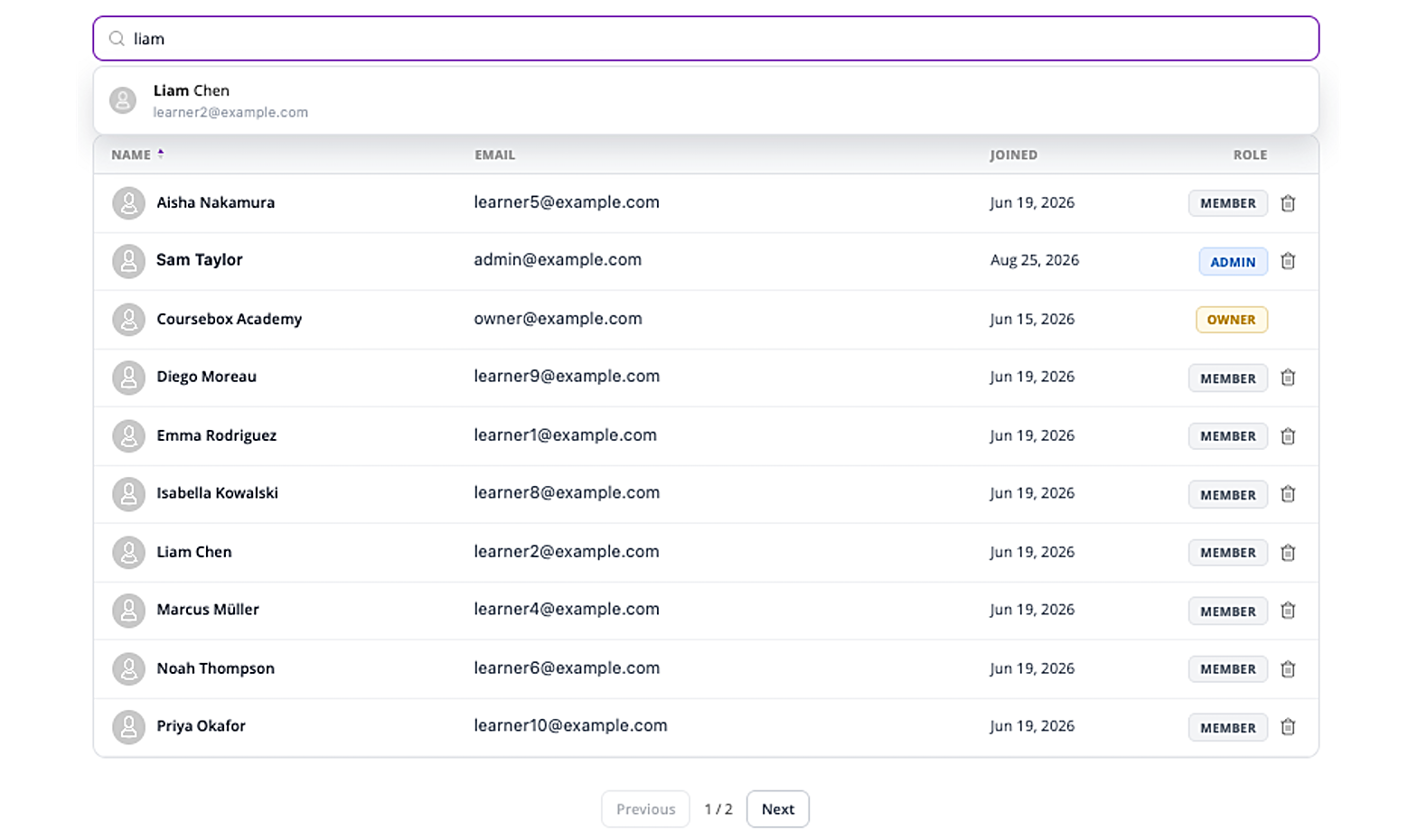
Manage members
Open the Group and select the Members tab. From here you can:
Search by name or email to find a specific person.
Filter by role using the Members, Collaborators and Owner buttons.
See each person's details – the table shows Name, Email, Joined date and Role.
Remove someone – click the bin icon at the end of their row. The Group Owner can't be removed.
Add members
To add one person:
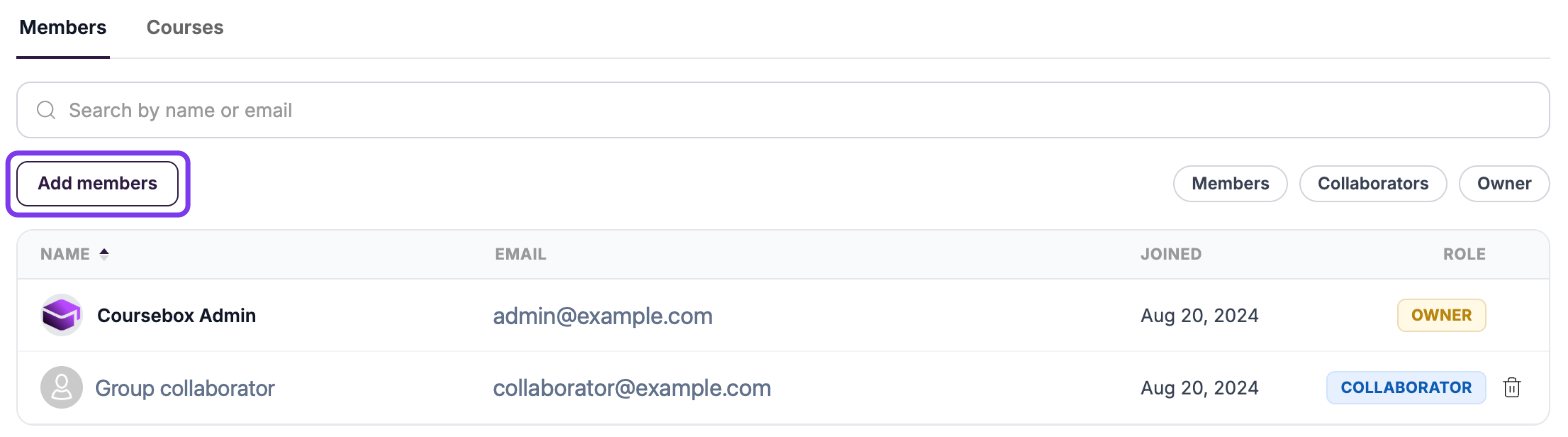
On the Members tab, click Add members.
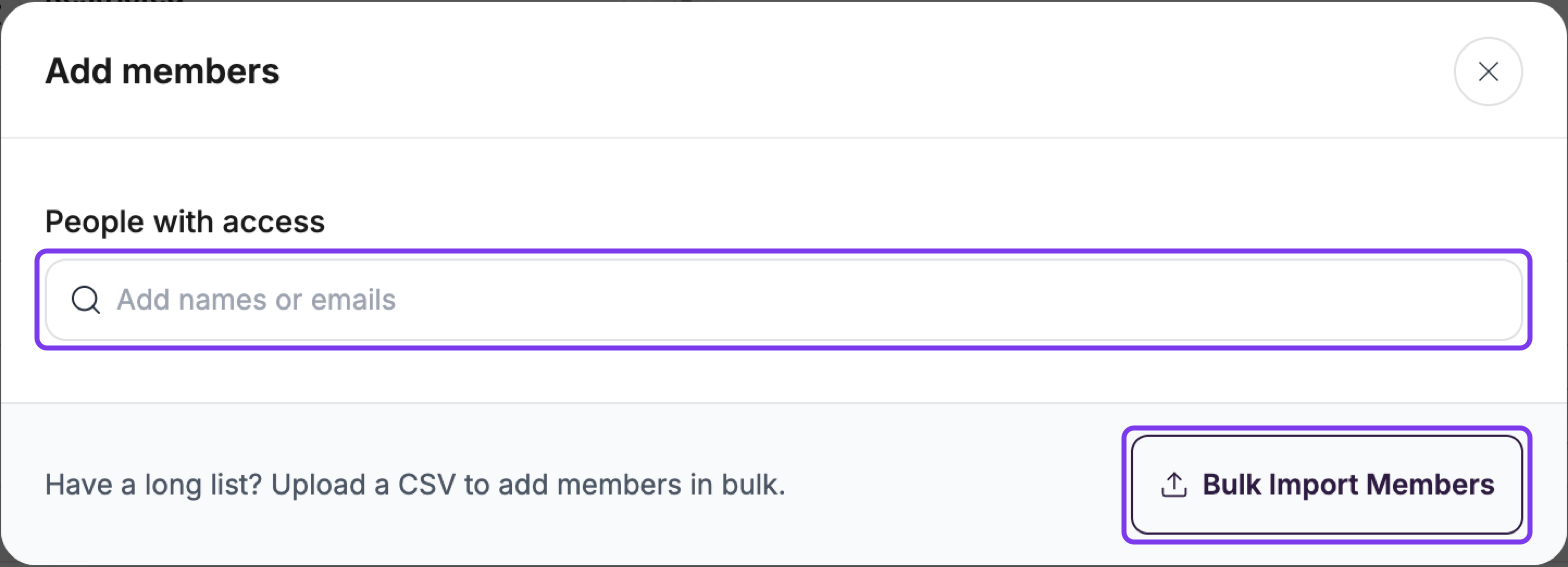
Under People with access, type the person's name or email.
Select them from the results to add them to the Group.
To add several people at once:
On the Members tab, click Add members.
Click Bulk Import Members.
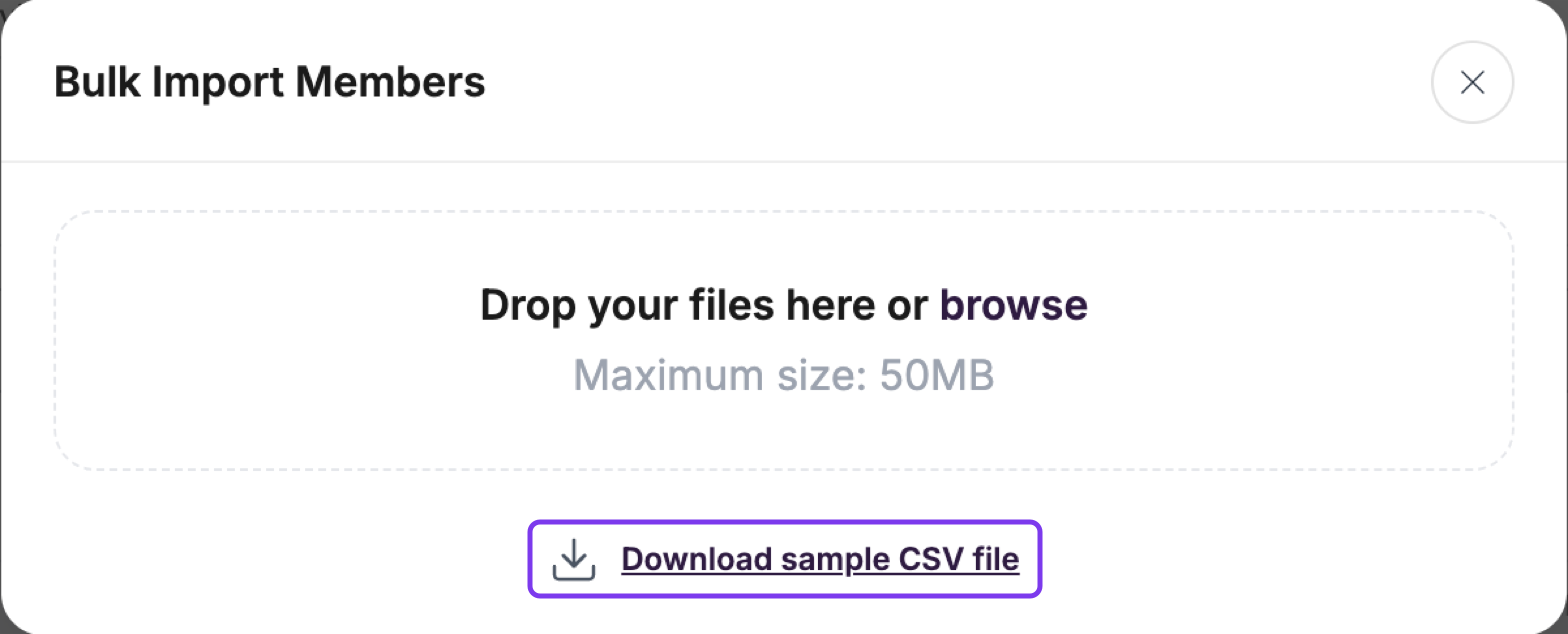
Click Download sample CSV file and use it as your template.
Drag your completed CSV into the upload area, or click browse to choose it.
People you add must already be registered on your portal.
Manage Group collaborators
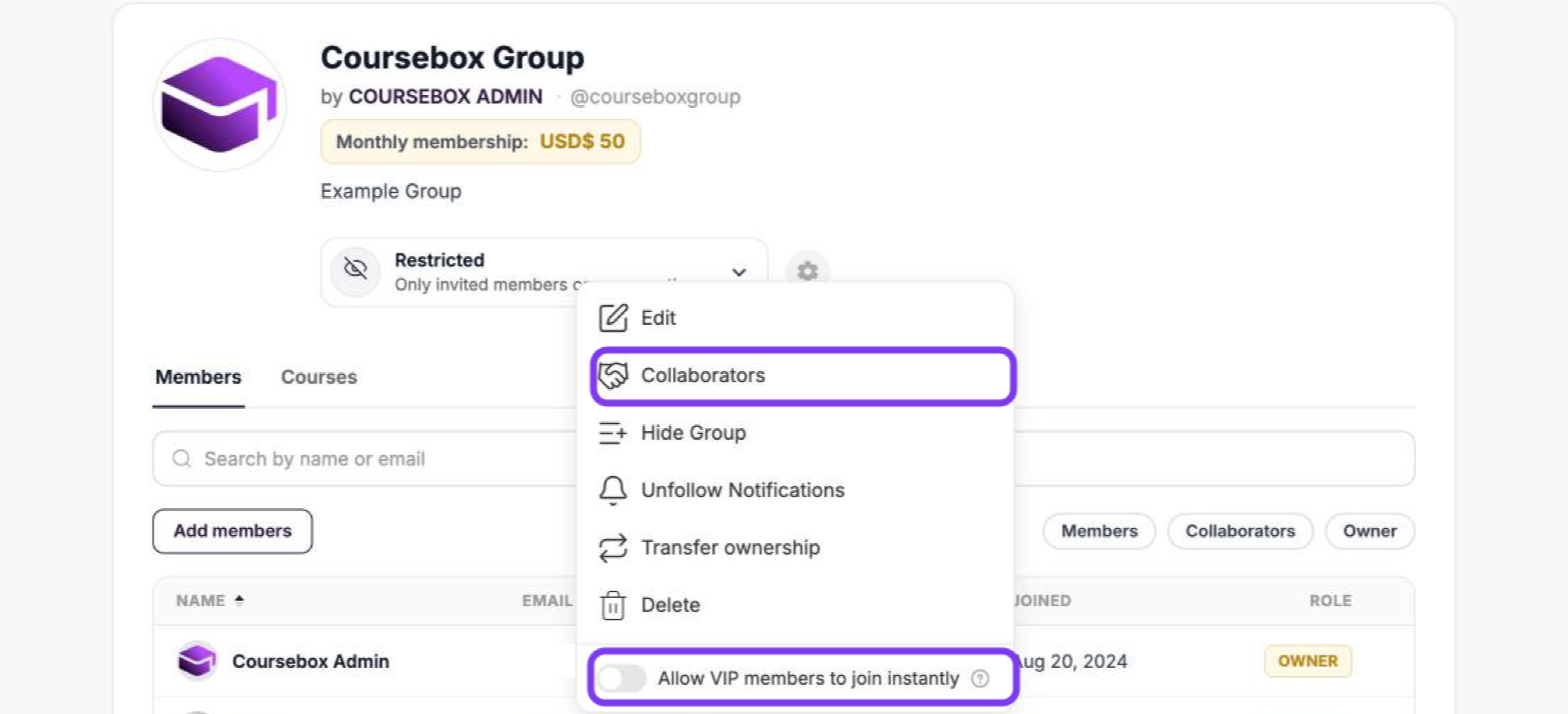
To let someone help manage the Group, click the gear icon (⚙️) and select Collaborators. Collaborators can edit Group settings, add or remove members and collaborators, and approve join requests. On some portals this option is called Admins.
Type their name or email, then add them.

Courses in a Group
Attach courses to a Group
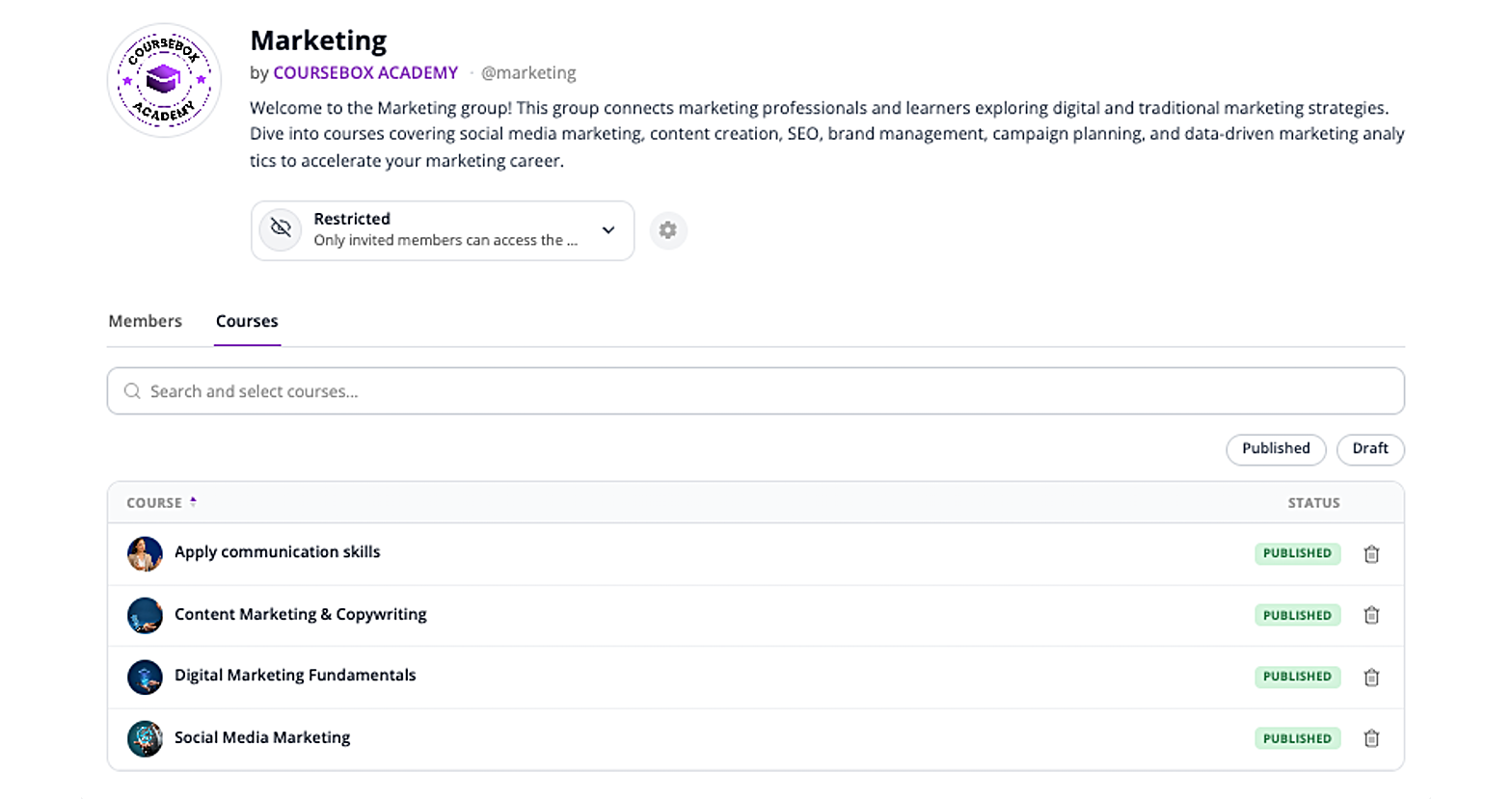
Open the Group and select the Courses tab.
Use Search and select courses to find a course and add it.
The list shows each attached course and whether it's Published or Draft. Use the Published and Draft buttons to filter the list, or click the bin icon to remove a course from the Group.
Enrol a whole Group into a course
You can also start from the course:
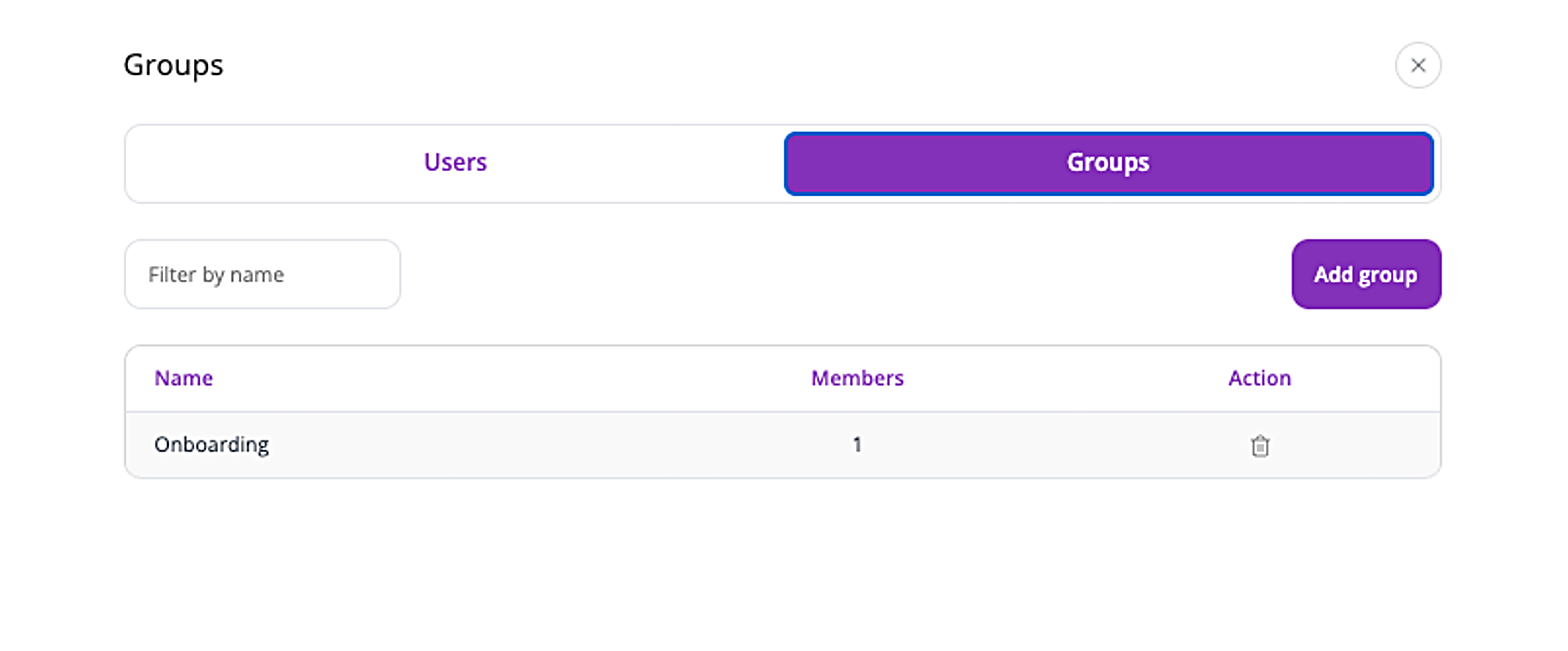
From the course overview page, click the Enrolments icon (the people icon) in the top toolbar.
Click the Groups tab.
Click Add group, search for the Group and click Add.
Other Group actions
Click the gear icon (⚙️) next to the access dropdown for more options:
Edit – open the Group settings form.
Collaborators – choose who can help manage the Group. See Manage Group collaborators above.
Hide Group – hide the Group so it can't be found by searching or browsing.
Unfollow Notifications – stop getting notifications about the Group.
Transfer ownership – make someone else the Group's Owner.
Delete – delete the Group.
Allow VIP members to join instantly – turn on this switch at the bottom of the gear menu so VIP members can join the Group straight away, skipping approval or payment. Everyone else follows the Group's normal access rules. On some portals the switch uses your portal's own name for VIP members (for example, Courseboxer Only). To mark a user as VIP, see Managing Payment.
Post in a Group
Use the post box on the Group page to share updates with members. You can post:
Text
Images or files (Add)
Events (Events)
Interactive content with an HTML embed (Advanced)
You can publish a post straight away or schedule it for later.
Mention a Group or learner: in any post, type @ followed by the Group or learner's name, then select them from the list.