
Newsfeed & Announcements
Plan requirement: The Newsfeed is part of the branded LMS, available on Pro + LMS and Enterprise. Compare plans.
On an earlier plan? Plan names and inclusions changed when we moved to Free, Creator, Pro, Pro + LMS and Enterprise. If you are on an earlier plan, your subscription continues unchanged and you keep everything it included — so you may still see features this article lists under a higher plan. Nothing has been removed from your account.
This article explains how to use the Newsfeed to share announcements, events, videos and files with your whole learner community. It covers how the Newsfeed differs from Groups, who can post and react, and how to schedule and email posts.
Watch the tutorial videos found in our YouTube Video Library.
What is the Newsfeed
The Newsfeed is your portal's main place for announcements. It's Announcements in the left menu. The Super Admin, and anyone whose role is allowed to post, can share updates with the whole community.
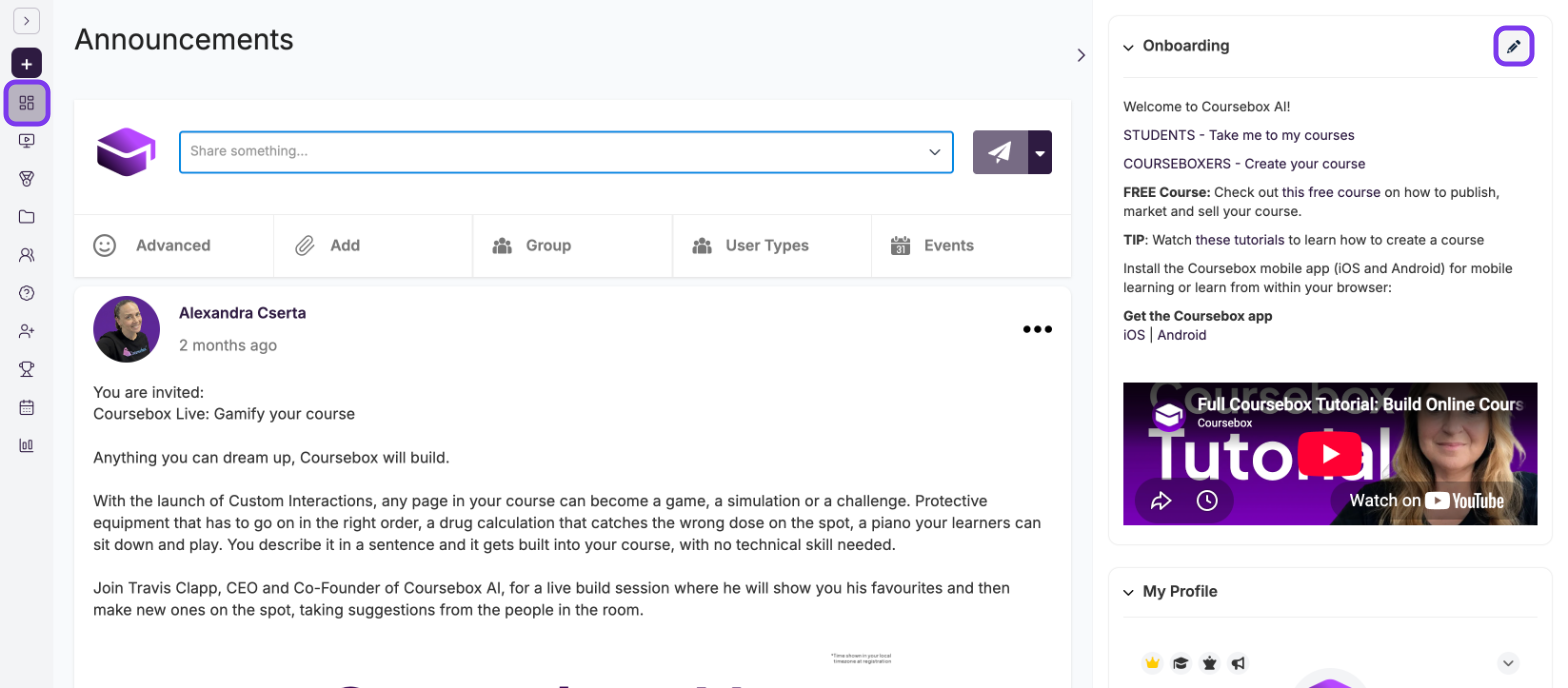
Posts can include:
Text updates
Files, PDFs and images
Embedded videos (YouTube, Vimeo) and links
HTML embeds, such as forms and calendars
Events
Learners can like and comment on posts. You can also schedule posts and email them to your followers.
Newsfeed vs Groups
Both the Newsfeed and Groups support posts, comments, files and embeds. The difference is who sees them.
Feature | Newsfeed | Groups |
|---|---|---|
Audience | Everyone on your portal | Only members of that Group |
Best for | Portal-wide announcements, short learning tips, events open to all | Cohort discussions, paid memberships, private communities |
Visibility control | Influencer settings and role permissions | Group access (Draft, Restricted or Public), plus an optional membership fee |
Yes, using Newsletter when you send a post | Yes, with a broadcast frequency set for the Group |
Tip: Use the Newsfeed for things every learner should see, such as a new course or a portal-wide event. Use a Group when the message is only for some users.
Show the Newsfeed in the left menu
Who sees Announcements in the left menu is set for each role.
Go to Settings → Permissions.
Tick Announcements in the column for each role that should see the Newsfeed.
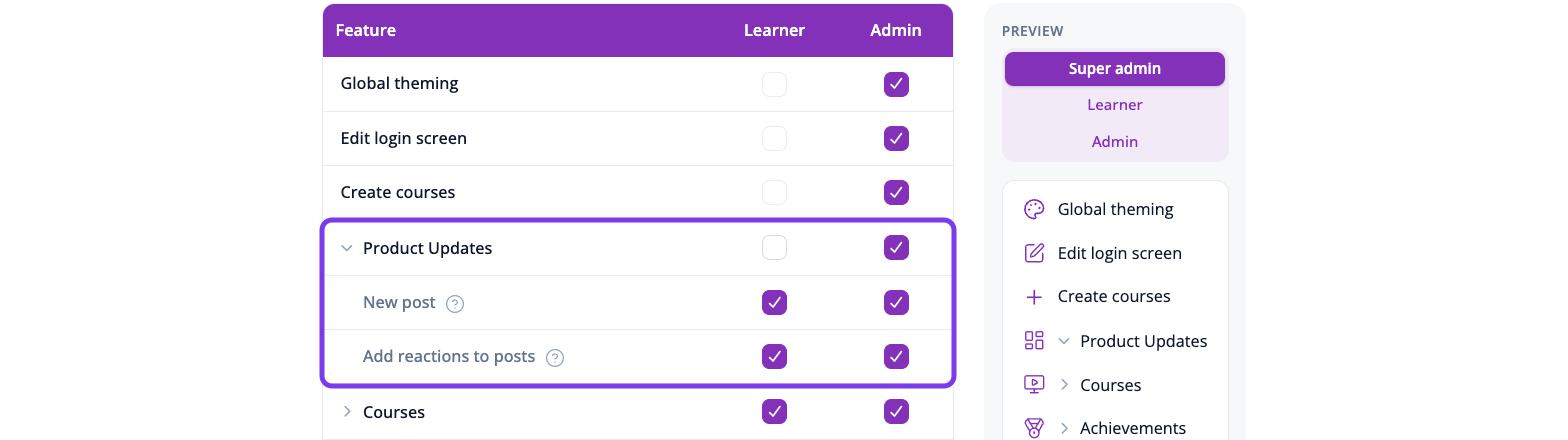
For more on this table, see Permission settings.
Control who can post
In Settings → Permissions, click the arrow next to Announcements to expand it.
Tick New post for each role you want to be able to post.
The New post row is shown in the screenshot above.
Tip: For a curated feed, let only admin roles post. For a community feed, tick New post for Learner too.
Control who can like and comment
In Settings → Permissions, expand Announcements.
Tick Add reactions to posts for each role that should be able to like and comment.
People in a role without this permission can still read posts, but can't like or comment.
What you can post
Text: short updates and announcements.
Images and files: attach a PDF, document or image.
Events: create a post with a date and time.
Videos and links: paste a YouTube or Vimeo link and the player shows in the post.
HTML embeds: add an iframe or HTML snippet, for example a Typeform or Google Form, a Calendly page or a slide deck.
Create a post
Select Announcements from the left menu.
Click in the Share something... field and type your message.
Use the options under the field if you need them:
Advanced: opens the Post editor for formatting, images, video, links and HTML.
Add: attach a file, image or PDF.
Group: post to a Group instead of the whole Newsfeed.
User Types: show the post only to some roles.
Events: turn the post into an event.
Click the send button (paper plane).
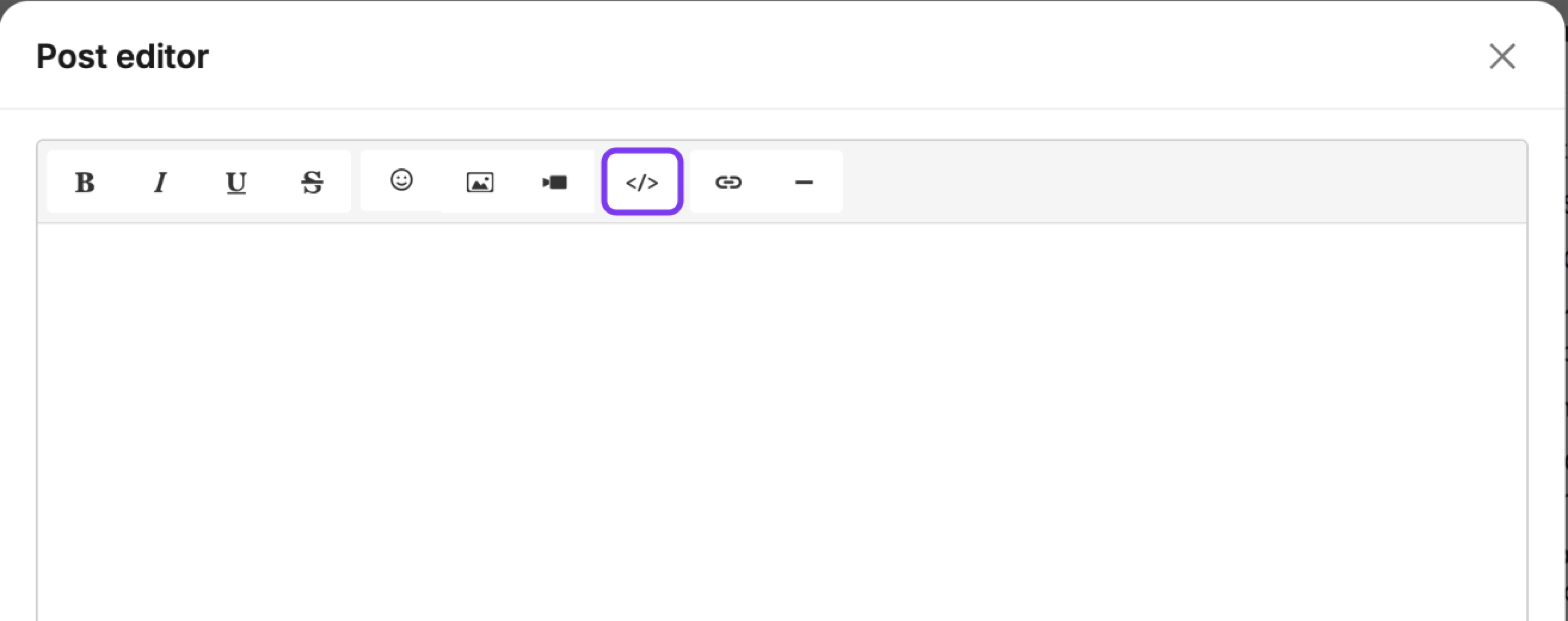
In the Post editor, click the </> button to add HTML, then click Create html post.
Schedule a post
Write your post.
Click the arrow next to the send button.
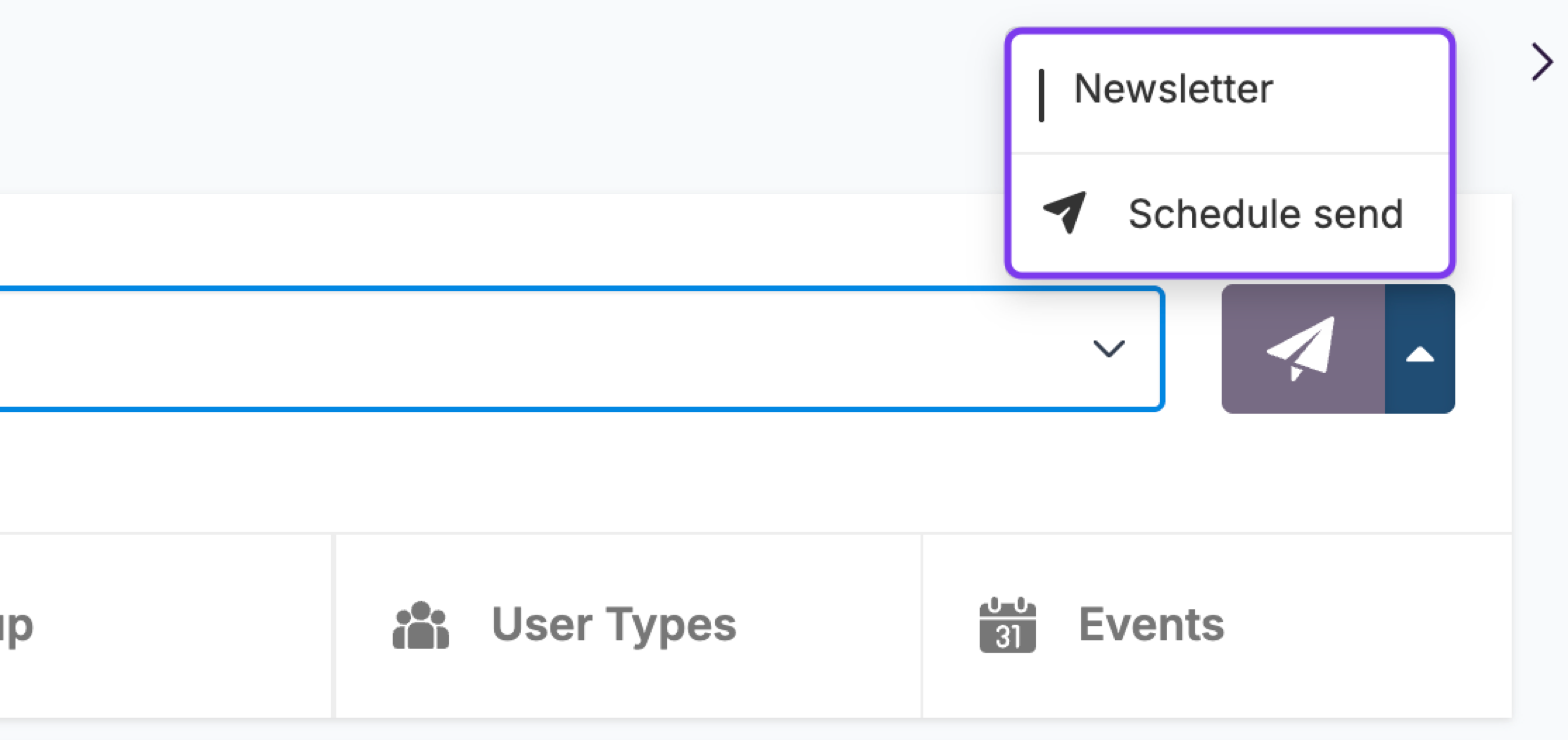
Select Schedule send, then choose the date and time.
Email a post to your followers
To send a post by email as well as showing it in the Newsfeed, click the arrow next to the send button and select Newsletter before you send it. It's in the same menu as Schedule send, shown above.
How often followers get these emails is set in Settings → General, under Portal Settings. In Send email broadcast to all followers every, enter 1 to email every post, or a higher number, such as 5, to email after every five posts.

Groups have their own broadcast frequency. See Group Management.
Mention a user or a Group in a post
Type @ followed by a user's name to tag them. They get a notification.
Type @ followed by a Group name to link the Group in your post. Members of that Group are notified.
For more on mentions, see Post in a Group.
Reactions, likes and comments
Learners can like posts and reply in comments. Comments support @ mentions, attachments and embedded media, the same as posts.
Who can react is set with Add reactions to posts in Settings → Permissions (see Control who can like and comment).
Control whose posts learners see (Influencer settings)
A learner's Newsfeed shows posts from people they follow. The Influencer settings decide who everyone follows automatically.
Go to Settings → Users and registration.
Scroll to Influencer.
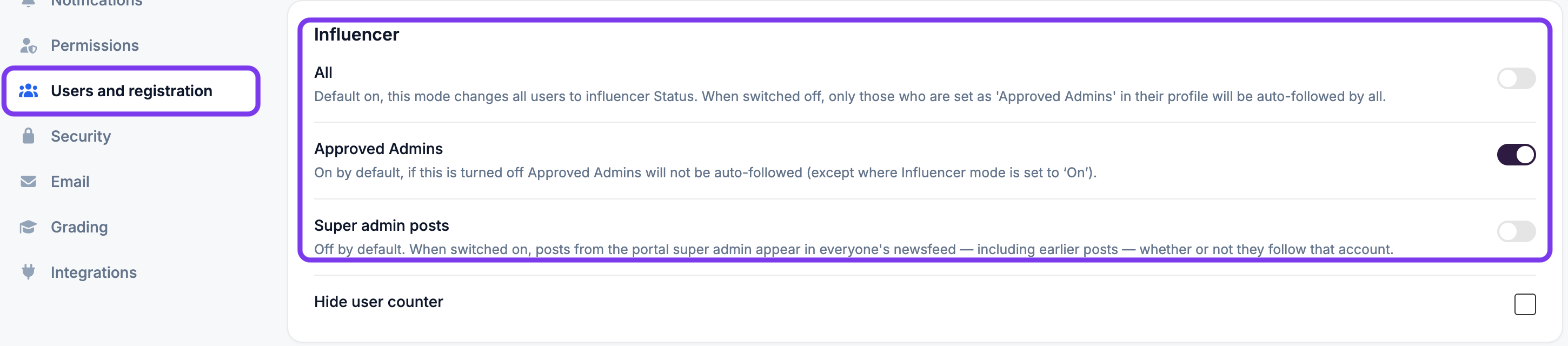
All: every user becomes an influencer, so everyone follows everyone. When it's off, only users with the Admin role are auto-followed.
Approved Admins: on by default. Everyone automatically follows users with the Admin role. When it's off, admins aren't auto-followed (unless All is on).
Super admin posts: off by default. Turn it on and every post from the portal Super Admin, including earlier posts, shows in everyone's Newsfeed, whether or not they follow the Super Admin.
Tip: Turn on Super admin posts for announcements everyone must see, such as policy changes or maintenance notices.
The onboarding widget
The Onboarding widget at the top right of the Newsfeed is also the first post every new user sees. Use it for a welcome message, a video or a link to a starter course.
Select Announcements from the left menu.
Click the pencil icon on the Onboarding widget. It's outlined in the first screenshot in this article.
Edit the title, text, video, image or file.
Click Save.
To choose which onboarding screens new users see, go to Settings → Appearance → Onboarding welcome popup.
Social sharing of posts
Choose whether users can share Newsfeed posts on social media.
Go to Settings → General.
Under Social Sharing, turn Post sharing on or off.

Common use cases
Daily or weekly learning tips. Schedule a short post with a tip, video or question.
Welcome message for new users. Use the onboarding widget to greet new learners.
Portal-wide announcements. New courses, maintenance, policy updates and leadership messages.
Event invitations. Create an event post for webinars, Q&A sessions or workshops.
Forms and surveys. Embed a Typeform, Google Form or survey to gather feedback.
Learner achievements. Tag learners who have completed a certification.
External content. Embed YouTube videos, podcasts or articles.