
Questions and Answers Section
Plan requirement: The Questions and Answers forum is part of the branded LMS, available on Pro + LMS and Enterprise. Compare plans.
On an earlier plan? Plan names and inclusions changed when we moved to Free, Creator, Pro, Pro + LMS and Enterprise. If you are on an earlier plan, your subscription continues unchanged and you keep everything it included — so you may still see features this article lists under a higher plan. Nothing has been removed from your account.
The Questions section is a built-in discussion forum where community members can ask and answer questions. It supports knowledge sharing, peer support and expert input by giving everyone a central place to raise questions, contribute answers and collaborate around topics. This article covers how questions are created, tagged, assigned and answered.
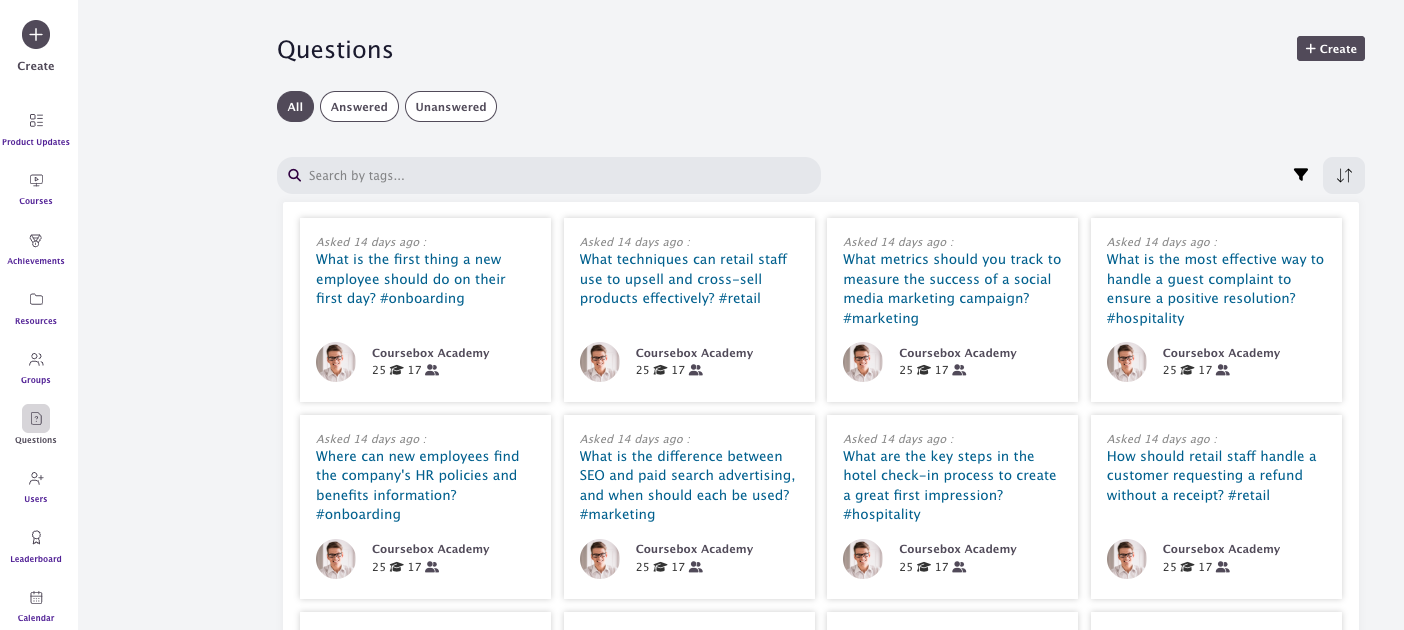
Create Questions
Click on the + button or '+ ask' menu item from the left-hand side navigation bar in order to create a new question.

Enter a new question and click on save to publish the question for other team members to answer.

Tag a Question with a Topic Hashtag
You can also tag a question by using a hashtag. For example: What's the best way to structure a compliance module? #CourseDesign.

Tags are the best way to group questions into different categories. They allow users to quickly search for questions related to that tag only.
Tag a User to a Question
In addition to topics, you can also tag a user to a question. This is a great way to ask questions to experts or other team members.
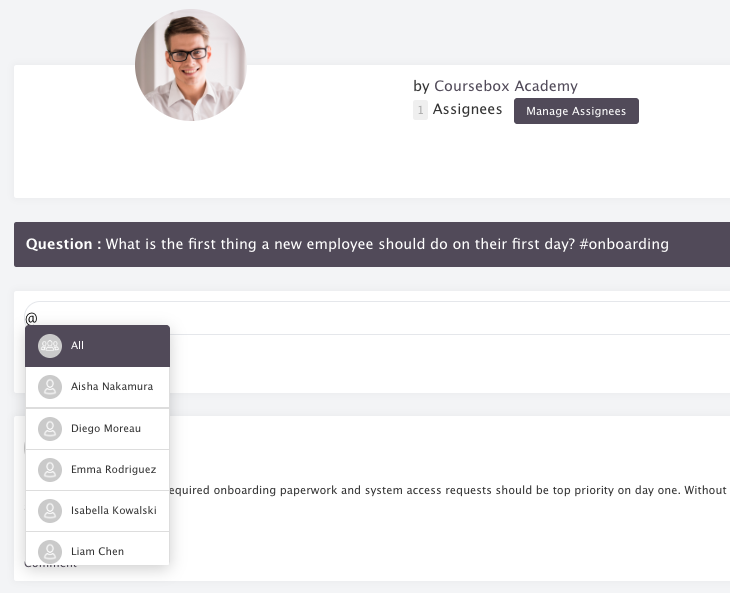
While typing a question, simply enter '@' to view the list of members. From the dropdown menu, choose the members whom you want to tag.
When users are tagged in a question, they will receive an email notification from Coursebox.
Answer a Question
From the Question section, click on any question that you want to answer.
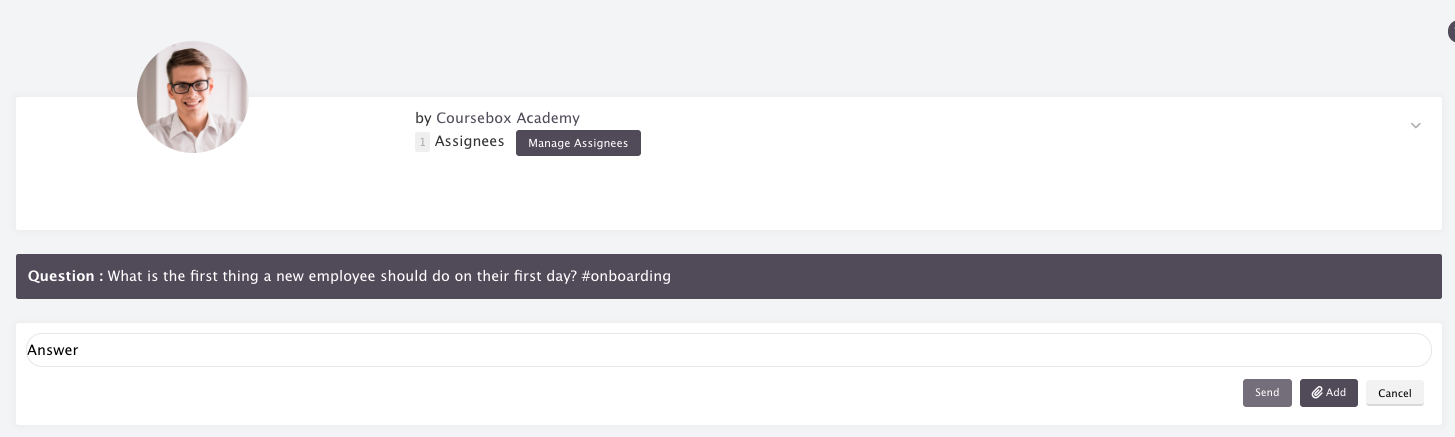
On the question page, you can enter your answers in text format or upload an image or a file and click on Send to publish your answer. You can also view all the previous answers submitted by other members. You can like and comment on others' answers.
Assign Questions
By default, questions are assigned to the Super Admin.
In addition, the creator of a Question may assign one or more users to answer their question:
Click Manage Assignees
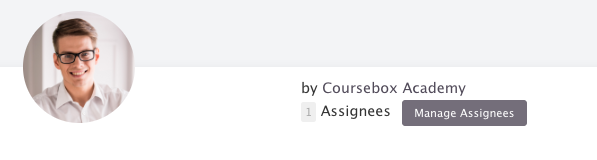
Type @name to assign the question to another user.
