Booking Time Management
Plan requirement: Paid one-on-one bookings are part of the branded portal's community features, available on Pro + LMS and Enterprise. Compare plans.
On an earlier plan? Plan names and inclusions changed when we moved to Free, Creator, Pro, Pro + LMS and Enterprise. If you are on an earlier plan, your subscription continues unchanged and you keep everything it included — so you may still see features this article lists under a higher plan. Nothing has been removed from your account.
Users can offer and manage paid one-on-one sessions within Coursebox — setting availability and rates, and letting learners book or request time directly from a user profile.
Set Up Bookings
Before you start: you need both a connected Stripe account and an active Calendly account to accept payment for bookings.
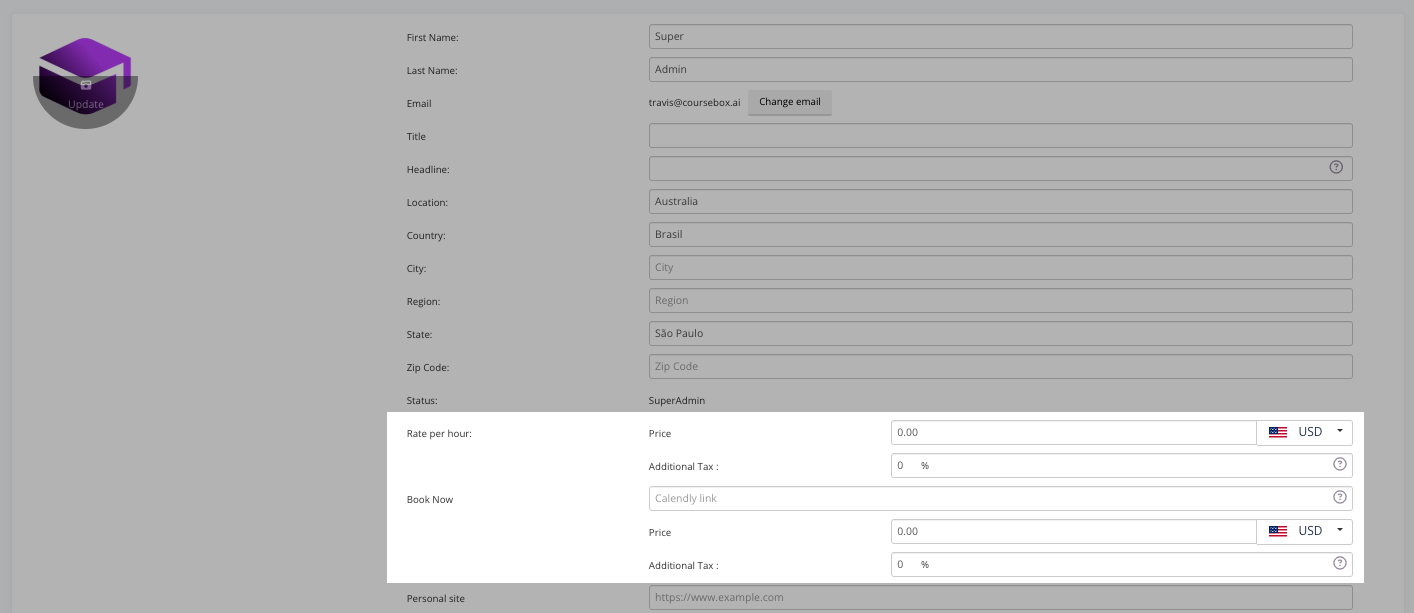
Booking options are managed from the user's profile. Open the profile in edit mode to access and configure booking settings. These options become visible once the appropriate user status is assigned.

Setting Hourly Rate
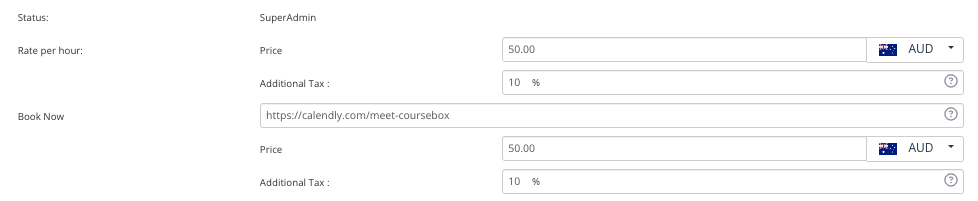
You can set an hourly rate for your session along with an additional Tax rate. We recommend you check with your respective state law for Tax information.
After setting an hourly rate, add the link to your Calendly booking calendar, then click Save to update the changes.
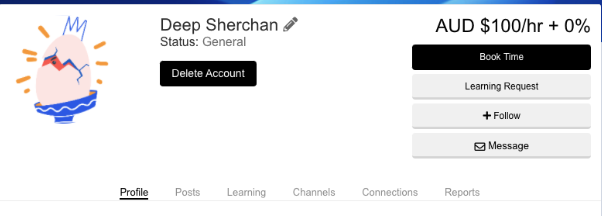
The user's profile now shows the Hourly Rate and a Book Time button.
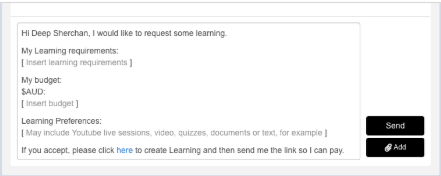
Learning Request
Instead of booking a paid slot, users can click the Learning Request button to request a one-on-one session. A request template opens, which you can edit before clicking Send to initiate the request.