
Exports and Scheduled Reports
Available on every plan, including Free. Admins can export and schedule reports for every course in the portal. Course owners, course admins and facilitators can export and schedule reports for the courses they run.
The Exports and schedules page lets you download a CSV report of your courses straight away, email it to someone, or set up a report that is emailed automatically every day, week or month. Use it to send your manager a weekly completion report or keep a compliance record without logging in to pull the numbers yourself.
Open Exports and schedules
Click Reports in the left-hand menu.
Click Exports & schedules in the top-right of the page.
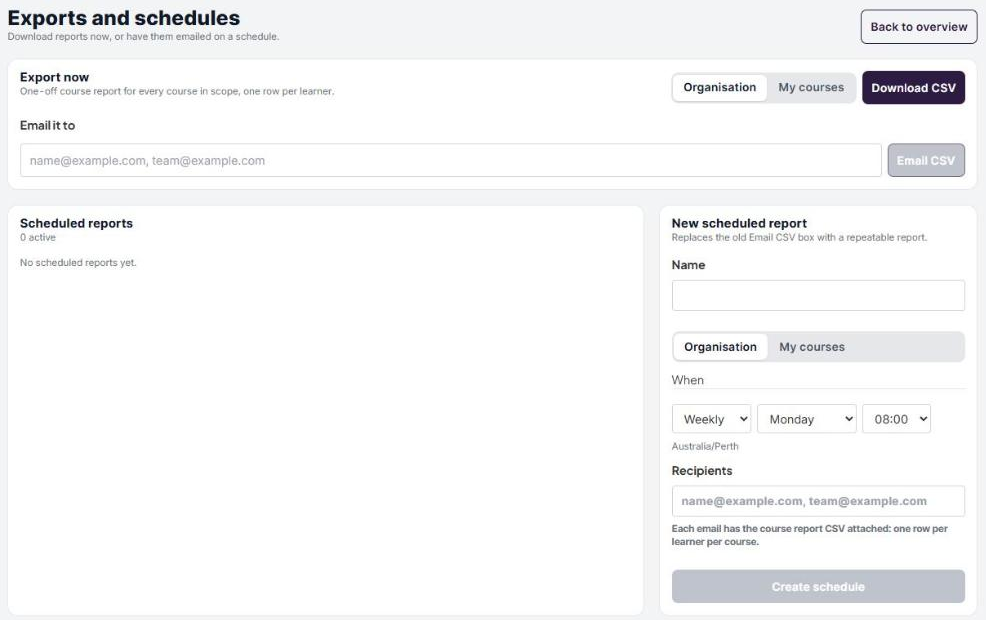
Click Back to overview to return to Reports.
Download or email a report now
The Export now card creates a one-off report for every course in view, with one row per learner.

Choose Organisation for every course in the portal, or My courses for the courses you run. Only admins see the Organisation option.
Click Download CSV to download the report straight away.
Or, to send it to someone, type one or more email addresses in Email it to, separated by commas, and click Email CSV. You'll see Report queued. It will arrive by email shortly.
Each recipient gets an email with a button. Clicking the button downloads the CSV.
You can also download smaller reports from the Reports pages: the download icon at the top of the overview (every course in view), the download icon on a course row or course report (one course), and Download learner CSV on a learner report (one learner).
Schedule a report
A scheduled report emails a fresh CSV to the people you choose on a regular day and time. Fill in the New scheduled report form on the right of the page.
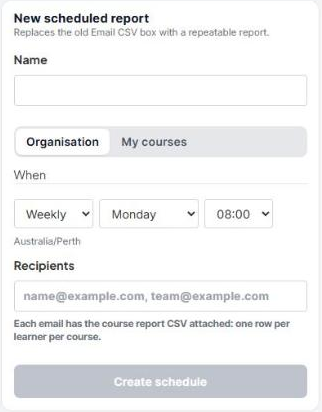
Name: give the schedule a name you'll recognise, such as Weekly compliance report.
Choose Organisation or My courses.
When: choose Daily, Weekly or Monthly.
For Weekly, choose the day of the week.
For Monthly, choose a day of the month from 1 to 28.
Choose the hour to send it. The time zone shown underneath is your browser's time zone.
Recipients: enter up to 10 email addresses, separated by commas.
Click Create schedule. You'll see Schedule created.
Each email has a button that downloads the report CSV, with one row per learner per course. Emails arrive within about 15 minutes of the hour you chose.
Pause, resume or delete a scheduled report
Your schedules are listed under Scheduled reports. Each one shows how often it sends, the time, which courses it covers, who it goes to and when it will next send.
Use the switch next to a schedule to pause it. Use it again to resume.
Click Delete to remove a schedule. It is deleted straight away, with no confirmation.
To change the day, time or recipients, delete the schedule and create a new one.
Good to know: each schedule belongs to the person who created it, and other admins can't see it. You can have up to 20 schedules. Each report uses your access at the time it's sent, so if you're no longer an admin, an Organisation schedule sends only your own courses.
What's in the CSV
The CSV opens in Excel or Google Sheets. Each course starts with a summary: the course name, grading method, pass grade, total enrolled and total completed. Below that there is one row per learner with:
How they were enrolled, their registration status and enrolment date
Their result and completion or grade
A column for each lesson, plus attempts and dates for each quiz, survey and checkpoint
Their course completion date
Reports are CSV only. Dates in the file are in UTC.
Troubleshooting
The emailed report hasn't arrived.
Scheduled reports arrive within about 15 minutes of the hour you chose. Check the spam or junk folder, and check the schedule isn't paused. A one-off emailed report usually arrives within a few minutes.
Create schedule is greyed out.
Add a name and at least one valid email address. You can add up to 10 addresses, separated by commas.
I can't see a schedule another admin set up.
Schedules are private to the person who created them. Ask them to add you as a recipient, or create your own.
I don't see the Organisation option.
Only admins can export or schedule reports for every course in the portal.