
Classic Reports
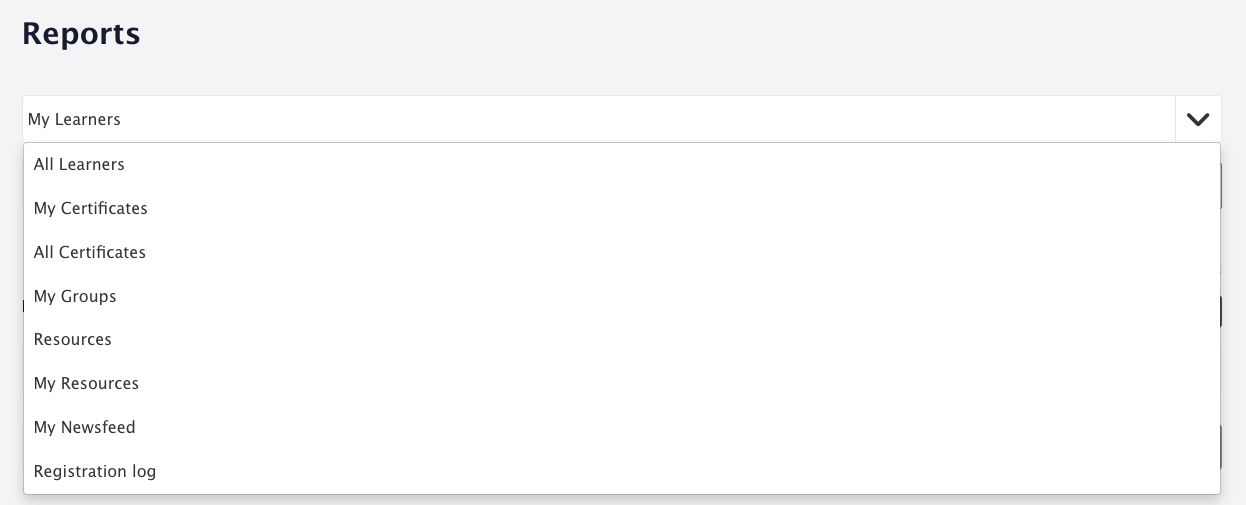
Classic reports is the previous version of Reports. It is still available on every plan for anyone who prefers it, and it's where you'll find Group, Resources, Newsfeed, Certificate and Registration Log reports. Group, Resources and Newsfeed reports only have data if your plan includes those features (Pro + LMS and Enterprise). For the new dashboard, see Report Management.
Classic reports helps Super Admins and Facilitators monitor learner activity, track progress and evaluate courses, with filters and CSV downloads for each report type.
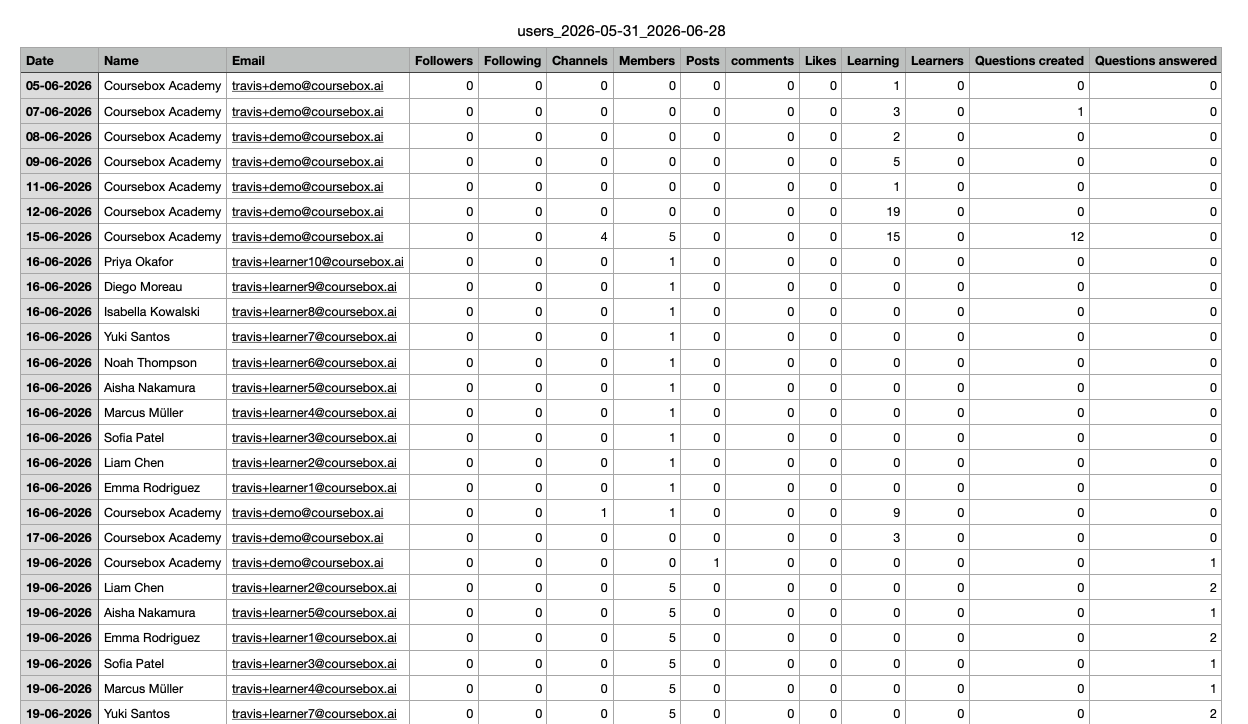
Wherever you see a download icon on a report, click it to download that report as a .CSV file, which you can open in Excel or Google Sheets.
Open Classic reports
Click Reports in the left-hand menu.
Click Classic reports in the top-right of the Reports page.
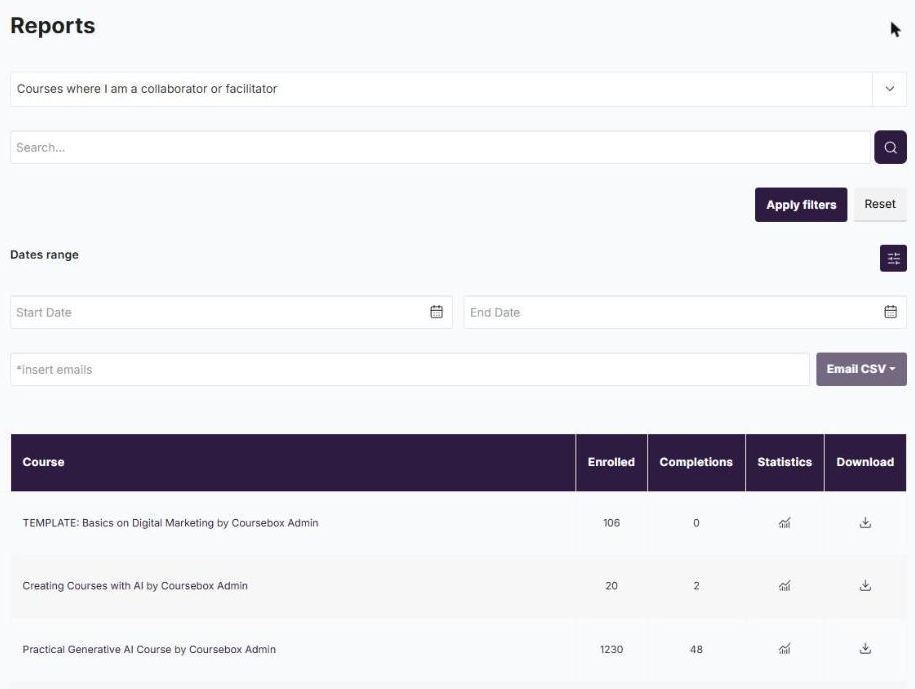
To go back to the new Reports, click Reports in the left-hand menu again.
View Reports from a Course
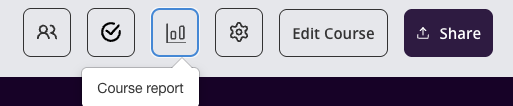
From your Course click on the Graph Icon on the top menu.
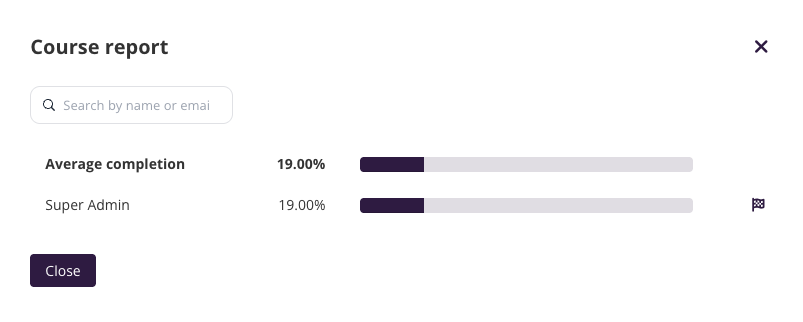
The following window will open:
Filtering reports
These filters apply to every report type. You can filter the report based on:
Types of Report: Click on the dropdown menu and select the type of report you want to view.
Date Range: Select your date range by changing Start Date and End Date Input.
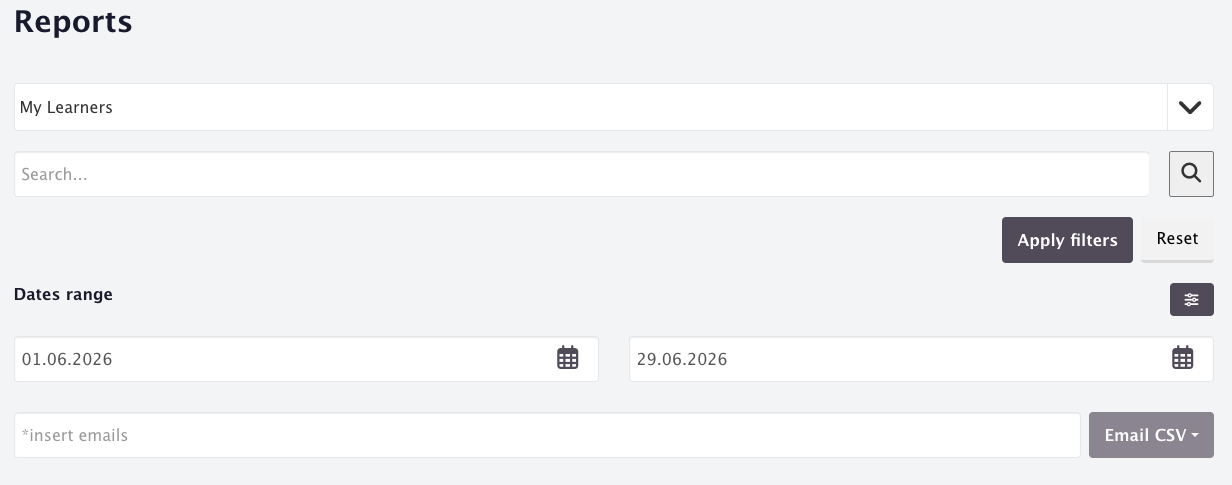
User Type: Click on the filter icon button to select users based on their status. Coursebox allows you to generate reports for active users, archived users and unconfirmed users. These three options are the only User Type options available.
Once you have set your filters, click on the Apply Filters button to generate the report. You can always reset to the default filter setting by clicking on the Reset button.
View Learner Reports
These reports show learner progress and engagement, either for your own courses (My Learners) or across the entire platform (All Learners). You can view interaction trends, completion status, and download detailed .CSV reports.
Course reports can be downloaded as a CSV even while a course is still in Draft status, so you can review learner interaction data before publishing.
Unenrolled learners in Classic reports. Learners who have been unenrolled from a course still appear in the on-screen course report popup (the graph icon on the course About page) and in Classic reports, but they are shown as if they were still enrolled, with no status indicator. They are not included in the CSV export. The User Type filter offers active, archived and unconfirmed only. In the new Reports, removed learners are shown separately with the Removed filter on a course report.
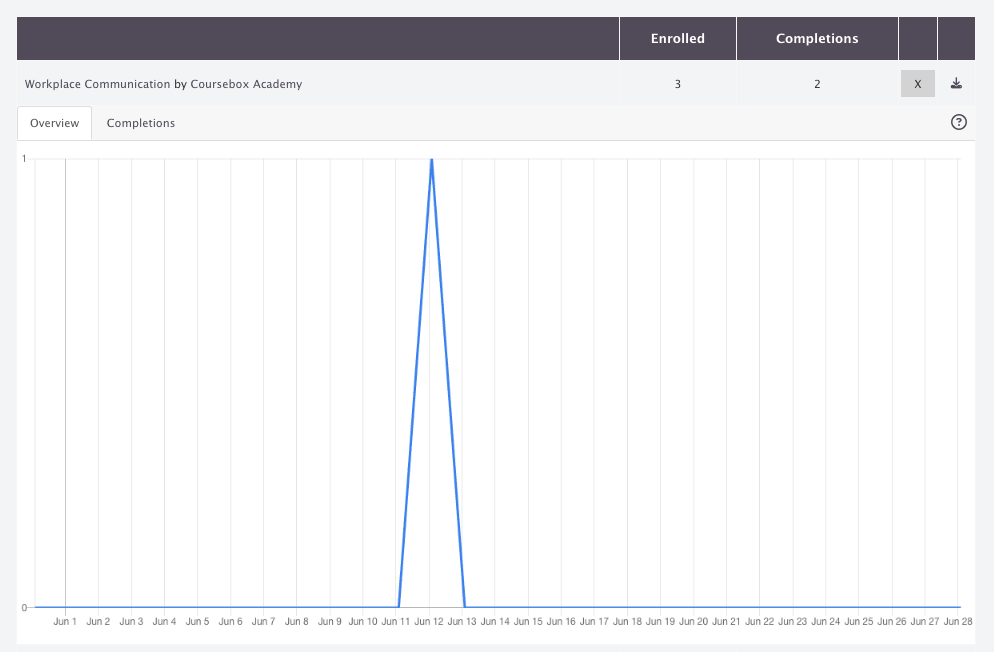
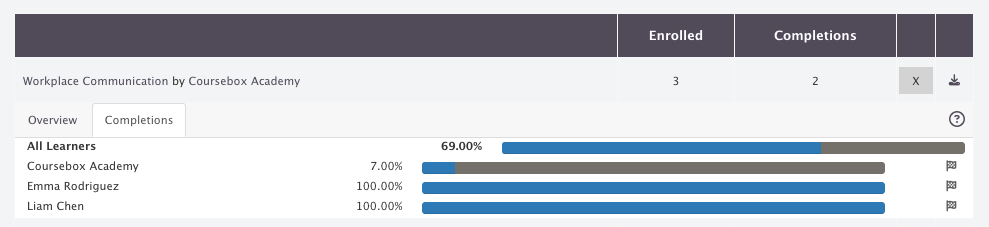
You can click on the graph icon to view day-wise course interaction reports and course completion status of individual learners.

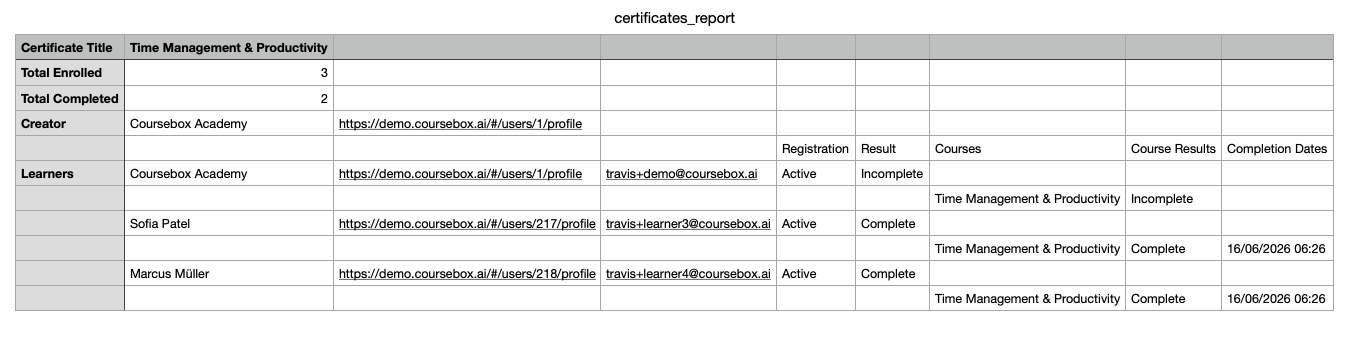
View Certificate Reports
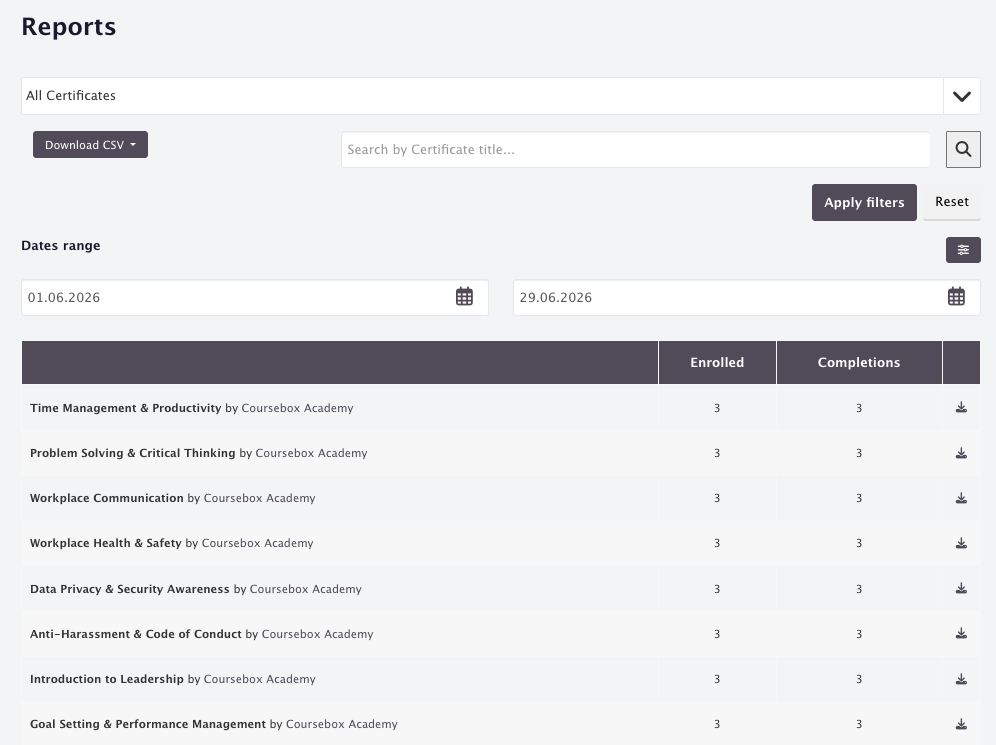
Track certificate achievements within your courses. My Certificates shows certificates you've earned, while All Certificates provides a platform-wide view of issued certificates.
Certificate reports show one row per learner, consolidating all of a learner's certificate activity into a single row so the report is easier to scan and export.
View Group Reports
See how learners engage within their assigned Groups. This report details Group-level activity, including posts, comments, and likes.
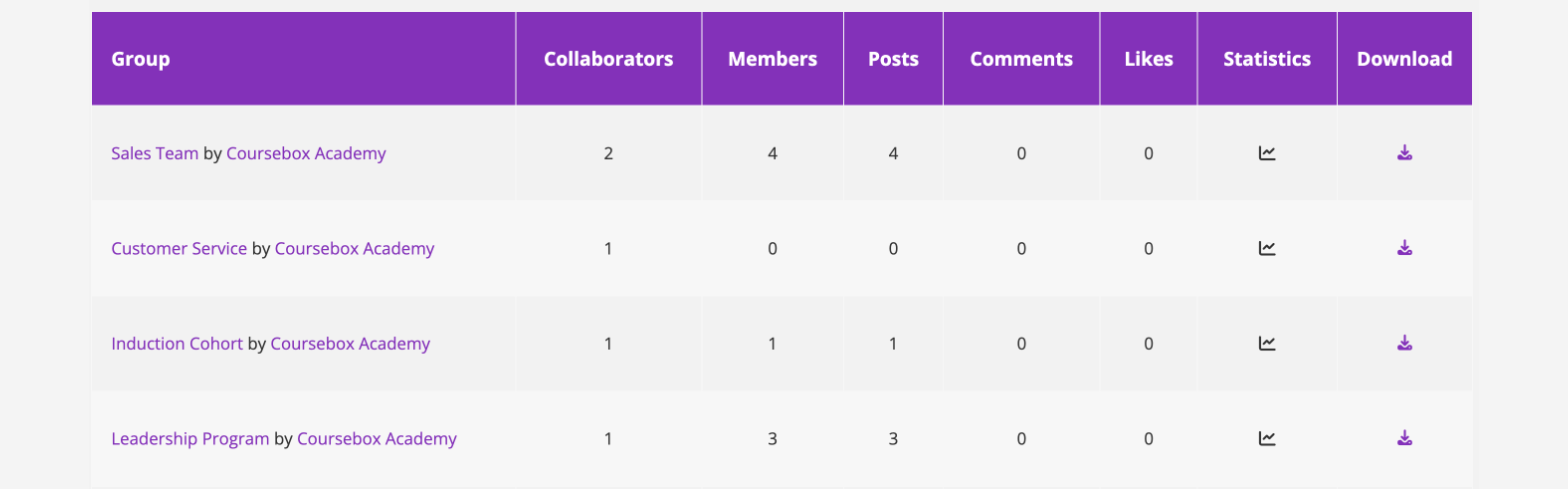
The definitions of the metrics are as follows:
Collaborators: No. of Collaborators of the Group.
Members: No. of members of the Group.
Posts: No. of posts made in the Group within the time frame selected.
Comments: No. of comments made in the Group within the time frame selected.
Likes: No. of likes made in the Group within the time frame selected.
You can click on the graph icon to view day-wise social engagement reports of the Group.
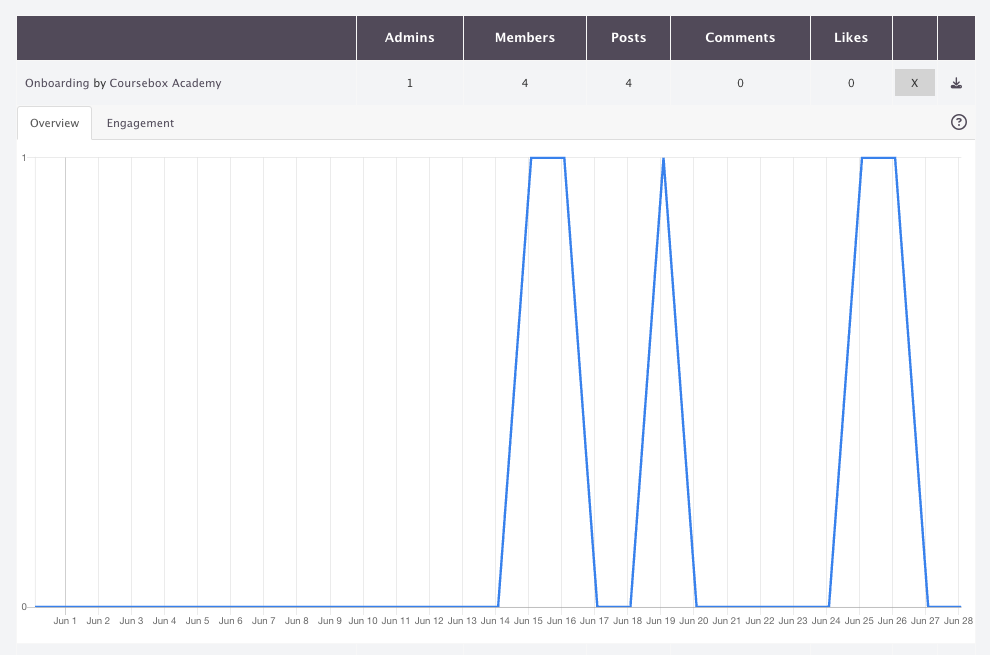
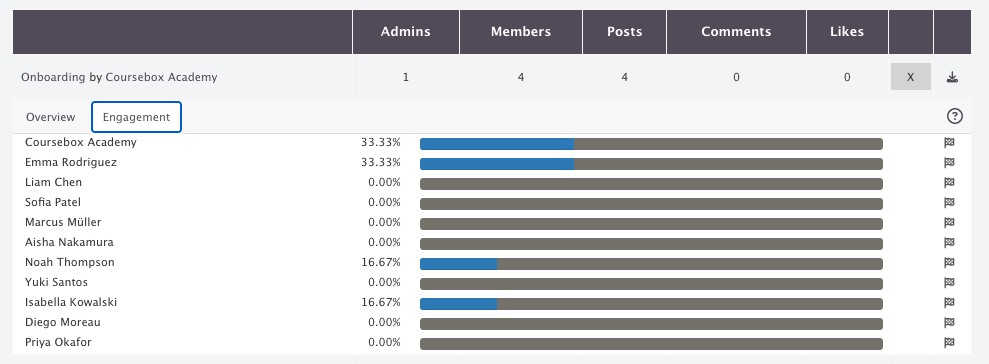
The Overview tab shows how many users interacted with the Group.
Engagement is comparative and the total user engagement is scored out of 100% based on count of posts, comments and likes.
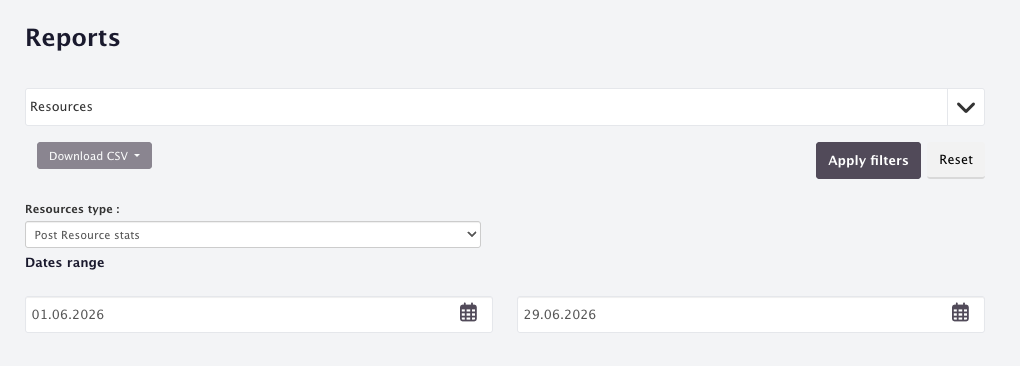
View Resources Reports
Monitor access and usage of resources you've uploaded or shared.
View Newsfeed Reports
See learner engagement across social features like posts, likes, and comments, with metrics and graphs showing how actively users interact with your community content.
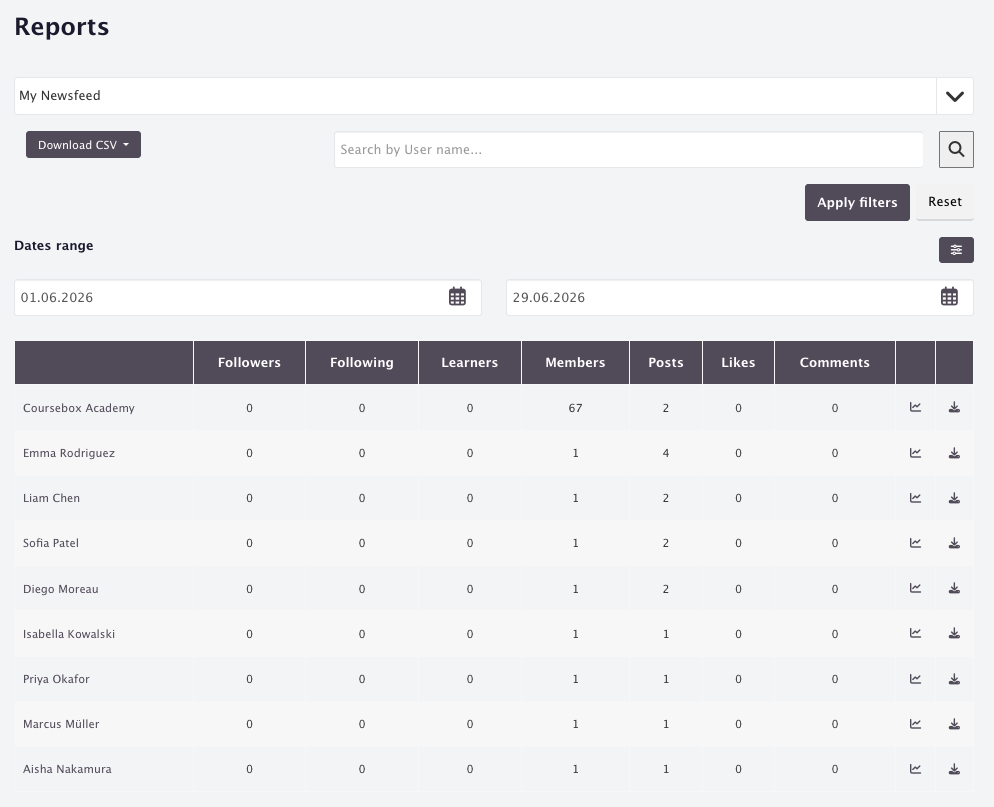
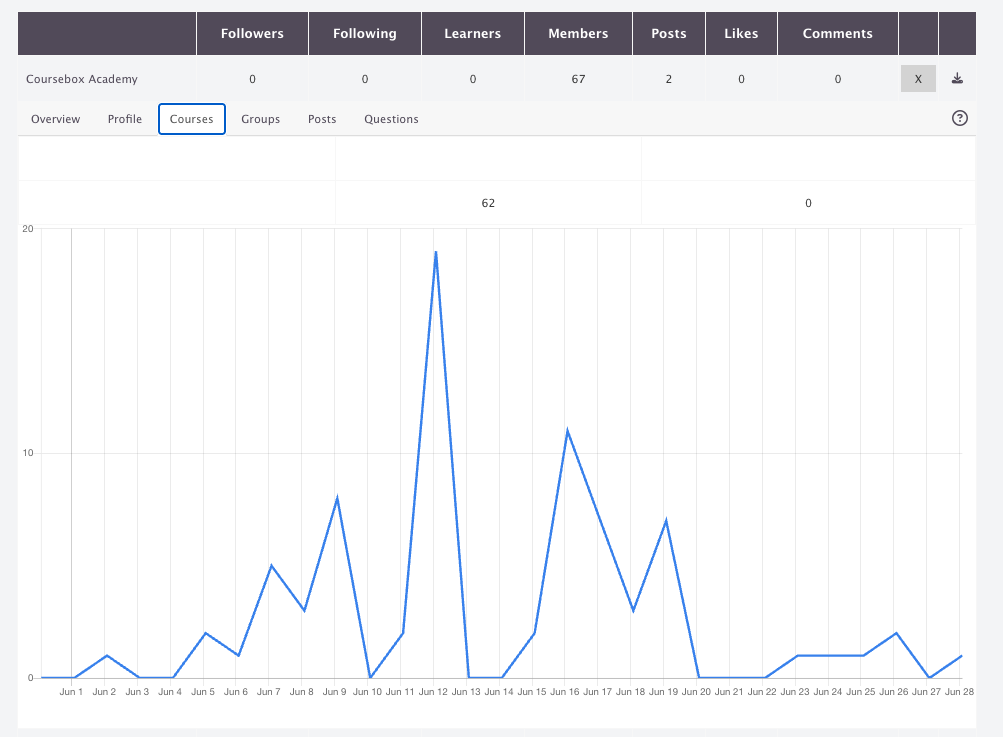
You can click on the graph icon to view day-wise social engagement reports of the learners.
Newsfeed metric definitions
Followers: No. of users following the user. In Pro + LMS, any user can follow or unfollow another user, which means they will see their posts. By default, all users follow the super admin. The super admin can enable or disable auto-follow.
Followings: No. of users the user is following.
Learners: No. of users who are learning from the user.
Members: No. of total members in the Groups owned by the user.
Posts: Total no. of posts made by the user within the time period selected.
Likes: Total no. of likes received by the user on their posts within the time period selected.
Comments: Total no. of comments received by the user on their posts within the time period selected.
Newsfeed graph definitions
Overview: How many users interacted with one of my Groups, courses, posts, or profile in any way in the past 30 days.
Profile: How many users interacted with my profile in any way.
Learning: How many users interacted with my courses in any way.
Groups: How many users interacted with my Groups in any way.
Posts: How many users interacted with my posts in any way.
Questions: How many users interacted with my questions in any way.
Download the Registration Log Report
The Registration Log provides a downloadable record of all confirmed and unconfirmed user registrations. Use this for onboarding tracking, user management, or audit purposes.
The registration report is available only as a .CSV file. Click the download icon to download it.
Email a report
Classic reports also has an Email CSV box: type one or more email addresses and click Email CSV. To send a report automatically every day, week or month, use a scheduled report instead. See Exports and Scheduled Reports.
Group Owner and Collaborator visibility
This rule applies to every report type. If you are the Owner or a Collaborator of a Group, and that Group is enrolled in a course, your reports for that course only show the learners in your Group.
For example:
A course may have 1,000 learners enrolled.
Your Group may have 10 learners enrolled in the same course.
When you view reports for that course, you only see the 10 learners in your Group, not the whole course list.
This lets Group Owners and Collaborators focus on the learners they're responsible for, without seeing other Groups' learners.
Troubleshooting Classic reports
The reports section shows no data.
Ensure learners have been enrolled and have started interacting with the course. Reports only populate once learner activity has occurred. Also check that your date range filter covers the period you are investigating. Click Reset to return to the default filter settings.
I can't download a CSV report.
Click the download icon on the right side of the report. If the download doesn't start, check that your browser is not blocking file downloads. The file will open in Excel or Google Sheets.
My report only shows some learners, not all.
If you are a Group's Owner or a Collaborator, you only see the learners in your Group by design. See Group Owner and Collaborator visibility above. If you are a Super Admin and still see limited data, check your User Type filter. It may be set to Active only, excluding archived or unconfirmed users. Click Reset to return to default filter settings.
A learner I unenrolled is missing from the CSV, or still shows as enrolled on screen.
This is current expected behaviour in Classic reports, not a filter you have set incorrectly. Unenrolled learners still appear on screen as though they were still enrolled, but they are not included in the CSV export. If you need a retained record of a learner's activity, for example for audit or certification purposes, download the CSV before unenrolling them and keep that export.
I can't find my way back to the new Reports.
Click Reports in the left-hand menu.