
How do I mark or moderate learner assessments?
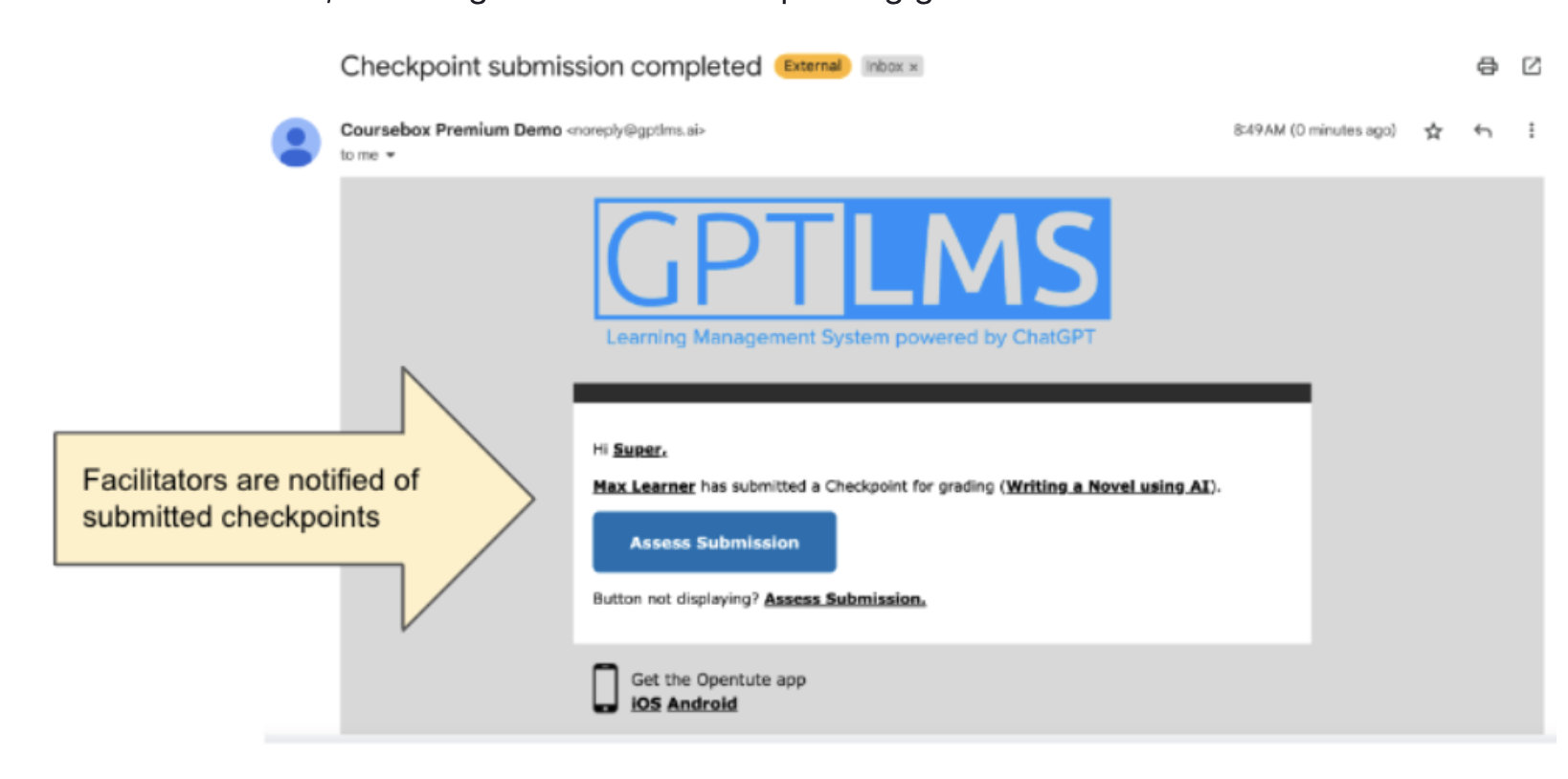
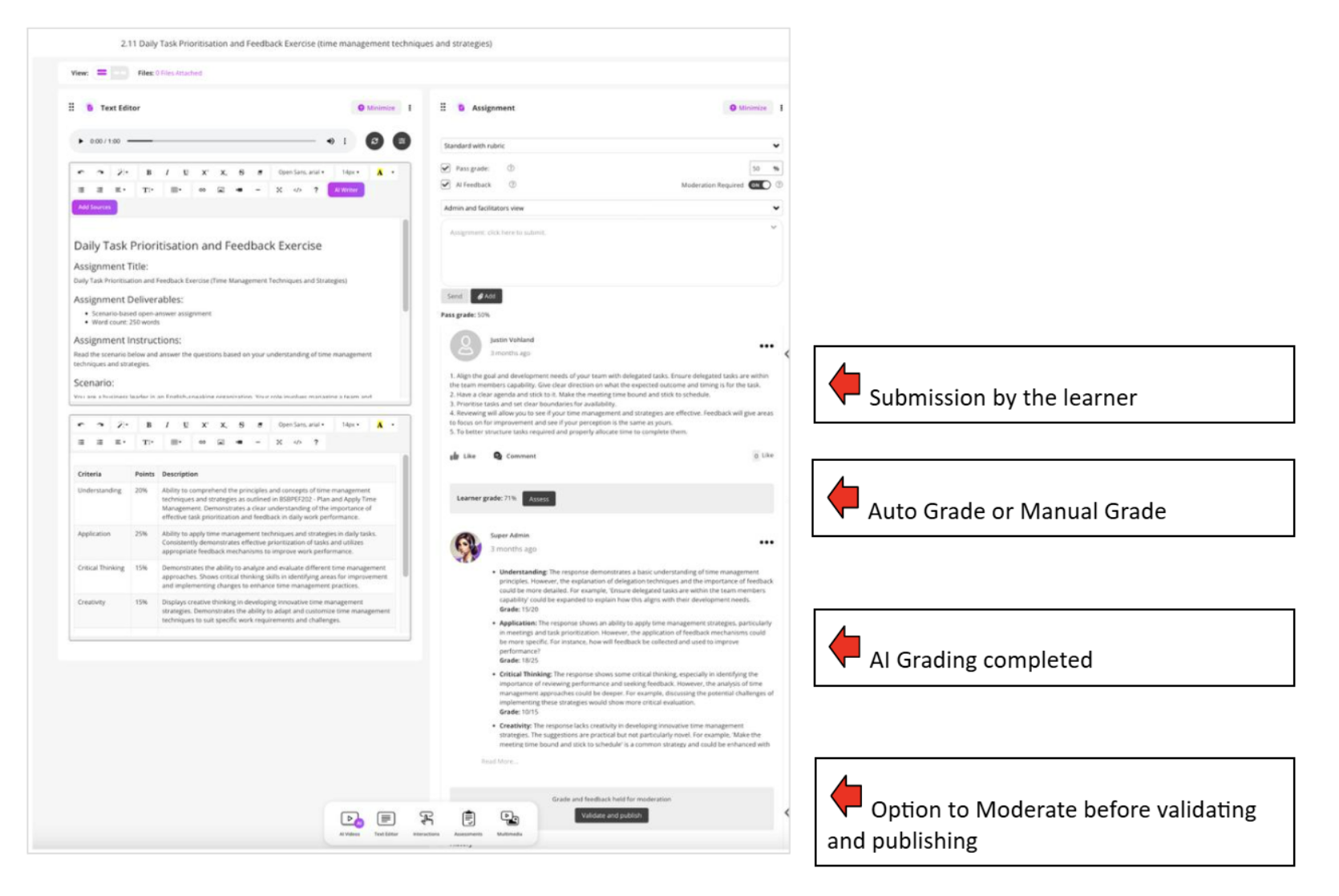
Once a learner submits a quiz or assignment, facilitators are notified and can click Assess Submission to enter a grade, write comments, or use AI grading. You can moderate scores before publishing, and learners receive instant updates when marked.
Export assignments
You can export student submissions and manage marking outside of Coursebox by downloading all assignment responses.
Open the course and locate the assignment you want to export.
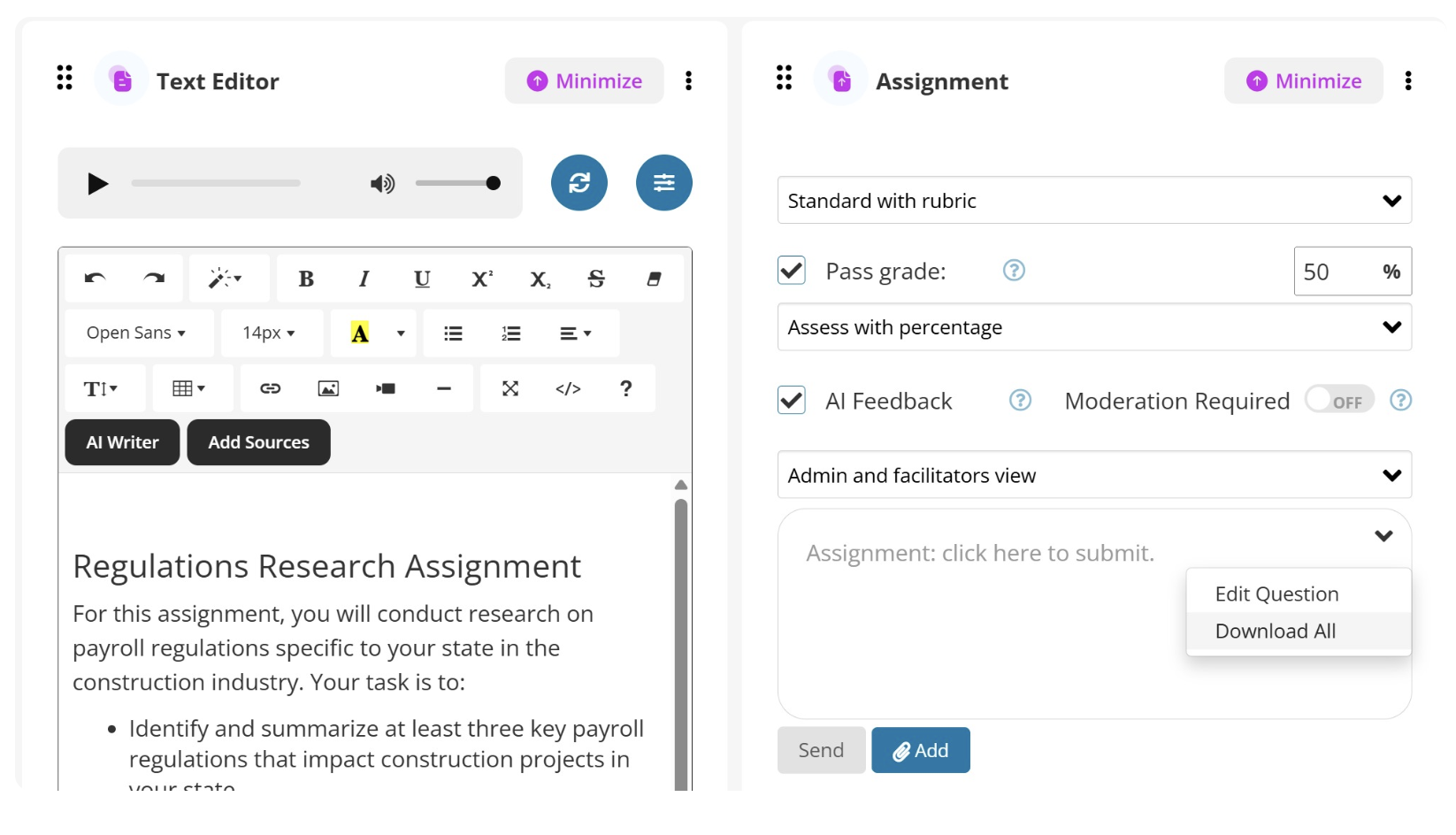
Click the vertical ⋮ (three dots) in the top right corner of the Assignment panel.
From the dropdown menu, choose Download All. This will export all learner submissions related to that assignment.
The downloaded file is a CSV containing links to the learners' uploaded documents. Open the CSV in a spreadsheet application and click the links to access each submission. Note: a ZIP file of the actual documents is no longer provided, as this caused failures when assignments contained a large number of uploaded files.
Mark/grade assignments
Assessments support learner accountability while giving facilitators clear visibility of progress. In Coursebox, assignments work like a private submission workflow — learners submit their responses directly within the course, and facilitators review, grade, and provide feedback from the admin side.
Once learners submit their entry, facilitators receive a notification and a button labeled Assess Submission, allowing them to enter the passing grade.
Click Assess to enter a passing grade. On the next screen, click submit to record the grade.
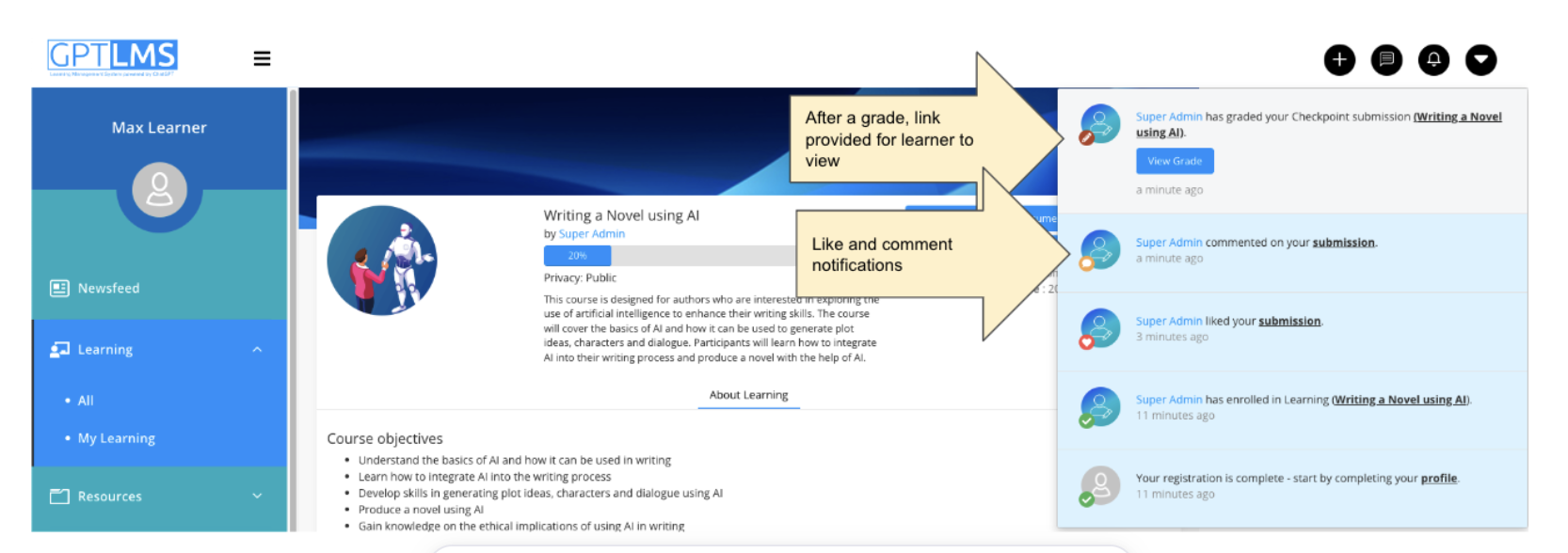
Learners are notified whenever their submission receives a grade, a comment, or a like.
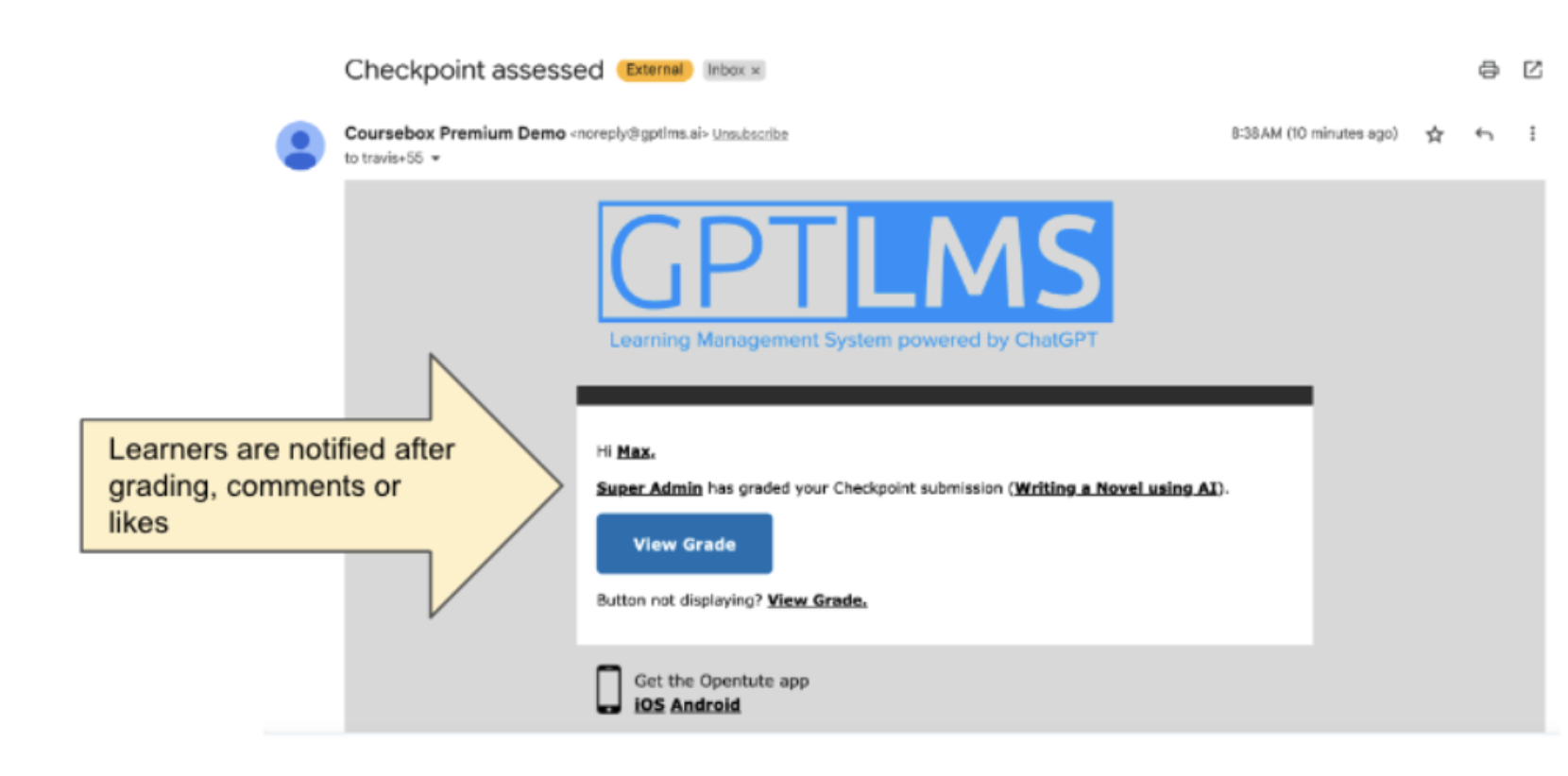
Notifications help keep learners informed and engaged with feedback from facilitators or peers.
For more information on assessment, see Assignment Exporting & Marking and Assignment Grading Options.
Do marks stay permanently?
Yes. Grades and marks remain available under the assignments / submissions (Tick Icon) view as long as the course is published. They are not removed over time and older marks are retained.
Common questions this article answers
Do marks stay under the assignments tab permanently, or do older ones eventually get removed?
Are learner grades and marks retained over time?
How do I notify a learner when their submission is graded?