
How do I publish my course (Private, Public, or Paid)?
A new course starts as Draft, so no learners can see it while you work on it. To publish it, change its Access level in the Share panel to Restricted, Public or Sell this course. You can change the access level at any time.
Publish a course
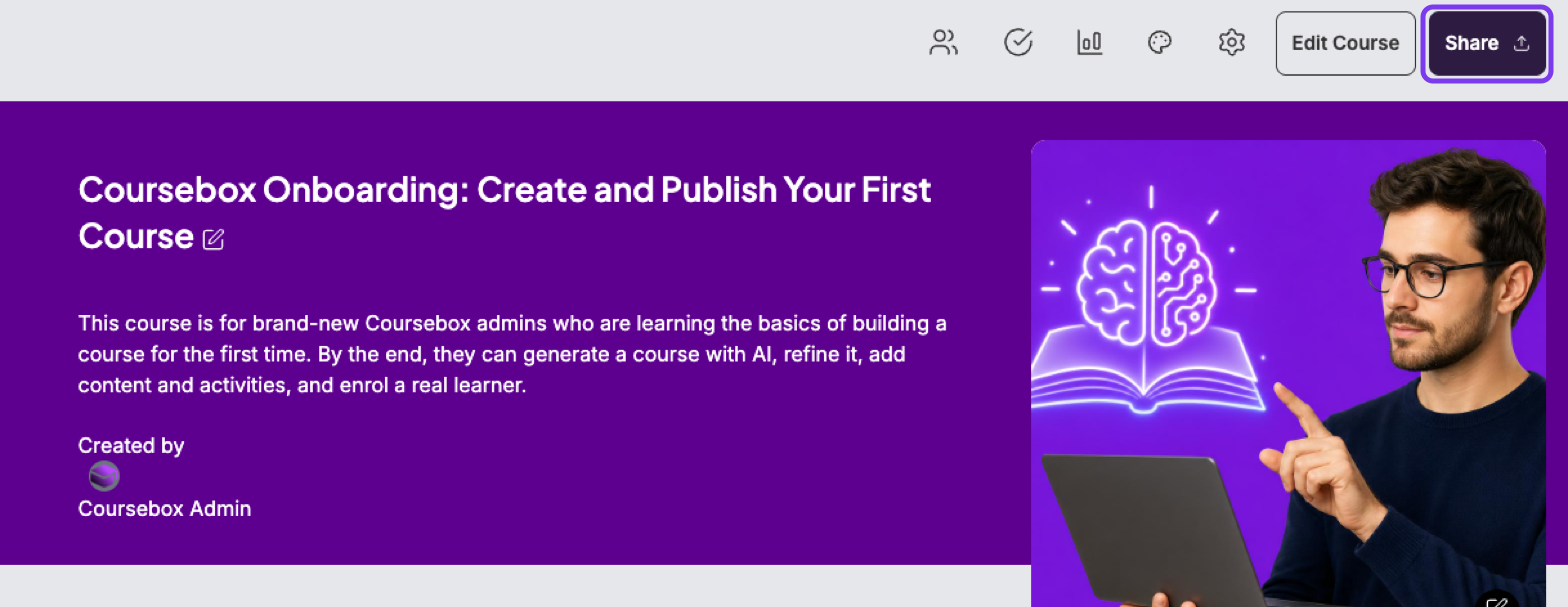
Open the course and click Share (top right).
Open the Access level dropdown and choose an option.
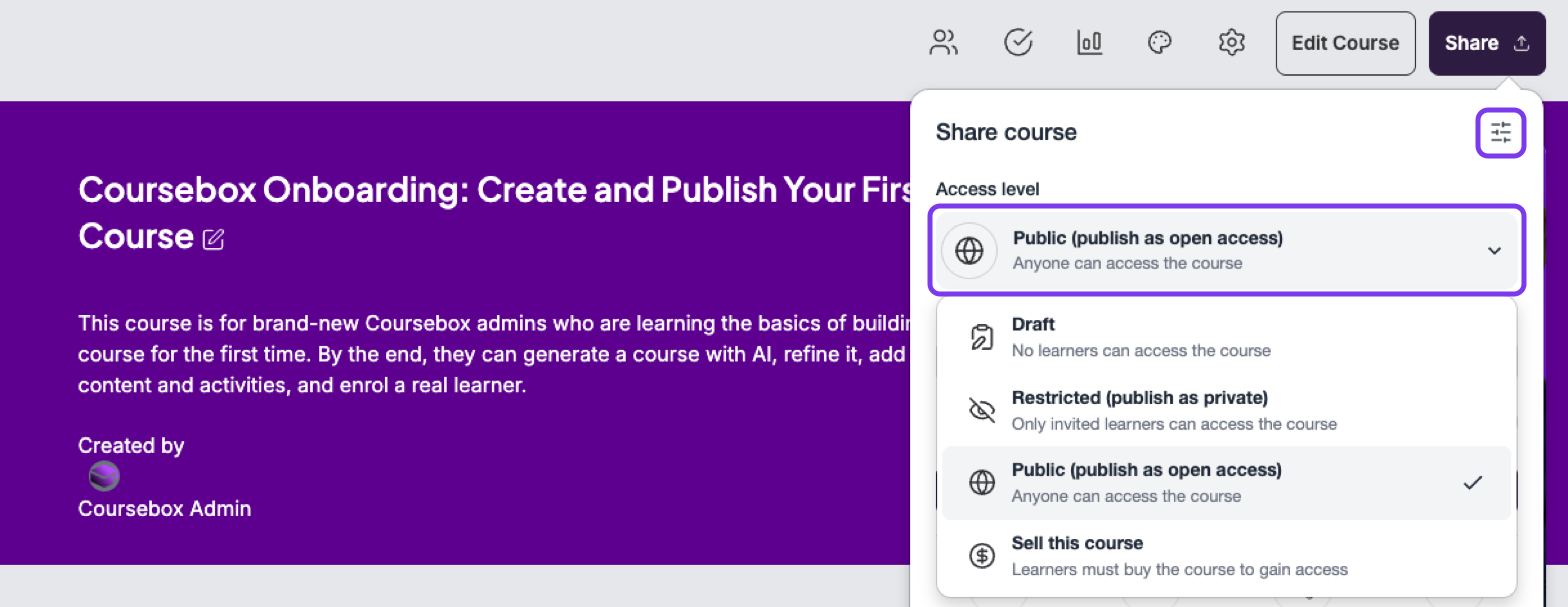
Access level | Who can access it | Learners see |
|---|---|---|
Draft | No learners | Nothing — the course is unpublished |
Restricted (publish as private) | Only invited learners, or those you approve | Request Access |
Public (publish as open access) | Anyone with the link, without approval | Get Started |
Sell this course | Learners who buy the course | Buy Now |
Restricted and Public are saved as soon as you choose them.
Restricted needs Creator or above. On the Free plan you can publish a course as Public. Compare plans.
Sell a course
First link Stripe, PayPal or Paystack — see Managing Payment with Stripe, PayPal or Paystack. Then:
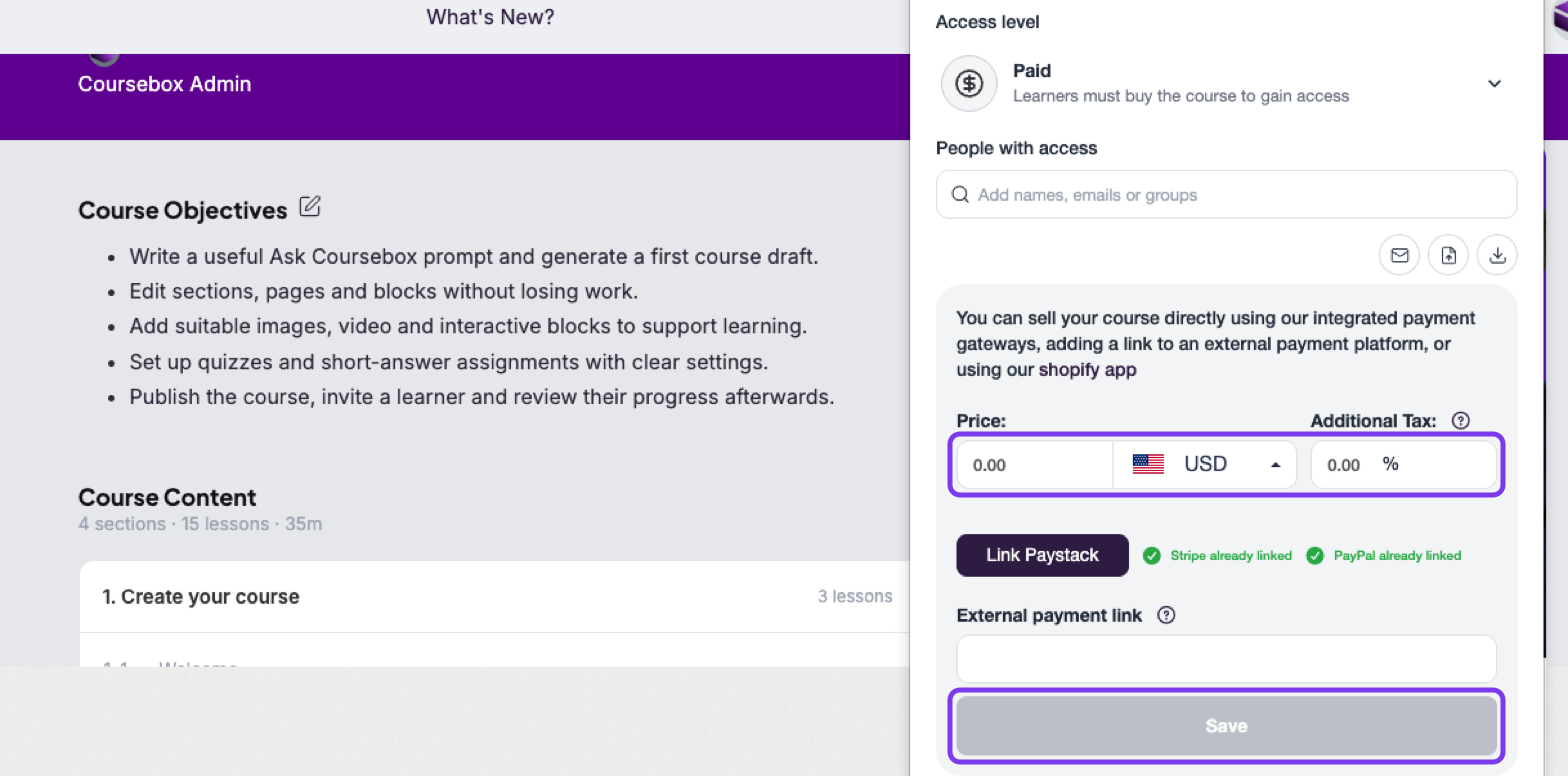
In Access level, choose Sell this course. It shows as Paid.
Enter the Price, choose the currency, and add any Additional Tax (%). To take payment on another platform, paste its address in External payment link instead.
Click Save. The course only goes on sale when you save.
For the full guide, including your portal's public course listing page, hiding a course from search and transferring ownership, see Publish a Course. To share a link, embed or export a course, see Share & Export a Course.
Common questions this article answers
How do I make my course live or go live?
How do I activate or turn on my course for learners?
How do I publish my course as private, public, or paid?
Can I publish a course as private on the Free plan? (No — Restricted publishing needs Creator or above.)
What does Draft mean, and why can’t learners see my course yet?