
How do I create and assign certificates?
Certificates are a valuable way to recognise learner achievement and reinforce your training program's credibility. This guide explains how Super Administrators can design, customise, and assign certificates in Coursebox. From branded backgrounds and logos to linking certificates to specific courses, you'll have full control over how completion is celebrated and displayed.
Certificates are great incentives for learners to complete the course and can also play an important role in branding your training programs.
Plan requirement: Certificates are available on Creator and above (Creator, Creator Plus, Pro, Business and Enterprise) — unlimited, auto-sent on completion and customisable per course. They are not included on the Free plan. The other Achievements tab, Badges (plus the leaderboard and points), requires Pro and above. Compare plans.
ℹ️ Updated August 2026: Certificates are now designed in a drag-and-drop certificate builder and managed under Achievements → Certificates in the left sidebar (alongside Badges). The standalone certificate icon previously shown in the top menu and on the course overview page has been removed.
From the left-hand menu, click Achievements and select Certificates.
Create course certificates
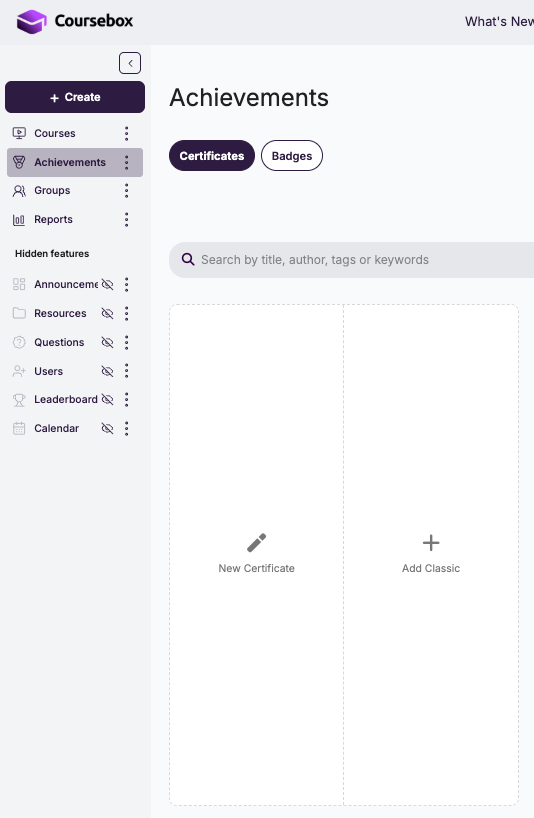
Click Achievements → Certificates from the side navigation. To build a certificate you have two options:
New Certificate — start from a blank canvas and design the certificate yourself.
Add Classic — start from a ready-made template that you can then customise.
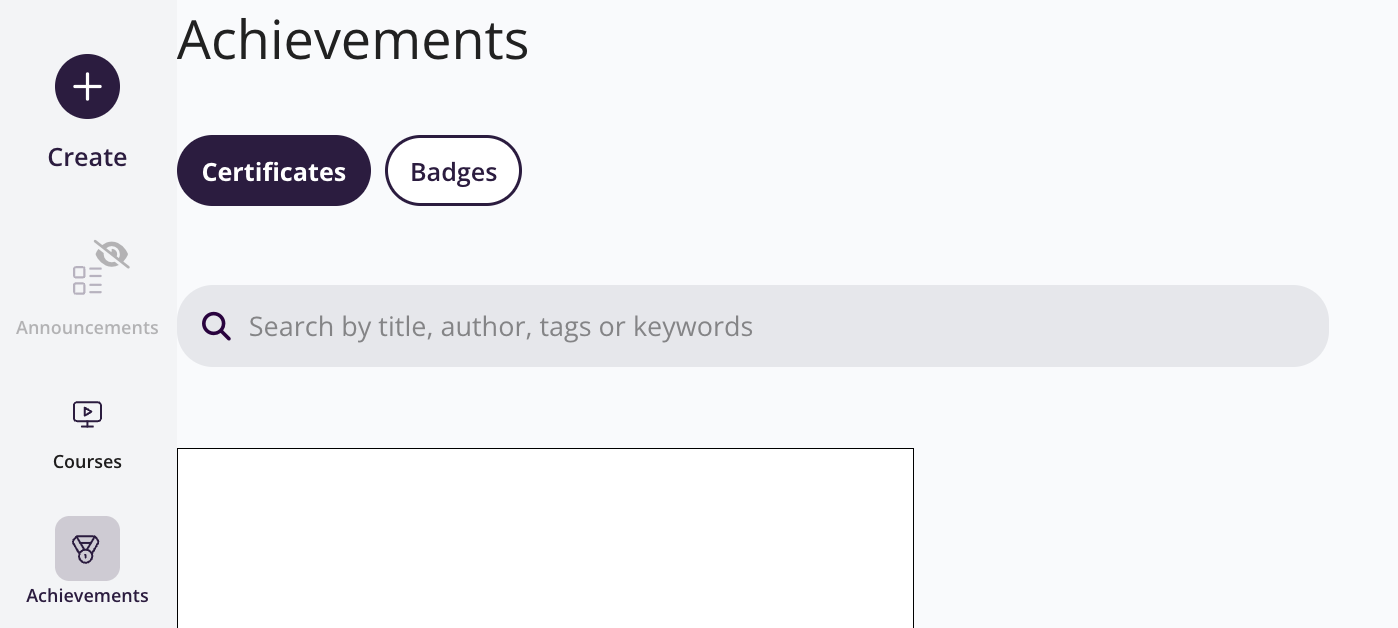
Design a Certificate
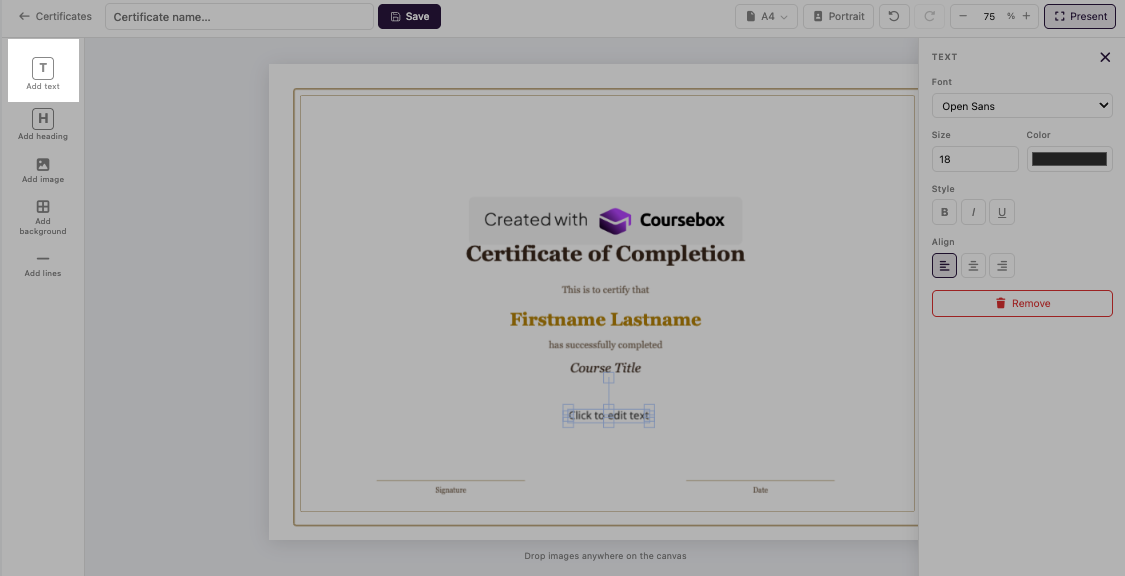
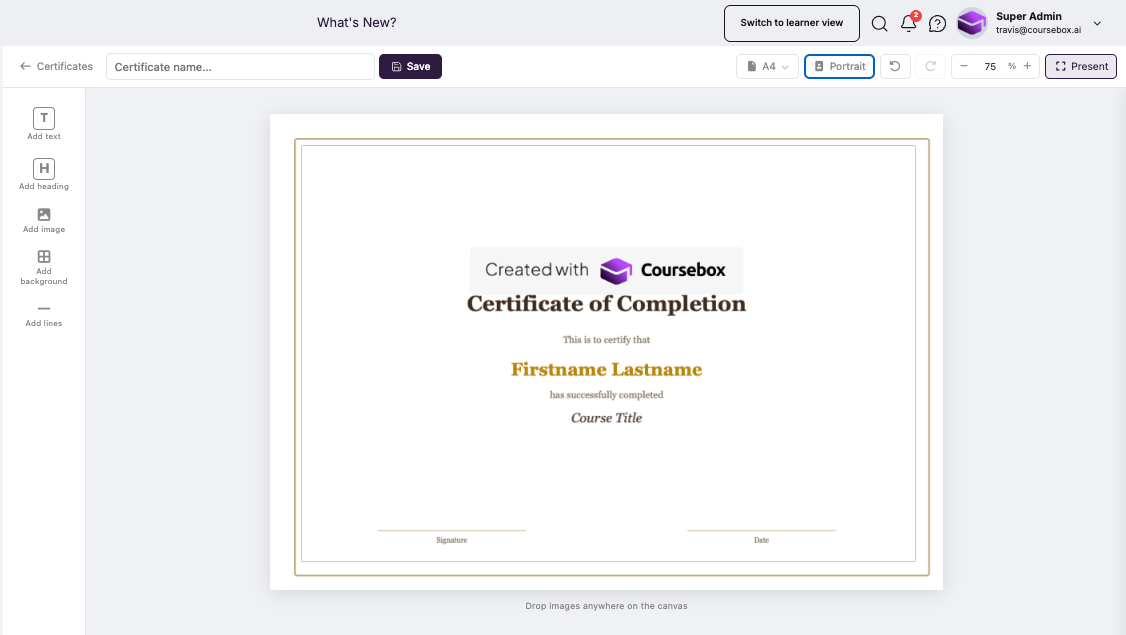
The certificate builder is an editor. Give your certificate a name in the field at the top-left, then use the toolbar on the left to add and arrange elements. Click Save when you're done.
Toolbar elements (left side):
Add text — add a paragraph or body text block.
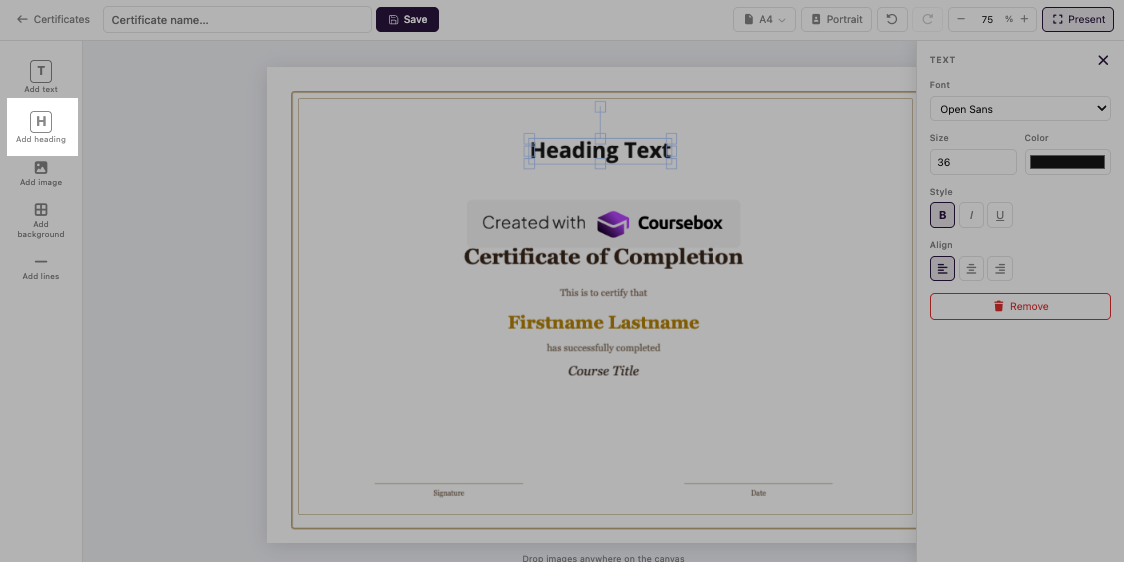
Add heading — add a larger heading, e.g. a title.
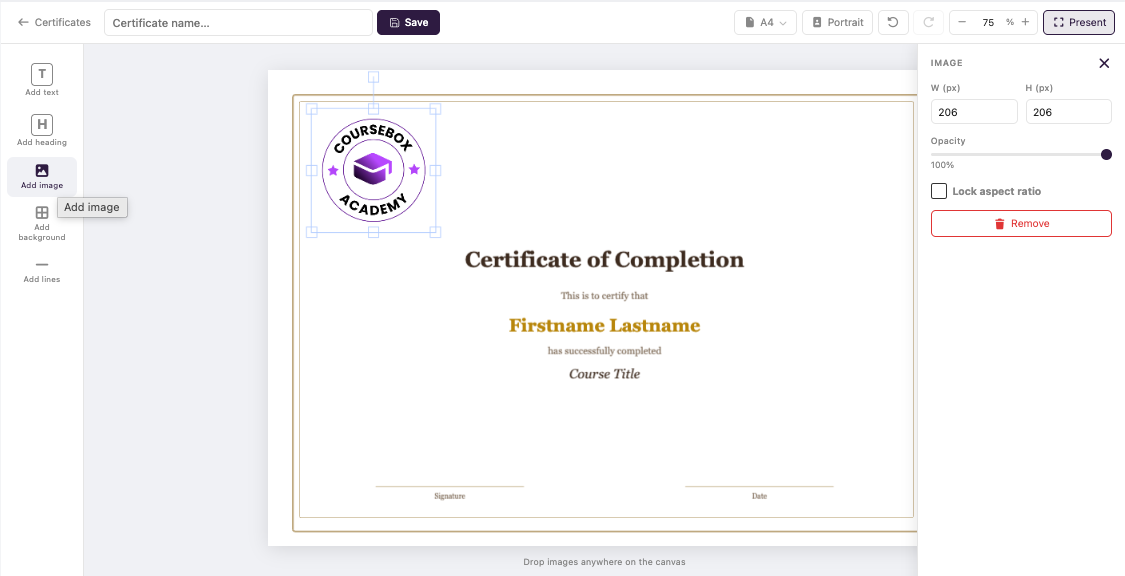
Add image — upload and place an image, such as your logo or a signature. Select an image to set its width, height and opacity, or lock its aspect ratio.
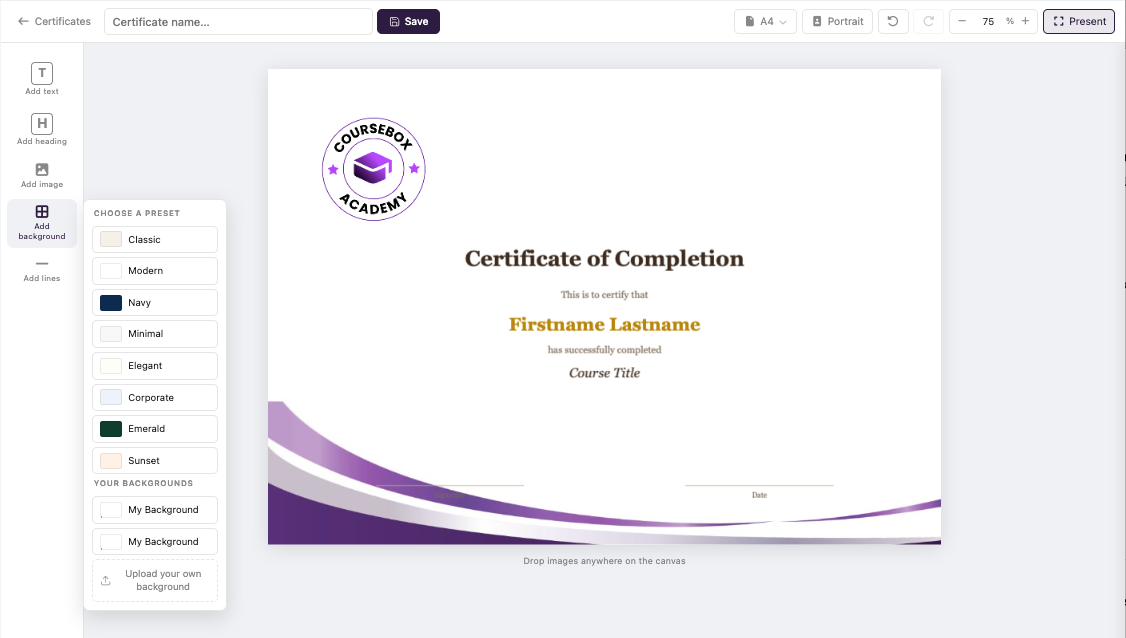
Add background — choose a preset background (Classic, Modern, Navy, Minimal, Elegant, Corporate, Emerald, Sunset), reuse a saved background, or upload your own (recommended size: 210mm x 297mm for A4).
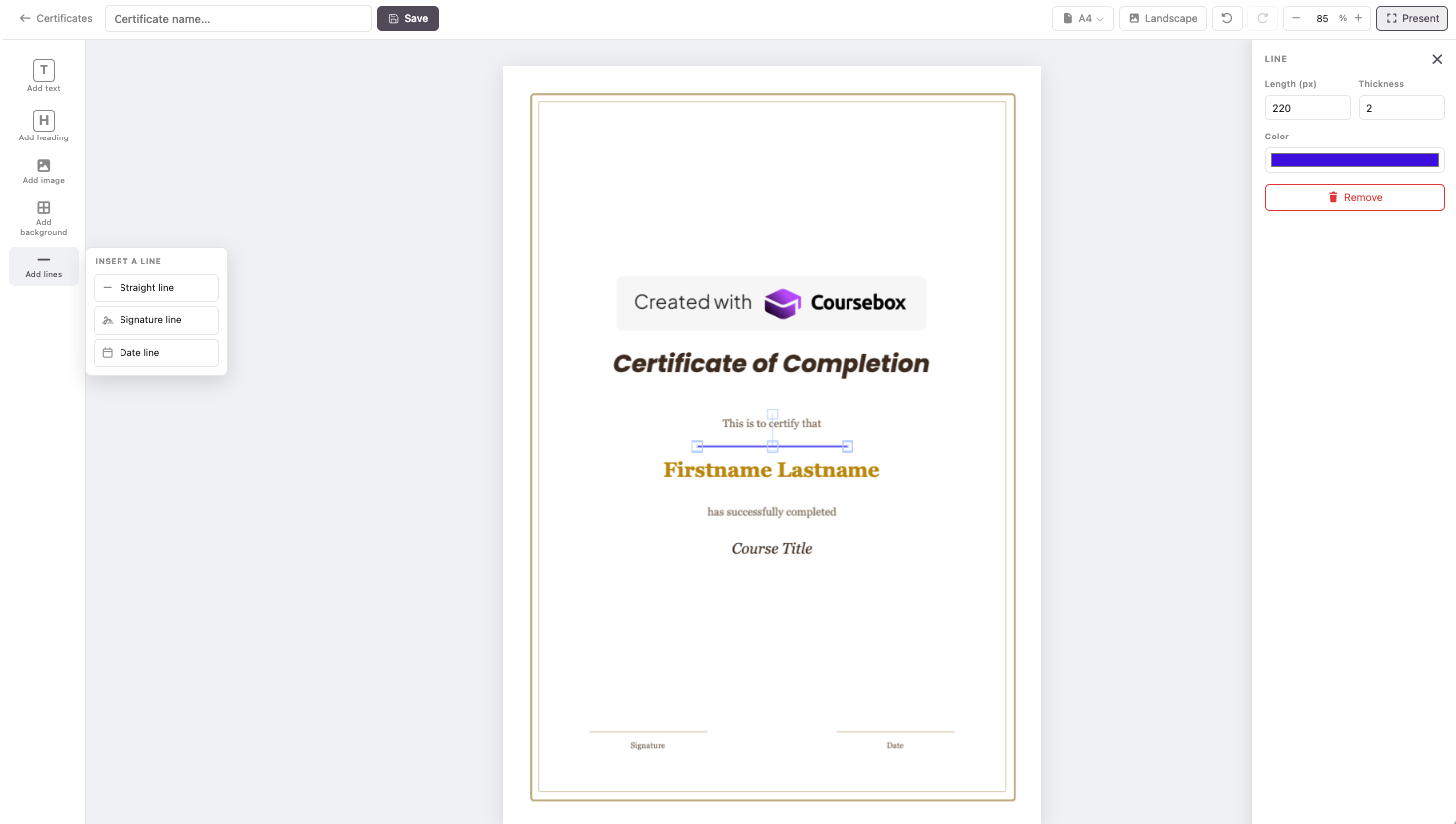
Add lines — add divider or signature lines.
Page setup (top-right):
Paper size — choose A4, A3, A2, A1 or Letter.
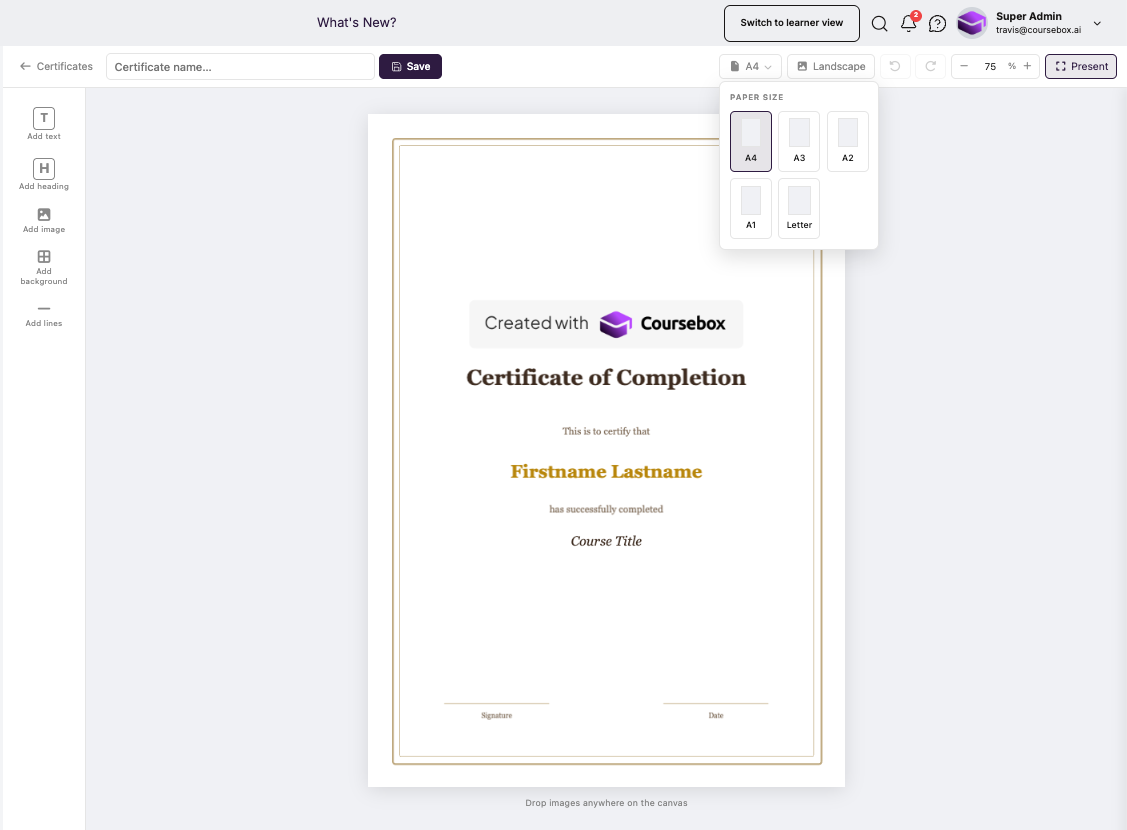
Orientation — switch between Portrait and Landscape.
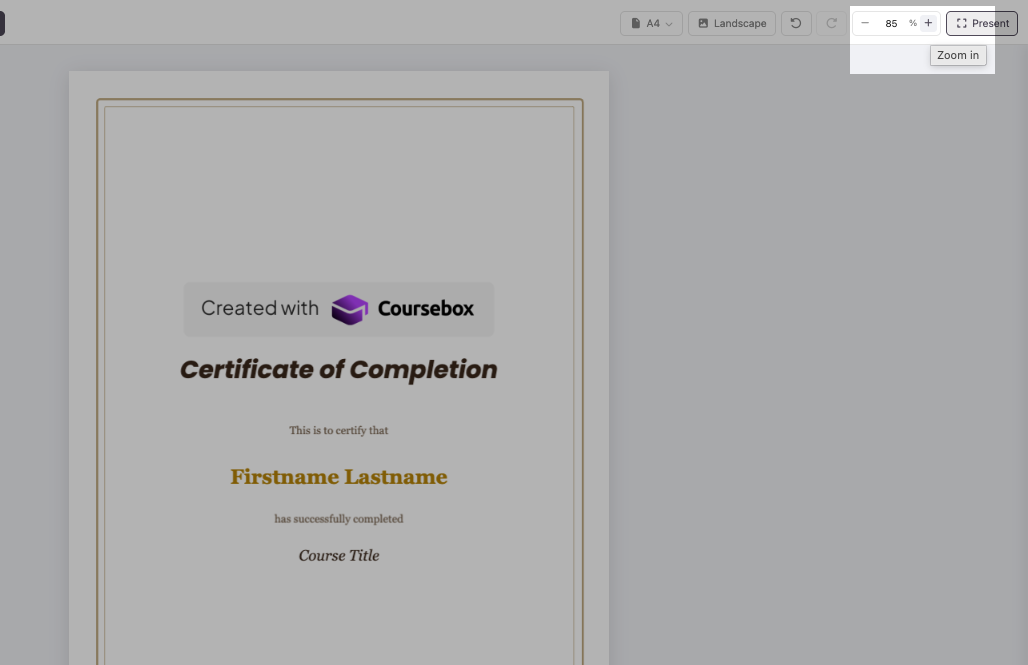
Zoom and undo/redo controls, plus Present for a full-screen preview of the finished certificate.
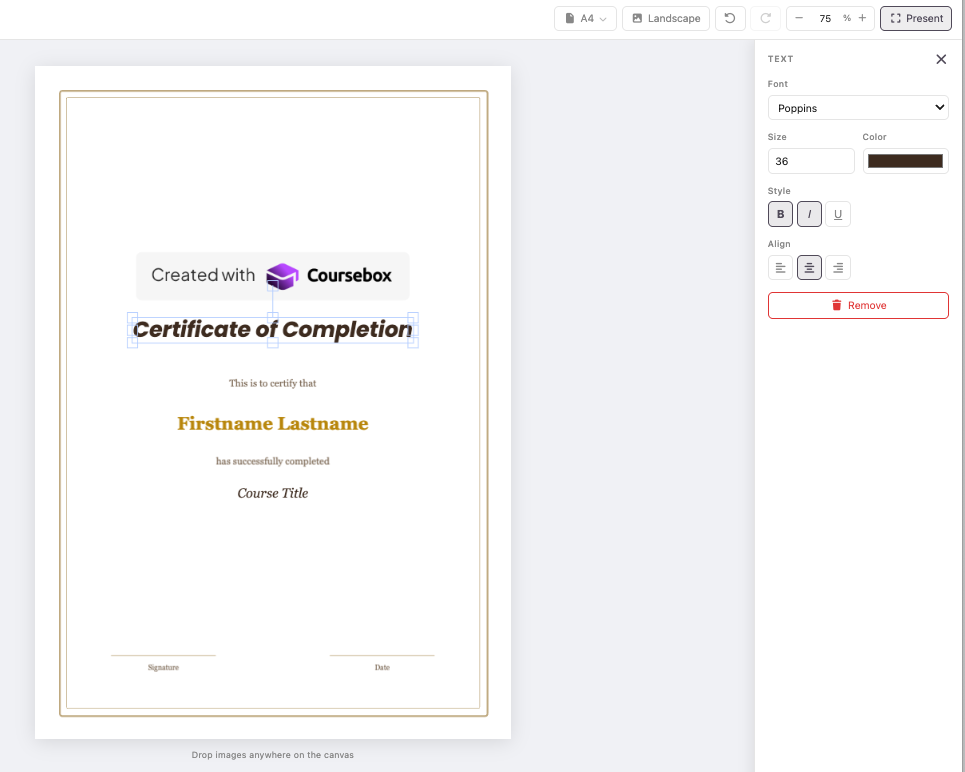
Text styling: Select any text element to open the text panel, where you can change the Font, Size and Color, apply Bold / Italic / Underline, and set the alignment.
Dynamic fields: The default template includes placeholder elements — Firstname Lastname, Course Title and Date — that populate automatically when the certificate is issued. The learner's name and the completion date (the date they finished the course, not the date they enrolled) are filled in for each learner. Position these placeholders anywhere on the canvas.
Duplicate Certificates (Copy a Certificate)
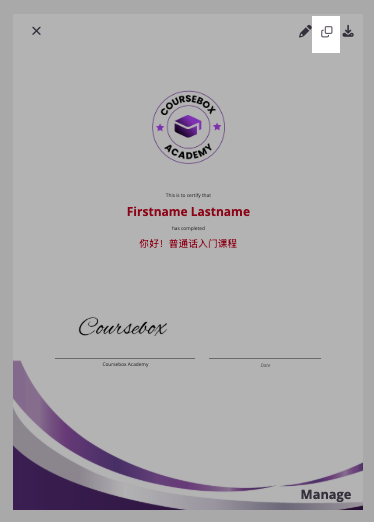
Click the duplicate icon on an existing certificate to create a copy.
Search & Filter Certificates
The certificate page has a search bar at the top. You can search by title, author, tags or keywords to quickly find a certificate.
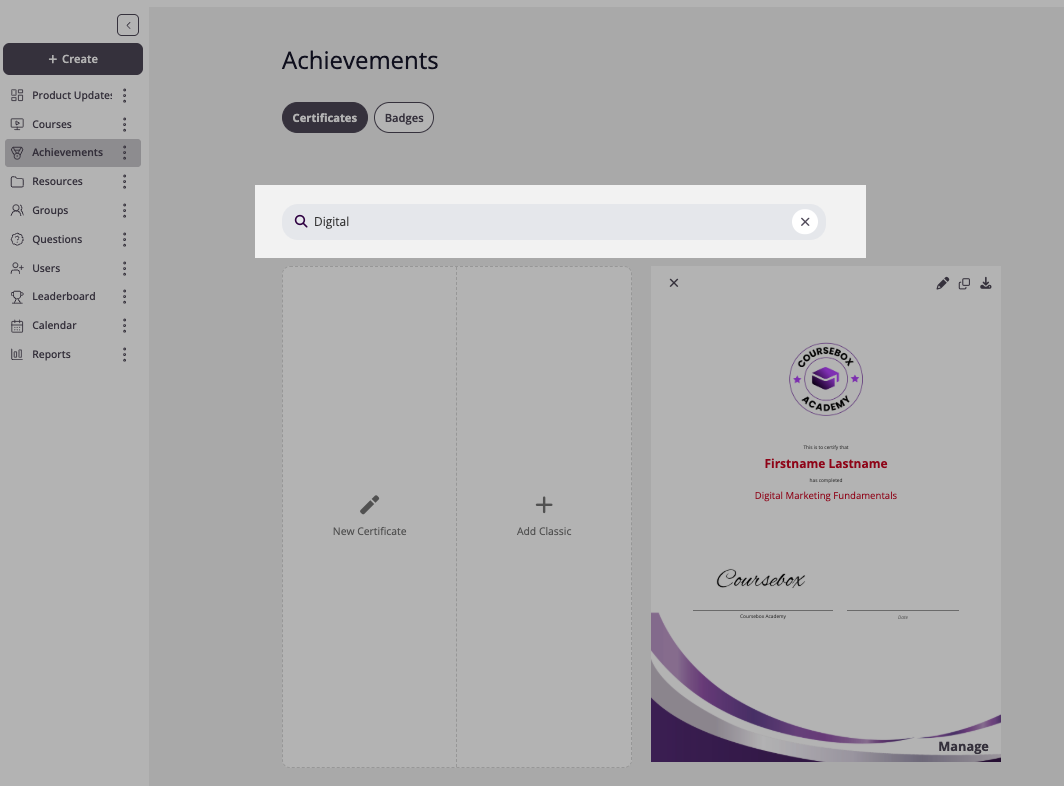
Assign Certificates to a Course (Link a Certificate)
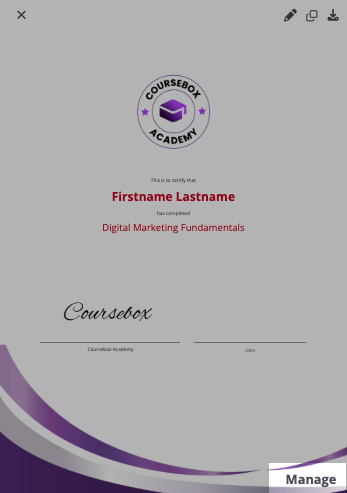
Click Manage on the lower right corner of the certificate to assign it to a course.
The system will prompt you to enter the course name. You can remove the assigned course by clicking Remove.
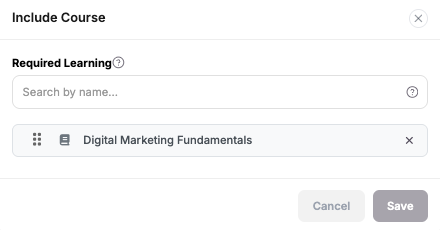
Important: Certificates can only be assigned at the course level. Assigning to individual sections or lessons is not supported. Note: Your course must be published before a certificate can be assigned and issued to learners. If your course is still in draft, publish it first via the Share panel before linking a certificate.
Common questions this article answers
How do I enable a Certificate of Completion URL to be generated and provided to students when they complete a course?
How do learners get a link or URL to their certificate?
How do I share or send a certificate to students on completion?
Where is the certificate verification or credential URL?
Which plan do I need for certificates? (Creator and above — not available on Free.)