
How do I translate an existing course into another language?
There are three ways to translate a course. Choose the one that fits: keep the original structure, rebuild the course in the new language, or let learners translate it as they read.
Option 1: Duplicate the course and translate each page (recommended)
Use this option to keep the same structure, lessons and assessments.
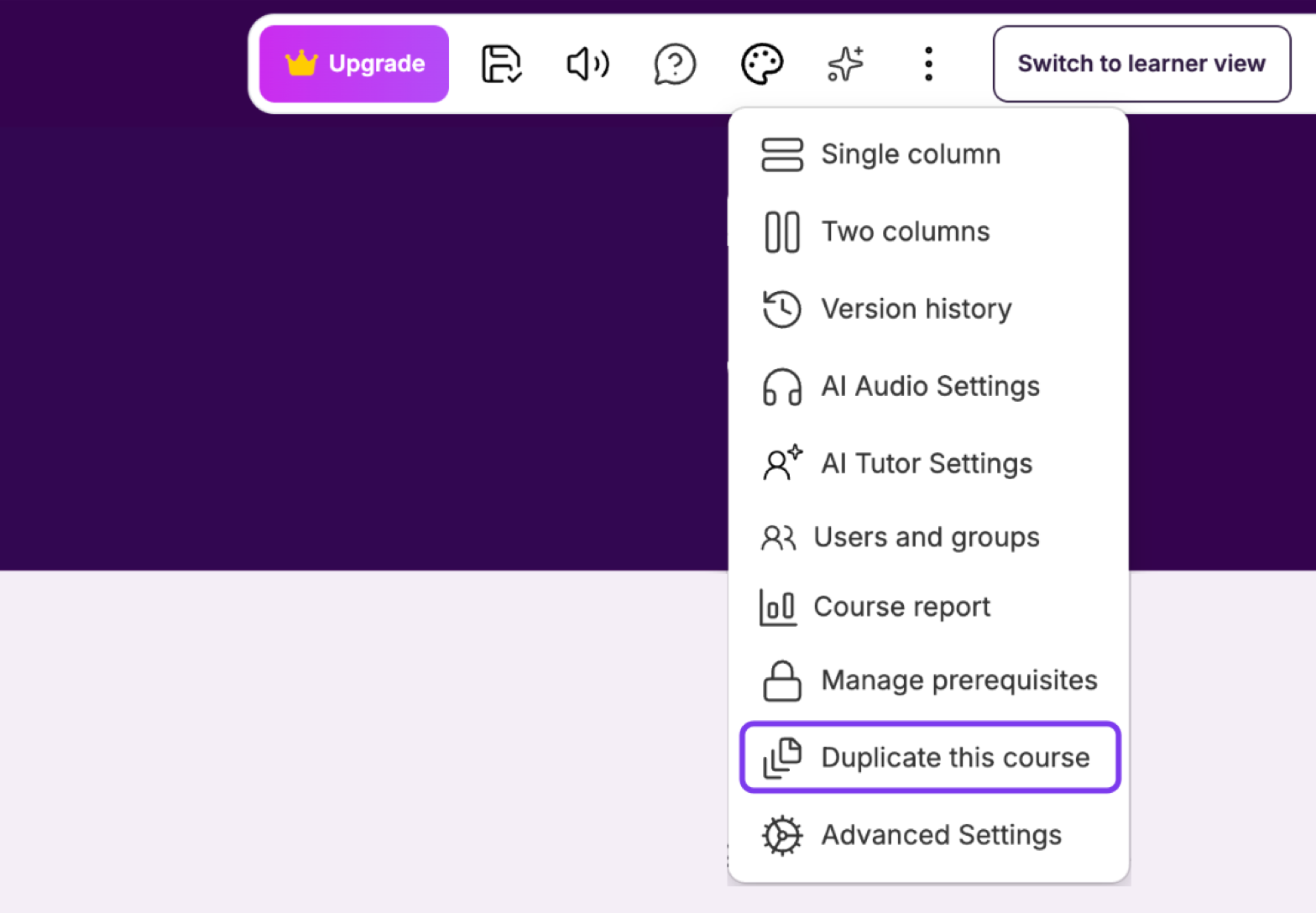
Open the course in the editor, click More (⋮) in the top toolbar and select Duplicate this course.
Open the duplicated course.
On the first page, click the AI Editor (the sparkle icon) in the top toolbar.
Ask the AI Editor to translate the page, for example "Translate this page into Finnish".
Check the translation, then repeat for each page.
The AI Editor works on the page you have open, so you translate one page at a time. This lets you check each page before you move on. See Use AI Tools & Elements.
Option 2: Export a PDF and rebuild the course with AI
Plan requirement: PDF export is available on Creator and above. Compare plans.
Use this option to generate a fresh course in the new language from your existing content.
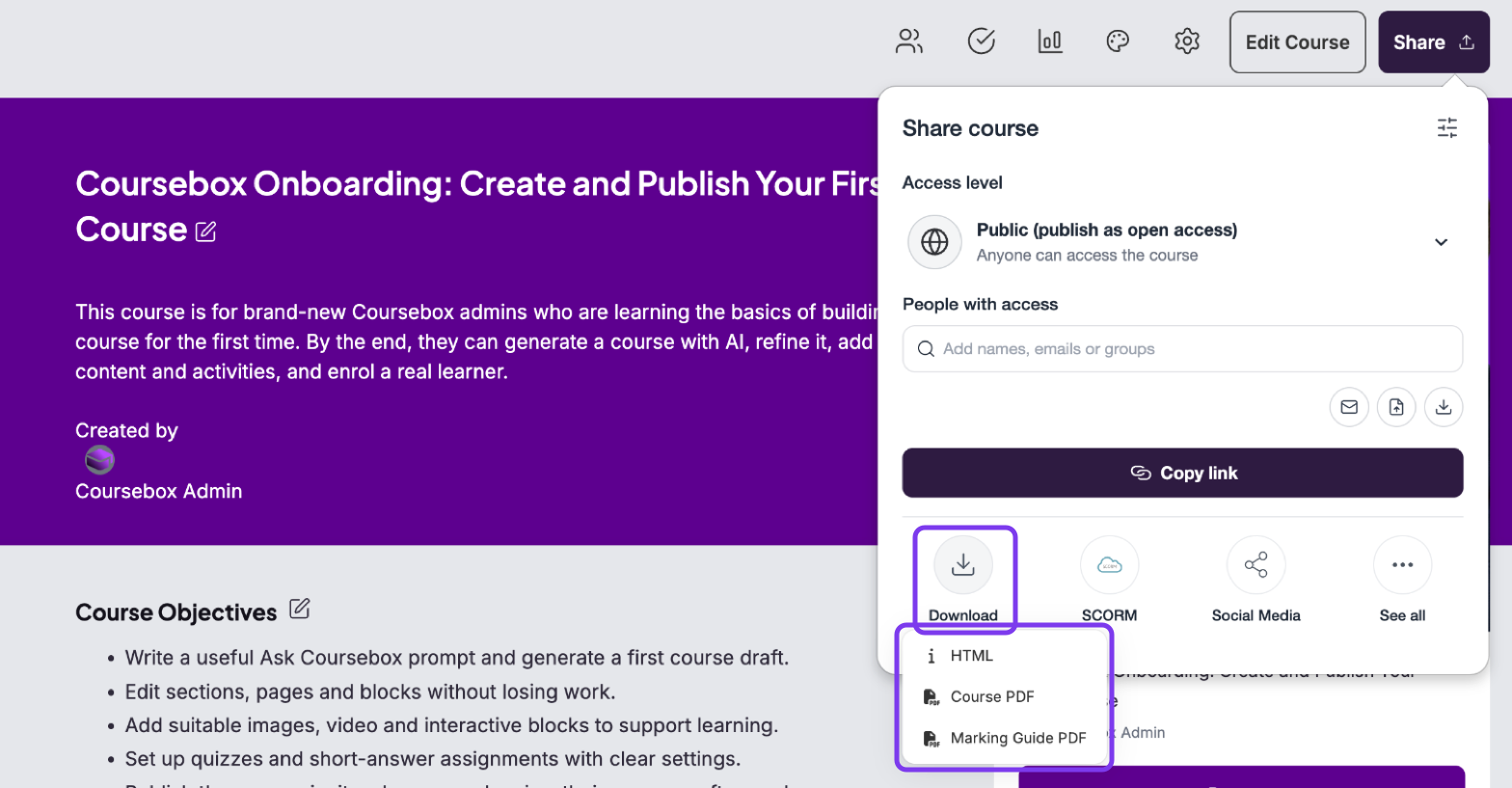
Open the original course, click Share (top right), click Download and choose Course PDF.
Click + Create at the top of the left menu.
Click + in the prompt box, select Add files and upload the PDF.
Click the language selector (EN) in the prompt box and choose the new language.
Optionally, click Auto setup below the prompt box and choose the saved setup you used for the original course, so the new course keeps the same learner level, tone, AI tutor and theme.
Send your prompt to create the course.
For more detail, see How do I share or export my course PDF or HTML? and Create a Course using AI.
Option 3: Turn on Google Translate
Plan requirement: Google Translate is available on Pro and above. Compare plans.
Google Translate adds a translation control to every page of your portal, so learners can read any course in their own language. Your course content stays in its original language.
Click the dropdown (▼) next to your profile icon and select Settings.
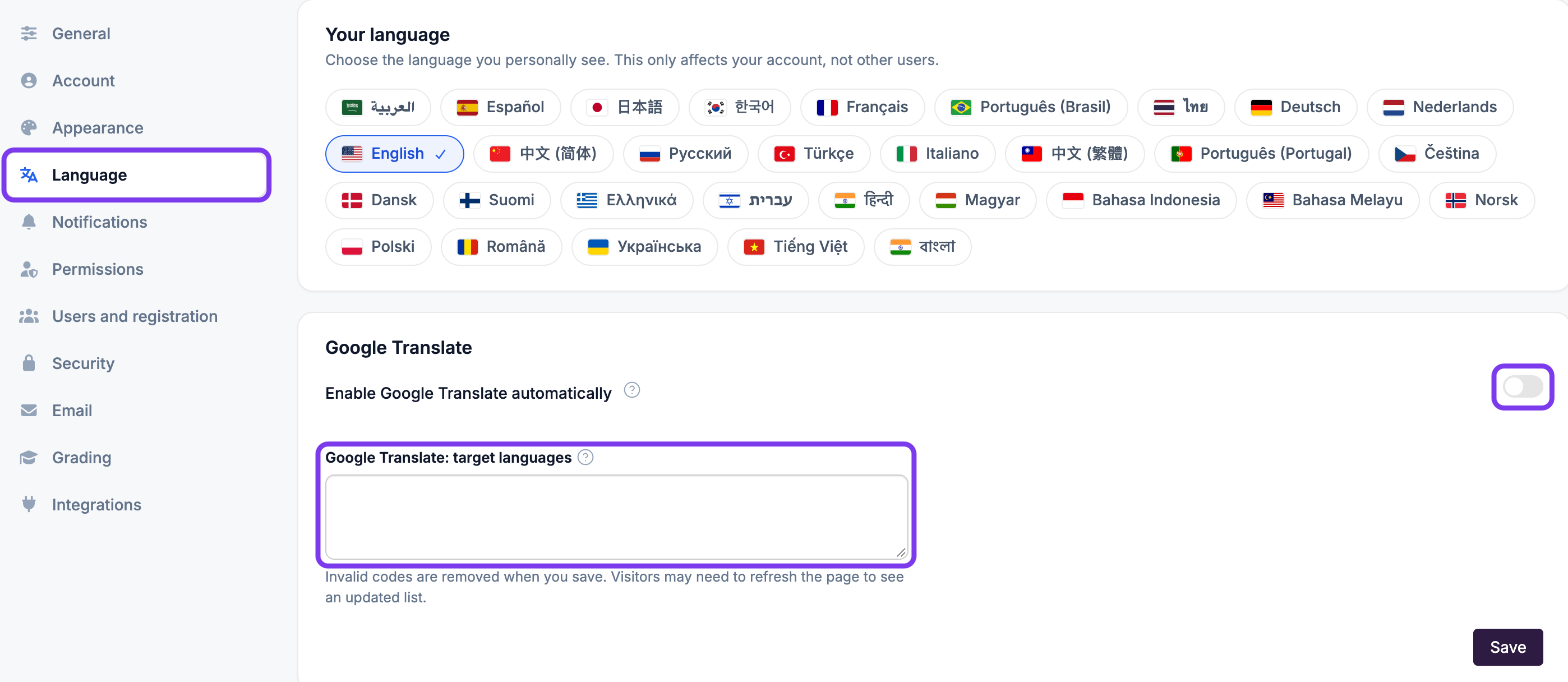
In the left menu, click Language.
Under Google Translate, turn on Enable Google Translate automatically.
Optionally, list the languages to offer in Google Translate: target languages as comma-separated codes, for example
ar, zh-CN, es, fr, de, then click Save.
For more detail, see Language Settings.