
Can I share my course certificate to LinkedIn?
Yes, you can share your certificate directly to LinkedIn. Follow these steps to copy your certificate link and add it to your LinkedIn profile:
Log in to your profile. Go to your profile dashboard where your course history and achievements are listed.
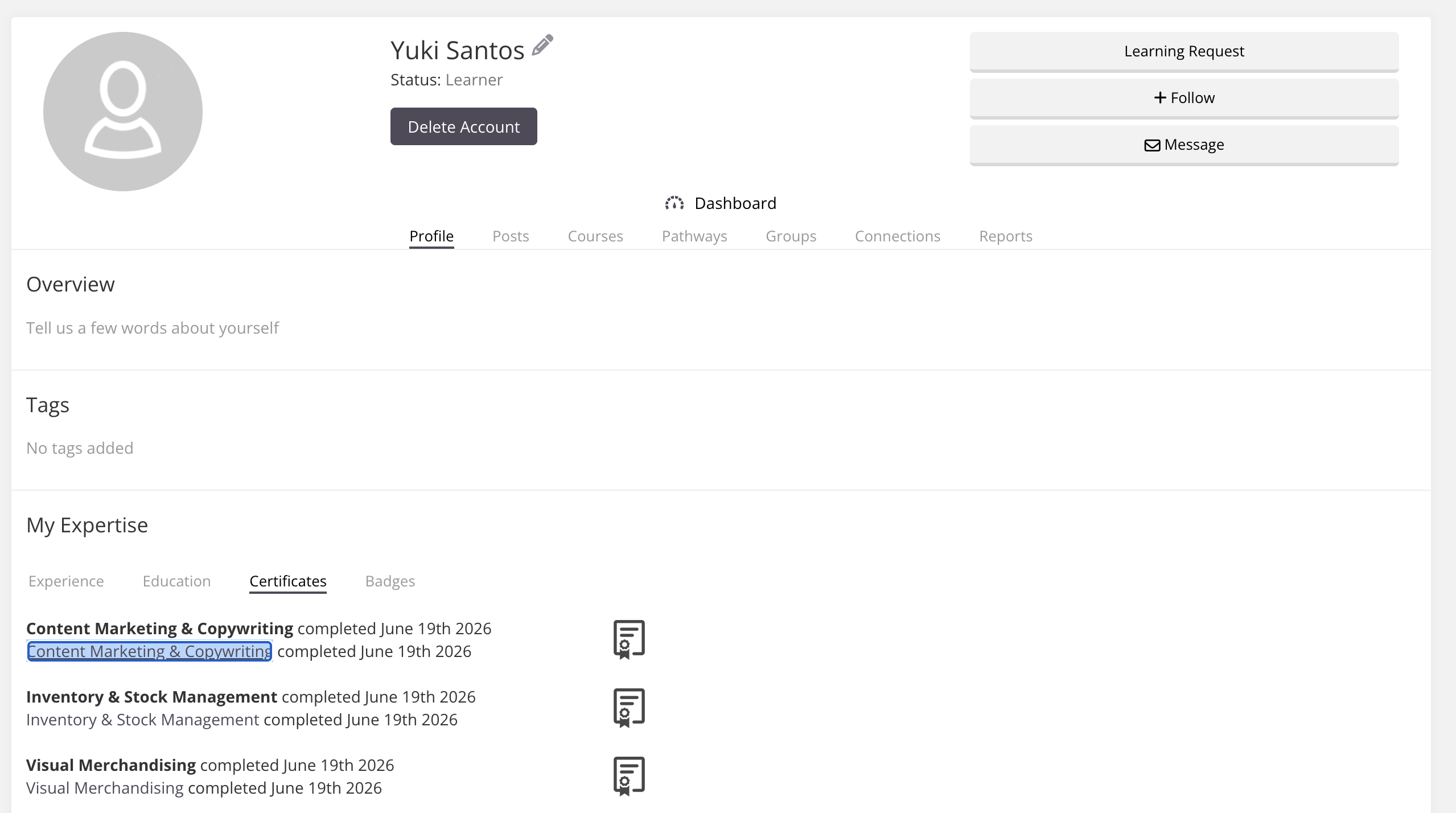
Navigate to the Certificates tab. Under My Expertise, click the Certificates tab to view all your completed certificates.
Locate the certificate. Find the course certificate you'd like to share
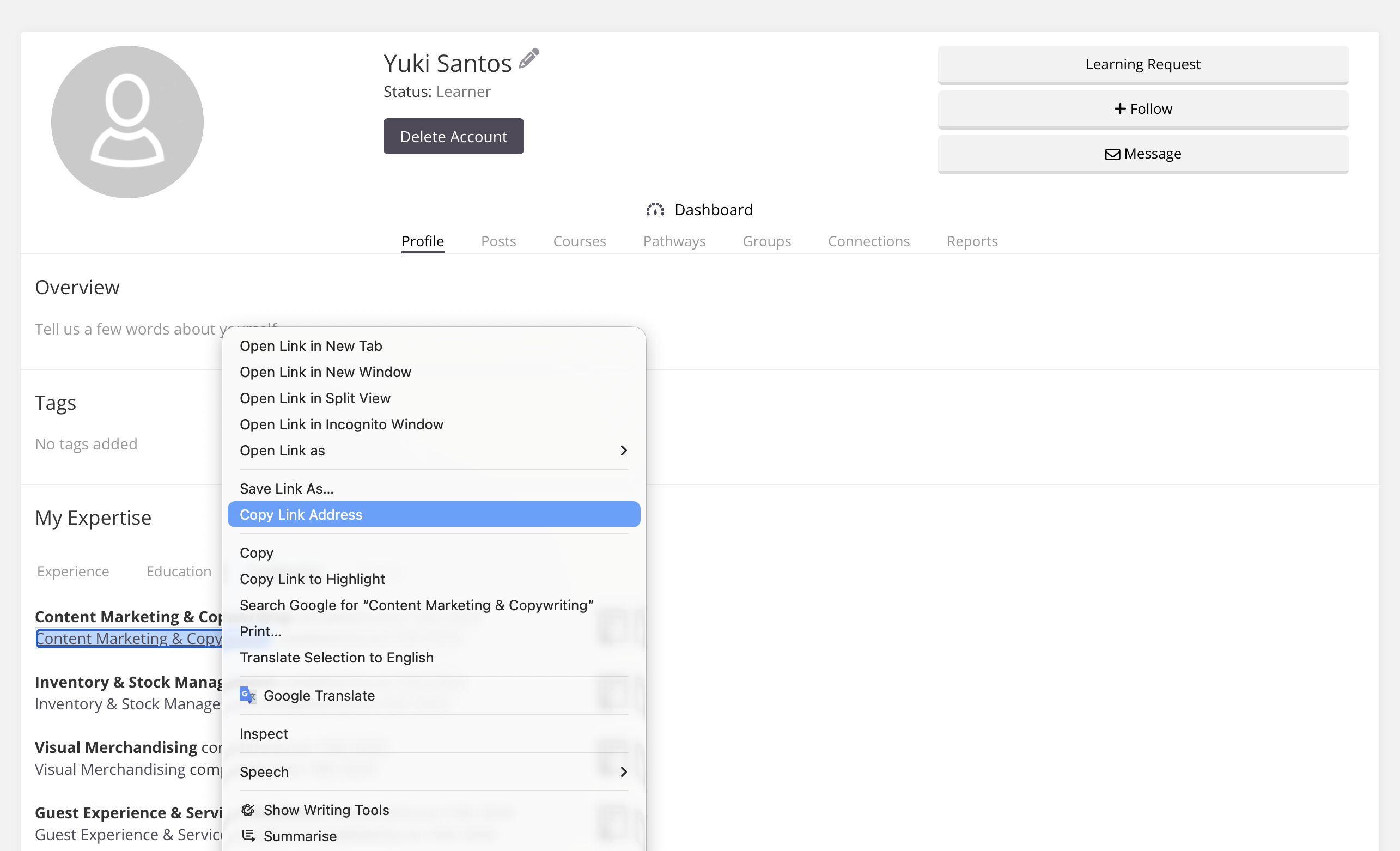
Copy the certificate link. Right-click on the certificate title and select Copy Link Address. This will copy the direct URL to the PDF certificate.
Go to LinkedIn. Log in to your LinkedIn account, navigate to your profile, and scroll to the Licenses & Certifications section. Click the + icon to add a new certification.
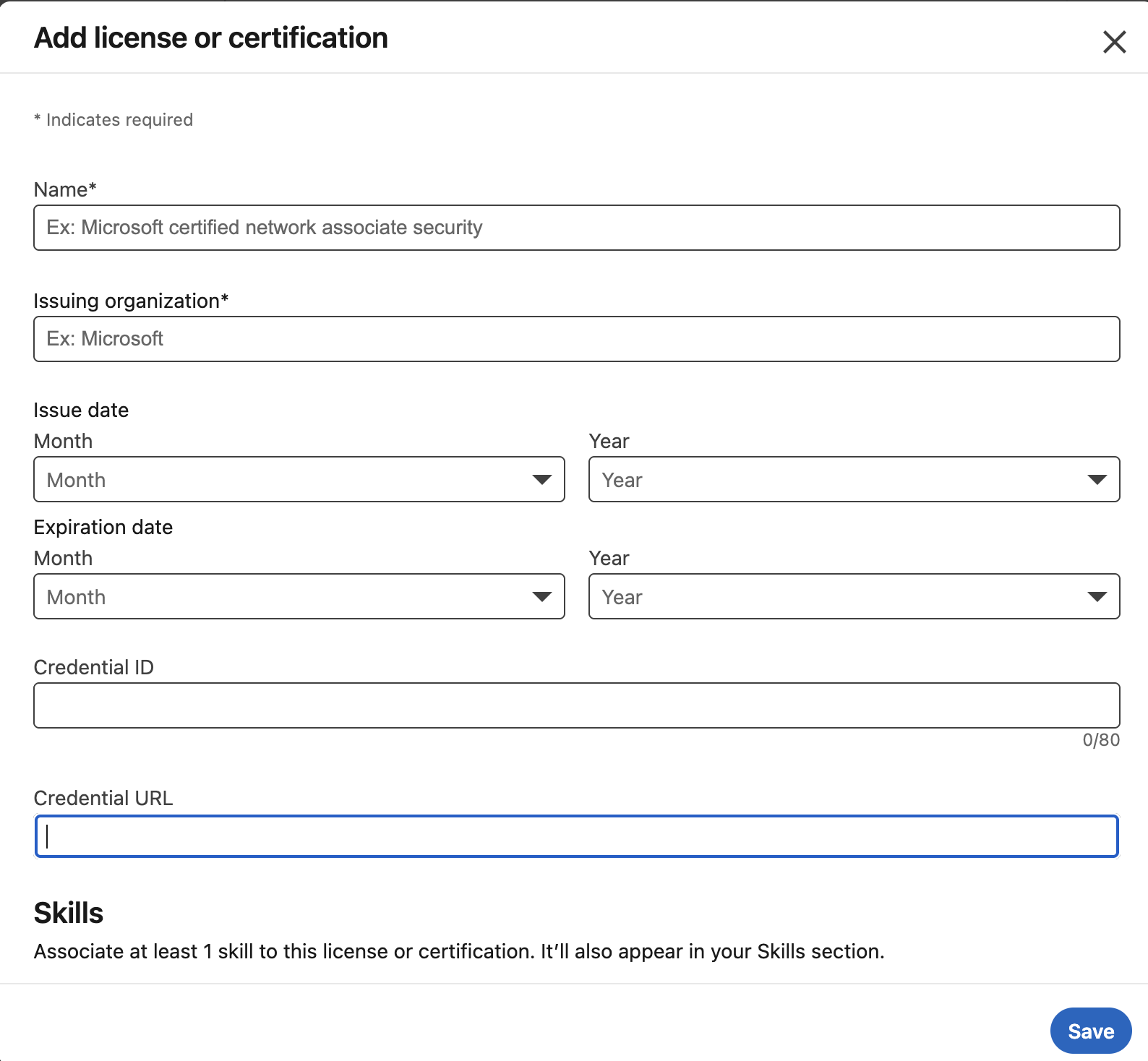
Fill in the details:
Name: Course name (e.g. The Alcohol, Smoking and Substance Involvement Screening Test (ASSIST))
Issuing Organization: e.g. ASSIST Portal or your RTO
Issue Date: e.g. May 2025
Credential URL: Paste the certificate link you copied earlier.
Leave Credential ID blank unless your certificate includes one.
Save. Click Save and your certificate will now appear on your LinkedIn profile.
For more information on certificates, see Certificate Management.
Note: This article is for learners sharing their own certificates. For admins who want to set up and assign certificates to courses, see How do I create and assign certificates?