
How do I navigate between my courses and drafts?
Coursebox makes it easy to create, organise, and manage your courses — whether you're browsing available learning content, tracking your own progress, or developing new material. With the key navigation tools and views, you can access and customise courses with confidence.
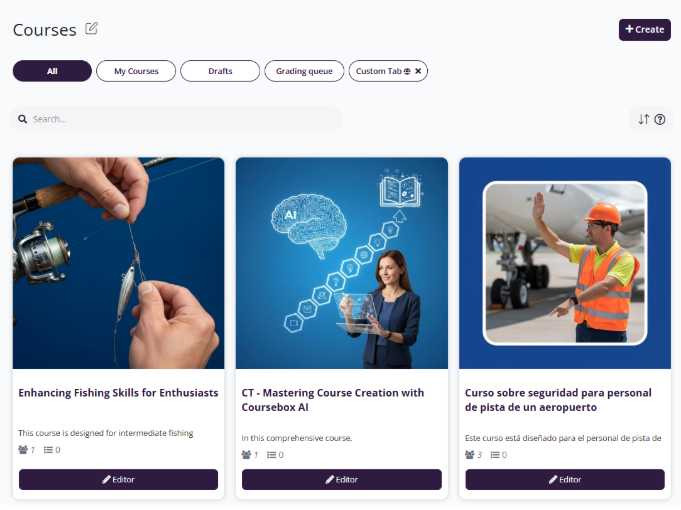
All Courses tab
Clicking All displays a complete list of available courses that match your area of interest. This view provides an easy way to browse, explore, and select from the full range of courses on offer — helping you find the right content to support your learning journey.
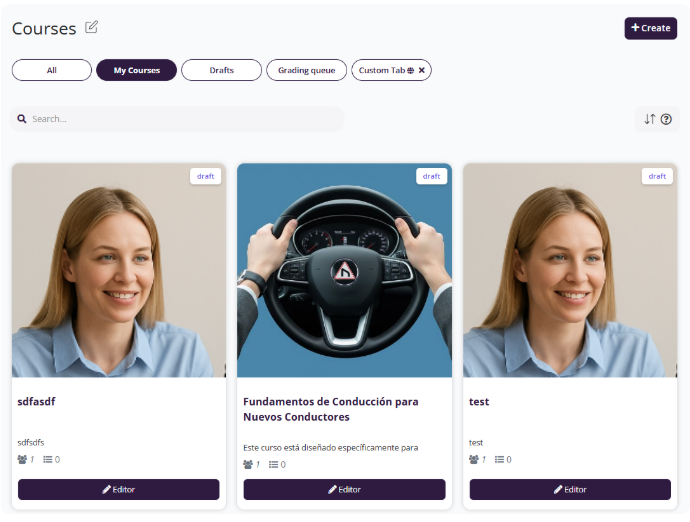
My Courses tab
The My Courses section shows all the courses you're currently enrolled in. It's your personalised learning hub — track your progress, resume where you left off, and stay organised as you work through each course. This view keeps everything you're learning in one convenient place.
Going back over content you've already completed
A course does not disappear once you finish it. Any course you're enrolled in — including ones you've already completed — stays in your My Courses view, so you can reopen it at any time and go straight to the page or lesson you want to revisit rather than starting over.
From the left menu, click Courses, then select My Courses.
Click the course you want to revisit.
Use the course's contents list or menu to jump to the lesson or page you're after.
There is no keyword search inside a course. Coursebox does not have a tool that searches every page of a course for a word and lists the matches. If a learner needs to find specific information again, the practical options are:
Ask the AI Tutor — it's trained on the course content, so a plain-language question is the closest thing to searching inside the course. See What is the AI Tutor in Coursebox?
Reopen the course from My Courses and navigate to the lesson, as above.
Use the browser's find function (Ctrl+F on Windows, Cmd+F on Mac) to search the page currently open — one page at a time, not the whole course.
Note that the portal-wide keyword search (the magnifying glass at the top right) is available to Admin, Super Admin and Facilitator accounts only — learners do not see it. See Platform & Course Navigation.
Drafts tab
The Drafts section allows you to manage content that's still in progress. Whether you're working on a new course or editing existing modules, this is where all unsaved or unpublished changes are stored. Use this area to review, continue editing, or discard drafts before making them live to learners.
Under Learning on the left-hand panel, go to Drafts.
Drafts is a course-creator area. It is not visible to learners.
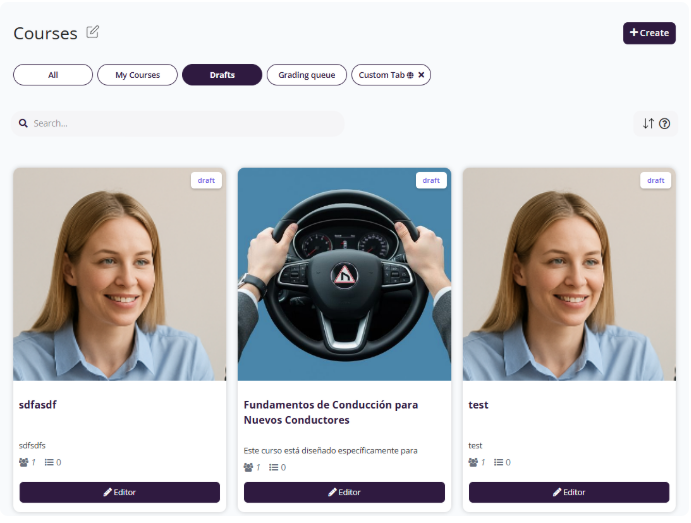
The Drafts section helps you quickly return to content you're still working on.
The steps are:
Clicking Drafts takes you back to your saved, unpublished work.
To preview a draft, click on the selected course you're working on — this will open the draft's landing page, allowing you to review and continue editing.

Custom tabs
Currently, only the Super Admin has the ability to create or delete search filters for the community. These filters apply platform-wide and are visible to all users within the portal.
The Custom Tab feature allows you to personalise the view in the My Courses section by filtering content based on specific criteria, such as course title, skills, or location. This is especially useful if you frequently access particular types of courses or want to create an organised view tailored to your preferences.
From the left menu, click Courses, then select My Courses.
You will see your list of courses displayed in tile format.
On the right-hand panel, click the arrow icon or Search Filter label to expand the filter options.
In the Title field, type the course title (e.g. Train the Trainer).
(Optional) Use the Skills and Location fields to narrow down your results further.
Click Search to apply the filter.
Scroll to the bottom of the filter panel.
In the Tab Name field, enter a name for your custom tab (e.g. Learning College).
Click Save.
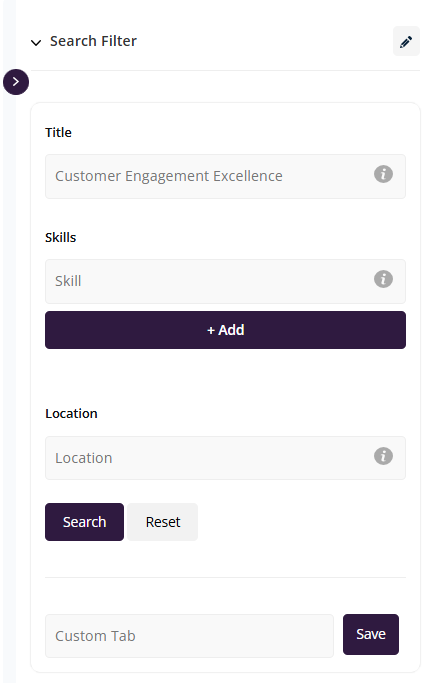
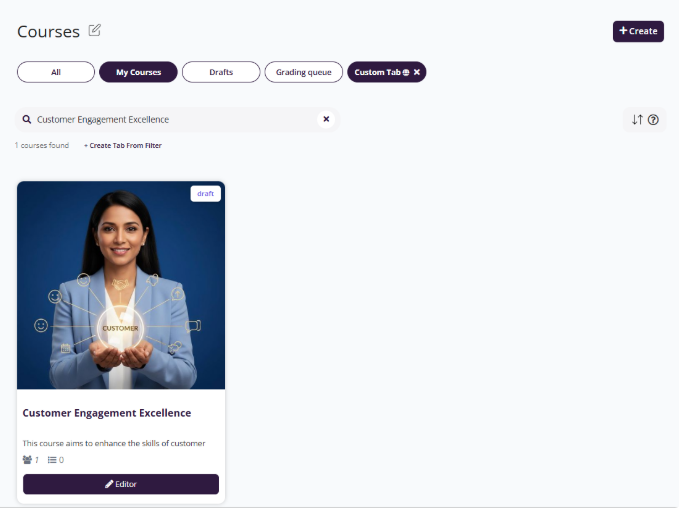
Your custom tab will now appear at the top of the My Courses view next to All, My Courses, and Drafts.
Click on your newly created tab (e.g. Learning College) to quickly view courses that match the saved filter.
For more information on navigation, see Platform & Course Navigation.