Platform & Course Navigation
This topic provides an overview of how to move around the Coursebox platform and find what you need quickly. It introduces the main navigation areas, explains how content is organised across the platform, and shows how to locate courses, resources, groups, and reports—helping users confidently navigate Coursebox as learners, creators, or administrators.
Who this article is written for: unless a section says otherwise, the steps below describe the Admin, Super Admin and Facilitator (course creator) experience. Learners see a reduced version of the left-hand menu and do not have access to admin areas such as Users, Reports or Drafts. Where a feature differs for learners, it is called out explicitly — see What learners can and cannot search below.
Watch the tutorial videos found in our YouTube Video Library.
Navigate the Platform
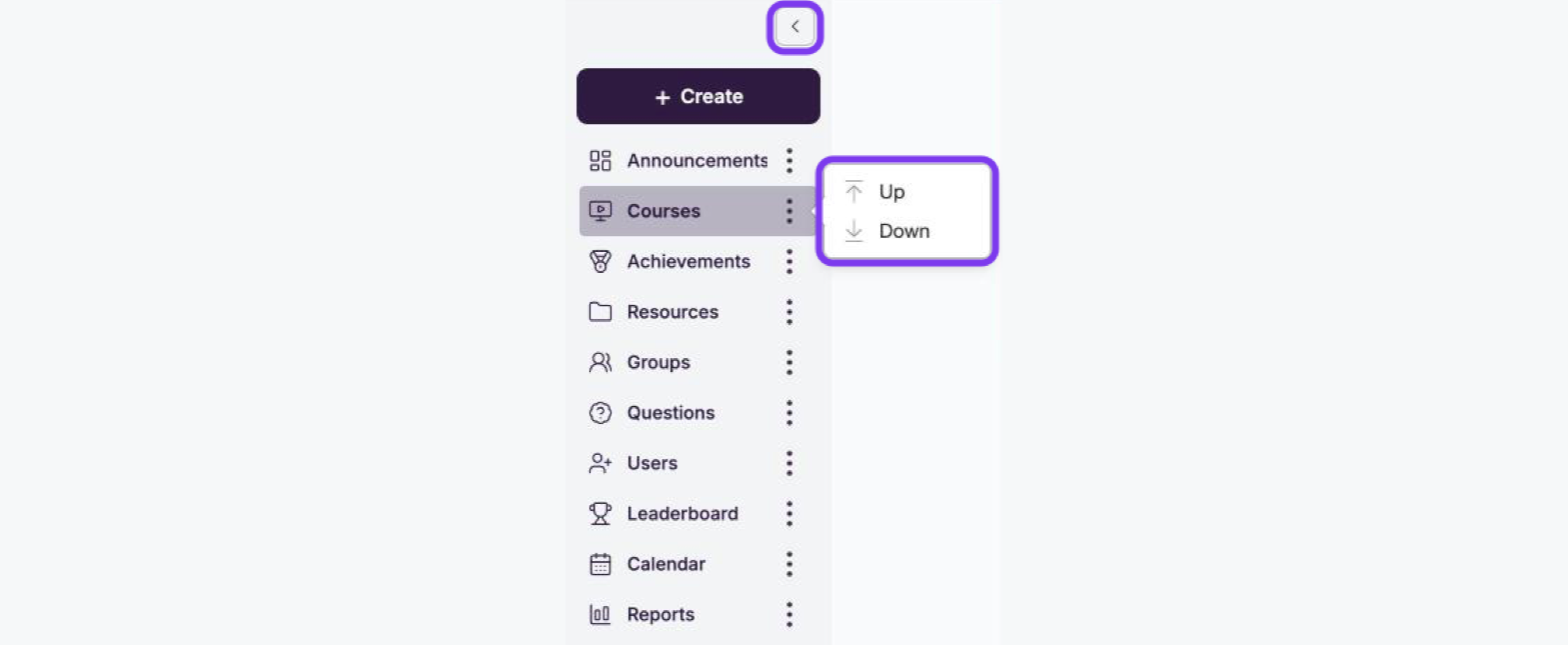
The left-hand menu in Coursebox provides quick and intuitive access to all key areas of the platform. From this navigation panel, users can manage courses, access shared and personal resources, collaborate in groups, ask or answer questions, join community discussions, view calendar events, and generate reports. Each section expands to reveal more specific tools, helping users stay organised and engaged. Whether you're a learner, facilitator, or admin, this menu serves as your central hub for navigating the Coursebox learning environment efficiently.
Customize Your Left Menu
You can personalize the left-hand menu to match how you work. Click the collapse arrow at the top to shrink the menu to icons only. Each menu item has a three-dot icon you can use to drag and reorder sections, plus an eye icon to show or hide that section from your menu.
Hidden sections move to a "Hidden features" group at the bottom of the menu, so you can quickly restore them later.
Note: Some of these sections are only available for LMS, Business and Enterprise Accounts. To upgrade your account, go to: https://www.coursebox.ai/pricing.
Announcements (Newsfeed)
The Announcements section sits at the top of the left-hand menu and is your platform's central communication hub — admins, facilitators, and (optionally) learners share updates with the whole community.
Use a Group instead when a message is only relevant to a subset of users. Posts may include:
Simple text updates
Attached files or images
Embedded videos or links
Interactive HTML content (e.g., forms, iframes)
Events with a date, time and RSVP
Learners can like, comment on, or react to posts, creating a dynamic and social learning environment. You can also schedule posts or mark them for inclusion in email broadcasts.
Good to know:
Control who can post: a Super Admin can restrict posting to specific user types under Settings → News Posts → Change access.
Influencer Modes: Settings → Influencer Modes controls whose posts appear in learners' feeds — Super Admin only (default), Approved Experts, or all users.
Onboarding widget: the top-right widget on the Newsfeed doubles as the first post every new user sees — use it for a welcome message or starter video.
Courses
The Courses area is where learning happens. This section allows you to create, edit, and manage your online training programs. Each course can include:
AI-generated or manually built lesson structures
Multimedia content such as video, audio, slides, and PDFs
Assessments like quizzes and assignments
Embedded discussion prompts and interactive activities
Courses can be public, private, VIP-only, or shared via SCORM or LMS integrations. You can also control enrollment, pacing, and access settings per course.
Achievements
Coursebox uses three connected gamification features to keep learners motivated and recognise their progress: learning pathways (also known as learning sequences or multi-course tracks), badges (rewards for completing courses), and the leaderboard (a visible ranking of learner achievement across your platform).
Updated navigation: Achievements is now a dedicated section in the left-hand menu that groups together Badges and Certificates in one place. If you previously found certificates under a separate menu item, they are now located under Achievements → Certificates.
Resources
Note: Some of these sections are only available for LMS, Business and Enterprise Accounts. To upgrade your account, go to: https://www.coursebox.ai/pricing.
The Resources section allows users to access, manage, and share important course-related files and folders. Whether you're uploading reference materials, assessments, or multimedia content, this area serves as a central hub for organising your educational assets. You can create folders, adjust privacy settings (private or public), filter and search by name, and quickly access or update individual files. This streamlined interface makes it easy to collaborate, distribute materials, and keep your course content up to date.
Create a New Folder
Click + New to create a new folder. Type the folder name, select the privacy setting, then click Save.
Note: Resources cannot be rearranged in Coursebox. Upload them in the correct sequence as they will display in the order they are added.
Groups
The Groups section in Coursebox enables users to create, manage, and participate in collaborative learning communities. Each group acts as a shared space where members can interact, share updates, upload resources, and organise events. From here, users can view all active and draft groups, manage group settings, and filter groups by title, owner (guru), or skill. Whether you're managing project-based teams, course bundles, or community forums, the Groups area supports streamlined communication and organised engagement.
Questions
The Questions section provides a space for learners, facilitators, and community members to ask and answer questions in a collaborative environment. Users can post queries using hashtags, respond to others by clicking "Reply," and track which questions have been answered or remain open. This area encourages knowledge sharing and peer-to-peer support, making it a valuable tool for ongoing learning and engagement. Use the search and tag filters to quickly find relevant discussions and contribute to active conversations.
Users
Searching for users based on skills, experience, or tags
Viewing certificates, course completions, and posts
Sending connection requests or private messages
This area fosters peer-to-peer learning and professional development through social interaction.
Note: There is no standalone "Community" menu item in the current platform. User profile features — such as searching for users, viewing certificates and course completions, and sending connection requests or private messages — are accessible via each user's profile. Admins can manage users from the Users section in the left-hand menu.
Calendar
The Calendar section provides a visual and interactive way to schedule, view, and manage events within Coursebox. Users can switch between month, week, day, or list views for flexible planning and tracking. You can create personal or group events, invite specific users, and easily monitor upcoming activities. The integrated calendar supports collaboration across courses and groups by keeping everyone aligned on key dates, deadlines, training sessions, and other important milestones.
Leaderboard
The Leaderboard takes gamification a step further by letting learners see how they rank against others on the platform. Together with badges, it creates a dynamic and competitive learning environment that supports individual progress.
Reports
The Reports section provides powerful analytics on course and learner performance. As an admin or facilitator, you can:
Track course completions and engagement levels
Monitor learner progress across multiple courses
Download CSV reports for deeper analysis
Segment data by group, cohort, or time period
Report categories include:
Learning Reports
Certificate Reports
Announcements and Group Engagement Reports
Registration Reports
These insights support compliance, impact measurement, and continuous improvement.
Navigate your Courses
Coursebox makes it easy to create, organise, and manage your courses—whether you're browsing available learning content, tracking your own progress, or developing new material. With the key navigation tools and views you can access and customise courses with confidence.
Whether you're a course creator or an active learner, this guide will help you make the most of Coursebox's intuitive course navigation features.
All Courses Tab
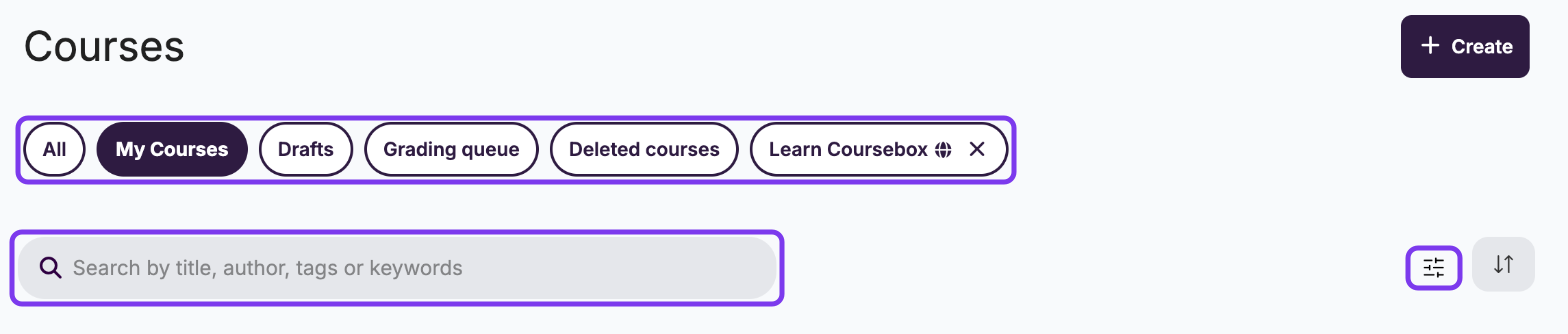
Clicking All displays a complete list of available courses that match your area of interest. This view provides an easy way to browse, explore, and select from the full range of courses on offer—helping you find the right content to support your learning journey.
My Courses Tab
The My Courses section shows all the courses you're currently enrolled in. It's your personalised learning hub—track your progress, resume where you left off, and stay organised as you work through each course. This view keeps everything you're learning in one convenient place.
Learners: courses stay in My Courses after you finish them, so you can reopen a completed course at any time and go back through its pages and lessons.
Drafts Tab
The Drafts section allows you to manage content that's still in progress. Whether you're working on a new course or editing existing modules, this is where all unsaved or unpublished changes are stored. Use this area to review, continue editing, or discard drafts before making them live to learners. It's your workspace for refining content before final publication.
Under learning on the left-hand panel go to 'drafts'.
The Drafts section helps you quickly return to content you're still working on.
The steps are:
Clicking Drafts takes you back to your saved, unpublished work.
To preview a draft, click on the selected course you are working on and —this will open the draft's landing page, allowing you to review and continue editing.
Custom Tabs
Currently, only the Super Admin has the ability to create or delete search filters for the community. These filters apply platform-wide and are visible to all users within the portal.
The Custom Tab feature allows you to personalise the view in the My Courses section by filtering content based on specific criteria, such as course title, skills, or location. This is especially useful if you frequently access particular types of courses or want to create an organised view tailored to your preferences.
From the left menu, click on Courses, then select My Courses.
You will see your list of courses displayed in tile format.
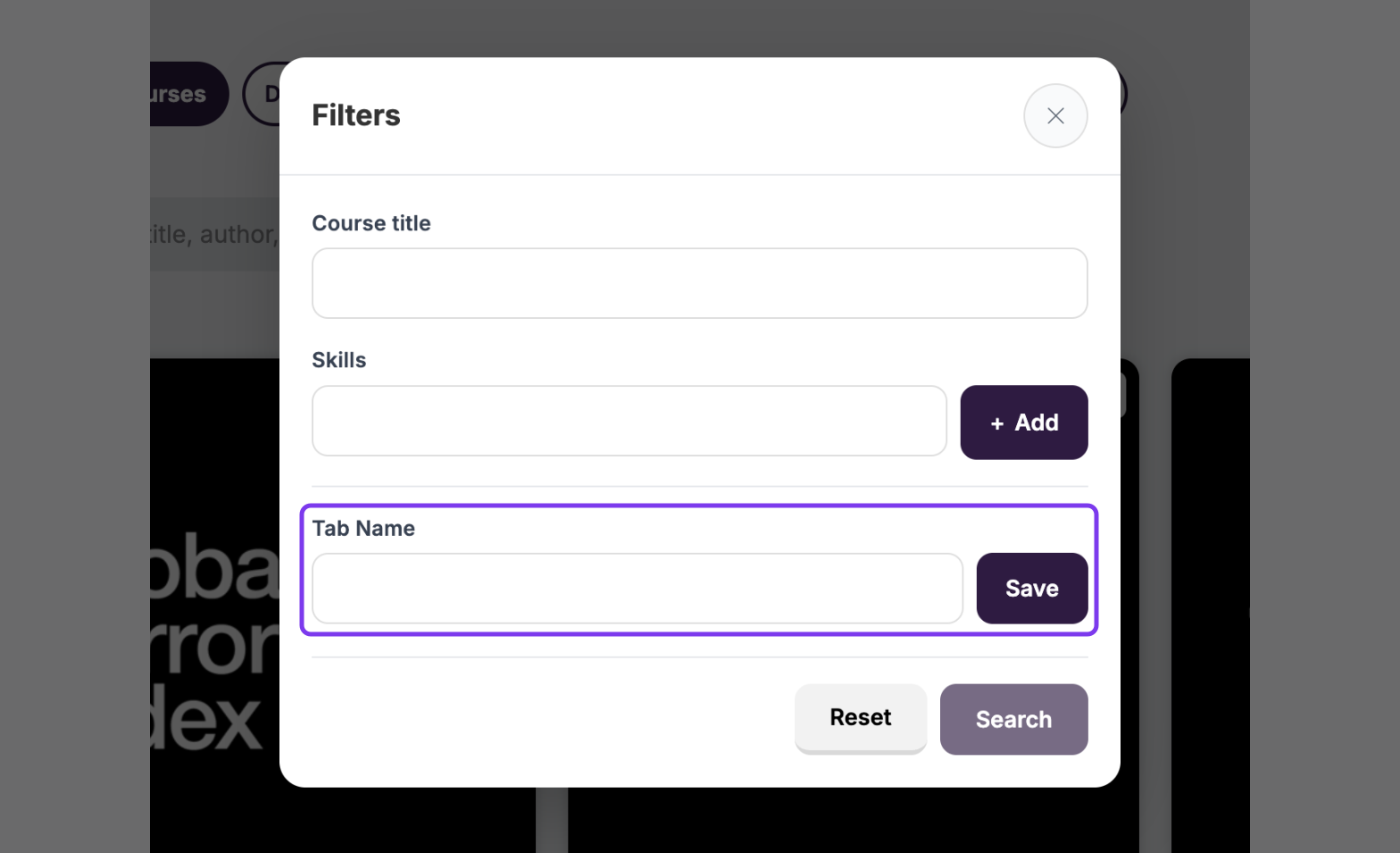
On the right-hand panel, click the arrow icon or "Search Filter" label to expand the filter options.
In the Title field, type the course title (e.g., Train the Trainer).
(Optional) Use the Skills and Location fields to narrow down your results further.
Click Search to apply the filter.
Scroll to the bottom of the filter panel.
In the Tab Name field, enter a name for your custom tab (e.g., Learning College).
Click Save.
Your custom tab will now appear at the top of the "My Courses" view next to All, My Courses, and Drafts.
Click on your newly created tab (e.g., Learning College) to quickly view courses that match the saved filter.
Filter the Marketplace by Your Name and Save a Custom Link
The public Marketplace lists every published course across Coursebox. If you'd like a single link that only shows the courses published under your name — to share with students, add to your website, or post on social media — you can filter the Marketplace by your name and save the resulting link.
Go to the Courses (Marketplace) page.
In the filter panel, enter your name (as it appears under "by [Name]" on your courses) in the Name field.
Click Search. The results will now show only courses published under your name.
Copy the URL from your browser's address bar. Once filtered, the link includes your name as a search parameter, so opening it again shows the same filtered results.
Save this link as a bookmark, or share it anywhere you want people to see only your published courses — your website, email signature, or social profiles.
Tip: Clicking Reset clears the filter, so copy the link after you search, not before. If your name is common, add the Title or Skills filters too, to narrow the results further before copying the link.
Search for courses
The Search Courses feature helps you quickly find specific learning modules by entering relevant keywords. Whether you're looking for a unit by title, topic, or subject area, the search bar makes navigation fast and efficient. This tool is especially helpful if your course library includes many titles or if you want to jump straight to a course without browsing through all categories.
From the left-hand menu, click on Courses.
Select All to view the complete list of available courses.
Locate the Search... bar near the top of the Courses page.
Click into the search field and begin typing the title or keyword related to the course you want to find.
Example: typing "polishing" will show all courses with that word in the title.As you type, matching results will automatically display below.
Scroll through the results and locate the course you're looking for.
Search by Keywords (admin and facilitator only)
This search is not available to learners. The magnifying glass described below appears for Admin, Super Admin and Facilitator accounts. A user with the Learner role does not see it, so do not direct learners to it. What learners can do instead is covered in What learners can and cannot search, below.
The Search function allows admins and facilitators to quickly locate courses, resources, or content within the portal using keywords. This is especially helpful when you have a large number of courses or training materials.
How to Use Keyword Search
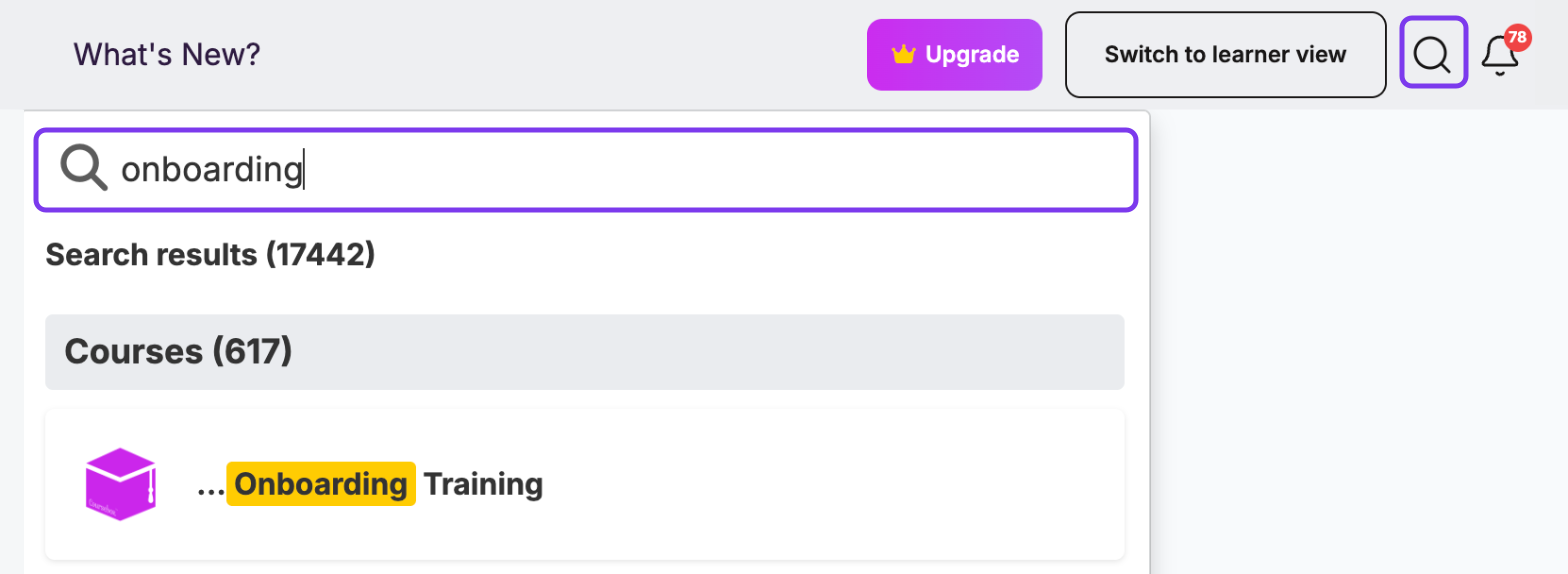
At the top-right corner of your portal, click the magnifying glass icon.
A search field will appear.
Type any relevant word or part of a word into the field (e.g., "mast" for "Mastering").
The system will automatically display results as you type.
Results will appear in categories (e.g., Courses, Resources, etc.).
The number of total results is shown at the top (e.g., 763 results).
Your keyword will be highlighted in yellow within the titles, making it easier to scan.
Click on the course or resource title that matches what you're looking for.
This will take you directly to the selected course or item.
Tips for Effective Searching
Use specific keywords to narrow down results.
Try partial words if you're unsure of the exact spelling (e.g., mast will return all items starting with "Mastering").
If no results appear, double-check your spelling or try a broader keyword.
What learners can and cannot search
This section answers a common question: “Can my students search back through the course content to find something they read earlier?”
What learners cannot do:
Learners do not have the portal-wide keyword search (the top-right magnifying glass). That is an admin and facilitator feature.
There is no search-within-a-course tool. A learner cannot type a keyword and have Coursebox find every page or lesson inside a course that mentions it.
What learners can do instead:
Ask the AI Tutor. This is the closest thing to searching inside a course. The AI Tutor is trained on the course content, so a learner can ask it a question in plain language and it will answer from the course material. See What is the AI Tutor in Coursebox?
Reopen the course from My Courses. Enrolled courses — including ones already completed — stay in the learner's My Courses view, so they can go back in and navigate to a specific page or lesson rather than starting over. See How do I navigate between my courses and drafts?
Use the course menu or contents list to jump between lessons and pages within the course.
Use the browser's own find function (Ctrl+F on Windows, Cmd+F on Mac) to search the text of the page currently open. This searches one page only, not the whole course.
Course design tip: if learners frequently need to look things up again, consider adding a summary or glossary page at the end of the course, or attaching a downloadable reference PDF, so there is a single place to return to.
Troubleshooting Navigation Issues
A learner cannot find the search bar
This is expected. The top-right magnifying glass (portal-wide keyword search) is available to Admin, Super Admin and Facilitator accounts only — learners do not see it. There is also no search-within-a-course feature. Point learners to the AI Tutor, or to My Courses to reopen the course and navigate to the page they need. See What learners can and cannot search above.
A course is not appearing in My Courses
If a course is not showing in your My Courses tab: confirm you are enrolled (ask your admin to check), check that the course is Published and not in Draft status, try refreshing the page or logging out and back in, and clear your browser cache if the issue persists.
A menu section is missing or grayed out
Some sections (Announcements, Resources, Groups, Questions, Community, Calendar) are only available on LMS, Business and Enterprise plans. If a section is missing, your account may be on a lower plan. Visit coursebox.ai/pricing to upgrade. Note that some sections are also role-restricted — admin areas such as Users, Reports and Drafts do not appear for learners regardless of plan.
Buttons or features are not loading
If buttons appear unresponsive or features won't load: try a different browser (Chrome or Edge recommended), disable browser extensions that may interfere, ensure you have a stable internet connection, and check that your browser is up to date.
Mobile vs desktop experience
Coursebox is optimised for desktop use. On mobile devices, some features may behave differently or have limited functionality. For the best experience, use a desktop or laptop browser.
Learners cannot see or access their course
If a learner reports they cannot find their course: verify they are enrolled in the correct course, confirm the course is Published (not Draft), check whether the course has an enrolment start date in the future, and ask the learner to log out and back in.
A learner sees a "Confirm your personal details" step when logging in or accepting a course invite
This is a normal part of first-time account setup — it asks the learner to confirm their name, email, and password before their account is fully created. It is expected behaviour, not an error, and is not specific to any one course. Have the learner complete it; they will then be taken to their course. If they complete it and still cannot proceed, or the step repeats without progressing, ask for a screenshot of exactly what is shown so this can be looked into as a possible bug.
Reports are not showing accurate data
Report data may take up to 24 hours to refresh after a learner completes an activity. If data appears missing, check the date range filter in the Reports section and ensure the learner has fully completed (not just opened) the course or activity.