
Create a Course using the Unit of Competency (UoC)
For Registered Training Organisations (RTO's)
This topic explains how Registered Training Organisations (RTOs) can use Coursebox AI to generate compliant course content directly from a nationally recognised Unit of Competency. It covers creating courses using a training.gov.au URL, helping ensure alignment with unit requirements while streamlining course development.
Watch the tutorial videos found in our YouTube Video Library.
Step 1: Start a new RTO training package
Click + Create at the top of the left-hand menu. On the What will you create? page, click + in the prompt box.
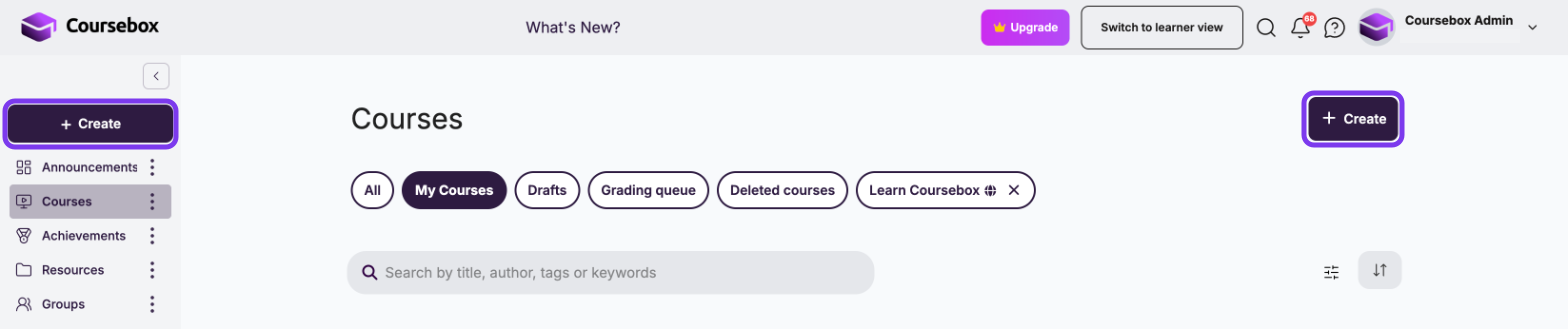
Then select Create RTO Package from the menu:
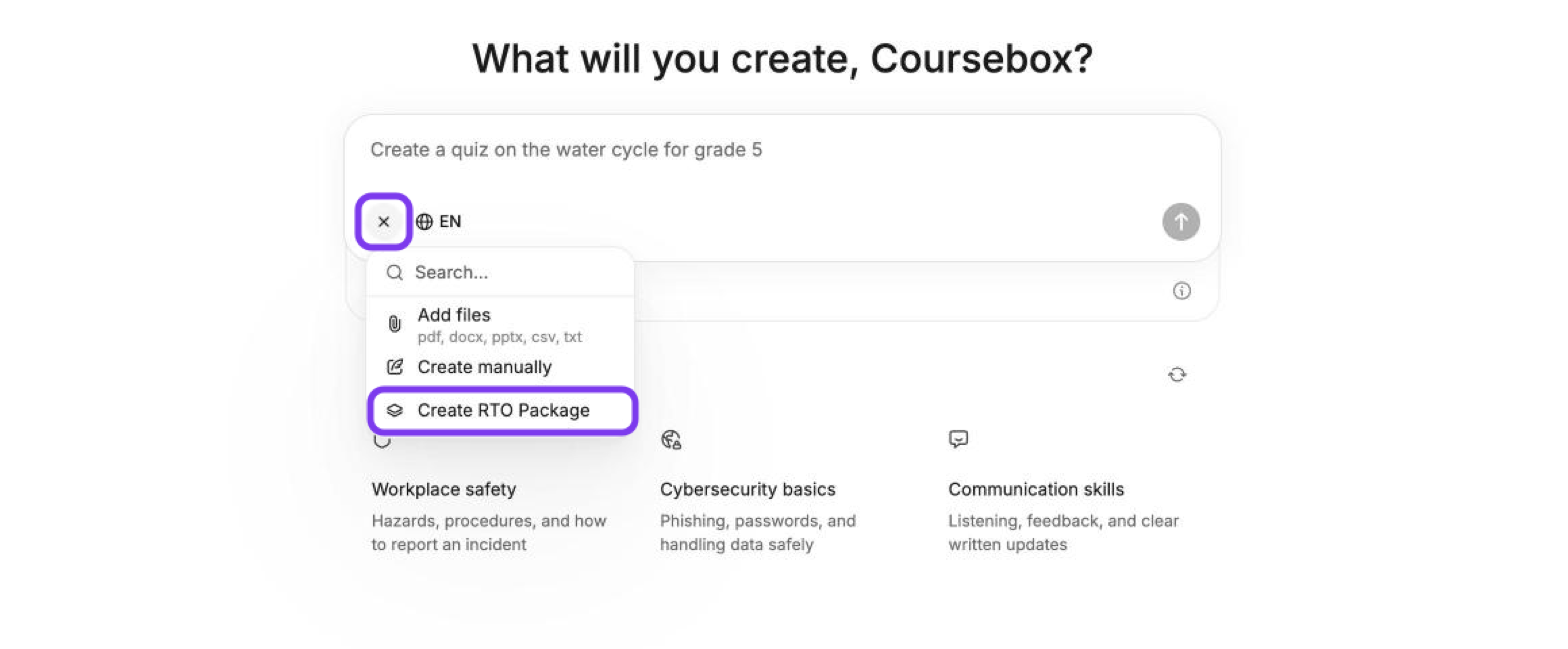
If you'd rather build something outside the RTO flow, the same + menu also lets you Add files (pdf, docx, pptx, csv, txt) or Create manually — or you can simply type your course idea into the prompt box.
Step 2: Provide your Unit of Competency
The Create an RTO course window opens at Step 1 of 2. Here you tell Coursebox which unit to build from.
Go to training.gov.au and open the relevant Unit of Competency. (The window also has a Search on training.gov.au link if you're not sure where to find it.)
Copy the unit details URL (for example,
https://training.gov.au/training/details/BSBCMM211/unitdetails).Paste it into the training.gov.au URL field.
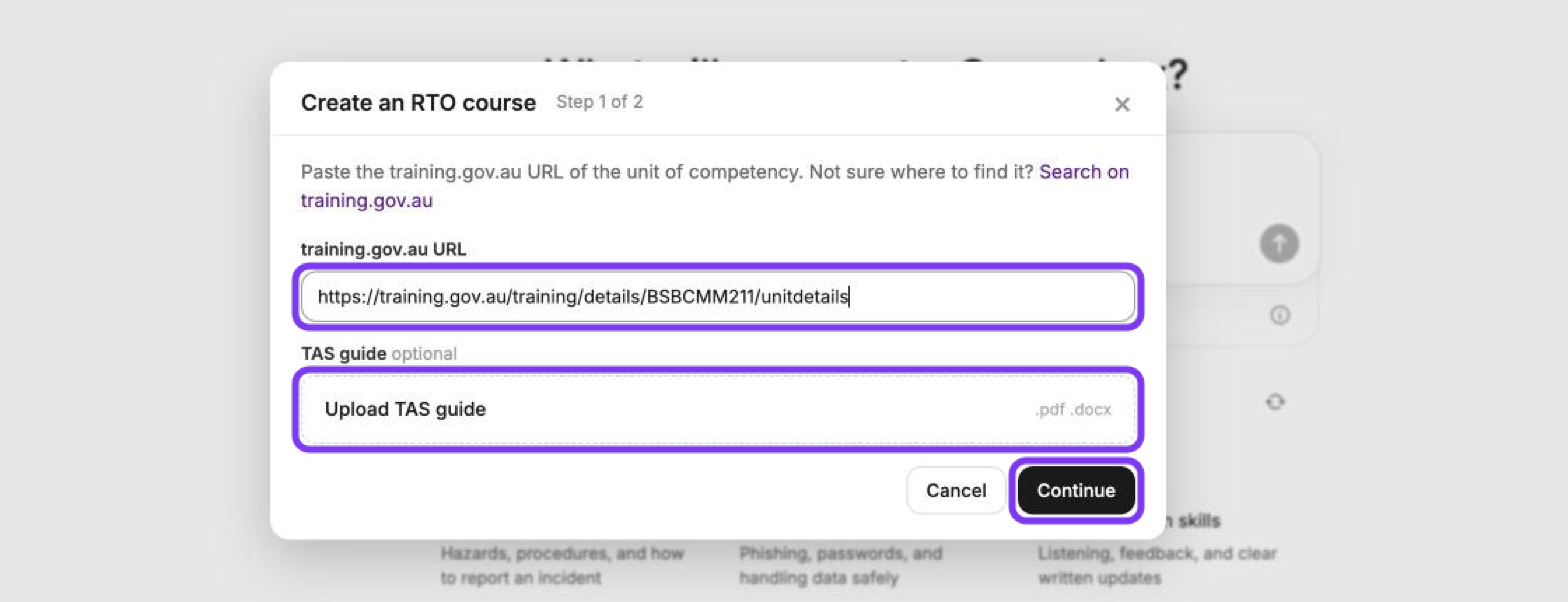
This step needs the training.gov.au URL for the unit — the unit itself can't be uploaded as a file.
Optional — Add your TAS guide
If you have a Training & Assessment Strategy (TAS) document, upload it under TAS guide (optional). Accepted formats are .pdf and .docx. Adding your TAS guide helps Coursebox tailor the generated package to your organisation's assessment approach.
When you've added your URL (and your TAS guide, if you have one), click Continue. To close the window without creating anything, click Cancel.
Step 3: Review the unit configuration
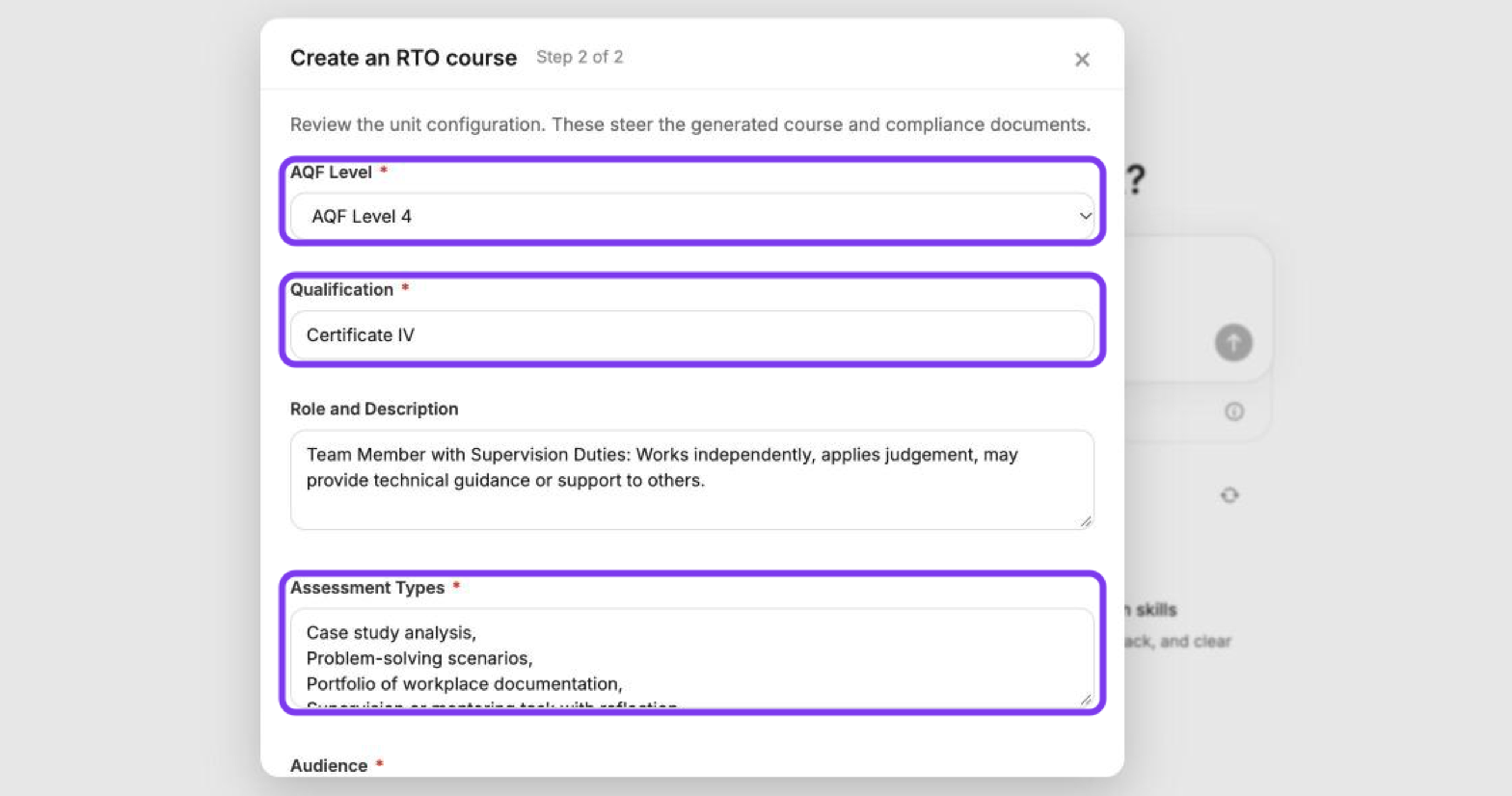
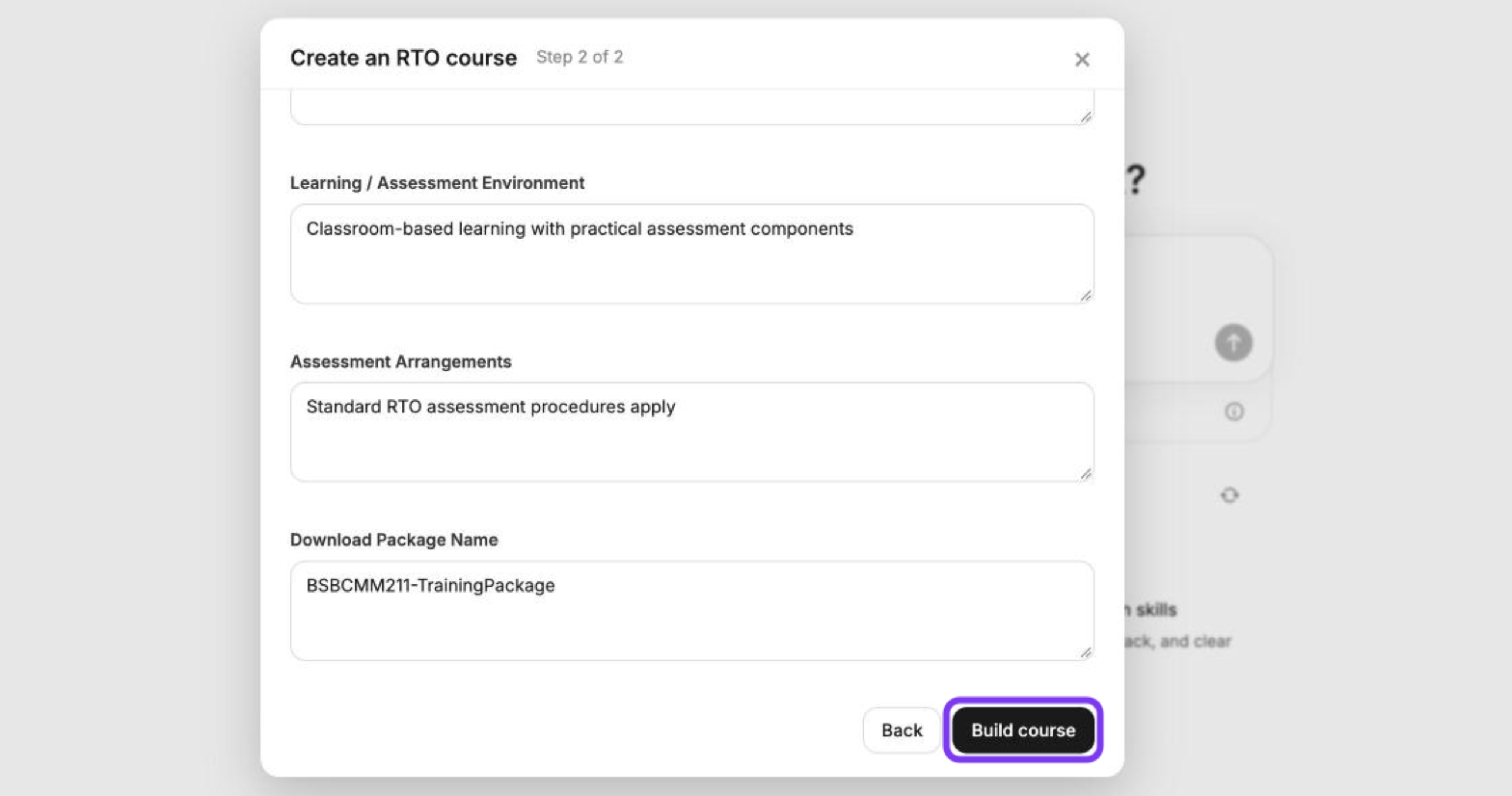
Coursebox reads the unit and opens Step 2 of 2, where you review the unit configuration. These settings steer the generated course and the compliance documents, and Coursebox pre-fills them where it can — check each one and edit anything that doesn't match how your RTO delivers the unit. Fields marked with a red asterisk (*) are required.
AQF Level * — Select the Australian Qualifications Framework level (e.g. AQF Level 4).
Qualification * — Enter the qualification name (e.g. Certificate IV).
Role and Description — Describe the role the learner is being trained for. For example: Team Member with Supervision Duties: Works independently, applies judgement, may provide technical guidance or support to others.
Assessment Types * — List the assessment methods you'll use. For example: case study analysis, problem-solving scenarios, portfolio of workplace documentation, supervision or mentoring task with reflection, reports or project summaries.
Audience * — Describe your learner cohort: their background, experience level, and learning needs. You can draw on the Target Group or related sections of the Unit of Competency. Example: The target audience for this qualification consists of individuals entering the workforce for the first time, returning after a break, school-based apprentices, vocational education students, or those seeking foundational workplace skills to support further study…
Scroll down to complete the remaining fields:
Unit's Entry Requirements — Note any prerequisites. For example: There are no formal entry requirements, but learners are recommended to possess language, literacy, and numeracy (LLN) skills at approximately Year 9 level or equivalent, as well as basic digital literacy sufficient to navigate an online learning platform.
Learning / Assessment Environment — Describe where training and assessment will take place. For example: Training and assessment will occur in a simulated workplace environment via online scenarios within the Coursebox LMS…
Assessment Arrangements — Summarise how assessment will be conducted. For example: Assessment for this unit will include role plays to demonstrate verbal communication skills and written tasks such as emails and memos. Trainers will observe performance and evaluate written submissions to ensure learners meet competency.
Download Package Name — Set the filename used when the completed package is exported (e.g.
BSBCMM211-TrainingPackage).
Step 4: Build the course
Once your settings look right, click Build course. (If you need to change the unit URL or your TAS guide, click Back to return to Step 1 of 2.)
Coursebox will build a course structure mapped to the unit's elements, performance criteria, and assessment requirements, ready for you to review, refine, and enrich with multimedia, activities, and assessments.
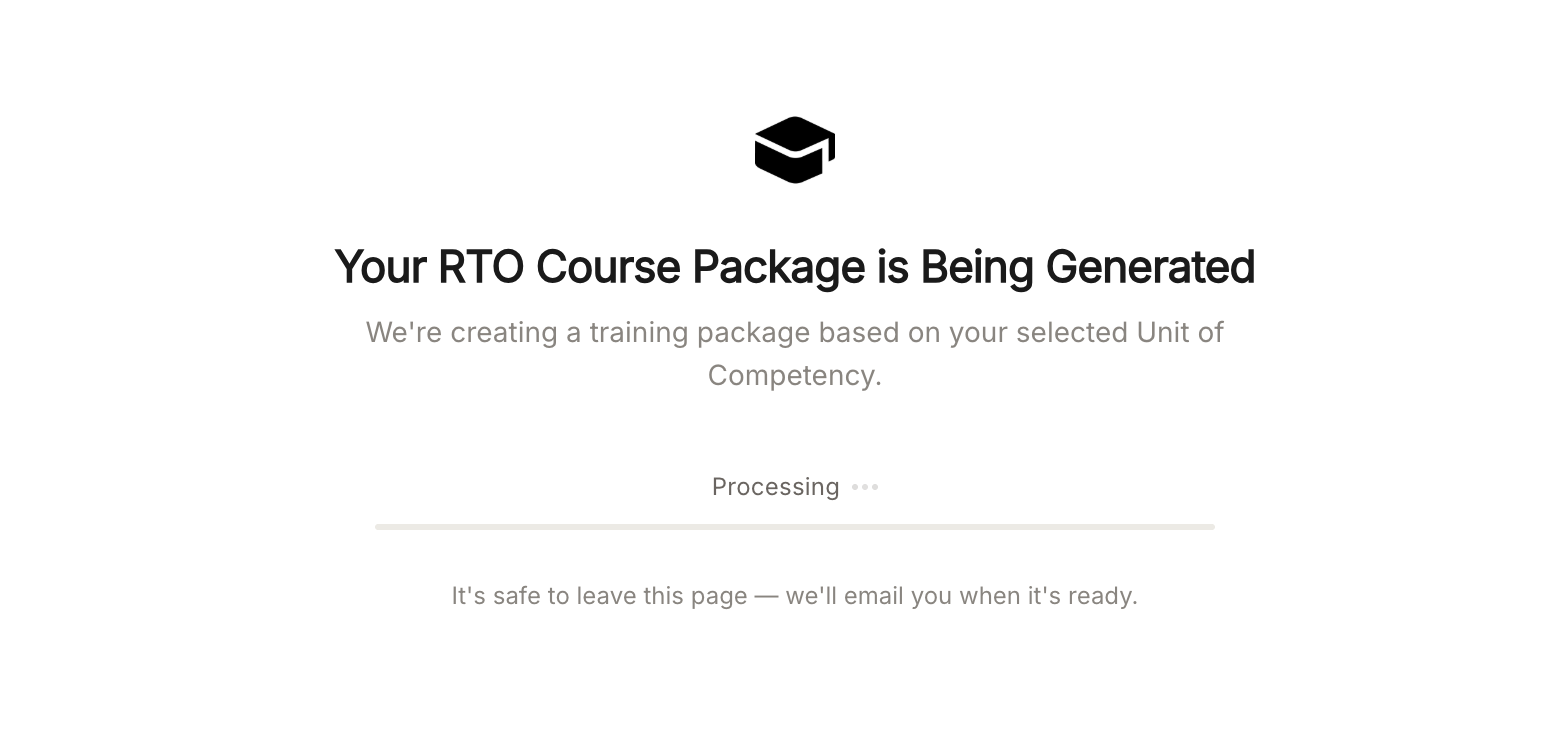
While the package is being generated, you can leave the page. Coursebox emails you when it's ready.
Tips for better results:
Use the Application section of the Unit of Competency as the basis for your role description and audience notes — it captures the purpose and context of the unit in language you can reuse.
Upload your TAS guide if you have one. It gives Coursebox more signal about how your RTO actually delivers and assesses the unit, which produces a more tailored package.
Be specific about your learners. A detailed audience description (prior experience, work context, digital literacy, LLN level) leads to more appropriate activities and assessments.
Don't just accept the pre-filled settings. Coursebox fills what it can from the unit, but reviewing each field against your own delivery model gives you a much closer match.
Check alignment after generation. Review the outline against the unit's elements and performance criteria, and adjust any sections that need closer mapping before publishing to your learners.
Before you deliver the course, review it against the unit. See For RTOs - Responsible Use of Coursebox AI-Generated Content and What should I do after exporting my RTO Pack?.