
User Enrolment, Removal and Updates
This article explains how to manage users in Coursebox, including enrolling learners, removing a user, deleting a learner, adding someone to a course, bulk uploading users, and managing roles and access levels. Whether you need to unenrol a learner, add a facilitator, resend an invitation, or promote a user to admin, this guide covers it all.
On an earlier plan? Plan names and inclusions changed when we moved to Free, Creator, Pro, Pro + LMS and Enterprise. If you are on an earlier plan, your subscription continues unchanged and you keep everything it included — so you may still see features this article lists under a higher plan. Nothing has been removed from your account.
Watch the tutorial videos found in our YouTube Video Library.
Access levels — Marketplace vs branded platform
When building and delivering training through Coursebox, it's important to understand the key differences between using the Marketplace and a branded training platform. While both models offer powerful tools for course creation, learner engagement, and collaboration, they serve different purposes and offer varying levels of control and customisation.
Marketplace
The Marketplace (my.coursebox.ai) operates under the Coursebox theme and is ideal for creators looking to publish and share courses to a broader audience. Managed by the Coursebox super admin, this setup is best for those who want to build their presence within the existing Coursebox ecosystem.
Theme: Coursebox | URL: my.coursebox.ai
User levels:
Super Admin: managed by Coursebox
Creator and Creator plus can: create courses and groups (Creator plus only), invite course and group admins to collaborate, enrol a user into a course as facilitator
Learners can: be added as General Users without a profile.
Branded training platform
A branded training platform is a white-labelled version of Coursebox hosted under your own URL and branding, available on Pro + LMS and Enterprise.
Theme: Your theme | URL: Your URL
User levels:
Super Admin: your email
Approved Admins can: invite course/group collaborators, enrol a user into a course as facilitator
User Admins can: manage community/users and theme
Learners can: be added as General Users without a profile.
Manage users
Plan requirement: The Users section is available on Pro + LMS and Enterprise. Compare plans. If you do not see Users in the sidebar, it may not be included on your current plan, or it may have been hidden by your Super Admin.
Navigate the Users section
From the left-hand navigation menu, click Users.
The Users page has four tabs:
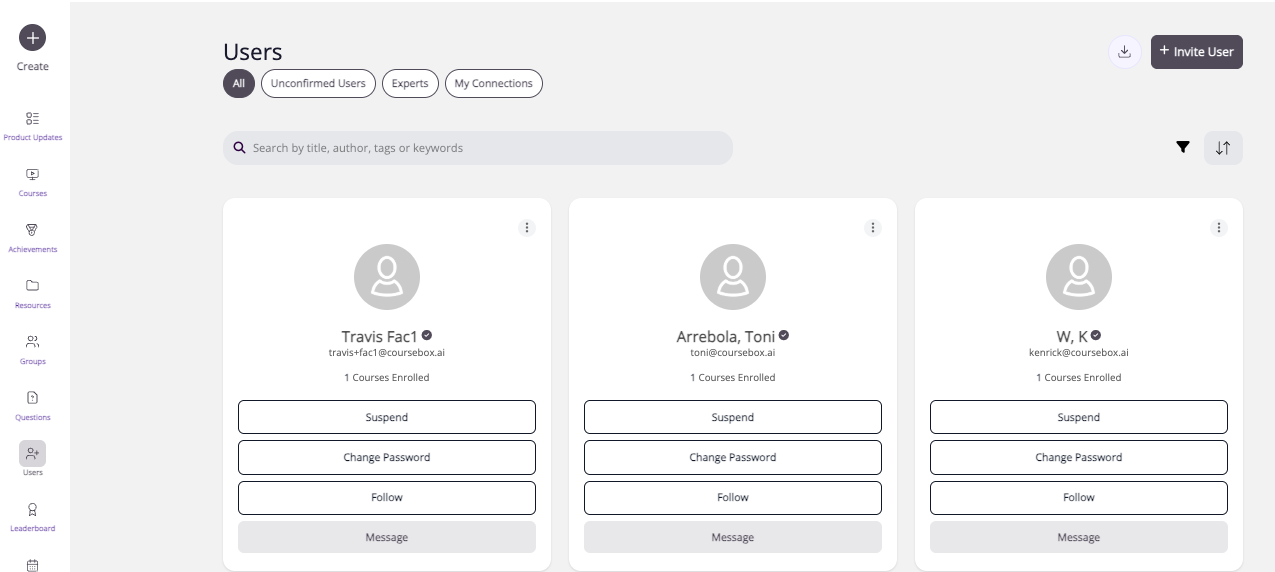
All — shows every registered user on the platform.
Unconfirmed Users — shows users who have registered but not yet confirmed their email address.
Experts — shows users who have been granted Approved Expert status.
My Connections — shows users you follow or are connected with.
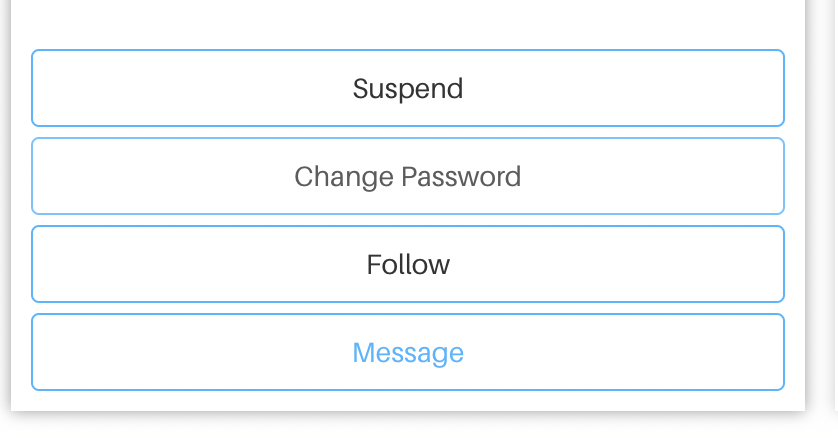
Each user card in the All tab shows the following quick actions: Suspend (restrict access), Change Password, Follow/Unfollow, and Message. Click the dropdown arrow (˅) on any card for additional options: View Profile, Unfollow, Change Password, or Update User (edit basic details).
Suspending a user (via the Suspend button) restricts their access to the platform without deleting their account or any of their data. It's a quick way to handle someone leaving the organisation or a temporary access issue without needing to submit a support ticket. A suspended user can be reactivated at any time from the same card — when reactivated, they pick up exactly where they left off, with no loss of course progress, certificates, or other data.
Creator-level permissions
As a Creator, you can upload users via CSV or invite users by email from the course-level "About" page by clicking Users.
Unenrolling learners (remove someone from a course)
As a Course Administrator or Facilitator:
Visit the course about page as the course author or invited admin
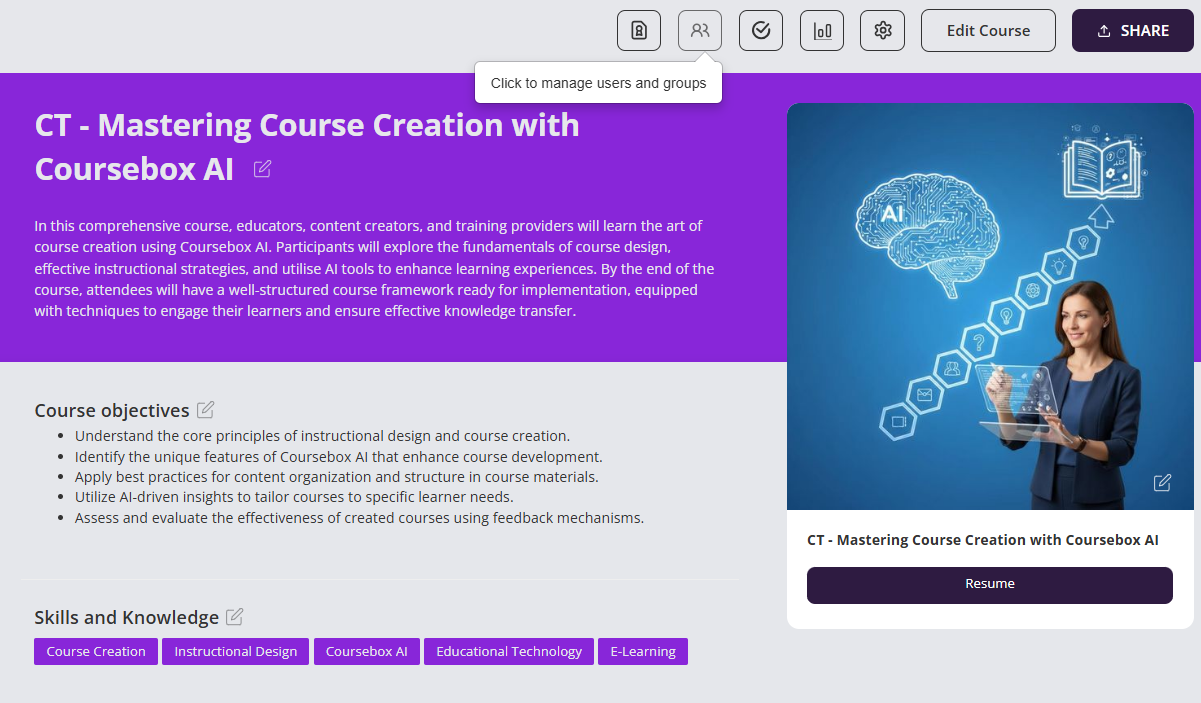
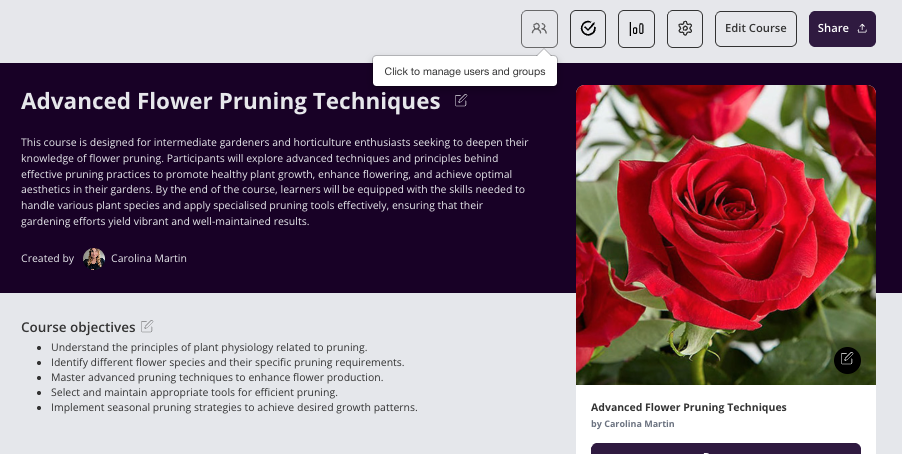
Click the people icon
Click the trash can to remove the learner from the course
Manage user profile
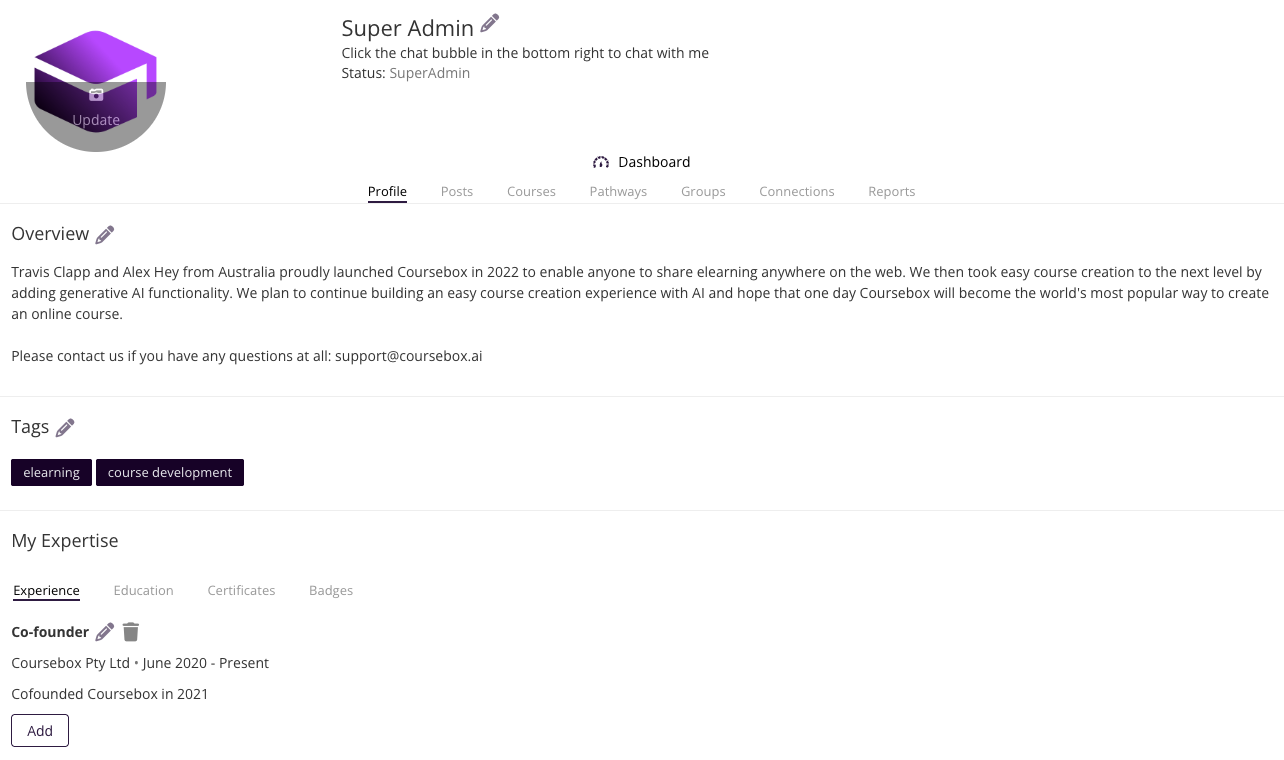
Every member of your Coursebox portal has their own profile page which they can edit.
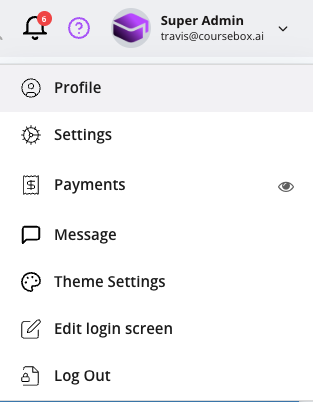
Click on the profile and the following screen opens. You can then adjust all the sections of your profile by clicking on the pen icons.
Add and remove learners individually (enrol or unenrol a user)
Coursebox allows you to add learners one at a time, invite someone to a course, or grant access to a user directly.
From the dashboard: from the left-hand menu, select Users.

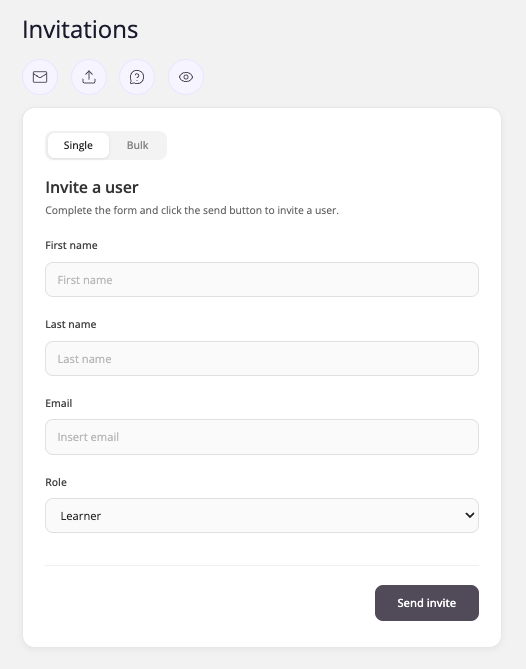
Then click Invite User.

The following will open up and you can invite someone using their first name, last name and email. You can also select a Role for the invited user from the Role dropdown (defaulting to Learner) before clicking Send invite, and the same Invitations popup lets you switch between Single and Bulk invites.
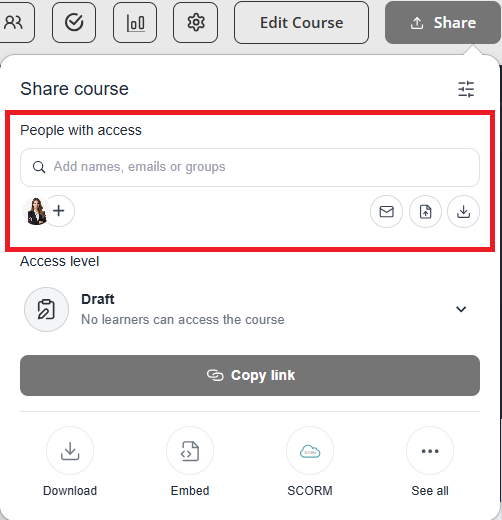
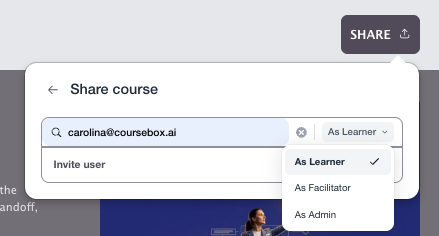
From the course: select the Share button and add the email of the person you want to invite.
Unenrol a learner from a course (remove a user from a course)
Course admins can remove learners from a course, revoke access, or unenrol a user whenever needed.
From the Course Editor, click the People icon in the top-right corner.
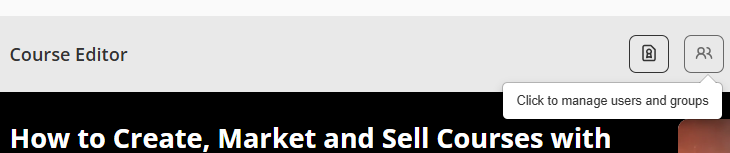
In the Users panel, find the learner and click the trash can icon in the Action column to unenrol them.
If re-enrolled later, progress is not lost — the learner will continue from the same point.
Can learners unenrol themselves?
Yes. Learners can remove themselves from a course they're enrolled in — they don't need to ask an admin to do it for them.
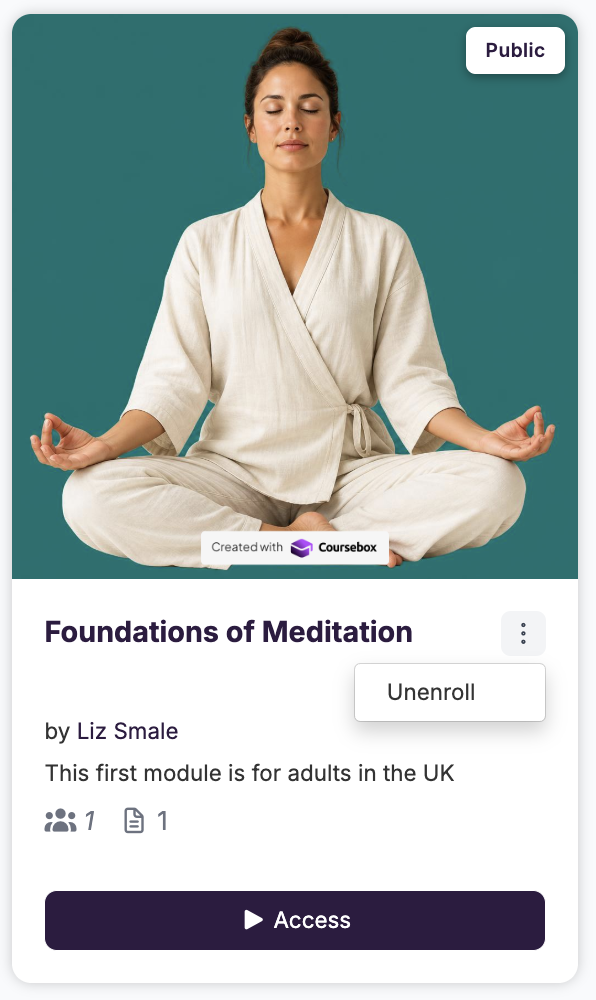
Go to your course dashboard, where your enrolled courses appear as cards.
Find the course you want to leave.
Click the three-dot menu (⋮) in the top-right corner of the course card.
Click Unenroll.
Delete (remove) a learner from the platform
Removing a learner from a course (unenrolling) is different from permanently deleting a learner's account from the platform. This section covers how to fully delete a user, remove someone from the platform, or deactivate a learner account.
Unenrolling removes a learner from a specific course but keeps their account active. Deleting a learner removes their account and all associated data from the platform permanently.
How to delete a learner
Go to Users from the left-hand menu.
Search for or locate the learner you want to remove.
Click on their profile to open it.
Click the dropdown arrow next to their name.
Select Delete User from the options.
Confirm the deletion when prompted.
Note: Deleting a learner is permanent and cannot be undone. All course progress, certificates, and data will be removed. If you only need to restrict access temporarily, consider suspending them, or unenrolling them from specific courses instead.
Looking to close your own account instead? Deleting a learner from the platform is not the same as closing your Coursebox account or cancelling your subscription. If you need to cancel your plan or delete your own account, see Account Access, Management & Subscription.
Upload a CSV list of learners (bulk import users)
When you need to enrol multiple learners at once, bulk add users, or import a list of people, use CSV upload.
First prepare your CSV file.
Your CSV file should contain: First Name, Last Name, Email, Headline (the name of the course), Password (optional), Confirm (optional), Send (optional), Accepted Terms (optional). Custom fields are also supported as additional columns in the CSV, and are shown using their human-readable field names rather than internal IDs.
In the Users section, click the arrow up next to the question mark.
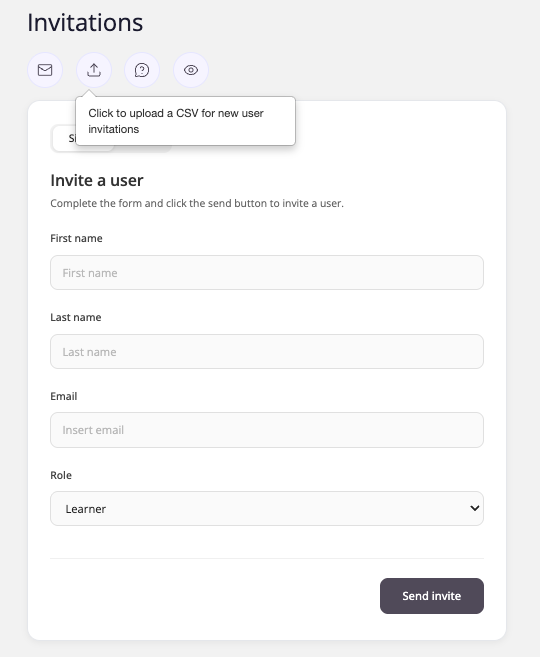
Select the CSV file from your computer and upload.
Return to the Users tab to verify learners were successfully added.
Manage user status (change a user's role)
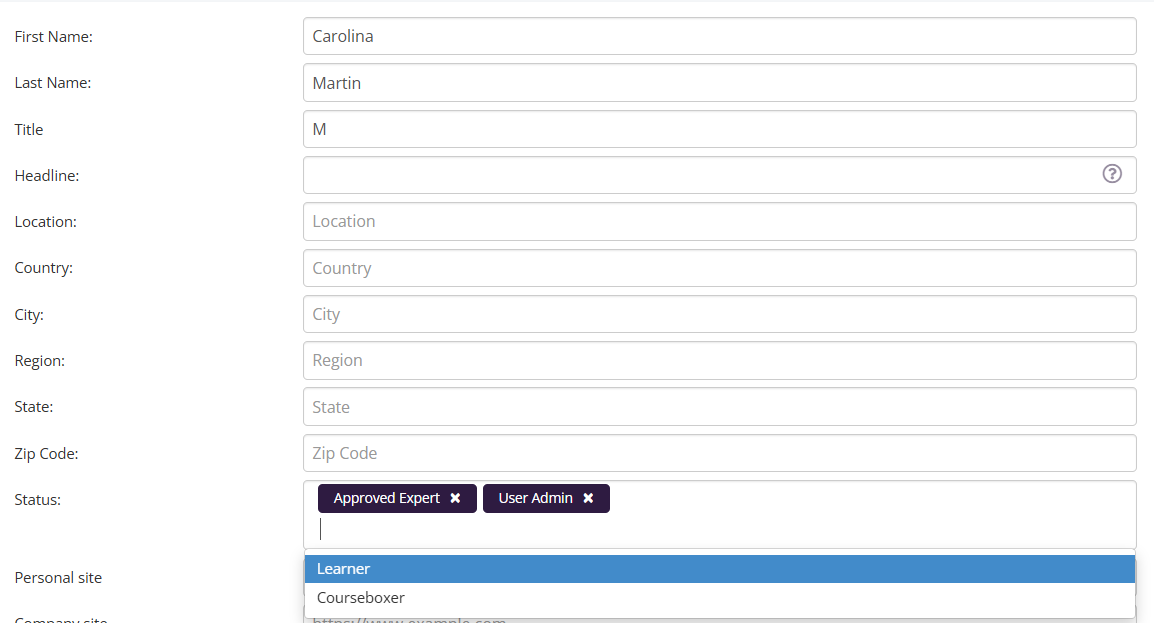
By default, invited users are set as General Users. Status — also called role or user type — can be changed by the user or by a Super Admin.
Status change by user
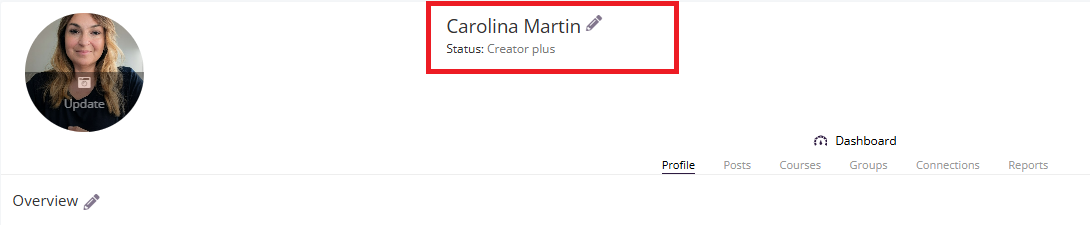
Click Profile > click the pen beside profile name > go to the Status section > choose from the dropdown.
Available statuses/roles (current platform options): Learner, Creator, Creator plus, Approved Admin, User Admin.
Note: for Approved Expert status, changes trigger a Super Admin approval request. See the Approve experts section below for details on how to set this directly as an admin.
Status change by admin
Go to Users, click on the user's profile, click the pen icon, then delete or add the desired status and click Save.
Managing unconfirmed users (resend invitations)
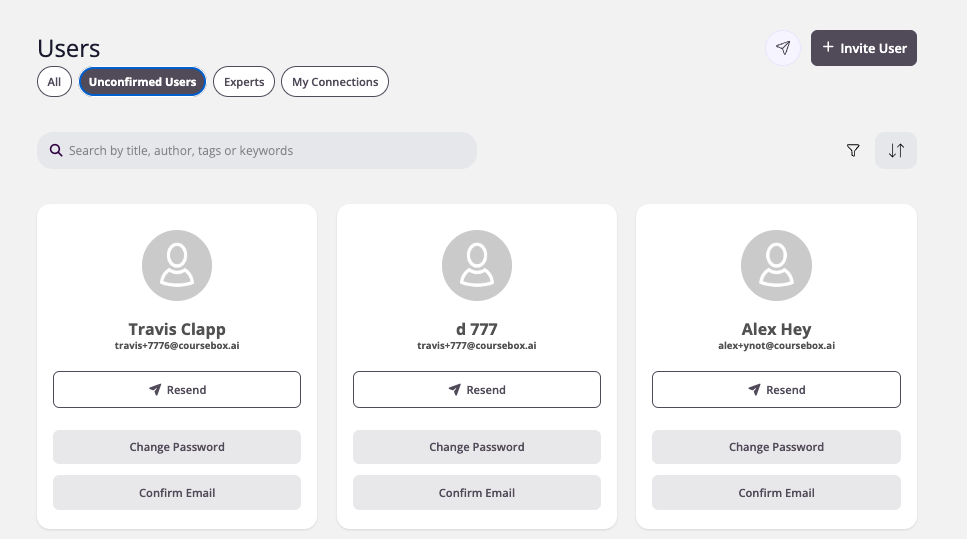
Unconfirmed users have registered but have not yet confirmed their email address. In the Users section, click the Unconfirmed Users tab (alongside All, Experts and My Connections) to see them.
Resend to everyone at once. Click the paper-plane icon at the top right of the page, next to + Invite User. Its tooltip reads Resend all invites. This resends the invitation / verification email to every unconfirmed user in one action — you do not need to go through them one by one.
Resend to one person. Each user card on the Unconfirmed Users tab has its own Resend button. You can also open that learner's profile and click Resend.
Troubleshooting: a learner can't verify their email or didn't receive the verification link
If a learner reports they cannot verify their email address or never received the verification link, try the following:
Resend the verification link. Use either action above — Resend all invites from the Unconfirmed Users tab, or the individual Resend button on that learner's card or profile.
Check spam, junk, and quarantine folders. Verification and magic-link emails are sent from noreply@coursebox.ai. Ask the learner to search their inbox for that address and to check their spam, junk, and any quarantine folder.
Rule out corporate email filters. On workplace or school accounts, security filters can block or delay external mail. Ask the learner's IT team to allowlist (whitelist) noreply@coursebox.ai and the coursebox.ai domain, then resend.
Confirm the email address is correct. If it was mistyped at registration, a Super Admin can correct it from the user's profile (see Manage and update user names and types below) and then resend the verification link.
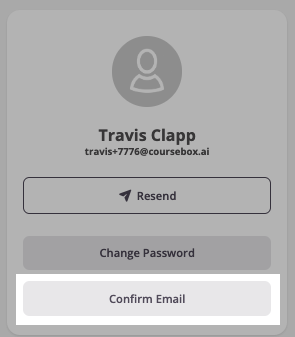
Bypass verification as a last resort. A Super Admin can override email confirmation by clicking Confirm email on the learner's profile. Note this only marks the address as confirmed; it does not check that the mailbox works, so an incorrect address will still fail to receive future system emails. Prefer correcting the address and resending where possible.
Add facilitators (give someone access to help run a course)
Adding a facilitator — also called adding a co-trainer, granting course access, or assigning a course helper — gives that person access to support course delivery and assist learners.
Navigate to the course and click the Share button at the top of the course editor.
In the pop-up, click People with Access.
Type the person's email address, set the dropdown to As Facilitator, then click Invite User.
Manage collaborators (add a course editor / co-creator)
Adding a Collaborator — also called adding a course editor, sharing editing access, or inviting a co-creator — gives that person full access to view, edit, and contribute to your course development.
Add a collaborator
In the Course Editor, click the Manage Users and Groups icon.
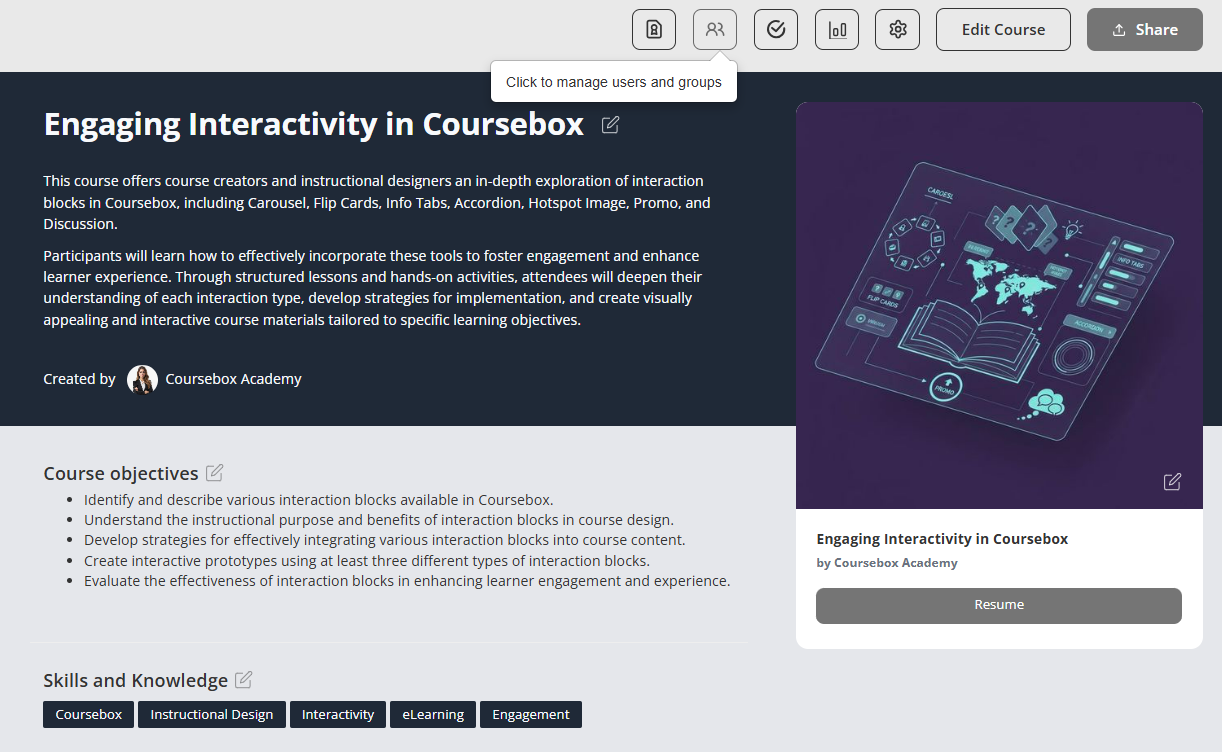
Select Users > click Add User on the right > type '@' and their name > select Collaborator from the dropdown > click Add.
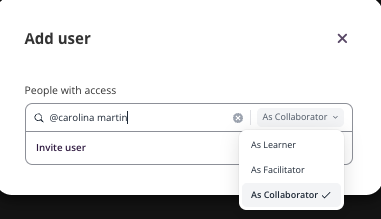
Note: The person must already have a user profile in your platform before they can be added as a collaborator. When you add someone as a Collaborator, Coursebox automatically emails them to let them know they've been granted access to the course. If they don't see it, ask them to check their spam/junk folder (emails come from noreply@coursebox.ai).
Delete a collaborator (remove editing access)
Open the person's profile > click the Edit icon (pencil) next to their name > click the X next to Collaborator > click Save.
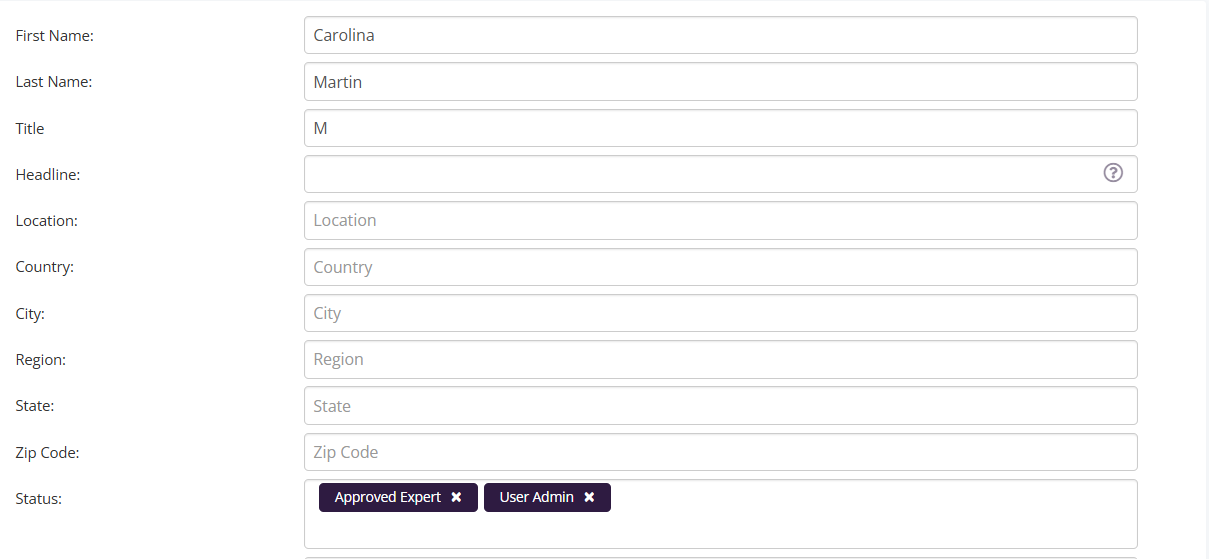
Manage and update user names and types
From the user's profile card, click the arrow down > select Update User > click the pencil icon to edit > update the Status field > click Save.
Super Admins can also use this same screen to correct a user's email address directly — for example if it was entered incorrectly at registration — without needing to raise a support ticket.
Approve experts (promote a user to expert status)
Coursebox allows users to request Approved Expert or User Admin status, while Super Administrators can approve or promote users directly.
Setting Approved Expert status
Click Profile > click the pen beside profile name > click Status > select Approved Expert.
The Super Admin will receive a notification to approve or reject. Alternatively, the Super Admin may set this directly from the user's profile.