
Custom Fields on User Profiles
Plan requirement: Custom fields are managed from the Users section, available on Pro + LMS and Enterprise. Compare plans.
Custom fields let you capture extra information about users, beyond the standard profile fields. This article explains how to create custom fields, fill them in for a user, and export the data.
What are custom fields?
Custom fields are extra fields on a user's profile, such as an employee ID, department or job title. You create a field once, and it appears on every user's profile. For each field, you choose whether users can see it and change it on their own profile.
Create a custom field
Select Users from the left menu.
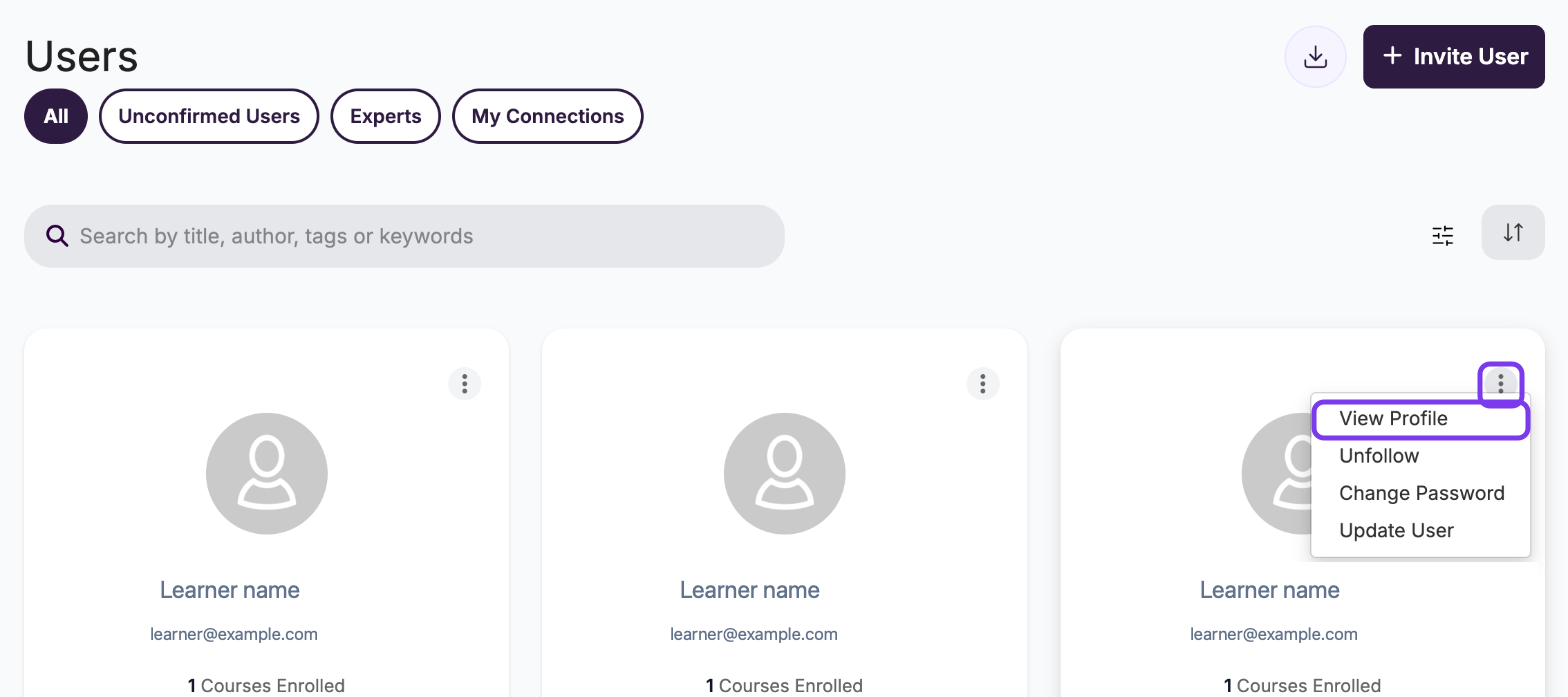
On any user's card, click ⋮ and select View Profile.
Click the pencil icon next to their name.

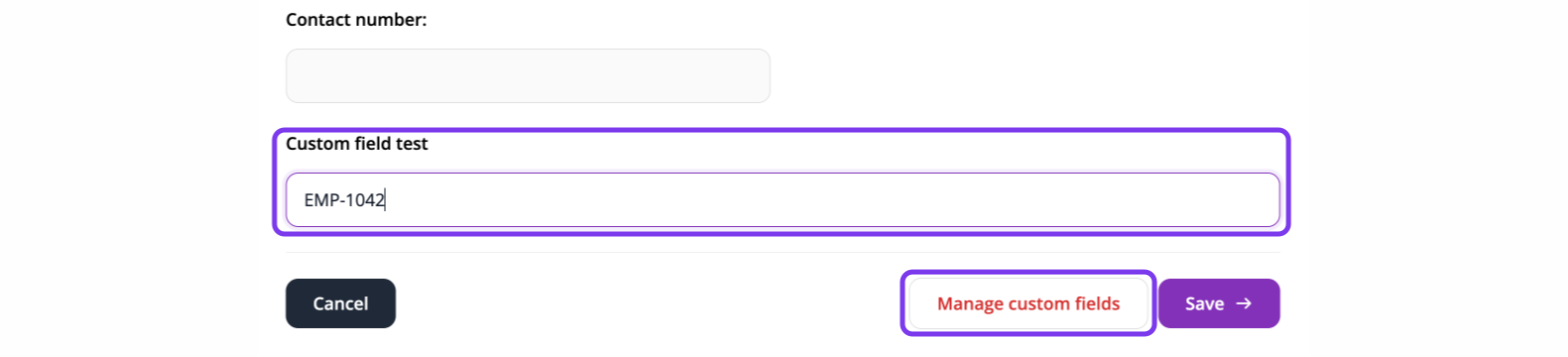
Scroll to the bottom of the form and click Manage custom fields.
In Custom Fields, type a name for the field. Click + to add another field, or the bin icon to delete one.
Tick User can view to show the field on the user's own profile, and User can edit to let them change it.
Click Save.

Each field has a Field ID. You need it for Zapier or API integrations. For a CSV upload, use the field name as the column header instead.
Fill in a custom field for a user
Open the user's profile and click the pencil icon, as above.
Scroll to the bottom of the form and enter a value in the custom field.
Click Save.
Things to keep in mind
Only admins can create custom fields. Users can see or change a field only if you tick User can view or User can edit for it.
Custom fields are visible to admins on each user's profile and in the Users CSV export.
Custom fields don't affect a learner's access to courses or their ability to submit work.
Export custom field data
Select Users from the left menu.
Click the download icon next to Invite User. Its tooltip reads Click to download a CSV of all registered users.

The CSV includes every custom field value for each user, and opens in Excel or Google Sheets.