Profile Settings
This topic explains how to view and manage your user profile in Coursebox. It covers updating personal details, showcasing your experience and expertise, and accessing learning activity, connections, and reports—all from one central profile area.
Watch the tutorial videos found in our YouTube Video Library.
Set your Profile
In this section, you can view all the details about your profile and edit them.
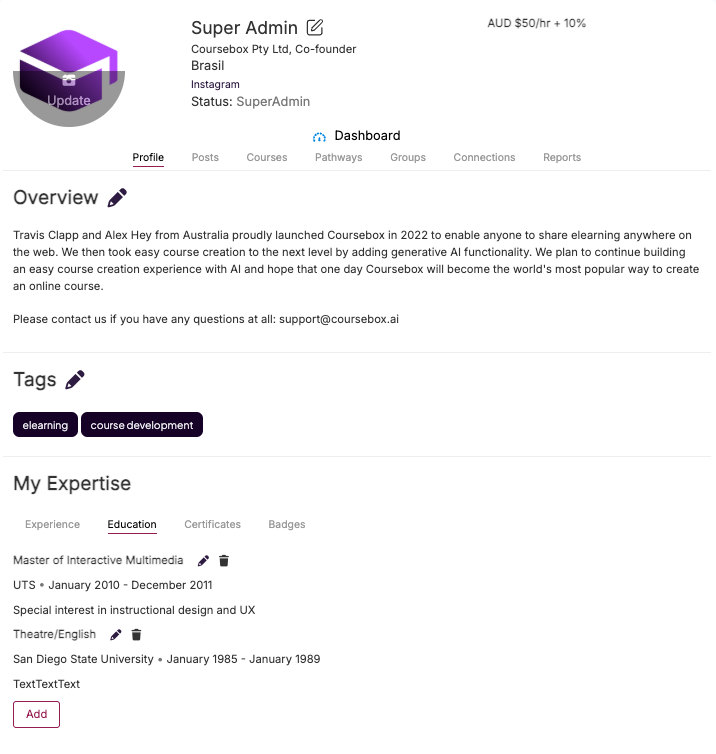
Profile Overview
Learners can use their profile to showcase their background, track their learning progress, and connect with others in the Coursebox community.
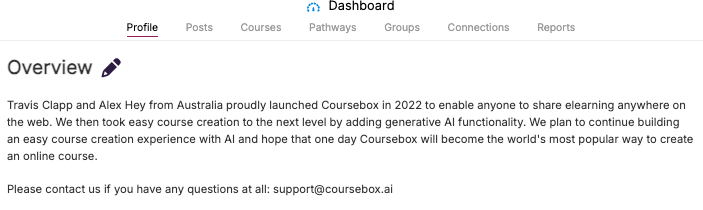
Overview
Learners can write a brief summary describing their professional background and interests.
Posts
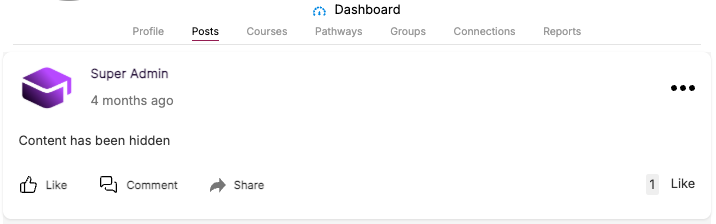
This section displays the learner's activity feed, showing posts they have shared with the Coursebox community. Learners can create updates, react to others' posts with likes, leave comments, and share content to stay engaged with their network.
Courses
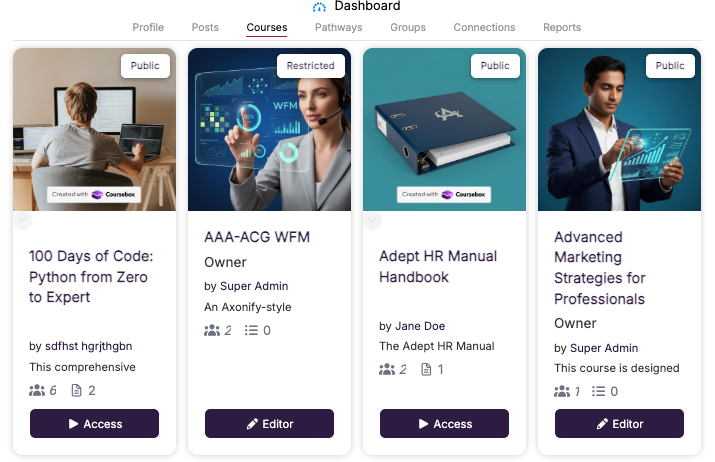
This section lists the courses the learner is enrolled in or has created, along with their access status such as Public or Restricted. Learners can browse their course library and open any course to continue their learning.
Pathways
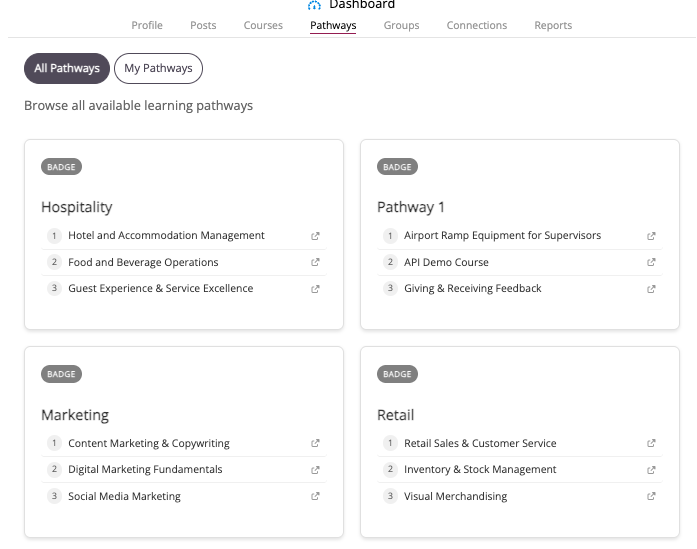
This section shows the learning pathways available to the learner, grouping related courses into a structured journey toward a badge or goal. Learners can switch between All Pathways and My Pathways to browse every available pathway or focus on the ones they are enrolled in.
Groups
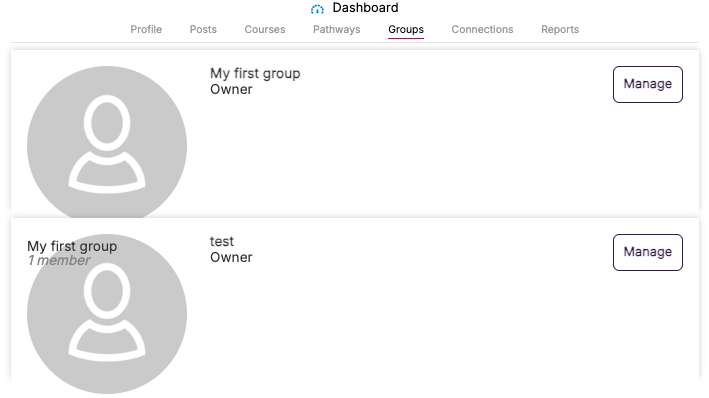
This section displays the groups the learner belongs to or owns, making it easy to collaborate and connect with other members. Learners can view each group's details and use the Manage option to administer any groups they own.
Connections
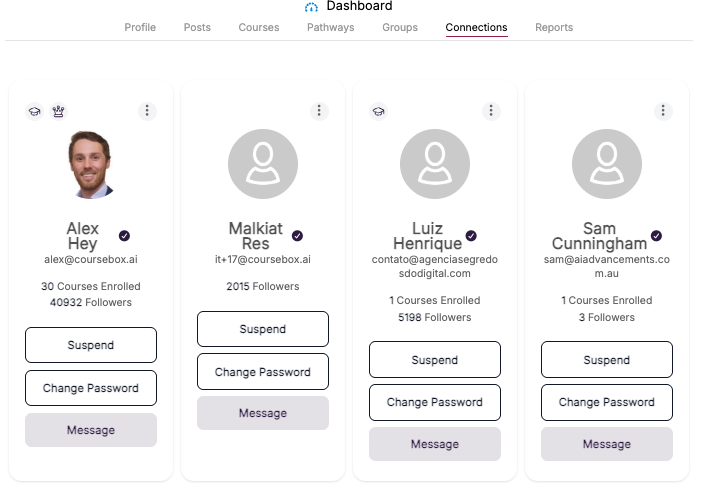
This section shows the other members the learner is connected with across the Coursebox community. Each connection card displays the member's name and activity, so learners can grow their network and keep track of the people they follow.
Reports
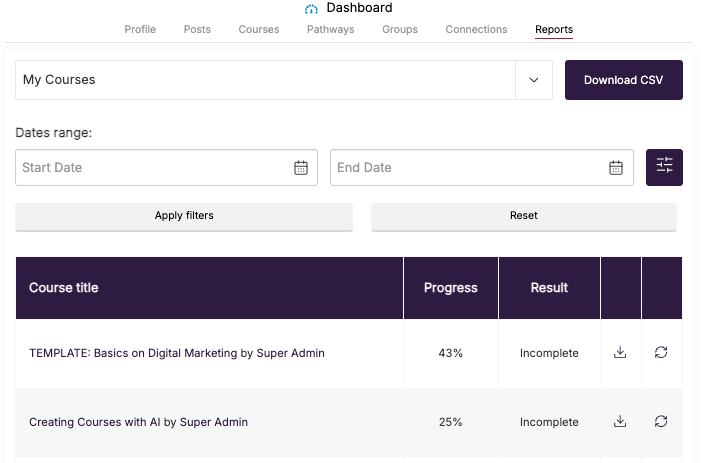
This section lets learners review their learning activity and progress across courses. They can select a course, filter results by a date range, view their progress and results, and download a CSV report of the data for their records.
Tags
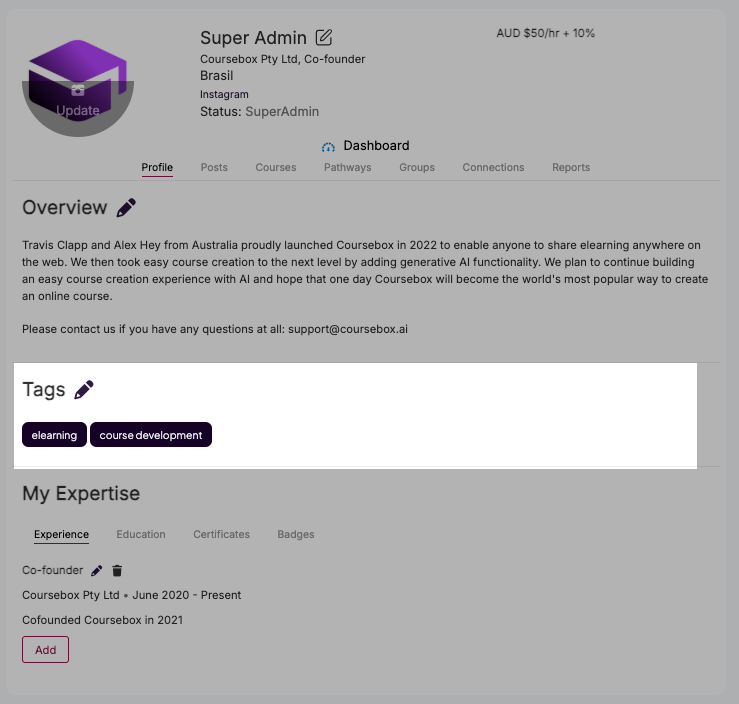
This section allows learners to add tags that represent their skill sets—such as Marketing Expert or eLearning Specialist—making it easier for others to discover them based on specific expertise.
My Expertise
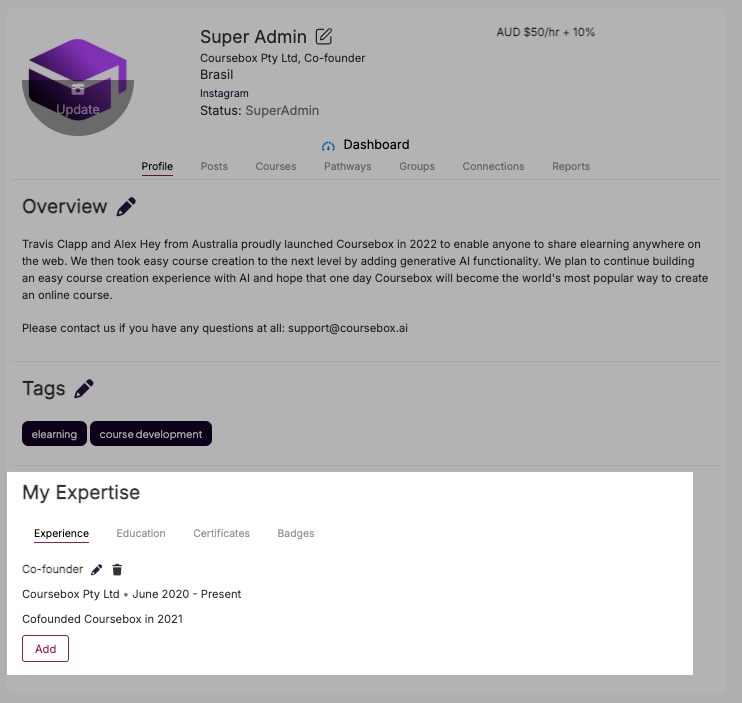
Learners can update this section with details about their professional experience, educational background, and any certifications they hold.
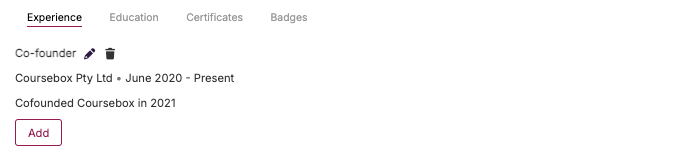
Experience
Learners can list their work experience, including roles and responsibilities, to provide insight into their career journey.
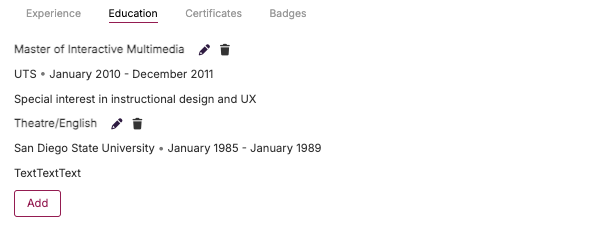
Education
This area is used to record educational qualifications and academic achievements.
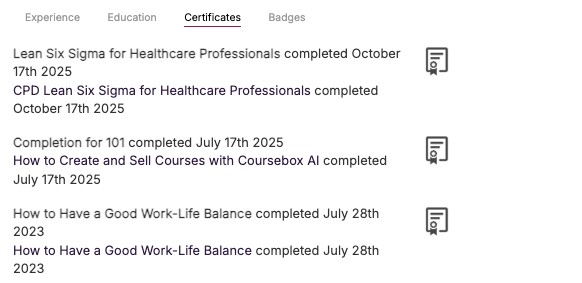
Certificates
All certificates earned through Coursebox courses will automatically appear here, allowing learners to easily track their completed learning.
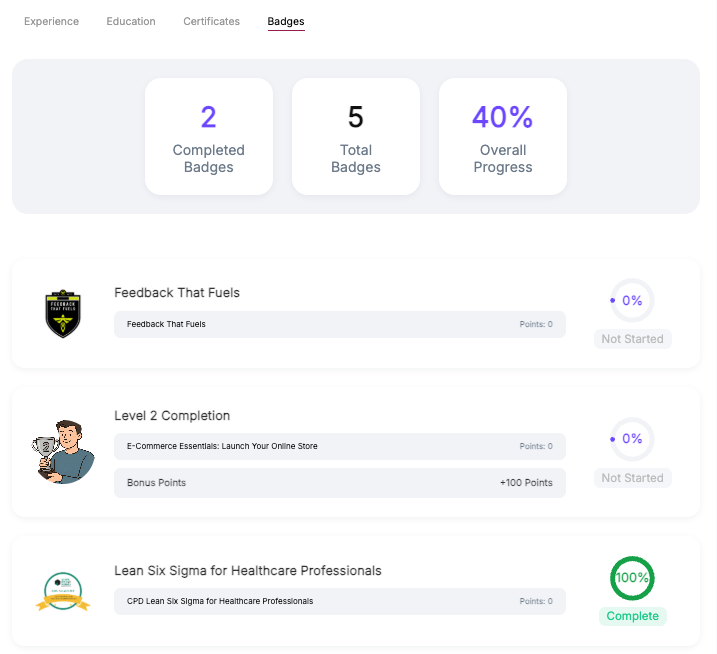
Badges
This section highlights the badges learners have earned as they complete courses and pathways. It shows a summary of completed badges, total badges available, and overall progress, giving learners a clear view of their achievements and how close they are to their next milestone.
Change the Name Shown to Learners (Profile Display Name)
You can control how your name appears to learners across the platform. This is useful if you prefer to show a business name, first name only, or a pen name instead of your full personal name.
Log in to https://my.coursebox.ai.
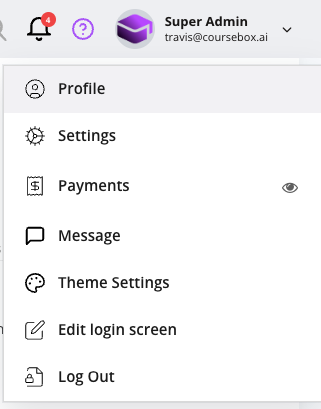
Click your arrow down in the top-right corner of the screen.
From the dropdown menu, select Profile.
On your Profile page, click the edit (pencil) icon next to your name.

Update the name fields:
Enter a business or brand name (for example, Coursebox Academy), or
Use a first name only, or
Enter a pen name you want learners to see.

Save your changes.
Your updated name will now appear to learners on your courses.