
Account Access, Management & Subscription
This guide covers everything related to your Coursebox account. Whether you need to log in, reset your password, upgrade your plan, resume a paused subscription, cancel your plan, delete your account, or migrate courses to a new LMS, you'll find step-by-step instructions here.
On an earlier plan? Plan names and inclusions changed when we moved to Free, Creator, Pro, Pro + LMS and Enterprise. If you are on an earlier plan, your subscription continues unchanged and you keep everything it included — so you may still see features this article lists under a higher plan. Nothing has been removed from your account.
Watch the tutorial videos found in our YouTube Video Library.
Log in to Coursebox (sign in / access my account)
Option 1: my.coursebox.ai (most users)
Navigate to https://my.coursebox.ai > enter email and password > click Log In.
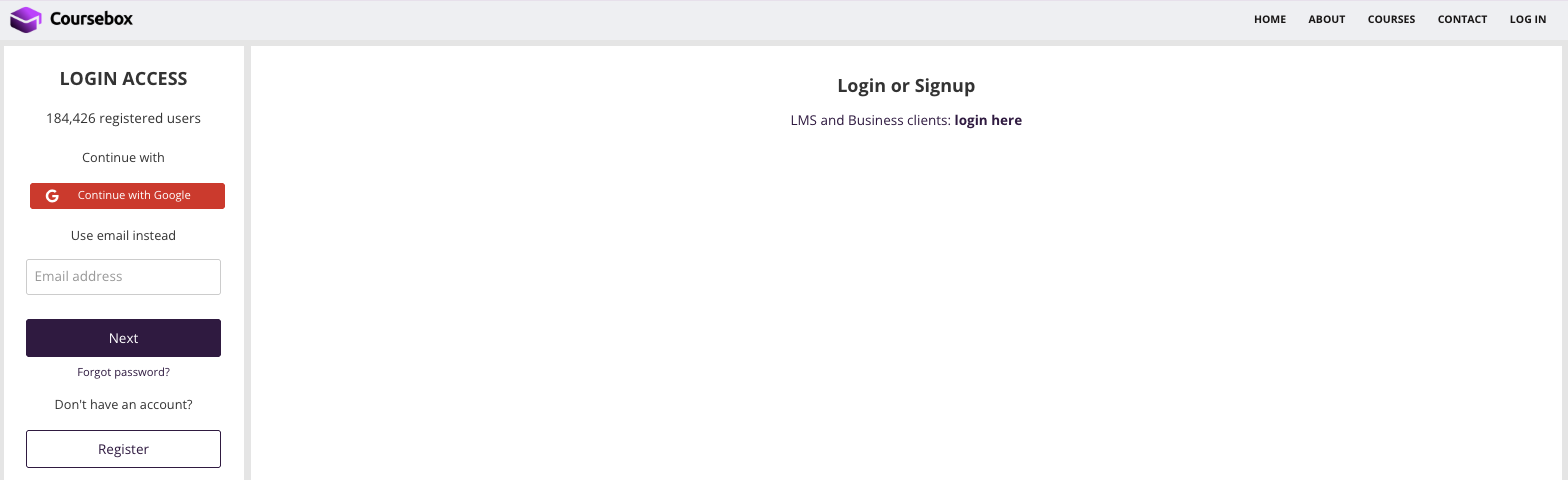
Option 2: your own branded portal (Pro + LMS and Enterprise)
Log in via your custom portal URL, or go to https://www.coursebox.ai/lms-login
Forgot your password? Click Forgot Password to receive a reset link by email.
Your password must be at least 12 characters, include letters, numbers, and at least one special character.
Manage, cancel and delete your account
Upgrade your plan
Click the Upgrade button on the right side of the top bar.

A popup will appear showing your current plan highlighted alongside all available plans. Select the one that suits you and follow the steps.
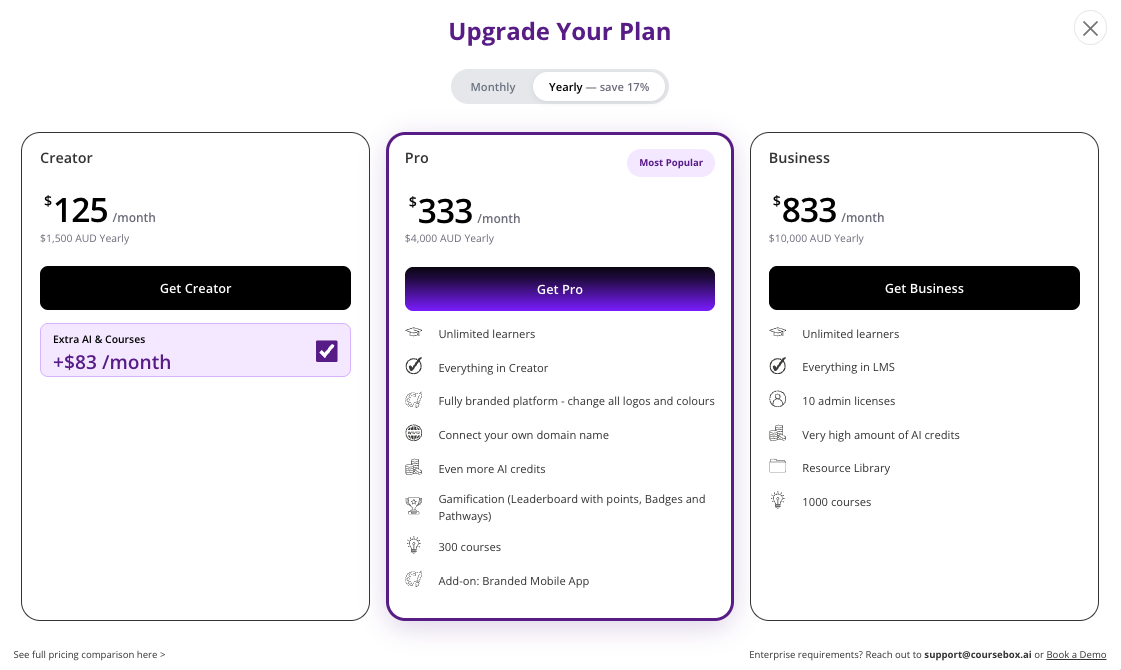
New portals are created immediately upon upgrade — your portal will be live and ready to use as soon as your plan is activated.
Enterprise is not available through the Upgrade button. Enterprise is sold under a signed agreement with a minimum 2-year initial term, and is the only plan that includes MSAs, DPAs, SLAs, vendor security assessments and procurement support. Every other plan is self-serve. See Coursebox Enterprise or email support@coursebox.ai.
Downgrade your plan
Click the Upgrade button when logged in, or select your chosen plan via the pricing page. Use the same email address as your account.
Pause your subscription
If you need to take a break from your Coursebox subscription, you can pause it from the customer portal. Pausing keeps your account active without ongoing billing until you choose to resume.
Steps:
Go to the Coursebox subscription portal: https://courseboxai.chargebeeportal.com/portal/v2/login?forward=portal_main
Enter the email address linked to your Coursebox account and request a one-time password.
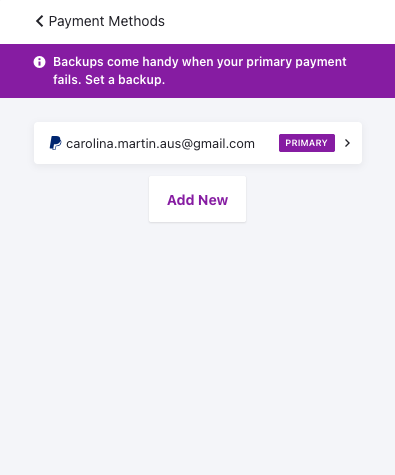
Check your inbox, copy the OTP, paste it into the login screen, and click Login →.
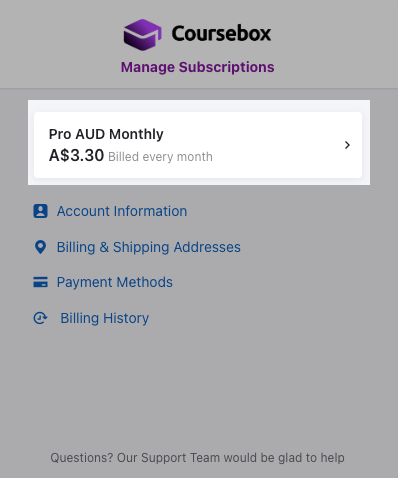
On the Manage Subscriptions page, click your active plan.
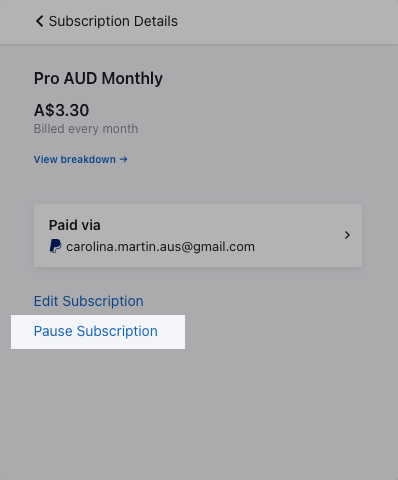
On the Subscription Details screen, click Pause Subscription, then confirm when prompted.
Your subscription will be paused and billing will stop until you reactivate it.
Need help? If you don't receive the OTP or run into issues, contact the Coursebox support team at support@coursebox.ai.
Resume a paused subscription
If your subscription has been paused, you can reactivate it yourself without contacting support:
Log in to your Coursebox account.
Click the Upgrade button in the top bar.
Select Resume Subscription from the options.
Confirm the reactivation.
Change my payment details (credit card, PayPal or Google Pay)
Use this if you need to update the payment method used to pay for your subscription.
Note: Coursebox currently supports Credit Card, PayPal, and Google Pay for subscription payments. Other local payment methods, including Pix, are not available.
Go to the Coursebox subscription portal: https://courseboxai.chargebeeportal.com/portal/v2/login?forward=portal_main
Enter the email address linked to your Coursebox account, request a one-time password, then paste it into the login screen and click Login →.
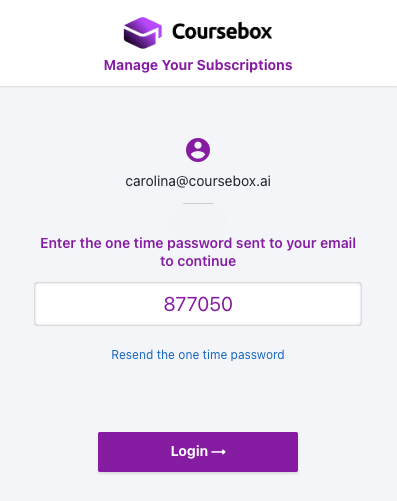
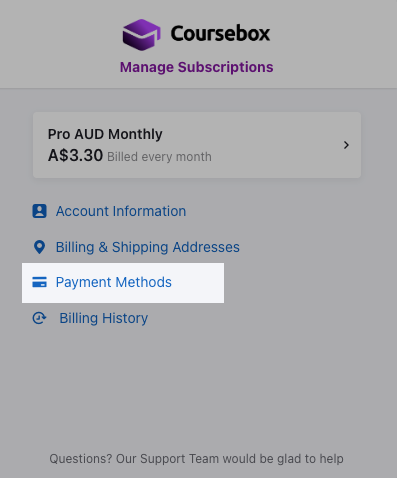
On the Manage Subscriptions page, click Payment Methods.
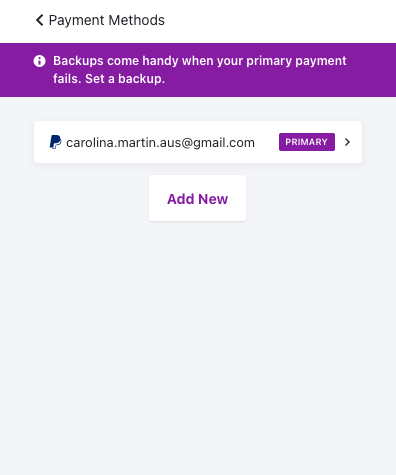
Then add a new payment method or edit the current method.
My credits (view remaining credits)
Click the dropdown arrow in the top right corner > select Payments.
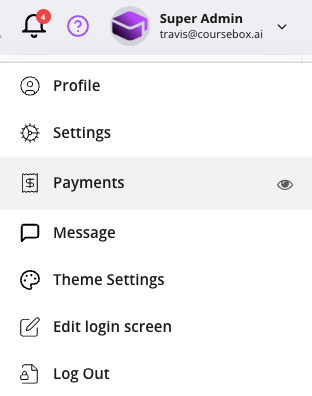
Scroll down to see your credits.
In the My Credits section, you'll see a breakdown of your current plan and remaining usage.
Your credits reset each month on the date shown.
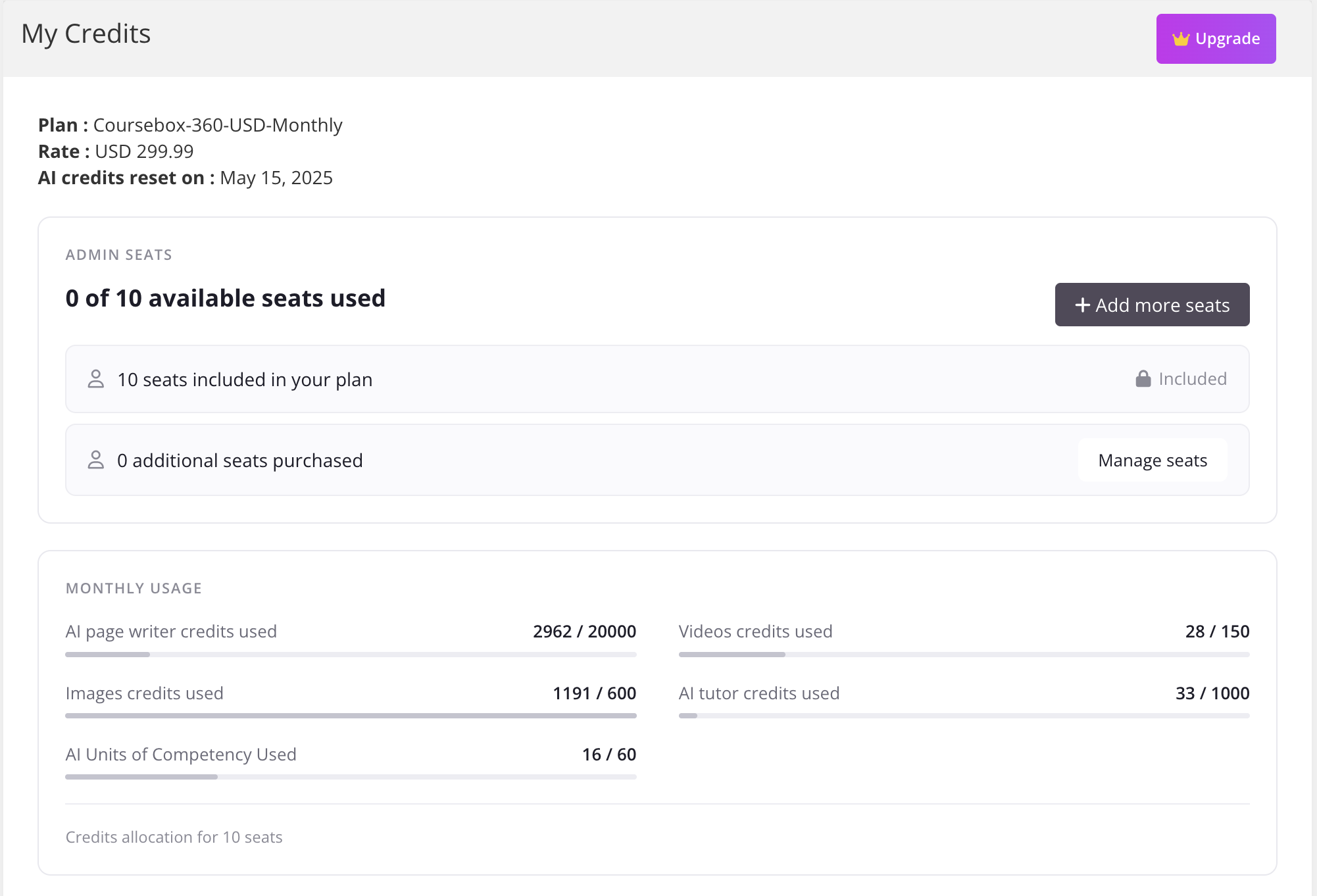
Tip: If you're running low on credits, click the Upgrade button to explore higher plans.
Purchase add-ons (for example, an additional admin seat)
If you need extra capacity on your plan, such as an additional admin seat, more AI credits, or extra storage, you can add these directly from the subscription portal without changing your base plan.
Steps:
Go to the Coursebox subscription portal: https://courseboxai.chargebeeportal.com/portal/v2/login?forward=portal_main
Enter the email address linked to your Coursebox account and request a one-time password.
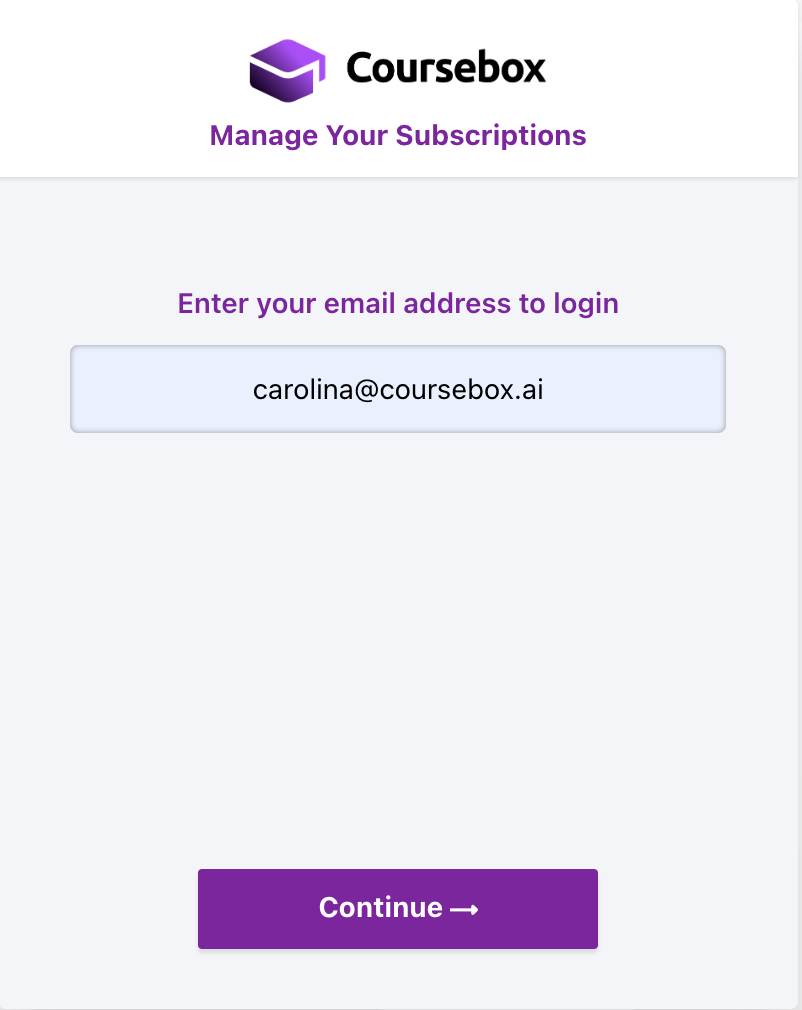
Check your inbox, copy the OTP, paste it into the login screen, and click Login →.
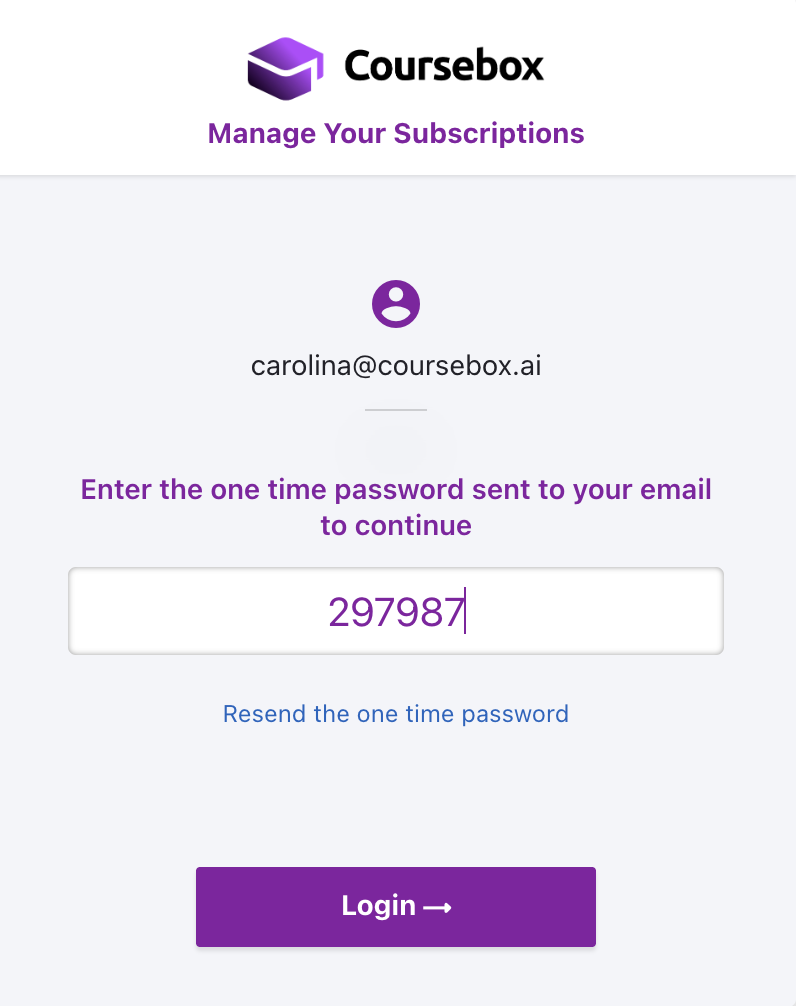
On the Manage Subscriptions page, click your active plan.
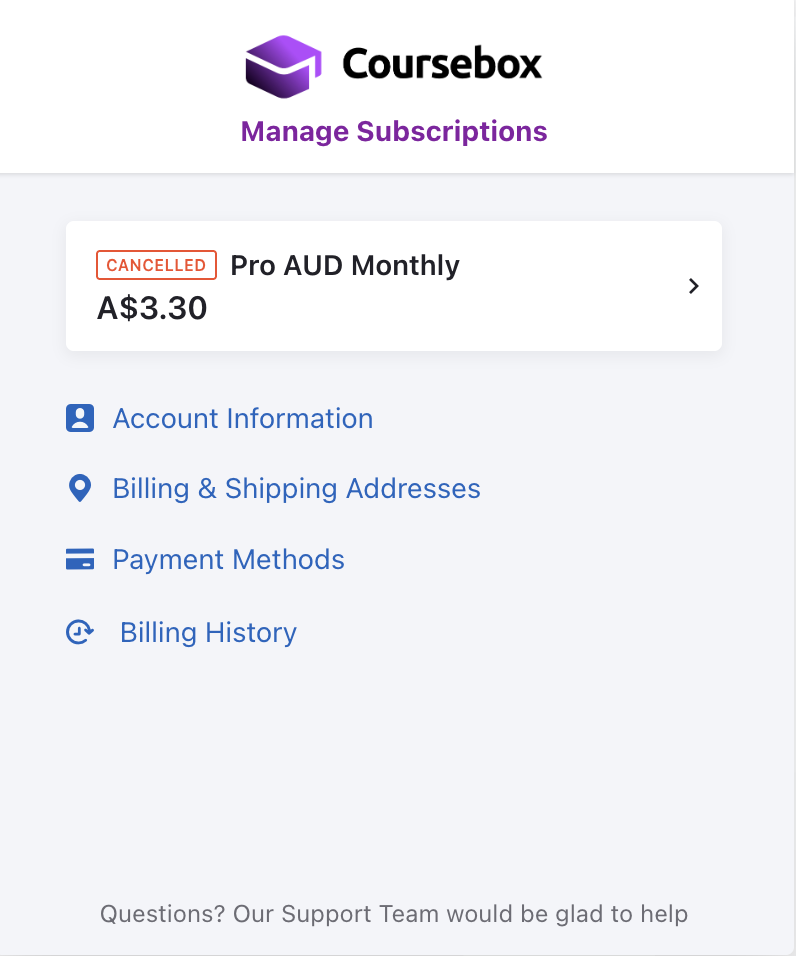
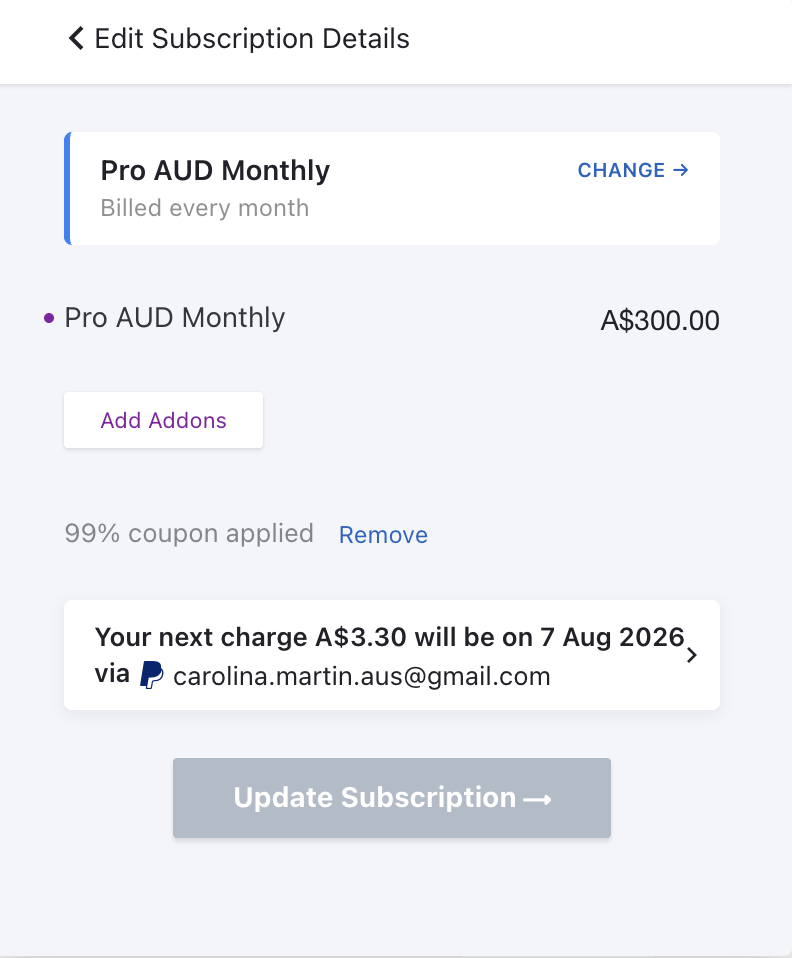
On the Subscription Details screen, click Add Addons.
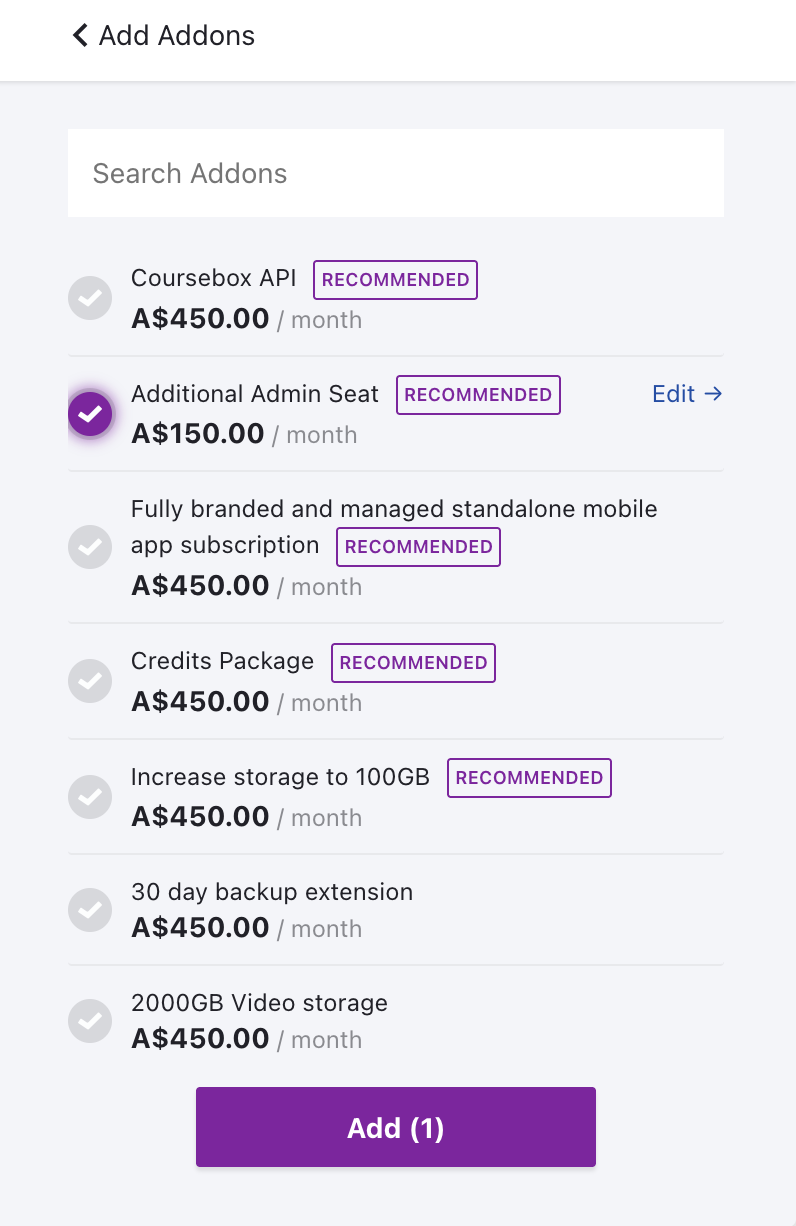
Select the add-on(s) you want, for example Additional Admin Seat, then click Add.
Review the updated price and click Update Subscription to confirm.
Available add-ons may include Coursebox API access, an Additional Admin Seat, a fully branded/managed mobile app subscription, a Credits Package, extra storage, and a backup extension. Current pricing for each add-on is shown in the subscription portal.
Admin seats: every paid plan includes one admin seat. If you need more people who can create or edit courses or manage grades, you can buy Additional Admin Seat add-ons at any time from the subscription portal — you do not have to change your plan. Each additional seat also adds a full AI credit allowance to your account. On Enterprise, admin seats are agreed as part of your contract.
Before you cancel: your options
If you're thinking about cancelling, check these alternatives first. They keep your courses and data intact:
Pause instead of cancel: stop billing while keeping your account and courses safe, and resume any time (see Pause your subscription above).
Downgrade to a smaller plan: if your plan is more than you need, move to a lower tier instead of leaving (click Upgrade in the top bar and choose a smaller plan).
Switch to annual: if cost is the concern, the annual plan gives more AI credits from day one for less than monthly billing.
Talk to us first: book a quick, no-pressure call at https://calendly.com/meet-coursebox or email support@coursebox.ai and we'll help you find the right fit.
What you lose when you cancel
When your subscription ends, your courses are unpublished and learners are unenrolled. On a branded portal, your platform and its data are permanently deleted.
What happens to courses you have already exported or embedded depends on the type:
Self-hosted SCORM keeps working. It is a standalone copy that runs on your own LMS or server with no connection to Coursebox, so it continues to work after you cancel. It leaves out anything that needs a live connection — the AI tutor, listen mode, short answer questions, assignment submissions and discussions — and it will not update when the course changes in Coursebox. Self-hosted SCORM export is available on Pro and above.
Dynamic SCORM and LTI stop working. Both deliver the live course from Coursebox, so they need an active subscription. Courses you have already exported as dynamic SCORM, or embedded via LTI, will stop functioning when your subscription ends.
PDF and HTML exports you have already downloaded are yours to keep.
If you rely on dynamic SCORM or LTI and are planning to cancel, consider exporting a self-hosted SCORM package first while your subscription is still active. See Share & Export a Course. If you may return, pause instead of cancelling.
Cancel your plan (end my subscription)
On my.coursebox.ai, you must cancel your active plan before deleting your account.
Go to Settings > Manage Account.
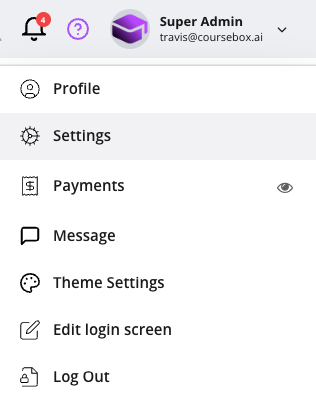
Click the Cancel Plan button (grey) > confirm when prompted.
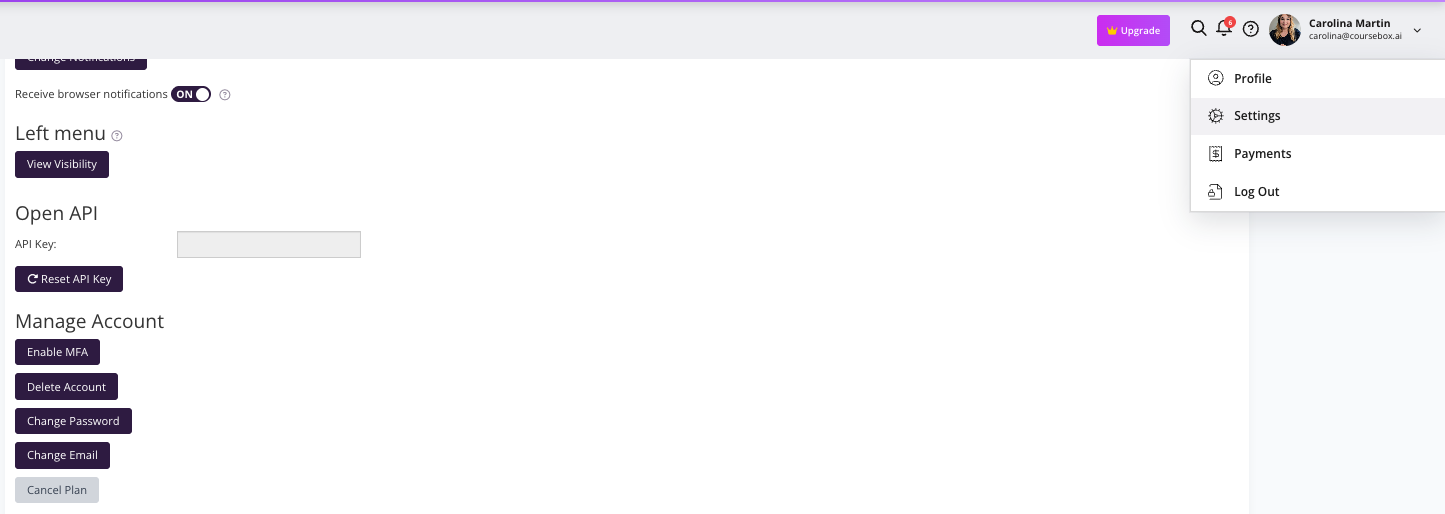
Note: Cancelling stops future billing but your account remains active until deleted.
Cancel a branded portal (Pro + LMS and Enterprise)
Before deleting your account, you must cancel your active plan.
Go to Settings > Manage Account.
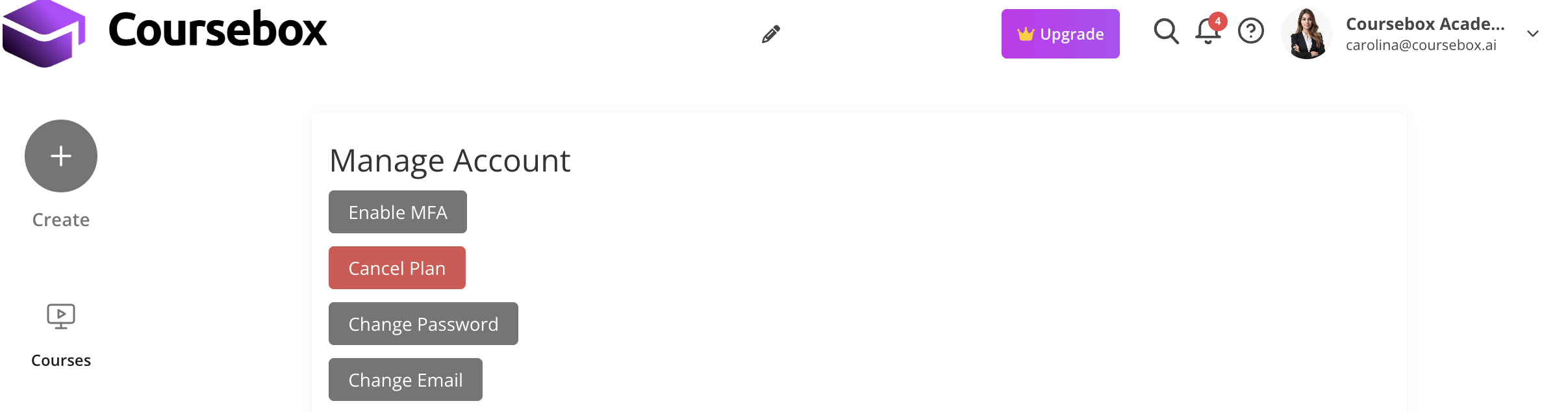
Click the Cancel Plan button (red) > confirm when prompted.
You will be taken to this screen where you can follow the steps.
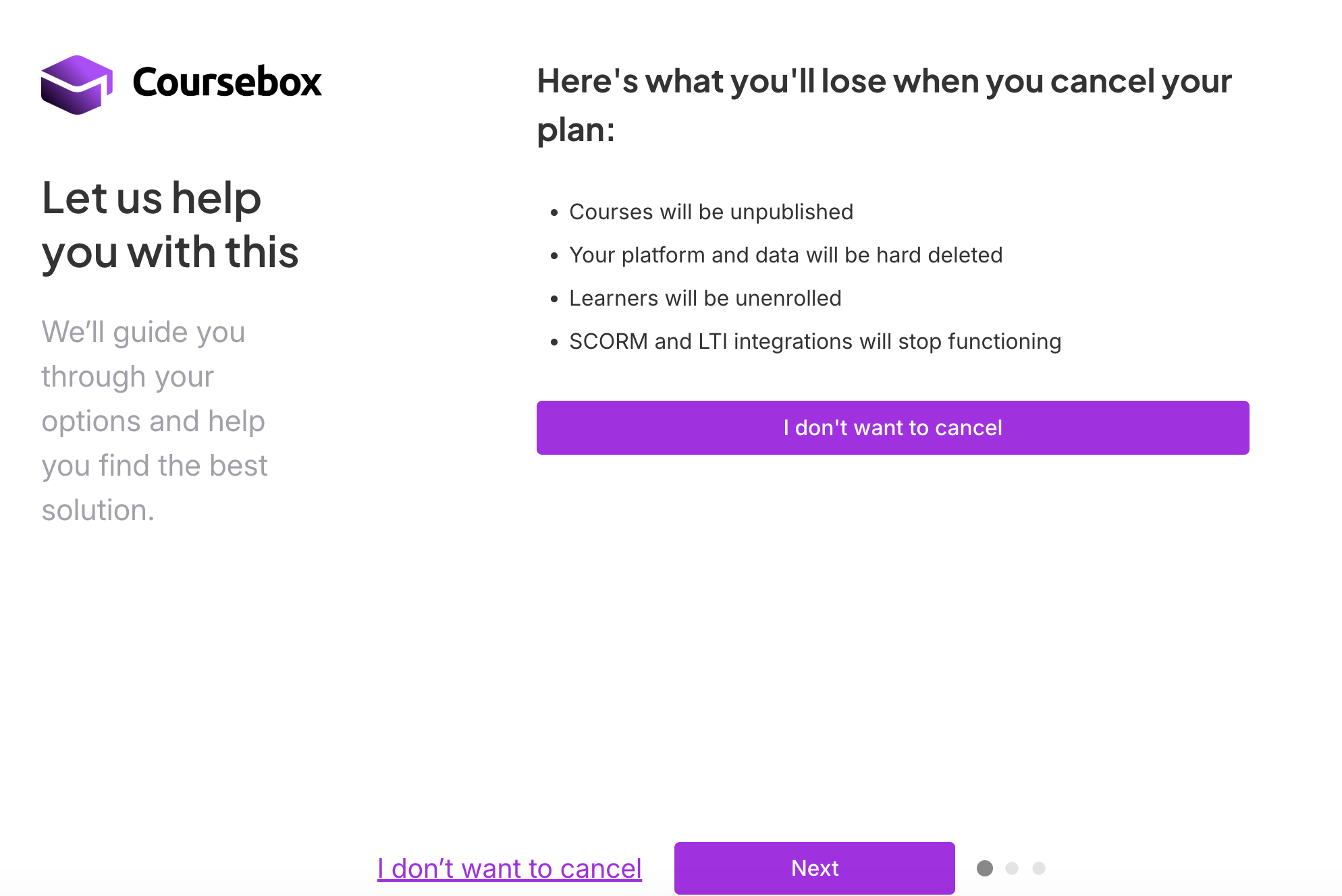
Note: When cancelling a branded portal, all data will be permanently deleted.
Enterprise customers: if you are on a signed Enterprise agreement, cancellation is governed by that contract and its minimum 2-year initial term, not by this button. Please contact support@coursebox.ai or your account contact before cancelling.
Deleting your account (close my account)
After cancelling, return to Settings > Manage Account > click Delete Account > confirm.
Note: You cannot delete your account while your subscription is active or paused. If your subscription is paused, you'll need to fully cancel it first (see Cancel your plan above) before the Delete Account option will work.
Download your receipt / invoice
If you need a copy of your subscription invoice or receipt, you can access these directly through the Coursebox subscription portal.
Steps:
Go to the Coursebox subscription portal: https://courseboxai.chargebeeportal.com/portal/v2/login?forward=portal_main
Enter the email address linked to your Coursebox account and request a one-time password.
Check your inbox, copy the OTP, paste it into the login screen, and click Login →.
On the Manage Subscriptions page, click Billing History.
Find the relevant invoice and click Download PDF to save your receipt.
Why does my course show “Resume” instead of “Paid” or “Buy Now”?
If a course shows Resume (or Resume Subscription) instead of Paid / Buy Now, your subscription is currently paused. Reactivate it by logging in, clicking Upgrade in the top bar, and choosing Resume Subscription. Once active, the Paid and Buy Now options return and you can sell the course.