Account Settings
Edit/ Change your Password
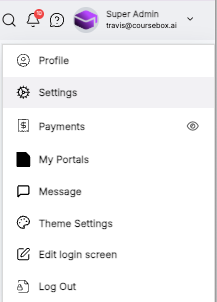
The Super Admin can change the password or the email associated with the account by clicking on profile then settings.
Navigate down the page to Manage account and click Change Password button in order to change the password. You can only change the password if you have access to the Old Password.
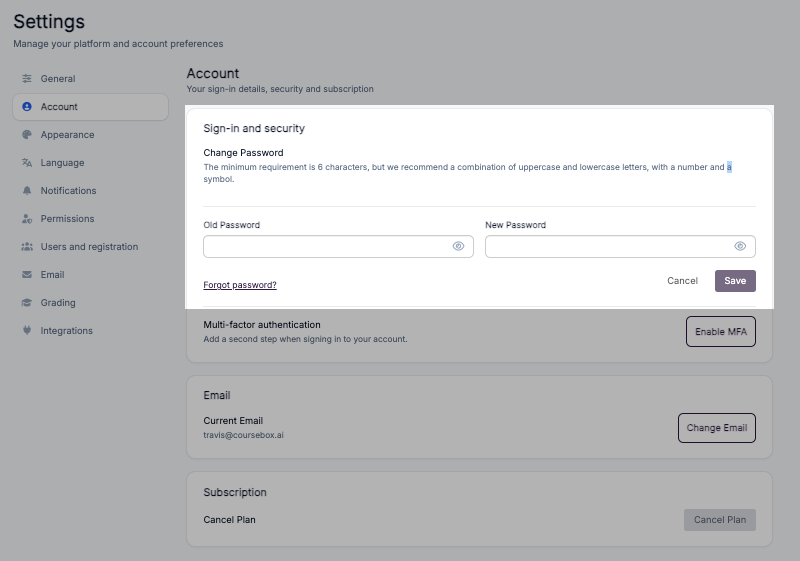
If you have forgotten the password, click on 'Forgot password?' link to reset the password.
Enable Two-Factor Authentication (2FA)
Two-Factor Authentication (2FA) adds an extra layer of security to your Coursebox account. When enabled, you'll need to enter a one-time code from an authenticator app each time you log in, in addition to your password.
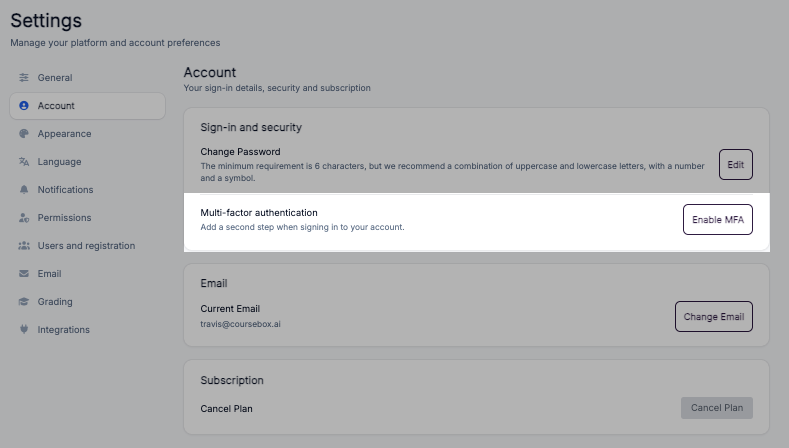
Click Enable MFA
This will open the Two-Factor Authentication setup window
To complete setup, you'll need an authenticator app such as:
Google Authenticator (iOS / Android)
Authy (iOS / Android)
Follow these steps:
Install an authenticator app on your mobile device
Open the app and tap the "+" icon
Select Scan a QR code
Scan the QR code displayed on screen. Alternatively, manually enter the Secret Key shown
Verify and Enable 2FA
Enter the 6-digit code generated by your authenticator app into the Verify field
Click Verify
Tick Enable 2FA Authentication
Click Update 2FA Setting to save
Once enabled, 2FA will be required each time you log in.
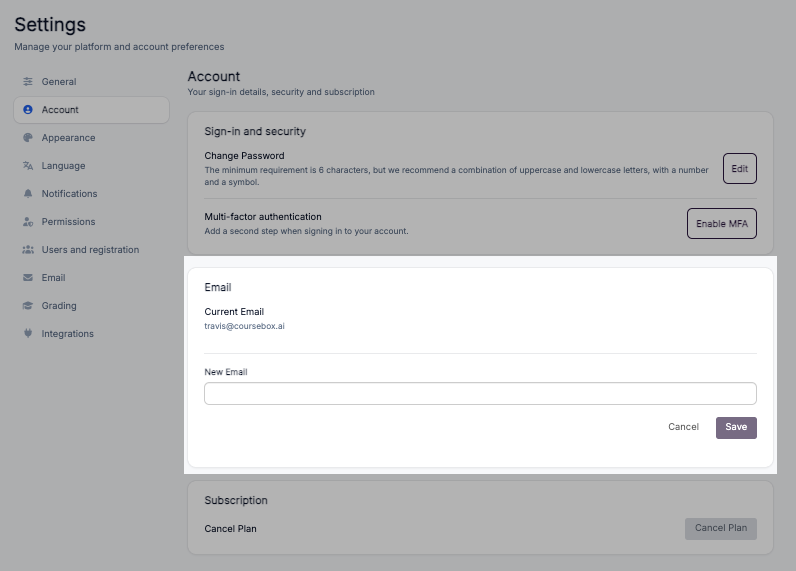
Edit/ Change your Email
Click the change email in order to change the email address associated with the account.
Subscription
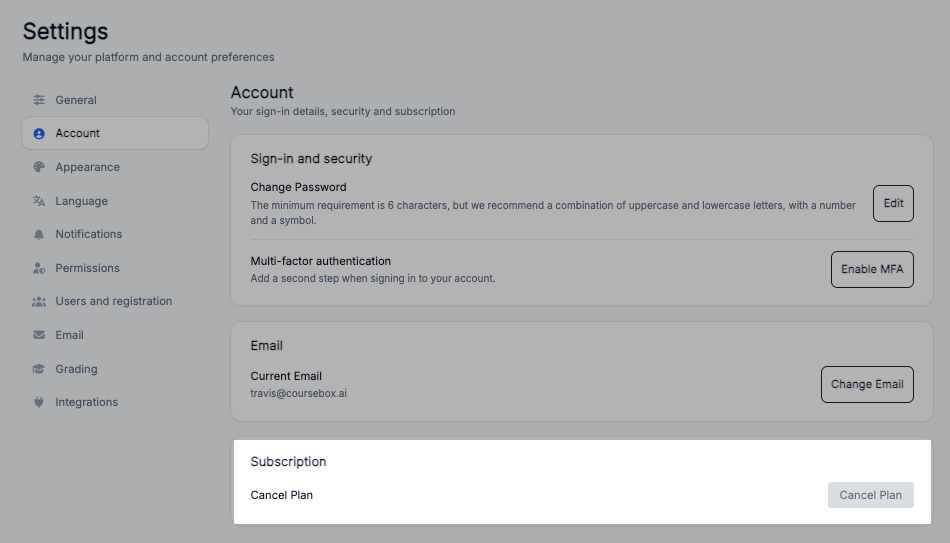
The Super Admin can view and manage the account's subscription from the Account tab under Settings. This section shows your current plan and gives you the option to make changes.
To cancel your subscription, click the Cancel Plan button in the Subscription section and follow the prompts. If you'd like to change or upgrade your plan, visit https://www.coursebox.ai/pricing