General Settings
This topic covers the platform-wide General settings that Super Admins can configure to control portal behaviour, optional features, and sharing options across the Coursebox platform. These settings are found under Settings → General.
Portal Settings
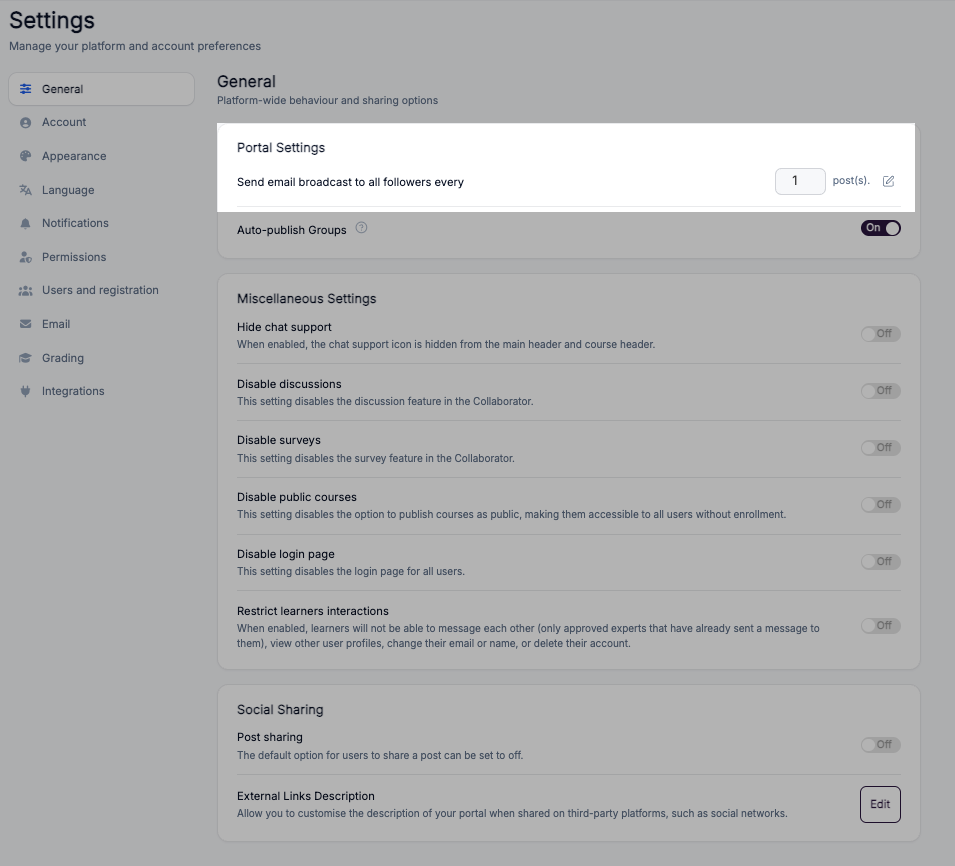
This setting controls whether an email broadcast is sent to all followers each time you create one or more posts.
Auto-publish Groups
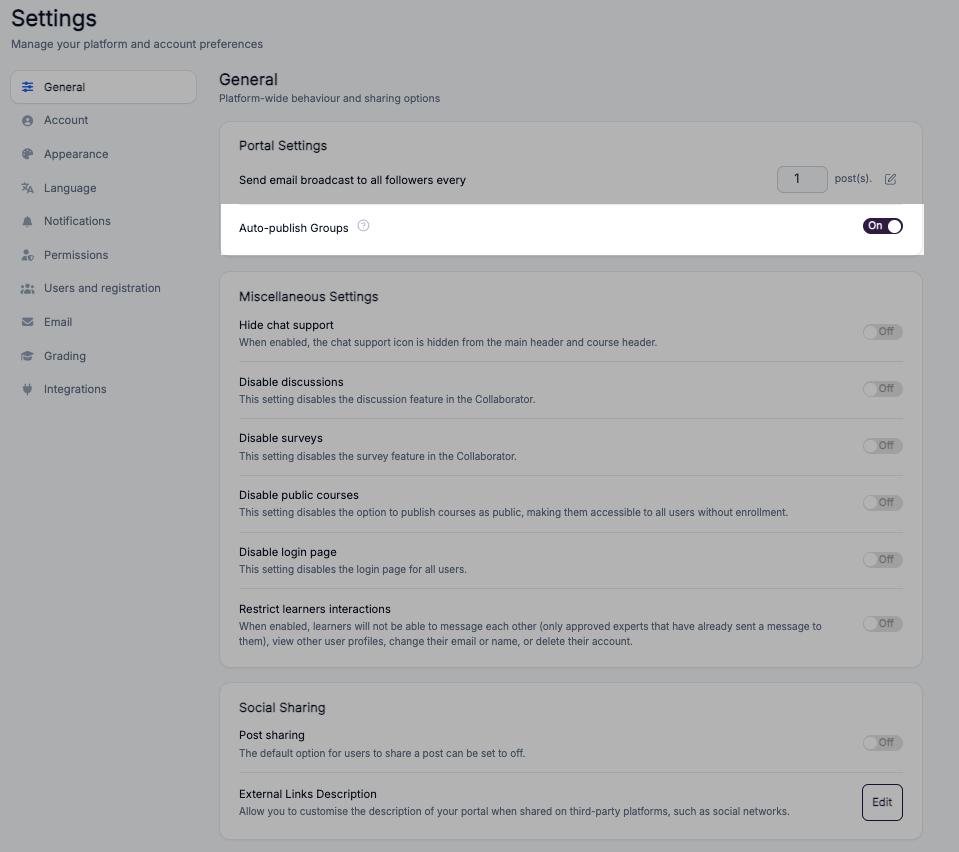
This setting controls whether Groups are published automatically or require Super Admin approval. A Group is published when it is moved out of Draft (to Restricted or Public). Groups are available on Pro + LMS and Enterprise.
ON (default): Groups are published straight away. Moving a Group out of Draft doesn't need approval.
OFF: A Super Admin must approve a Group before it can be published.
Tip: Turn this OFF if you want tighter control or approval workflows for Groups. For more on Draft, Restricted and Public, see Group Management.
Manage Miscellaneous Settings
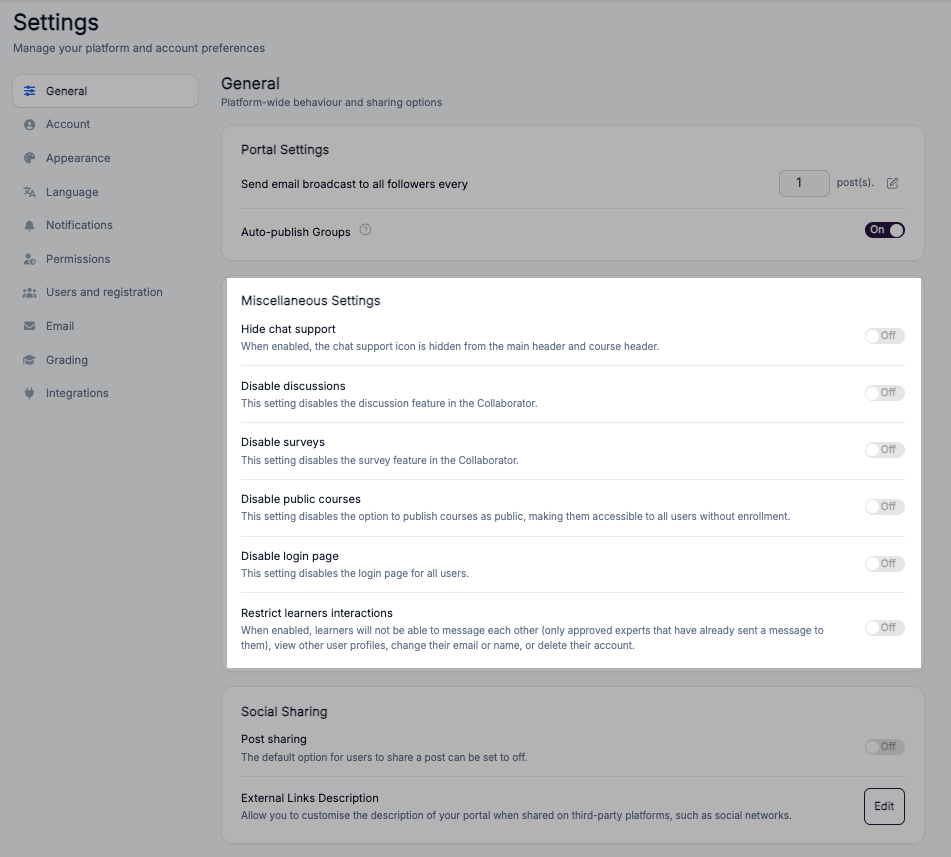
The Miscellaneous Settings section gives you control over optional features in your Coursebox platform. Each toggle can be switched ON (enabled) or OFF (disabled), depending on how you want learners to interact with your courses and the platform.
1. Enable/Disable Discussions
If enabled: Learners can use the discussion feature in the course editor.
If disabled: The discussion feature is removed, and learners cannot post or participate in discussions.
Use case: Enable if you want peer discussions and collaboration. Disable if you prefer to keep communication one-way or through assessments only.
2. Enable/Disable Surveys
If enabled: Facilitators can add and run surveys inside courses to collect learner feedback.
If disabled: The survey feature is hidden in the course editor.
Use case: Enable if you want feedback or data collection. Disable if surveys are not part of your program.
3. Enable/Disable Public Courses
If enabled: Courses can be published as public, allowing anyone to access them without enrollment.
If disabled: Courses are only available to enrolled learners.
Use case: Enable for open-access or promotional courses. Disable to keep courses private and restricted.
4. Enable/Disable Login Page
If enabled: Users can log in through the Coursebox login page.
If disabled: The login page is removed for all users.
Use case: Enable for standard access. Disable only if login is handled entirely through another system (e.g., SSO).
5. Enable/Disable Learner Interactions
If enabled: Learners can message each other, view profiles, and manage their own account settings (e.g., change email, name, or delete account).
If disabled, learners cannot message each other (only approved experts who have messaged them before can continue), view other learners' profiles, change their email or name, or delete their account.
Use case: Enable if you want a social, collaborative environment. Disable if you want controlled, expert-only communication.
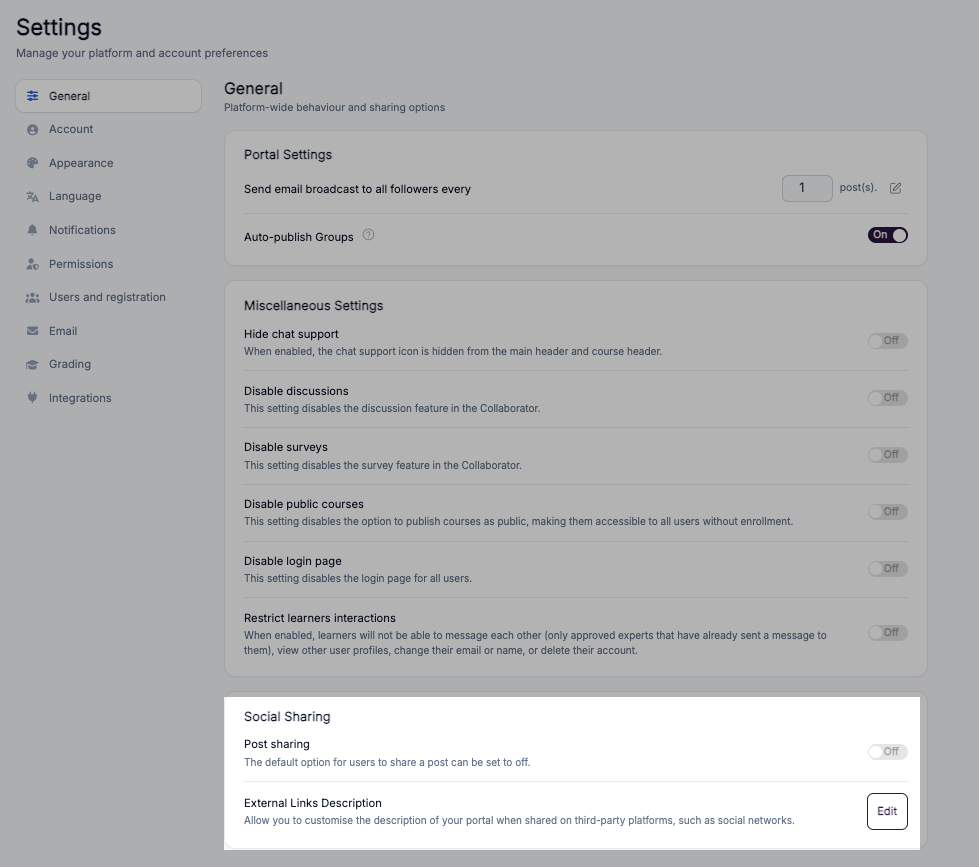
Social Sharing
The Super Admin can control whether users are able to share posts and Learning to social media.
Navigate to Settings and select whether Social is enabled for posts and/or Learning.