
Security Settings
For Pro + LMS and Enterprise accounts only. To upgrade your account go to: https://www.coursebox.ai/pricing
The Security page is where Super Administrators set the password policy and sign-in methods for their platform, and control which embedded content is allowed in course text blocks. From here you can decide how strong user passwords need to be, remove passwords altogether and have everyone sign in with a magic link, or allow iframes from any website in your courses.
Accessing Security Settings
From the top navigation bar, click the dropdown menu (▼) next to your profile icon.
Select Settings.
In the left-hand menu, click Security.
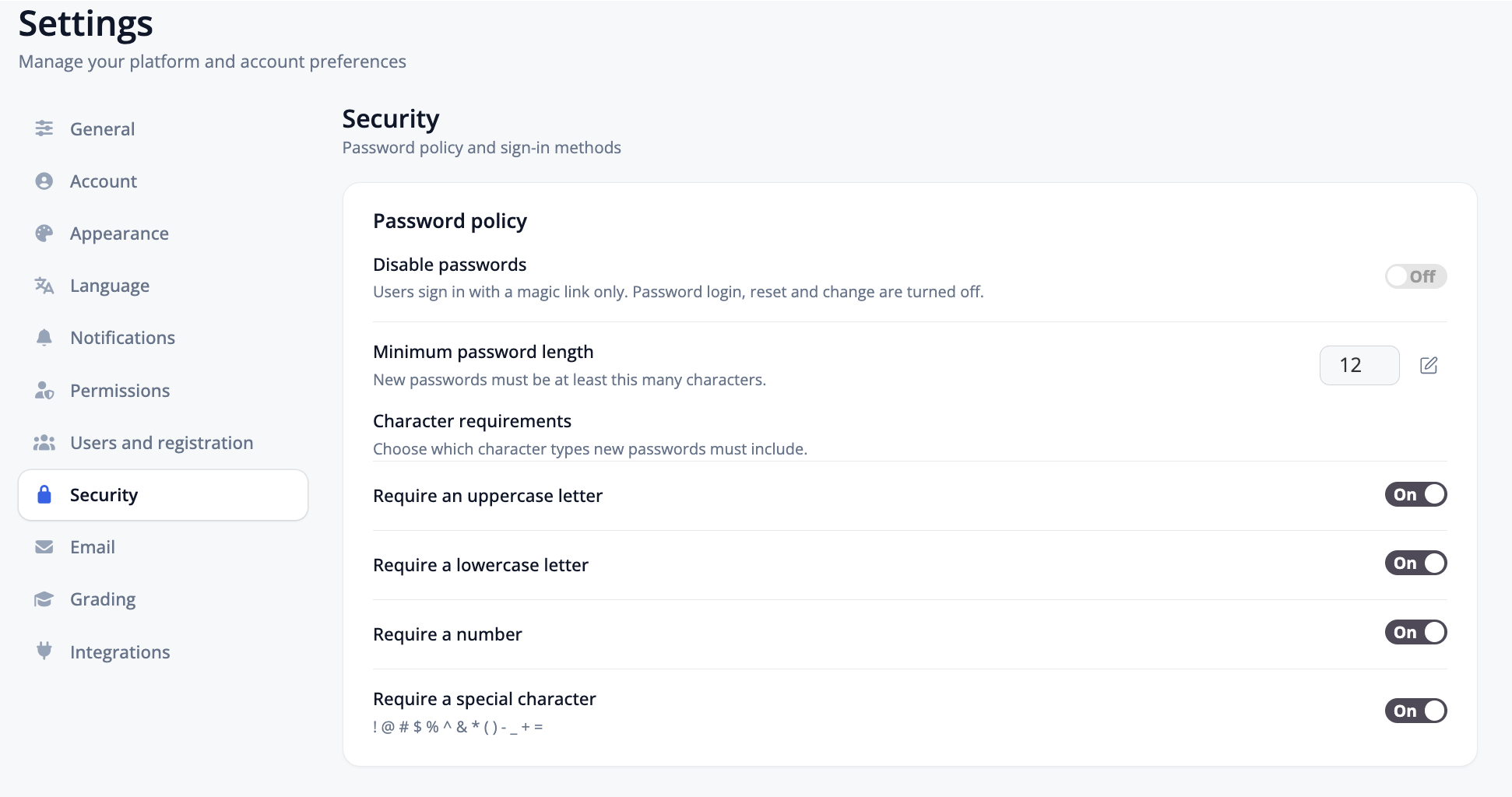
Disable passwords (magic link only)
The Disable passwords toggle switches your platform to passwordless sign-in.
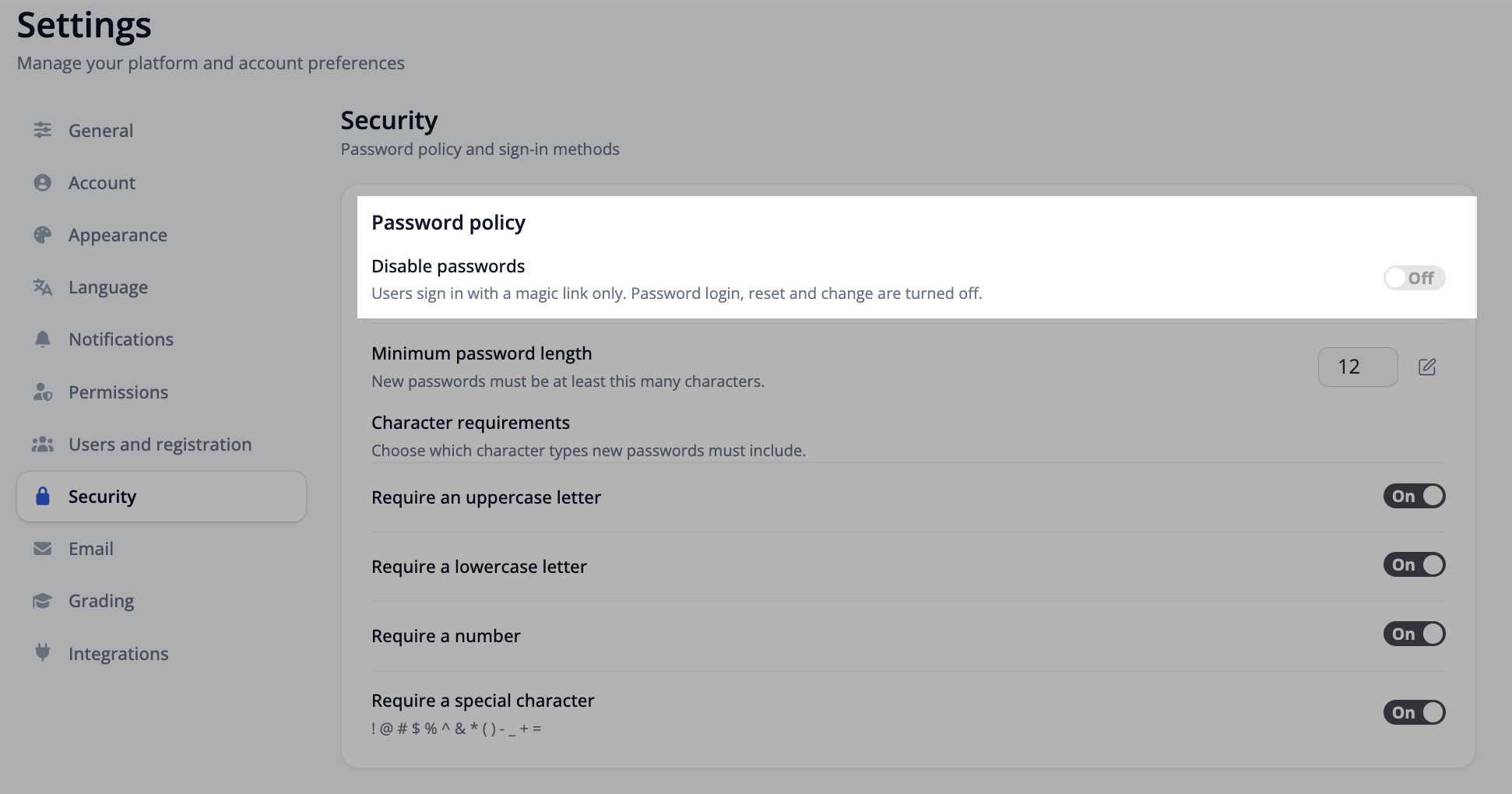
Setting | What it does |
|---|---|
Disable passwords | When turned On, users sign in with a magic link only. Password login, password reset and password change are all turned off. |
With this setting On, a user enters their email address on the login screen and receives a one-time sign-in link by email — there is no password field, no “Forgot password” flow, and no way for users to change a password from their profile.
Tip: Passwordless sign-in removes weak and reused passwords entirely and cuts down on password-reset support requests. Before switching it on, make sure your email settings are configured correctly and that learners can reliably receive email from your platform — if magic link emails don't arrive, users cannot log in at all.
Note: When Disable passwords is On, the password policy options below no longer apply, because no new passwords are being created.
Minimum password length
Minimum password length sets how many characters a new password must contain. The default is 12.
Click the pencil (edit) icon next to the number.
Enter your preferred minimum length.
Save the value.
This applies to new passwords — that is, any password created at registration, at a password reset, or when a user changes their password.
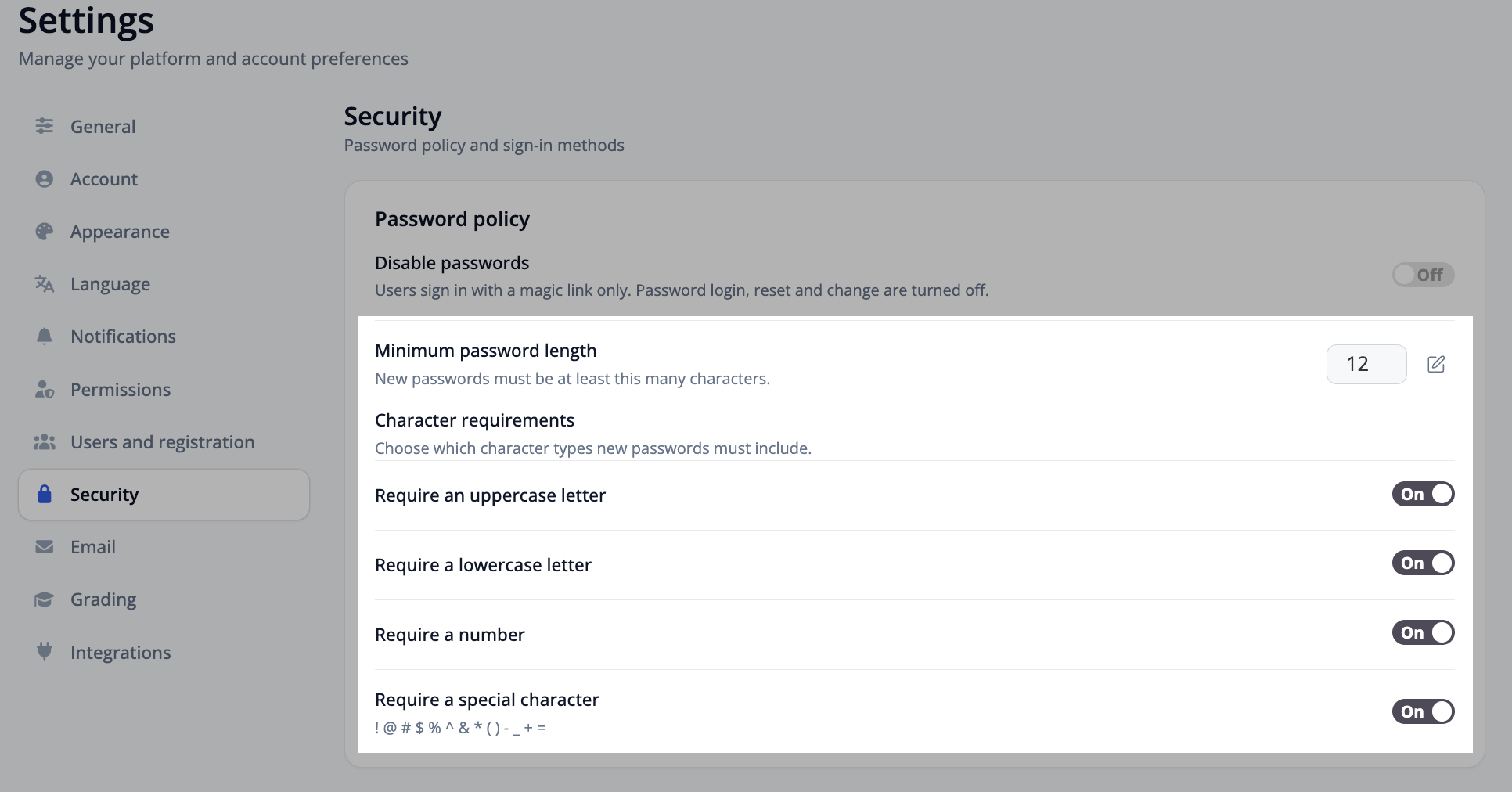
Tip: Length is the single biggest factor in password strength. A minimum of 12 characters is a sensible baseline for most organisations; raise it if your compliance policy requires it.
Character requirements
Character requirements let you choose which character types every new password must include. Each requirement is an independent On/Off toggle, and all four are On by default.
Requirement | What the password must include |
|---|---|
Require an uppercase letter | At least one capital letter (A–Z). |
Require a lowercase letter | At least one lowercase letter (a–z). |
Require a number | At least one digit (0–9). |
Require a special character | At least one of the following characters: |
Turning a requirement Off makes that character type optional rather than forbidden — users can still include it if they wish.
Tip: If learners report that a password “keeps getting rejected”, check this page first. The password they are choosing is most likely missing one of the required character types, or falling short of the minimum length.
Choosing the right policy
If you want to… | Do this |
|---|---|
Remove passwords and password-reset requests entirely | Turn Disable passwords On (magic link sign-in only). |
Meet a corporate or compliance password standard | Leave Disable passwords Off, raise the minimum password length, and keep all four character requirements On. |
Make sign-up as frictionless as possible for public learners | Keep the 12-character minimum but turn off one or two character requirements. |
Text editor embeds (allow iframes from any website)
The Allow iframes in text editor blocks toggle controls which embedded content course creators can add to a Text Block using the </> HTML view.
Setting | What it does |
|---|---|
Allow iframes in text editor blocks | Off: text blocks keep iframes from known video platforms only (YouTube, Vimeo, Loom and similar). Iframes from any other website are removed when the block is saved. On: text blocks can embed iframes from any website, and they stay after saving. |
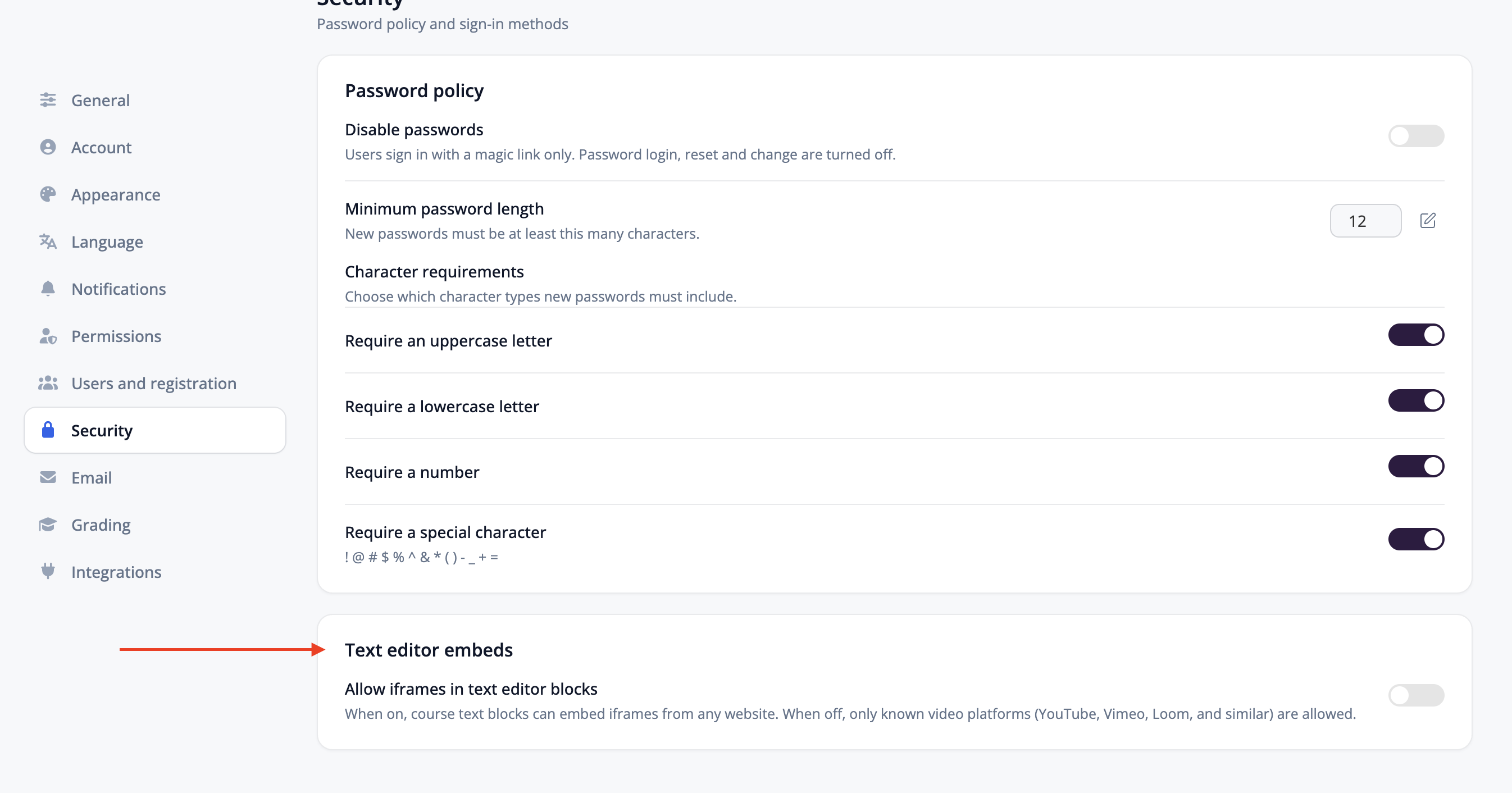
To allow iframes from any website:
Open Settings and click Security in the left-hand menu.
Under Text editor embeds, turn Allow iframes in text editor blocks On.
Go back to your course, open a Text Block, click the </> HTML icon, paste your iframe code, and save.
Available on LMS plans only (Pro + LMS and Enterprise). Allowing embeds from any website is a security decision for the portal owner, so only a Super Admin can change it, and it applies to every course on your platform.
Security note: An iframe loads another website's content inside your course. Only turn this on if you trust the people who create and edit courses on your platform.
Embed code disappears after saving? If you pasted an iframe into a Text Block and it vanished when you saved, it is most likely from a website other than a known video platform. Turn this setting On, then paste the iframe again.