
Email Settings
This topic explains how to manage and customise emails and communications in Coursebox. It covers the automatic emails sent to learners — invitations, course invitations and registration confirmations — as well as the outgoing mail server used to send them, allowing administrators to control how learners are invited, onboarded and kept informed throughout their learning journey.
Note: System emails sent by Coursebox (such as invitation and registration emails) are sent in the portal's configured language, regardless of an individual user's language preference.
Customise Email Communications
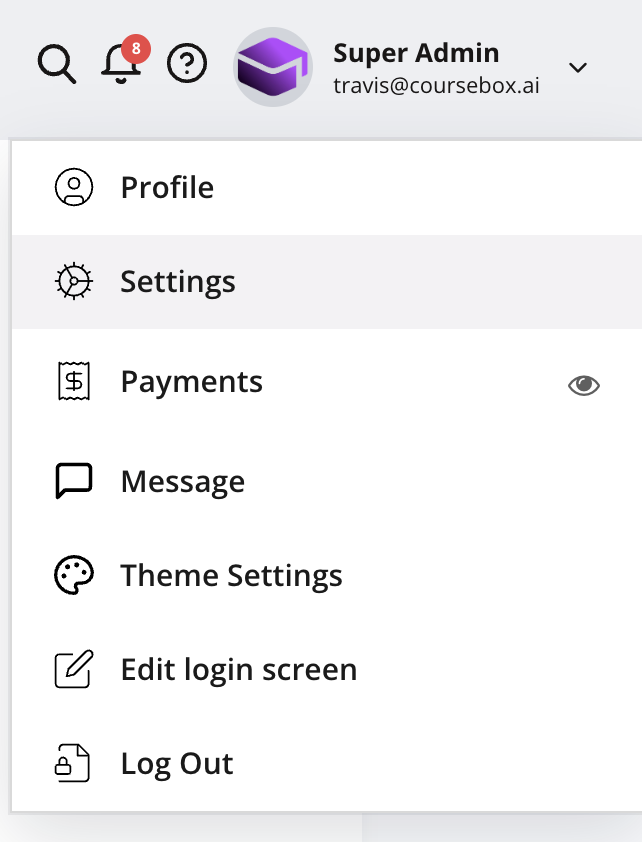
The Super Admin can customise the automatic emails which are sent to users during the registration process.
Coursebox makes it easy to share your course with individual learners and customise the email invitation they receive. This allows you to manage access securely while personalising the learner experience from the very first interaction. These can be customised through the settings:
There are 3 different email templates available:
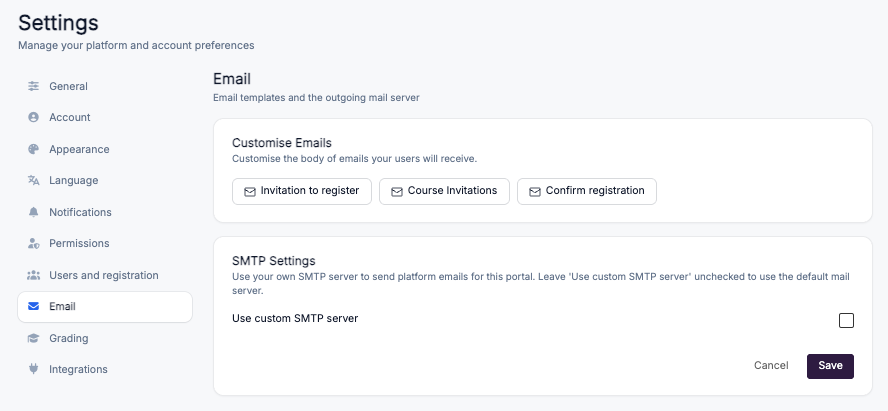
All three templates support dynamic values in both the subject and the body — see Using Dynamic Values below.
Invitation to Register
This email is sent when you invite a new user to the portal.
You can customise this email in two ways:
Though the Share section:
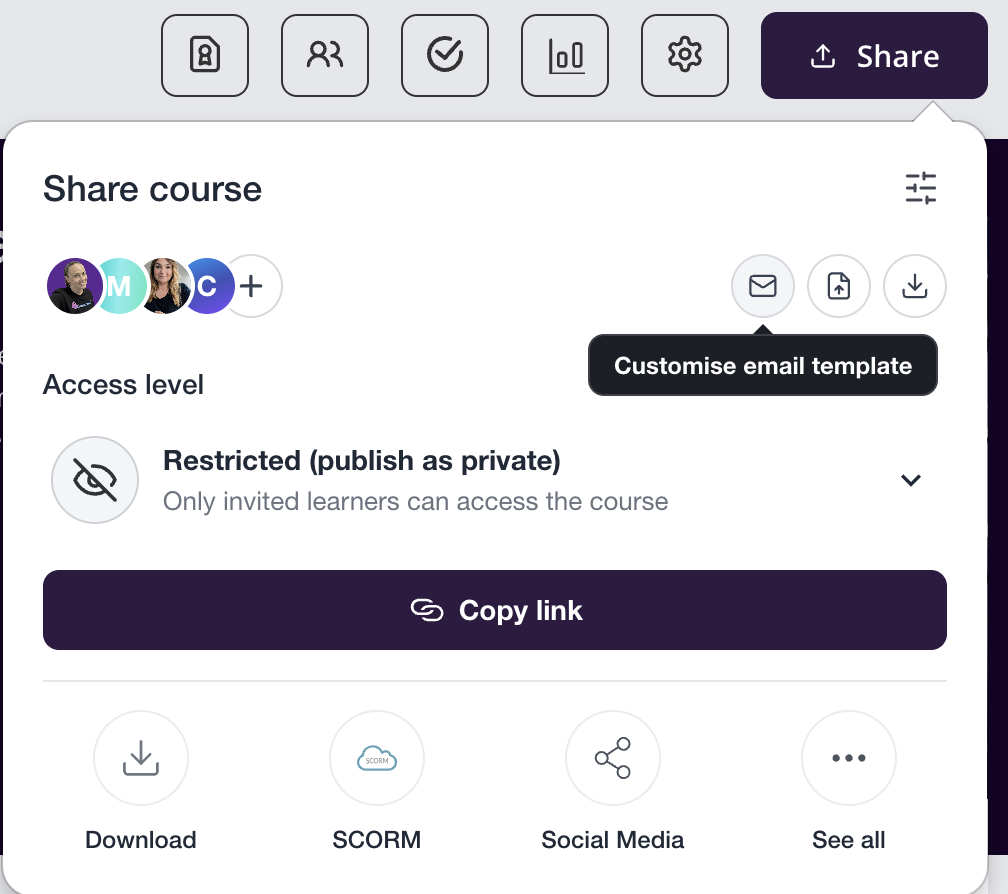
In the top-right corner of the course editor, click the Share button.
Select the envelope icon to customise the email.
By clicking on the ‘Invitation to register’ link to edit the template.
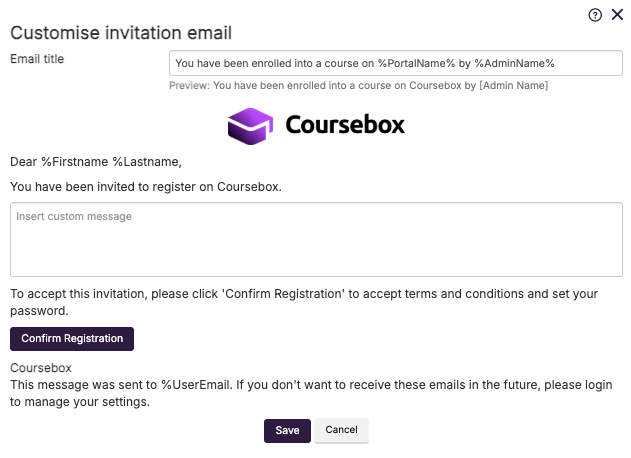
In the template, you can edit the subject and body part of the email. Click on Save to save all the changes.
*Please note that the email logo can be changed by going to the theme setting.
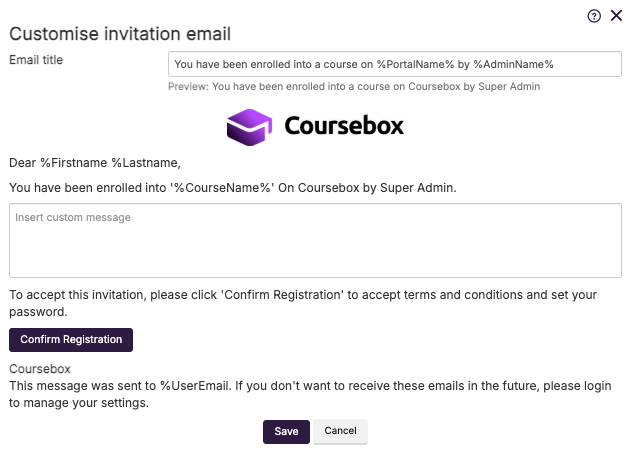
Course Invitations
Click on the ‘Course Invitations’ link to edit the template.
In the template, you can edit the subject and body part of the email. Click on Save to save all the changes.
Confirm Registration
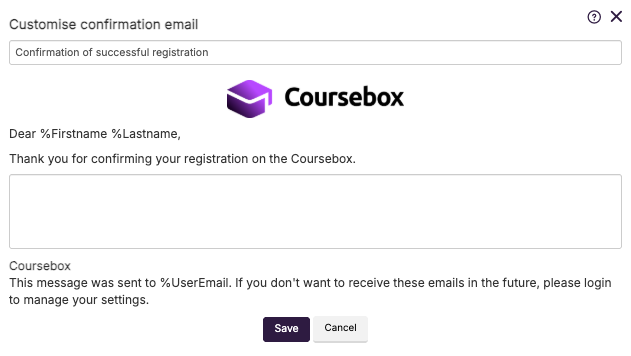
Click on the ‘Confirm registration’ link to edit the template.
In the template, you can edit the subject and body part of the email. Click on Save to save all the changes.
Using Dynamic Values
All three email templates support dynamic values. You can use them in the subject as well as in the body of the email, and Coursebox replaces them with the real details at the moment the email is sent.
%CourseName%— the name of the course%PortalName%— the name of your portal%AdminName%— the name of the admin
For example, a subject written as You have been invited to %CourseName% arrives in the learner's inbox as “You have been invited to Workplace Safety Basics”.
Type each value exactly as shown, including the percent signs and the capital letters, so that Coursebox can replace it correctly.
SMTP Settings
By default, Coursebox sends all platform emails from its own mail server. If you would prefer emails to come from your own domain and mail infrastructure, you can connect a custom SMTP server for the portal.
Go to Settings → Email → SMTP Settings and tick Use custom SMTP server. Leave this unchecked to keep using the default Coursebox mail server.
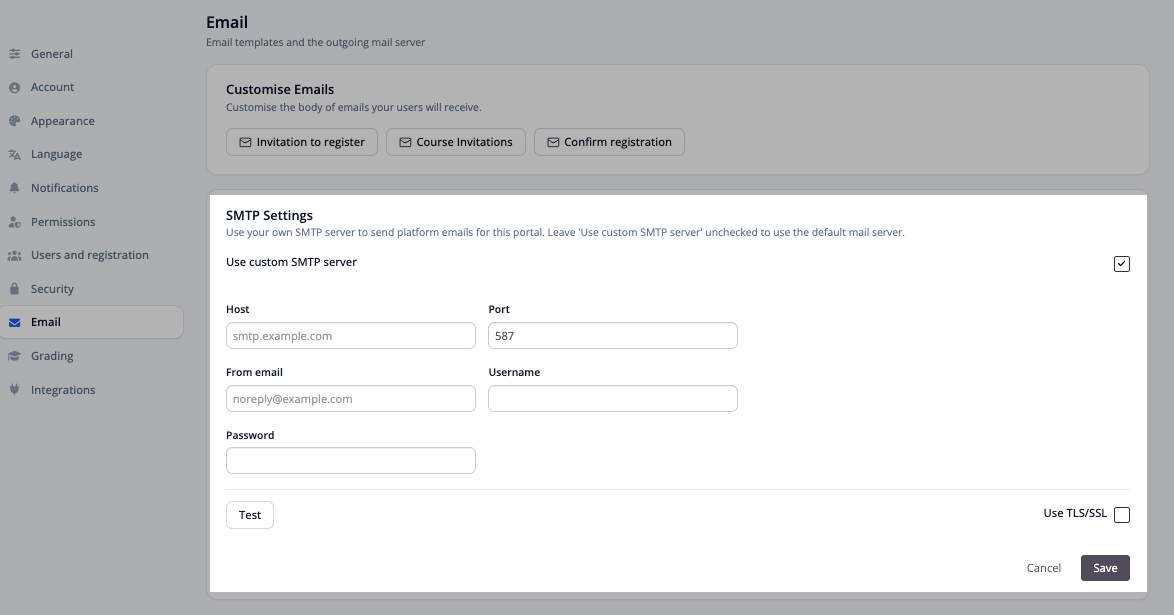
Fill in the following fields:
Host — your mail server address, for example
smtp.example.comPort — the port your mail server uses. This defaults to
587From email — the address emails will be sent from, for example
noreply@example.comUsername — the username for your SMTP account
Password — the password for your SMTP account
Use TLS/SSL — tick this if your mail server requires an encrypted connection
Click Test to send a test email using the details you have entered. Once the test succeeds, click Save. Use Cancel to discard any changes.
If the test fails, emails will not be delivered. Check with your IT team that the host, port and credentials are correct, and that your mail server allows sending from the From email address.