
Organise and Share Files with Resources
Plan requirement: Resources is part of the branded LMS, available on Pro + LMS and Enterprise. Compare plans.
On an earlier plan? Plan names and inclusions changed when we moved to Free, Creator, Pro, Pro + LMS and Enterprise. If you are on an earlier plan, your subscription continues unchanged and you keep everything it included — so you may still see features this article lists under a higher plan. Nothing has been removed from your account.
The Resources section lets you store, organise and share files with learners and groups directly from the platform. This article explains how to navigate Resources, create folders, upload files, and share content privately.
Navigate to Resources
From the left-hand navigation menu, click on Resources. This will open your Resources library where you can view all uploaded files and folders.
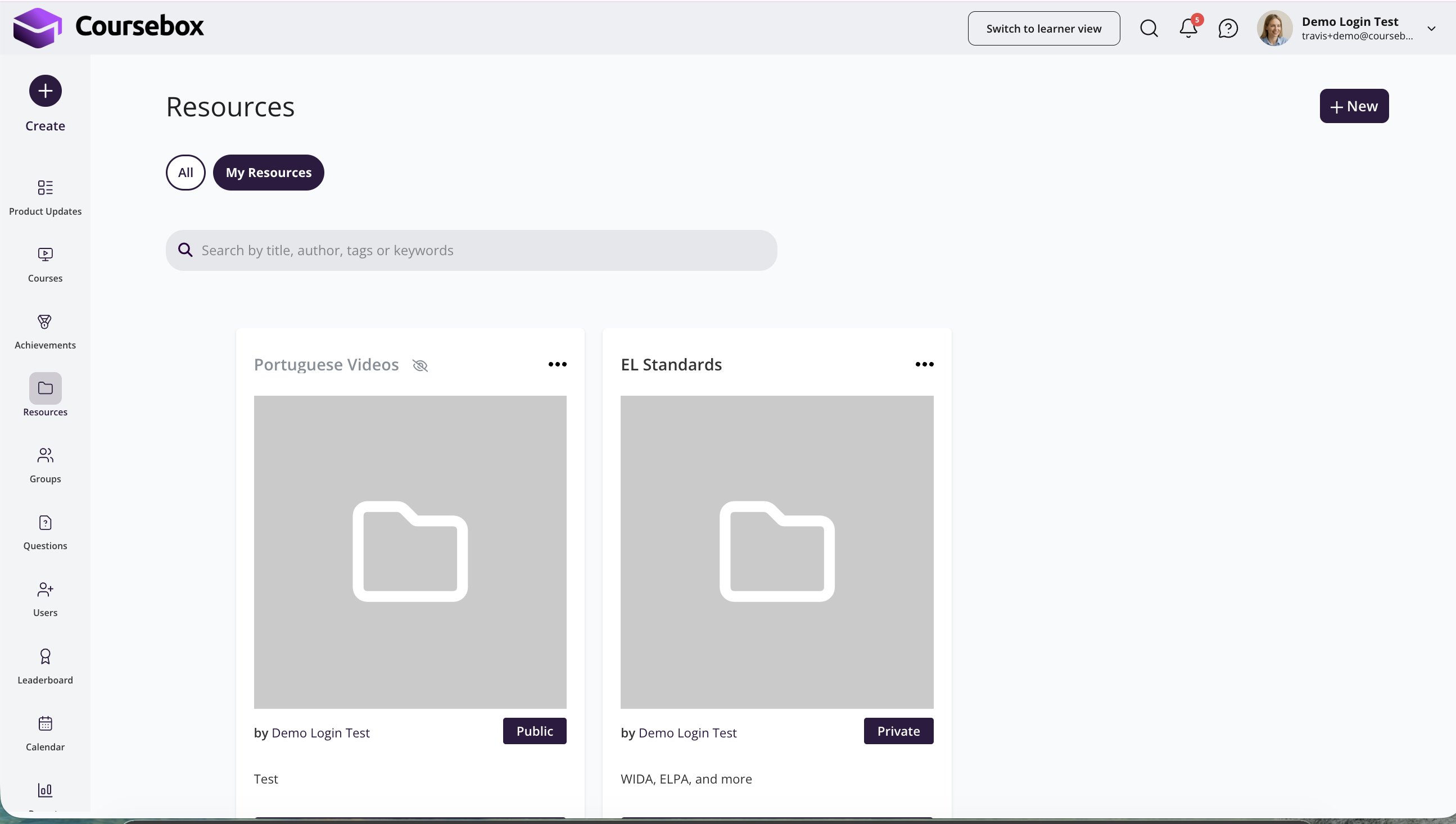
Create a New Folder
Organising your resources into folders makes it easier to manage large numbers of files. To create a new folder:
Navigate to Resources from the left-hand menu.
Click the + New Folder button (or the folder icon with a plus sign).
Enter a name for your folder.
Click Save or press Enter to confirm.
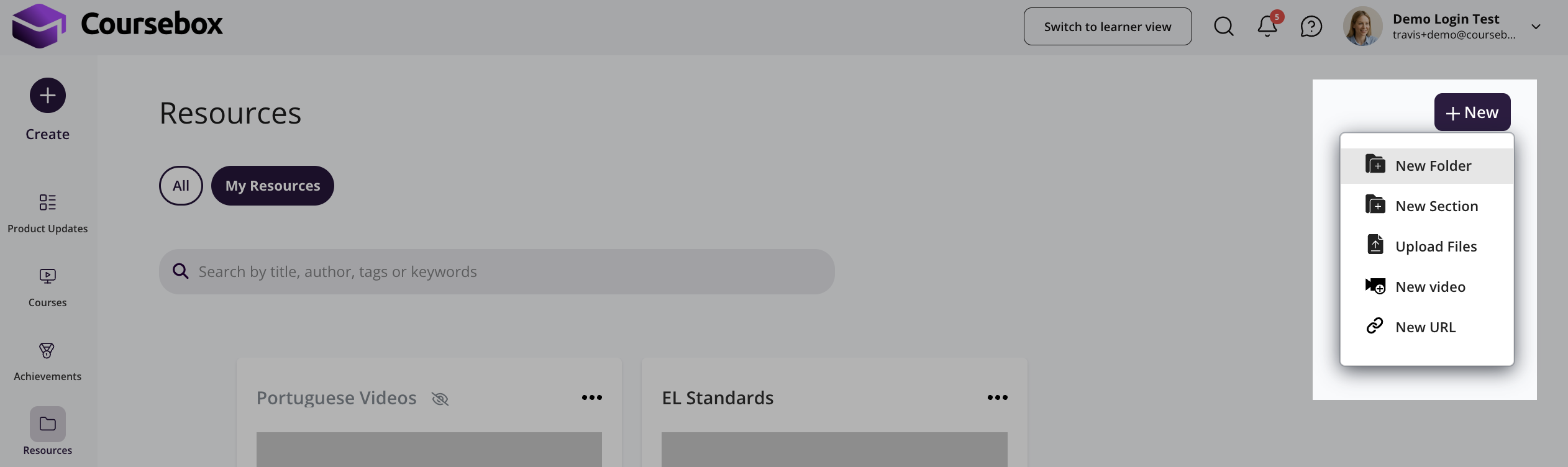
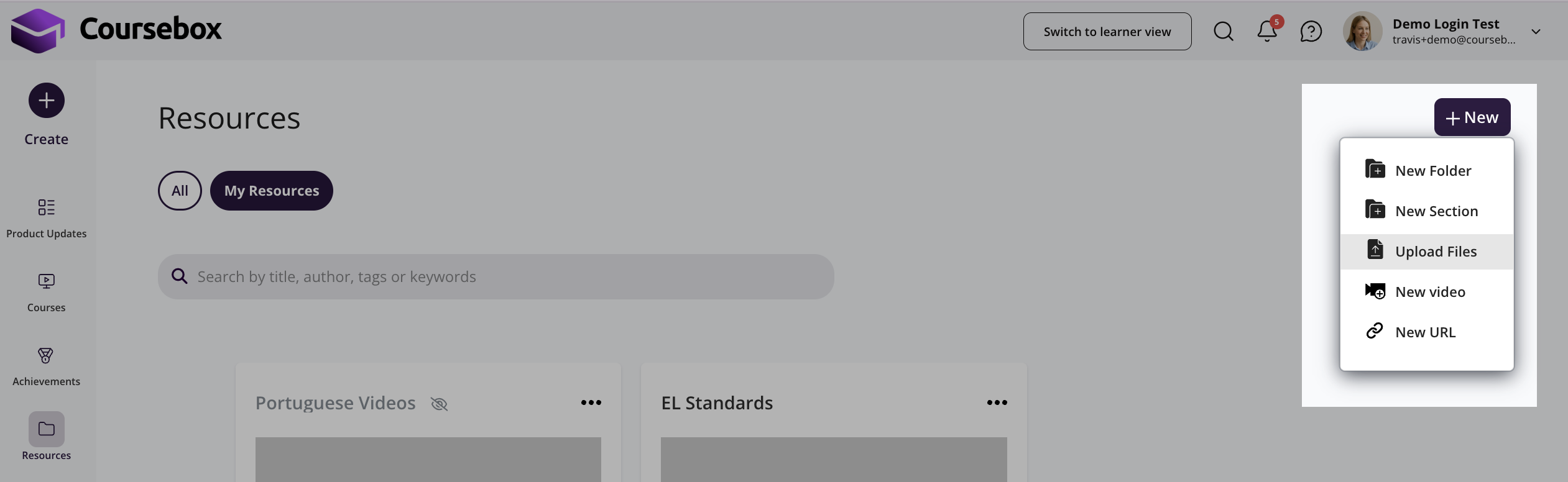
Upload a File
You can upload files such as PDFs, documents, images, and videos to your Resources library. To upload a file:
Navigate to Resources and open the folder where you want to upload the file (or stay in the root library).
Click the Upload or + New File button.
Select the file from your computer.
The file will appear in your Resources library once uploaded.
Share Private Resources
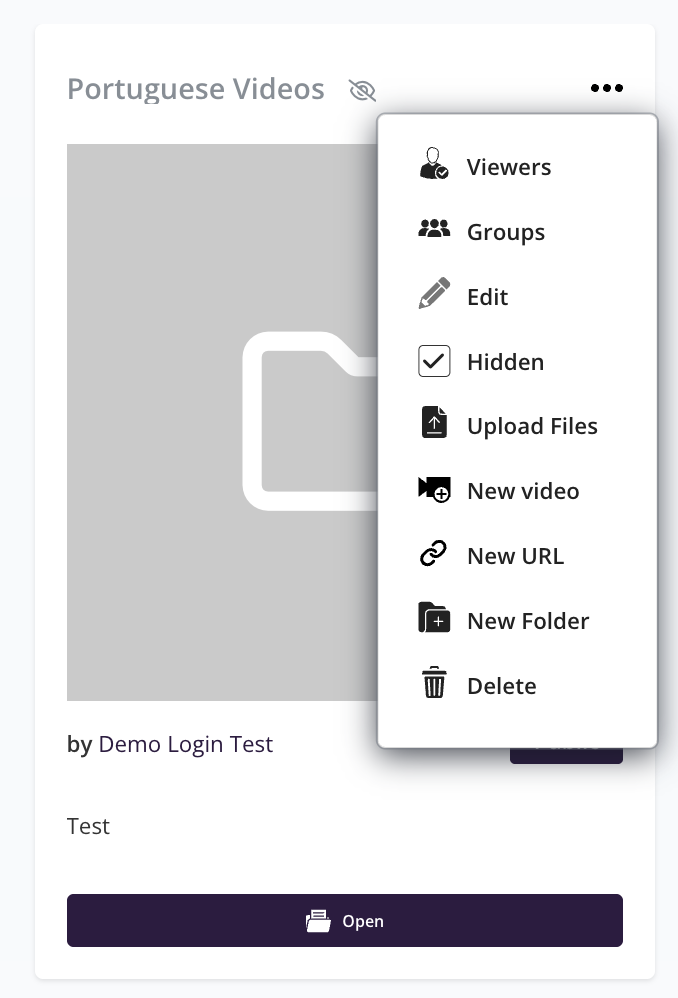
You can share resources privately with specific learners or groups. Private resources are not visible to all users — only those you explicitly share with can access them. To share a private resource:
Navigate to Resources and locate the file you want to share.
Click the Share or options (three dots) icon next to the file.
Select the users or groups you want to share the file with.
Confirm to save the sharing settings. The selected users will be notified and will be able to access the resource from their own Resources section.
Troubleshooting Resources
Resources isn't in my left-hand menu. Resources is part of the branded LMS, so it appears on Pro + LMS and Enterprise. If you are on a lower plan you will need to upgrade to access it.
My upload keeps failing. Check that your file type and file size are within the platform's supported limits. Contact support if the issue persists.
A learner can't see a resource I shared. Check that you selected the correct learner or group when sharing, and that the learner's user type has access to Resources under Settings → Permissions.