
How do I edit the layout and structure of my course?
The Course Editor lets you add, reorder, and remove sections and pages. Choose between single- or double-column layouts for different visual formats. You can also lock completed content, archive sections you want to keep but not show, add HTML for advanced styling, and preview how learners will view each page.
Once your course has been created—whether manually or with AI—you can begin customising it to suit your learning objectives. Coursebox provides an intuitive editing interface that lets you add, update, and organise your course content with ease.
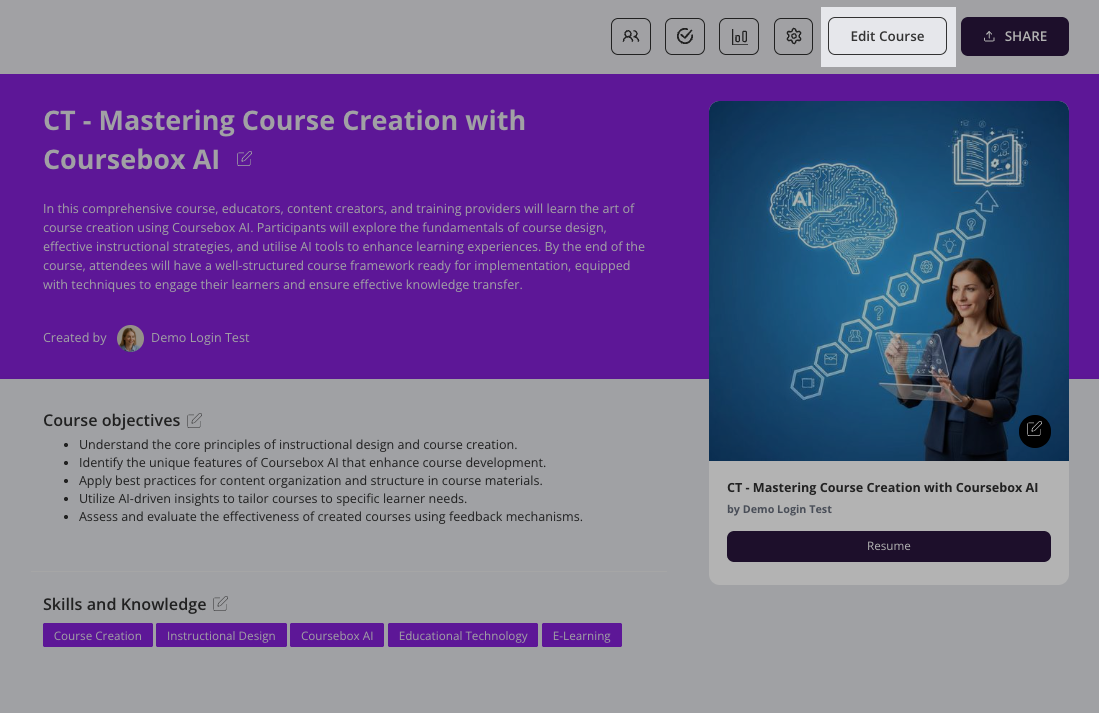
Create sections
You can organise your content by dividing your course into multiple sections. Each section can include a variety of activities—such as videos, quizzes, documents, and interactive elements—allowing you to structure learning in a clear, modular way that supports engagement and progression.
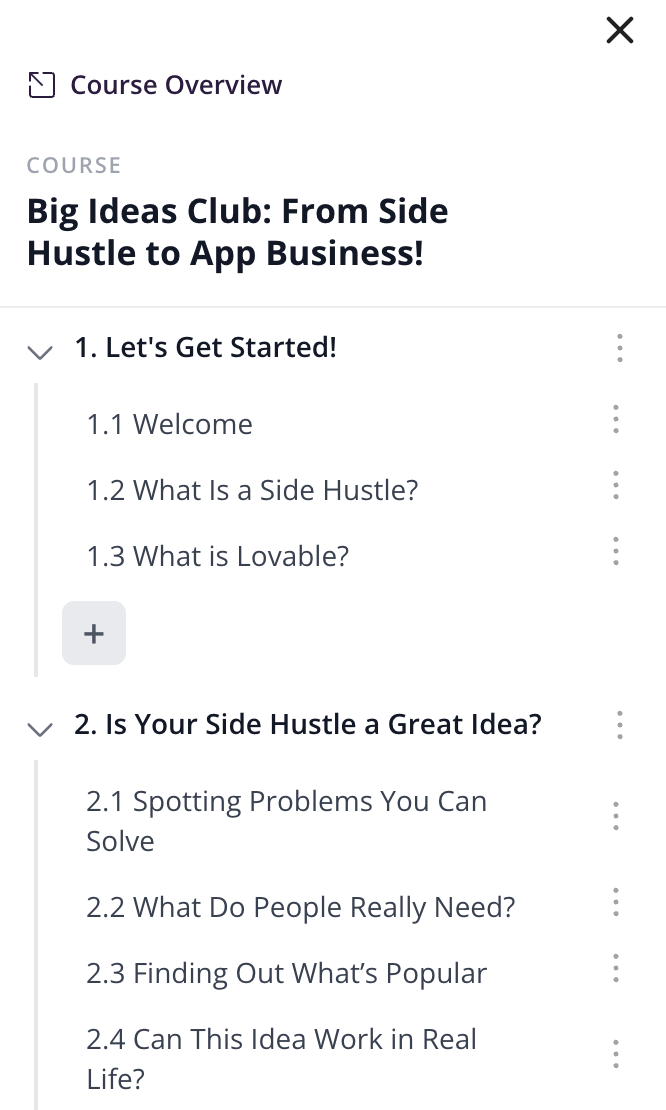
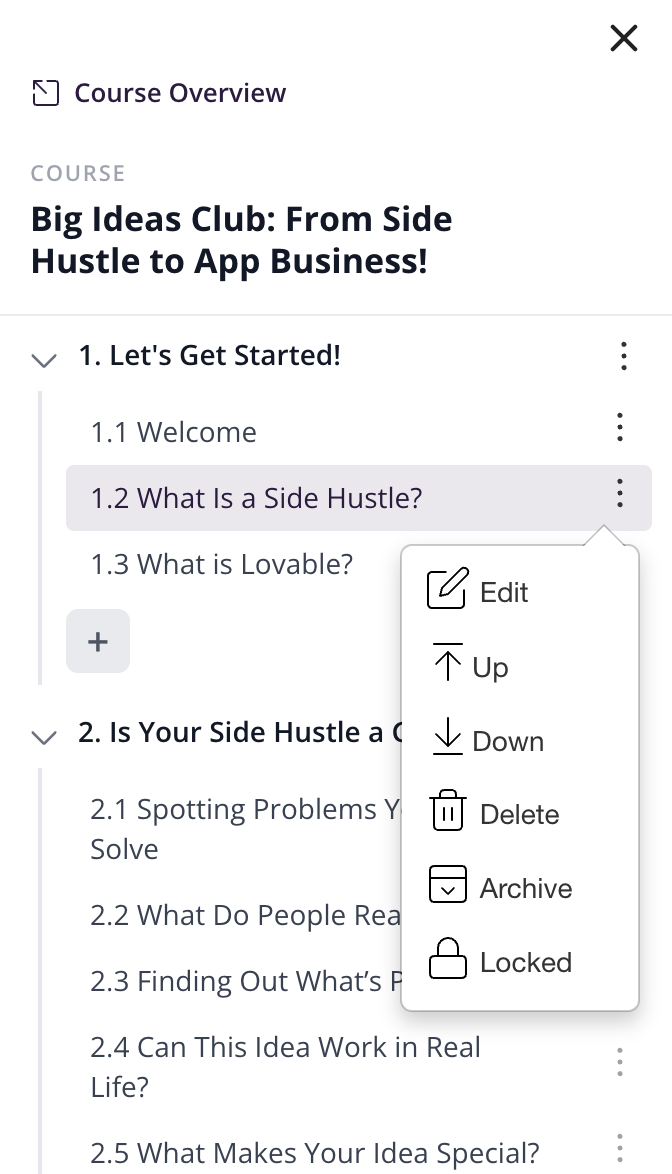
You can easily update, remove, or protect sections within your course:
Edit: Click the ⋮ menu next to a section title and select Edit to update it as your course content develops.
Delete: Click the ⋮ menu next to the section or page and select Delete to remove it. Keep in mind that deleting a section will also delete all activities within it—review carefully before proceeding.
Archive: Click the ⋮ menu next to a section and select Archive to move the whole section out of the course without deleting it. Everything sitting underneath the section—its pages, activities, quizzes and assignments—is archived with it, and learners no longer see any of it. Archiving is reversible: unarchiving brings the section back along with all of the content that was underneath it. Use Archive rather than Delete whenever you might want the content back later, or when you are retiring a section for a new intake but want to keep the original.
Lock: If a page or section is locked, learners must go through it in order and can't click ahead. If it's unlocked, they can skip around and use the menu on the left to jump to other pages, even if they haven't finished earlier ones.
Reorder: Use the Up and down arrows to rearrange pages or sections for your course structure as needed.
Select Page View Style
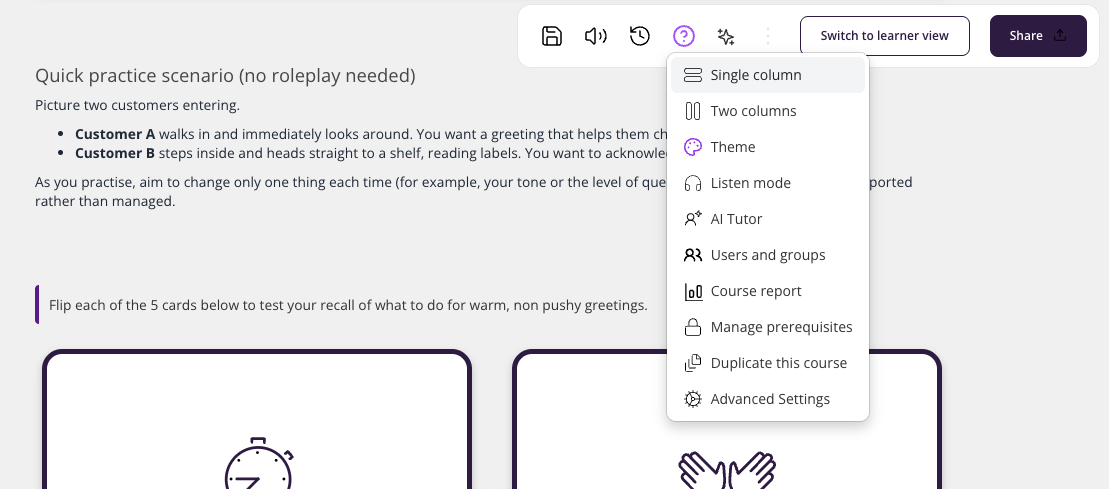
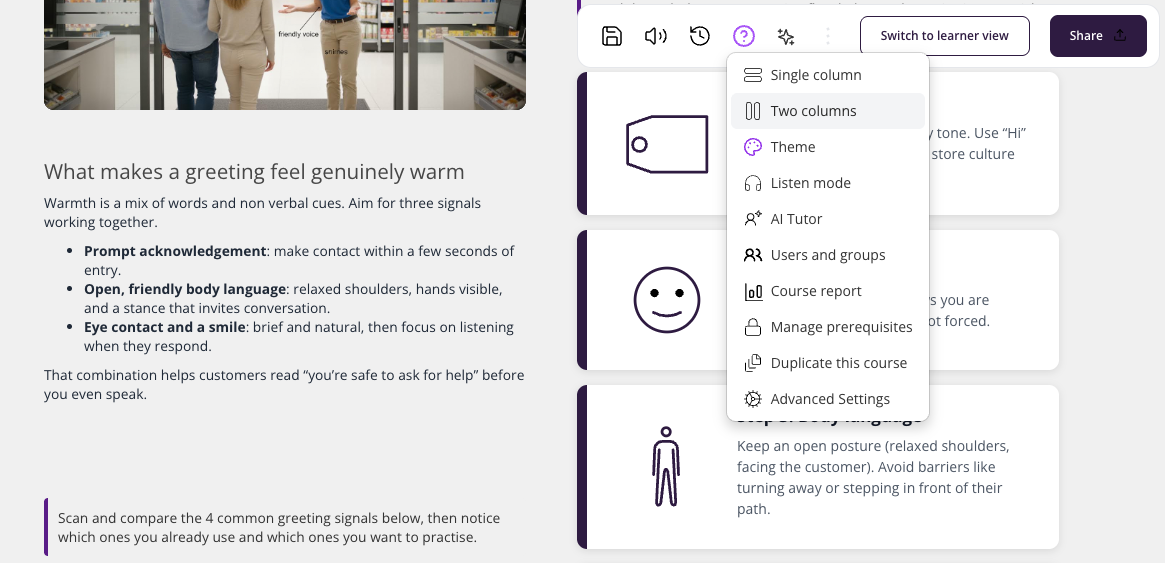
Coursebox allows you to choose between single-column and double-column page layouts, giving you flexibility in how content is presented to learners.
From the top right hand side menu. Select the three dots to open the menu:
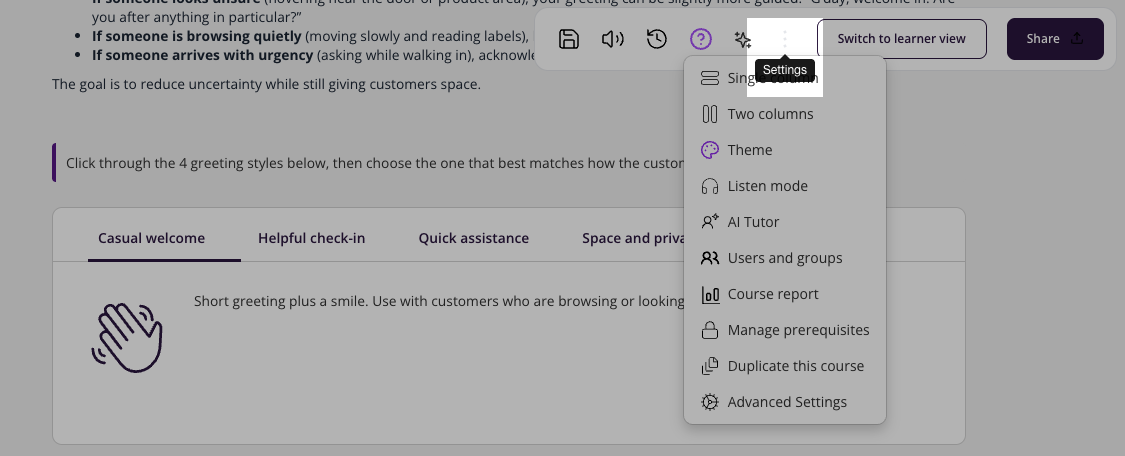
Single-Column Page View
Displays all content in a single, vertical scroll. Best for mobile-first experiences, simpler lessons with text and media, and minimising distractions.
Double-Column Page View
Divides the page into two side-by-side content areas. Best for complex layouts (e.g., video + notes), visually balancing long content blocks, and placing multimedia alongside explanatory text.
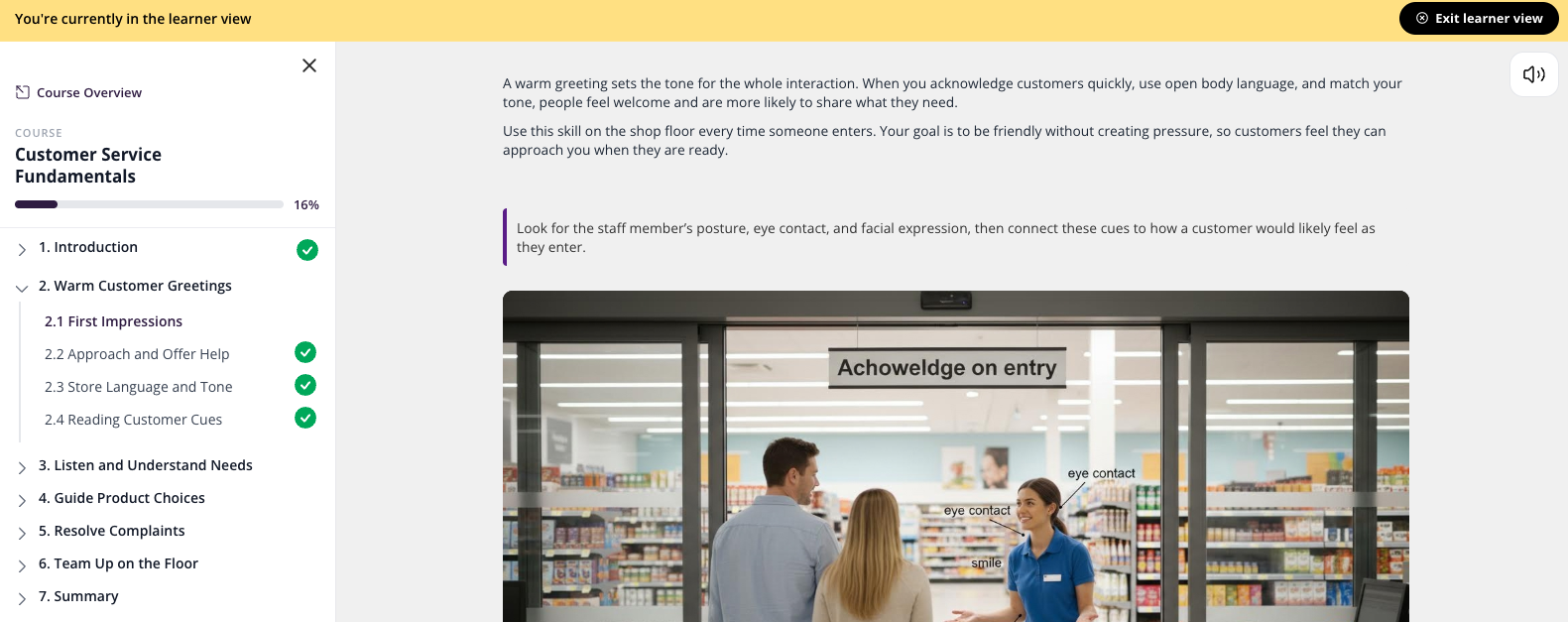
Switch to Learner View
Once you've started editing your course, you can use Learner view to see how it will appear to learners. Simply click the button to view your course as a participant would—allowing you to check layout, content flow, and overall learner experience before publishing.
Version History (Course Restore)
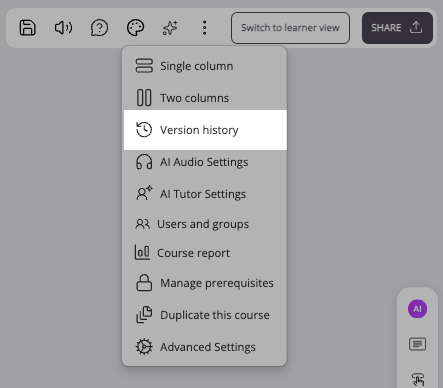
Coursebox automatically saves a version history for every course. If you make a mistake or want to revert to a previous version of your course, you can restore an earlier snapshot at any time.
How to Restore a Previous Course Version
Open the course you want to restore in the course editor.
Click the three-dot menu (⋮) in the top-right corner of the course editor.
Select Version History from the dropdown menu.
Tip: Restoring a version replaces the current state of your course. Make sure you are happy with the version you select before confirming the restore.
Troubleshooting Course Editing
My changes to the course are not saving.
Ensure you click the Save button after making changes — Coursebox does not auto-save all content types. If changes still don't save, try refreshing the page and re-entering your edits. Check your internet connection if the issue persists.
I can't reorder sections or activities.
Reordering uses the Up and Down arrow icons next to each section or activity. If the arrows are not visible, make sure you are in the course editor (not Learner view) and that you have the correct admin role assigned.
A section has disappeared from my course.
Check whether it was archived rather than deleted. Archived sections are removed from the course view but are not deleted — unarchive the section to bring it back together with all of the pages and activities that were underneath it.
The course looks different to learners than it does in my editor.
Use Learner view to see exactly how learners will view the course. Note that locked sections and completion requirements only affect learners — you will see all content regardless of locks while editing.