Skip to content
Coursebox Support home

Can I generate AI videos with avatars?

Absolutely. Use the AI Video tool to create branded videos featuring avatars that speak your script. You can upload your logo, select a background, choose a voice accent, and adjust settings like autoplay or forced completion. These videos help bring your content to life — without the need for filming or editing skills.

AI Video

Coursebox's AI Video feature allows you to create branded, engaging videos directly within your course. Customise everything from avatars and scripts to voice accents and backgrounds — no video editing skills required. These AI-generated videos help personalise your content and improve learner engagement.

The steps are:

  • Click the AI icon and select Videos.

AI menu with Videos option

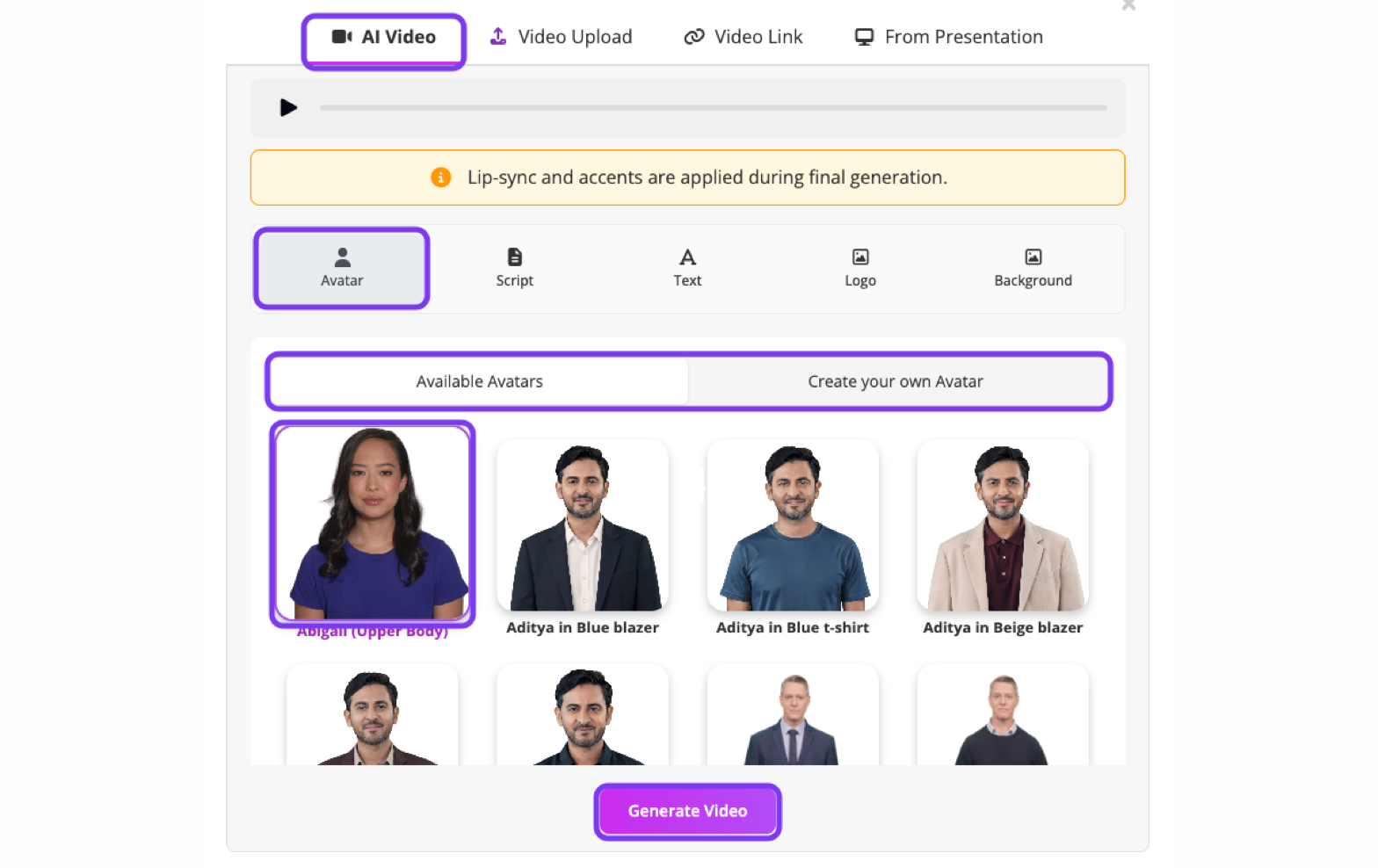
Choose your avatar

You can choose from Available Avatars:

  • Browse the pre-built avatar library.

  • Click an avatar to select it.

  • The preview will update instantly.

Available Avatars library

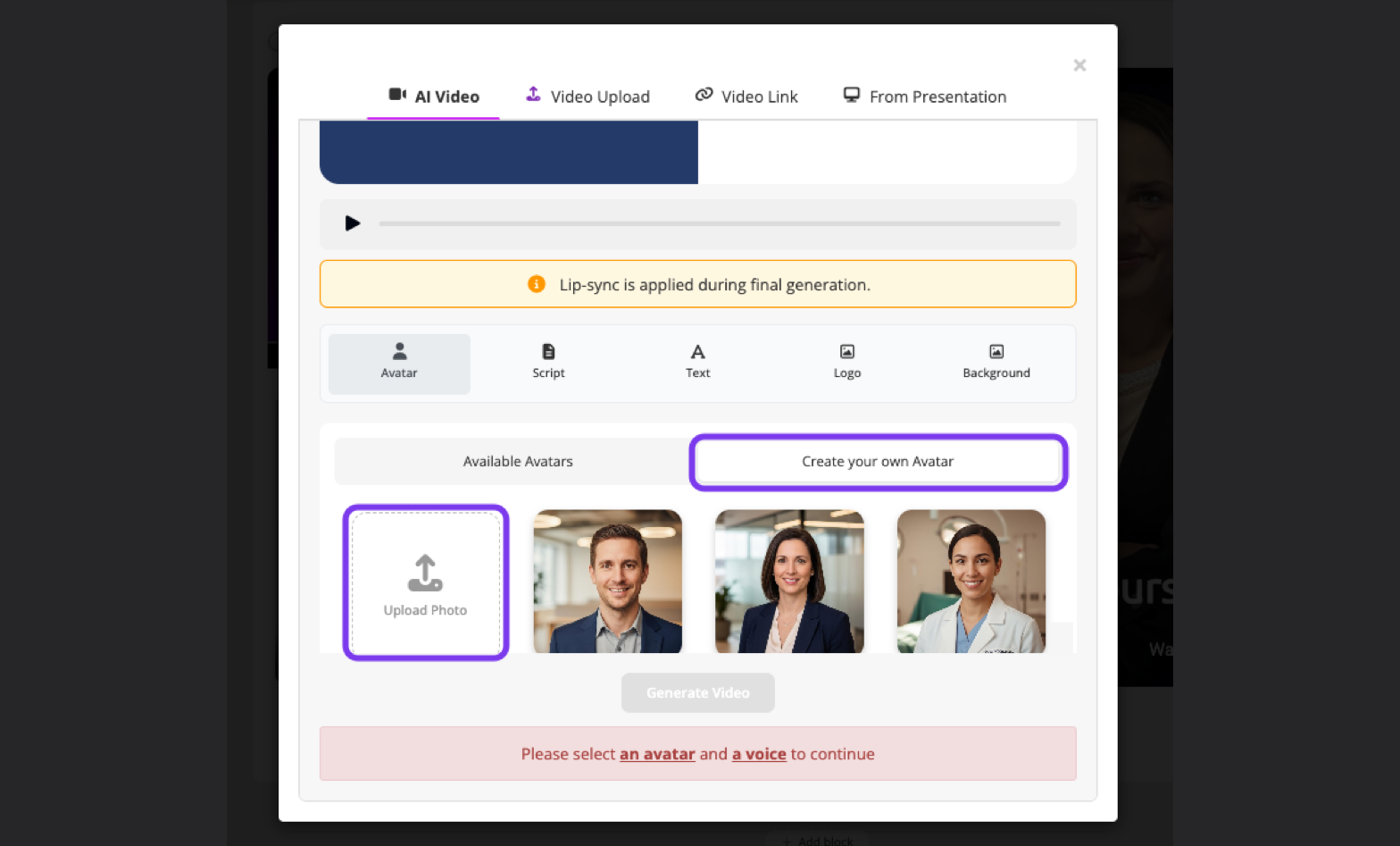
You can also Create Your Own Avatar:

  • Select Create your own Avatar.

  • Upload a clear front-facing image.

  • Coursebox will generate an animated avatar based on the likeness.

Create your own avatar option

Add and edit your script

  • Write the script that you would like your avatar to say when the learner plays the video. The script will be AI-generated from the content on the current page, and you can edit it as you wish.

AI Video script editor
  • Select the voice you wish to use (also on the script editing page). Voices are not tethered to the AI avatar you've chosen — you can match any voice with any avatar.

Voice selection for AI video

Modify on-screen text

From the Text tab you can:

  • Edit the displayed title text.

  • Change text colour.

  • Adjust visual emphasis. This text appears in the left content block of the video layout.

On-screen text settings

Click the Logo tab:

  • Upload a logo (JPG, PNG, or SVG up to 10MB).

  • Hide the logo using the checkbox if not required.

image.png

Customise the background

Click the Background tab. You have three options:

Option 1: Template background

  • Select from pre-designed background templates.

  • Click a template to apply it.

  • The preview updates immediately.

Template background options

Option 2: Upload background

  • Click the Upload tab.

  • Upload your own image.

  • The selected image will appear behind the avatar.

  • Use branded environments, office scenes, classrooms, or contextual visuals.

Upload background option

Option 3: Background colour

  • Click the Color tab.

  • Select a background colour.

  • Adjust the left block colour separately if required.

Background colour settings

Tip: Tick Hide the block if you prefer a full-width video style.

Adjust settings

At the bottom of the editor, configure playback options:

  • Force Completion — When enabled, learners must watch the entire video before progressing.

  • Auto Play — When enabled, the video will automatically begin playing when the page loads.

Force Completion and Auto Play settings

For more information on video creation and upload, see Multimedia Content.