
How do I create a course using AI?
Coursebox offers flexible ways to create engaging online courses — whether you prefer the speed of AI or the control of manual design. This article covers how Learning Designers, Creators, and Administrators can quickly generate a course structure and content using the AI-powered tools.
Create a course using 'Ask Coursebox'
This section outlines how Learning Designers, Creators, and Administrators can quickly generate a course structure and content using the AI-powered tools available in Coursebox.
Starting Course Creation
Look for the dark circular + button in the left sidebar, labelled Create beneath it. This replaces the previous button that appeared in the top menu.
Clicking the button opens a dropdown menu with available actions. The options shown will depend on your role and plan subscription.
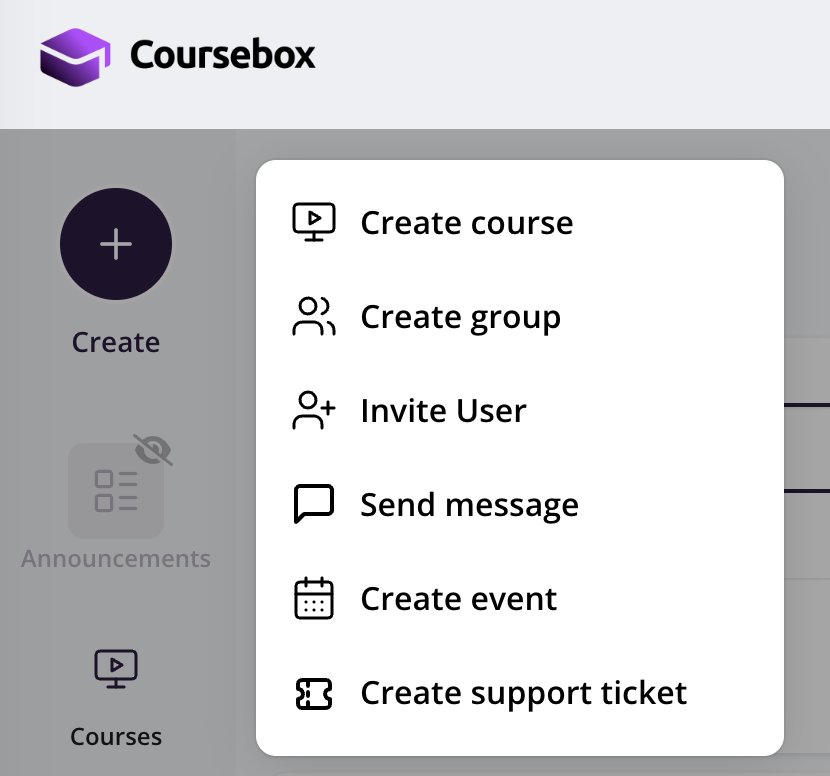
Starting Course Creation (New Flow)
Creating a course is now faster and more intuitive with Ask Coursebox.
Step 1: Start from the Dashboard
From the main screen, you can begin immediately:
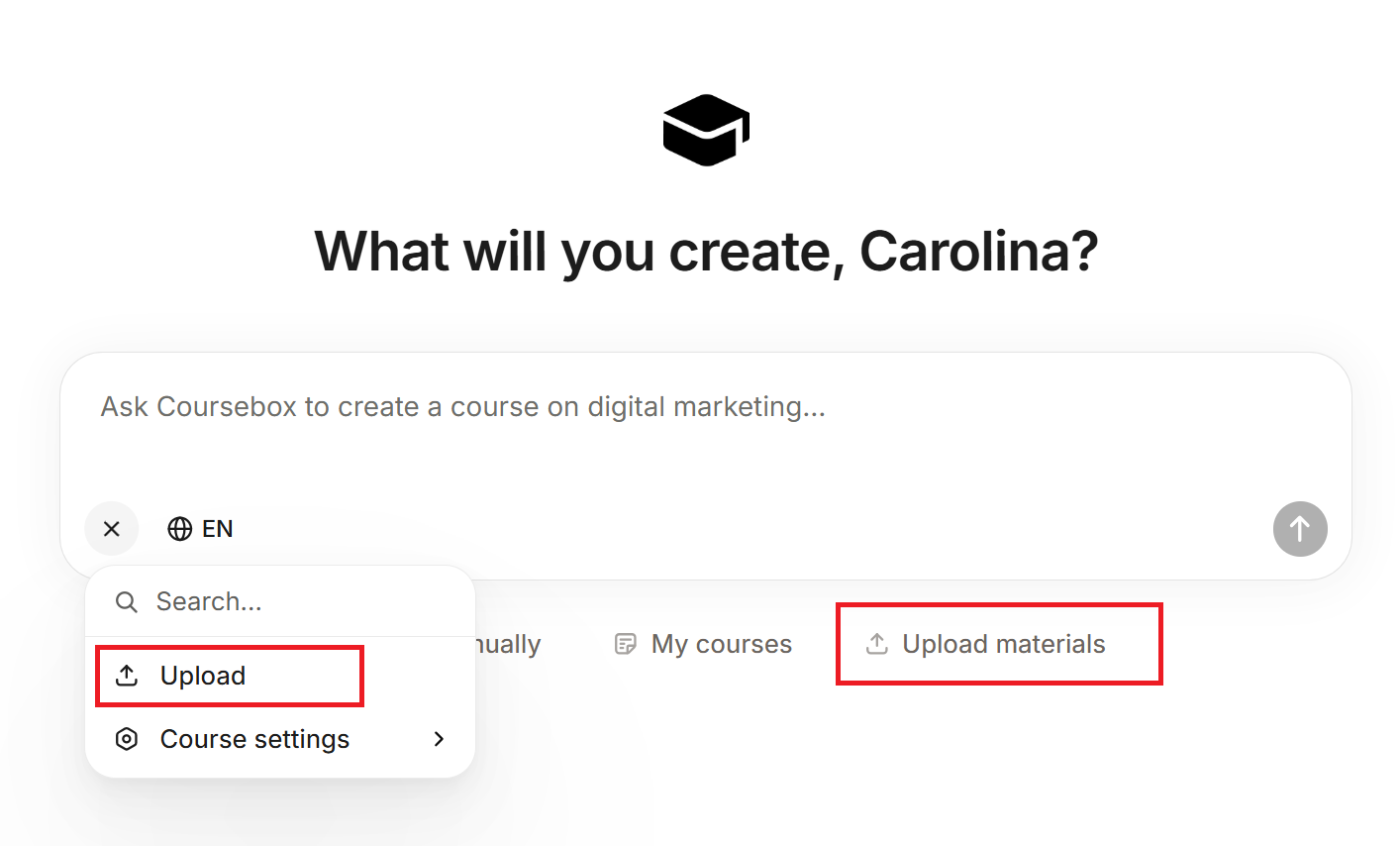
Use the central AI prompt box (“What will you create?”)
Or click Create manually if you prefer to build from scratch
You can also access My courses or Upload materials from the same screen
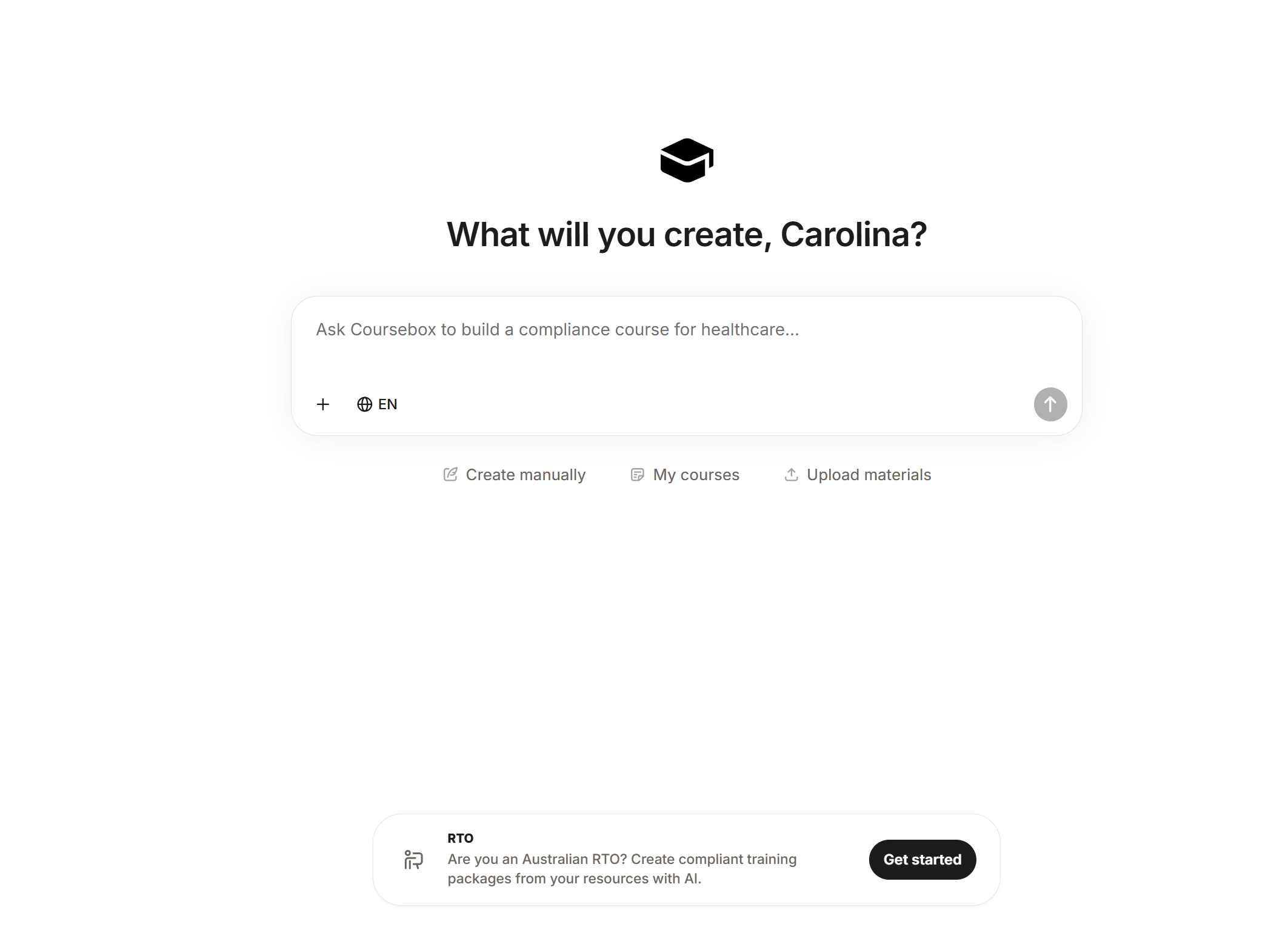
Step 2: Describe Your Course
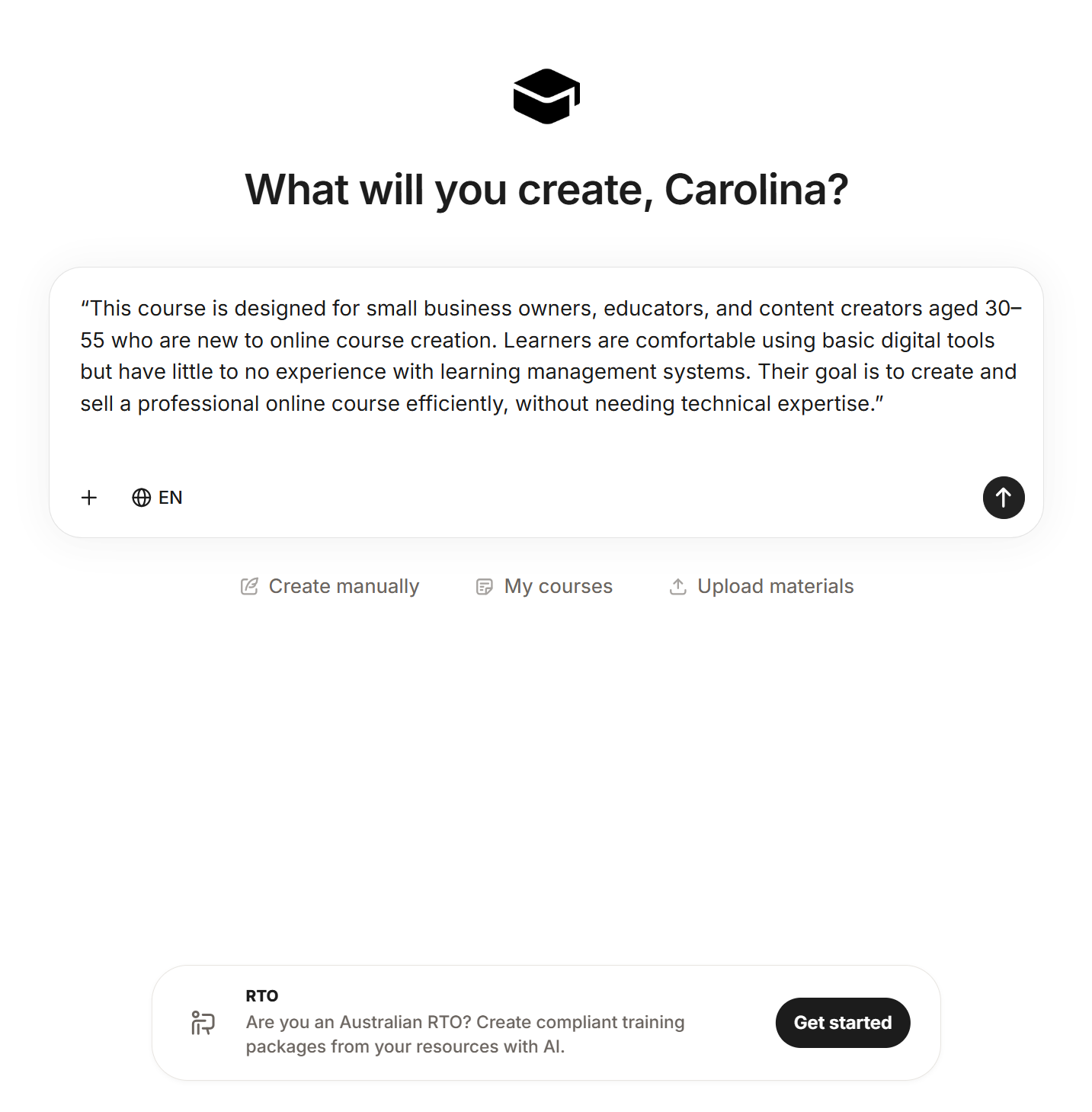
In the AI prompt box:
Enter a clear description of your course (e.g. “Create a course on digital marketing for beginners”)
The more detailed your prompt, the better the generated content will be.
Tip: For best results, include the audience, goals, and key topics in your prompt.
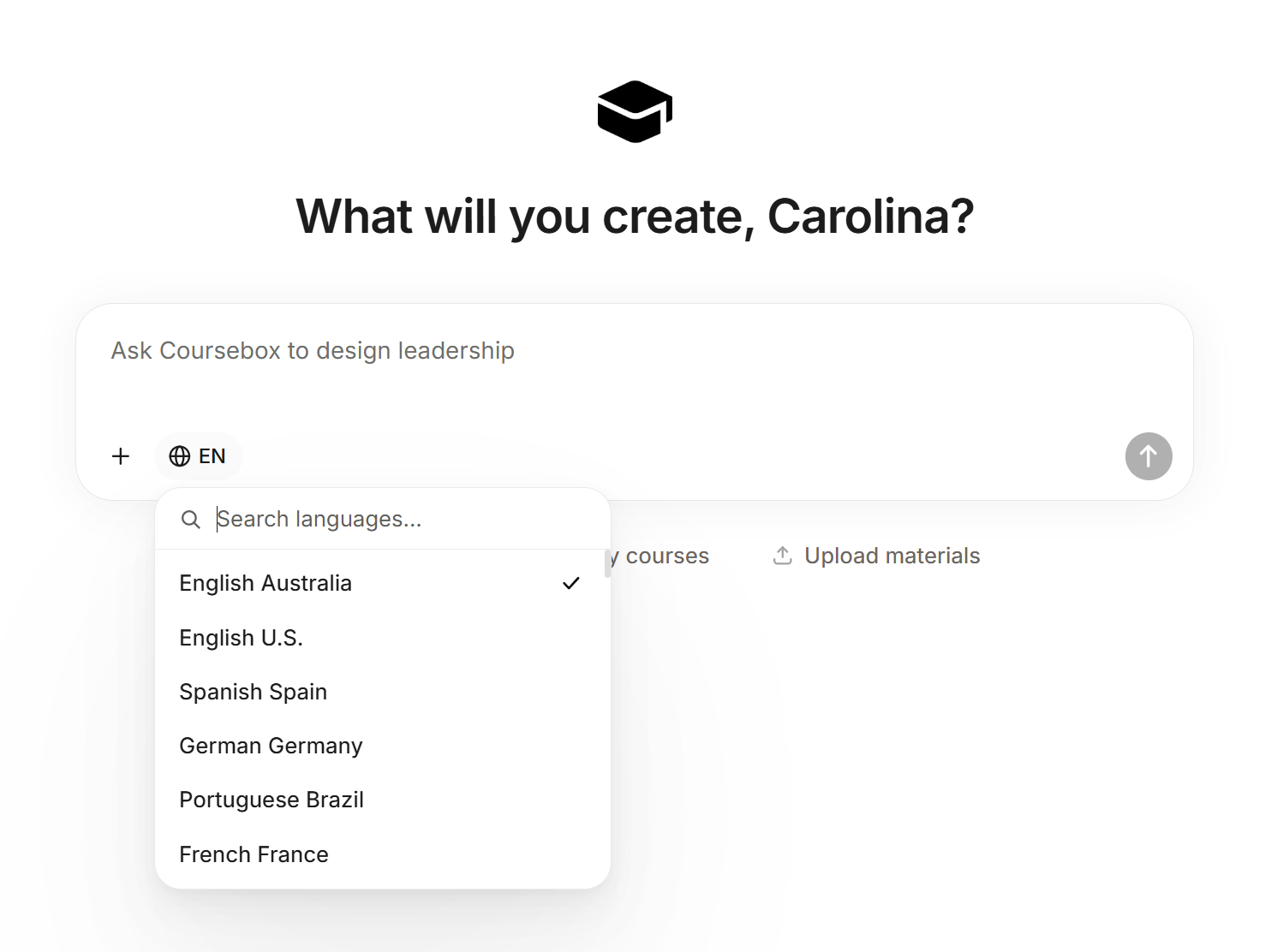
Step 3: Select Language
Click the language selector (EN) below the prompt box
Choose your preferred language (e.g. English AU, Spanish, German, etc.)
ℹ️ Updated May 2026: The selected language is now applied consistently across the About page heading, section summaries, and Further Readings. A course generated in a non-English language will no longer have stray English headings.
Step 4: Add Source Content (Optional)
Click the “+” icon to access additional options:
Upload files to train the AI (PDFs, docs, etc.)
Add web links to pull in external content
Access Course settings
This allows the AI to generate more accurate and tailored course material.
Step 5: Configure Course Settings (Optional)
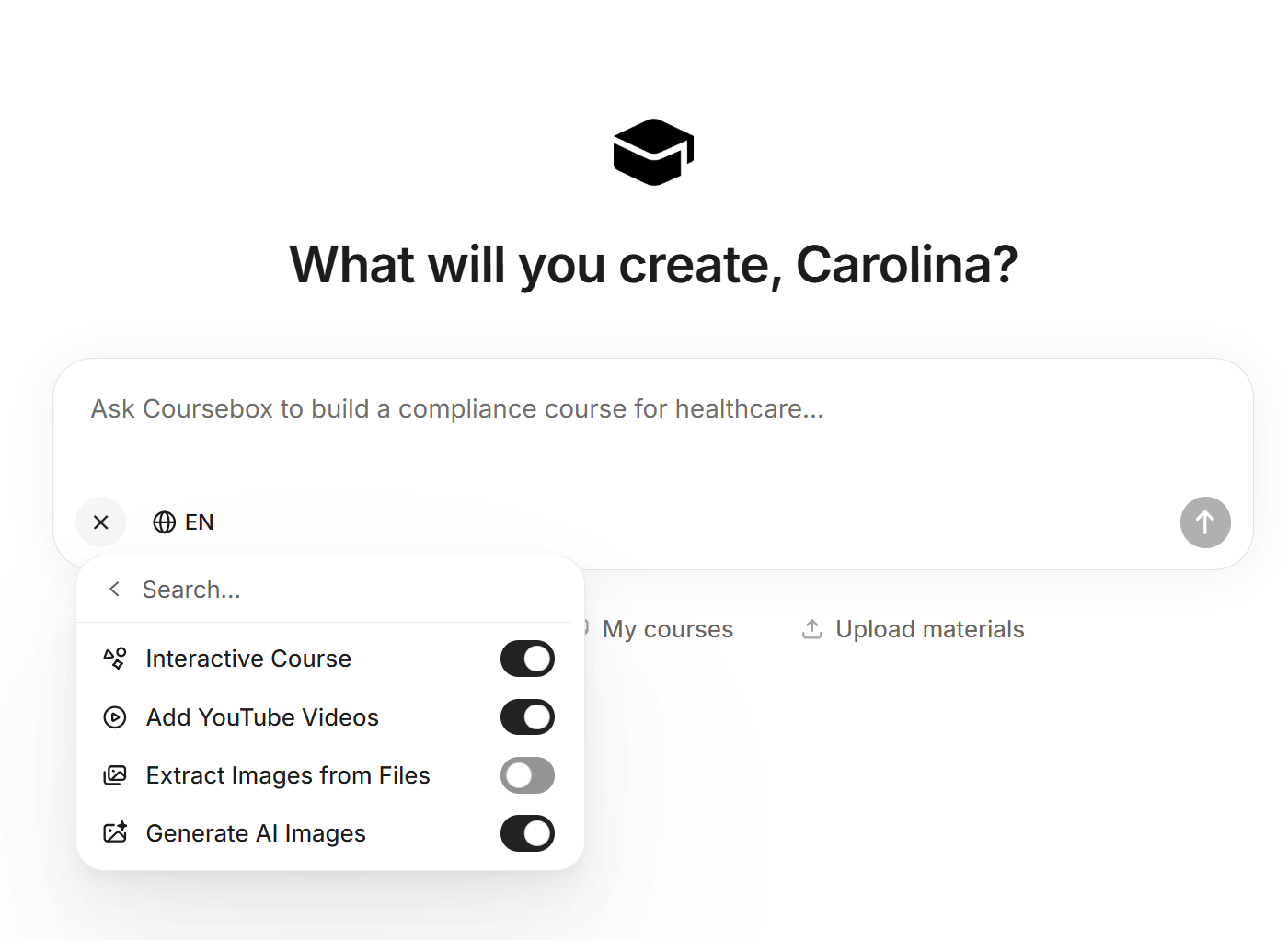
Within Course settings, you can toggle features such as:
Interactive course elements
YouTube video integration
Extracting images from uploaded files
AI-generated images
These settings help customise how your course is built and presented.
Step 6: Continue the Conversation
Once you’ve entered your prompt, continue refining your course by interacting with Ask Coursebox.
Answer follow-up questions to clarify your course focus (e.g. content, LMS setup, or selling)
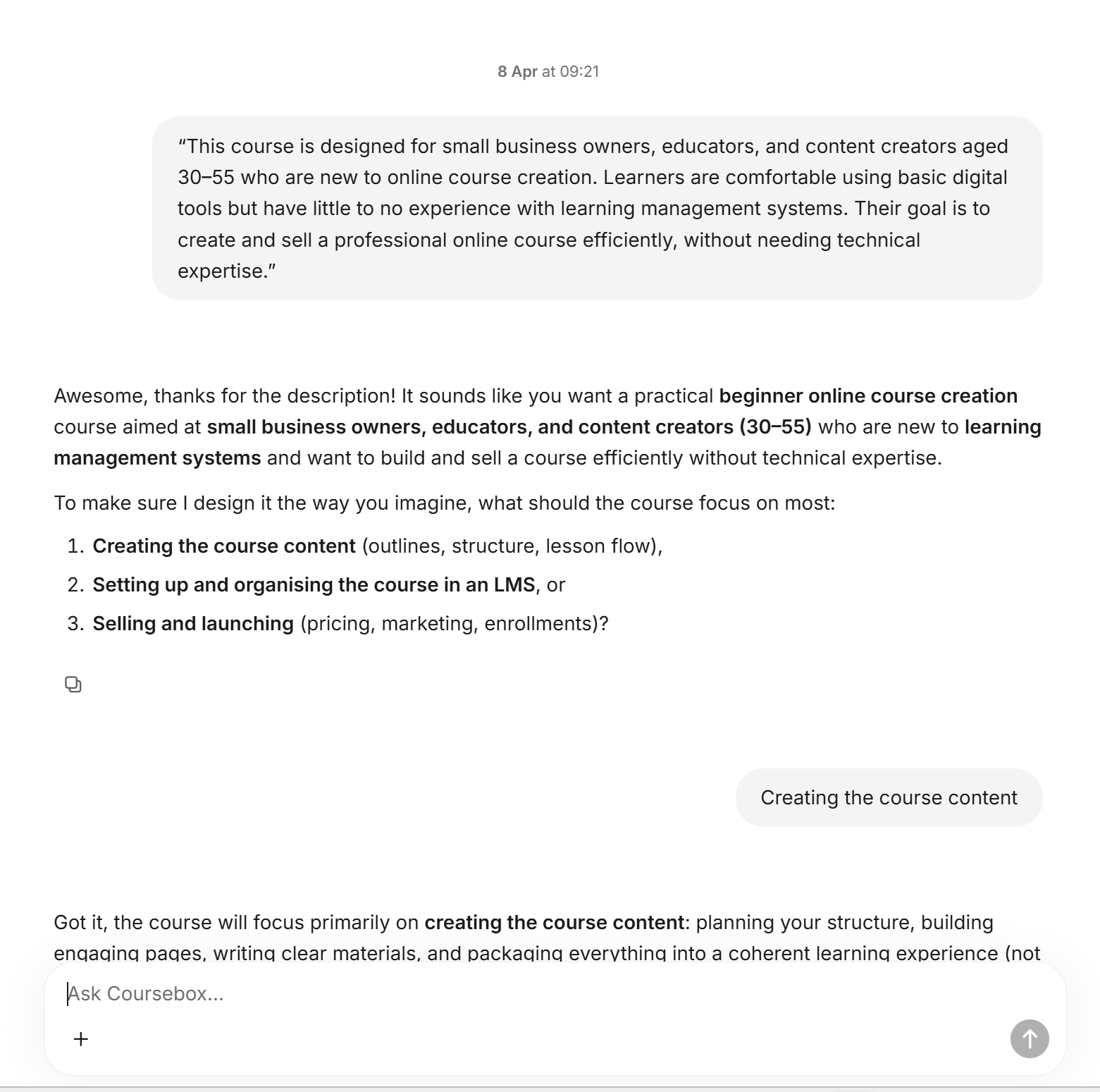
Review the suggested course structure and provide feedback or adjustments
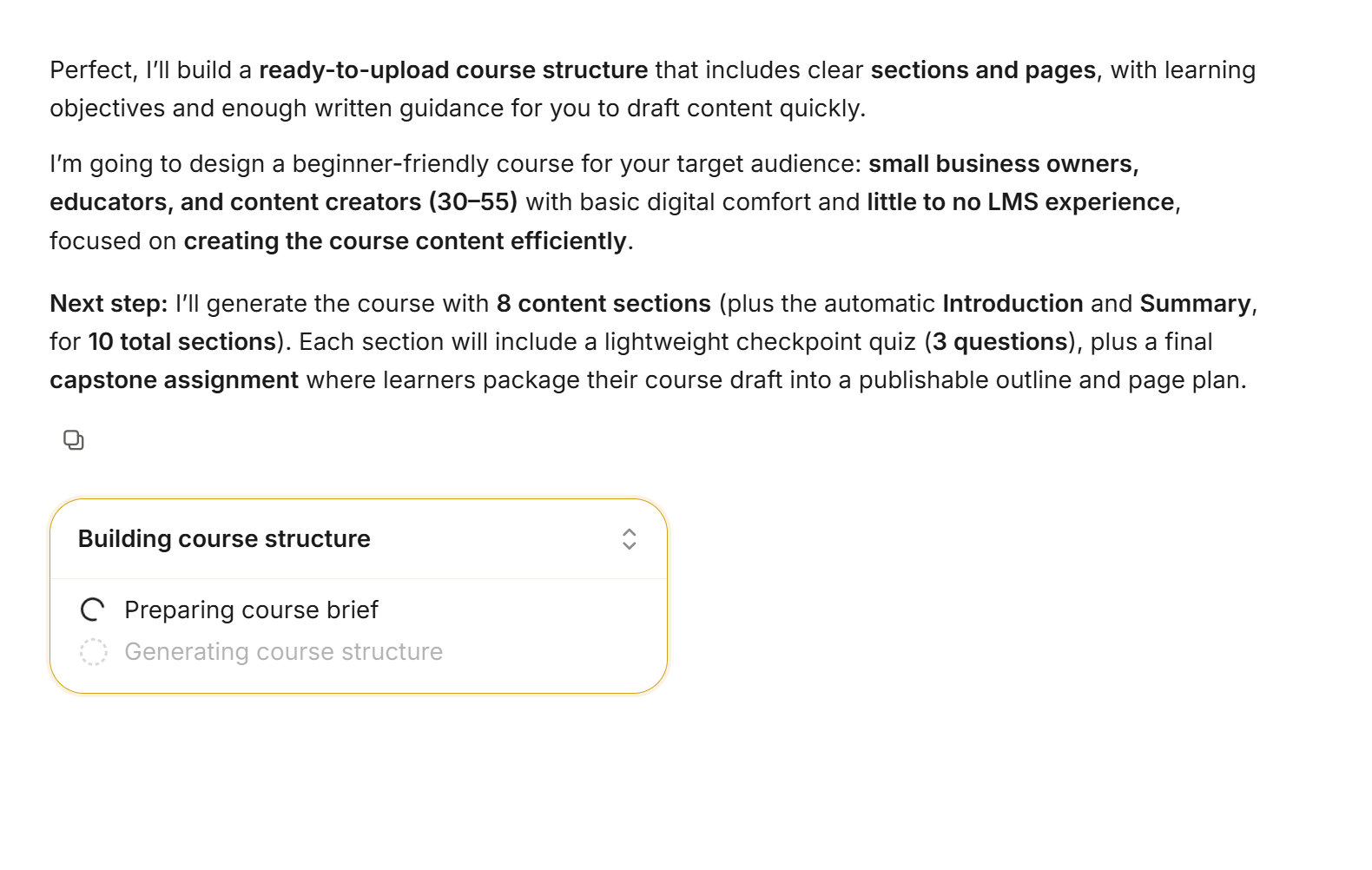
The AI will progressively build your course, including:
Course structure
Sections and pages
Content and learning activities
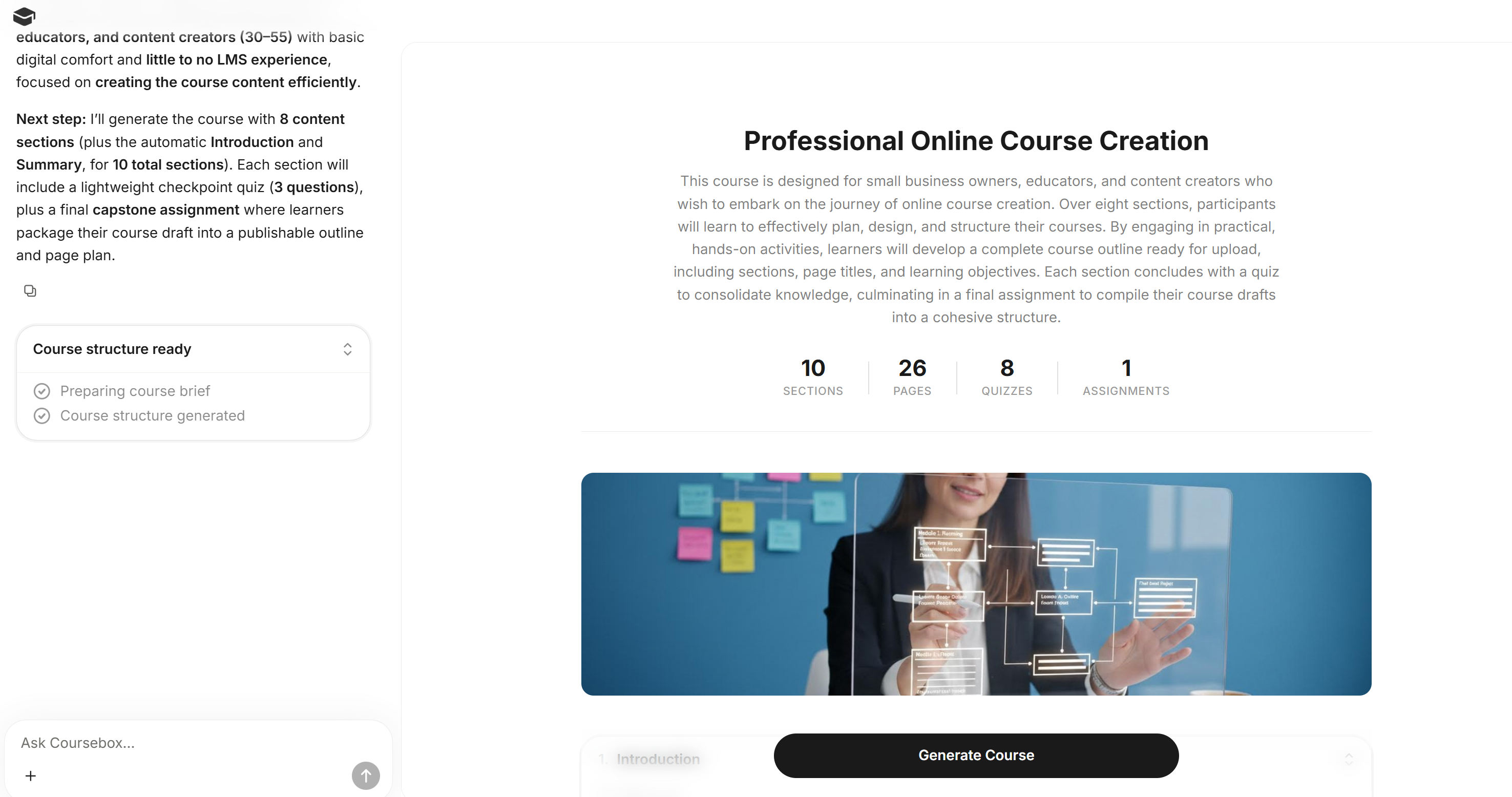
Tip: Engaging more with the chat and providing feedback will make your course more tailored and accurate.
Common questions this article answers
How do I start a new workshop, training session, or taller?
How do I create another course from the Dashboard?
How do I generate a course with AI from a prompt or uploaded materials?