
How do I add another portal admin?
To give someone admin access to your portal, change their Role from Learner to Admin. Each admin uses an admin seat.
Plan requirement: Changing a user's role from Users is available on Pro + LMS and Enterprise. Extra admin seats can be added on Pro and Pro + LMS. Compare plans.
Portal admin or course role? A portal admin can work across your whole portal. Facilitator and Collaborator are course roles: they apply to one course only and don't make someone a portal admin. To add one, see How do I add or remove learners, facilitators, or collaborators?
Make someone a portal admin
The person must already have an account on your portal.
Select Users from the left menu.
On the user's card, click ⋮ and select View Profile.
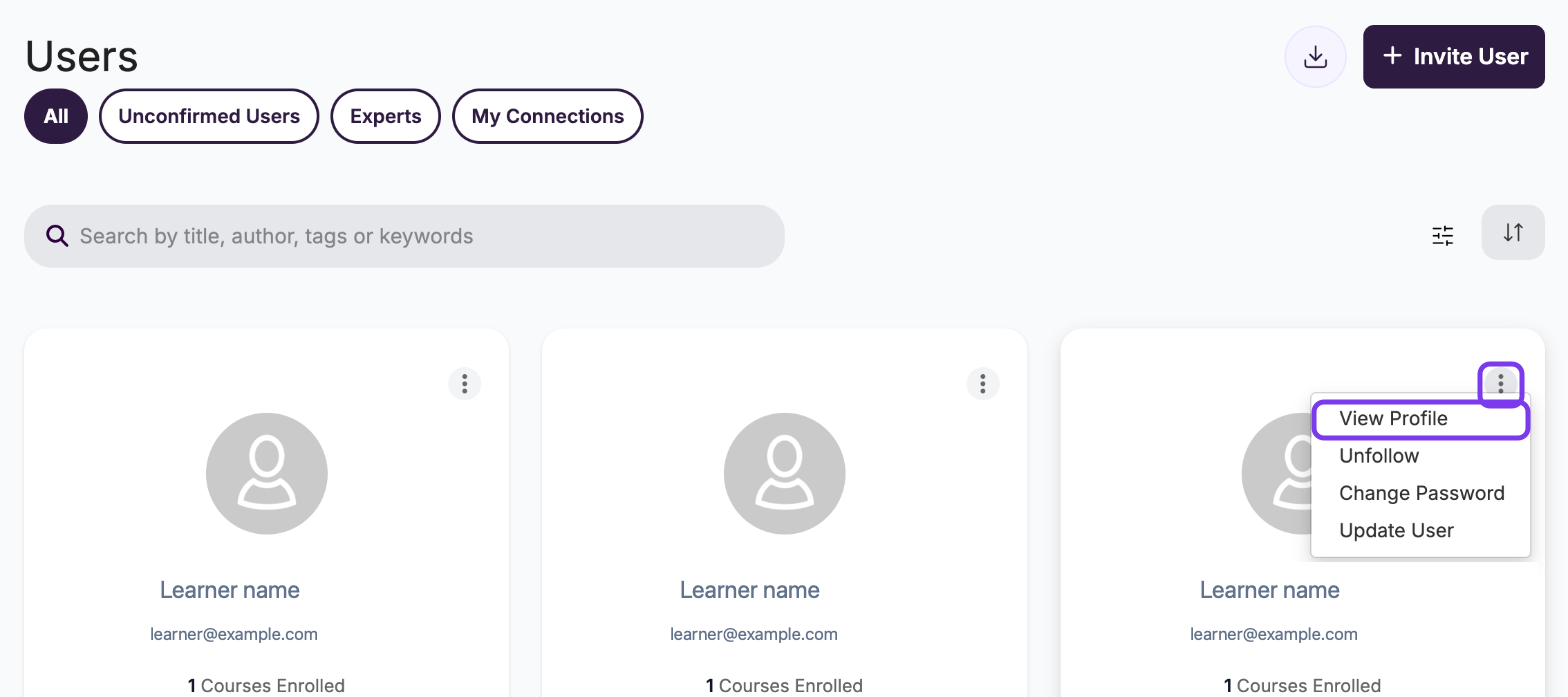
Click the pencil icon next to their name.

Open the Role dropdown and select Admin.
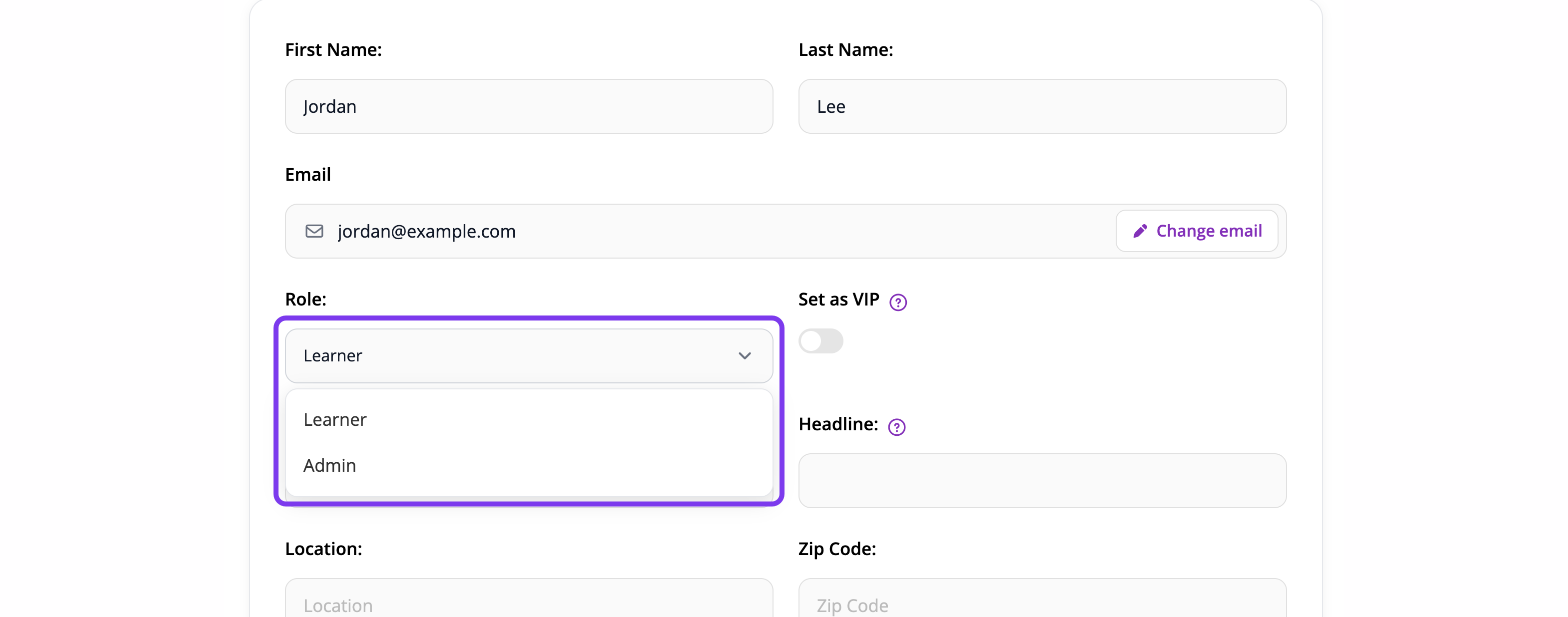
Click Save.
Each user has one role, so the new role replaces the old one. To choose what admins can access, go to Settings → Permissions. To give one admin different access, click Permissions next to their seat in Settings → Account → Admin Seats → Manage seats. See Permission settings.
Remove admin access
Follow the same steps and set their Role back to Learner. This frees their admin seat.
Admin seats
Each admin uses 1 admin seat, including the Super Admin. The Super Admin checks how many seats are in use, adds seats and removes extra seats in Settings → Account → Admin Seats.
Freeing a seat doesn't lower your bill. To stop paying for extra seats you no longer need, reduce your additional seats there. See Account Settings.
About Super Admin
The Super Admin is the portal owner and has full control, including billing, branding and user data. It isn't one of the options in the Role dropdown, and it can't be assigned, changed or removed. On the Super Admin's own profile, the role shows as text, not a dropdown.

If a different person needs to hold the account, change the email address on the existing Super Admin user. The user stays the same. Only the email address changes.