Course Publishing & Exporting
This topic explains how to make your courses available to learners and share them beyond the Coursebox platform. It covers publishing options, access controls, sharing links and embeds, and exporting courses for use in other systems—helping you deliver learning in the format and environment that best suits your audience.
Watch the tutorial videos found in our YouTube Video Library.
Publish a Course
After finalising your course design, the next step is to make it available to learners. Publishing your course in Coursebox is quick and simple. Once published, your content becomes live and accessible to those you've shared it with.
Whether you're launching a new training program or updating existing content, this step ensures your learners receive the most up-to-date version of your course.
Publish a course as Restricted
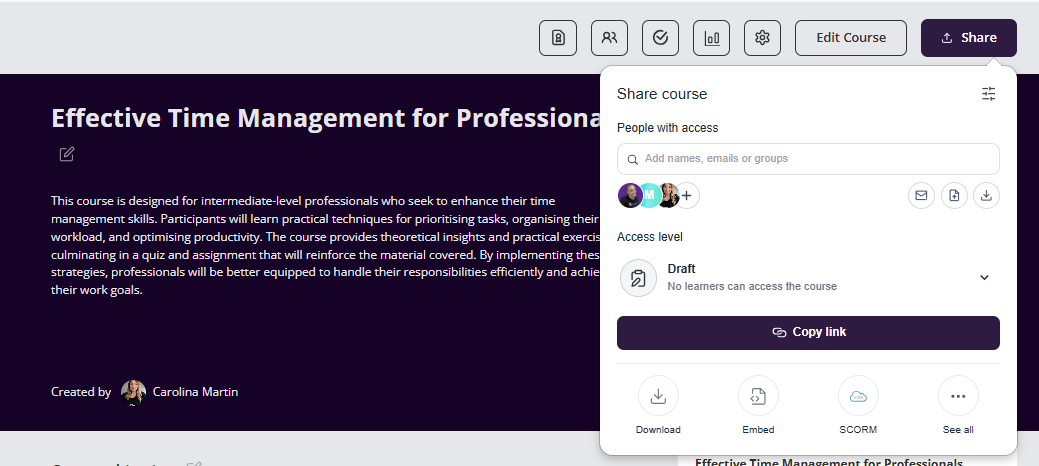
Go to Share Settings and Click on Private to publish the course as a Restricted course.
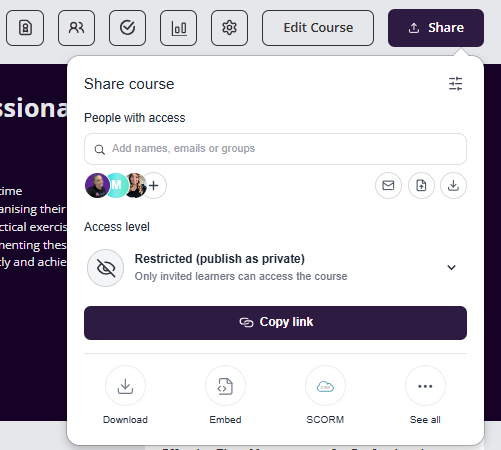
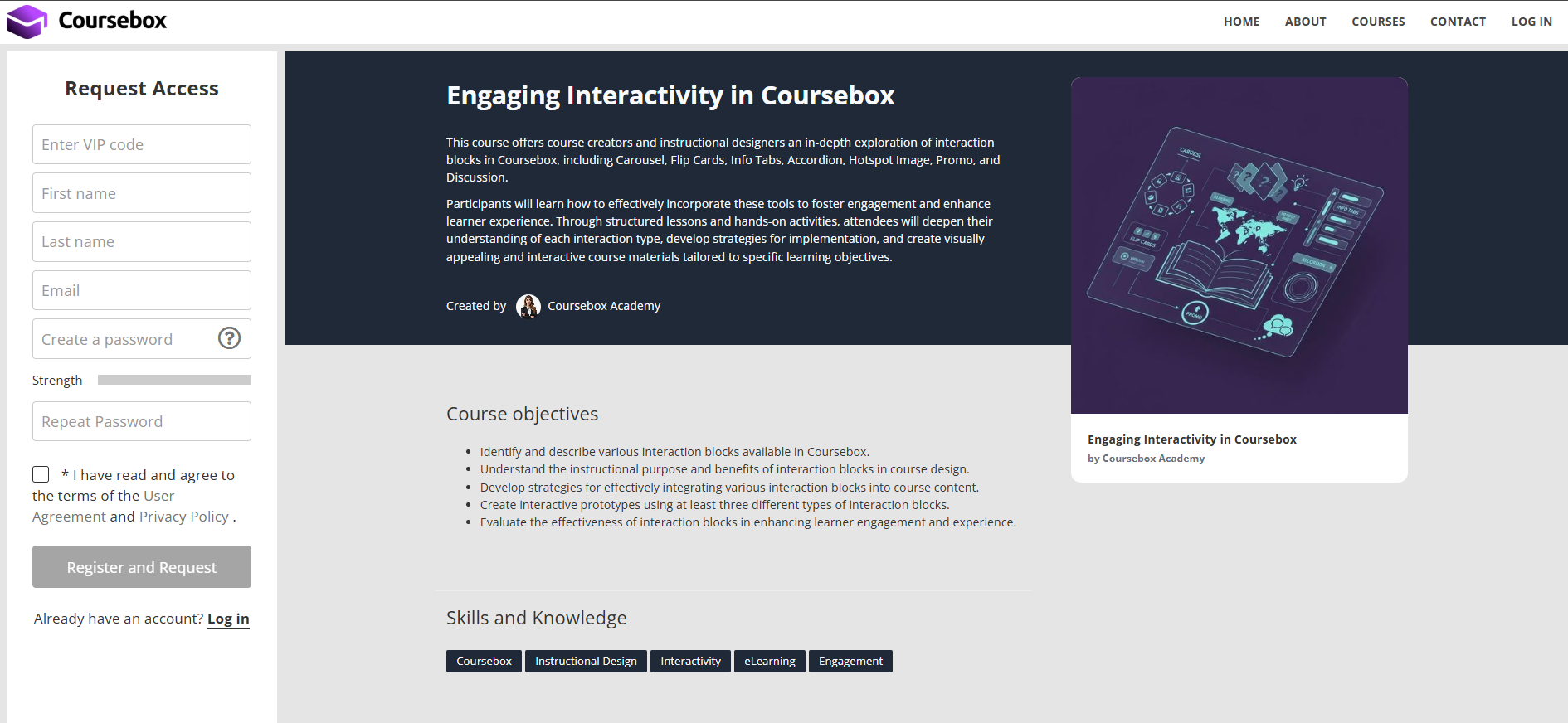
When you publish a course as Private, learners will need permission to access the course.
Learners will see “Request Access” to log in.
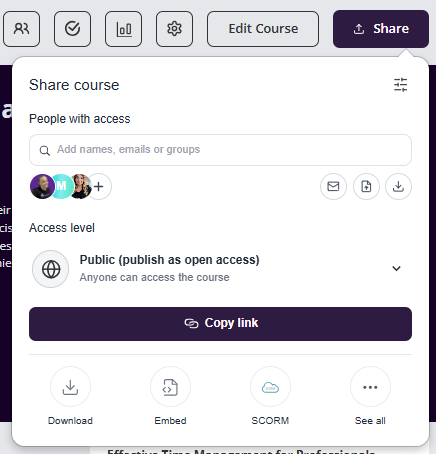
Publish a course as Public (Free)
When a course is published as Public then anyone with the portal can access the course without the need of approval.
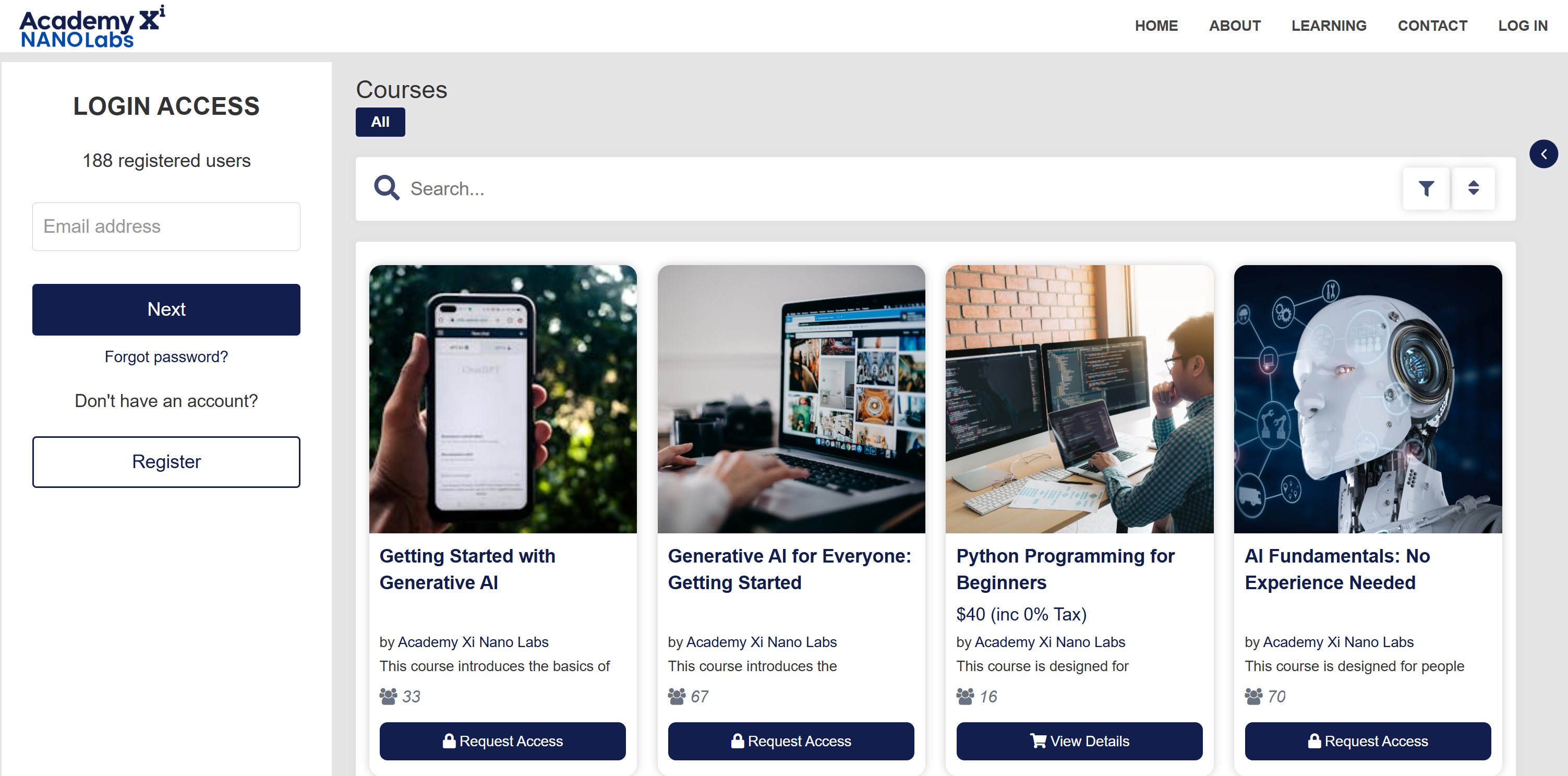
In the Share this course section, go to Learner Access and in select the drop down to click on Public (Free).
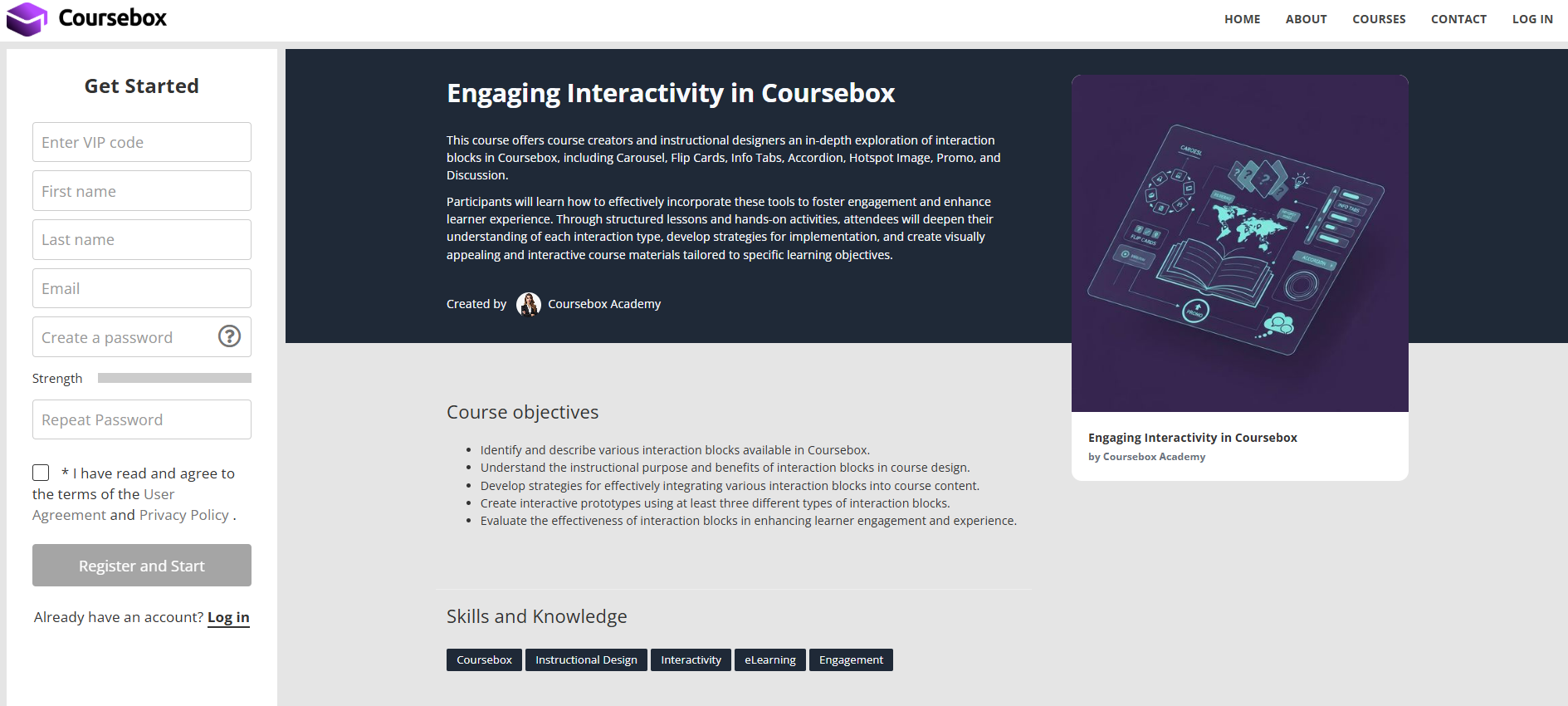
Public courses will have a “Get Started” button on it.
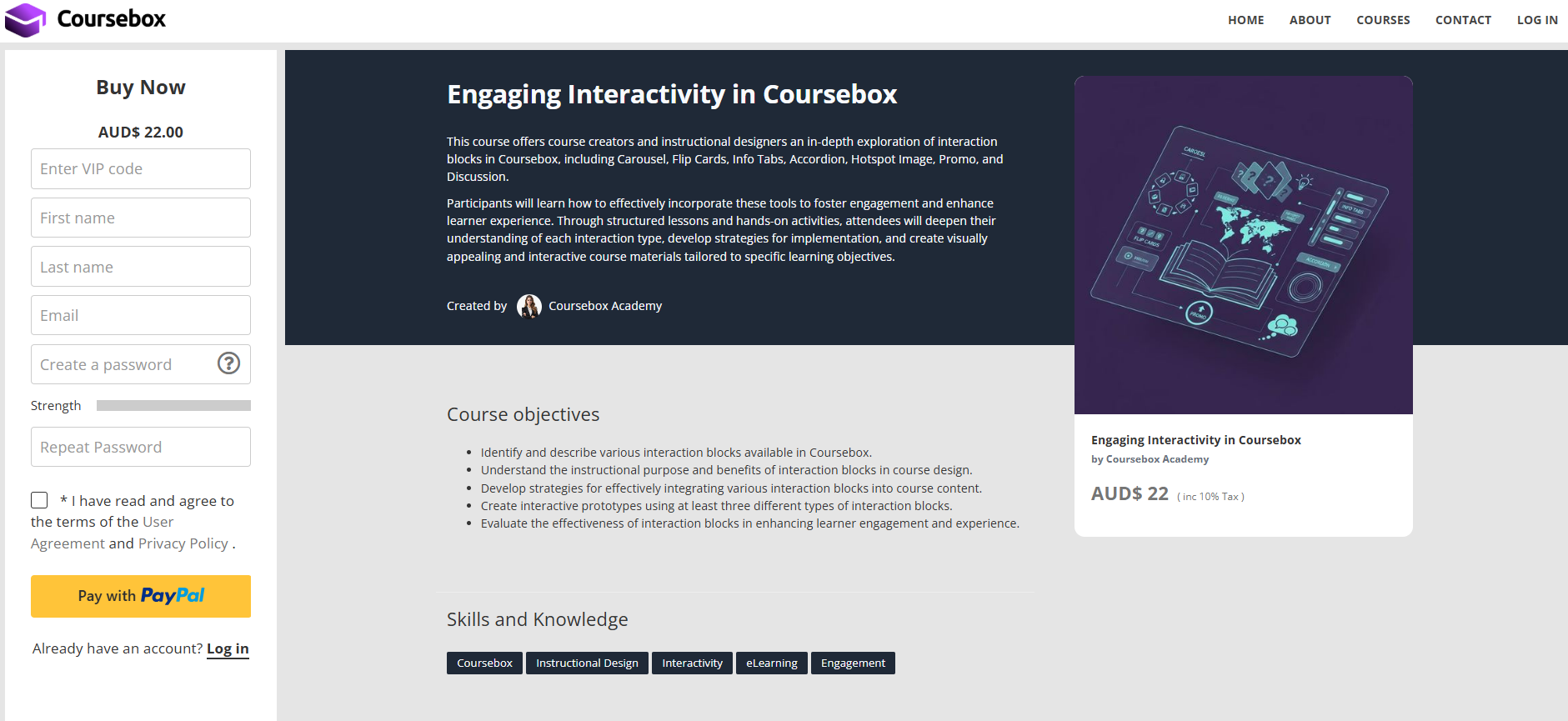
If you make it a paid course then you can publish the course only as Public and “Buy Now” button will appear for the course.
Publish a course for Sale (Sell a course)
In addition to making a course Restricted or Public, you can also Sell this course.
Before you can sell your course you will need to link Stripe or Paypal you can see the information how to do this in the Managing Payment section of this manual.
In the Share this course section, select the drop down to click on Sell this course.
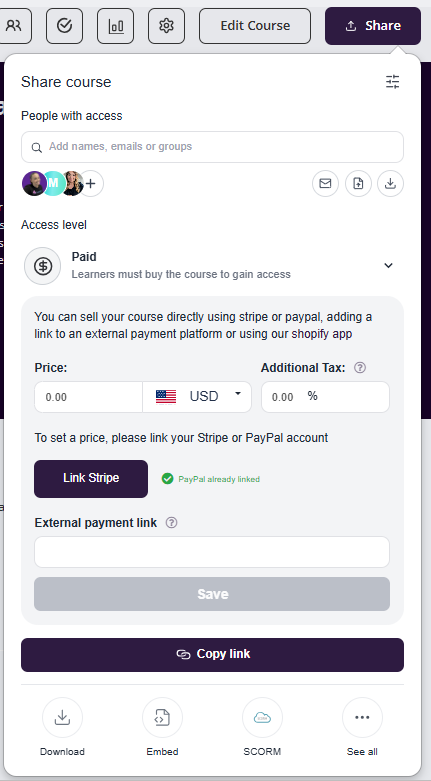
Enter your Price, choose your Currency, and add any Additional Tax % if required.
You’ll now see Stripe and PayPal as available payment methods (if both are linked).
The learners will then be able to purchase the course.
Share a Link to a course
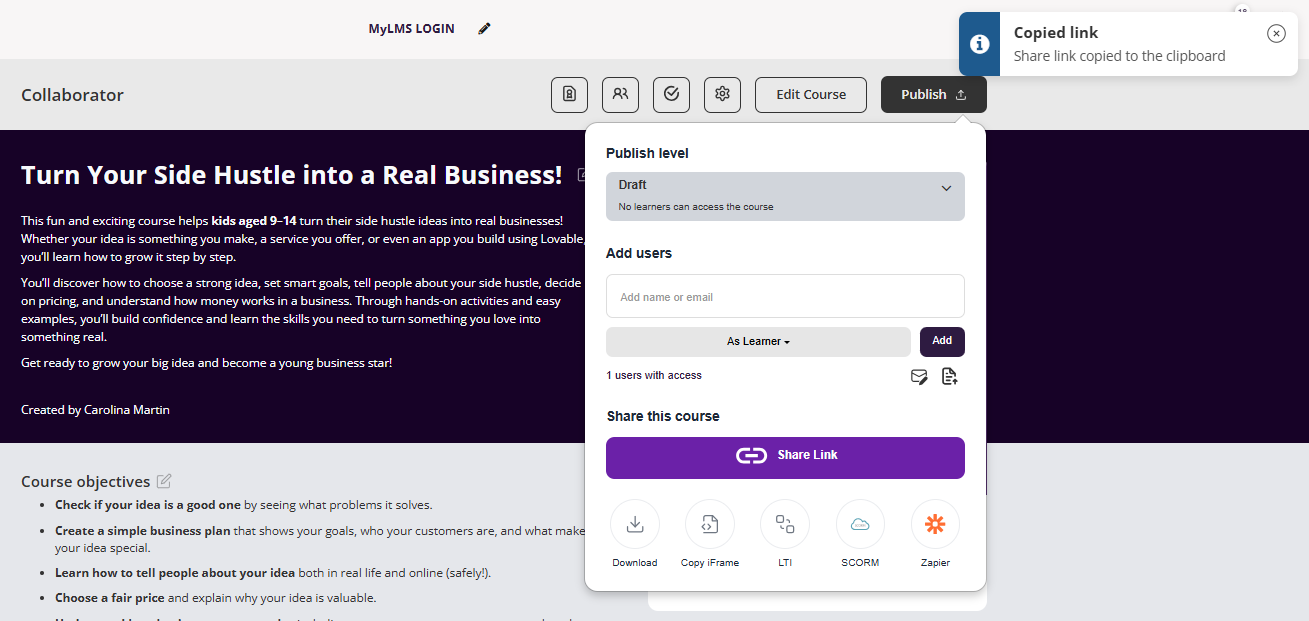
On any course, navigate to the course page and share icon > share the link.
Choosing the Right Export or Integration Method
Include guidance such as:
HTML & PDF exports
These are static formats and do not include videos, interactions, or AI-generated visuals. Use these formats only for reference or offline viewing.LTI & SCORM
These are intended for integration with other LMS platforms. Compatibility depends on the target system. They are not recommended for CRMs or website builders.Embedding on external websites
To preserve videos, interactivity, and design, publish your course and embed it using an iframe.CRM integrations (e.g. GoHighLevel)
Use Zapier to automate enrolments. Course content should still be delivered via Coursebox.
Download a course as HTML , Pdf or Marking Guide Pdf
Coursebox gives you multiple export options so you can easily share or host your course outside the platform. Whether you're saving a course for offline use, uploading it to a Learning Management System (LMS), or sharing it as a PDF, Coursebox offers flexible formats to suit your needs.
On any course, navigate to the publish settings and then click share, from the screen below, select download and the options for PDF or HTML will come up.
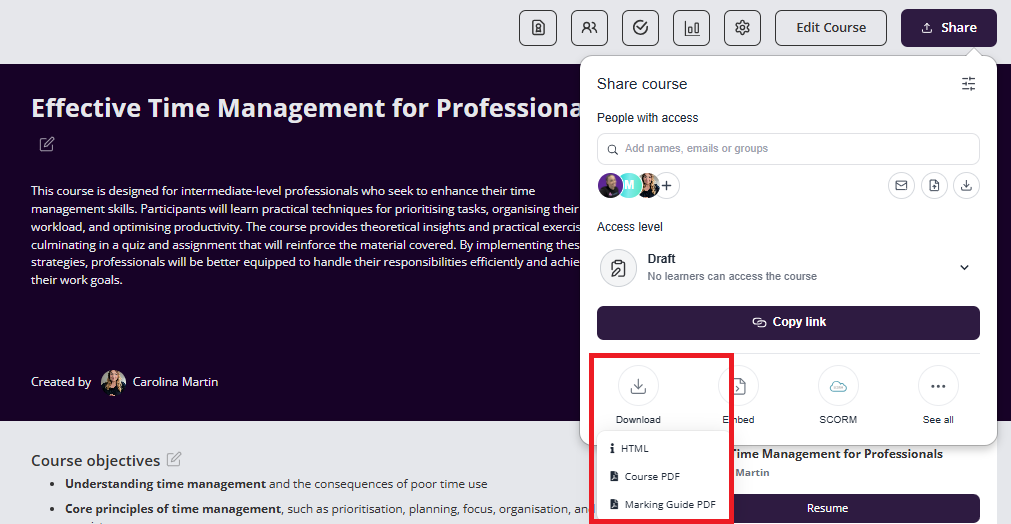
The PDF and HTML backups include the written course structure and content, including learning text, quizzes and assignments. It excludes interactions (eg accordions, SCORM embeds etc), audio recordings, video recordings and images. These items may be saved at the course page level in most cases.
Copy a course iFrame
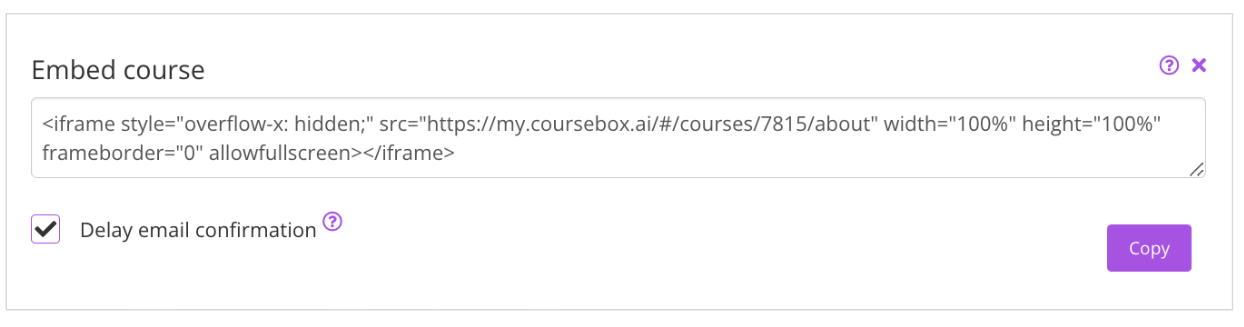
Embedding your Coursebox course on other websites lets you share learning content seamlessly without asking learners to log into multiple platforms. Whether you’re adding it to your company intranet, a WordPress site, or an LMS, the share feature gives you an iframe code that can be pasted anywhere HTML is supported. This makes it easy to showcase your course in the exact environment where your learners already engage.
On any course, navigate to the course page and click the share icon > copy the iframe to copy the code.
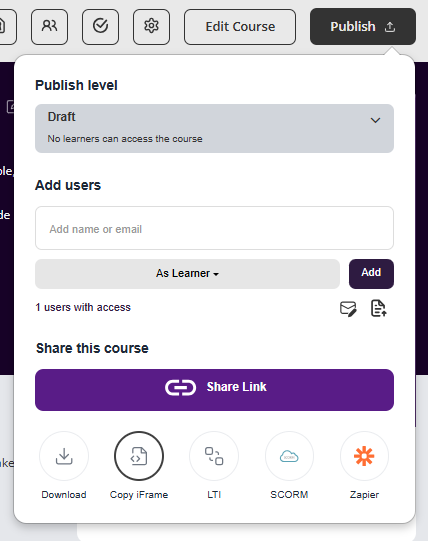
Then paste this using HTML anywhere on the web.
Share a course to LMS - LTI
Coursebox acts as Provider for LTI 1.3 that enables you to add course box courses into any LTI 1.3 compliant Branded Training Platform. LTI enables a secure communication bridge between the Branded Training Platform and Coursebox to launch the course, pass the grades.
The integration steps are very straightforward and easy,
Open the Course in Coursebox, click on share button and click on LTI.
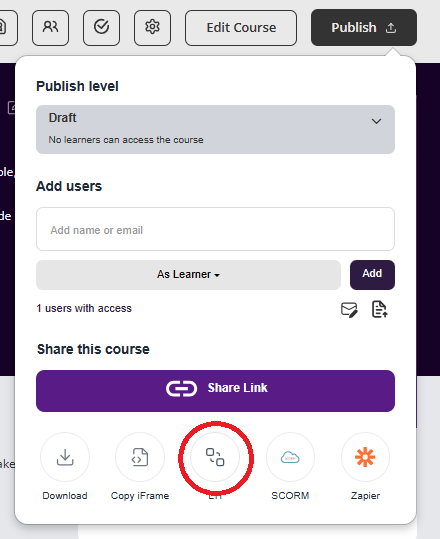
It will open a popup, where you can add your Branded Training Platform. Click ‘Add New Branded Training Platform’.
You will see the form with Coursebox LTI details. You will need to use these details to create an LTI Tool in your Branded Training Platform. Fields details are mentioned in the provided Field Labeling Chart below.
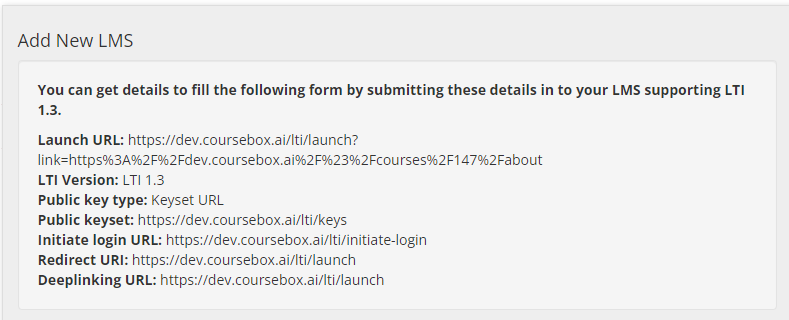
Once you enter the above details in your Branded Training Platform, you will get details from your Branded Training Platform to fill out the form in Coursebox. Fields details are mentioned in the provided Field Labeling Chart below.
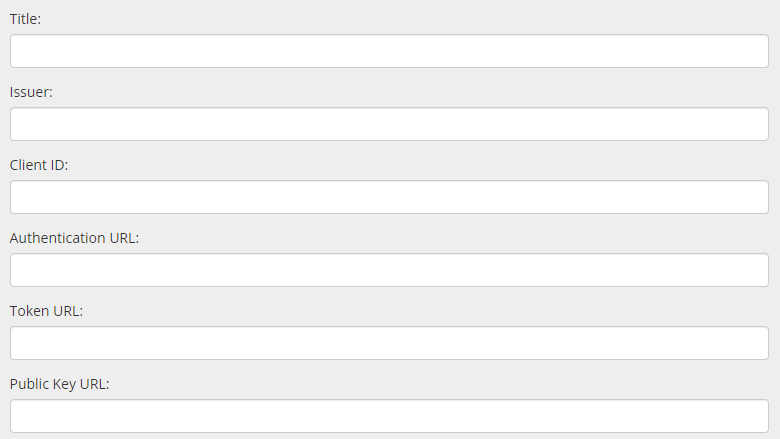
Now, you can start adding courses using the LTI Tool according to the guidelines provided in your Branded Training Platform Documentation.
Field Labeling Chart:
Following is the chart for field labels to give an idea to handle the LTI Integration process.
Coursebox | Moodle | Schoolbox | CanvasBranded Training Platform |
|---|---|---|---|
Launch URL | Tool URL | Launch URL | Target Link URI |
LTI Version | LTI version | Version | N/A |
Public key type | Public key type | N/A | JWK Method |
Public keyset | Public keyset | JSON Web Key Set URL | Public JWK URL |
Initiate login URL | Initiate login URL | OpenID Connect Initiation URL | OpenID Connect Initiation URL |
Redirect URI | Redirection URI(s) | N/A | N/A |
Deeplinking URL | Content Selection URL | Deep Linking URL | Target Link URI under |
Issuer | Platform ID | Issuer | https://canvas.instructure.com |
Client ID | Client ID | Client/Deployment ID | Developer Key ID available in details |
Authentication URL | Authentication request URL | OpenID Connect Authentication URL | https://canvas.instructure.com/api/lti/authorize_redirect |
Token URL | Access token URL | oAuth Access Token URL | https://canvas.instructure.com/login/oauth2/token |
Public Key URL | Public keyset URL | JSON Web Key Set URL | https://canvas.instructure.com/api/lti/security/jwks |
Export a Course to SCORM 1.2 and 2004
Coursebox enables experts to export courses as in SCORM format, including 1.2 or 2004.
When you export a Coursebox course as SCORM, you’re packaging your Coursebox pages, media, and completion logic into a standard zip that any SCORM-compliant LMS can play. The learning experience is still powered by Coursebox—the player, navigation, and tracking behaviours come from Coursebox’s authoring and runtime—just delivered through your LMS.
Key things to know:
Edits after export: If you update the course in Coursebox, you’ll need to re-export and upload the new SCORM package into your LMS.
Branding: Your Coursebox styling and layout remain intact.
Tracking: Choose SCORM 1.2 (widely supported for completion/score) or SCORM 2004 (v3/v4) for advanced sequencing and bookmarking.
Export to SCORM
On the publish settings page, publish your course and click the share button to then select the version of SCORM required for upload to your LMS.
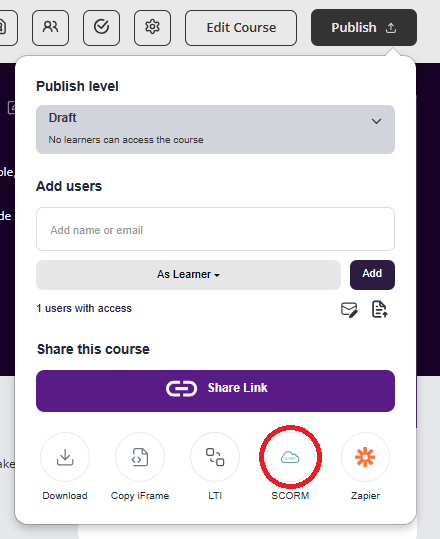
Note that this requires a published live sync to the course to take advantage of the AI and related live features.
Upload to Your LMS
Each LMS has slightly different steps for uploading SCORM packages.
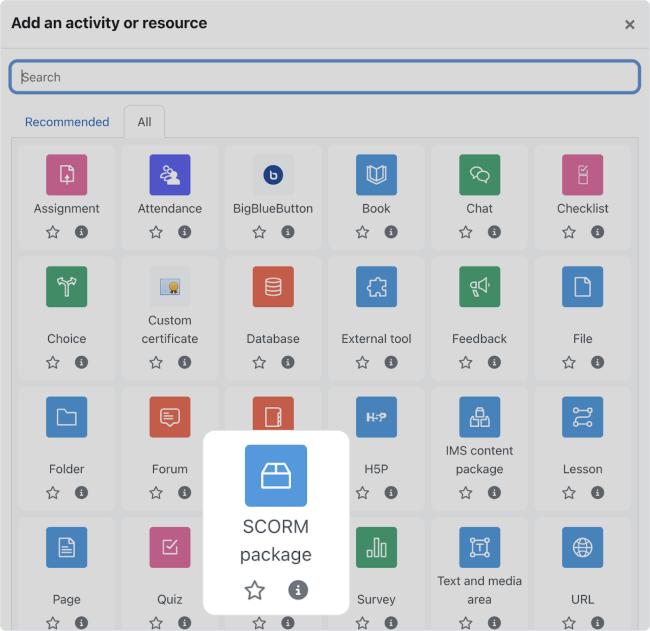
Always follow the official documentation for your platform to ensure compatibility. Below are links to SCORM guidelines for leading LMSs:
Moodle – SCORM activity – MoodleDocs
Blackboard Learn – Add a SCORM content package (Ultra)
Canvas – Import SCORM files as an assignment
D2L Brightspace – Import and Manage SCORM
TalentLMS – SCORM-Compliant LMS Features
SAP Litmos – SCORM-compliant courseware
Absorb LMS – SCORM/AICC/Tin-Can courses – Absorb Help
LearnDash – SCORM and xAPI Support
Schoology – Course Materials: SCORM Packages
Totara Learn – Add a SCORM activity
Open LMS – SCORM Content Creation Overview
Cornerstone OnDemand – Cornerstone SCORM support overview
iSpring Learn – Uploading SCORM to iSpring Learn
SCORM Cloud (testing) – Upload SCORM course to SCORM Cloud
NEW- Anonymous Users via SCORM (where enabled)
Coursebox supports anonymous user access via SCORM when hosted in external LMS environments. This means learners can launch and interact with Coursebox courses embedded in SCORM packages without requiring a Coursebox login.
Use case examples:
SCORM-based compliance training with no user registration
One-click access via corporate LMS with limited tracking
Note: Anonymous SCORM users are available by default and can be enabled using the checkbox in the SCORM export tooltip.
Both anonymous and non-anonymous SCORM exports do not require learners to register in Coursebox.
The key difference is that with anonymous SCORM, no personal data (such as name, surname, or email address) is stored in Coursebox — only the student ID is recorded.
Important Note on SCORM Integration:
Before exporting your course to SCORM 1.2 or SCORM 2004, please be aware that the SCORM integration requires an active account and a live, published course.
Active Account: To ensure seamless integration and usage of SCORM functionality, your account must be active. If your account is not active, the SCORM integration will not work properly.
Live and Published Courses: You cannot export to SCORM from a course that is still in draft or unpublished status. The course must be published and live in your account for the SCORM export to function correctly.
Do Not Cancel the Course: If you cancel or unpublish your course after exporting it to SCORM, the integration will stop working. The SCORM package will no longer be linked to the course, and updates or tracking will not be reflected. Always ensure the course remains live and published for continuous SCORM integration.
By following these guidelines, you ensure that your SCORM exports will continue to function properly, and your course data remains synced with your LMS.
Examples of Published Course Experiences
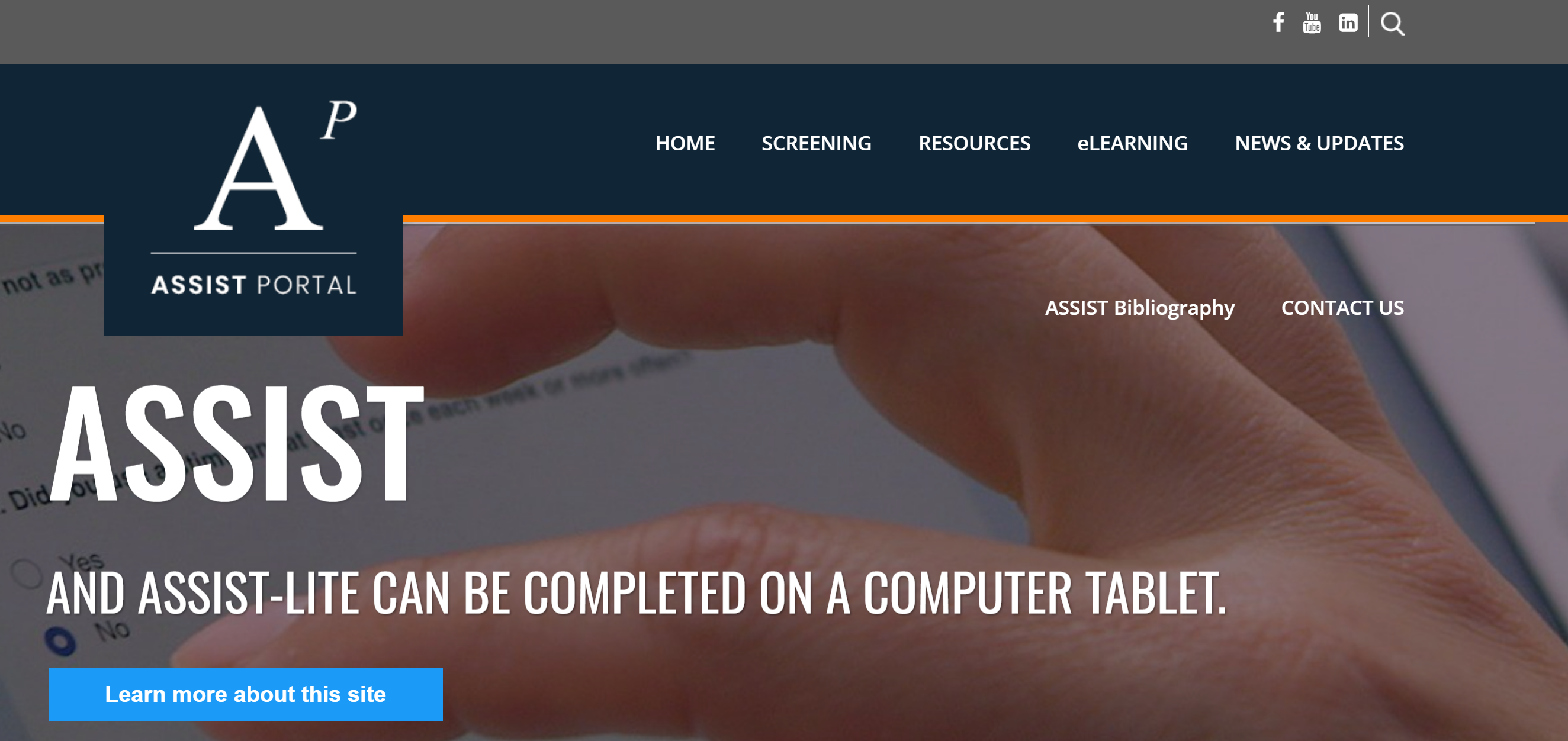
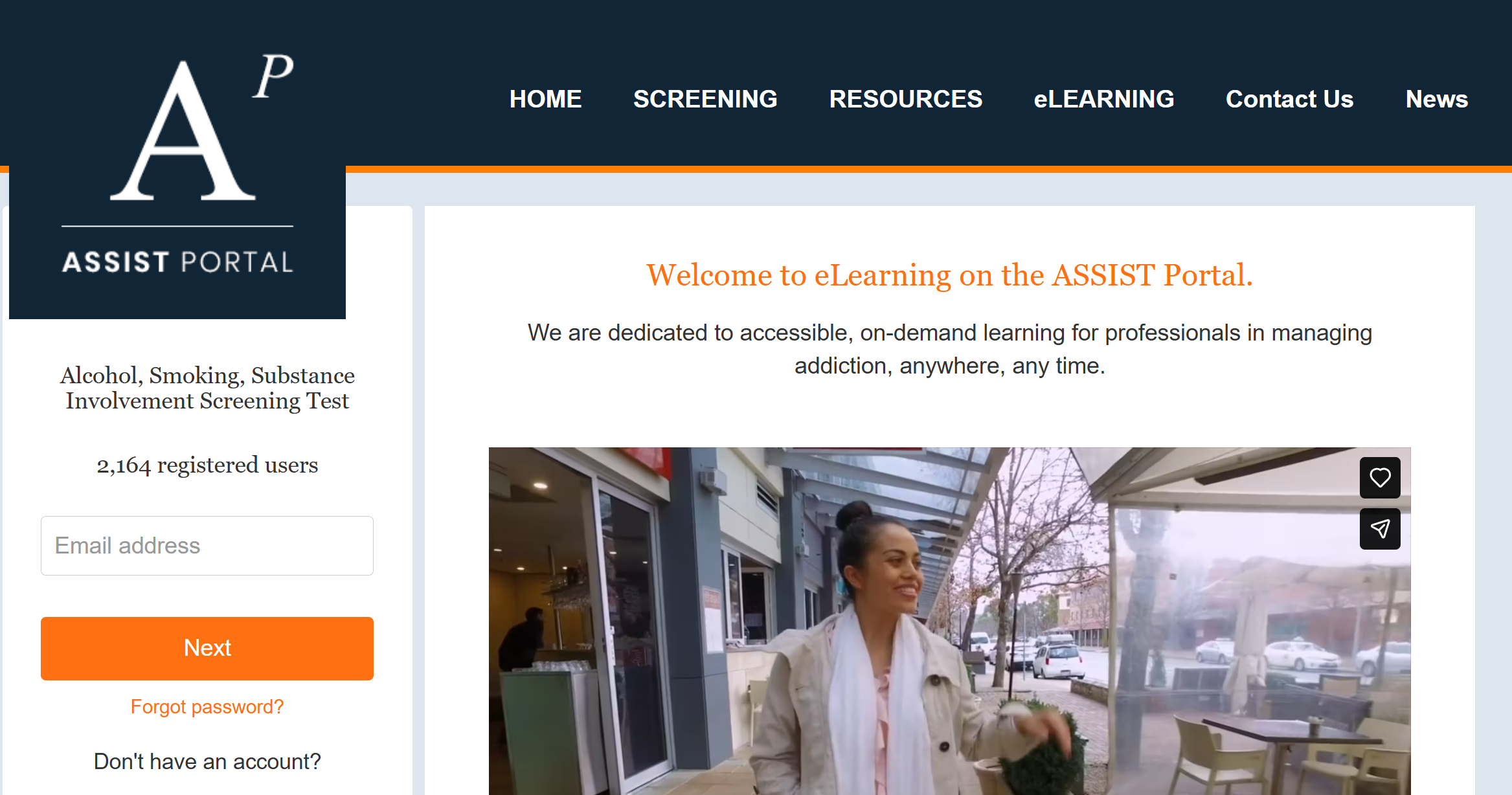
Coursebox courses can be published in different ways depending on how organisations want learners to discover, purchase, and access training. Below are real-world examples showing how different organisations use Coursebox publishing options.
Example 1
Main Website
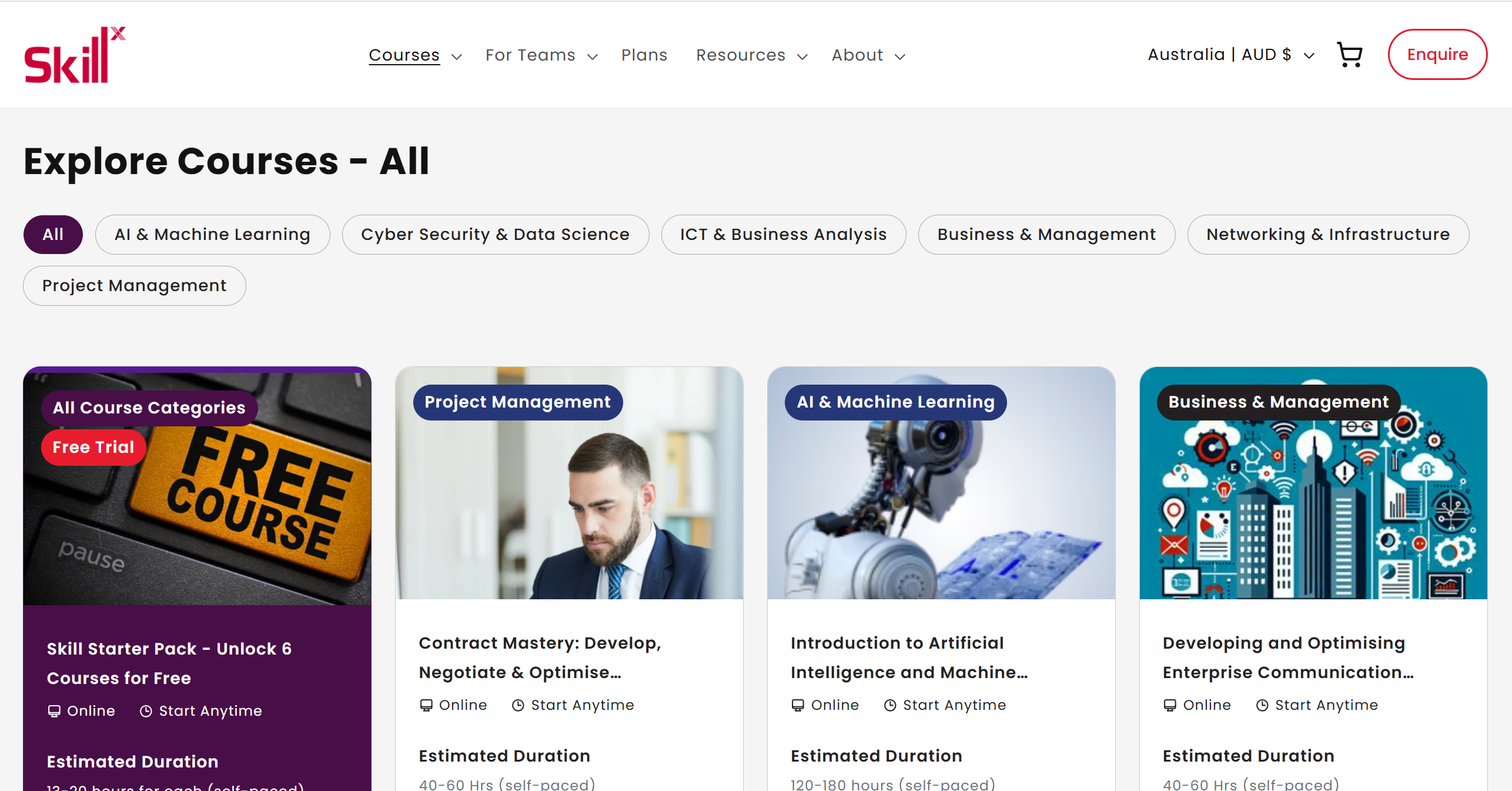
Coursebox Learning Experience
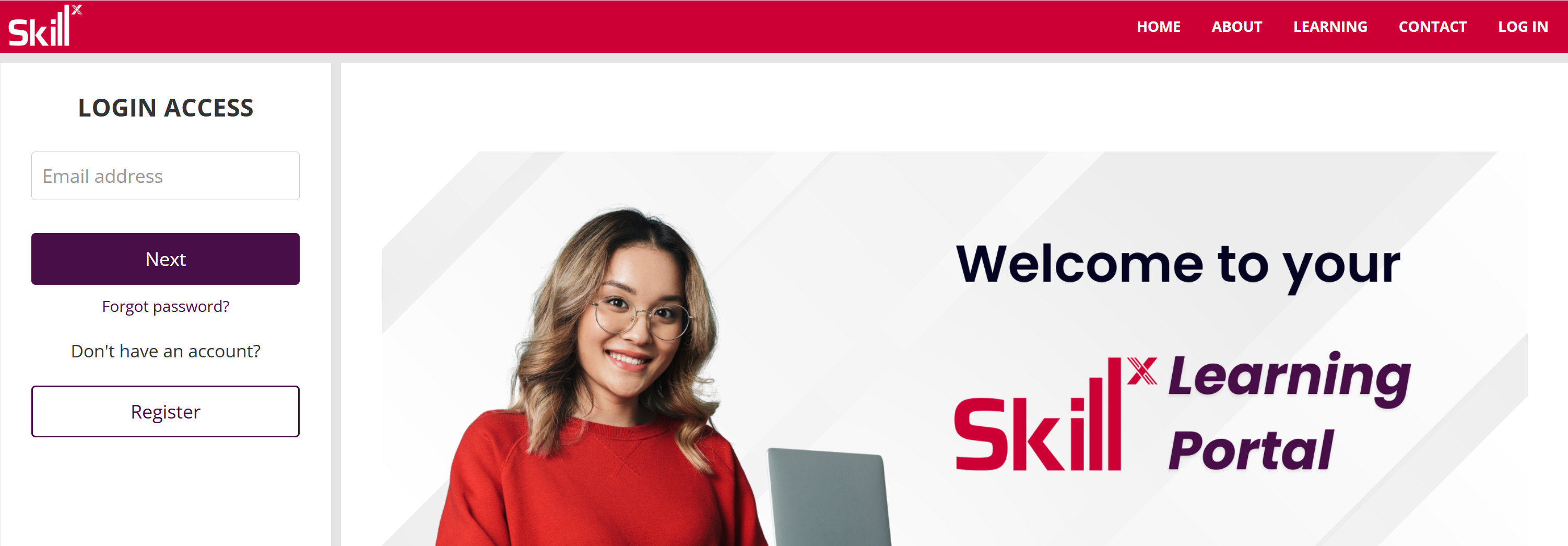
Example 2
Main Website

Coursebox Learning Experience
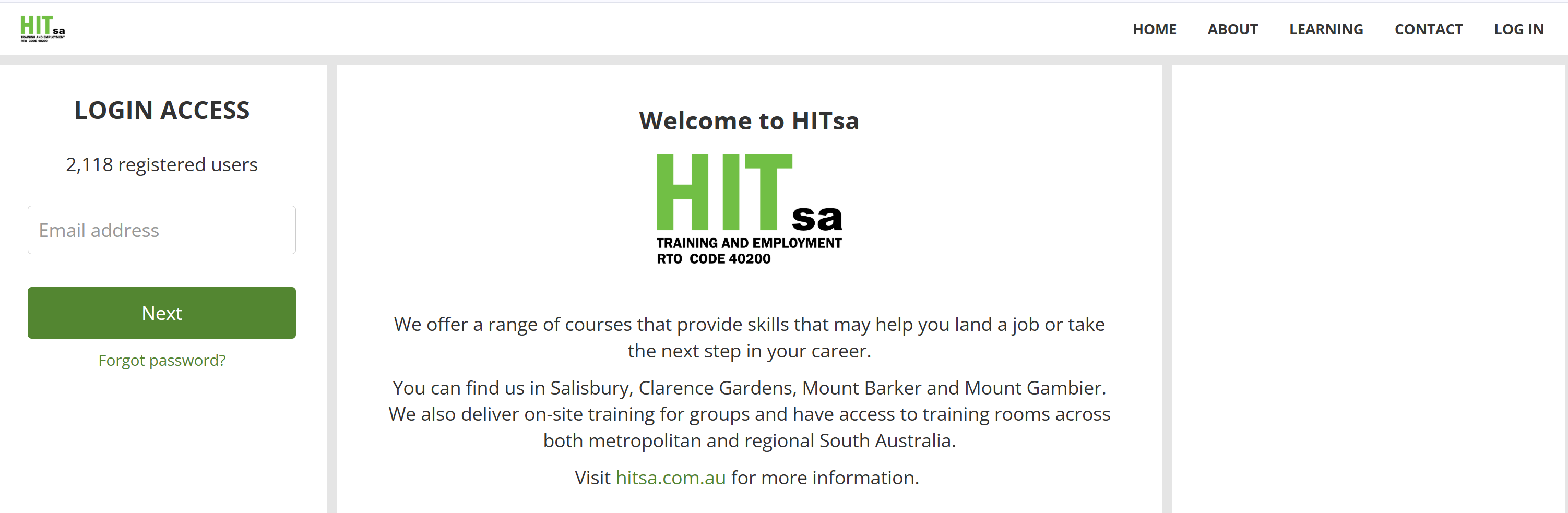
Example 3
Main Website
Coursebox Learning Experience
Example 4
Main Website
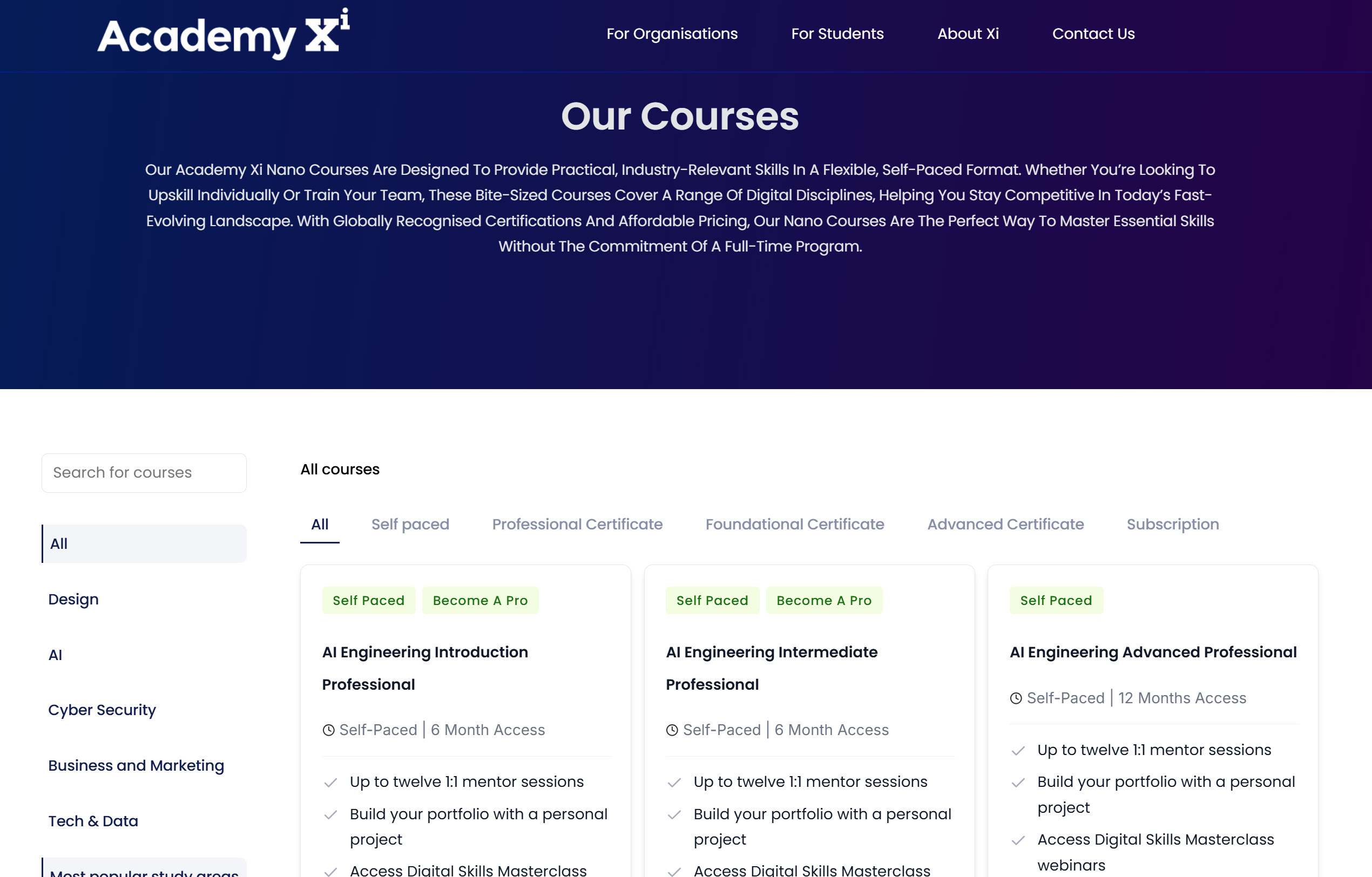
Coursebox Learning experience