
Edit a Course
This section gives you control over how your course is displayed, and managed. From adjusting course visibility and access permissions to configuring key details like course titles, categories, and completion settings—this is where you customise the learning experience to suit your goals. Use these settings to ensure your course is aligned with your audience, brand, and delivery preferences.
Watch the tutorial videos found in our YouTube Video Library.
Once your course has been created—whether manually or with AI—you can begin customising it to suit your learning objectives. Coursebox provides an intuitive editing interface that lets you add, update, and organise your course content with ease.
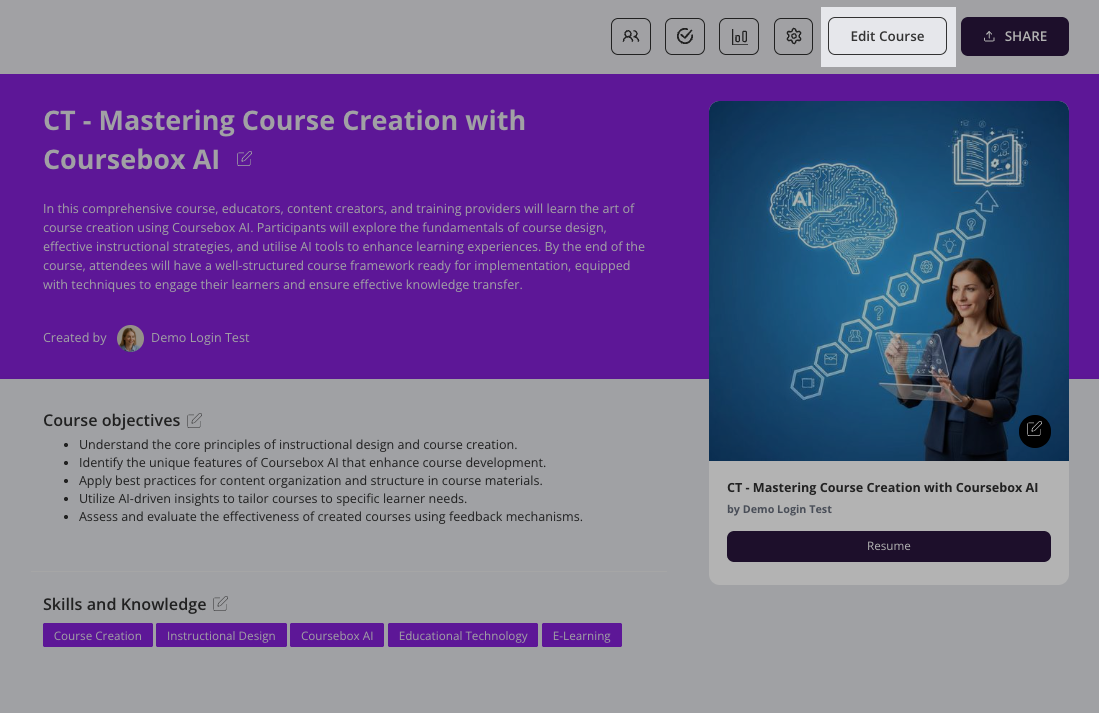
Two ways to add a block
Everything you add to a course page — text, interactions, assessments and multimedia — is added as a block. There are two ways to add one.
1. From the page
Hover over any existing block and click + Add block to insert a block directly above or below it, or click the Add block button at the bottom of the page to add one to the end. The content picker will open — choose what you want from the TEXT, INTERACTIONS, ASSESSMENTS or MULTIMEDIA column.
2. From the sidebar
Use the toolbar on the right-hand side of the editor. Each icon opens a panel for one group of blocks — text, interactions, assessments and multimedia — so clicking the text icon opens a panel with Icon Cards, Banner, Quote, List Cards, Number list, Text & Media, Text Block and Embed Block. Click the block you want and it is added to your page. The purple AI icon at the top of the same toolbar opens the AI Editor.
Create Sections
You can organise your content by dividing your course into multiple sections.
Create, duplicate, move, archive or delete sections
Each section can include a variety of activities—such as videos, quizzes, documents, and interactive elements—allowing you to structure learning in a clear, modular way that supports engagement and progression.
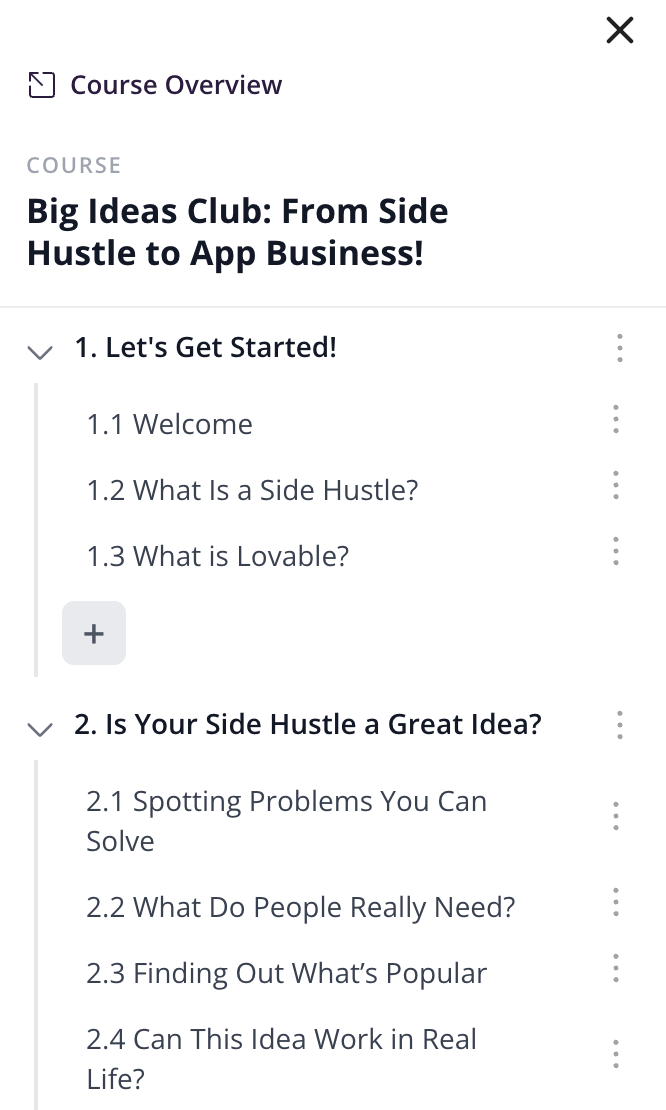
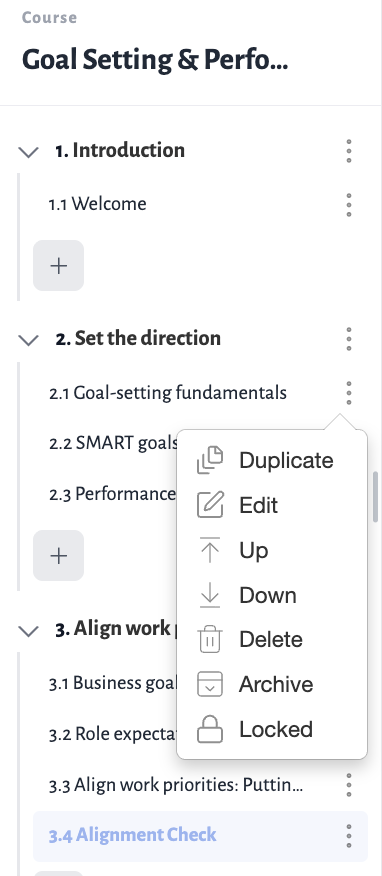
You can easily update, remove, or protect sections within your course:
Duplicate: Click the ⋮ menu next to a page and select Duplicate to create an identical copy of it, including its content. The copy is added to your course alongside the original, so you can rename it and edit it freely without affecting the original.
Edit: Click the ⋮ menu next to a section title and select Edit to update it as your course content develops.
Delete: Click the ⋮ menu next to the section or page and select Delete to remove it. Keep in mind that deleting a section will also delete all activities within it—review carefully before proceeding.
Archive: Click the ⋮ menu next to a section and select Archive to move the whole section out of the course without deleting it. Everything sitting underneath the section—its pages, activities, quizzes and assignments—is archived with it, and learners no longer see any of it. Archiving is reversible: unarchiving brings the section back along with all of the content that was underneath it.
Lock: If a page or section is locked, learners must go through it in order and can't click ahead. If it's unlocked, they can skip around and use the menu on the left to jump to other pages, even if they haven't finished earlier ones.
Reorder: Use the Up and down arrows to rearrange pages or sections for your course structure as needed.
Tip: Duplicate is ideal when every unit follows the same pattern — for example a page with a video, a summary block and a knowledge check. Build the page once, duplicate it for each unit, then swap out the content. It is also a safe way to trial a big rewrite: duplicate the page, edit the copy, and archive whichever version you don't keep.
Archive or Delete? Use Archive when you may want the content back — for example retiring a section for a new intake, pulling a module out of circulation while it is being rewritten, or removing seasonal content you will reuse next year. Use Delete only when you are certain the section and everything inside it is no longer needed, as deleting cannot be undone.
Select Page View Style
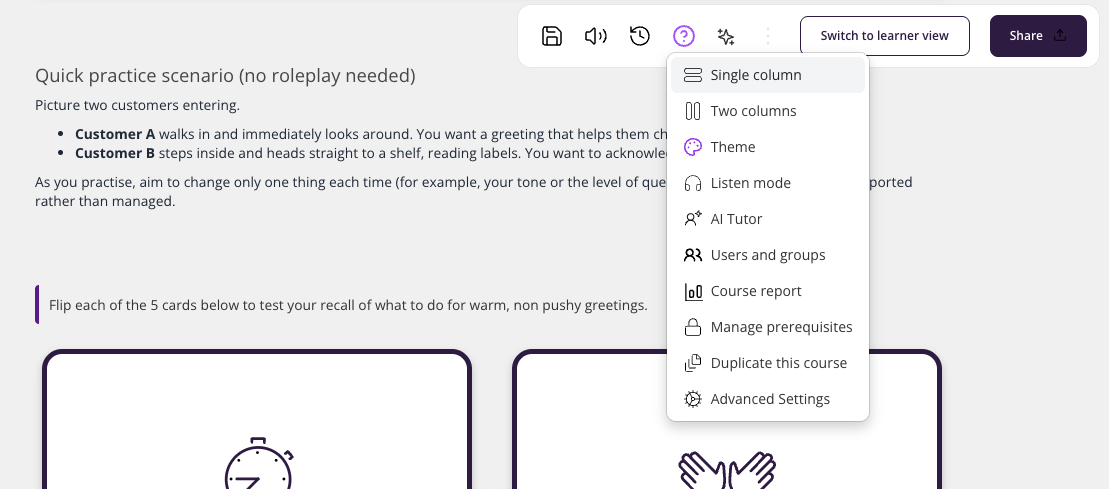
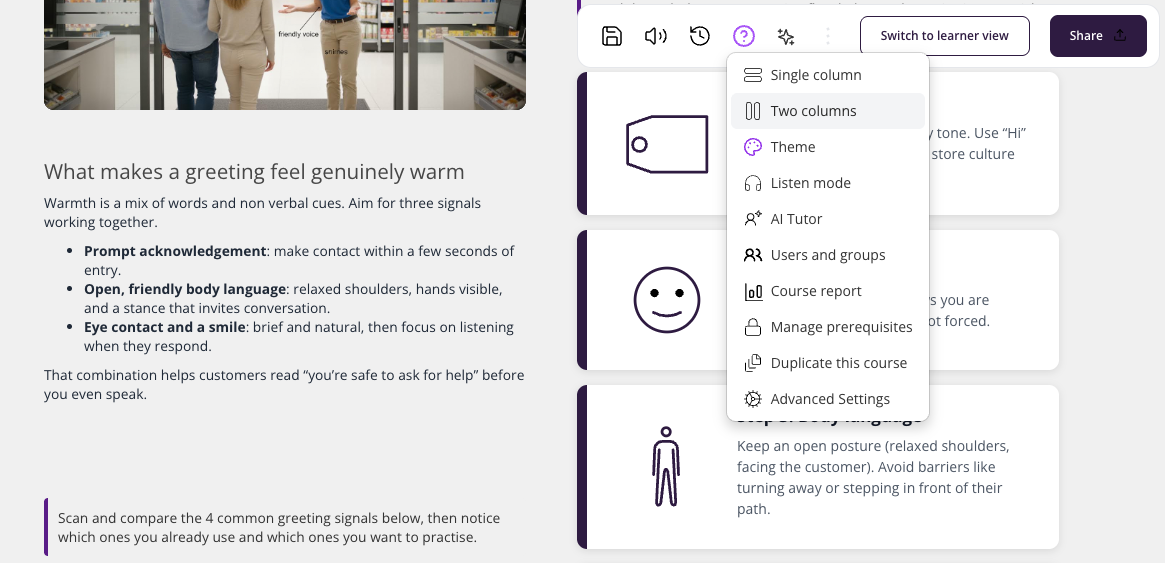
Coursebox allows you to choose between single-column and double-column page layouts, giving you flexibility in how content is presented to learners.
From the top right hand side menu. Select the three dots to open the menu:
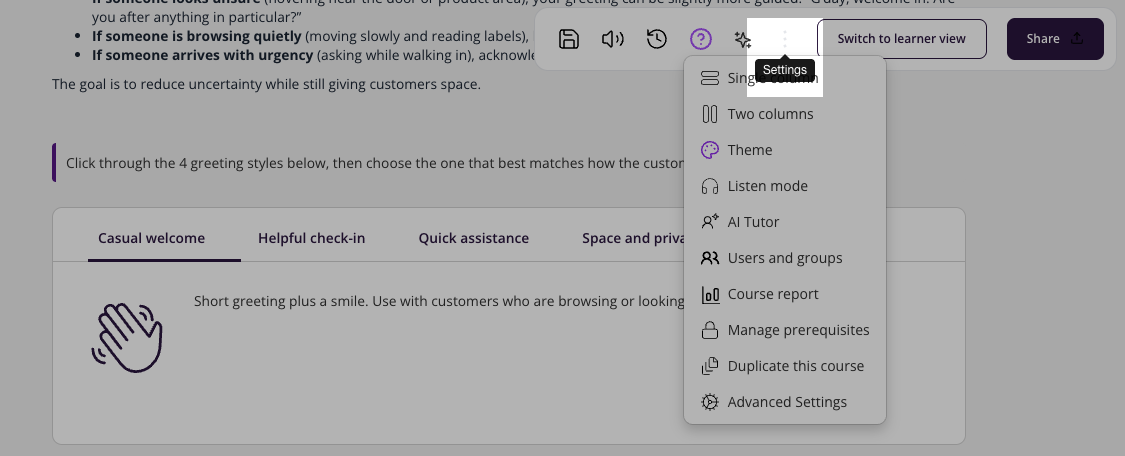
Single-Column Page View
Displays all content in a single, vertical scroll. Best for mobile-first experiences, simpler lessons with text and media, and minimising distractions.
Double-Column Page View
Divides the page into two side-by-side content areas. Best for complex layouts (e.g., video + notes), visually balancing long content blocks, and placing multimedia alongside explanatory text.
Switch to Learner View
Once you've started editing your course, you can use Learner view to see how it will appear to learners. Simply click the button to view your course as a participant would—allowing you to check layout, content flow, and overall learner experience before publishing.
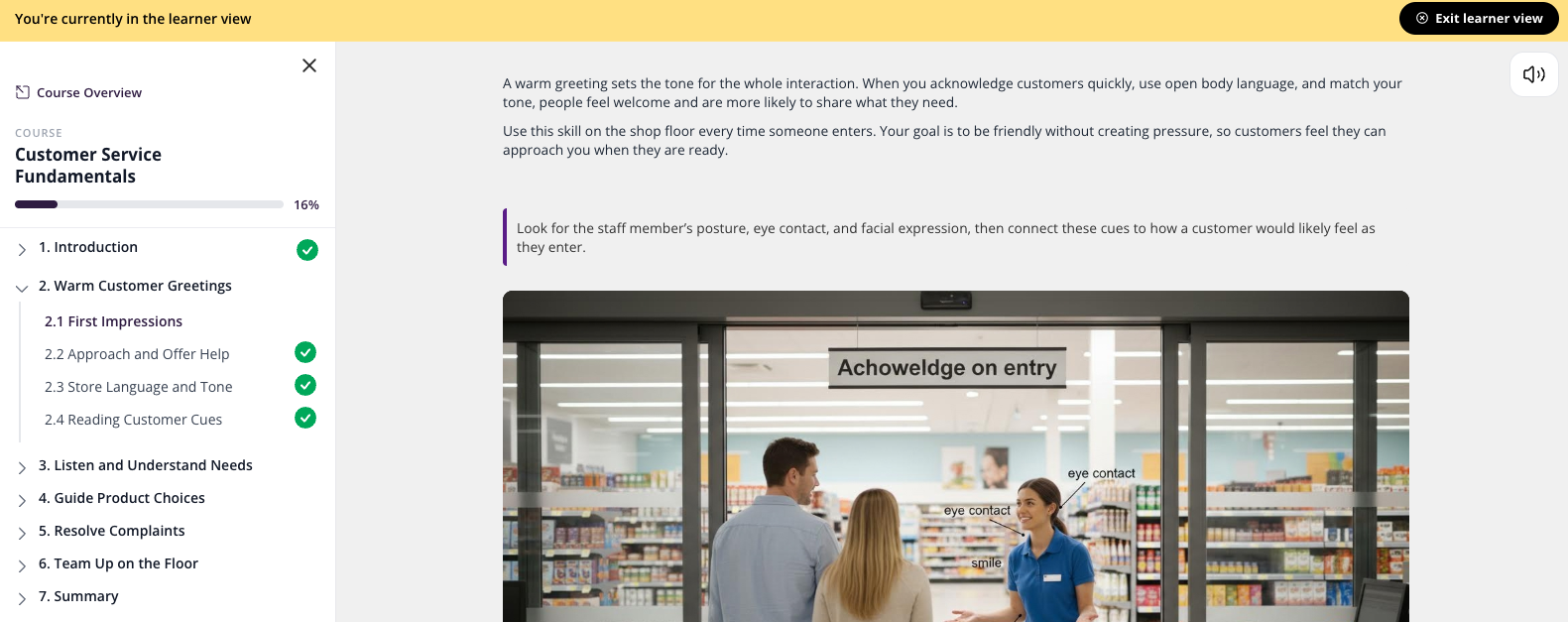
To exit Learner View and return to the course editor, click the Exit Learner View button in the top-right corner of the screen. This will return you to the editing interface. If you do not see the button, scroll to the top of the page — it appears as an orange button labelled "Exit learner view" in the top-right corner of your browser window.
Note: The author name that learners see on your course is taken from your account profile, not set per course. To change it, click the arrow in the top-right corner and select Profile, click the pencil icon next to your name, update the name fields, and Save. Your updated name will then appear to learners across your courses.
Use Text Features
The Text Features in Coursebox allow you to create and edit course content directly on the page, giving you full control over layout, formatting, and how information is presented. Add a text feature using either of the two methods described at the top of this article.
From the Text menu, you can add: Icon Cards, Banner, Quote, List Cards, Number list, Text & Media, Text Block, and Embed Block.
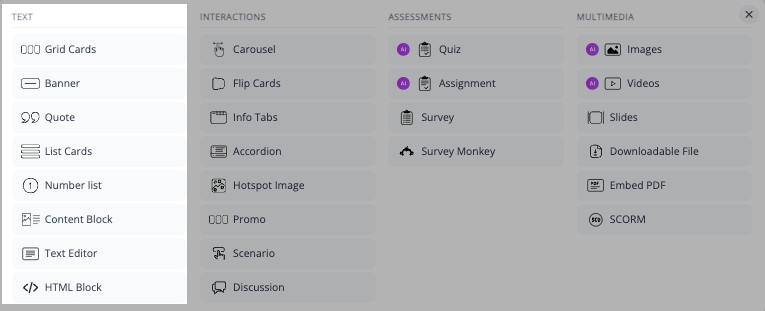
Icon Cards
Icon Cards allow you to present content in a clean, visual card layout—ideal for highlighting key concepts, options, or bite-sized information.
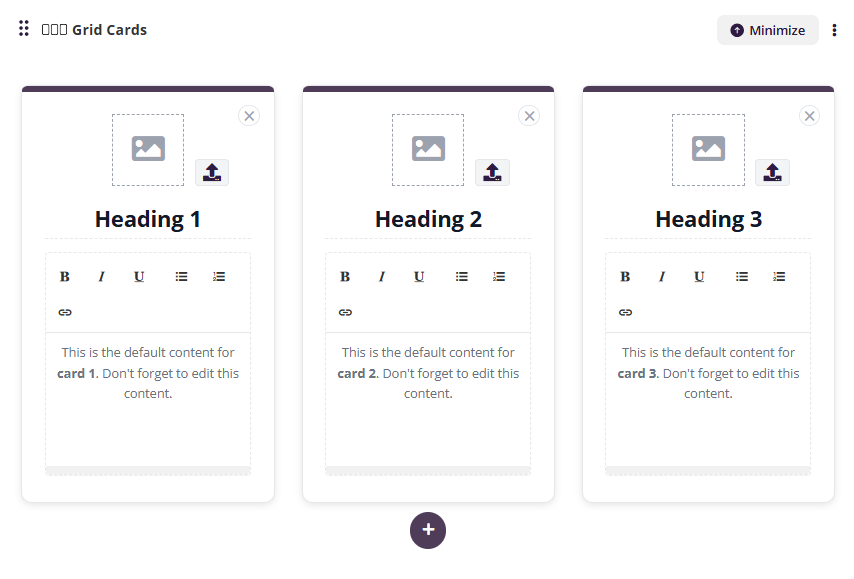
Open the Text menu > select Icon Cards. For each card you can: click the image placeholder to upload an image, click the heading to edit it, and click inside the content area to format text (bold, italic, bullet points, links).
Banner
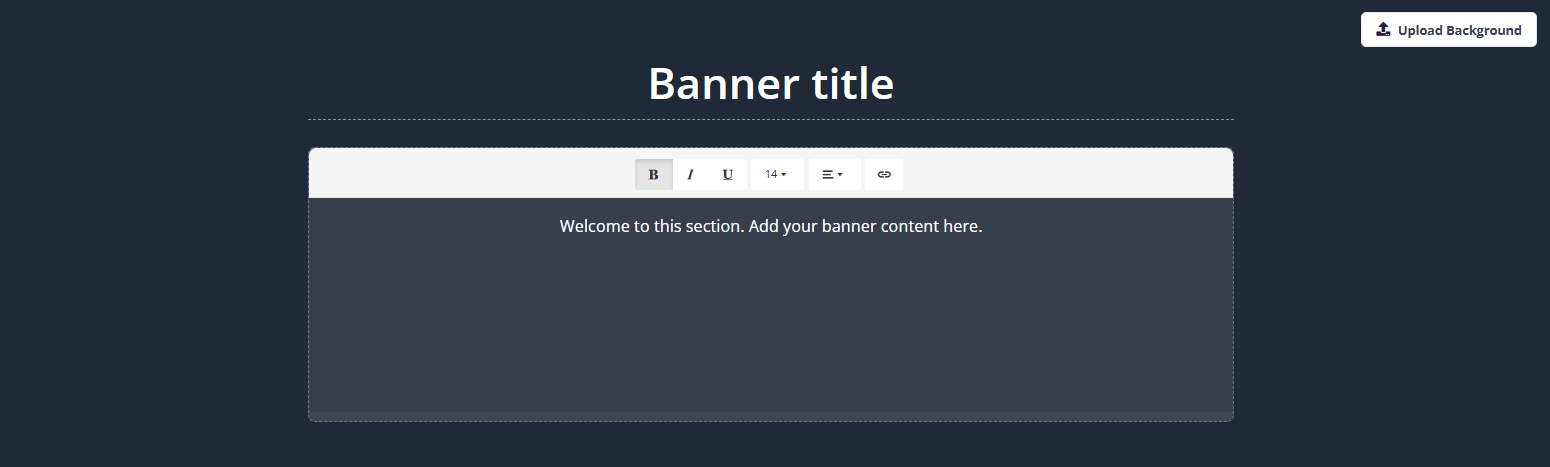
The Banner block is used to introduce a section or highlight key information. Open the Text menu > select Banner. Click the title or content area to edit, and click Upload Background to add a background image.
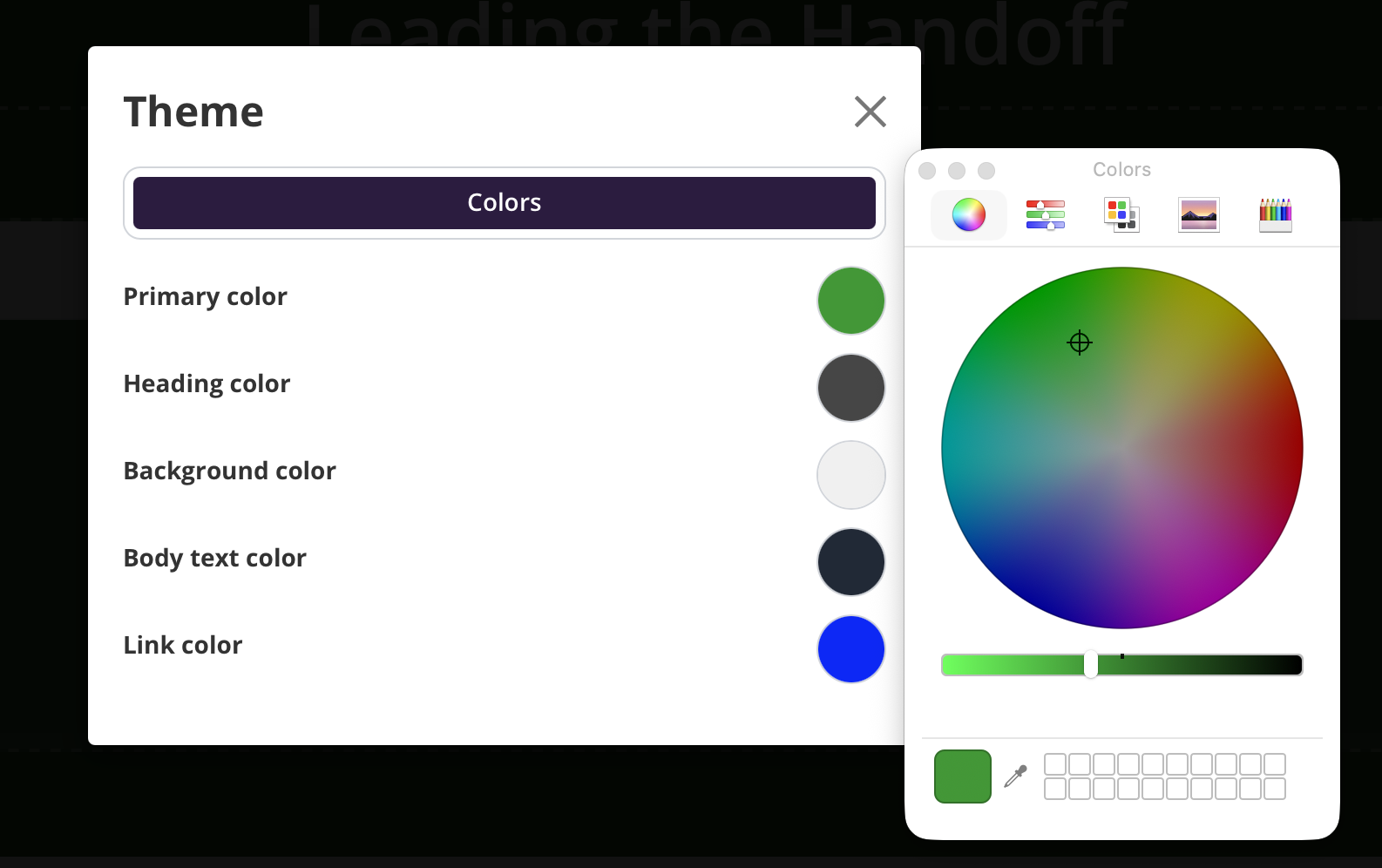
You can also set the banner's colour instead of an image: open the course Theme (see Managing the Course Theme) and change the Primary color there — it sets the banner's background colour to match your brand.
Quote
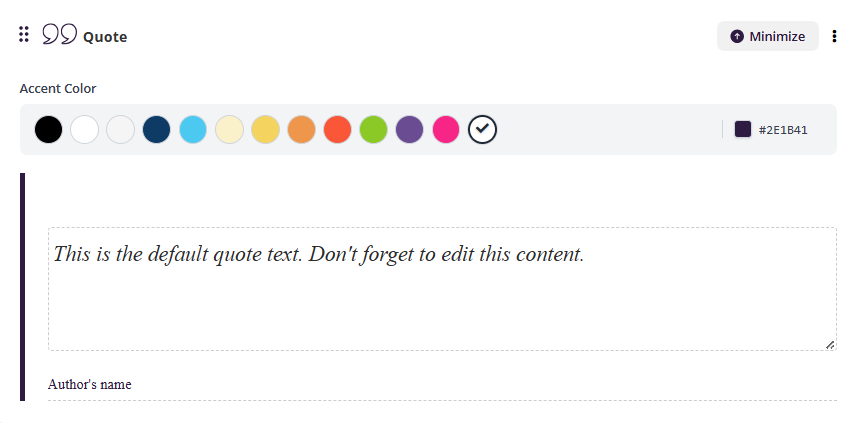
The Quote block highlights key statements or testimonials. Open the Text menu > select Quote. Click inside to edit the text, add an author name, and choose an accent colour to match your branding.
List Cards
List Cards present information in a structured vertical list. Each card includes an image area and editable text. Open the Text menu > select List Cards.
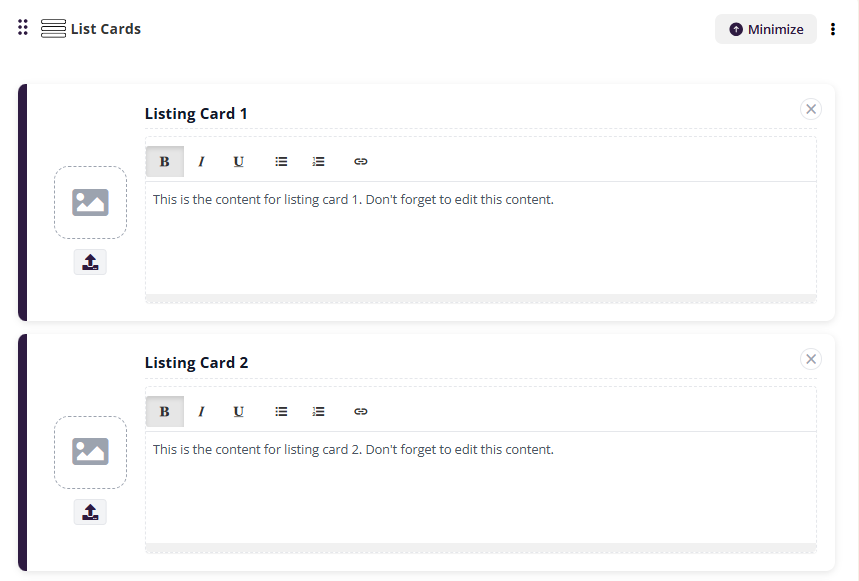
Here you can also add an image using the upload button on the left of each card.
To delete an individual card, click the ✕ icon in the top-right corner of that card. To delete the entire List Cards element, click the ⋮ menu at the top of the element and select Delete.
Number List
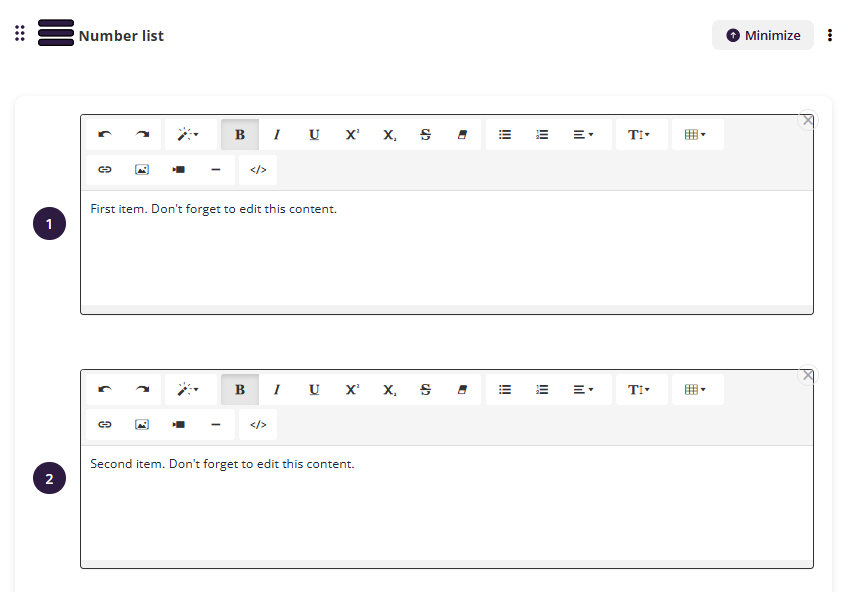
The Number List block presents information in a numbered, step-by-step sequence. Open the Text menu > select Number List. Click inside each item to edit and format text.
Text & Media
The Text & Media block is a flexible text section for structured written content. Open the Text menu > select Text & Media. Use the toolbar to add headings, bullet points, links, and media.
Text Block
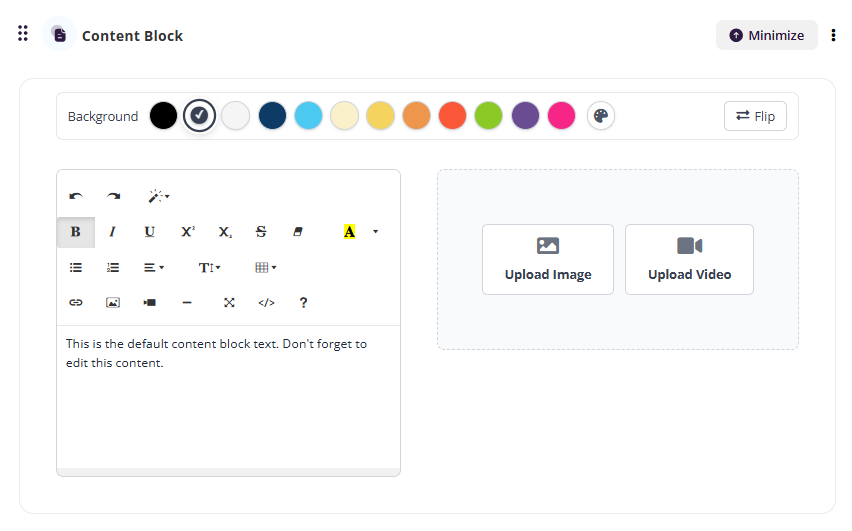
By default, every new activity is created as a Text Block — a flexible WYSIWYG interface similar to a WordPress post editor.
You can also set the font and size on any text you select inside a text block. Highlight the text you want to change, then choose a font from the font family dropdown and set the size with the font size control in the block's toolbar. This works across all text-based blocks, and your changes are saved and visible to learners immediately. To set fonts for a whole course instead, use the Course Theme (see Managing the Course Theme).
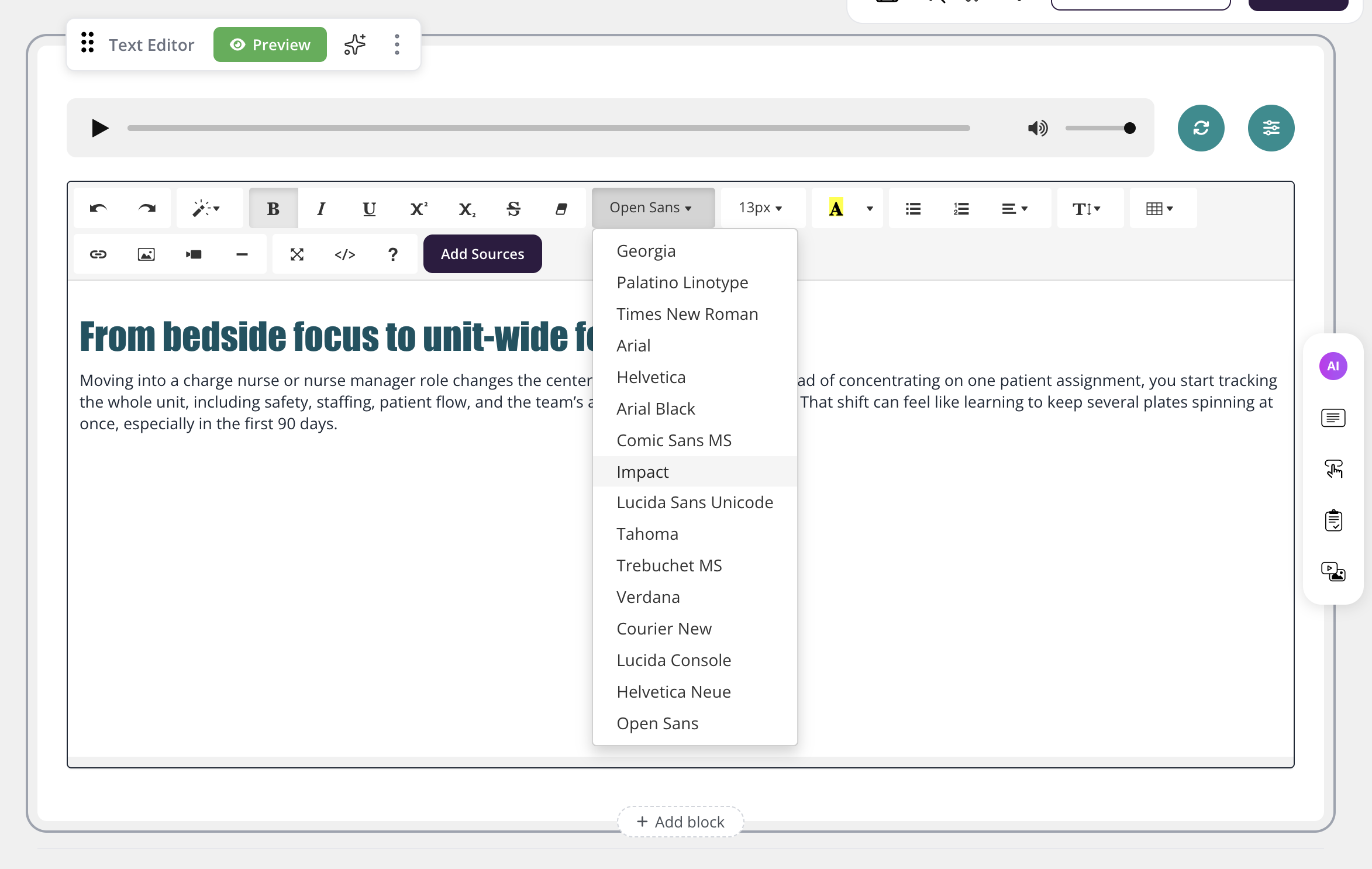
Finding the HTML icon (the </> button)
To add or edit raw HTML or embed code, add or open a Text Block, then click the HTML icon — the </> button — in the editor toolbar to switch to HTML/CSS view. Paste or edit your code, then click the </> button again to return to the normal editor. If you can't see the </> icon, make sure you have added a Text Block (not another block type) and that you are in the course editor rather than Learner view.Click the HTML icon for advanced HTML/CSS editing.
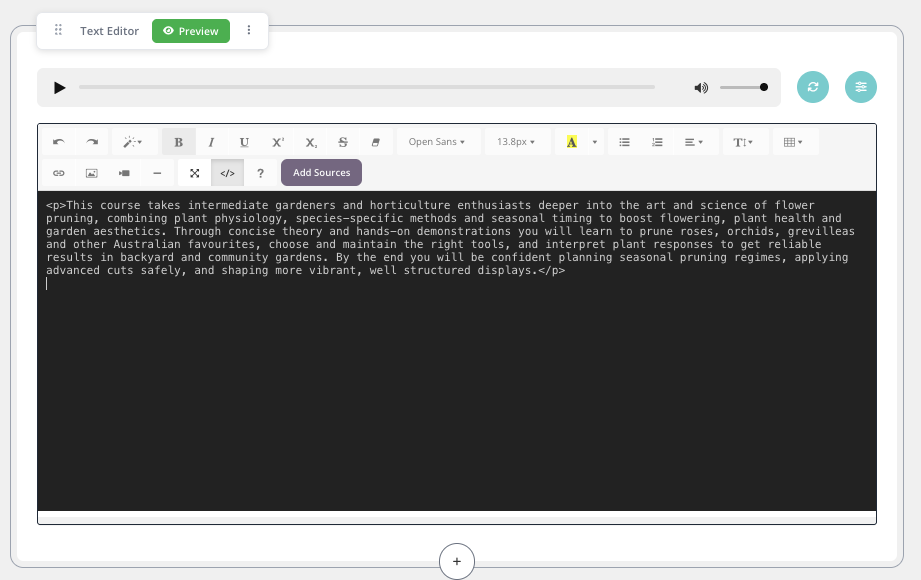
You can add multiple Text Blocks to a single page by clicking Text Block again — each new block appears below the previous one.
Tip: Break up long pages into smaller HTML sections to improve load times and make editing more manageable.
Superscript & Subscript Text
The Superscript and Subscript buttons in the text toolbar apply the formatting visually while you're editing, but the underlying tag is stripped when the page saves — so the raised or lowered character reverts to normal text once you save and reload in Learner view. Re-applying the button doesn't help; it's removed again on the next save.
The reliable way to add superscript or subscript text is a styled <span> pasted through the HTML icon (see Finding the HTML icon above) instead of the toolbar button:
Superscript: <span style="vertical-align:super; font-size:0.75em; line-height:0">TEXT</span>
Subscript: <span style="vertical-align:sub; font-size:0.75em; line-height:0">TEXT</span>
Replace TEXT with the character(s) you want raised or lowered — anything from 0.7em to 0.8em reads fine for the font size. The line-height:0 is what keeps the character from opening up the line spacing to fit it; leave it out and the line will stretch, the same way the native Superscript button does.
Ready-to-copy examples:
Trademark:
Coursebox<span style="vertical-align:super; font-size:0.75em; line-height:0">™</span>Registered mark:
BFM<span style="vertical-align:super; font-size:0.75em; line-height:0">®</span> GlobalFootnote marker:
See note<span style="vertical-align:super; font-size:0.75em; line-height:0">1</span>Units:
12 m<span style="vertical-align:super; font-size:0.75em; line-height:0">2</span>Chemical formula:
H<span style="vertical-align:sub; font-size:0.75em; line-height:0">2</span>O
To apply it: open a Text Block, click the </> HTML icon, paste the snippet where you want the character in place of TEXT, then click </> again to return to the normal view and save. This has been verified stable across repeated saves and edits.
The Superscript/Subscript toolbar buttons, and raw <sup> / <sub> HTML tags pasted directly (with or without styling), are not supported — formatting applied that way will not persist after saving. Use the styled span above instead.
Add Sources
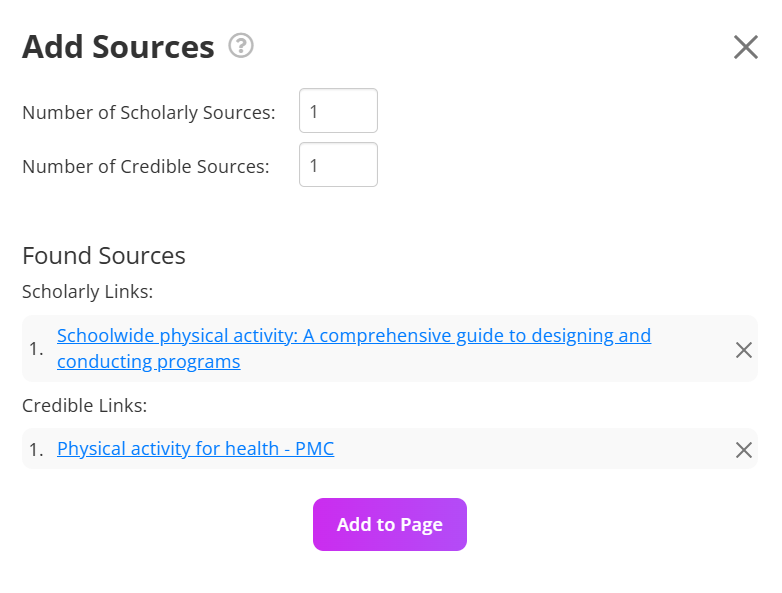
To include additional resources in your course, click on the Add Sources section and select how many sources you'd like the system to find.
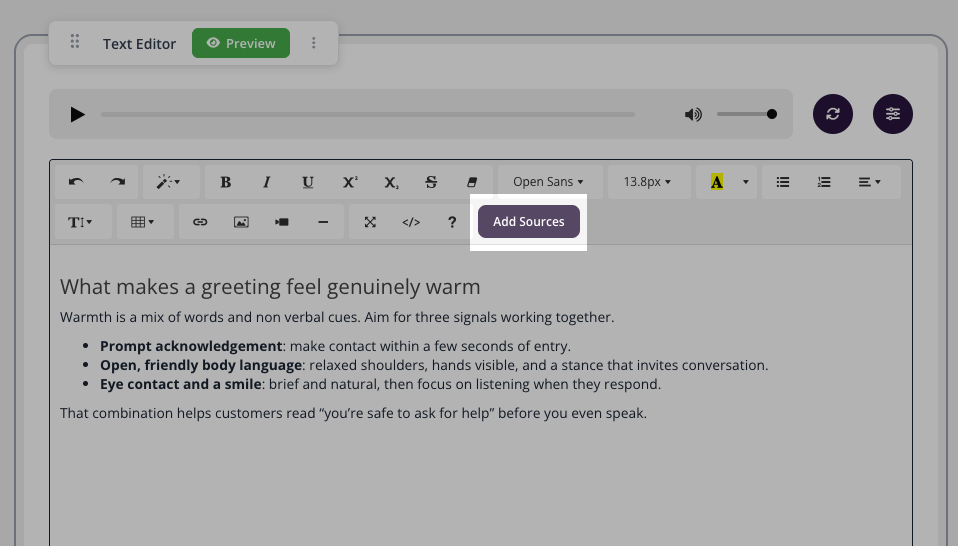
The system will locate relevant sources which you can review and add directly to your course page.
Embed Block
Add custom HTML and JavaScript directly to a course page to embed interactive widgets, tools, or experiences you've built or generated elsewhere.
How it works:
Click the + button on the page and select Embed Block from the TEXT section.
Paste your custom HTML, including any JavaScript, into the code editor.
Click Preview to see how it renders on the page.
Click Save to publish the block as part of your course.
What you can do:
Embed interactive widgets, such as drag-and-drop activities, calculators, or custom tools, directly inside a course page.
Drop in AI-generated HTML artifacts or dashboards without any conversion or reformatting.
Build experiences tailored to your course content that go beyond standard block types.
Version History (Course Restore)
Coursebox automatically saves a version history for every course. If you make a mistake or want to revert to a previous version of your course, you can restore an earlier snapshot at any time.
How to Restore a Previous Course Version
Open the course you want to restore in the course editor.
Click the three-dot menu (⋮) in the top-right corner of the course editor.
Select Version History from the dropdown menu.
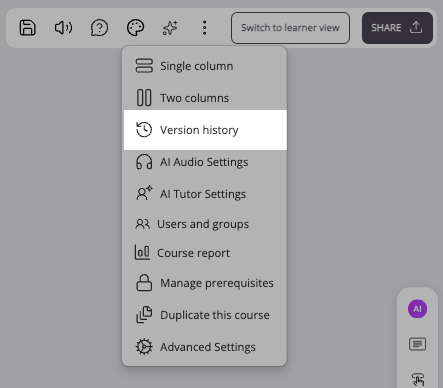
A panel will appear showing all saved versions with timestamps. Browse through the list to find the version you want to restore.
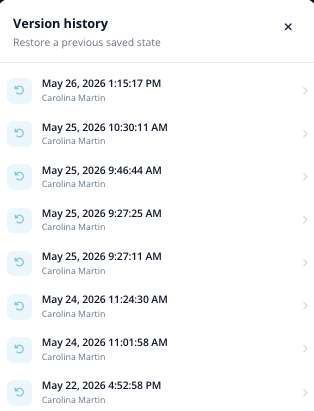
Click Restore on the version you want to revert to. Your course will be updated to that saved state.
Tip: Restoring a version replaces the current state of your course. Make sure you are happy with the version you select before confirming the restore.
Troubleshooting Course Editing
My changes to the course are not saving.
Ensure you click the Save button after making changes — Coursebox does not auto-save all content types. If changes still don't save, try refreshing the page and re-entering your edits. Check your internet connection if the issue persists.
I can't reorder sections or activities.
Reordering uses the Up and Down arrow icons next to each section or activity. If the arrows are not visible, make sure you are in the course editor (not Learner view) and that you have the correct admin role assigned.
I can't see the Duplicate option.
Duplicate appears in the ⋮ menu next to a section or page in the course outline. If you can't see the ⋮ menu at all, you are most likely in Learner view — click Exit learner view in the top-right corner to return to the editor. Also check that you have an admin or creator role on the course.
A section has disappeared from my course.
Check whether it was archived rather than deleted. Archived sections are removed from the course view but are not deleted — unarchive the section to bring it back together with all of the pages and activities that were underneath it.
The course looks different to learners than it does in my editor.
Use Learner view to see exactly how learners will view the course. Note that locked sections and completion requirements only affect learners — you will see all content regardless of locks while editing.
Creator tools (file upload/paperclip, + buttons, reorder arrows) have disappeared.
This usually means you're in Learner view, which hides all editing controls so you see the course exactly as a learner would. Click the orange Exit learner view button in the top-right corner to return to the editor and restore your creator tools. If you don't see the button, scroll to the very top of the page.