
Selling Access to a Pathway of Courses
Plan requirement: Pathways are available on Pro + LMS and Enterprise.
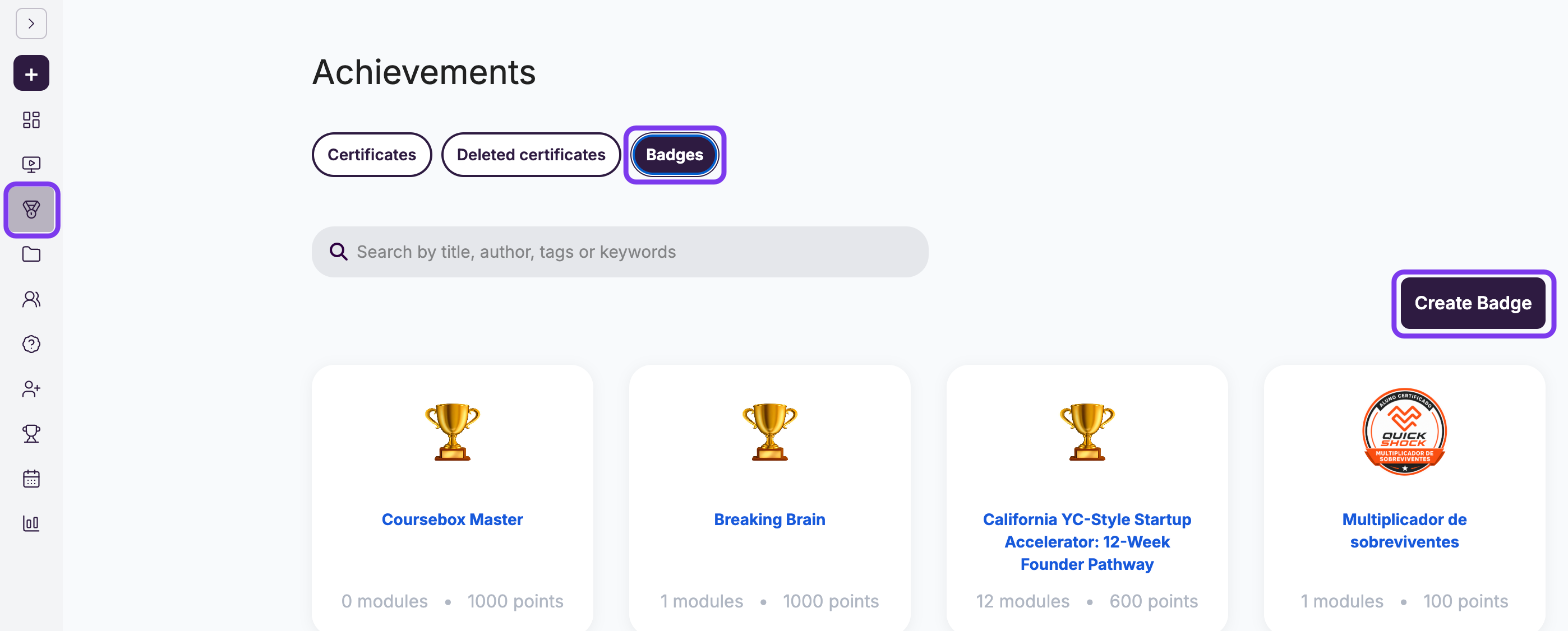
A pathway is a badge with courses linked to it. You create it under Achievements → Badges, and the courses you add under Required Learning make up the pathway. For the full setup, see Pathways, Badges and Leaderboard.
How to sell a pathway
Option 1: Sell a Shopify bundle
Best if you use Shopify or want a dedicated sales page.
Set up your courses as a pathway (a badge with the courses linked under Required Learning).
Install the Coursebox app on Shopify and connect your Coursebox account. See Managing Shopify Integration.
Import the pathway's courses into Shopify as products, group them as a bundle, and set your price.
When a learner buys the bundle, the Coursebox app enrols them into the courses automatically.
Share your Shopify bundle landing page to market and sell access.
Option 2: Sell a course and enrol with Zapier
Best if you want to sell directly from Coursebox.
Set up your courses as a pathway (a badge with the courses linked under Required Learning).
Create one course to act as the point of purchase. Open its Share panel, set the Access level to Sell this course, and set a price. This is the course learners buy to unlock the pathway.
Connect Coursebox to Zapier using your API key from Settings → Integrations → Open API. See How can I use Zapier with Coursebox? for the steps.
Create a Zap:
Trigger: a purchase, for example a Stripe payment, or User Enrolled in Course on the course you are selling.
Action: Enrol Into Course by Code, added once for each course in the pathway.
When a learner buys the course, Zapier enrols them into every course in the pathway.
Option 3: Sell a Group membership
Best if you want learners to pay a monthly fee for ongoing access to the pathway.
Set up your courses as a pathway (a badge with the courses linked under Required Learning).
Create a Group, then add it to each course in the pathway: on the course page, click the people icon, open the Groups tab and add the Group. Group members are then enrolled in every course.
Open the Group, click the gear icon (⚙️), select Edit and enter a monthly Membership fee. Connect Stripe first.
Set the Group’s access to Restricted or Public. People who aren’t members see a Subscribe option.
For the full steps, see Group Management.
Enrol learners without selling
If you are enrolling learners directly rather than selling, enrol them into every course in the pathway. From each course's Share panel you can use Copy link to share the course, or add a group or email address under People with access. See Pathways, Badges and Leaderboard for the steps. Once a learner is enrolled in all the courses linked to the badge, they see their full pathway progress.
Organise courses with custom tabs
A custom tab is a filtered view of your course catalogue, so a set of related courses appears together in one place. Only a Super Admin can create or delete these filters, and they apply across the whole portal.
From the left menu, click Courses, then select My Courses.
On the right-hand panel, click the arrow icon or the Search Filter label to expand the filter options.
In the Title field, type a course title. You can also use the Skills and Location fields to narrow the results.
Click Search to apply the filter.
Scroll to the bottom of the filter panel, enter a name in the Tab Name field, and click Save.
Your custom tab appears at the top of the My Courses view next to All, My Courses, and Drafts. Click it to see the courses that match the filter.