
Log In to Coursebox using Magic Link
Overview
You can sign in to Coursebox in three ways: with a link sent to your email (Magic Link), with your Google account, or with your email and password. This article also covers resetting your password, creating an account and fixing common sign-in problems.
Sign in
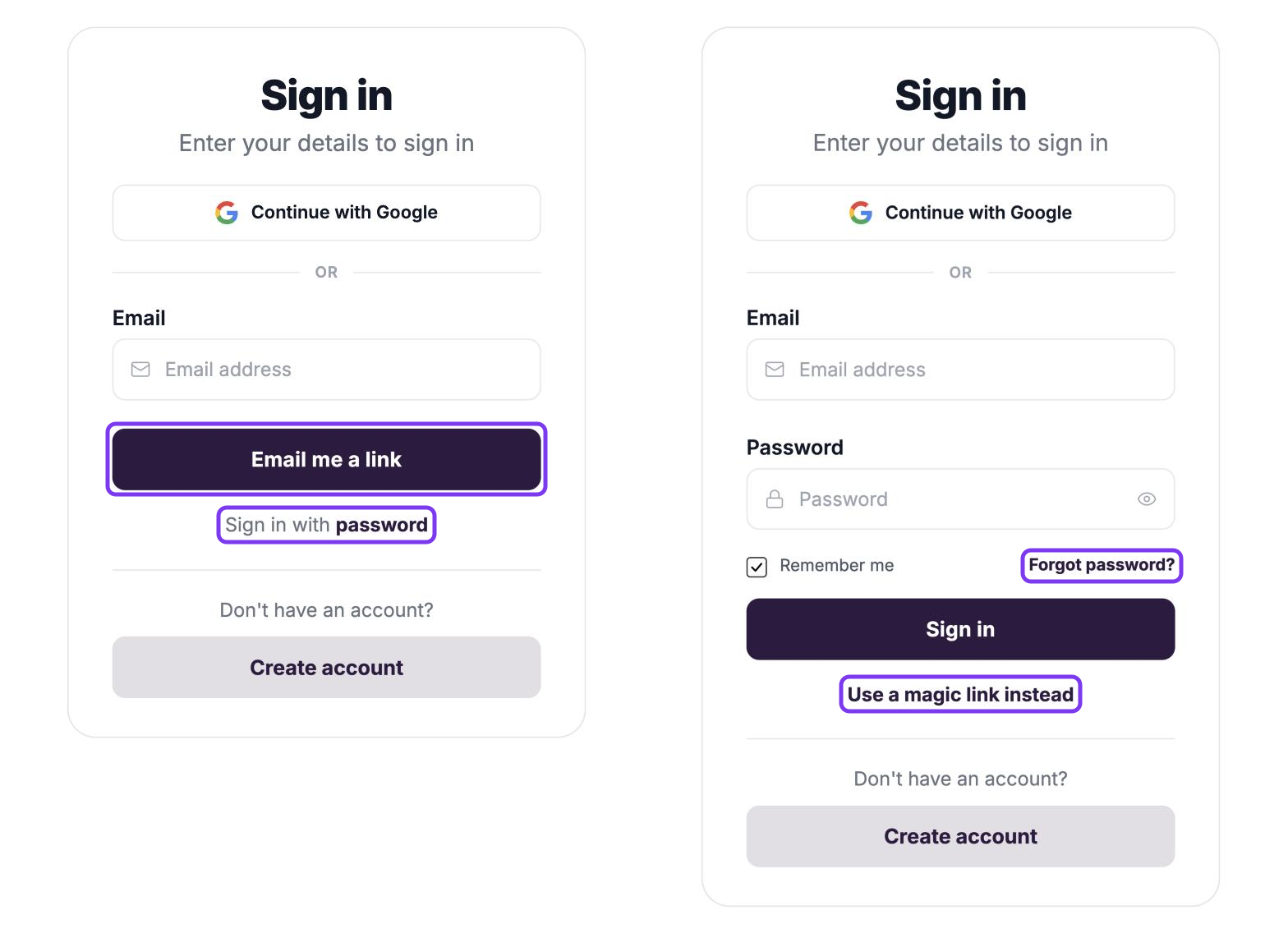
Go to https://my.coursebox.ai or your organisation's portal address. The Sign in form has Continue with Google, an Email field with Email me a link, and a Sign in with password link.
Sign in with a magic link
A magic link signs you in without a password. It works for learners, creators and collaborators.
Enter your email address in Email.
Click Email me a link.
Open the email from Coursebox and click the sign-in link.
Note: Magic Link emails are sent from noreply@coursebox.ai. If you don't receive the email, check your spam folder. If emails are still not arriving, ask your IT team to whitelist the coursebox.ai domain.
Sign in with Google
Click Continue with Google.
Choose your Google account and follow Google's prompts.
Sign in with a password
Click Sign in with password.
Enter your Email and Password.
Leave Remember me ticked to stay signed in on this device.
Click Sign in.
Your session stays active for 30 days, so you won't need to sign in again on the same device within that time. To go back to the magic link, click Use a magic link instead.
If you don't see Sign in with password, your portal admin has turned passwords off, and you sign in with a magic link only. See Security Settings.
Forgot your password?
On the Sign in form, click Sign in with password, then Forgot password?.
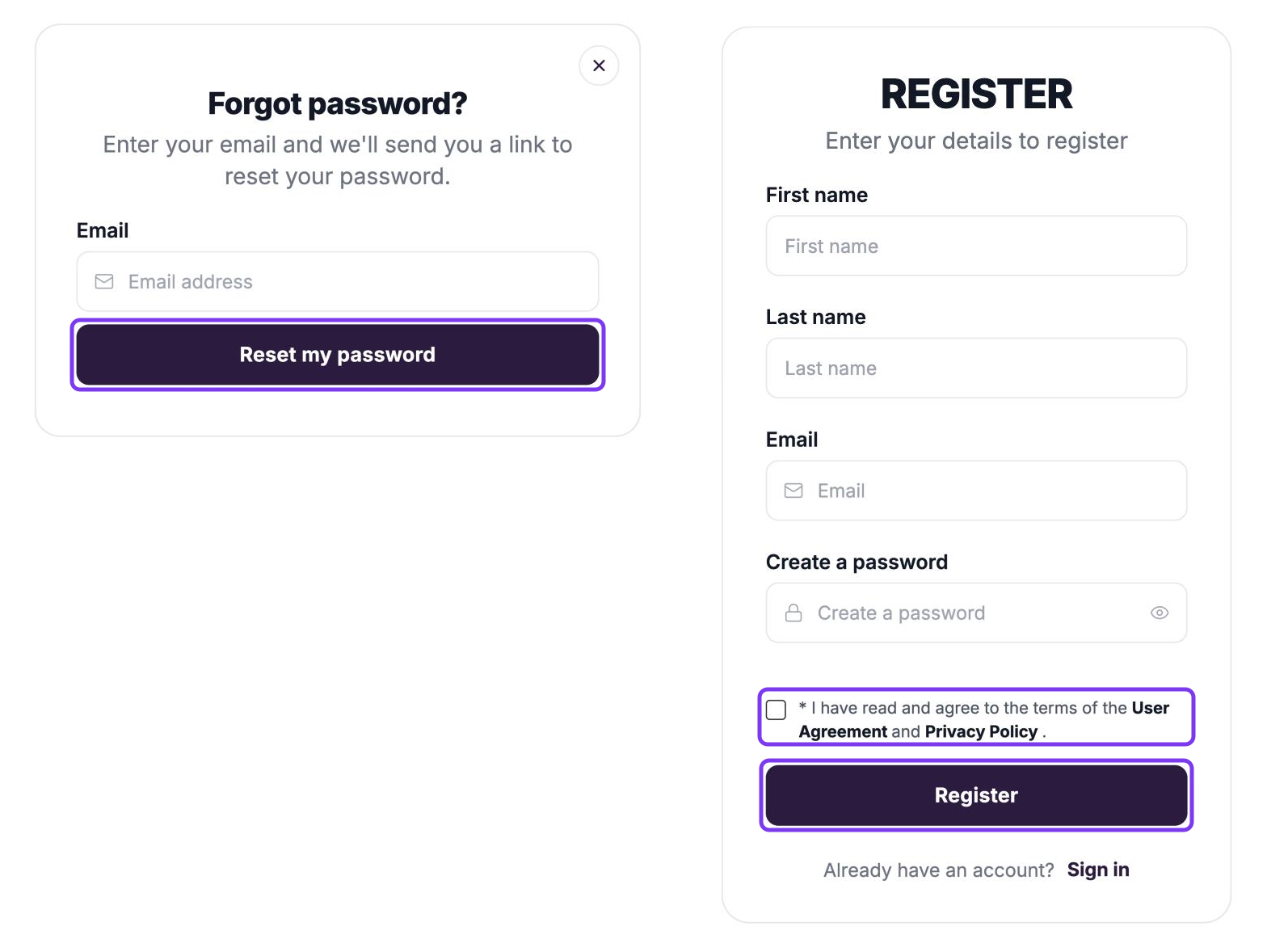
Enter your email address and click Reset my password.
Open the email from Coursebox and follow the link to create a new password.
Tip: If you don't receive the reset email, check your spam folder. You can also sign in with Email me a link instead, with no password at all.
Create an account
If you don't have a Coursebox account yet, create one first. Registration forms can look slightly different depending on how your organisation has set up its portal.
On the Sign in form, click Create account.
Enter your First name, Last name and Email.
In Create a password, enter a password that meets the requirements below.
Tick the box to agree to the User Agreement and Privacy Policy.
Click Register.
Some portals also ask for a VIP code, or label the button Register and Start or Register and Request. If you already have an account, click Sign in at the bottom of the form.
Password requirements
By default, a Coursebox password must have:
At least 12 characters
At least one uppercase letter
At least one lowercase letter
At least one number
At least one special character (for example !, @ or #)
Your portal admin can change these requirements. See Security Settings.
After email verification
When you register, Coursebox sends a Confirm Registration email. Click Confirm Registration in the email to confirm your address, then sign in. If you change your email address later, you get a verification email for the new address.

Troubleshooting
Invalid email or password: Check your email address and password. Passwords are case-sensitive. If you still can't sign in, reset your password with Forgot password?, or use Email me a link.
Account already exists: If you see an error saying an account already exists with your email, sign in with that account instead. Use Email me a link if you don't remember your password.
Emails not arriving: Check your spam or junk folder. Ask your IT team to whitelist the coursebox.ai domain (emails are sent from noreply@coursebox.ai) at the server level.
Randomly being signed out: Clear your browser cache and cookies. Make sure your browser isn't set to clear cookies when it closes.
Can't see any courses after signing in: You may not have been enrolled in any courses yet. Contact your portal admin or the course owner to confirm your enrolment.