Coursebox Mobile Apps
Coursebox has one mobile app, available on both Android and iOS. The same app is used by learners whose courses are hosted on my.coursebox.ai and by organisations running their own branded portal.
Download links
Apple App Store (iOS / iPadOS) — app name Coursebox: apps.apple.com/au/app/coursebox/id1381123578
Google Play (Android) — app name Coursebox: play.google.com/store/apps/details?id=com.opentute.android
Signing in
If your courses are hosted on my.coursebox.ai, sign in with your Coursebox email and password.
If your organisation runs its own branded portal, find your portal in the app, then sign in with the credentials your organisation gave you.
Searching for your portal in the app: search for your portal by its Portal Name, not its URL. For example, if your Portal Name is "Acme Learning", search for "Acme Learning". A Super Admin can check the Portal Name in the profile menu under Theme Settings → General. See Platform Theme.
What the app allows
Access courses hosted on Coursebox or in your organisation’s portal
Learn through a branded experience where your organisation has one
Complete learning activities securely
Get your own branded app
As well as the app above, you can have a fully branded app of your own. Instead of your learners using the shared Coursebox app and searching for your portal, they download your organisation's own app, with your name and icon, straight from the App Store and Google Play. Coursebox builds and publishes the app for you, so your learning has its own presence on the app stores and learners recognise your brand.
It is available as an add-on on Pro + LMS and Enterprise. Compare plans.
On an earlier plan? Plan names and inclusions changed when we moved to Free, Creator, Pro, Pro + LMS and Enterprise. If you are on an earlier plan, your subscription continues unchanged and you keep everything it included — so you may still see features this article lists under a higher plan. Nothing has been removed from your account.
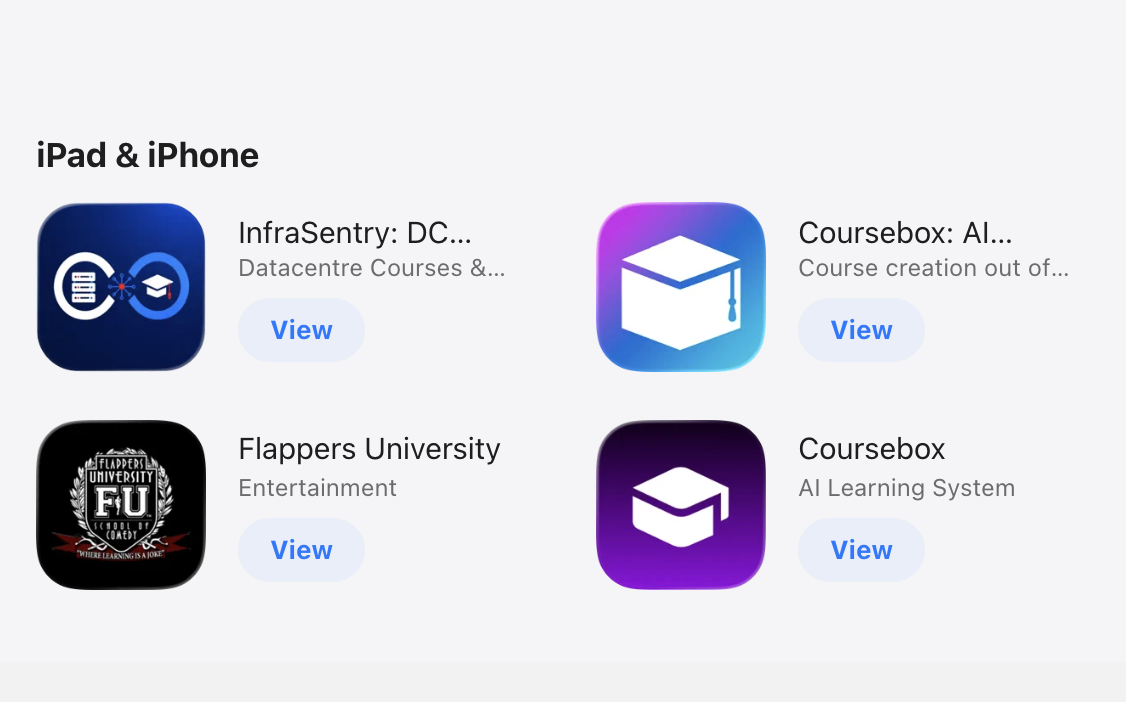
Organisations already using their own Coursebox-built app include:
To add a branded app to your plan, contact the Coursebox team at support@coursebox.ai.